GLB Web Budget
 Nachiket Bhand
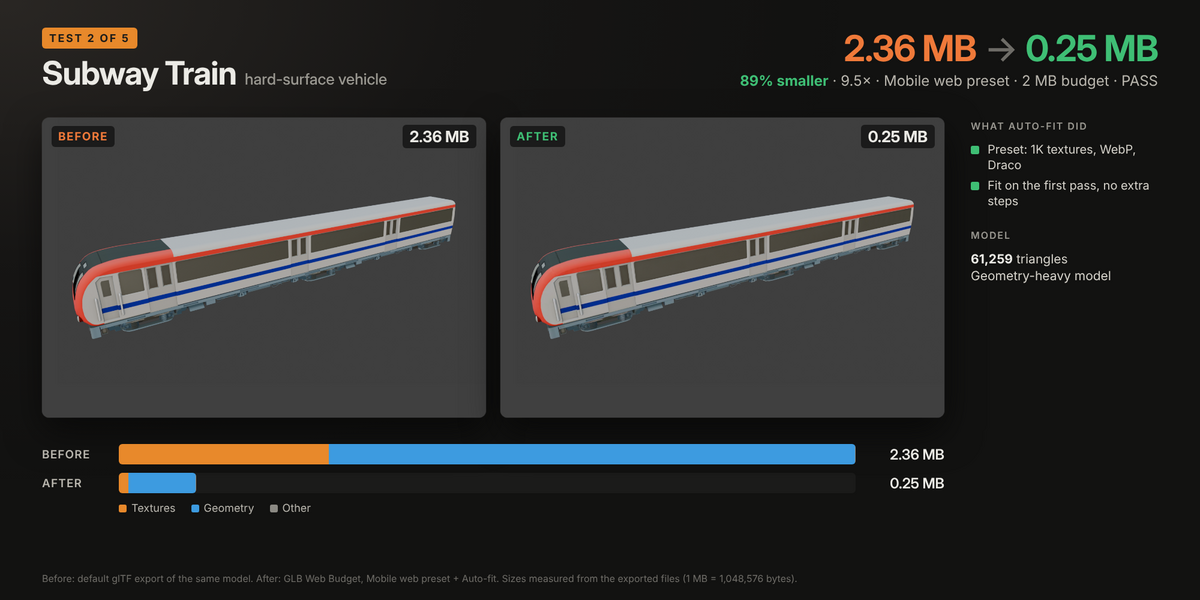
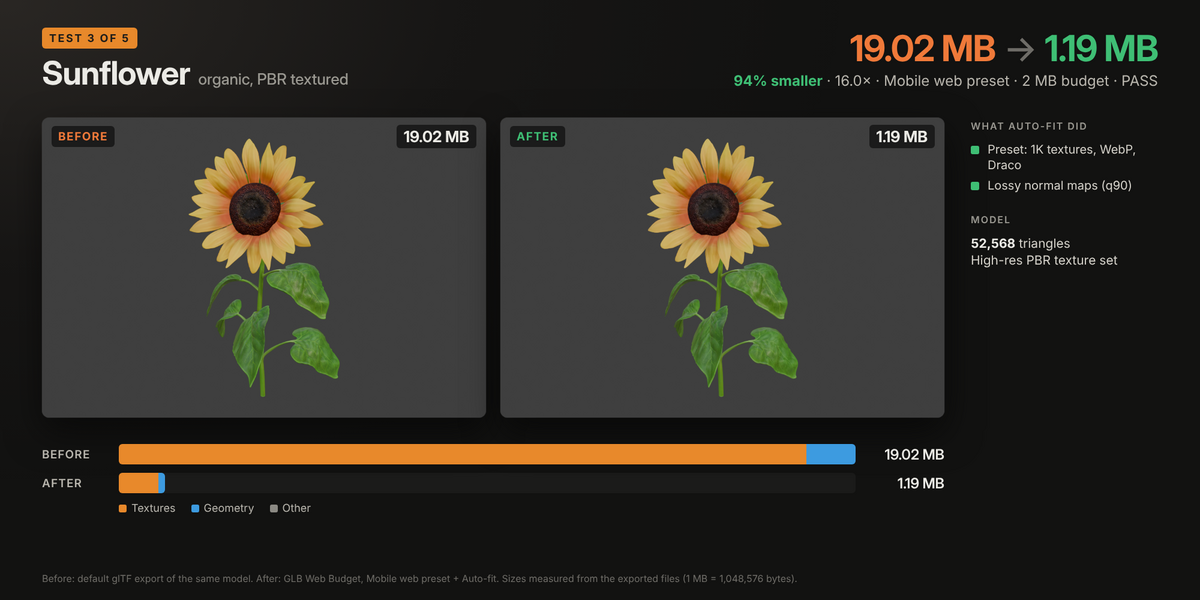
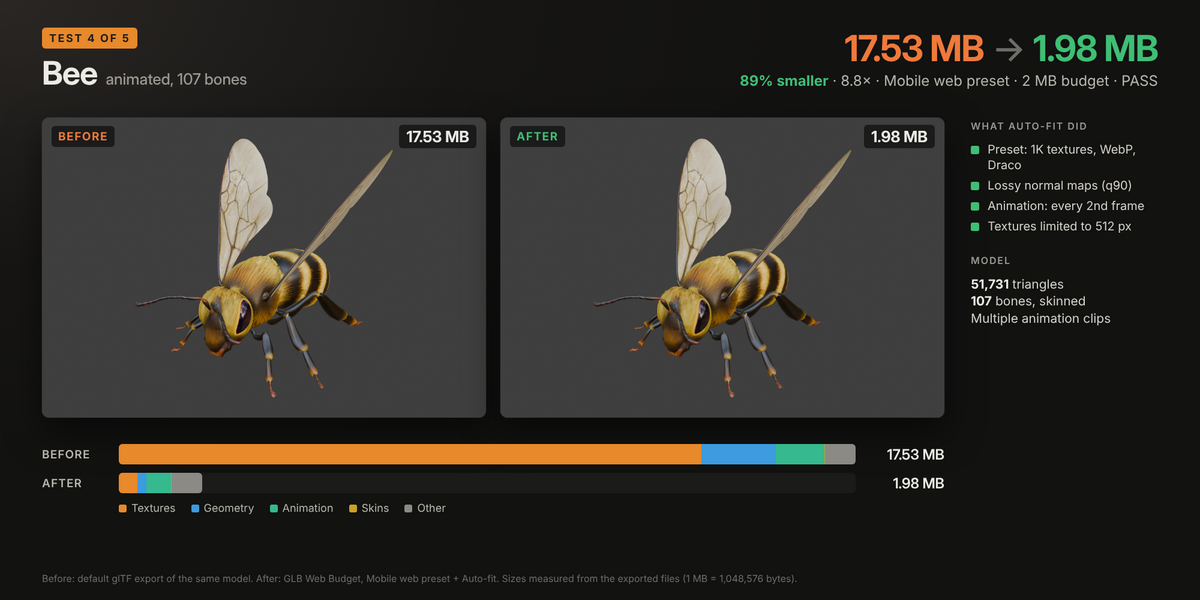
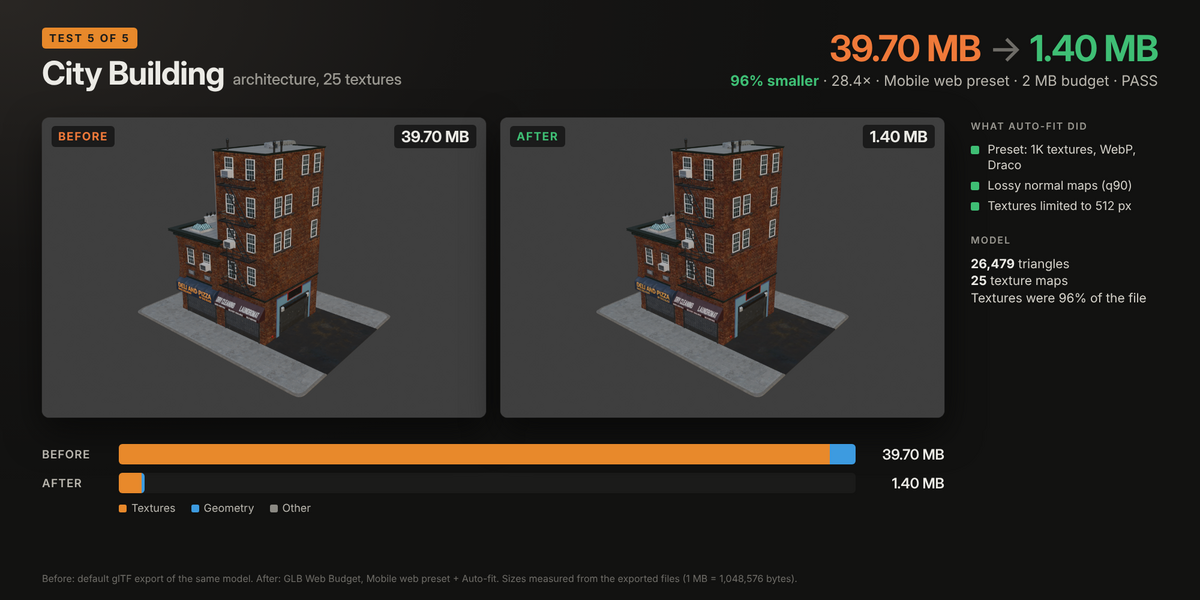
GLB Web Budget: User Guide
Version 1.0.0 · for Blender 4.2 LTS and newer
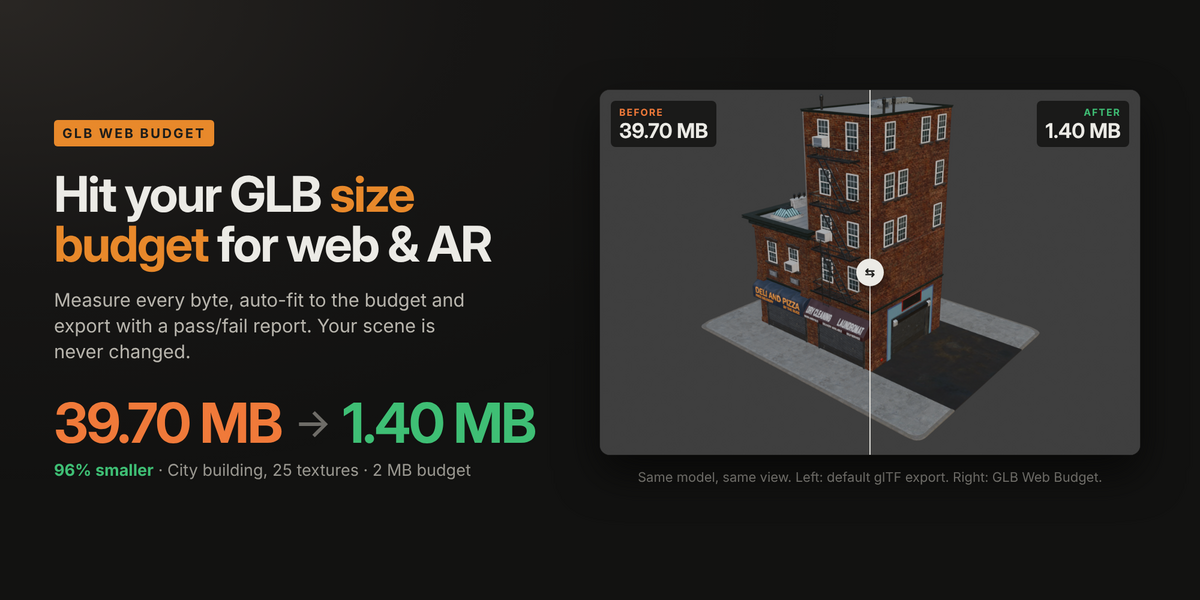
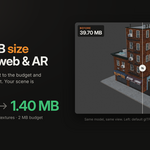
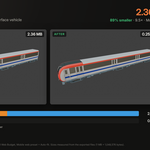
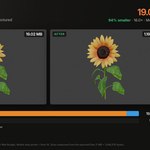
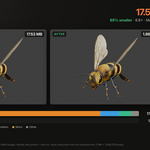
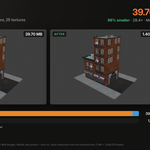
GLB Web Budget exports a GLB that fits a file-size budget for the web and AR. It shows exactly where the megabytes go, fixes them during export without changing your scene, and writes a pass/fail report for your web developer.
Everything runs inside Blender with its built-in glTF exporter. There is nothing else to install: no Node.js, no glTF-Transform, no command line.
1. Requirements
- Blender: 4.2 LTS or newer (tested on 4.2 LTS and 5.1)
- Operating system: Windows, macOS or Linux
- glTF exporter: Blender's built-in "glTF 2.0 format" add-on, enabled (it is on by default)
- Draco compression: uses the Draco library bundled with Blender. If your build doesn't include it, the option is hidden.
2. Installation
Option A: drag and drop (fastest)
- Download glb_web_budget-1.0.0.zip from your Superhive downloads. Don't unzip it.
- Drag the zip into any Blender window and confirm Install.
Option B: from Preferences
- Open Edit › Preferences › Get Extensions.
- Click the ⌄ menu (top right), choose Install from Disk… and pick the zip.
Check it worked: in the 3D Viewport press N and open the Web Budget tab.
Update: install the newer zip the same way. Your saved presets are kept.
Uninstall: open Edit › Preferences › Add-ons, find GLB Web Budget, and click ⌄ › Uninstall.
3. Quick start (2 minutes)
- Open the Web Budget tab in the 3D Viewport sidebar (N).
- Choose a target preset (for example Web hero, 5 MB) and a scope (Selection, Visible, Active collection or Scene).
- Click Measure. You see the exact size, a breakdown and the heaviest items.
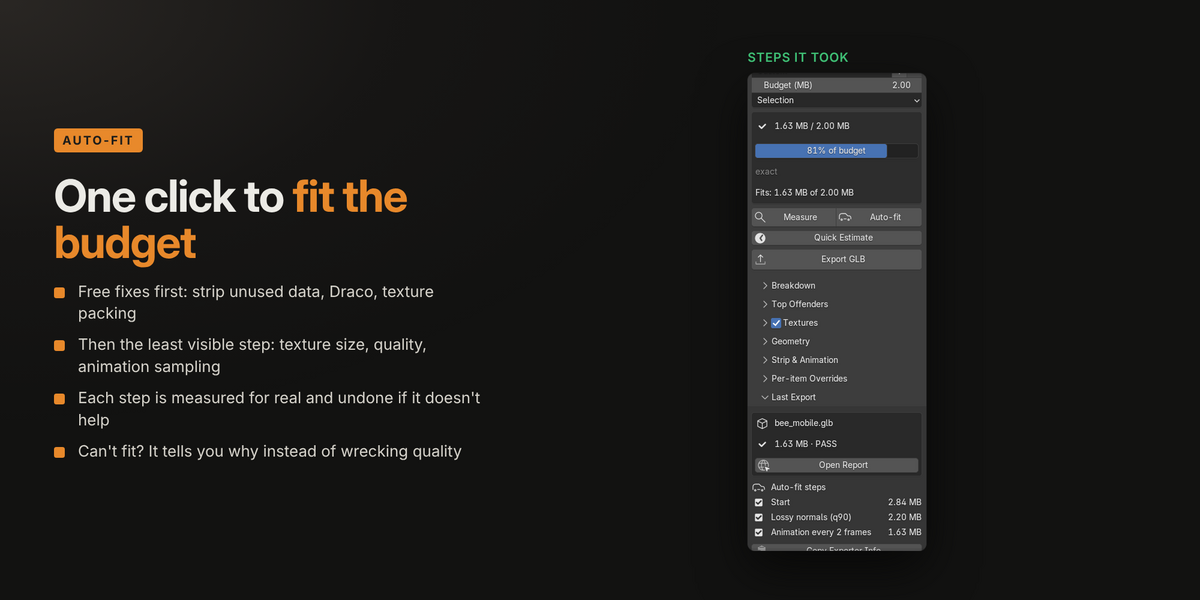
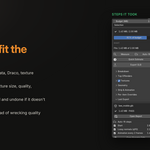
- Over budget? Click Auto-fit. It tries fixes from least to most visible until the file fits.
- Click Export GLB. The GLB and its report are saved side by side.
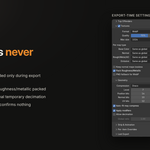
Your .blend is never modified. All changes exist only while the file is being exported.
4. Where to find it
- 3D Viewport › Sidebar (N) › Web Budget: the main panel.
- File › Export › glTF Binary for Web (.glb, budgeted): export with the current Web Budget settings.
5. The panel
5.1 Target
- Preset menu: loads a starting point (budget, texture size, formats, compression). Editing any setting switches the label to Custom.
- + / −: save the current settings as your own preset, or delete the selected one.
- Budget (MB): the maximum file size. 1 MB = 1,048,576 bytes, the same as Blender and Windows Explorer.
- Scope: what gets exported. Selection, Visible (default), Active collection (including nested collections) or Scene.
5.2 Status
Shows size / budget with a progress bar. A tick means the file fits; a warning icon means it is over budget.
- exact: the number comes from a real export (Measure, Auto-fit or Export).
- ≈ estimate: the number comes from Quick Estimate.
- settings changed, re-measure: you changed a setting since the last measurement.
5.3 Buttons
None of these buttons change your scene.
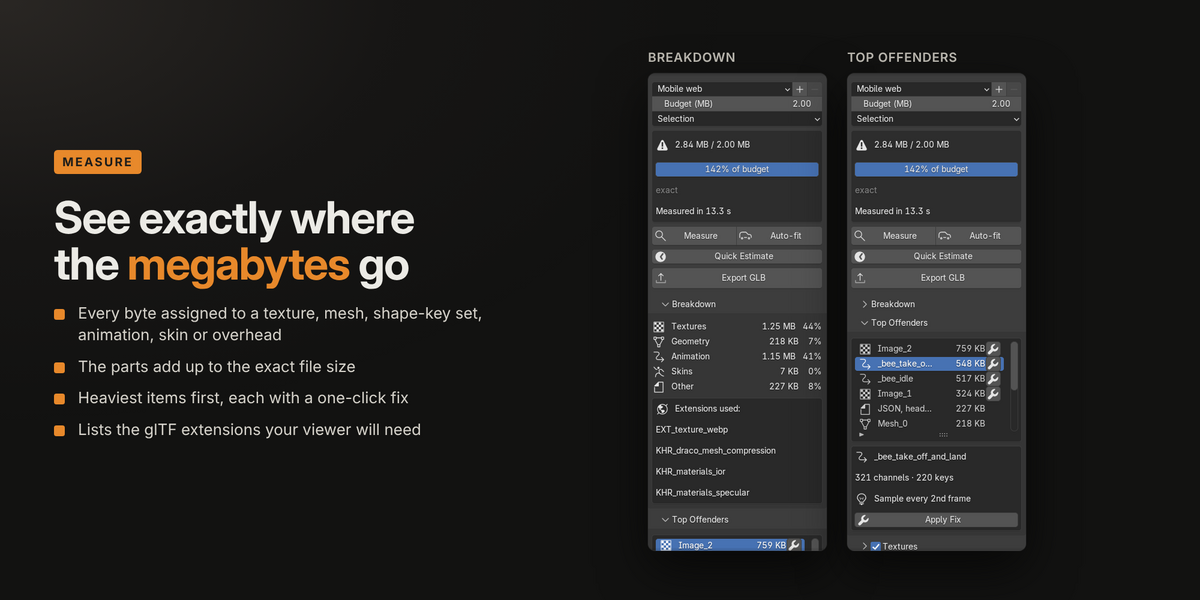
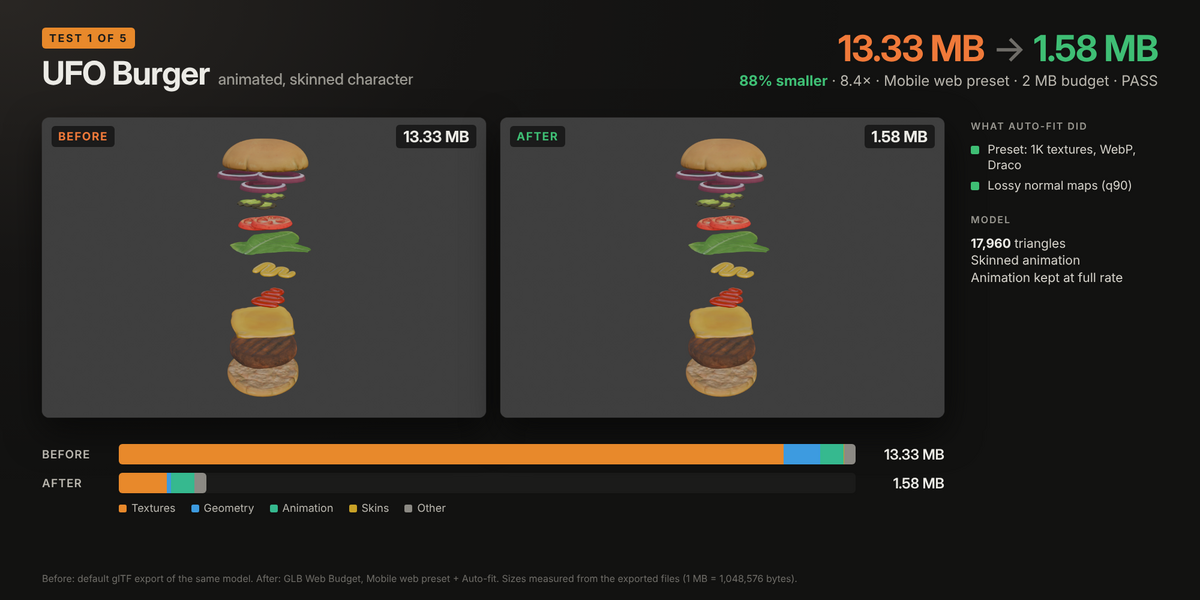
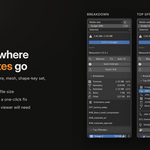
- Measure: exports to a temporary file and assigns every byte to a texture, mesh, shape-key set, animation, skin or overhead. The parts add up to the exact file size.
- Auto-fit: applies fixes one at a time and re-measures after each, until the GLB fits. Only Web Budget settings change, so you can review its choices.
- Quick Estimate: an instant approximate size without exporting. Useful on very large scenes.
- Export GLB: exports with the current settings and writes the HTML and JSON report.
5.4 Breakdown
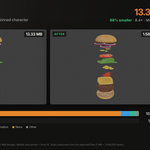
Size and share for each category: Textures, Geometry, Morph targets (shape keys), Animation, Skins and Other (JSON, headers and padding).
Extensions used lists the glTF extensions in the file, which tells your web developer which decoders the viewer needs.
5.5 Top Offenders
The heaviest items, largest first. Select a row to see its details (resolution and format, triangle count, number of shape keys), a suggestion and an Apply Fix button. The fix is applied as an export setting:
- Texture: caps that image at half its current resolution (adds a per-image override).
- Mesh, uncompressed: turns on Draco compression.
- Mesh, heavy: exports that object at 50% of its polygons (adds a per-object decimate override).
- Shape keys: stops exporting morph-target normals.
- Animation: samples every 2nd frame.
Warnings appear below the list, for example a texture that could not be read.
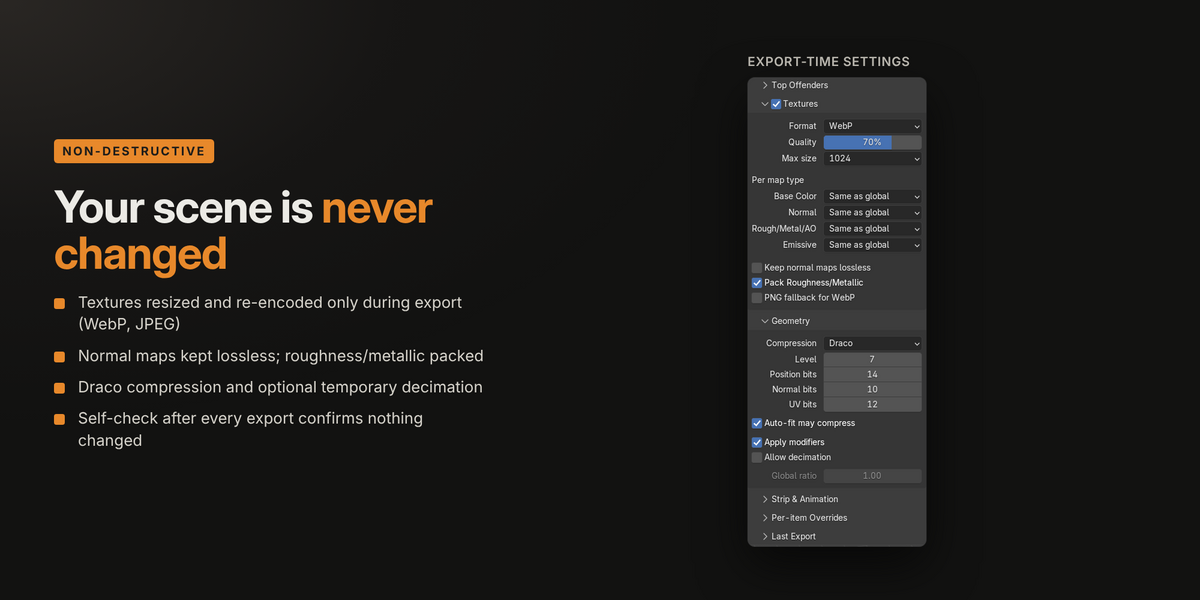
5.6 Textures
Tick the checkbox in the header to turn texture optimisation on or off.
- Format (default WebP): WebP is smallest. JPEG is supported everywhere. Keep original only resizes. Images whose alpha is used are never saved as JPEG.
- Quality (default 80): lossy quality for WebP and JPEG.
- Max size (default 2048): longest side in pixels. Aspect ratio is kept.
- Per map type (default: same as global): separate caps for Base Color, Normal, Rough/Metal/AO and Emissive.
- Keep normal maps lossless (default on): normal maps from lossless sources (PNG, 16-bit) are stored losslessly. Normals that are already JPEG are re-encoded at quality 90 instead of being inflated. With this off, normals still use at least quality 90.
- Pack Roughness/Metallic (default on): when roughness and metallic come from two images, they are packed into one texture in your chosen format. Without this, Blender's exporter writes a large PNG.
- PNG fallback for WebP (default off): also stores a PNG copy of each WebP texture for viewers without WebP support. Makes the file larger.
If re-encoding an image at its original size would not make it smaller, the original is kept.
5.7 Geometry
- Mesh compression (default Draco): Draco usually shrinks geometry 5 to 10 times. The viewer needs a Draco decoder. None gives the widest compatibility.
- Level, Position / Normal / UV bits (default 6, 14, 10, 12): Draco effort and precision. Fewer bits means a smaller, less precise file.
- Auto-fit may compress (default on): lets Auto-fit turn on Draco. Off in the AR preset.
- Apply modifiers (default on): exports meshes with modifiers applied. Your objects keep their modifiers.
- Allow decimation (default off): lets Auto-fit reduce polygon counts with a temporary Decimate modifier.
- Global ratio (default 1.0): decimate ratio for every mesh in scope (1.0 = off). Per-object overrides take priority.
Objects with shape keys are never decimated, because Blender's exporter can't apply modifiers to them. You get a warning instead.
5.8 Strip and Animation
Don't export (all on by default): tangents (viewers compute them), unused vertex colours, custom attributes, unused images, custom properties, cameras and lights.
- Morph target normals (default on): exports normals for shape keys. Turning it off often halves shape-key data.
- Export animation (default on): include animations.
- Frame step (default 1): sample every Nth frame. 2 roughly halves animation data.
- Optimise animation size (default on): Blender's exporter removes redundant keyframes.
5.9 Per-item overrides
- Image + max size: cap one texture at a specific resolution. Added by Fix, or set by hand.
- Object + ratio: decimate one object during export. Select meshes, click Decimate Selected on Export, then set the ratio.
- X removes an override.
5.10 Last Export
Shows the last exported file, its size and PASS or OVER BUDGET, an Open Report button, and the steps Auto-fit tried (ticked = kept, unticked = undone). Copy Exporter Info copies your Blender's exporter details to the clipboard for bug reports.
6. Presets
- Web hero (three.js / R3F): 5 MB, textures up to 2048 px, WebP q80, Draco. For hero models on desktop sites.
- Product viewer / e-commerce: 3 MB, textures up to 2048 px, WebP q75, Draco. For model-viewer style product pages.
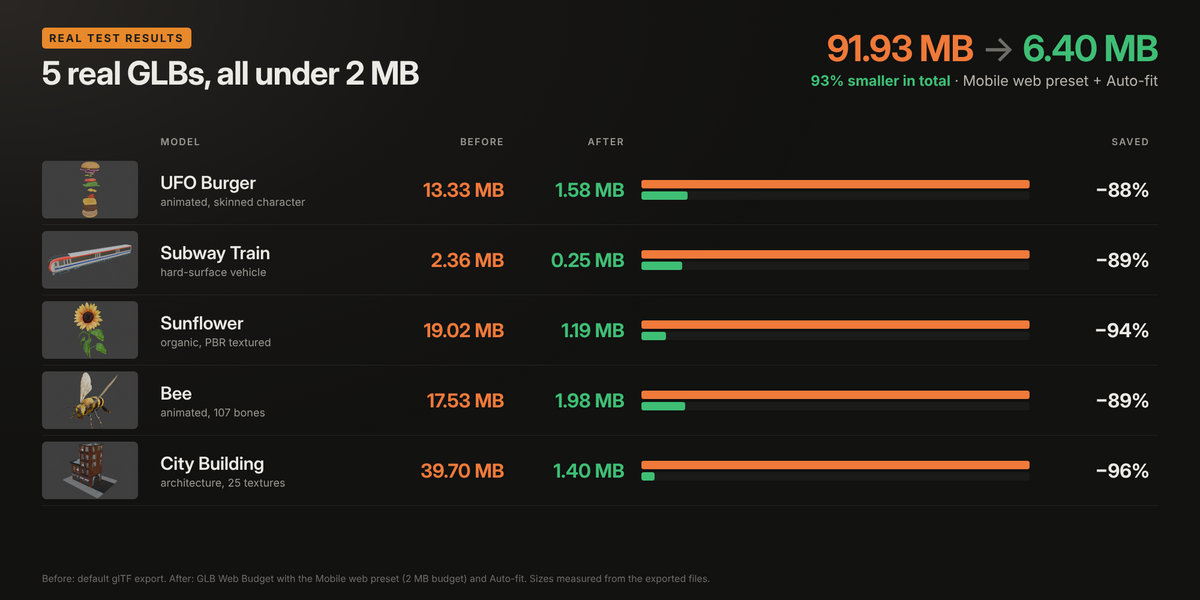
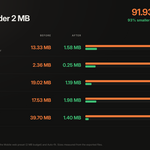
- Mobile web: 2 MB, textures up to 1024 px, WebP q70, Draco. For phones on mobile data.
- AR (Scene Viewer / WebXR): 4 MB, textures up to 2048 px, JPEG q85 / PNG, no mesh compression. For the widest AR viewer support.
- Custom: your own settings, for anything else.
Presets are starting points, not platform rules. Save your own with +. They are stored in the extension's user folder and survive updates. Choosing a preset resets every setting Auto-fit changed.
7. How Auto-fit decides
- Free steps first: strip unused data, turn on texture optimisation, pack roughness/metallic, and enable Draco (if allowed).
- Then the step with the most bytes saved for the least visual cost: texture size (4096 → 2048 → 1024 → 512 → 256), texture quality (down to 60), high-quality lossy normals (q90), dropping morph normals, animation frame step, coarser Draco precision, and decimation (only if allowed, never below 5%).
- Close to the budget, it picks the gentlest step that should close the gap, so it doesn't overshoot (for example quality 70 instead of halving every texture).
- Every step is measured for real. A step that doesn't save at least 1 KB and 0.5% is undone and not retried.
- If the budget can't be reached without heavy quality loss, Auto-fit makes no visible changes and names the problem category, for example: "Shape keys are 10.5 MB. Remove unused shape keys."
Auto-fit changes only Web Budget settings. Undo (Ctrl+Z) reverts them, or choose a preset again to reset everything.
8. The report
Each export writes three files to the same folder:
- name.glb: the model.
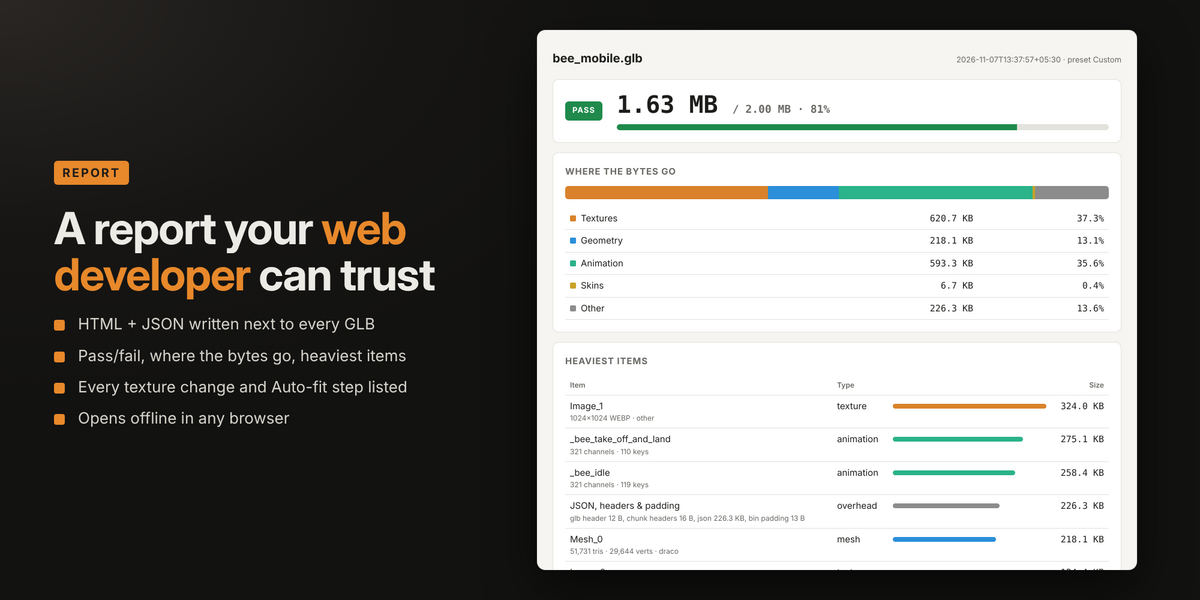
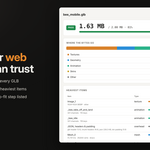
- name_report.html: opens offline in any browser. PASS or OVER BUDGET, where the bytes go, heaviest items, texture changes, Auto-fit steps, warnings, scene stats and an integrity check.
- name_report.json: the same data in machine-readable form, for pipelines and CI.
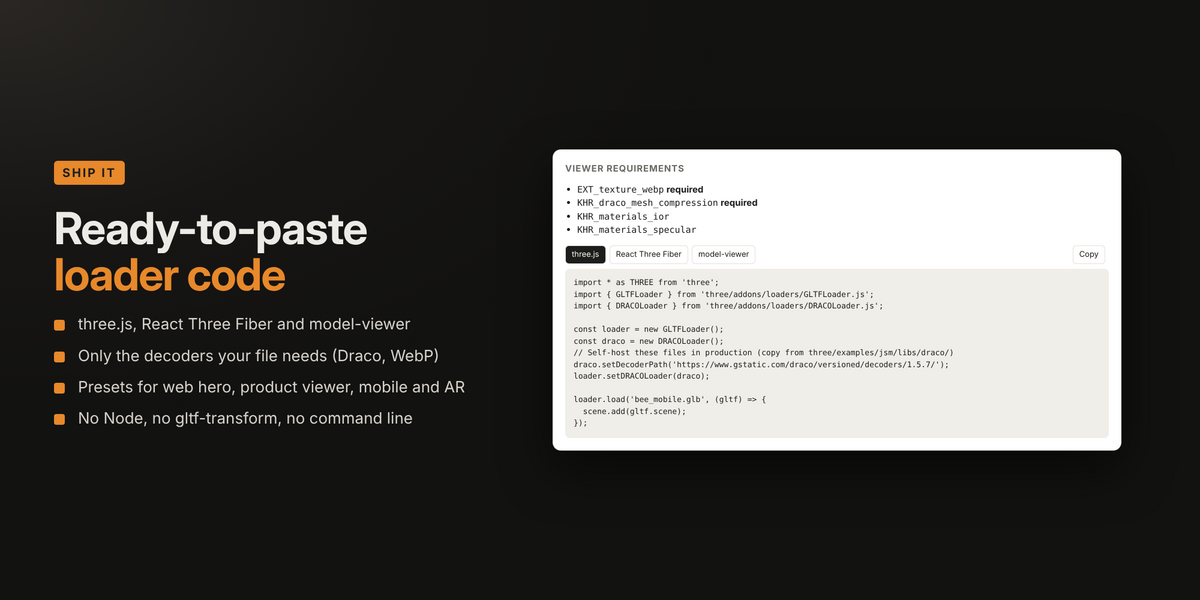
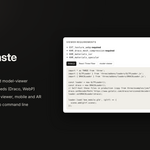
Viewer requirements: the report lists the glTF extensions in the file and gives copy-ready loader code for three.js, React Three Fiber and model-viewer.
- KHR_draco_mesh_compression: three.js needs DRACOLoader. React Three Fiber's useGLTF and model-viewer include it.
- EXT_texture_webp: needs WebP support (all current browsers; Safari 14 and newer).
- KHR_materials_* and KHR_texture_transform: supported by three.js and model-viewer.
9. Your scene is never changed
Every fix lives only for the duration of the export:
- Textures are resized and encoded into temporary copies, swapped in, then swapped back.
- Decimation uses a temporary modifier that is removed afterwards.
- Roughness/metallic packing adds temporary nodes that are removed afterwards.
- Exporter options are passed directly, so your saved glTF export settings are not touched.
After each run, a self-check compares the scene with how it was before (data-block counts, image sizes, modifiers, node trees). If anything differs, it is reported in the panel and in the report.
10. Limitations
- UDIM textures, images linked from another .blend, and missing image files are exported unchanged (listed in warnings).
- Roughness/metallic that pass through Math, Invert or similar nodes can't be packed safely. Blender's exporter packs them as PNG.
- KTX2/Basis textures and meshopt compression need external tools and are not included.
- Objects with shape keys are not decimated.
- Measuring a very large scene takes as long as exporting it. Use Quick Estimate for a fast approximate number.
11. FAQ and troubleshooting
The Web Budget tab is missing.
Press N in the 3D Viewport. Check that the extension is enabled in Edit › Preferences › Add-ons.
"The glTF 2.0 exporter is not available."
Enable "glTF 2.0 format" in Edit › Preferences › Add-ons.
"Nothing to export."
The scope is empty. With Selection, select objects first. With Visible, check the objects aren't hidden.
Draco isn't in the Mesh compression menu.
Your Blender build doesn't include the Draco library. Use None, or a build from blender.org.
My GLB looks fine in Blender but shows nothing in my three.js page.
The file uses Draco. Add DRACOLoader. The report has the exact code.
Auto-fit stopped above the budget.
Read the message: it names the category that can't shrink further (often shape keys or geometry). Turn on Allow decimation, remove unused shape keys, or raise the budget.
Textures look too soft.
Raise Max size for that map type, or add a per-image override for the important textures and let the others shrink.
Normal maps show banding.
Keep "Keep normal maps lossless" on, or raise the Normal max size.
Does it work in background mode or scripts?
Yes. The operators are bpy.ops.web_budget.measure(), .autofit() and .export(filepath=...).
Why does Measure take a while?
It runs a real export so the numbers are exact. Encoded textures are cached, so repeated measurements are faster.
12. Support
Message me through the Superhive product page (Contact creator). I aim to reply within 72 hours.
Reporting a bug? Please attach the _report.json file and the text from Last Export › Copy Exporter Info.
13. Licence
GLB Web Budget is free software, licensed under the GNU General Public License v3.0 or later (GPL-3.0-or-later). The full text is in the LICENSE file included in the download. The source code is the Python files inside the extension zip.
Copyright © 2026 Nachiket. This program comes with ABSOLUTELY NO WARRANTY.
14. Changelog
1.0.0 (November 2026): first release. Measure, Auto-fit, budgeted export, presets, non-destructive texture and geometry fixes, roughness/metallic packing (including roughness stored in alpha, common in imported GLBs), and an HTML and JSON report with loader code.
 Included
Includes 12 months of
- Support from Nachiket Bhand
- Product updates
Extend this product’s Support Period +12 months: 50% of product price
Have questions before purchasing?
Login to message
| Blender Extension Compatible | Yes |
| Published | about 9 hours ago |
| Blender Version | 4.2 - 5.1 |
| Extension Type | Add-on |
| Render Engine Used | Cycles |
| License | GPL |
Discover more products like this
Webp glb optimization react-three-fiber gltf ar draco threejs Export webxr model-viewer web