GoboLab — 70 Gobo Light Presets for Blender
 Voyde Procedural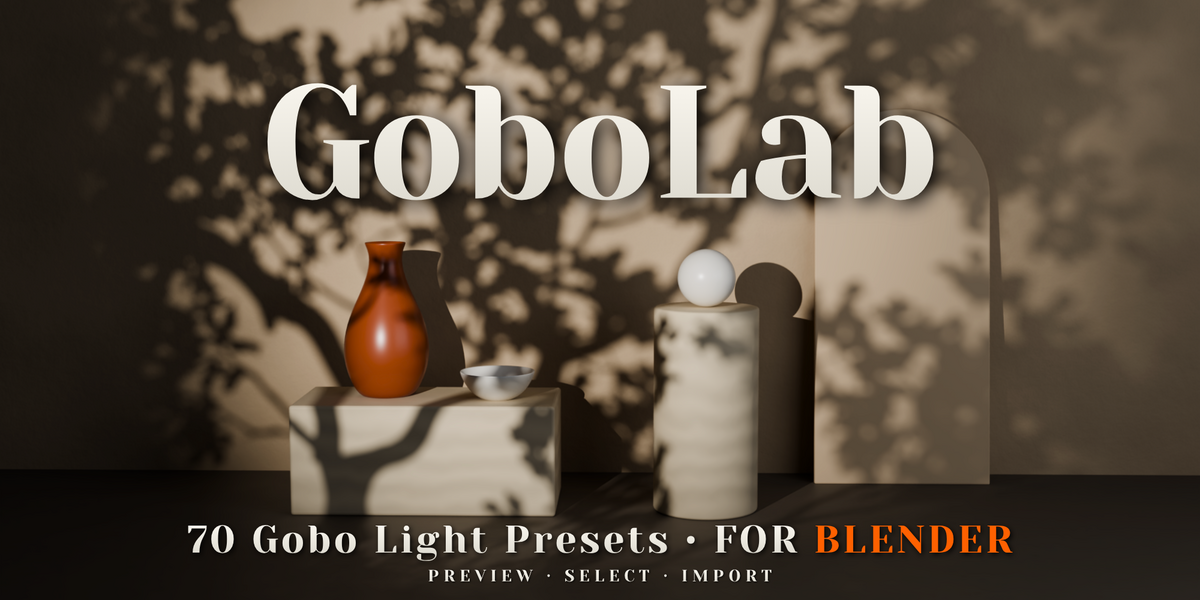
GoboLab — User Guide
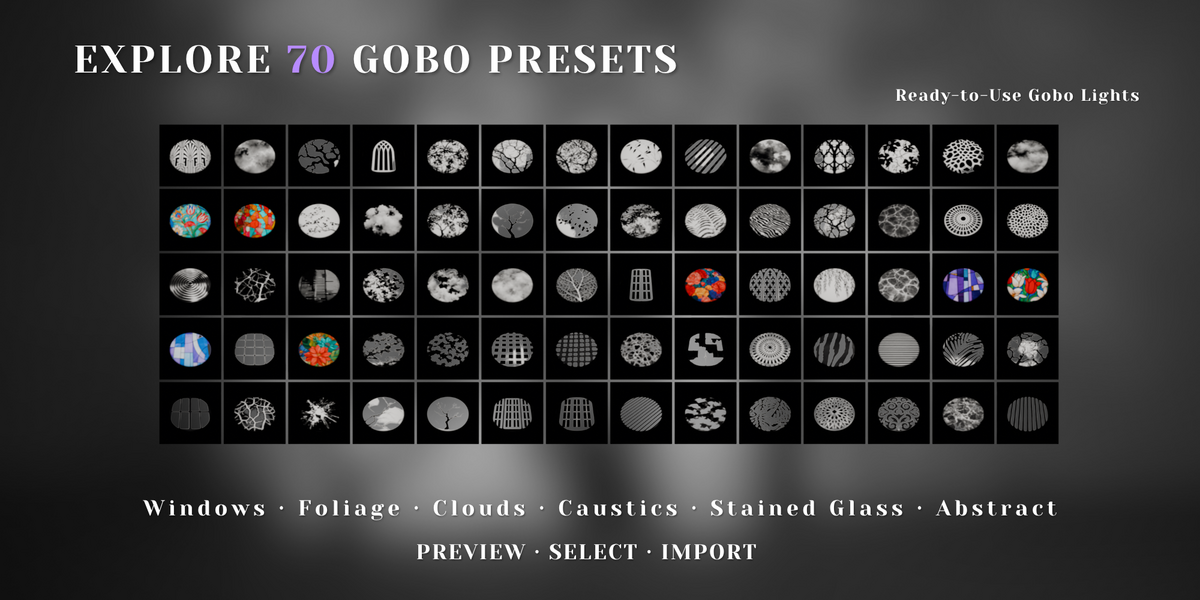
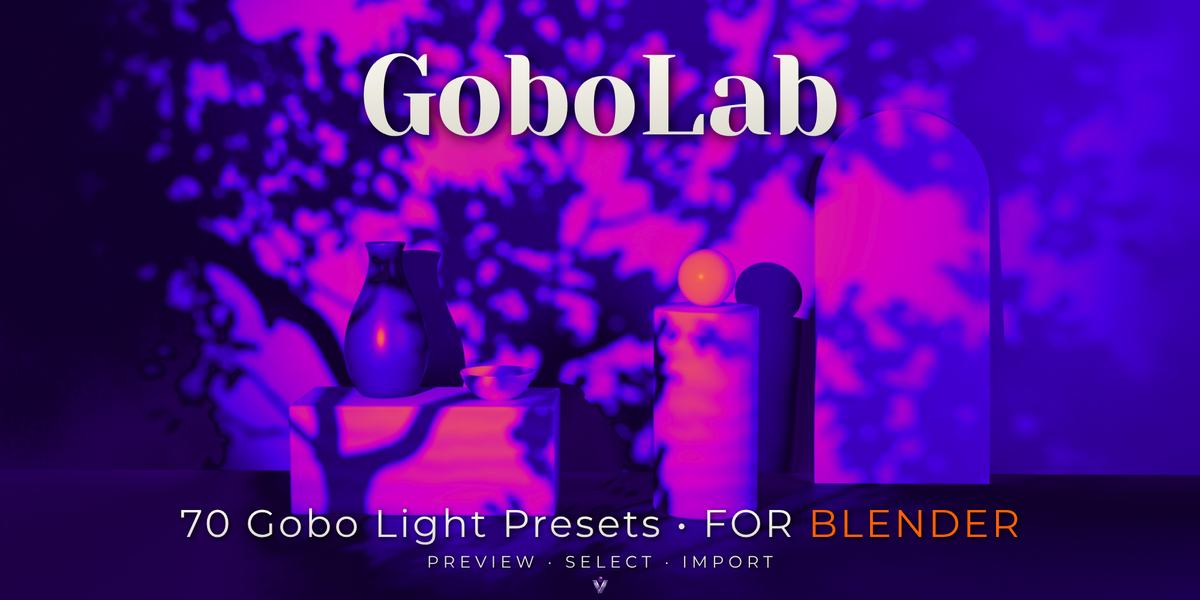
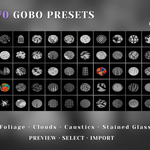
GoboLab is a Blender add-on containing 70 ready-to-use gobo light presets. It lets you preview patterns and import gobo lights into your scene from a compact sidebar panel.
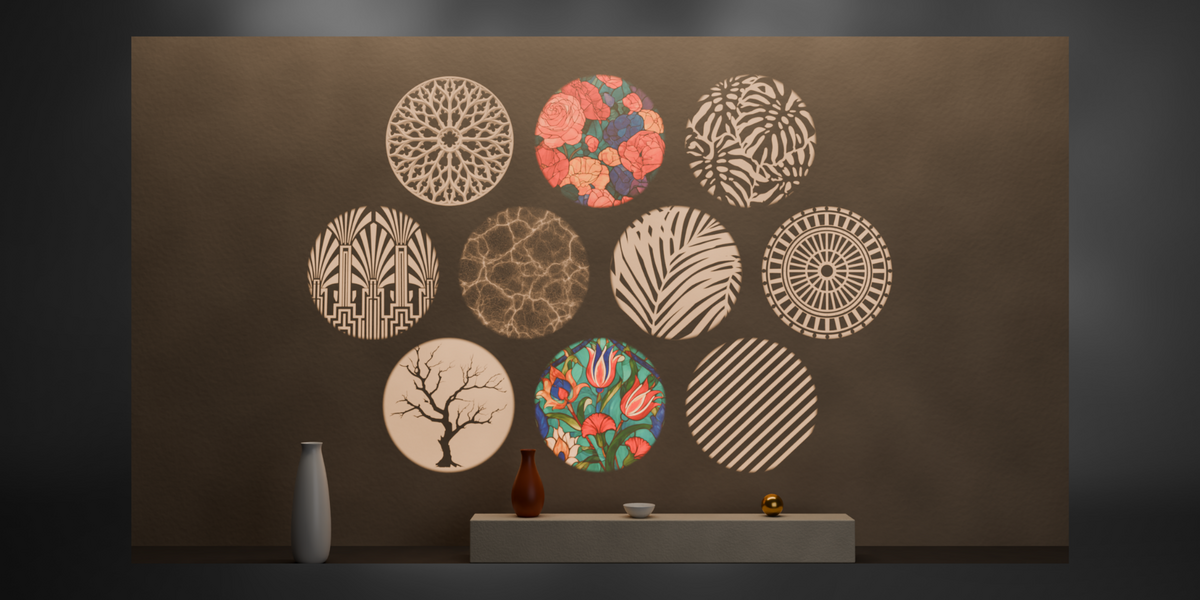
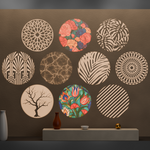
The collection includes window patterns, foliage, tree branches, stained glass, clouds, and abstract and geometric designs.
1. Installation
- Download the GoboLab add-on package from your Superhive purchases.
- Open Blender and go to Edit > Preferences > Add-ons.
- Open the menu in the upper-right corner and select Install from Disk.
- Select the GoboLab add-on ZIP file and confirm the installation.
- Find GoboLab in the add-on list and enable it.
Before installing, check the supported Blender versions and render engines listed in this product's software information.
2. Open the GoboLab Panel
- Move your cursor over the 3D Viewport.
- Press N to open the sidebar.
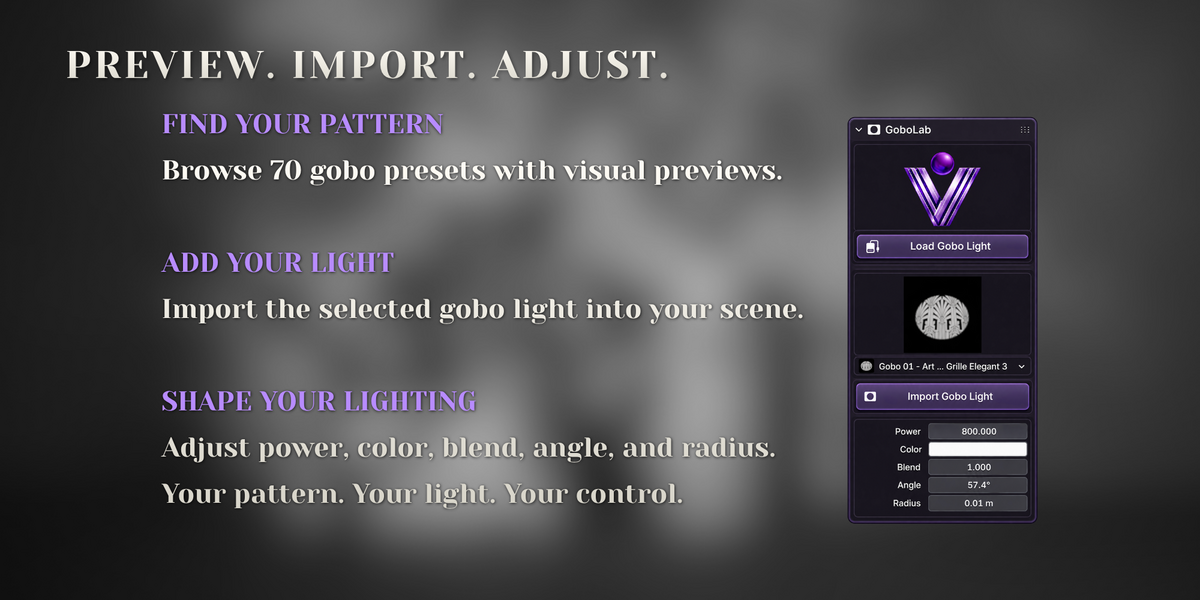
- Locate and expand the GoboLab panel.
3. Import a Gobo Light
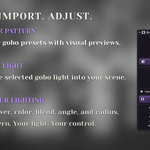
- Click Load Gobo Light.
- Choose a preset using the selector beneath the preview.
- Check the preview to identify the pattern you want.
- Click Import Gobo Light to add the selected preset to your scene.
- Position and rotate the imported light so that it points toward your subject or a receiving surface.
4. Preview the Result
Use Rendered viewport shading or render your scene to evaluate the lighting. Make sure the light is aimed at a visible surface, such as a wall, floor, or object.
The appearance of the pattern depends on the light's position, angle, distance, and the surface receiving the light. Strong surrounding lighting can make the projected pattern harder to see.
5. Troubleshooting
- The panel is missing: Check that GoboLab is enabled in Preferences, then open the sidebar in the 3D Viewport.
- The pattern is not visible: Check the render engine, use Rendered shading, and confirm that the light points toward a surface.
- The result looks too faint: Check the light's power, its distance from the subject, and the brightness of other lights in the scene.
- The pattern appears distorted: Adjust the light's angle and position relative to the receiving surface.
6. Support
For help, contact the creator through Superhive. Include your Blender version, operating system, render engine, a description of the issue, and any relevant screenshots or error messages.
Have questions about this product?
Login to message
| Blender Extension Compatible | Yes |
| Published | 2 days ago |
| Blender Version | 5.0 - 5.2 |
| Extension Type | Add-on |
| Render Engine Used | Cycles, Eevee |
| License | GPL |
Discover more products like this
architectural visualization gobo product lighting projected light cinematic-lighting window shadows gobo lighting stained glass Lighting presets foliage shadows Light Patterns Gobo-light