 rfarencibia



🔍 What it does
Allows you to:
-
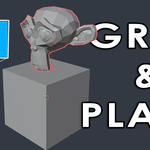
Click to select a mesh object
-
Drag it interactively in the 3D View
-
Release to drop it onto another surface with auto-offset based on its lowest vertex
🧰 Where to find it
-
In the 3D View:
-
Toolbar(T key) – as a Workspace Tool -
N-Panel > Grab and Placetab
-
🧭 Usage
-
Activate the tool via:
-
N-Panel: click “Activate Grab & Place Tool”
-
Shortcut (left-click drag)
-
-
Click an object → Drag
-
Release to place it with offset
-
Press
ESCto cancel or exit the tool
⚙️ Settings
-
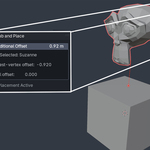
Placement Offset: Adjust in the N-Panel to add extra height to the auto-placement (based on the object's lowest vertex)
-
You’ll see calculated auto-offset and total offset shown in the panel when an object is selected
⛑️ Tips
-
Only works with mesh objects
-
Use
ESCto cancel or exit -
Snapping is temporarily enabled to ensure proper placement on faces
-
Auto-resets to
Selecttool after use
🐛 Troubleshooting
-
Tool doesn’t start? Check if a mesh object is selected
-
Already active? Tool won’t allow multiple placements at once
