Greaseliner
 Kito Studio


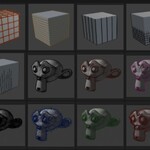
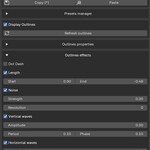
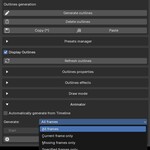
**************************************************
Greaseliner 2.0
Kito Studio 2026
**************************************************
A - Presentation
============
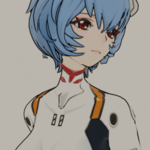
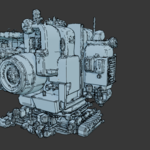
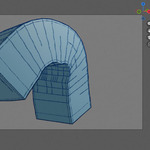
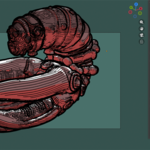
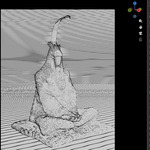
Greaseliner is an addon that allows to generate outlines and contour, mainly based on Grease Pencil features.
The outlines are generated based on the typology of the meshes.
Different styles can be obtained by playing with the multiple parameters and effects of the addon.
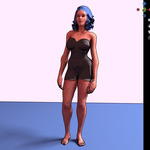
Greaseliner is designed for stylized and artistic image rendering, rigged characters and animated scenes.
While using Grease Pencil strokes, Greaseliner can be very gluttonous in memory consumption.
- It is not recommended to use it for huge Production project or complex meshes with hundred of thousands of edges.
You may encounter issue when generating the outlines.
Simple actions to fix:
- Clean your mesh before generate the outlines : In Edit mode, select all your mesh, then execute "Clean Up/Delete loose, Degenerate dissolve, Merge by distance"
Greaseliner is only compatible with Blender 4.5 and upward since it is using Grease Pencil v3 model.
B - Releases
============
Greaseliner basic version is a limited release of the addon.
It allows to manipulate following features:
- Generation and deletion of outlines
- Display/Hide outlines
- Configuration of color, opacity, lines and contour width, wrap distance and minimum angle value
Greaseliner full version offers following additional features:
- Copy/paste outlines from an object to another
- Presets manager
- Predefined configuration available through thumbnail
- Save preset to file
- Load preset from file
- Advanced configuration of X/Y/Z axis for strokes generation
- Threshold for each axis in all direction
- Randomness for each axis in all direction
- Lines generation based on local or world axis
- Line effects: Dotdash, Length, Noise, Horizontal and Vertical Waves
- Draw mode
Greaseliner full with animator offers following feature on top of the full version:
- Animator module allowing:
- Automatic refresh of strokes at each frame change
- Manual refresh with following options:
- All frames
- Current frame only
- Missing frame only
- Specified frames only
1 - Installation
================
- Drag and drop the Greaseliner zip file to your opened Blender session
or
- Run Blender
- Go to Edit/Preferences/Add-ons
- Click the menu "Install from disk..." in the top right of the preferences windows
- Navigate to the Greaseliner zip file
- Select and validate
Et voilà! The addon is installed.
2 - Access to the addon
=======================
Greaseliner is accessible in the N-Panel in the "Greaseliner" tab.
3 - Outlines generation features
================================
Greaseliner allows you to generate automatically outlines and contour for your meshes.
The result is a Grease Pencil object linked as child of your mesh.
Contour is automatically generated using the "Inverse Hull" method
3.1/ Generate lines
Clean first your mesh before generating lines:
- In Edit mode, select all your mesh, then execute "Clean Up/Delete loose, Degenerate dissolve, Merge by distance"
Select your mesh in object mode, then go to the addon tab and click on "Generate outlines".
The initial result may seem a little weird.
But start to play with lines and contour width, wrap distance and minimum angle, you should start to see incredible result.
3.2/ Delete outlines
If you want to get ride of the generated outlines, or need to restart from scratch, just click on "Delete outlines"
This will delete the Grease Pencil object and all other modifiers generated by the addon on your mesh.
3.3/ Copy/paste outlines (full and animator version only)
Select a mesh where you have already configured outlines.
Click on "Copy". You will see a * displayed near the label.
Now select another object and click on "Paste". The outlines will be copied on your object with all the same values as copied.
You can paste your configuration several times. No need to recopy it each time.
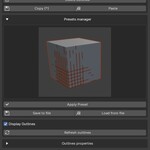
3.4/ Presets manager (full and animator versions only)
- The presets manager proposed 22 pre-configured strokes configuration.
Select a preset and click "Apply preset"
- Click "Save to File" so save your current configuration into a file.
Then you can reapply your configuration on any meshes in any of your project with the "Load from file" button
- Hints : You can define the default load and save path of the files in the Preferences of the addon.
3.5/ Display outlines
- By checking/unchecking "Display outlines" option, you can display or hide all the outlines and contour generated on objects in your scene.
- The "Refresh outlines" button allows the regeneration the current strokes configuration if your meshes have changed.
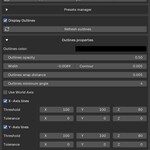
4 - Outlines properties
=======================
After having generate your outlines, you can start playing with the properties.
Results will be updated instantly on your mesh.
4.1/ Color
Allows to select the color of the outlines and contour
4.2/ Opacity
Allows to specify the opacity of the outlines and contour
4.3/ Width
Allows to specify the width of the outlines (not the contour)
Minimum value is -0.01 which will make the line disappear. Values around -0.0090 will generate wery thin lines
4.4/Contour
Allows to specify the width of the lines of the contour.
Value 0 will make the contour disappear.
4.5/ Outlines wrap distance
Allows to create a distance between the outlines and the mesh.
Value 0 will wrap the lines exactly on the surface of the mesh.
4.6/ Outlines minimum angle
This parameter is very important. It determines the minimum angle between two faces where a line will be generated.
Value 0 will generate all the edges from your mesh typology (equivalent to the wireframe display in edit mode).
Be warned that each time you modify the value, the outlines will be regenerated. Meaning it can take time if you are working on a complex mesh.
4.7/ Use World Axis (full and animator version only)
- By default, the strokes are generated based on the local axis of the object.
- By checking the "Use World Axis" option, you can specify to generated the strokes based on the World global axis.
4.8/ X/Y/Z axis (full and animator version only)
X/Y/Z axis parameters are very powerful and will allow you to customize the final result.
- Check X, Y and Z axis to choose which edge direction will generated strokes or not
- X corresponds to the edges which dominant direction is horizontal in the width axis of the object)
- Y corresponds to the edges which dominant direction is horizontal in the depth axis of the object)
- Z corresponds to the edges which dominant direction is vertical
- For each:
- Threshold X/Y/Z specify the percentage of the object dimension where strokes will be generated:
- Value 0 is equivalent to uncheck the axis, meaning no line is generated
- Value 100 will generate lines covering the entire dimension of the object, in X, Y or Z
- Value 50 will generate lines only until the middle of the object dimension
- Negative values will generated the lines starting from the other side of the axis
- Tolerance will generate random lines above the threshold value:
- Value 0 will generate no random line
- Value 100 will generate random lines along the entire axis, beyond the threshold limit
- Value 50 will generate random lines, limited to the middle length of the axis
- Combine X/Y/Z Threshold and Tolerance values to obtain customized style.
5 - Outlines effects (full and animator versions only)
======================================================
These will apply special effects on the generated lines.
5.1/ Dot dash (full version only)
Transform the lines to points, generated a dotted effect
5.2/ Length (full version only)
Allow to specify extra-length for the starting and ending points of the lines.
This will create a hand-drawn style.
5.3/ Noise (full version only)
Allow to add noise to the lines.
Depending on your typology and length of the lines, you can modifiy the resolution to accentuate the effect.
5.4/ Vertical and Horizontal Waves (full version only)
Allow to add a wave effect to the lines, defined by the amplitude, period and phase.
6 - Draw mode (full and animator versions only)
===============================================
Draw mode allows you to switch to Grease Pencil draw mode.
Use the "Enter draw mode" to switch the working view.
You can then select any available brushes to draw additional lines to your mesh.
By default, draw lines will have the same color and opacity than the generated lines.
You can freely change the color and radius of the lines while drawing.
You can use any eraser brushes to erase lines:
- When "Erase brushes affect only hand-drawn strokes" option is checked, you will be able to erase only the lines you have drawn. Generated lines will not be affected
- If unchecked, you will be able to erase any lines, even the ones that have been generated by the addon.
Warning: If you have erased some generated lines, be aware that modifying the values of "minimum angle", "world coordinate" or "X/Y/Z axis" will generated all the lines, overwriting your work.
Click on the "Exit draw mode" button to come back to object mode.
When you draw lines are created, you can still modify the color, opacity and width of the outlines. The value will be also applied to your drawn lines.
7 - Animator (Animator versions only)
=====================================
Animator is a very powerful module. It will allow you to apply you strokes configuration on each frames of your animation scene
- Open your project. It can handle as many frames you want, with static objects, deformed animated objects or even rigged animated characters
- First generate and configure your Greaseliner strokes on a frame (frame 1 by default)
- If you check "Automatically generate from Timeline", Greaseline will generate the strokes configuration while you are navigating through your frames
- If you select "All frames" then hit "Generate frames", it will generate the strokes for each of the frames of your animation, from start to end
- If you select "Current frame only" then hit "Generate frames", it will generate the strokes for the current displayed frame
- If you select "Missing frames only" then hit "Generate frames", it will generate the strokes only for the frames that have not been generated yet
- If you select "Specified frames only" then hit "Generate frames", it will generate the strokes for the range of frames you specify
Version history
*******************
1.0:
- Initial release
1.1:
- Fix Blender 5.x compatibility
2.2:
- Misc Fixes
- Greaseliner has now its own "Greaseliner" tab in the N-Panel
- New Features:
- Preconfigured presets with thumbnail
- Load and save presets to file
- Refresh outlines button
- Better strokes outlines management with X/Y/Z directions control for threshold and tolerance
- Animator module
- New strokes architecture to support
- modifiers without having to apply them
- rigged characters
- animation frames management
-
$18
Full version including advanced features, configuration and effects.
-
$20
Include all features of Full version + the Animator module
Have questions about this product?
Login to message
Discover more products like this
rendering modeling grease pencil add-on lines blueprint greasepencil Grease Pencil anime-style anime style shading outlines