Green Plant - Artifical Plant Generator
 slavik_dsgn
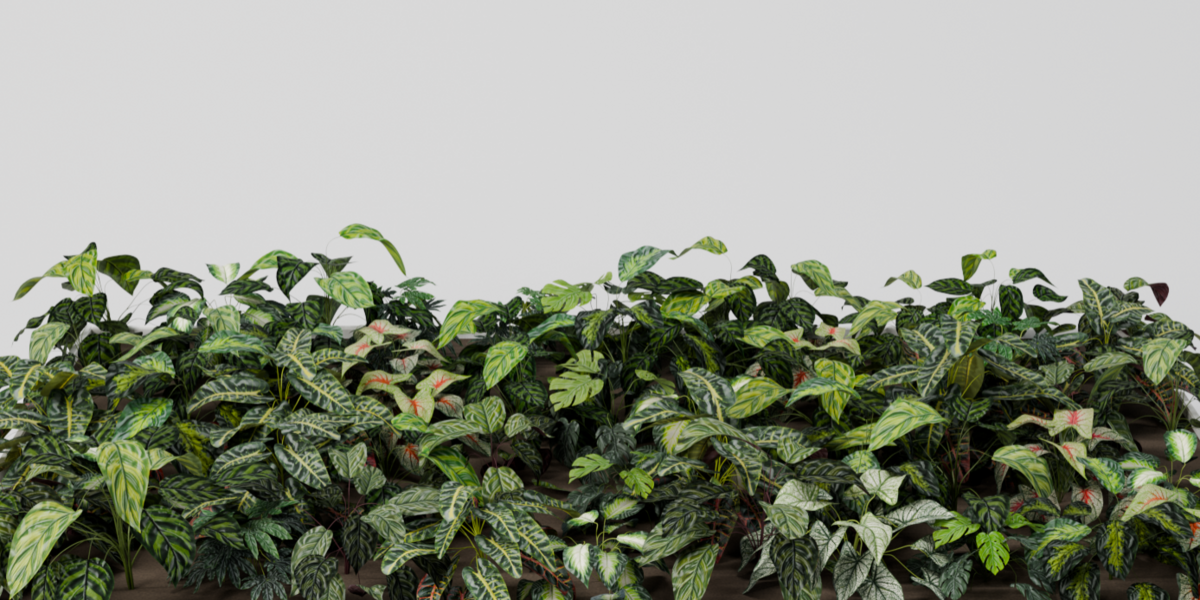
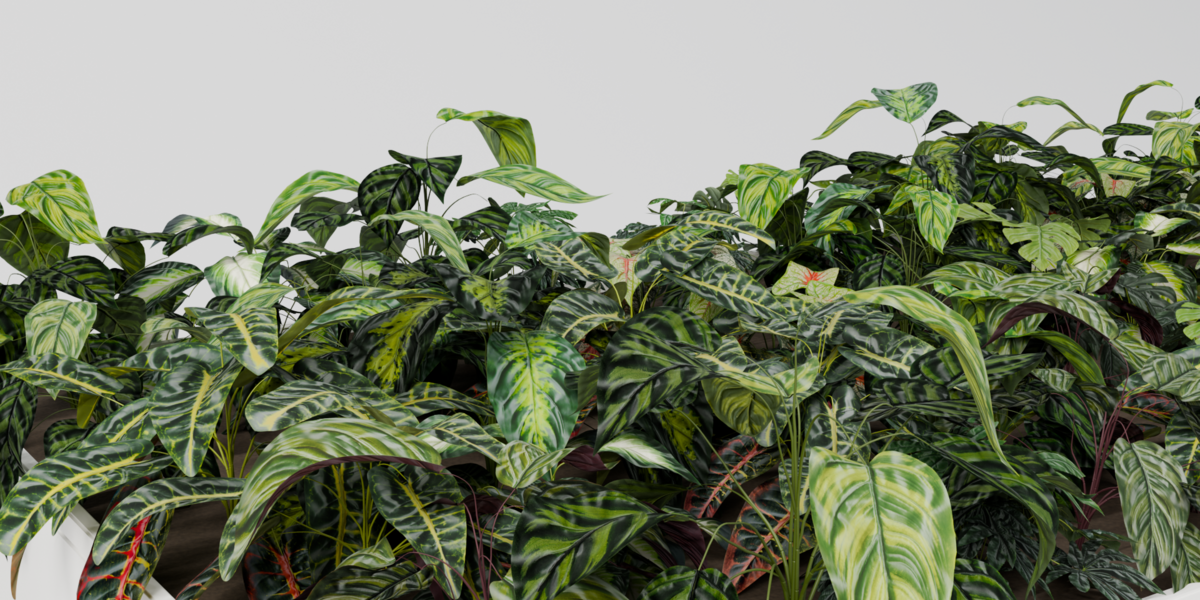
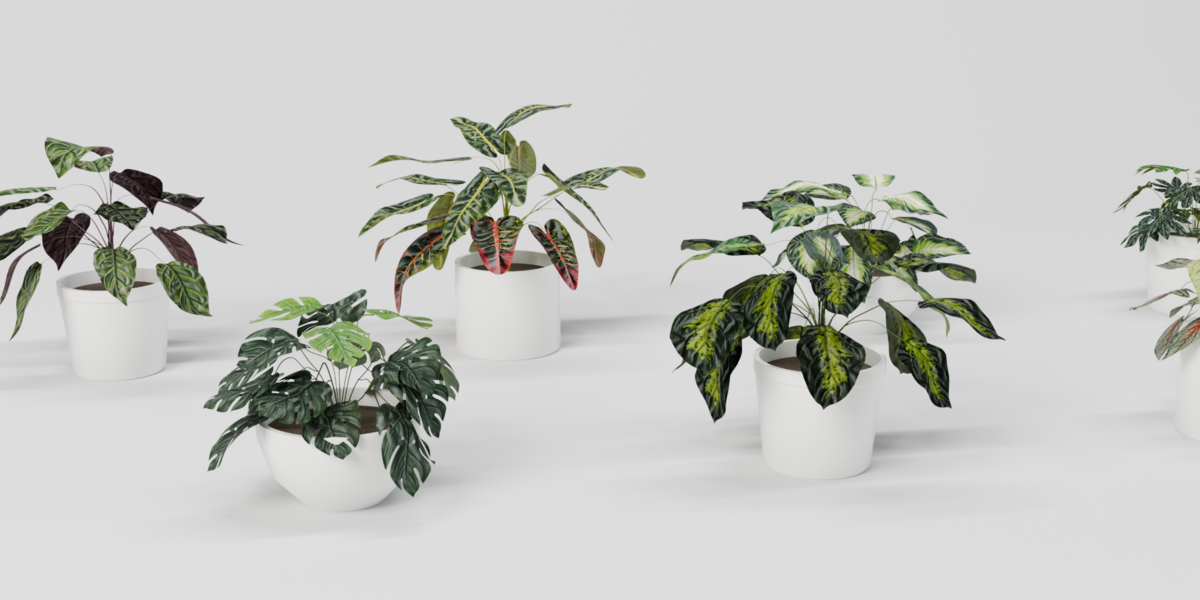
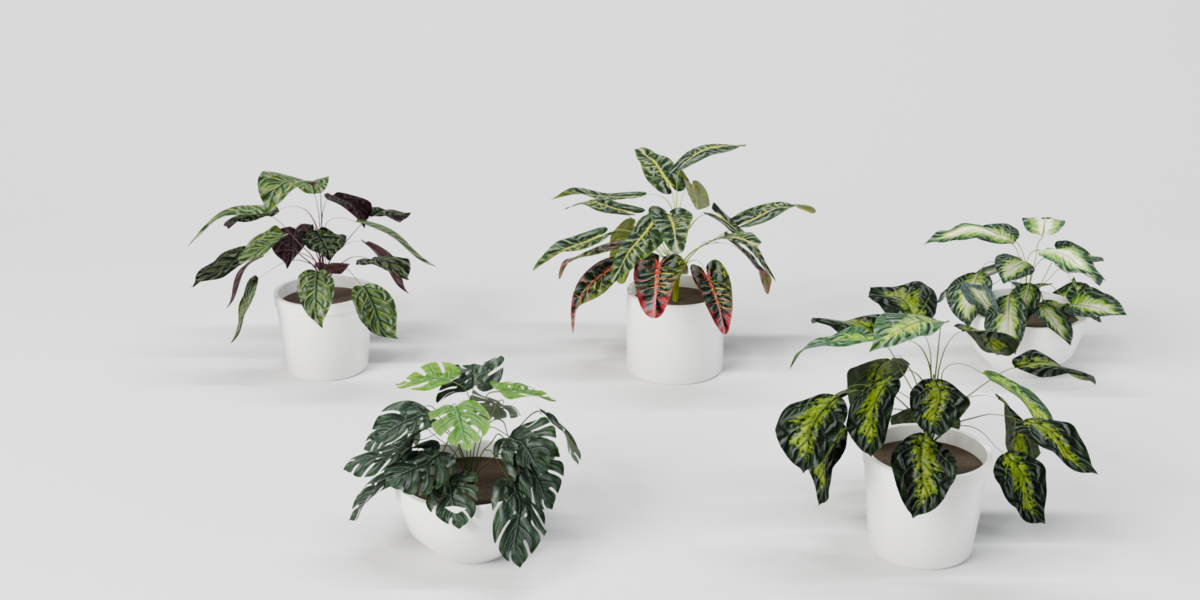
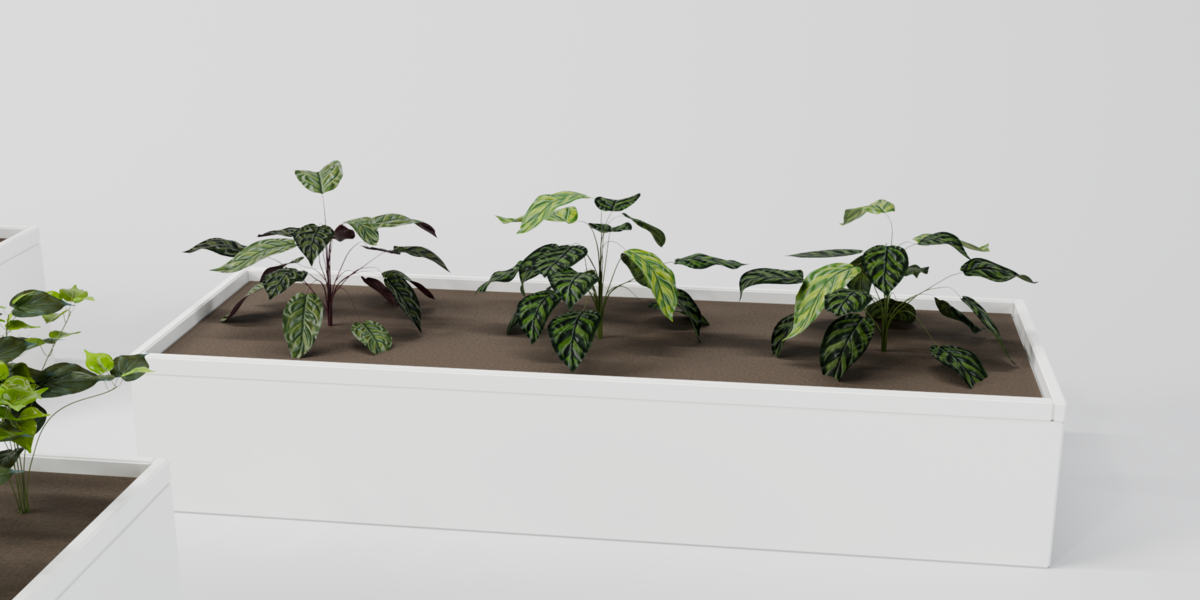
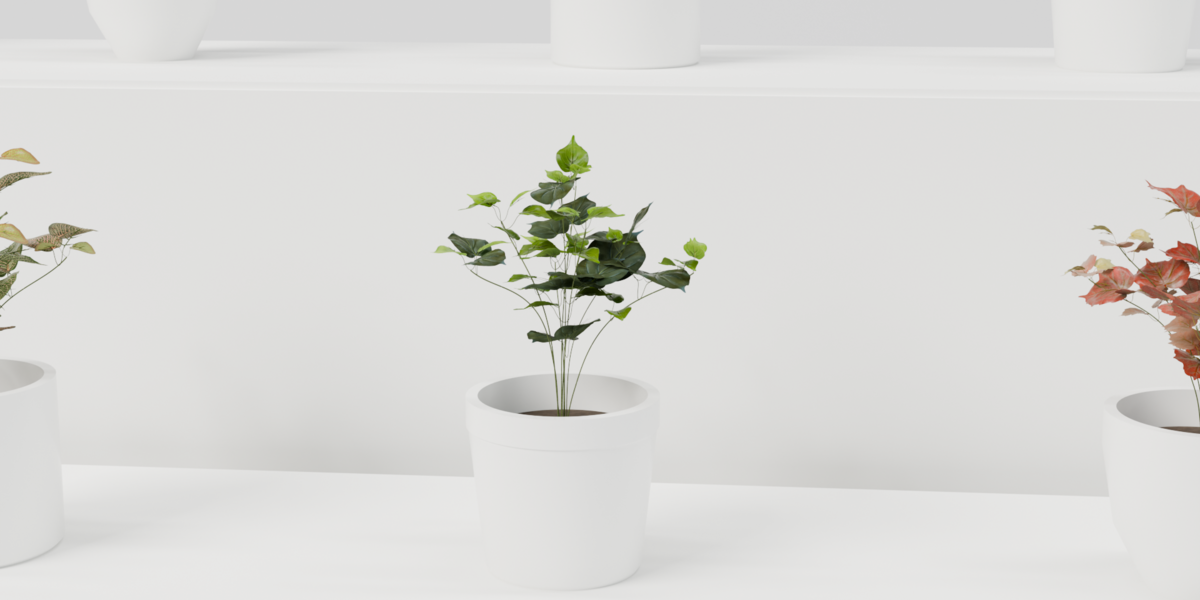
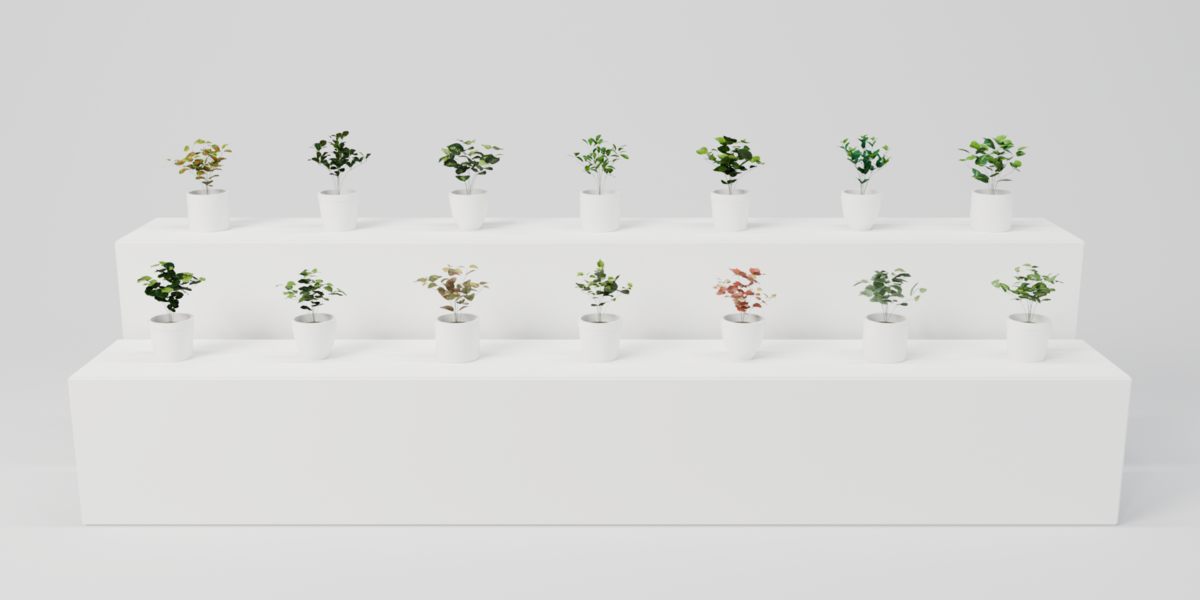
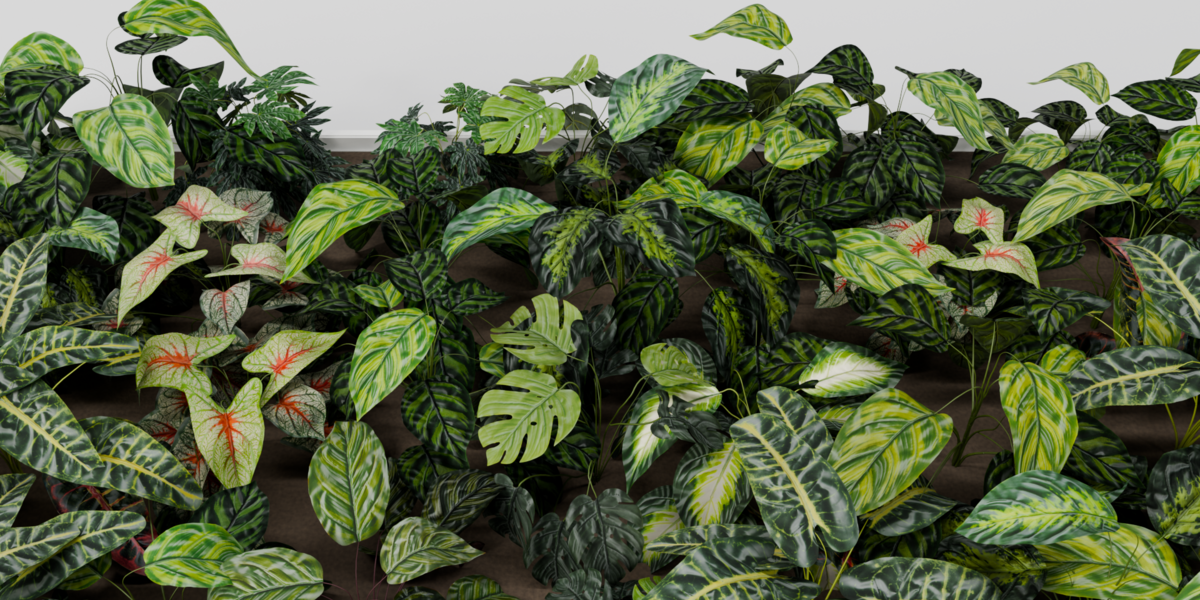
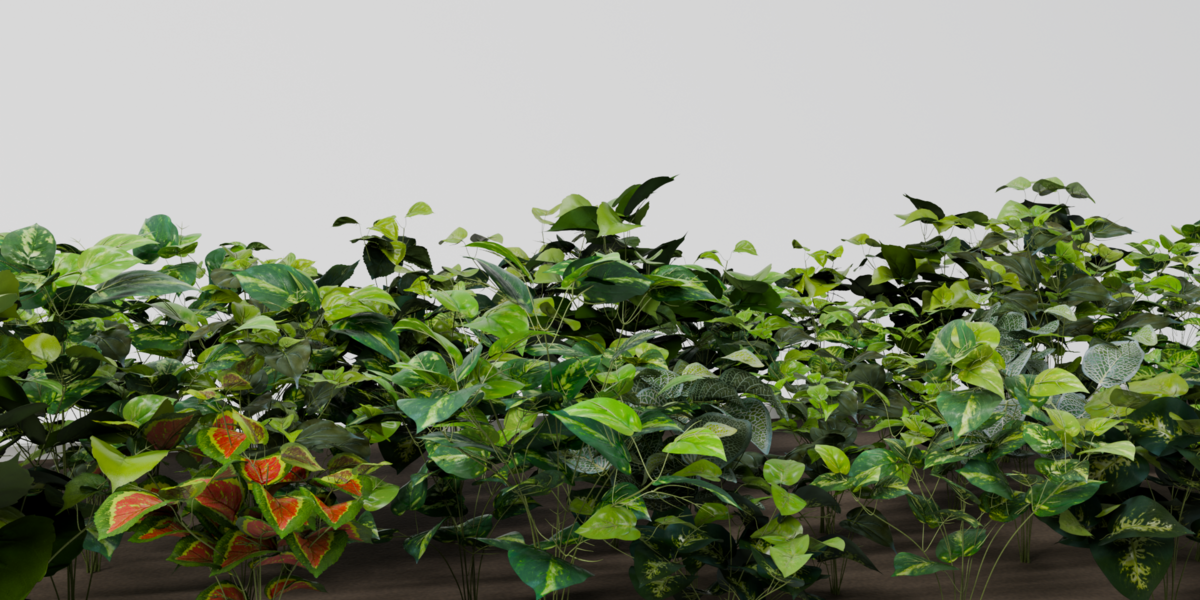
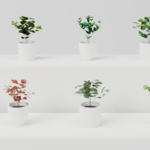
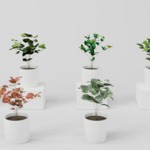
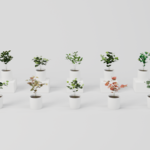
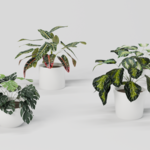
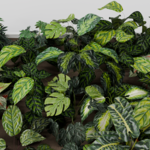
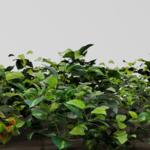
Green Plant – Documentation
Installation
- Download
green_plant-1.1.0.zip. Do not unzip it. - In Blender go to Edit › Preferences › Get Extensions, open the menu in the top right corner and choose Install from Disk…
- Select the zip. The add-on is enabled right away.
- Open the sidebar in the 3D Viewport (N) and click the Green Plant tab.
Requires Blender 4.2 or newer. Tested in Blender 4.5 and 5.2. The download is large (about 920 MB) because every plant comes with full 2K textures.
Adding a plant
- Place the 3D cursor where the plant should stand.
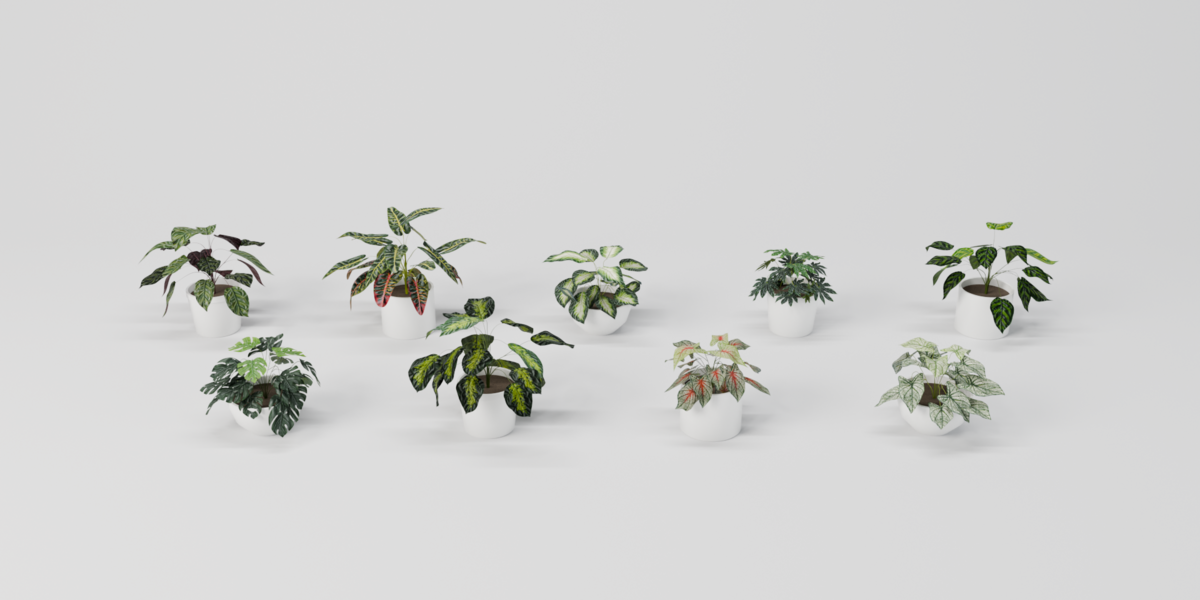
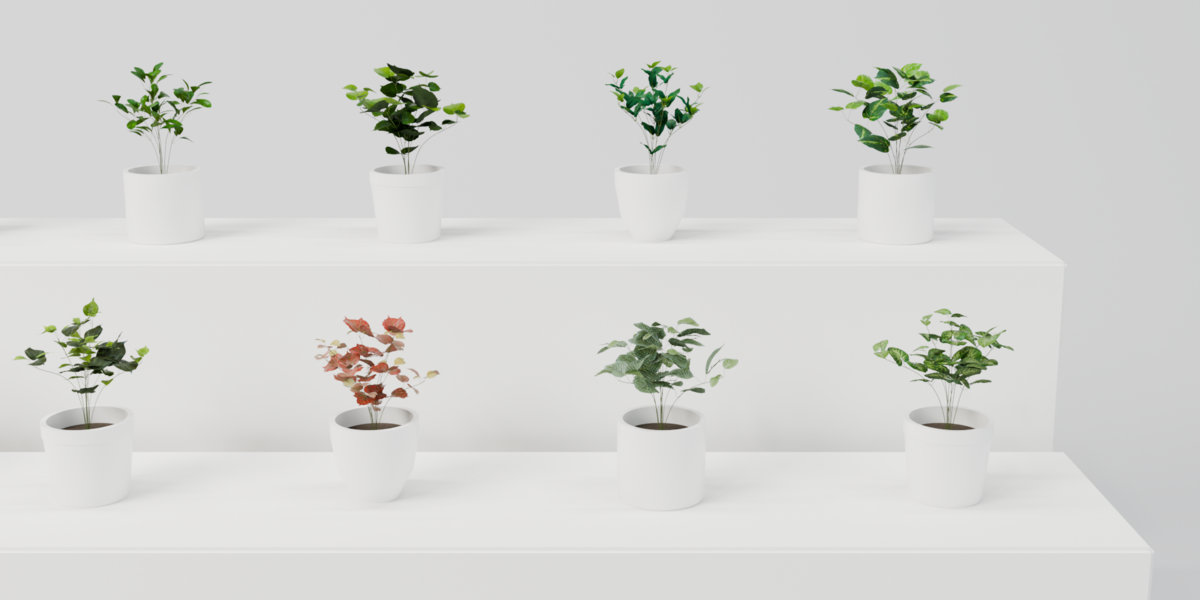
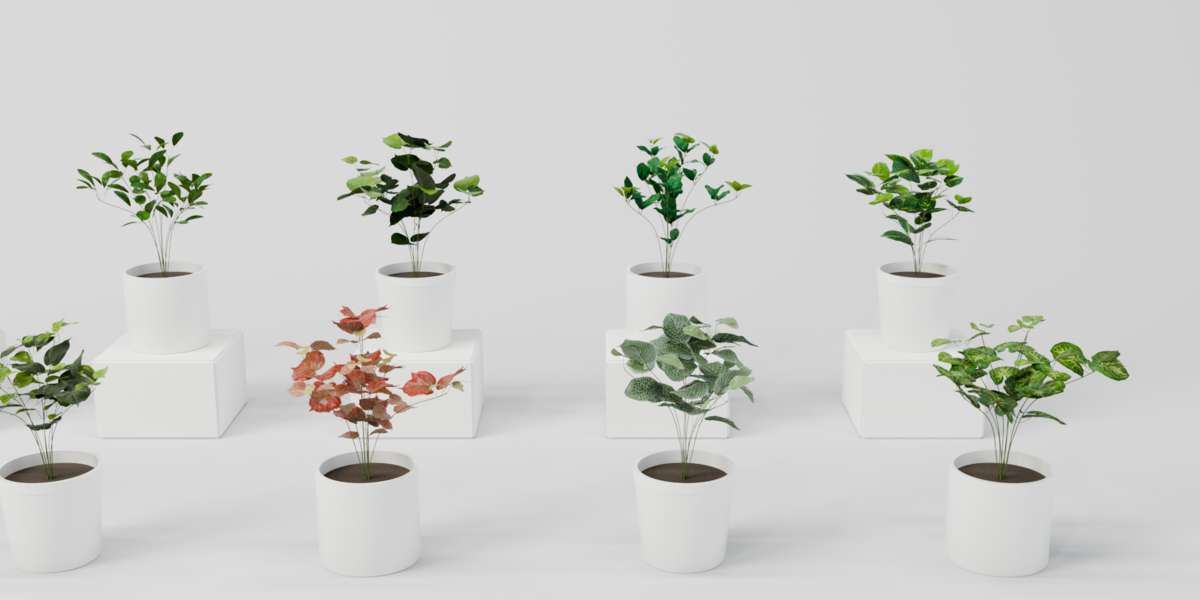
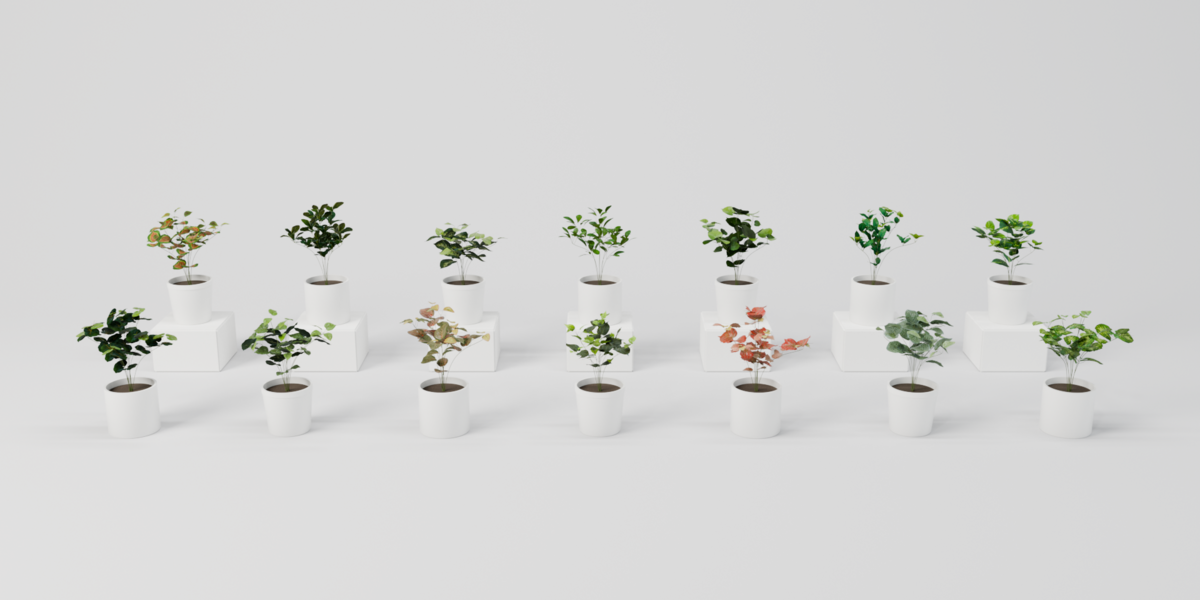
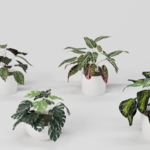
- In New Plant choose a category (All, Broadleaf, Bush, Mini Bush) and pick a plant from the thumbnails.
- Click one of the three buttons:
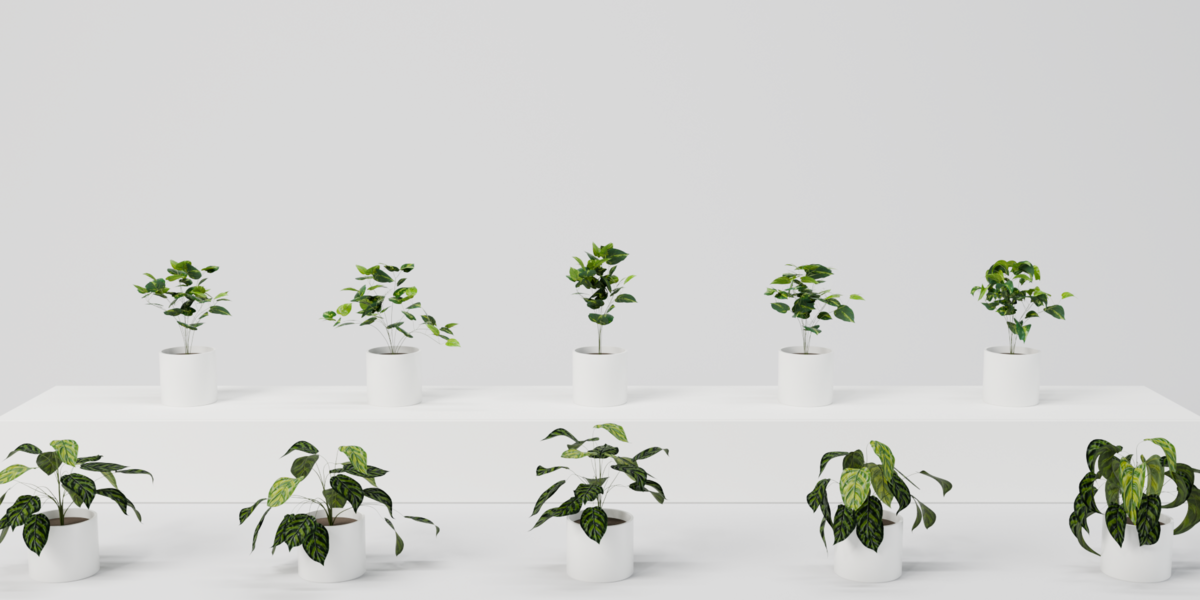
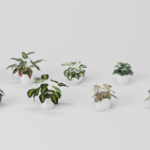
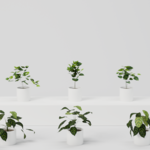
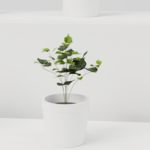
- Pot – one plant in a round pot, with soil
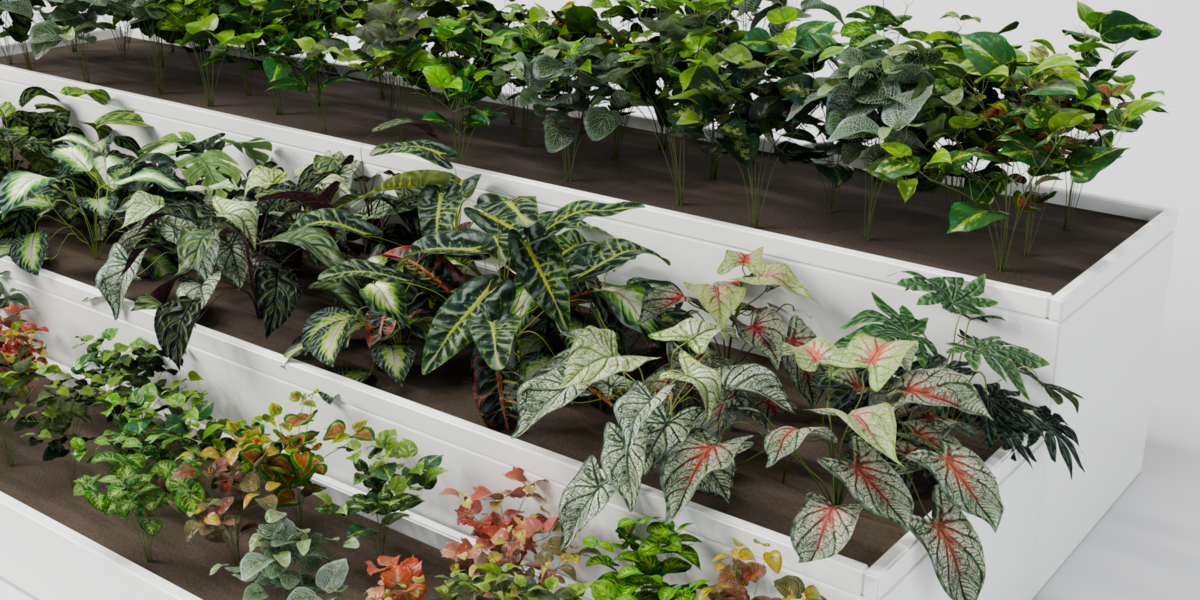
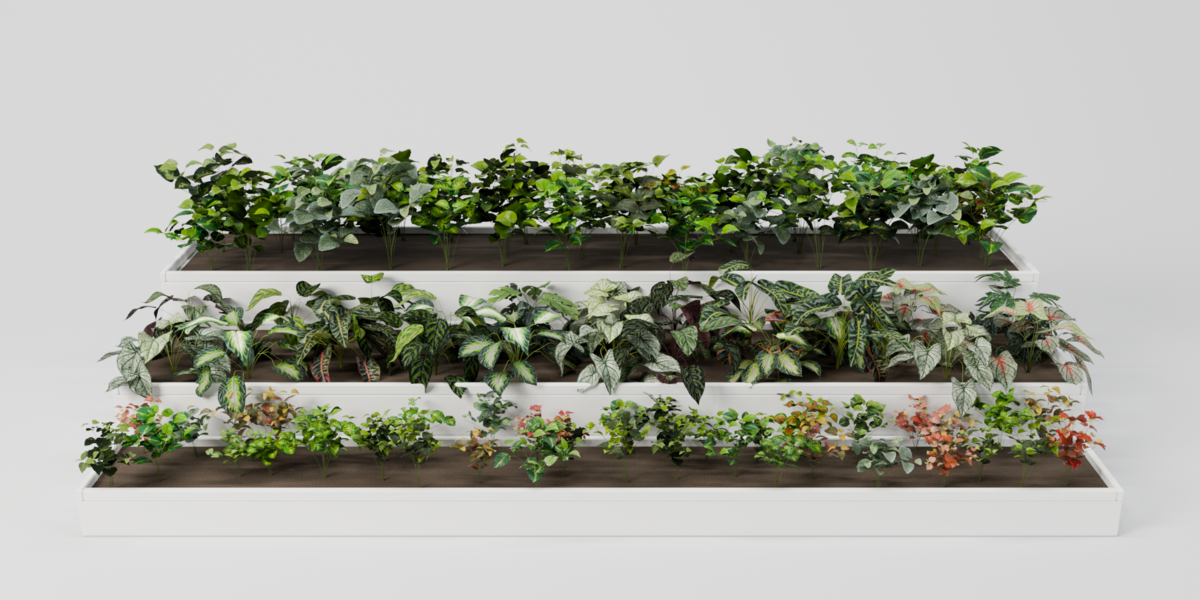
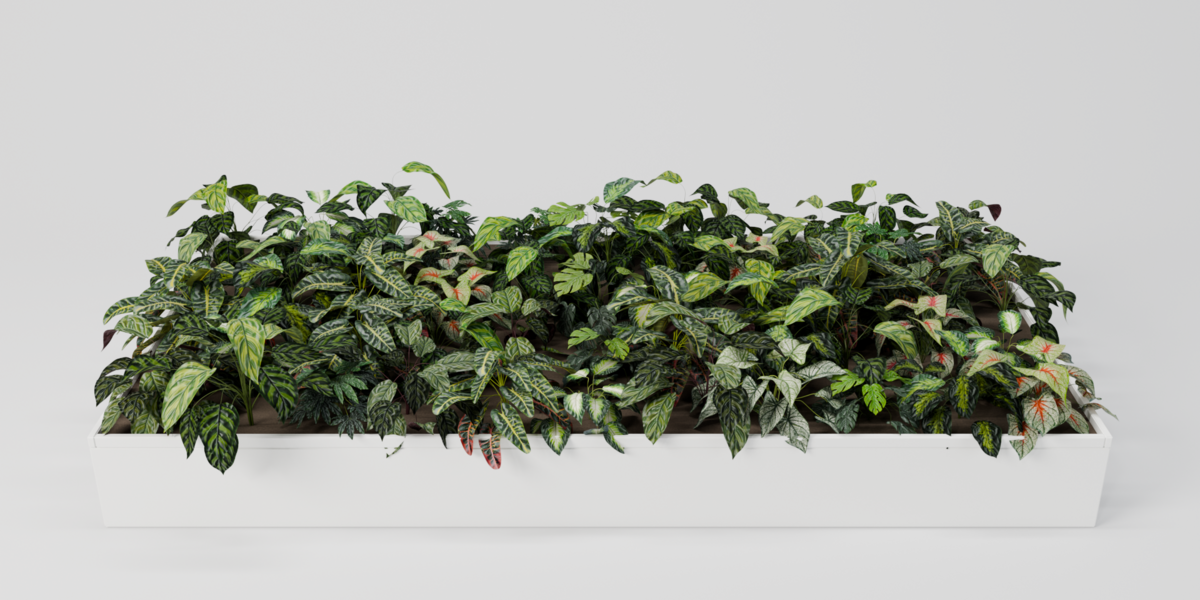
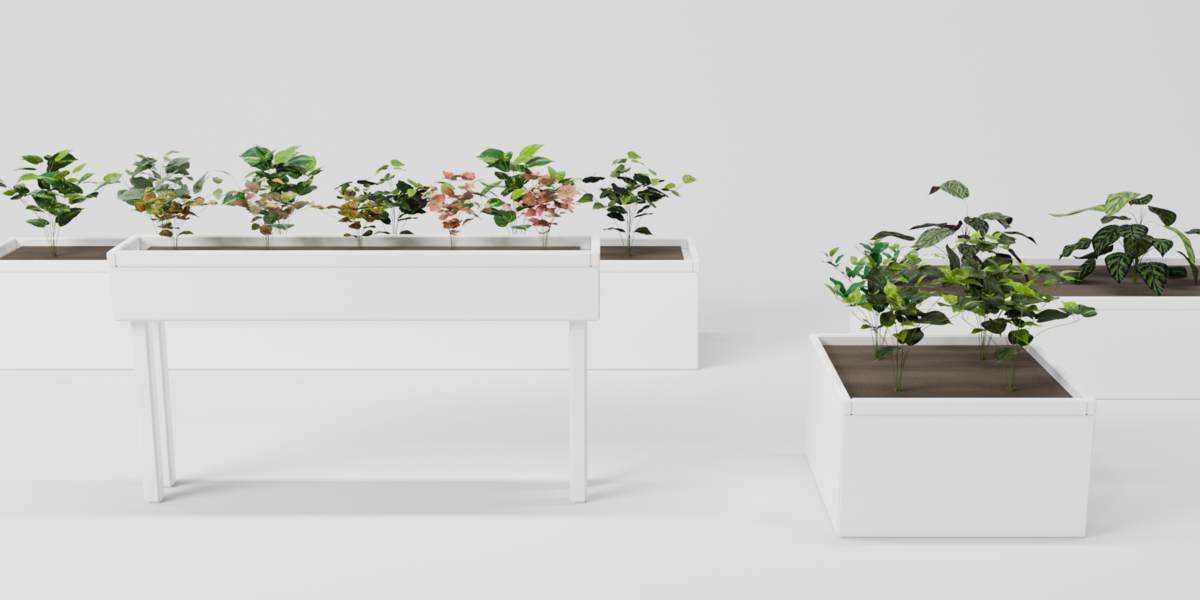
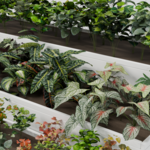
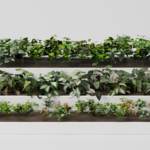
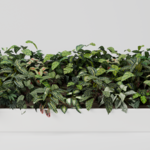
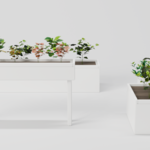
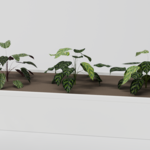
- Planter – a row of plants in a planter box, with soil
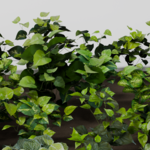
- Free – the plant as modelled, without a pot
The plant is a normal mesh object with a Geometry Nodes modifier, so you can move, rotate, scale, duplicate and link it like any other object. Select it to see all its settings in the panel.
Categories
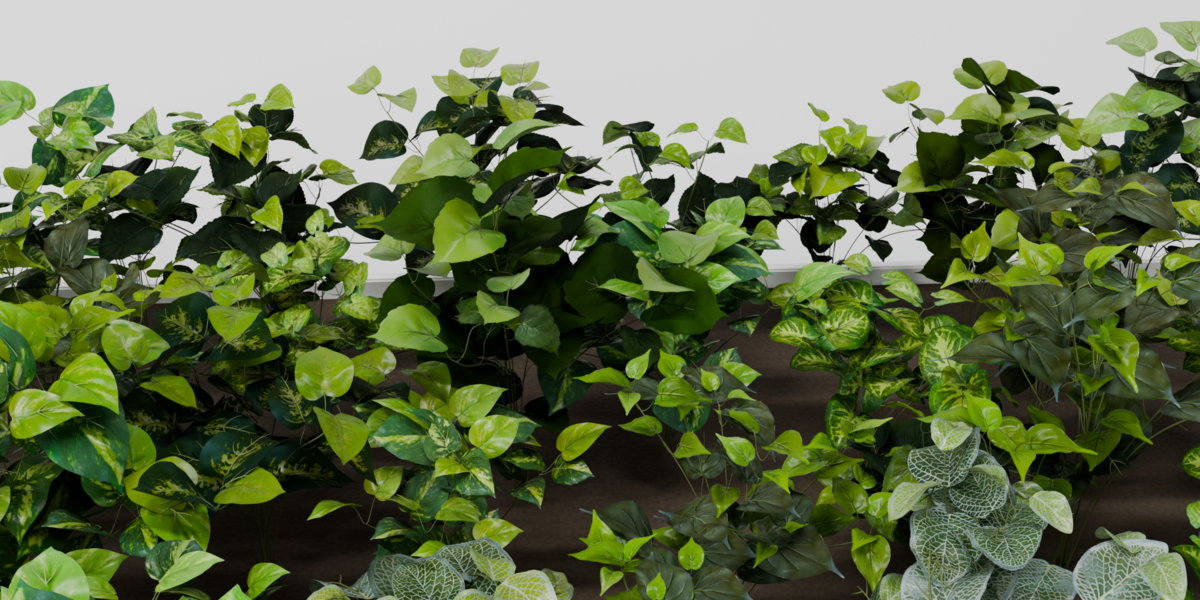
- Broadleaf (9) – low, wide plants with large leaves
- Bush (14) – leafy bushes, about 45 cm tall
- Mini Bush (14) – the same bushes in a small size, about 25 cm tall
Viewport
- Full / Low / Dummy – what the viewport shows. Low uses low-poly leaves and stems, Dummy shows one flat card per leaf (fastest). Renders always use full geometry.
- All: Full / All: Dummy – switch every plant in the scene at once.
- Low-Poly Far From Camera (Render) and Distance – plants farther from the camera than this distance render with low-poly geometry. This saves memory in large scenes and is applied only while rendering.
Plant
- Compact / Natural / Open – quick presets.
- Height, Width – make the plant taller or wider. Only the stems move, leaves are never stretched.
- Open Stems – stems lean outward (positive) or close in (negative).
- Bend Stems – stems arch over towards their tips.
- Turn Stems Random – turns every stem around the plant a little.
- Stem Amount – thins out the stems.
- Insert Depth – sinks the plant deeper into the soil.
- Show Base Stem (Below Soil) – the wrapped base stem under the soil. Turn it off when the plant is not in a pot.
- Every Random slider next to a setting gives each plant or stem its own variation.
Leaves
- Amount, Scale – fewer or smaller leaves.
- Tilt (Tip Up / Down) – leaf tips up or down.
- Turn Random, Roll Random – small random turns of every leaf.
- Turn To Light – leaves face upwards.
- Turn Outward – leaves face away from the plant's centre, towards the viewer around a pot.
- Fold Along Midrib – both halves of the leaf fold up (or down).
- Curl (Tip Down) – the leaf curls along its length.
- Random (Deform) – each leaf gets a weaker or stronger fold and curl.
- Keep Out Of Pot and Pot Wall Thickness – a leaf that would cut through the pot wall or go under the soil turns up and rests over the rim.
- Avoid Collisions, Strength, Reach – leaves that overlap turn away from each other.
Pot / Planter
- Fit To Pot / Planter – select the plant, then Shift-select your own pot or planter model so that the plant stays active, and click the button. The plant is placed on the soil level and fills the opening with an array of plants. Set the plant spacing, wall thickness and soil depth in the dialog.
- Columns, Rows, Column Spacing, Row Spacing – the array of plants.
- One Planter For All – one rectangular planter around the whole array instead of a round pot per plant.
- Pot Radius / Margin, Rim Above Soil – size of the pot opening and height of its rim above the soil.
- Show Pot, Depth – an outline of the pot, visible in the viewport only. It helps to place your own pot model.
- Soil, Height – a soil surface that renders.
- Position Random, Rotation, Tilt Random, Scale – per plant variation in the array.
- Gaps – randomly leaves out some plants.
- Seed and the refresh button – a new random arrangement.
Mixing plants
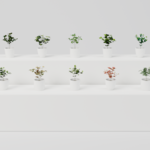
In Variants In The Mix add up to 10 plants to one array, from any category. Share sets how often each plant appears. The X button removes a plant from the mix.
Color
- Hue Shift, Saturation, Brightness – change the colour of all leaves.
- Random Per Plant, Random Per Leaf – small colour differences between plants and between leaves.
Updating
After installing a new version, open an older .blend file, select a plant and click Update Plants if the panel asks for it. All settings are kept.
Have questions about this product?
Login to message
| Blender Extension Compatible | Yes |
| Published | about 12 hours ago |
| Blender Version | 4.2 - 5.2 |
| Extension Type | Add-on |
| Render Engine Used | Cycles, Eevee |
| License | GPL |