 3D Mage



Grid Snap OFF/ON - This toggles whether to use grid snapping or not. This toggle will also turn ON or OFF if enabling Blender's default 'Snap' feature while the 'Snapping' mode is set to 'Grid'.
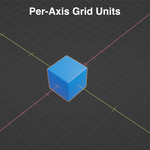
Grid Units - This controls how far each snapping increment is for each axis.
Grid Units Presets - You can select Grid Unit presets by clicking on the drop-down. Selecting a preset will set the grid units for X, Y, and Z. You can save custom Grid Unit presets by pressing the '+' button. This will use the current Grid Unit values and create a new entry for the drop-down. If you wish to remove a user-made Grid Unit preset, click on the '-' button. A popup will show up and will ask you to select which preset to delete. Pressing OK will remove the currently selected Grid Unit preset.
Snap Mode - This controls how snapping occurs. There are three modes:
Relative (Selection) - This will snap relative to the position of the selected object or geometry.
Relative (Origin) - This will snap relative to the origin of the selected object.
Absolute (World) - This will snap relative to the world origin (0,0,0).
Other Operations
Repeat Axis/Plane Lock - When enabled, this will repeat the previous axis/plane lock (i.e. moving only along X-axis) whenever you do another move operation or duplicate an object. While the add-on is enabled, a drop-down will appear showing the current axis/plane lock that will be applied on subsequent operations. It will automatically update when a new axis/plane lock is applied.
Correct Face Attributes (Edit Mode Only) - When enabled, this will automatically adjust UV maps to prevent distortion of the texture as you move geometry. It is equivalent to enabling the 'Correct Face Attributes' checkbox found in the 'Tool' tab under the 'Options' panel in Edit Mode.
Display Options
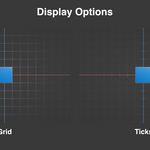
Snap Display Mode - This controls how to display snapping information while moving objects or geometry. There are three modes:
Ticks - Show tick marks along all axes.
Grid - Show a grid along direction of movement.
None - Show no snapping information.
Show Info Area - This toggles whether to show the information area on bottom left corner of viewport while moving an object.
Advanced Settings
Enable Add-On - This toggles whether the add-on is active. When disabled, the side panel menu will hide everything except this checkbox. In addition, the behavior of Blender's default 'Snap' with 'Snapping' mode set to 'Grid' will be restored to its default behavior. You can re-enable the add-on by simply ticking the checkbox.
Have questions about this product?
Login to message
| Blender Extension Compatible | Yes |
| Sales | 50+ |
| Dev Fund Contributor | |
| Published | about 1 year ago |
| Blender Version | 4.5 - 5.2 |
| Extension Type | Add-on |
| License | GPL |
Discover more products like this
axis grid snapping tiling snap grid snapping plus 3d grid axis align Tiles grid snapping 3d tiles