 Contrast 3D Design Studio


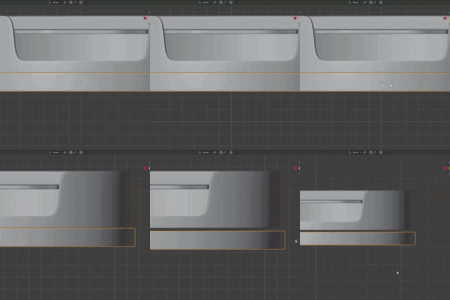
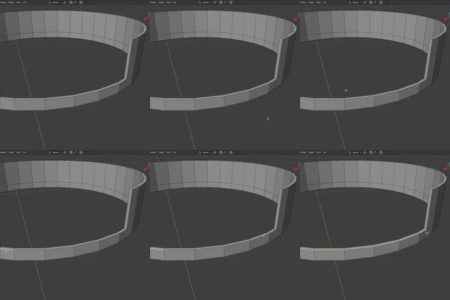
A precision modeling add-on for Blender that makes hard-surface modeling, snapping, measurement and arc correction faster, cleaner and more accurate.
It gives you practical tools for placing objects on surfaces, snapping to exact increments, measuring, checking shapes and correcting geometry — directly inside Blender, without switching to CAD software for simple precision tasks.
Perfect for hard-surface artists, product visualization, props, sci-fi assets, mechanical parts, panels, bevels, 3D printing workflows, and any process where clean geometry and accurate measurements matter.
GridSnap Pro is not a full CAD replacement. It is a lightweight precision toolkit made for artists who want more control inside Blender.
WHAT'S NEW IN V2.1.4
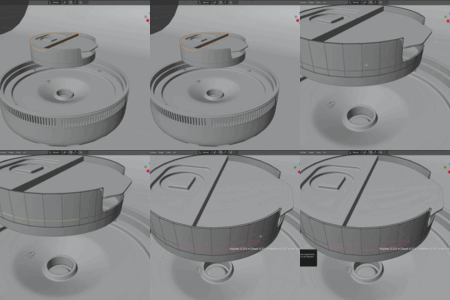
- Snap to Surface now shows a live preview — the object's own wireframe is drawn at the target position while you hover, with a marker on the contact point. Nothing moves until you click, so the placement no longer flickers
- New Align Axis — when Align to Surface is on, choose which local axis points out along the face normal: +Z, -Z, +Y, -Y, +X or -X. For anything that wasn't modelled Z-up
- SVG blueprints now carry the numbers — each saved dimension prints its value beside its own line, pushed clear of the drawing so it stays readable
- Contact = Base now accounts for the aligned rotation, so a rotated object rests flush on the surface instead of sinking into it
- Placement stays responsive on dense meshes — the preview wireframe is built once and falls back to the bounding box on very heavy objects
WHAT IT DOES
- Drop selected objects onto any surface in the scene — hover to preview the placement, click to confirm, in any view
- Optionally align objects to the surface normal, choosing which local axis points out, and pick the contact point (object origin or its base)
- Snap selected object origins or vertices to a real-world grid step — "1 mm" means one real millimeter in any unit setup
- Work with custom snap increments, typed in your scene units
- Snap on all axes, or only X, Y or Z
- Snap an object's origin to the grid
- Snap objects onto an active target, together or individually
- Align object rotation to world axes and apply scale to keep measurements accurate
- Measure distances between vertices or object origins
- Read every measurement in your scene units — Scene Units (Auto) matches Blender's own display, including Unit Scale — or pick a fixed unit (m, cm, mm, in, ft)
- Measure angles from selected vertices
- Calculate radius, diameter, arc angle and arc length
- Measure multi-vertex curves and arc-like selections
- Display measurement overlays directly in the 3D viewport
- Save current measurements as persistent Saved Dimensions
- Mark a Saved Dimension as Live and re-measure it when the geometry changes
- Export saved dimensions to CSV or JSON
- Export your visible Saved Dimensions as a dimensioned SVG blueprint from a top, front or side view — with the values printed on the drawing
- Copy the last measurement result to the clipboard
- Draw distance lines, arcs, guides, points and labels in the viewport
- Enable or disable the overlay quickly from the main panel
- Use different overlay styles for technical viewport presentation
- Flatten or straighten vertices for clean, flat faces and edges
- Check shape quality for circles, ellipses, squares, rectangles, diamonds, triangles, hexagons and regular polygons
- Select problem vertices after a shape quality check
- Correct outlines toward the expected shape with adjustable correction strength
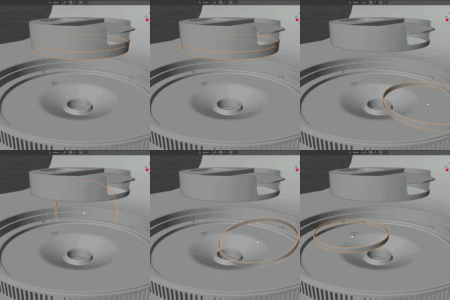
- Correct selected arcs to a clean circular shape, or fit them to a target angle such as 30°, 45° or 90°
- Resize a selected circle or arc to an exact radius around its own center with Fit Circle to Radius
- Choose the correction plane — Follow Shape (Best Fit) tracks tilted geometry automatically, or force XY, XZ or YZ
- Rebuild a three-point corner to any target angle with Fit Corner to Angle
- Resize a selection to an exact dimension — type a target length and scale the selected vertices to match it
- Use Undo safely for snapping, correction and geometry operations
MAIN TOOLS
Snap & Place — Drop objects onto surfaces with Snap to Surface: hover to see the object previewed exactly where it will land, then click to place it. Optional align-to-normal with your choice of local axis, and a choice of contact point. Then snap object origins or selected vertices to a precise grid step, on all axes or just one.
Measure — Measure distances, angles, radii, diameters, arcs and polylines directly in the viewport, in your scene units by default. Results display as overlays and can be copied to the clipboard.
Saved Dimensions — Save important measurements into the scene, keep them visible as technical references, mark them Live to re-measure when the geometry changes, and export them later as CSV, JSON or an SVG blueprint.
Shape Quality — Analyze selected outlines and loops to check how close they are to ideal shapes: circles, ellipses, squares, rectangles, diamonds, triangles, hexagons or regular polygons — even on tilted geometry.
Correct — Clean circular arcs, fit arcs to a target angle, resize circles to an exact radius, and rebuild three-point corners to any angle — in the plane of your geometry (Follow Shape) or a world plane you choose.
Parametric — Type an exact target length and resize the selected geometry to match it. Precision by the numbers, not by eye.
Blueprint — Export your visible Saved Dimensions to a clean SVG blueprint from a top, front or side projection, with each dimension value printed next to its line — ready for documentation or client hand-off.
Overlay System — Use viewport overlays for technical guides, measurement labels, arc previews and shape-analysis results. The overlay toggles on or off in one click from the main panel.
GOOD FOR
Hard-surface modeling · Product visualization · Mechanical parts · Sci-fi panels and props · Technical assets · 3D printing preparation · Clean bevel and panel workflows · Precision modeling inside Blender
REQUIREMENTS
- Blender 4.2 or newer
- No internet connection required — works fully offline
INSTALLATION
- Download the ZIP file.
- Open Blender.
- Go to Edit > Preferences > Add-ons.
- Click Install from Disk.
- Select the GridSnap Pro ZIP file.
- Enable the add-on.
- Open the 3D Viewport sidebar with N.
- Go to the GridSnap Pro tab — all tools are ready, no key needed.
SUPPORT
Developed by Contrast 3D Design Studio · www.contrast3d.com