hodgson3d


DOCUMENTATION HERE
A comprehensive 70+ tool suite designed to automate, optimize, and accelerate your workflow. Born in the trenches of VFX, it provides tools to help with Navigation, Lattices, Shapekeys, UVs, Curves, Materials, Modeling, Modifiers Selection, Mesh Cleaning, Sculpt, Vertex Groups, Baking and Camera tools. It doesn’t just add new tools; it fills many gaps forgotten by default blender for a smoother user experience.
Navigation Tools
Viewport-aware transform tools designed for fast object manipulation. You can change or disable these shortcuts under Edit > Preferences > Add-ons > H3D Toolkit > Navigation Hotkeys.
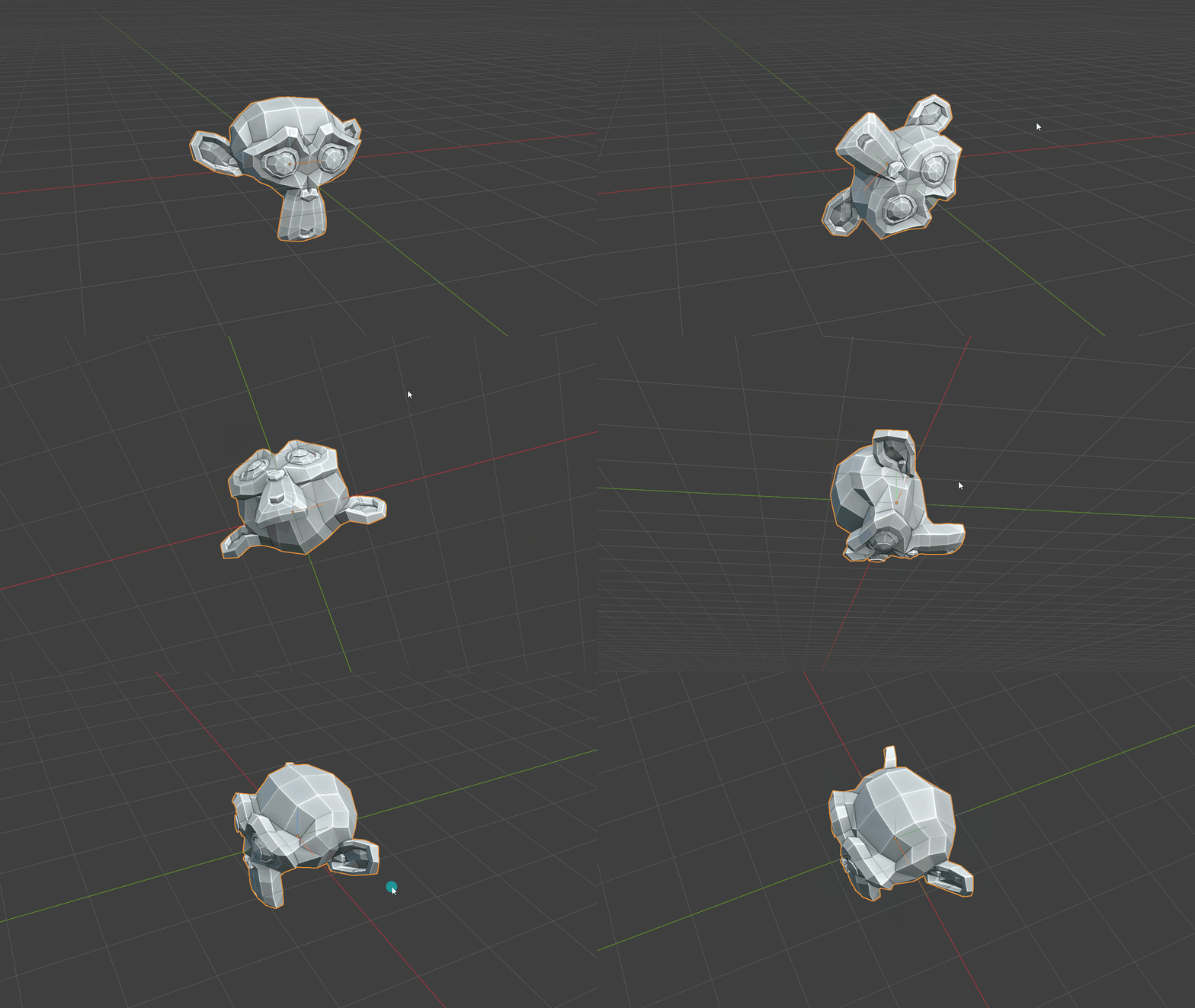
VP Step Rotate 45/-45
Assign a hotkey to quickly rotate selected objects by 45 degrees around the local axis that best aligns with the camera. A useful personal mapping is Ctrl + Shift + Mouse Wheel.
VP Axis Rotate
Hold R for 0.3 seconds to rotate around whichever local X, Y or Z axis points most toward the viewport camera.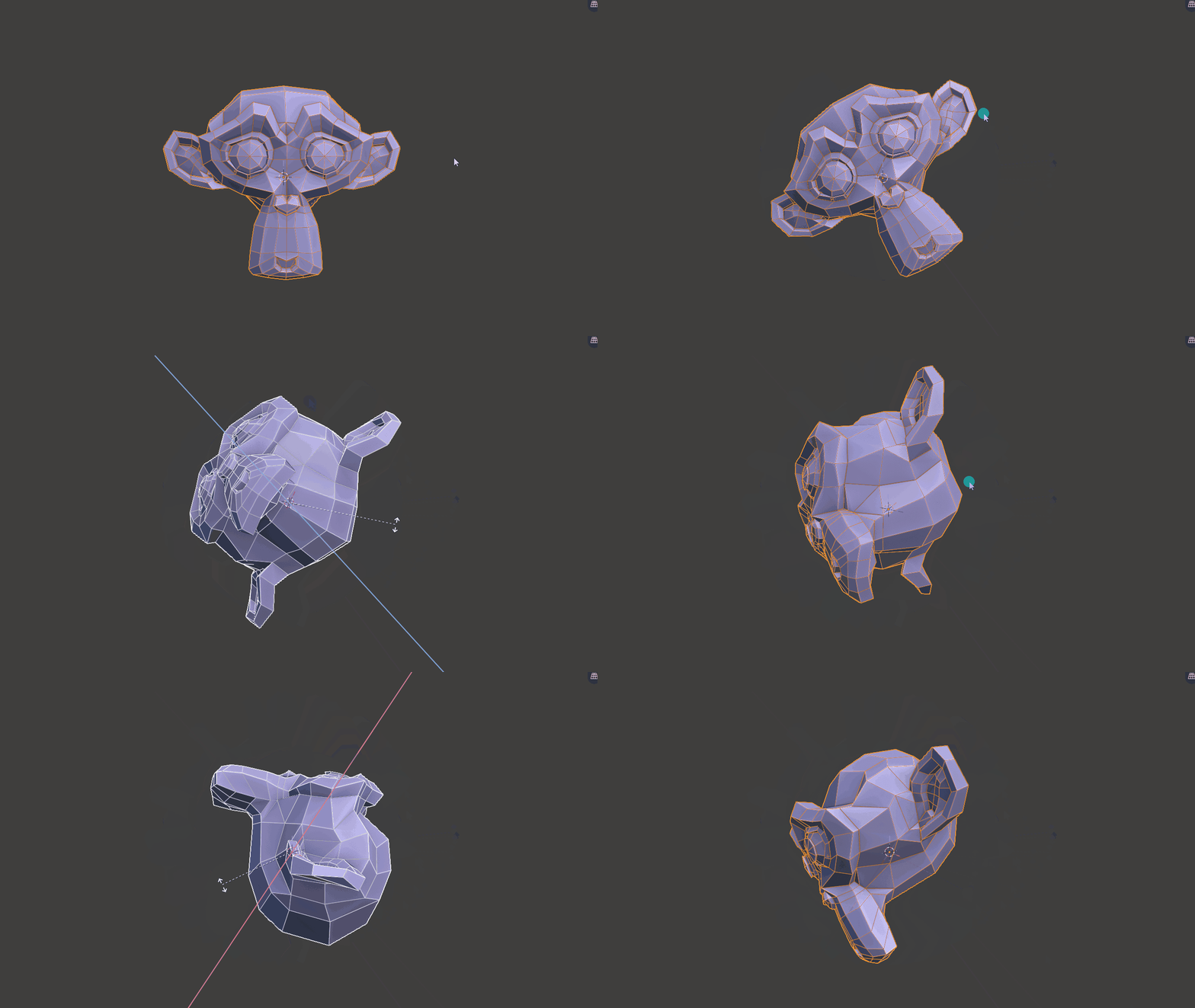
VP Planar Move
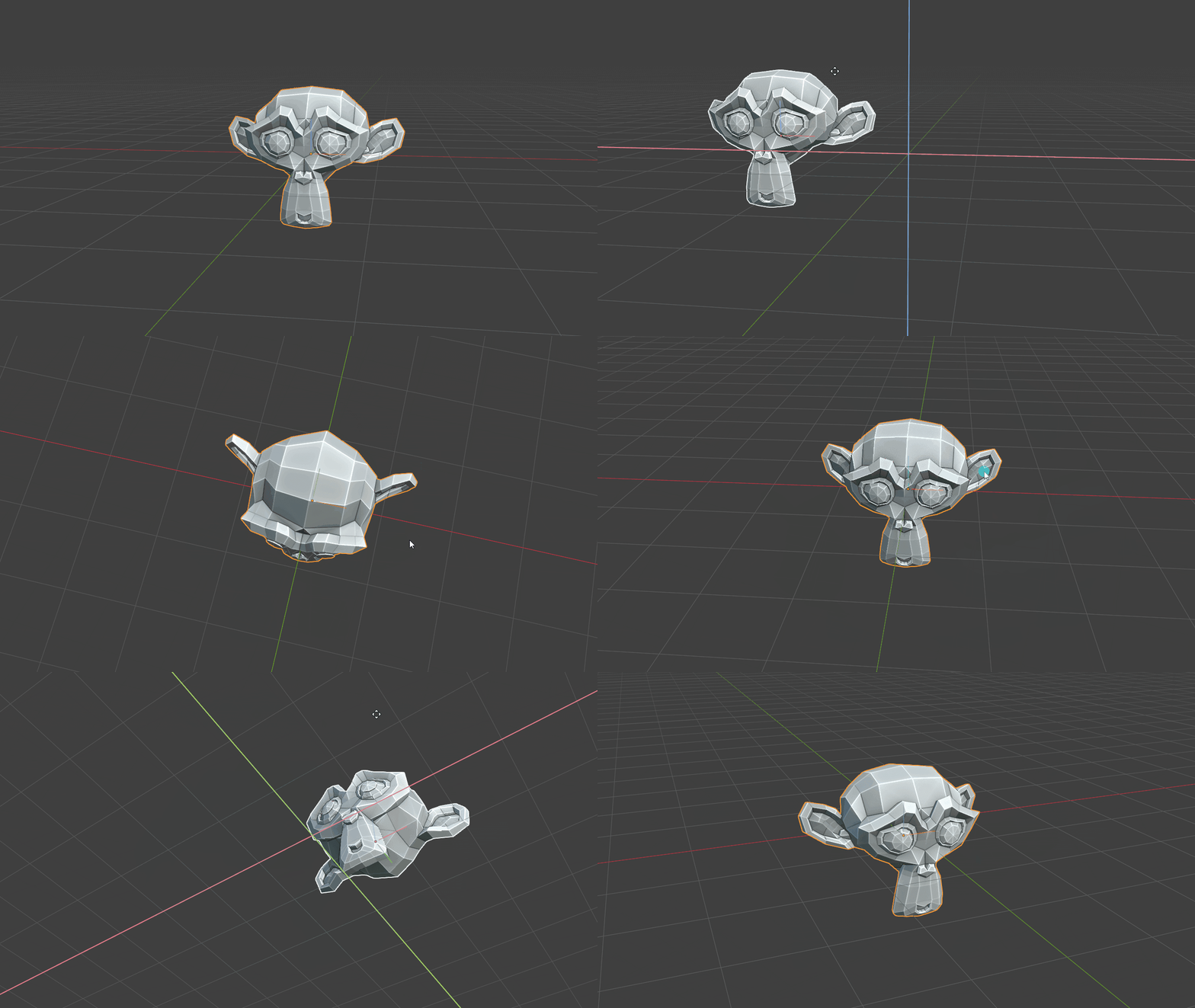
Automatically locks the local axis facing the camera and moves objects along the other two axes. Hold G for 0.3 seconds to activate. The tool supports multiple selected objects and is designed to be assigned to a hotkey for quick access.
Lattice Tools
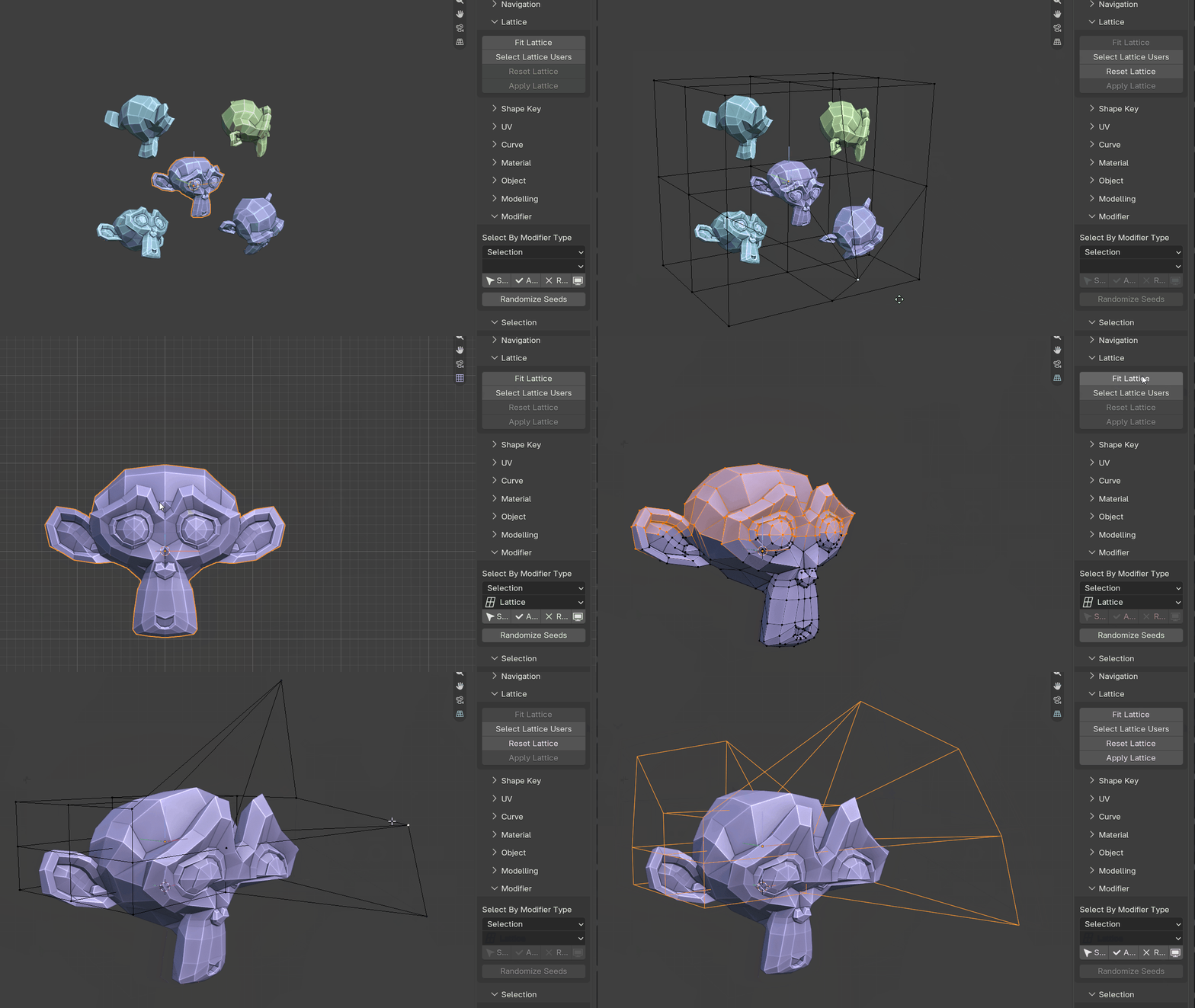
Tools for quickly creating and managing lattice-based deformation workflows.
Fit Lattice
Fits a lattice around selected objects or components, aligning it to their local (active objects) orientation. The orientation can be matched to either:
- the active object
- world space
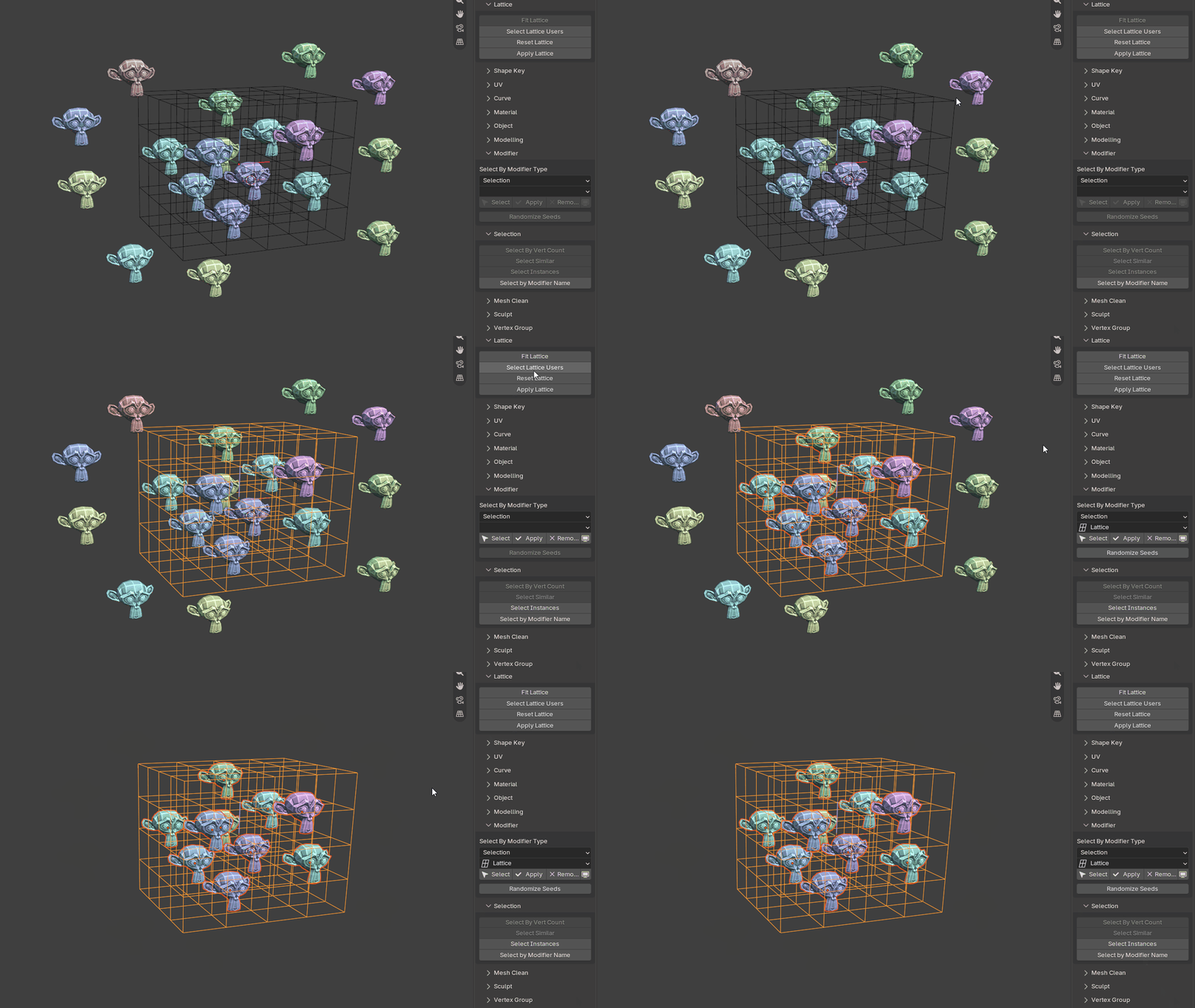
Select Lattice Users
Select a lattice and run this operator to select all objects currently affected by that lattice.
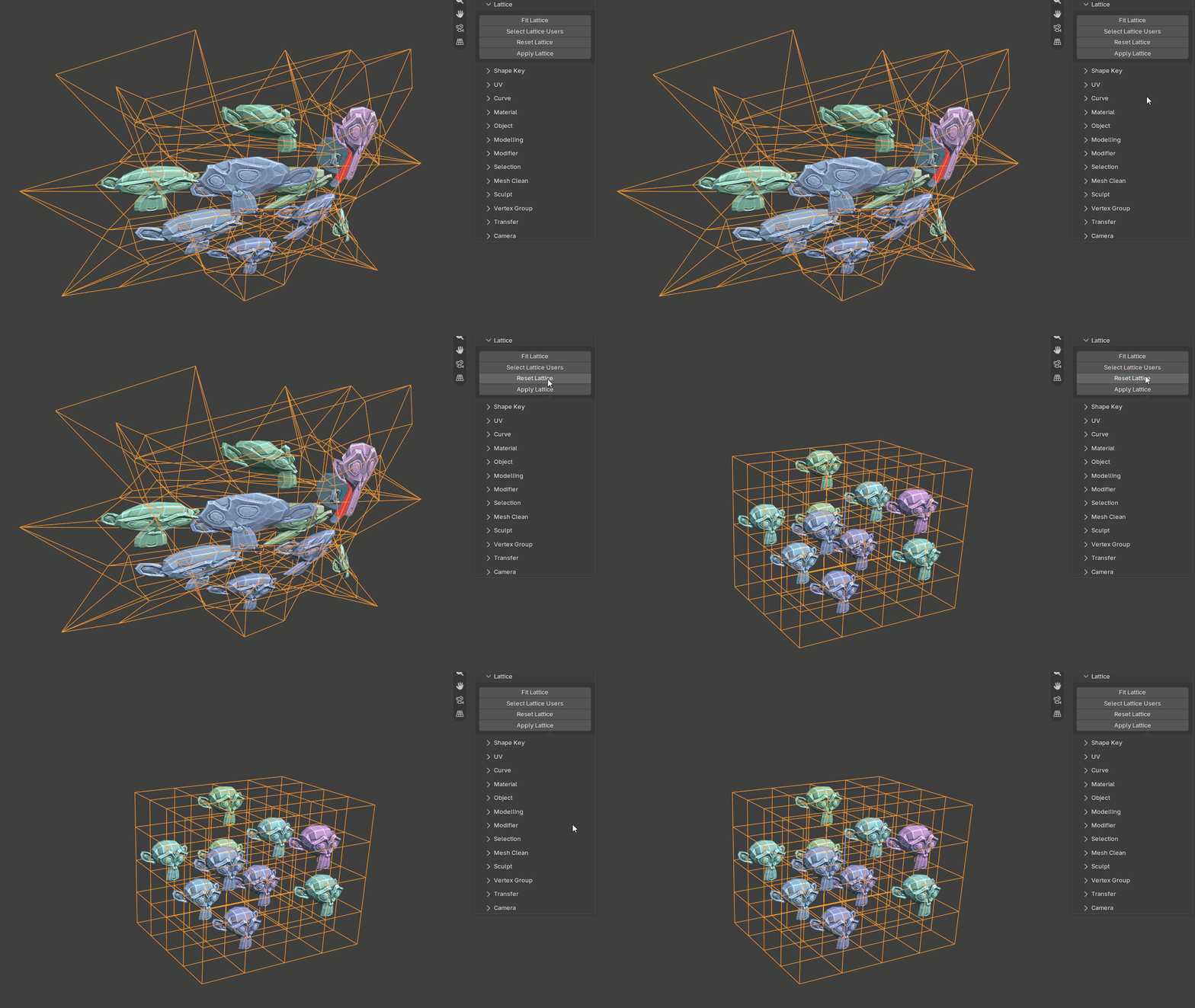
Reset Lattice
Resets the selected lattice back to its default state.
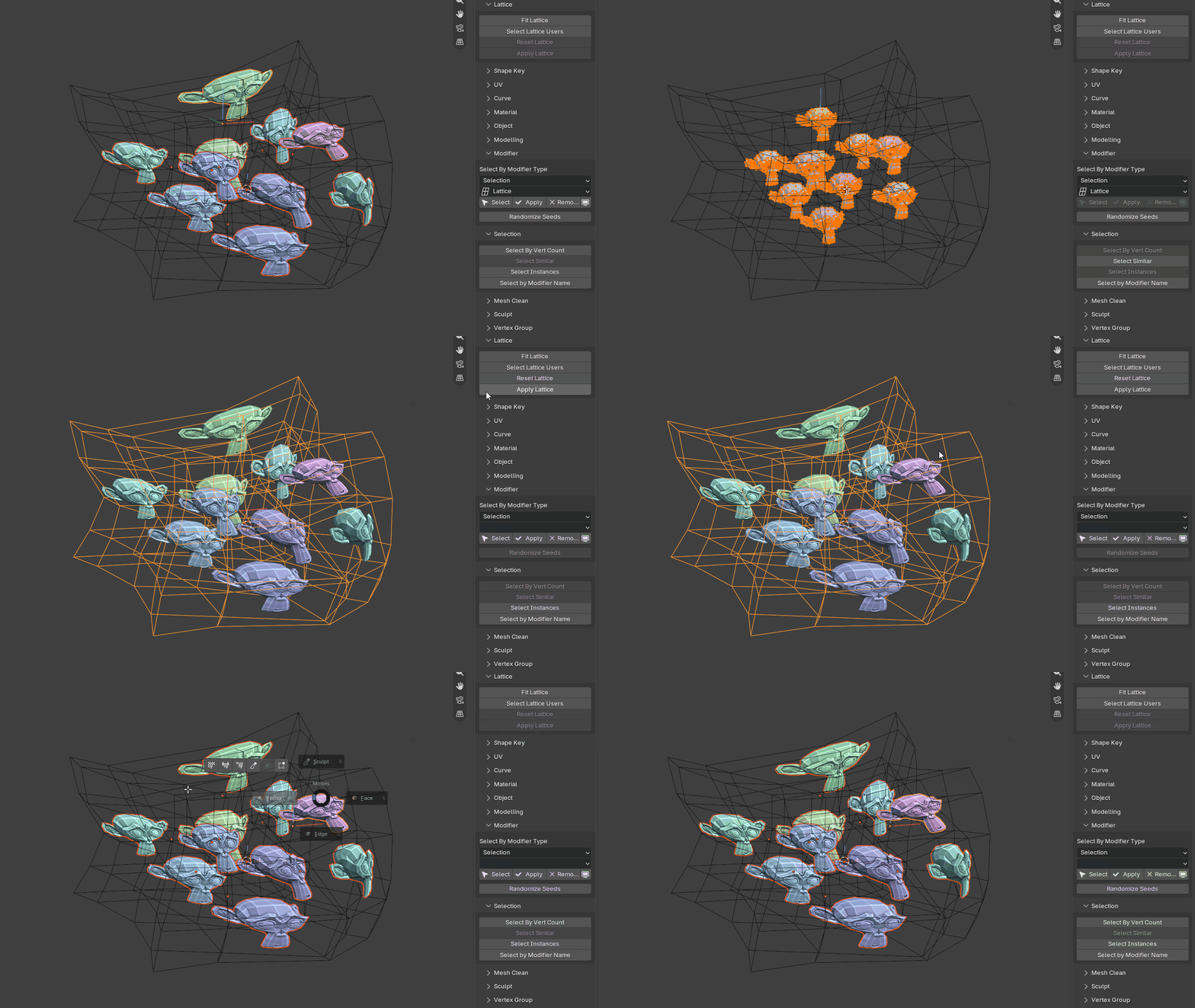
Apply Lattice
Select a lattice and click Apply Lattice to apply the modifier for any objects using it.
Shape Key Tools
Create Animated Shape Key
Automatically creates a shape key on all selected objects and sets keyframes so the shape key can blend back and forth over time.
UV Tools
Utilities for UV cleanup, debugging, error detection and fast unwrapping.
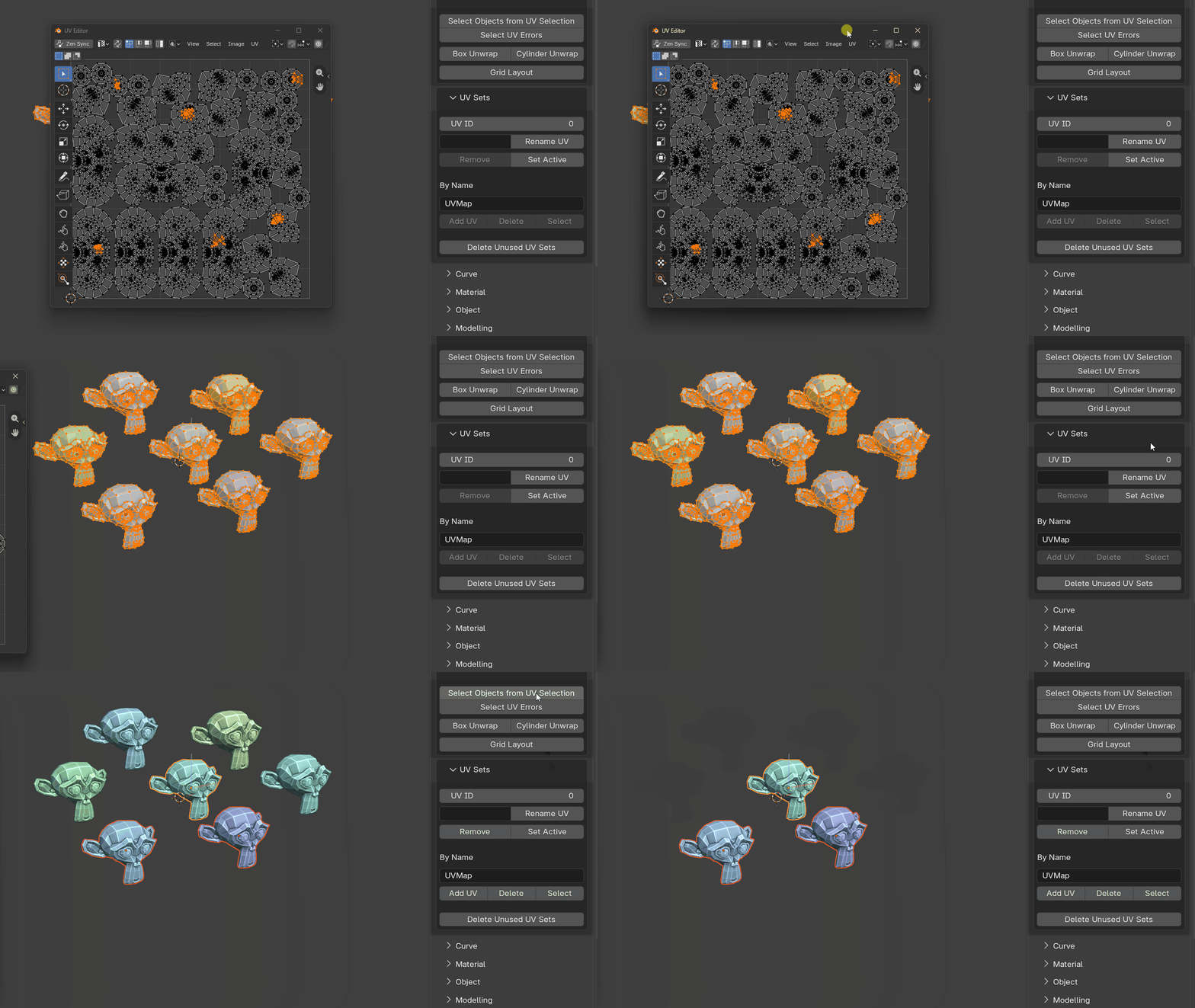
Select Objects From UV Selection
A UV debugging utility that lets you quickly isolate and inspect problematic geometry from a UV selection. Because visualizing UVs often requires the whole model to be in Edit Mode, this tool helps identify the objects associated with the selected UVs.
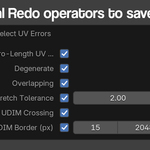
Select UV Errors
A combined UV error checker that can detect:
- zero-length edges
- degenerate UVs
- overlapping UVs
- stretching
- UDIM crossing
- proximity to UDIM borders
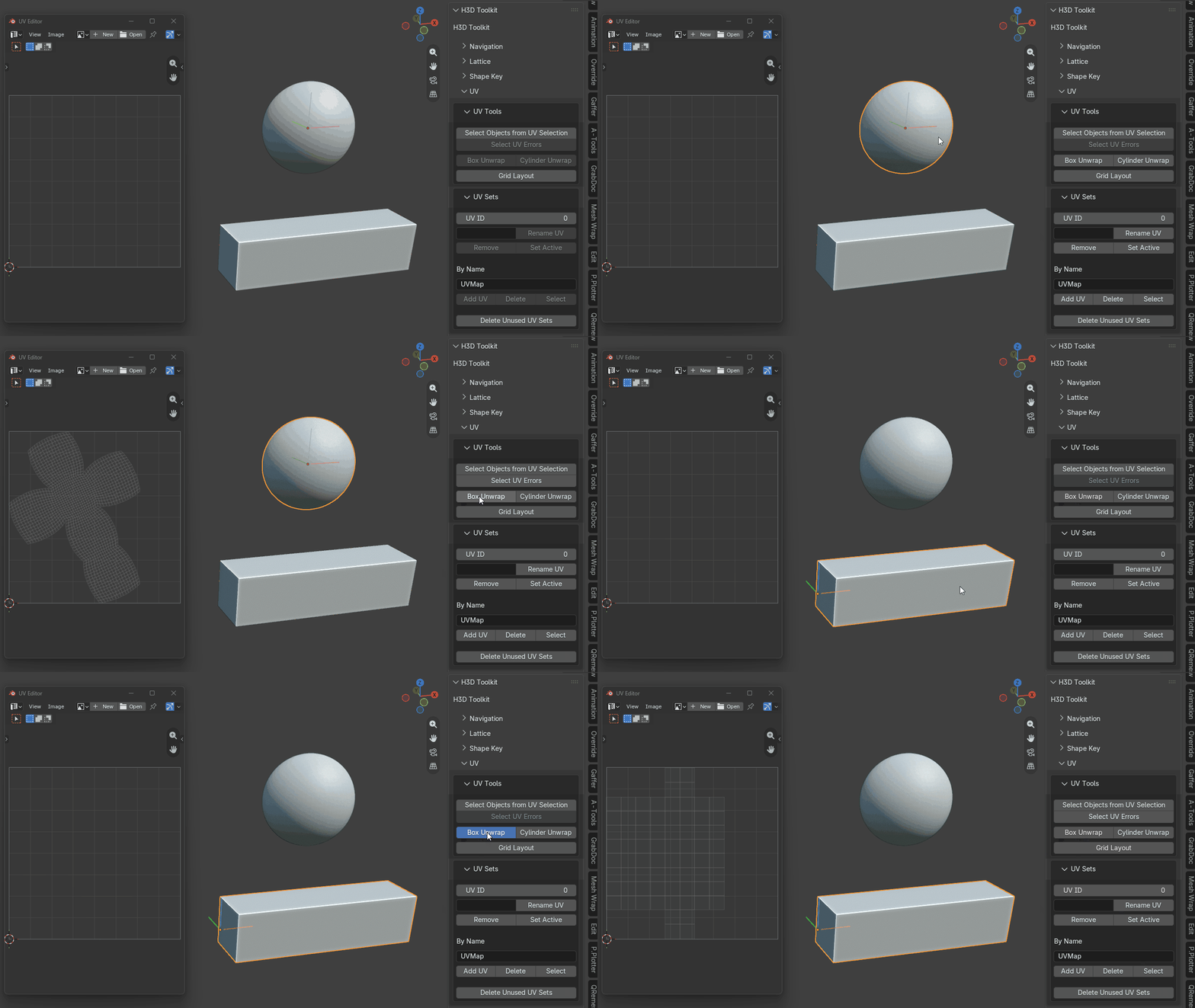
Box Unwrap
Automatically cuts seams and unwraps cube-like topology. The tool can bias seams away from the camera-facing side and aims to keep the result as a single UV island. It also detects whether the topology is manifold or non-manifold and adjusts seam cutting accordingly.
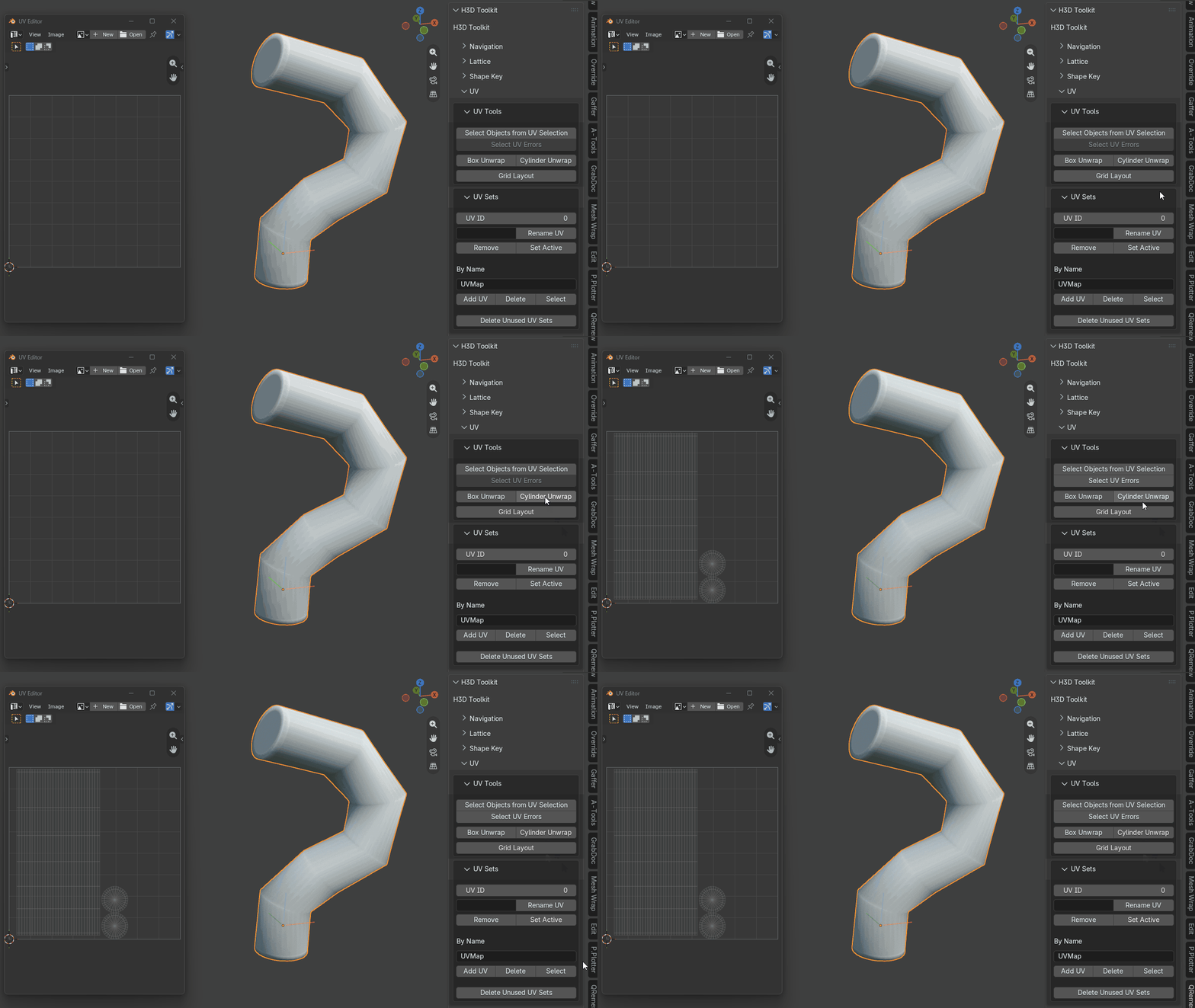
Cylinder Unwrap
Cuts seams and unfolds cylinder-like topology. The main quad body is straightened into a clean rectangular UV grid while the caps are left untouched. It can also hide the seam based on the current camera/view angle when the tool is run.
Grid Layout
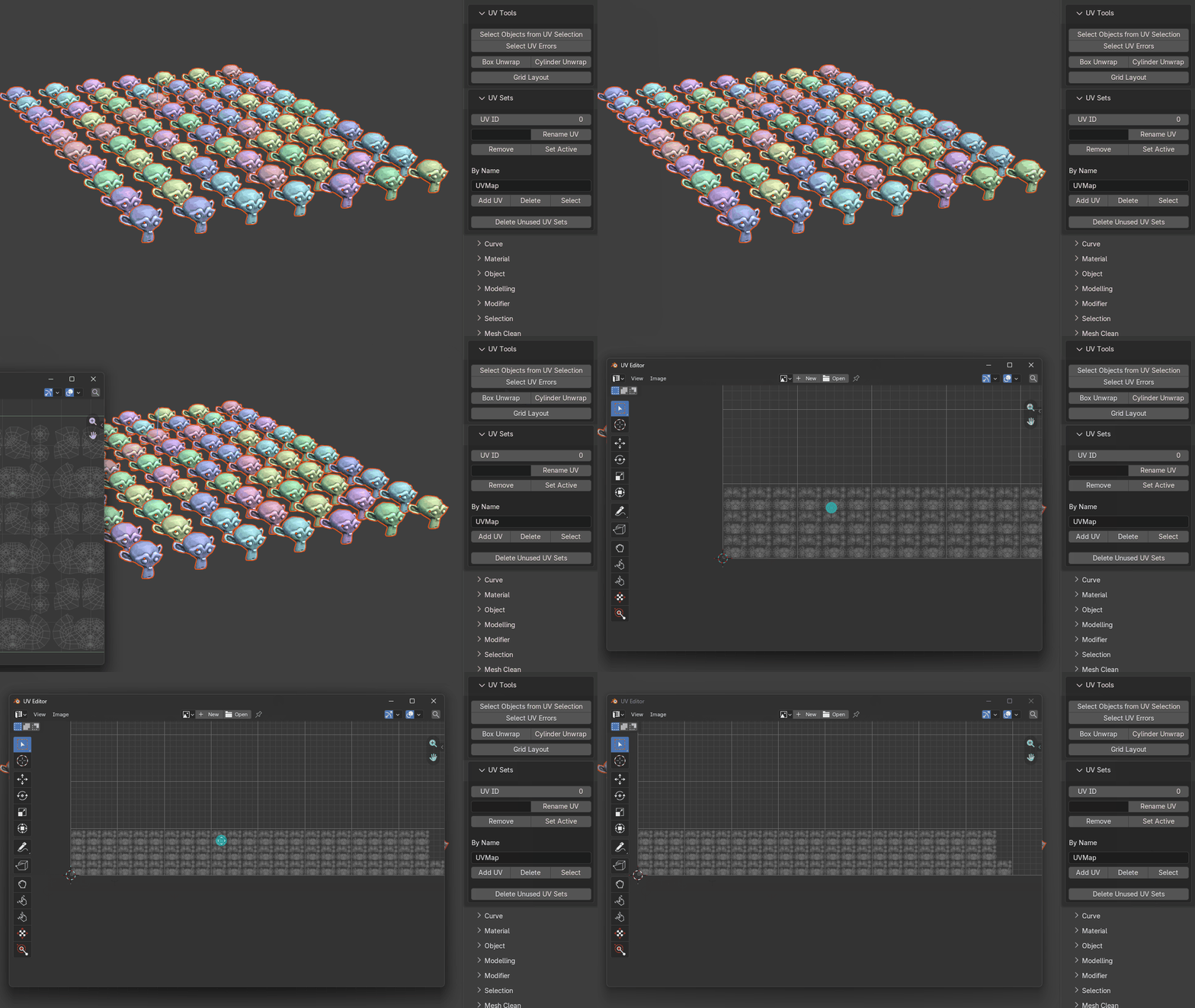
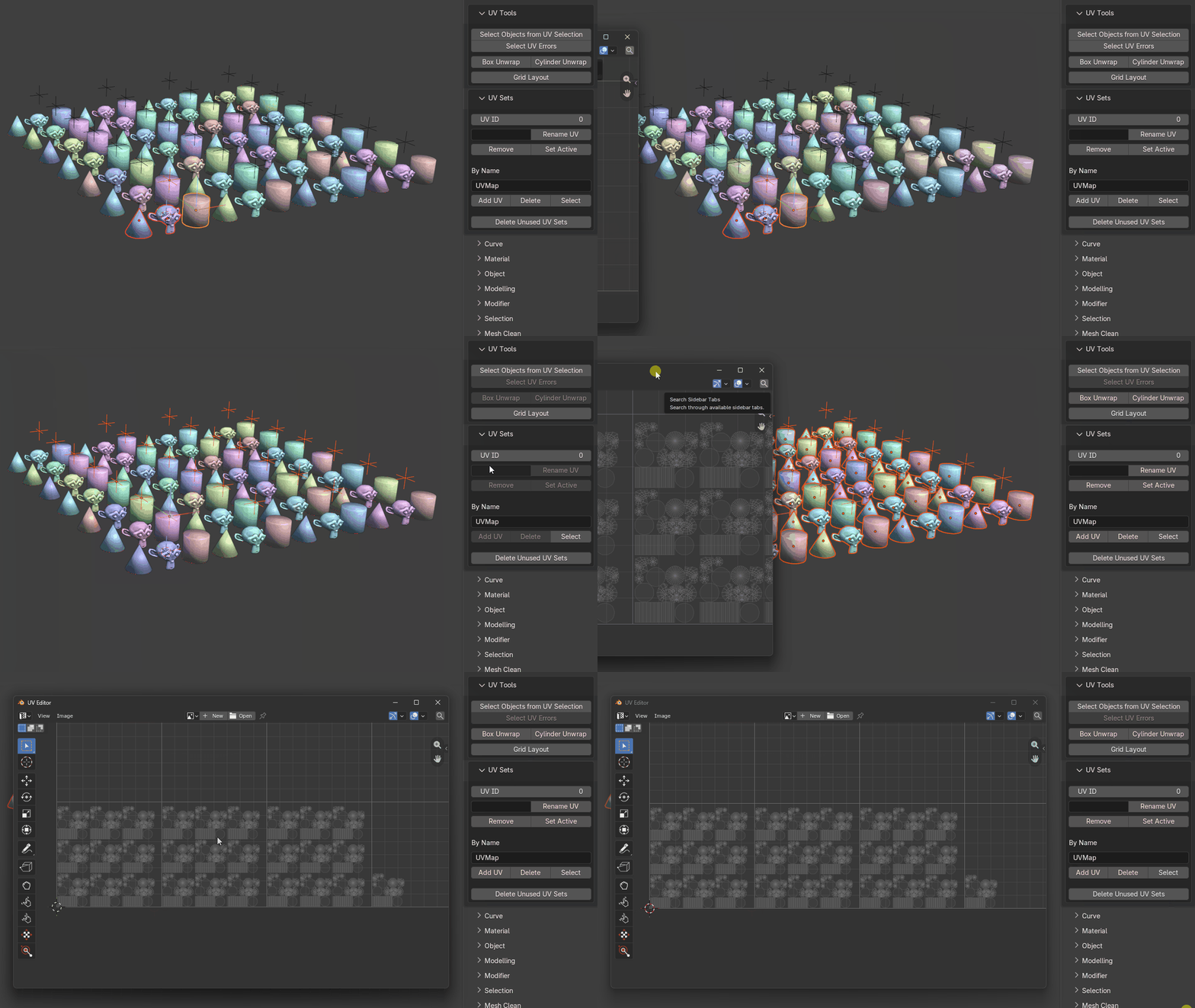
Preserves repeating-object UVs and arranges them into a clean layout. It creates vertical columns of stacked UVs, then moves horizontally to begin another column when capacity is reached. If the objects exceed one UDIM tile, layout continues into the next UDIM. Works with both object and group selections.
Object layout
Group layout
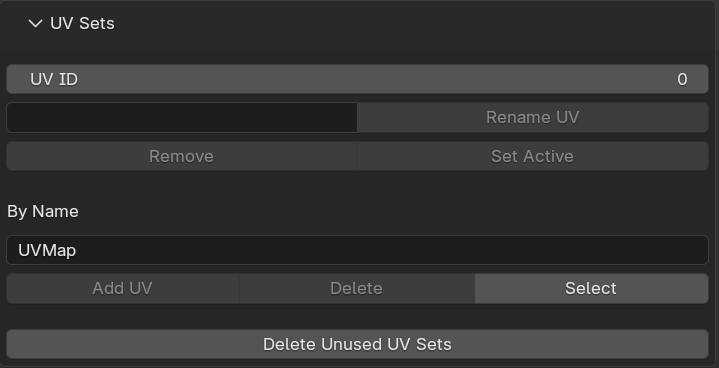
UV Set Tools
Multi-object UV set utilities for:
- renaming UV sets
- deleting UV sets
- setting the active UV set
- creating UV sets
- adding UV sets
- selecting UV sets by name
- deleting UV sets by name
- Delete Non-Active UV Sets
-
Copy and paste UVs between UV sets based on name
 .
.
Curve Tools
Curve-based modelling, conversion and deformation utilities.
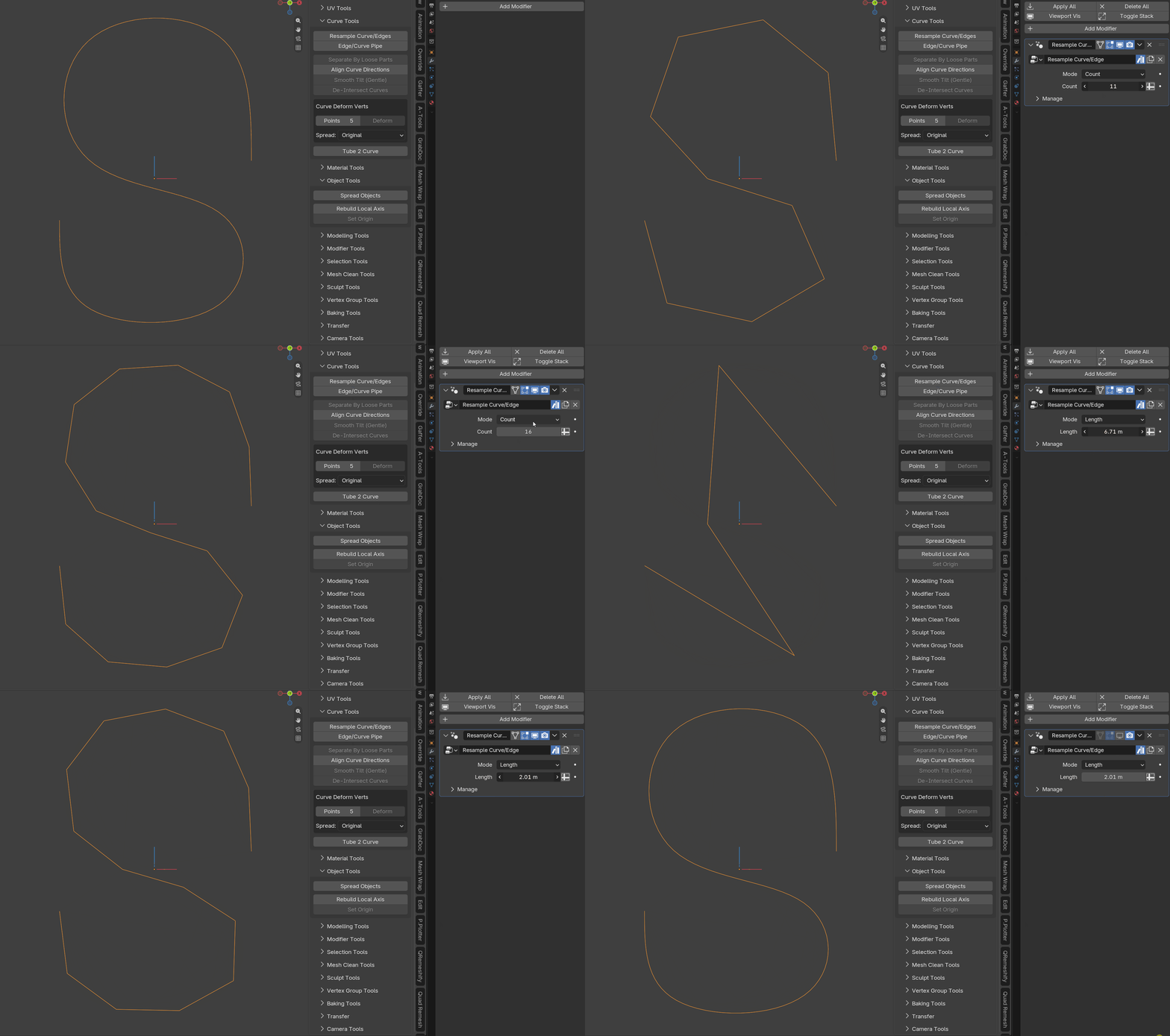
Resample Curve/Edge
Adds a Geometry Nodes modifier that allows an edge or curve to be resampled through modifier controls.
Edge/Curve Pipe
Adds a Geometry Nodes modifier that turns an edge or curve into a tube or pipe.
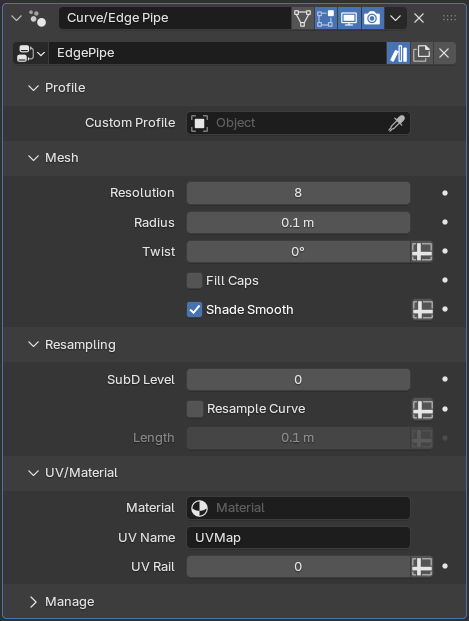
The generated pipe includes automatic UVs and can use a custom profile.
Separate By Loose Parts
Separates curves by loose parts, similar to Blender's mesh Separate by Loose Parts workflow.
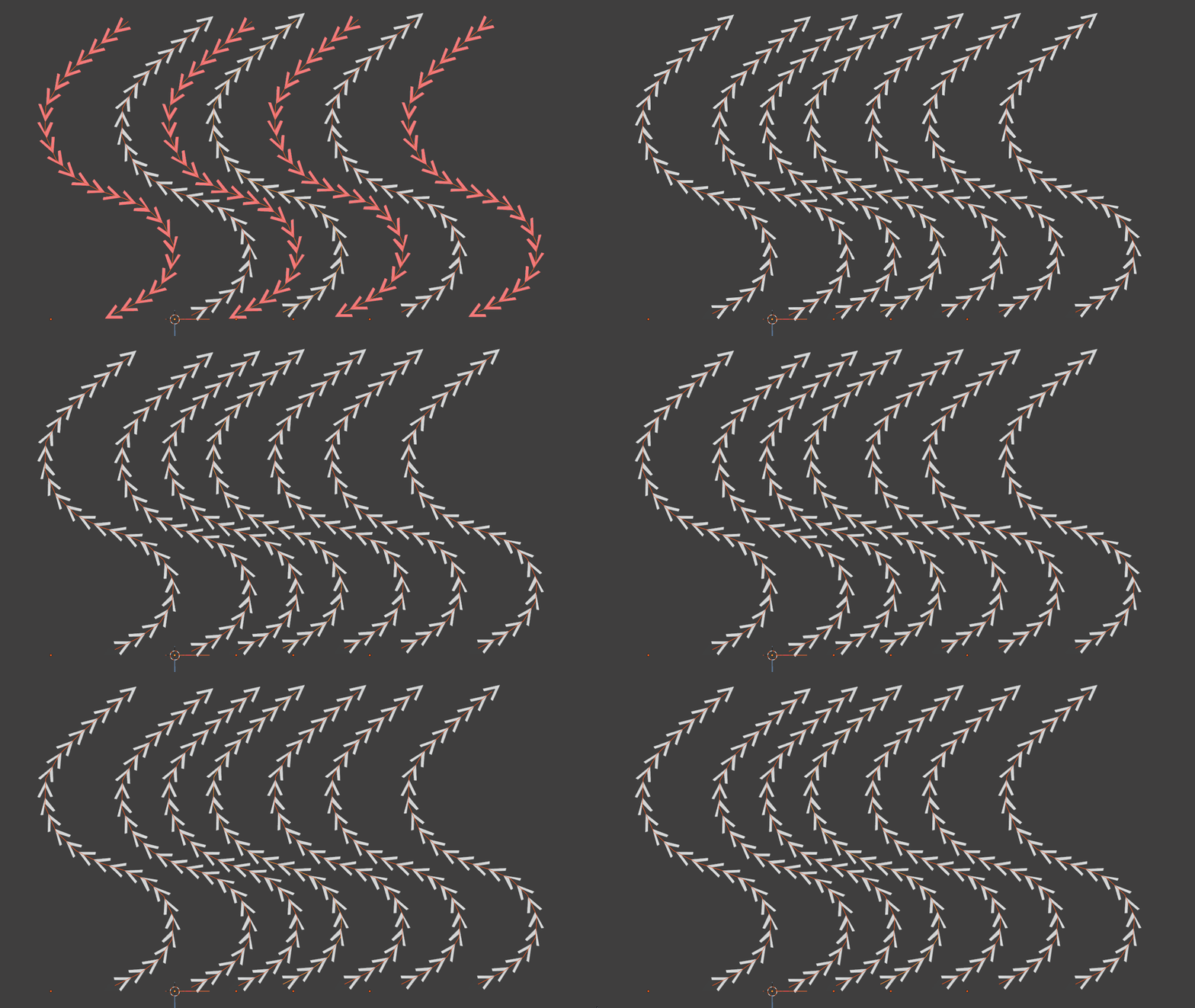
Align Curve Direction
Attempts to make curves with a similar flow use the same curve direction. (Works in both edit and object mode)
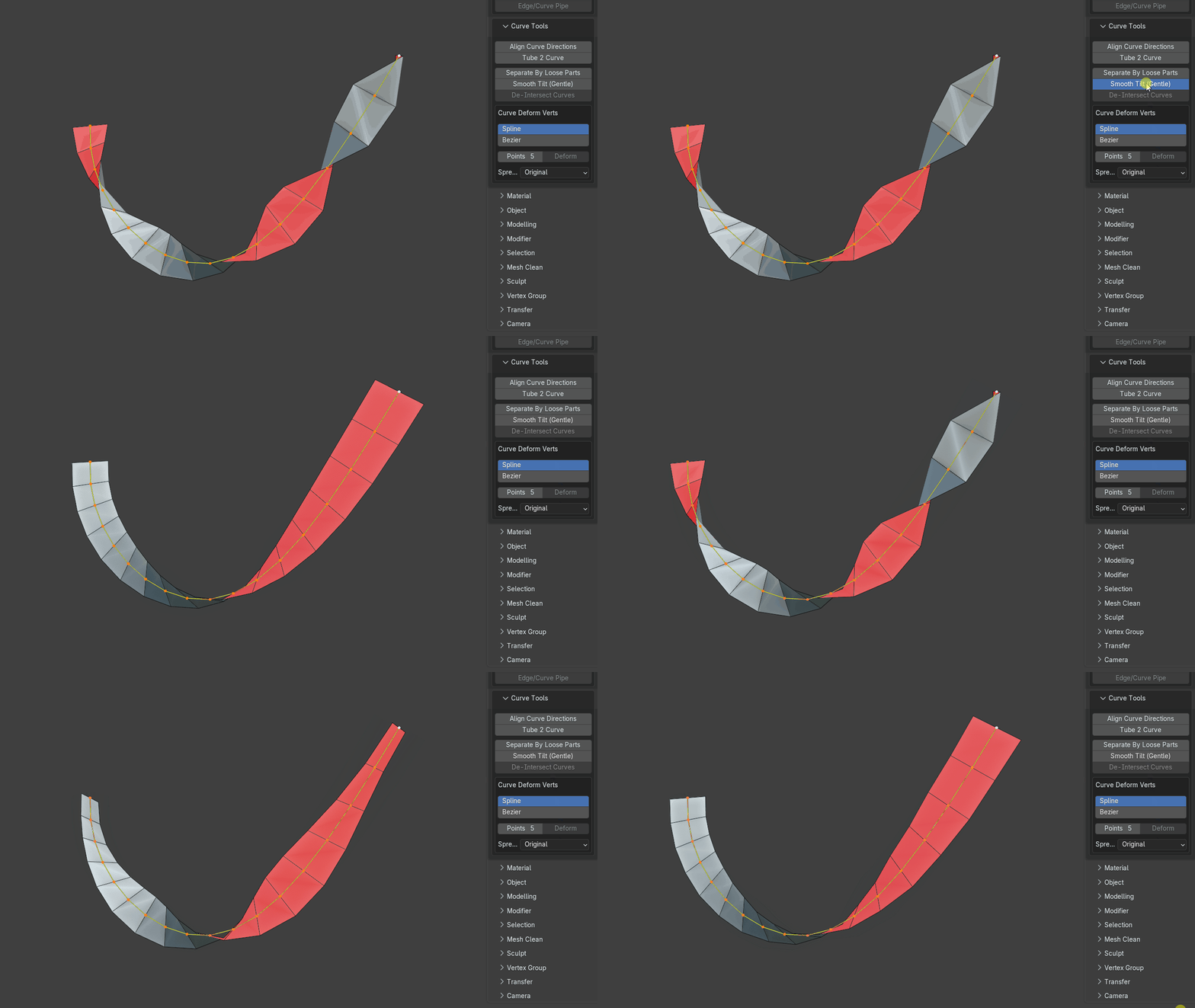
Smooth Tilt (Gentle)
A more sensitive alternative to Blender's built-in Smooth Tilt operator, designed to provide finer control over softening out the twists in curves.
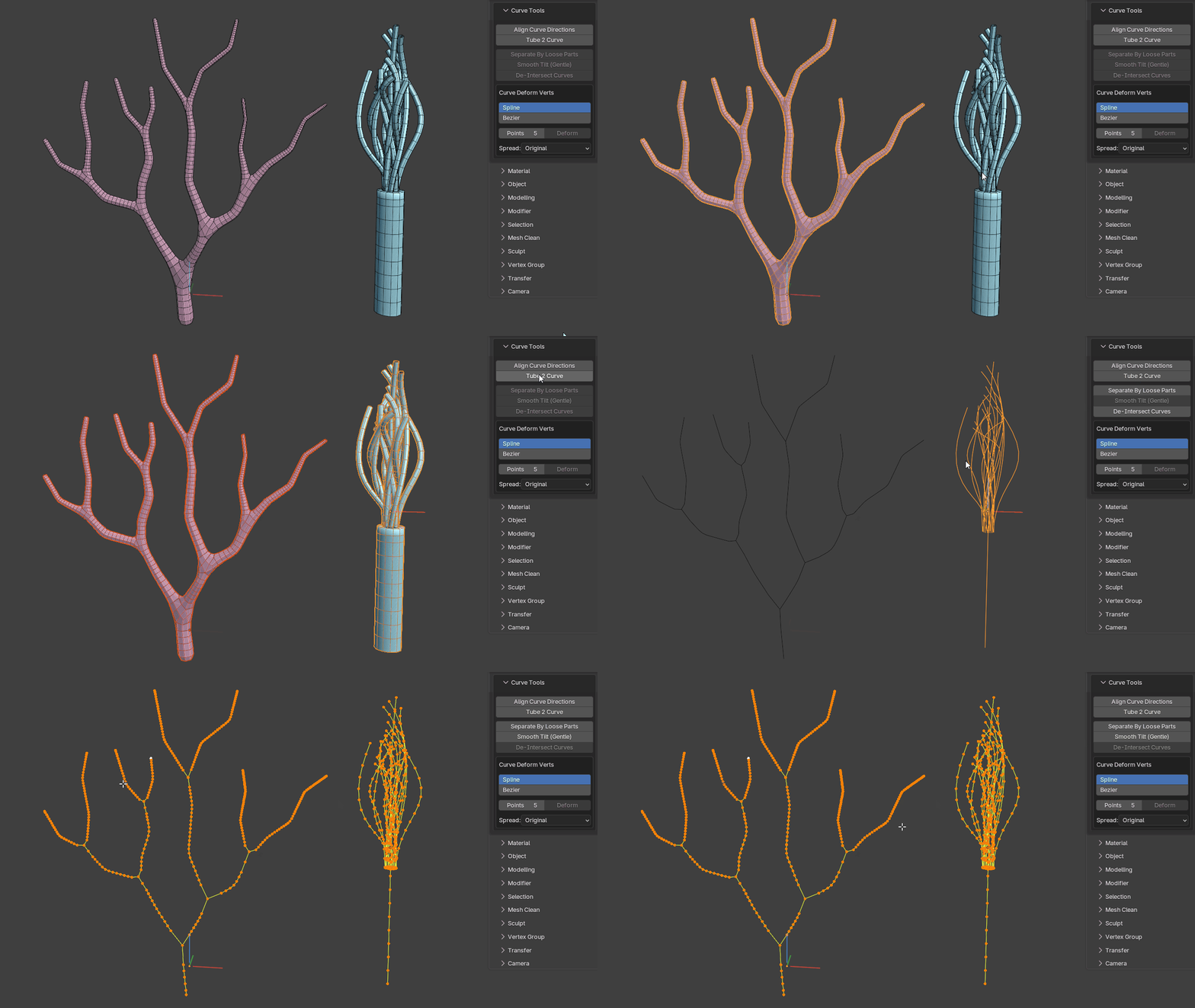
Tube 2 Curve
Converts tube or pipe geometry back into a center curve. Works on even very complex geometry such as trees and branches.
Material Tools
Utilities for cleaning up materials and material slots.
Keep Active Material Only
Removes every material from the selected object except the active material.
Delete Empty Material Slots
Deletes empty material slots.
Cleanup Duplicates
Inspects materials for identical properties and collapses duplicates down into a single material to reduce clutter in the Blender file.
Remove Materials + Slots
Removes all materials and material slots.
Object Tools
Object-level utilities for layout, baking preparation, local axes and origins.
Explode Mesh
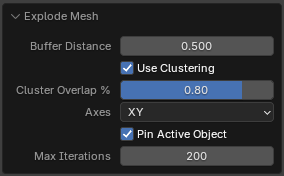
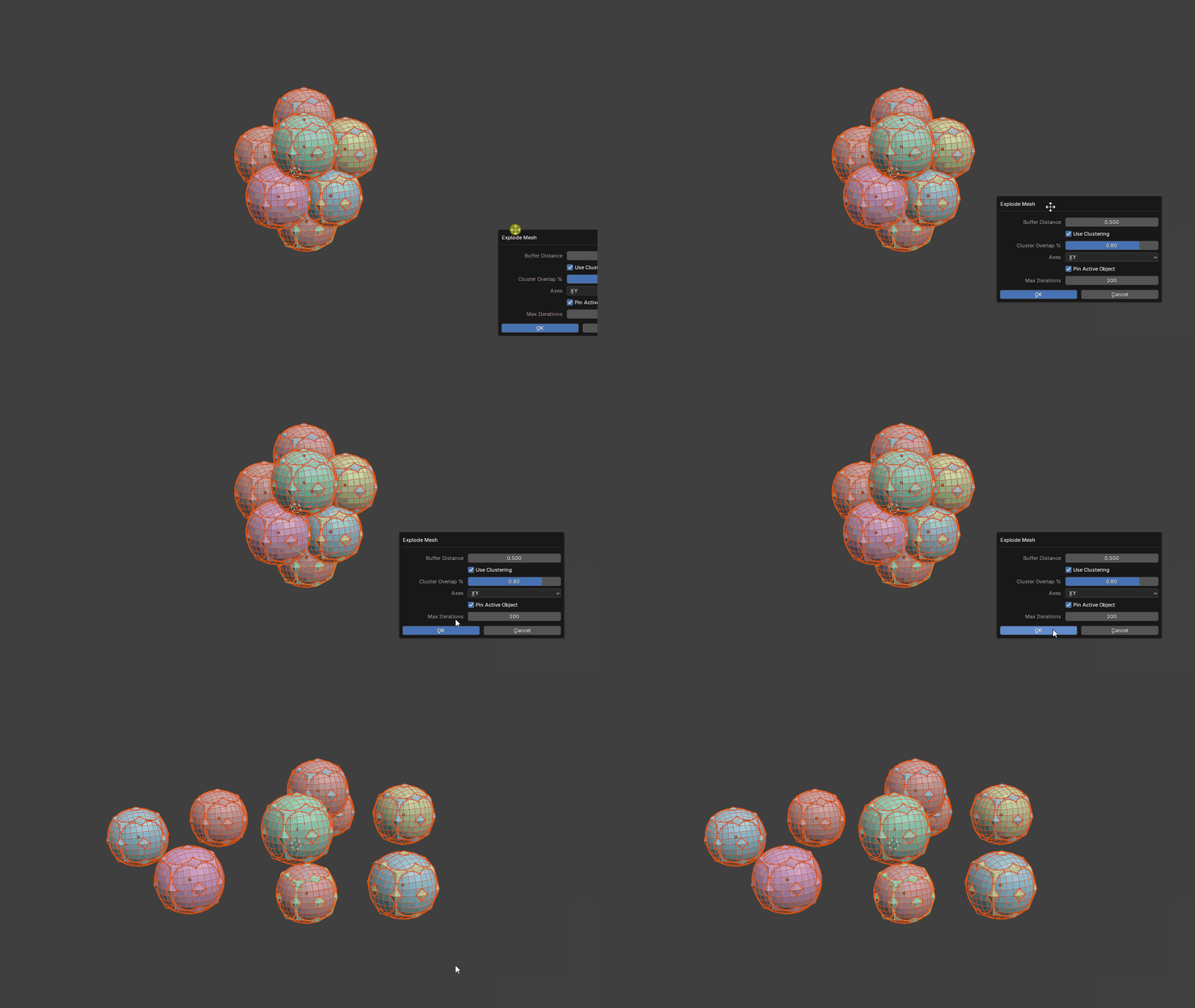
A baking-preparation operator that separates overlapping or intersecting geometry so meshes can be baked without nearby geometry interfering with the result. The tool includes a clustering system that analyses object bounding boxes to keep related objects together.
This is particularly useful for matching high-resolution and low-resolution baking pairs. Objects with nearly identical spatial bounds can remain synchronized while the clusters are exploded away from surrounding geometry.
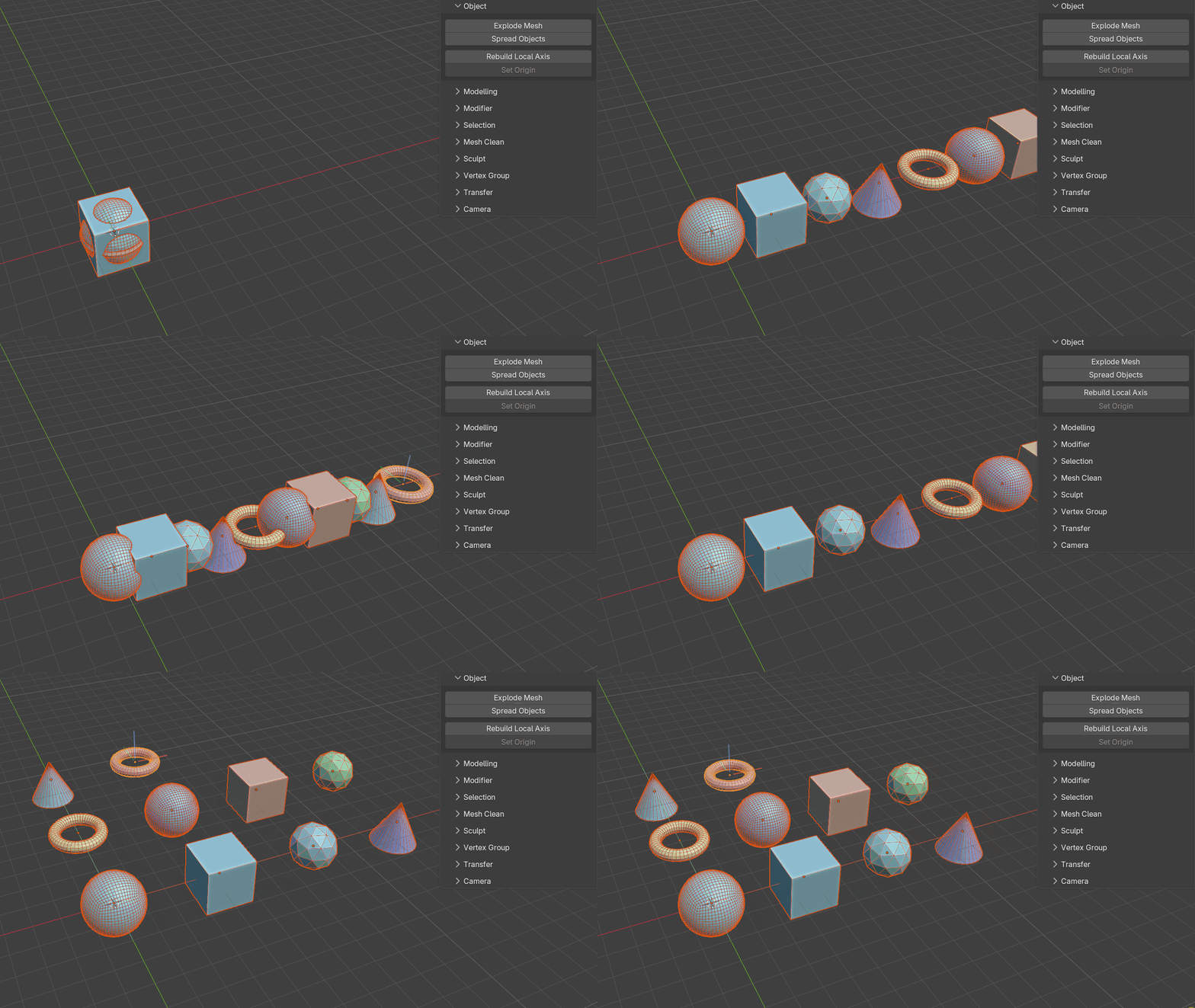
Spread Objects
Spreads objects along either a line or a grid.
This is useful for organizing kitbash libraries or laying out large object collections for inspection.
Rebuild Local Axis
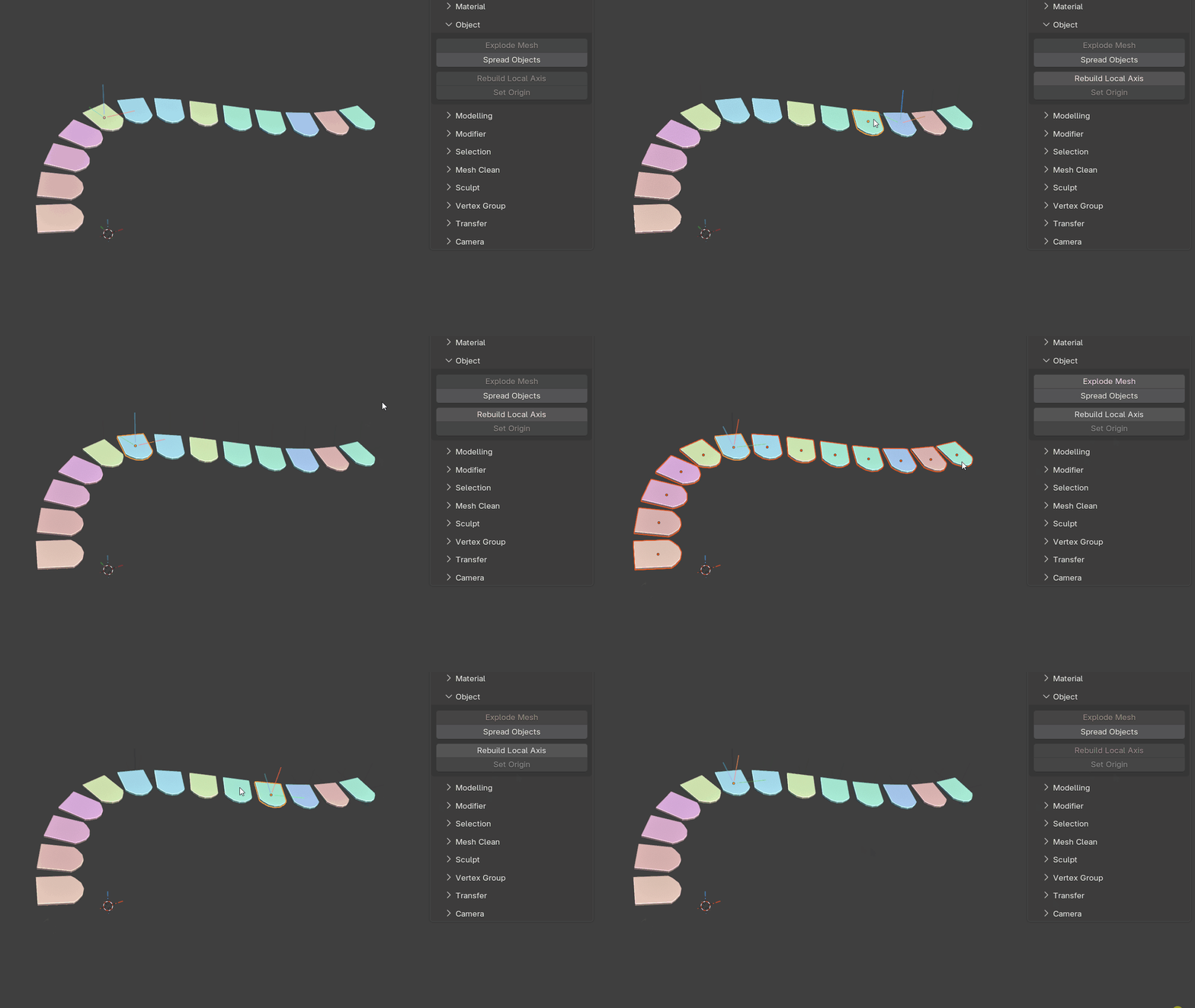
Rebuilds the local axes and origin for selected mesh objects after transforms have been applied.
For each selected mesh object, the tool fits an oriented bounding box to the geometry and uses it to rebuild the local axes.
It can also sample nearest neighbours to encourage consistent axis orientation across many related objects, such as roof tiles.
Set Origin
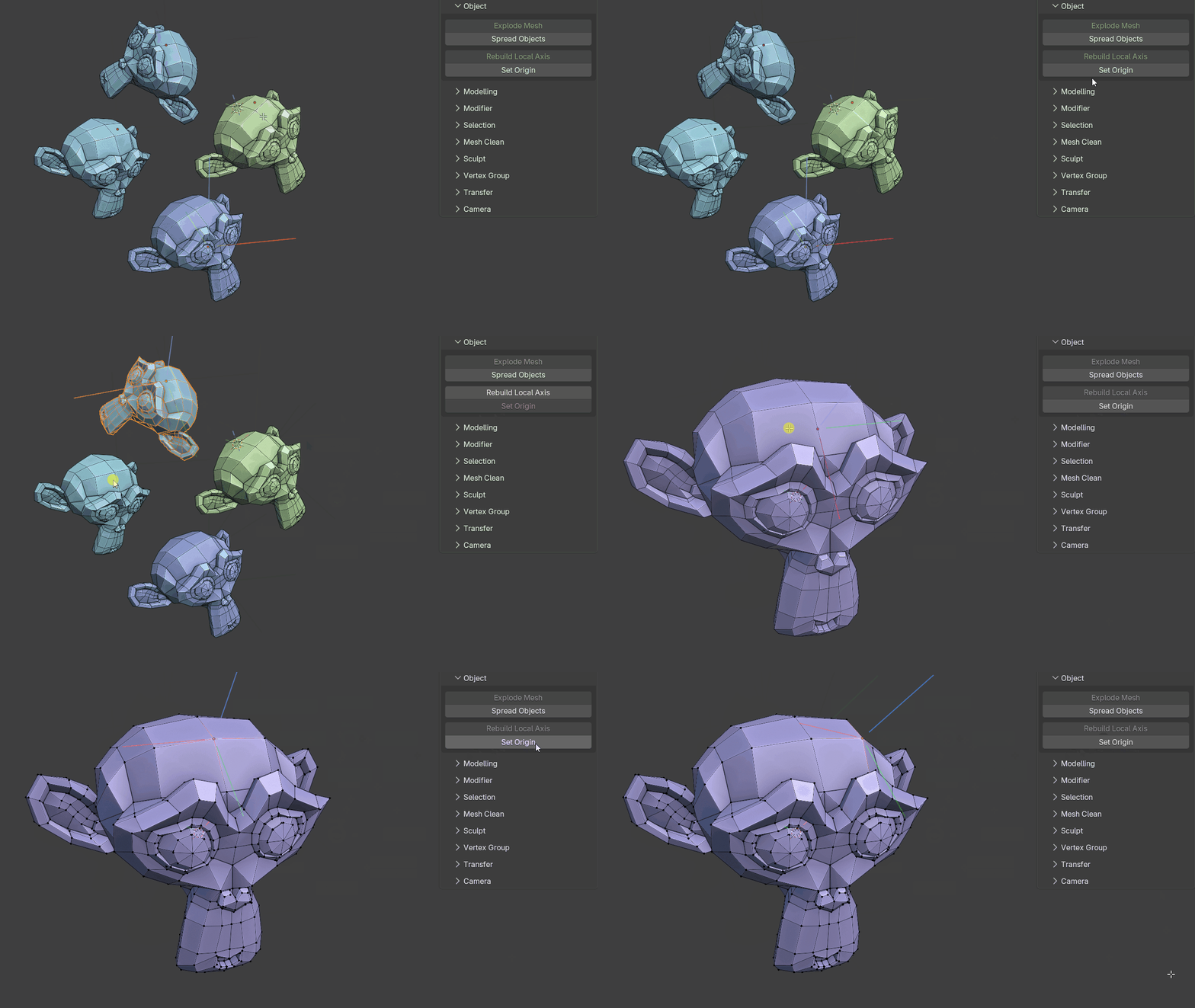
Uses selected mesh components to position and orient the object's origin (multiple objects supported).
The orientation can be aligned to either world space or the selected component normals. When edges are selected, the origin's X axis is aligned exactly to the selected edge direction while the surface normal is derived from the linked faces. For a single selected vertex, the tool builds the orientation from the surrounding one-ring faces and directly connected edges. On quad topology it identifies the true opposite edge pairs around the vertex, follows the local edge-loop direction, and preserves that tangent exactly while fitting the surface normal around it.
Modifier-click behavior:
- Click = move and rotate the origin
- Ctrl + Click = rotate the origin only
- Alt + Click = move the origin only
Modelling Tools
Geometry creation and editing tools for common modelling workflows.
Radial Array
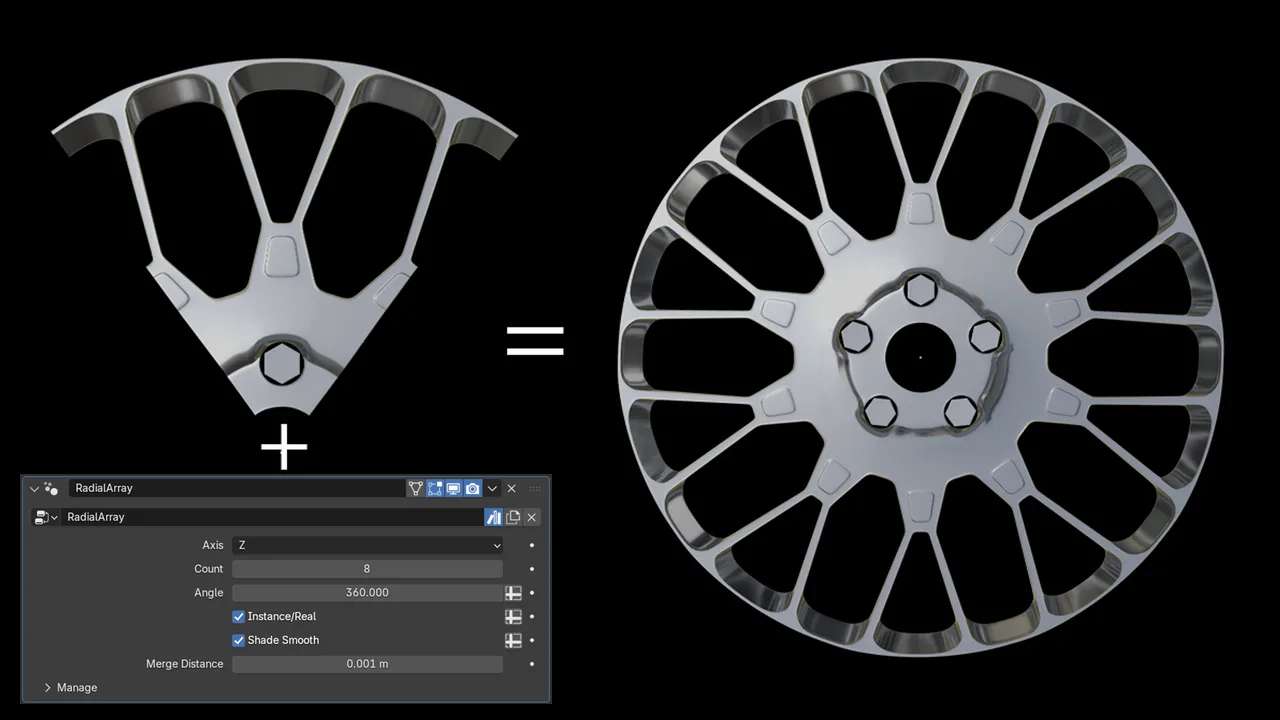
Creates a Geometry Nodes-based radial array modifier.
Rather than relying on instances distributed around a circle, the array is based on rotating geometry around the object's origin.
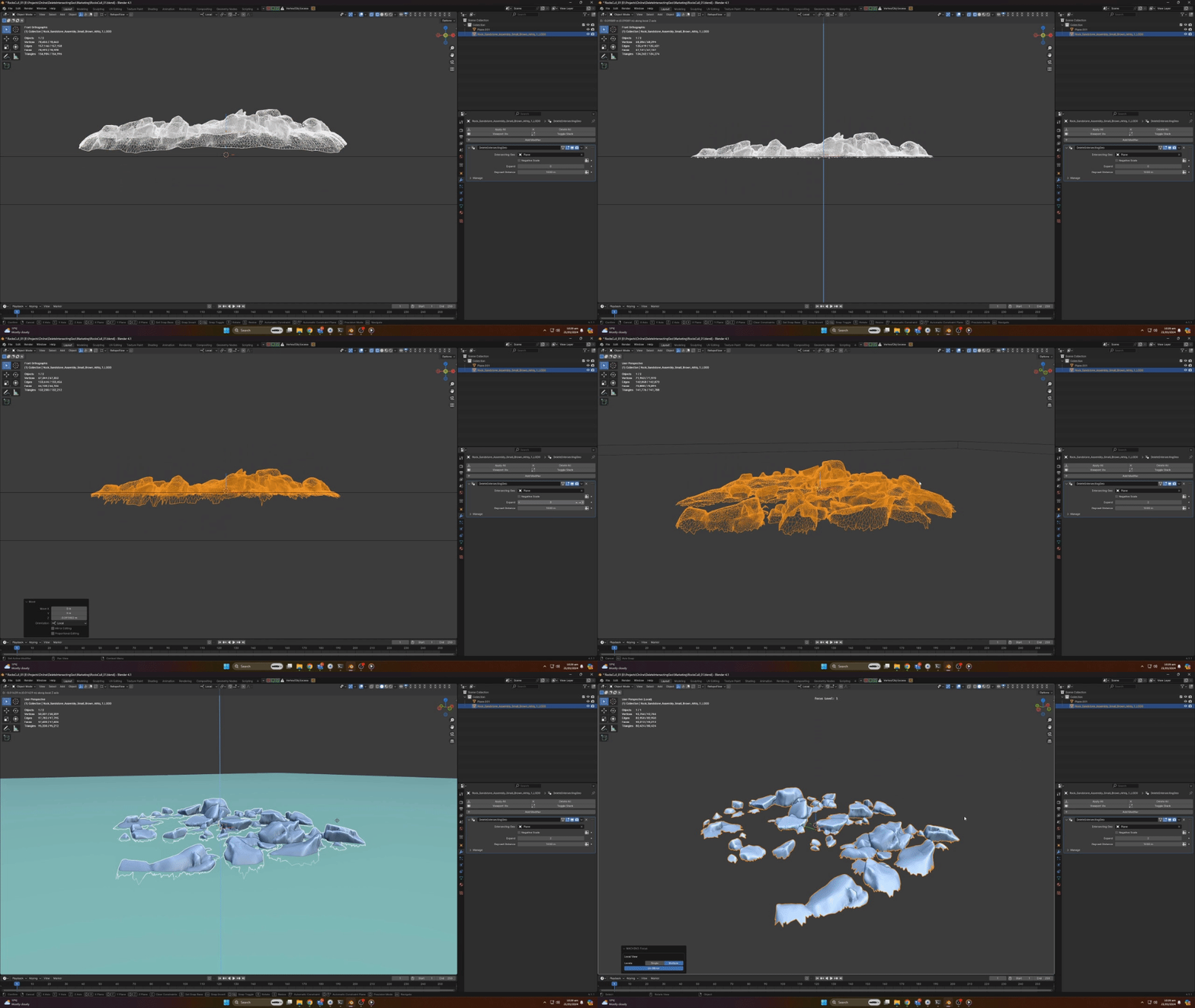
Delete Intersecting Geo
Creates a Geometry Nodes modifier that deletes geometry intersecting another object.
The affected area can be expanded or contracted, making it useful for environment work where hidden or unnecessary intersecting geometry needs to be culled.
Bend Modifier (created by david_4_you and made avaiable via CC0 license)
Adds the bundled Bend Geometry Nodes modifier to selected geometry objects from H3D Toolkit → Modelling → Modifiers.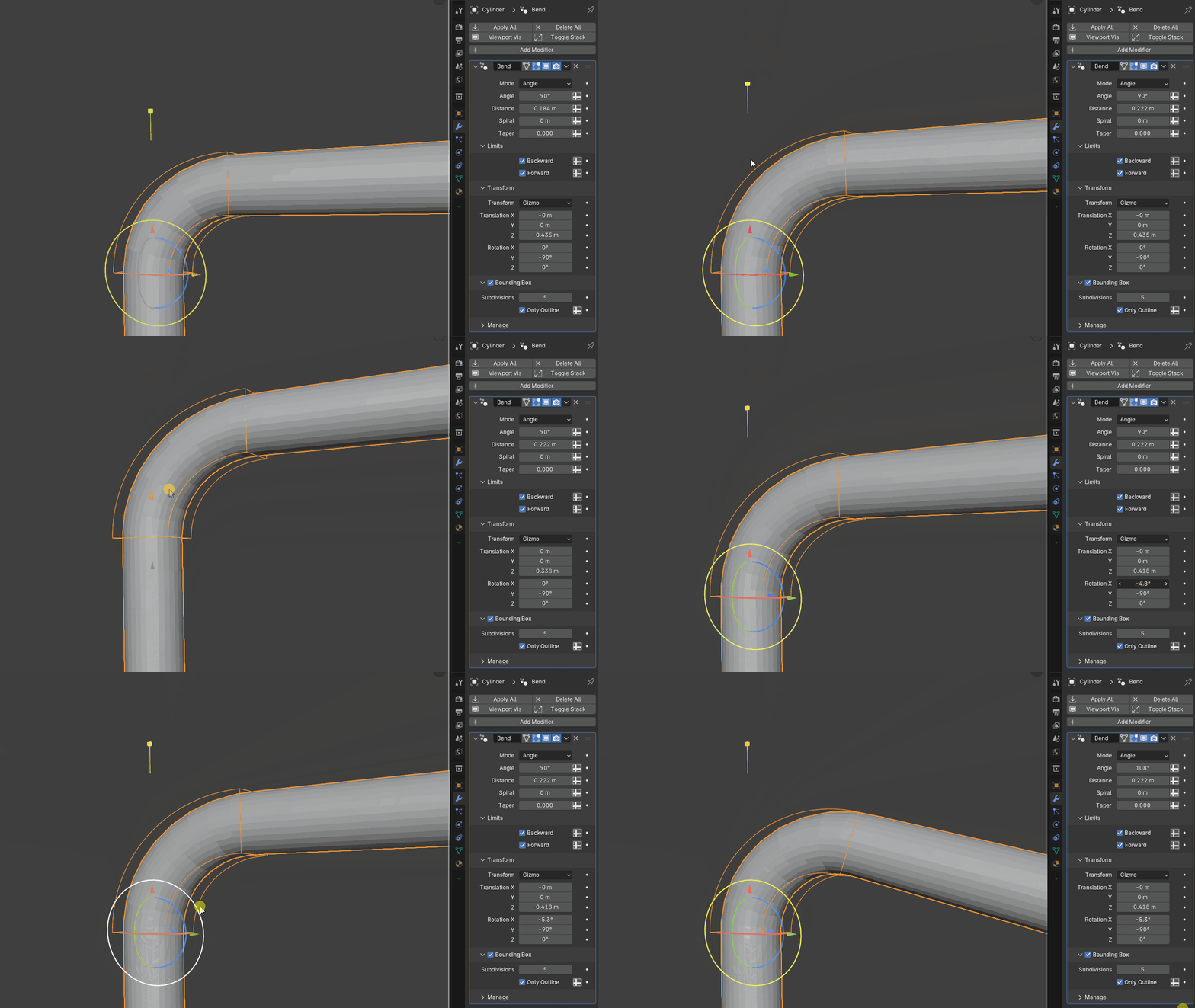
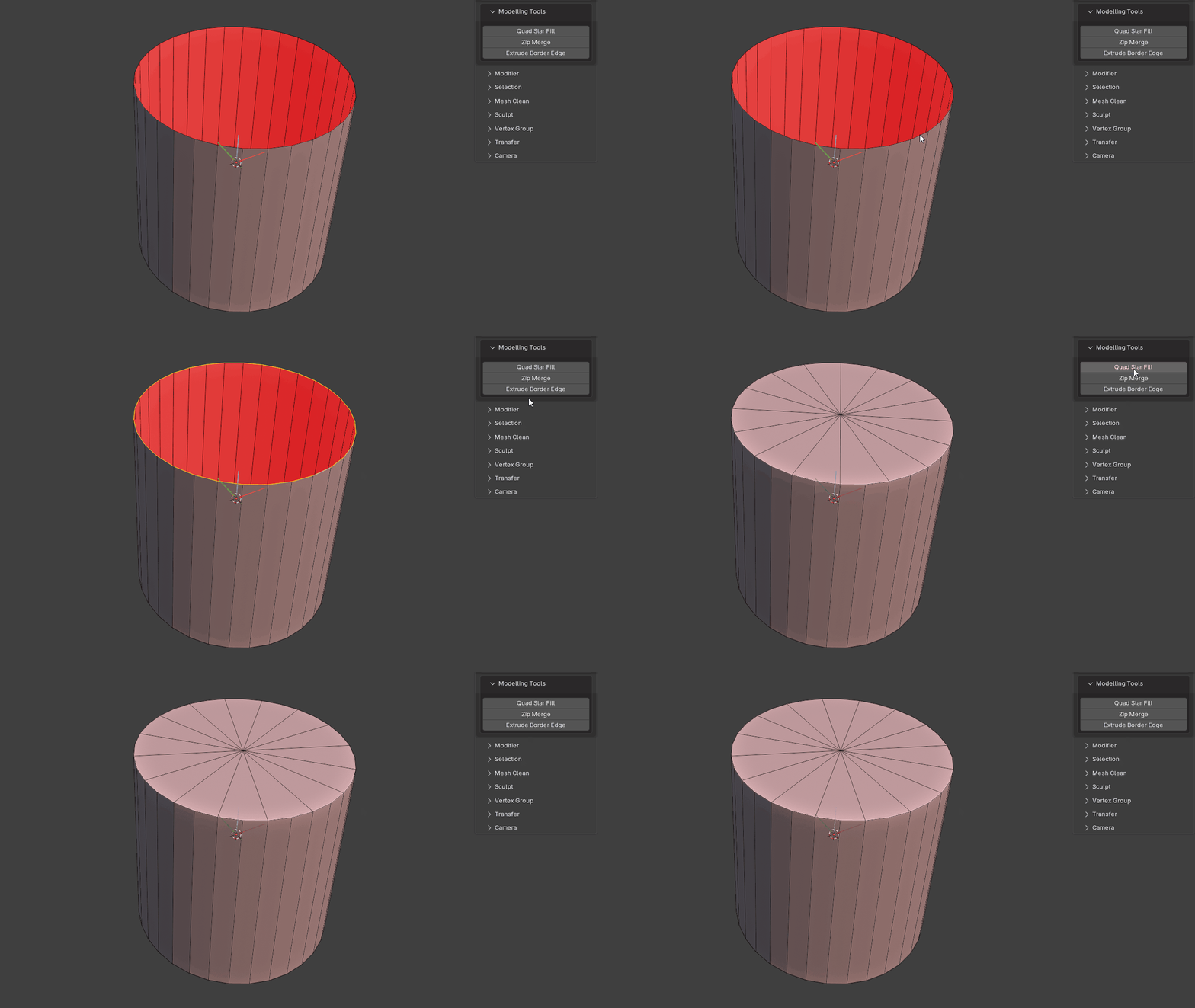
Quad Star Fill
Fills a hole with a quad star.
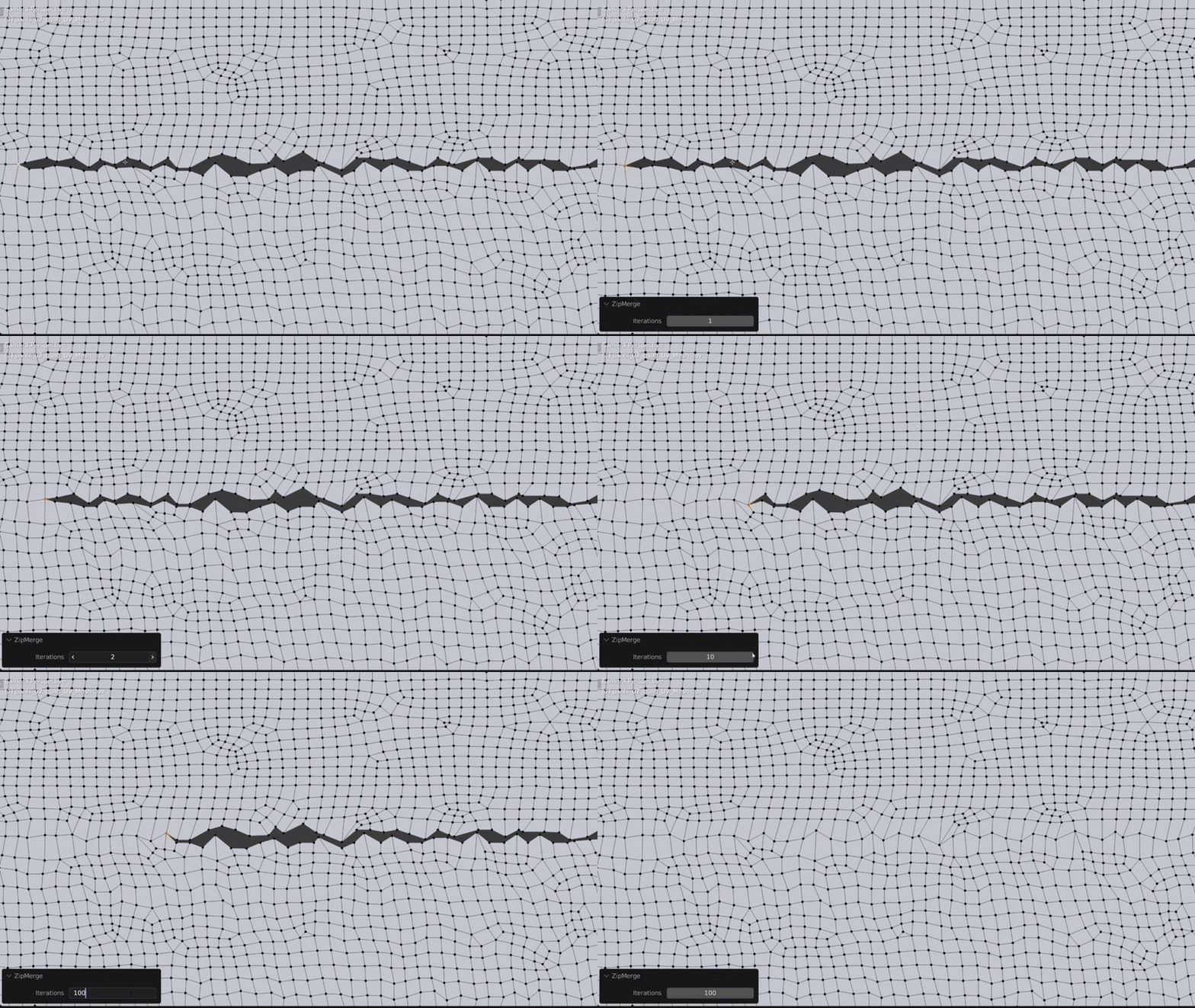
Zip Merge (DEMO VIDEO)
Designed for merging complex geometry when Merge by Distance creates problems, or when UVs need to be preserved without bridging faces.
A useful example is merging seams together on clothing.
Extrude Border Edge
Extrudes and rotates selected border edges in Blender 5.2+.
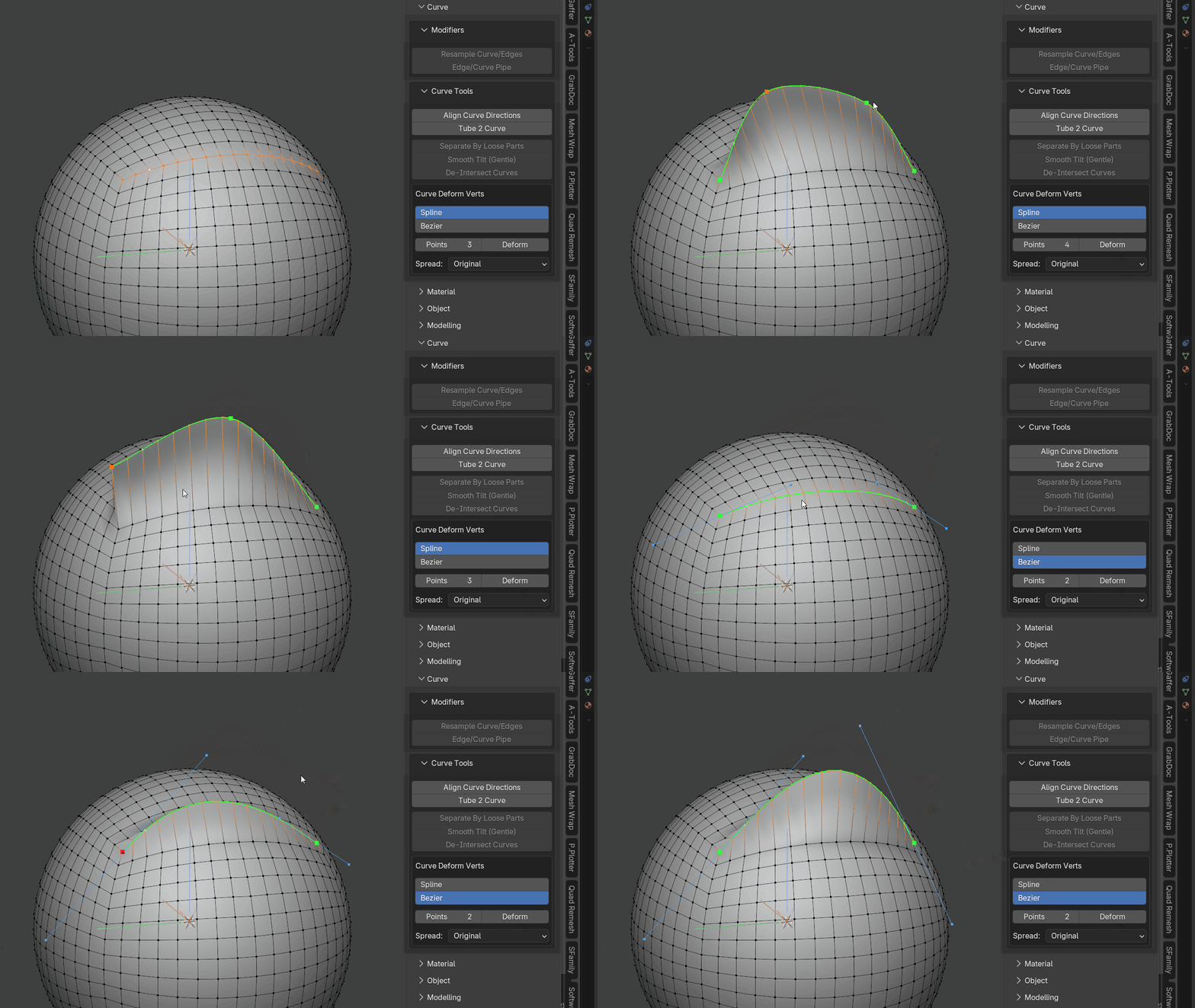
Curve Deform Verts
Quickly deform selected vertices along an editable curve with intuitive viewport controls.
Before running the operator you can choose between Spline and Bezier curve types. Bezier mode initializes its handles from the selected vertex chain so it follows the existing curvature as closely as possible at any control-point count. The endpoint handles are aligned to the original vertex-chain tangents, while the remaining handles are fitted against the source curvature. The handles can then be adjusted for more precise shaping.
You can dynamically increase or decrease the number of curve control points and change how vertices are distributed along the curve.
This is especially useful for hard-surface modelling when vertices need to follow a specific curvature.
Hotkeys:
- M = Change distribution method
- + / - = Increase/Decrease curve points
- S = Scale the selected Bezier point handles
- R = Rotate the selected Bezier point handles by moving the mouse around the selected point, similar to Blender's viewport rotation
Modifier Tools
Utilities for managing modifiers across objects.
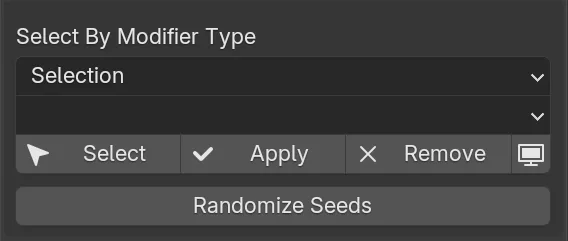
Select By Modifier Type
Select, apply, remove or disable modifiers based on modifier type.
The search can be limited to:
- the entire scene
- the current selection
Modifiers can also be applied on instances.
Randomize Seeds
Randomizes exposed seed parameters on Geometry Nodes modifiers. This is useful when the same procedural modifier is used across many objects and each object needs a different randomized result.
Selection Tools
Utilities for finding and selecting objects or mesh components based on structure and properties.
Select by Vert Count
Selects geometry based on vertex/poly count.
Select Similar
Select one or more vertices, edges or faces and run Select Similar to find other components with matching topology.
This is useful for selecting repeated topological features without manually clicking each one.
Select Instances
Extends Blender's linked-selection workflow so instances can be selected from multiple object selections rather than only from the active object.
Select By Modifier Name
Selects geometry based on modifier names.
This is useful for finding objects with a specific named modifier attached.
Mesh Clean Tools
Mesh cleanup and inspection tools.
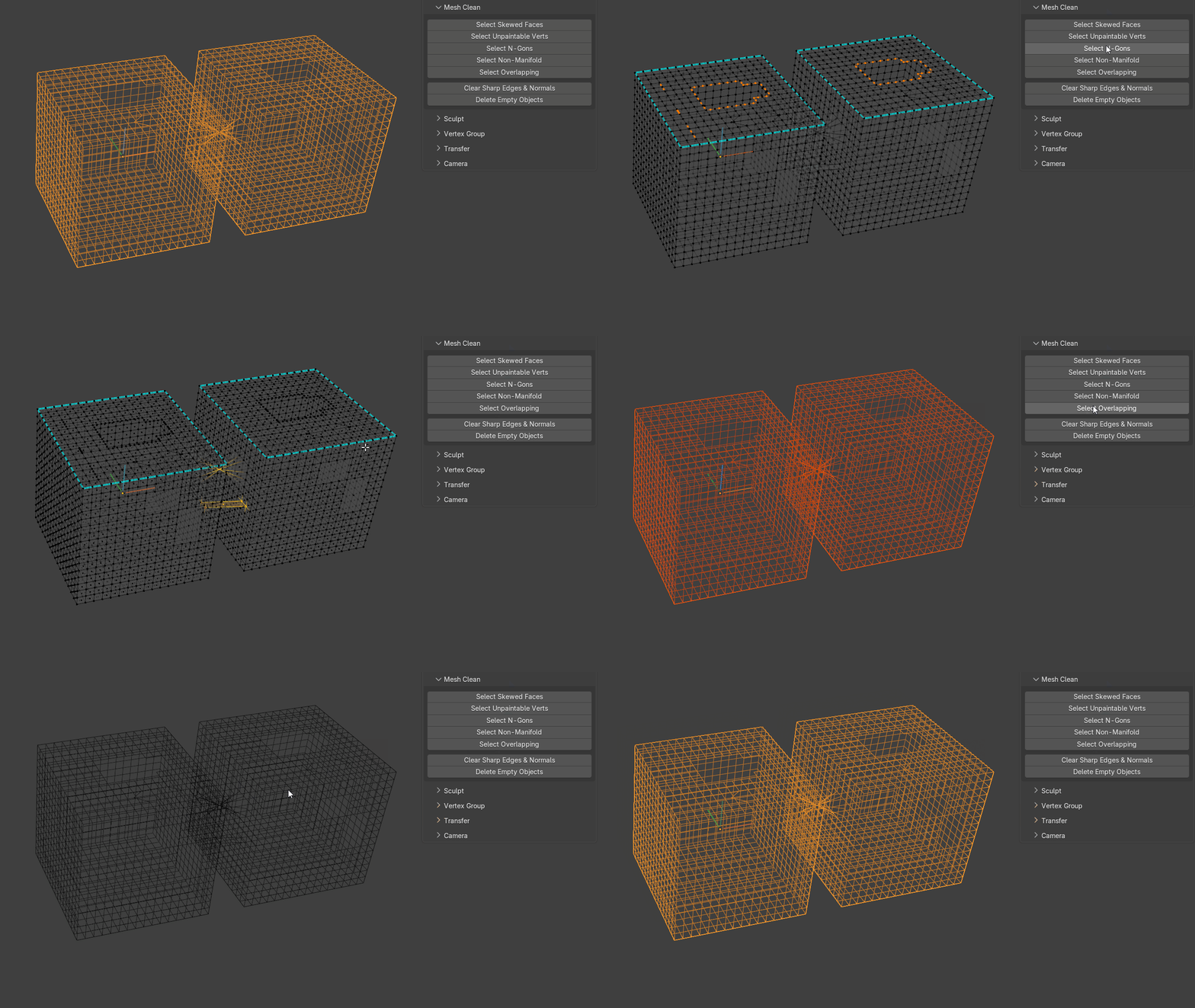
Select Skewed Faces
Selects faces that are extremely skewed and causing poor triangulation.
Select Unpaintable Verts
Selects vertices that have only two edge neighbors.
An angle tolerance helps avoid selecting legitimate corner vertices.
Select Ngons
Selects n-gons.
Select Overlapping
Finds objects or components that are perfectly overlapping.
The operator supports both Object and Component modes.
When duplicates overlap, the tool aims to select the redundant geometry while leaving one copy unselected, making it possible to immediately delete the problem geometry.
Clear Sharp Edges & Normals
Removes imported sharp-edge and custom-normal data, leaving a soft-shaded mesh without custom normals.
Delete Empty Objects
Deletes scene objects that contain no vertices, edges or faces.
Sculpt Tools
Utilities for working with Multiresolution sculpt workflows on multiple objects at the same time (not possible in vanilla Blender)
Delete Lower
Makes the currently active subdivision level on a Multiresolution modifier the new base level.
Works across multiple selected objects.
Rebuild Subdivisions
Lets you choose how many subdivision levels to rebuild and run the process across multiple selected meshes.
Separate By Loose Parts
Separates geometry by loose parts while preserving Multiresolution sculpt data that would otherwise be destroyed by Blender's default separation workflow.
Conform Shape
Applies Conform Shape to all selected Multiresolution modifiers.
Vertex Group Tools
Clear Vertex Groups
Deletes vertex groups across multiple selected objects.
Create Vertex Group
Creates and names a vertex group across multiple selected objects.
Transfer Tools
Utilities for transferring mesh data between source and target objects.
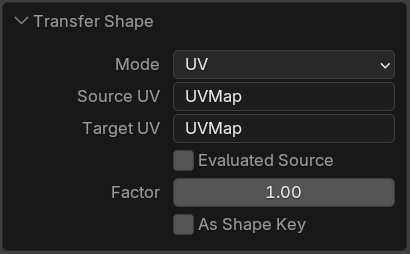
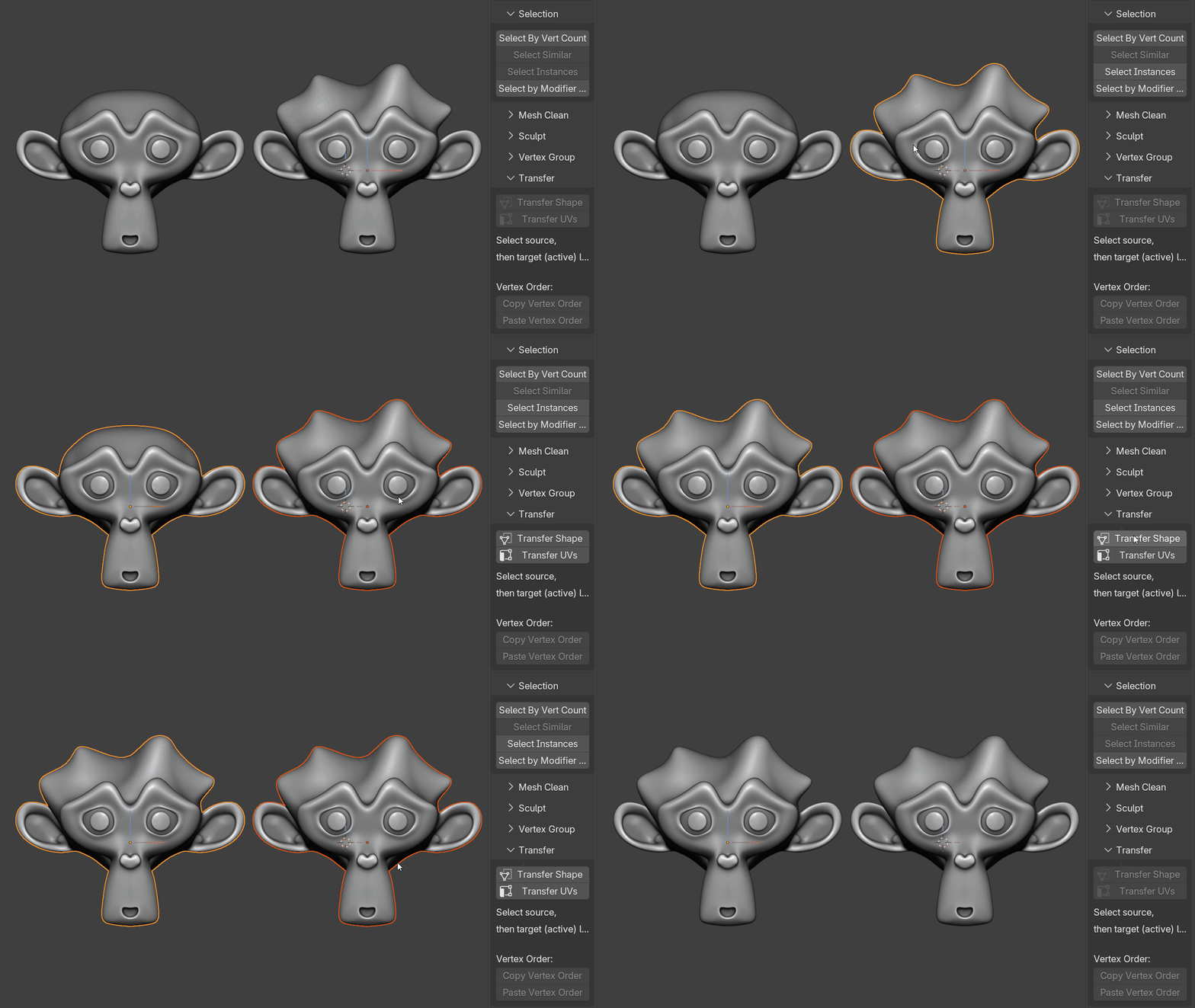
Transfer Shape
Select a source mesh and then a target mesh.
Shape can be transferred using either:
- UVs
- vertex order
Transfer UVs
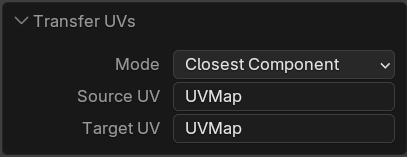
Select a source mesh and then a target mesh.
UVs can be transferred using:
- vertex order
- closest component
- interpolated faces
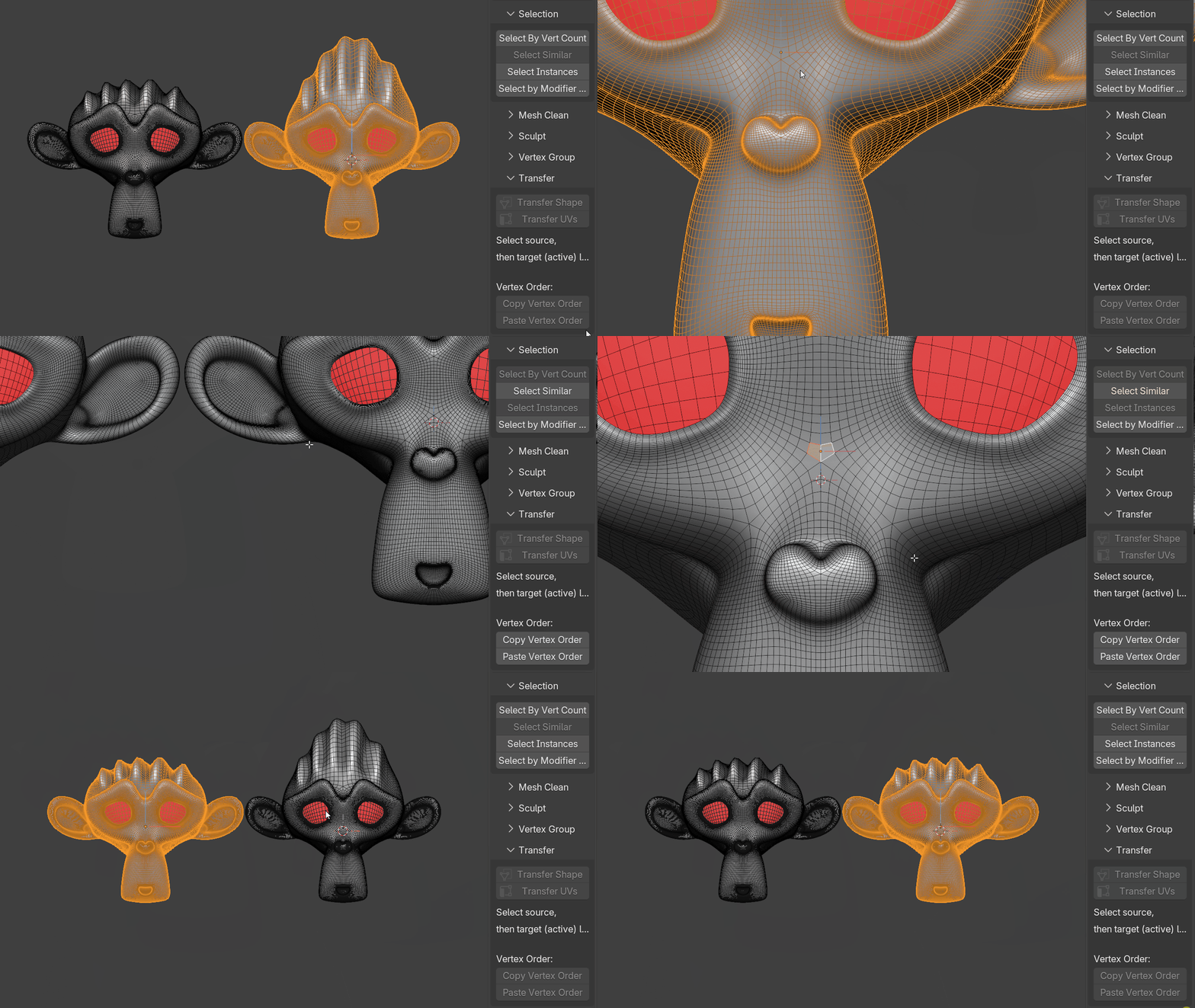
Copy/Paste Vertex Order
Select two faces to copy and paste vertex order.
Camera Tools
Camera Tools provides a batch-render workflow for multiple cameras.
Build a camera list by adding selected cameras or all cameras, reorder them from top to bottom, and double-click a camera to look through it.
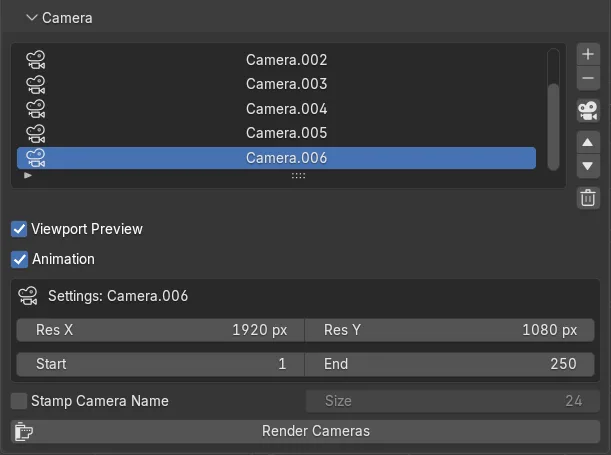
Each camera can have its own:
- output resolution
- frame range
Use Render Cameras to render the full list to the configured Output folder.
Additional options include:
- viewport-preview rendering that respects the current viewport shading
- animation mode with per-camera frame ranges
- separate output folders per camera
- burning the camera name into each rendered image
- progress tracking
- cancellation with Esc, including during animation renders
VSE Tools
Utilities for Blender's Video Sequence Editor.
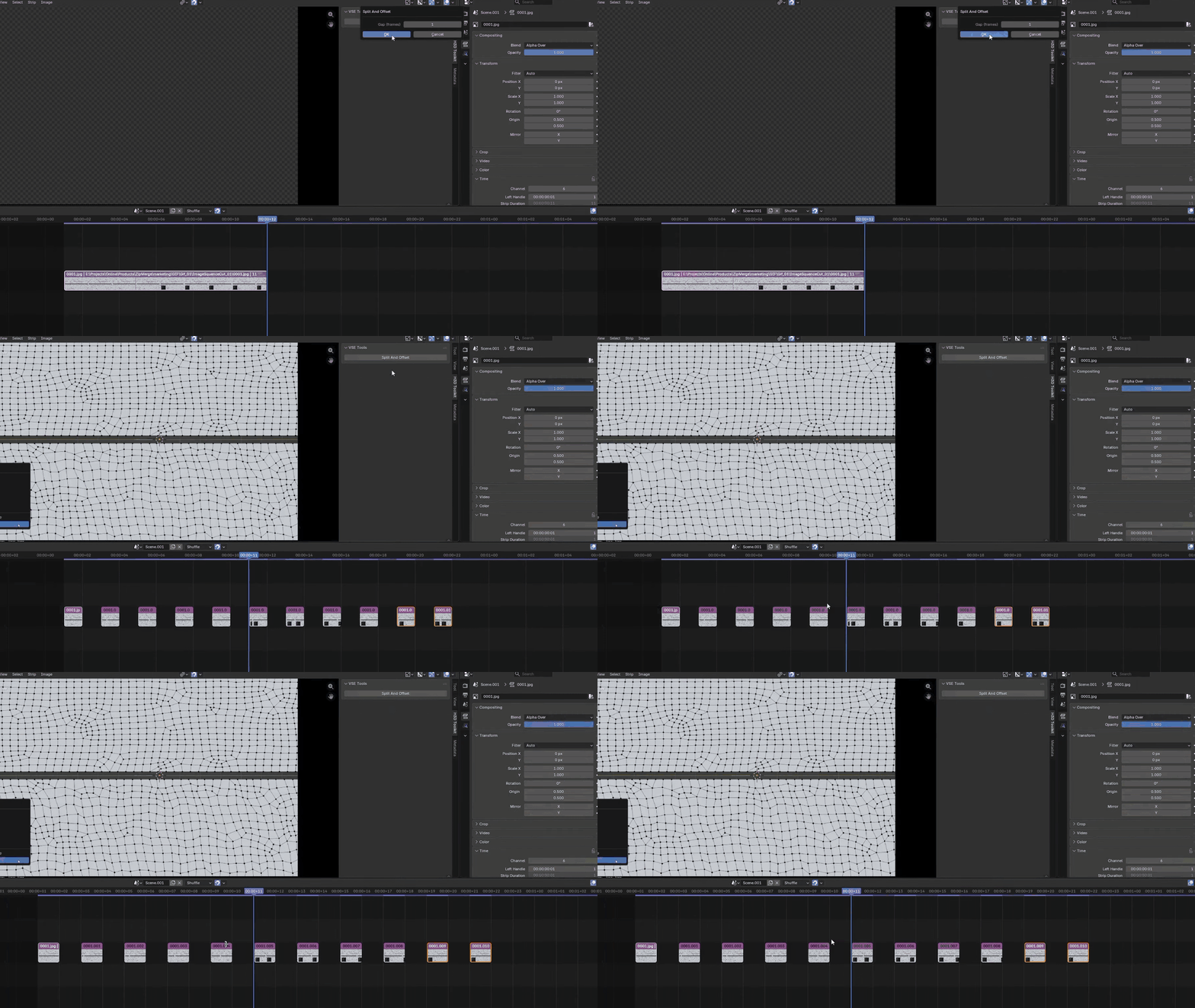
Split and Offset
Takes an image sequence, splits each frame, and offsets the resulting strips by a user-defined number of frames.
This is useful for review workflows where rendered assets need to be compared against a plate or scan on every nth frame.