Life
 Hamen
Hamen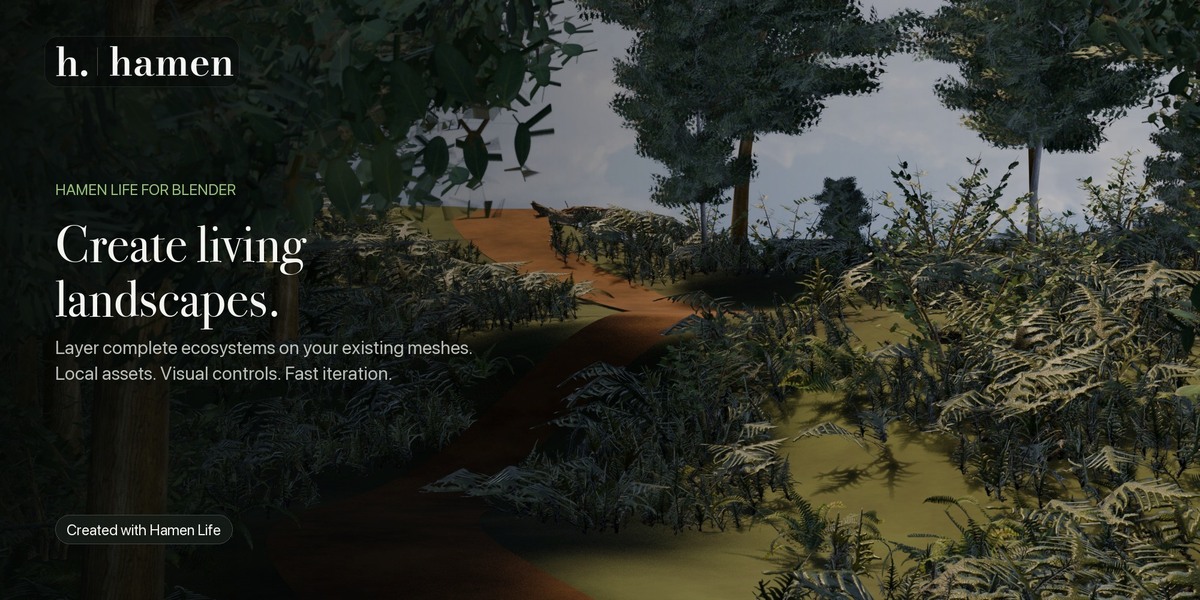
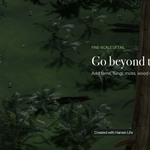
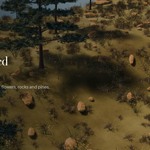
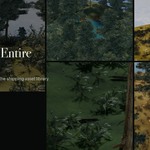
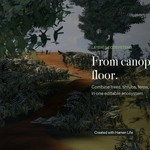
Hamen Life Documentation
Overview
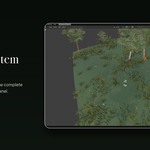
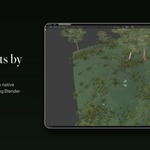
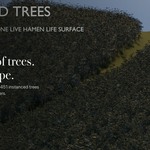
Hamen Life is a standalone foliage and ecosystem-placement add-on for Blender 5.2. It adds layered vegetation and environmental detail to mesh surfaces you already have in your scene.
Hamen Life does not generate or reshape terrain. You provide the surface; Hamen Life handles ecosystem organization, asset selection, procedural placement, masks, variation, animation, baking and delivery.
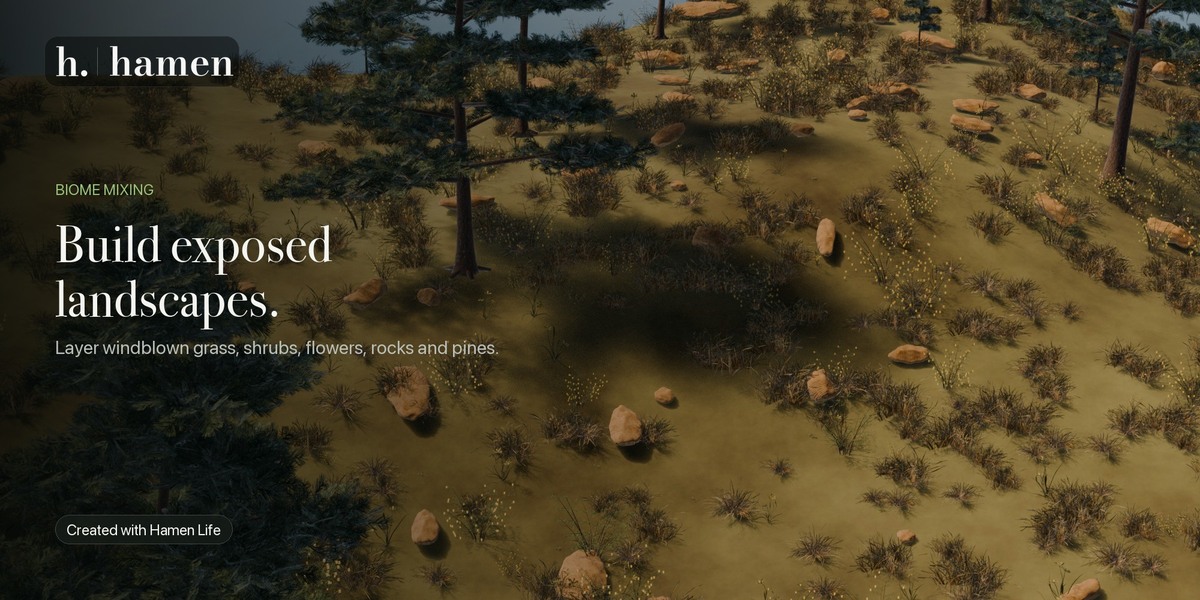
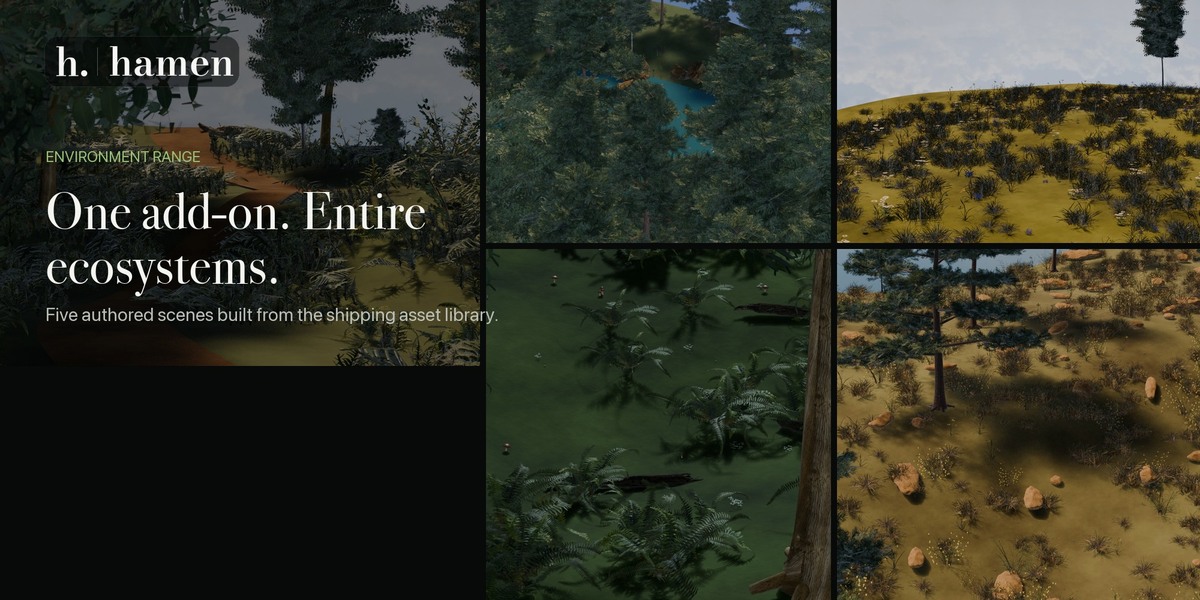
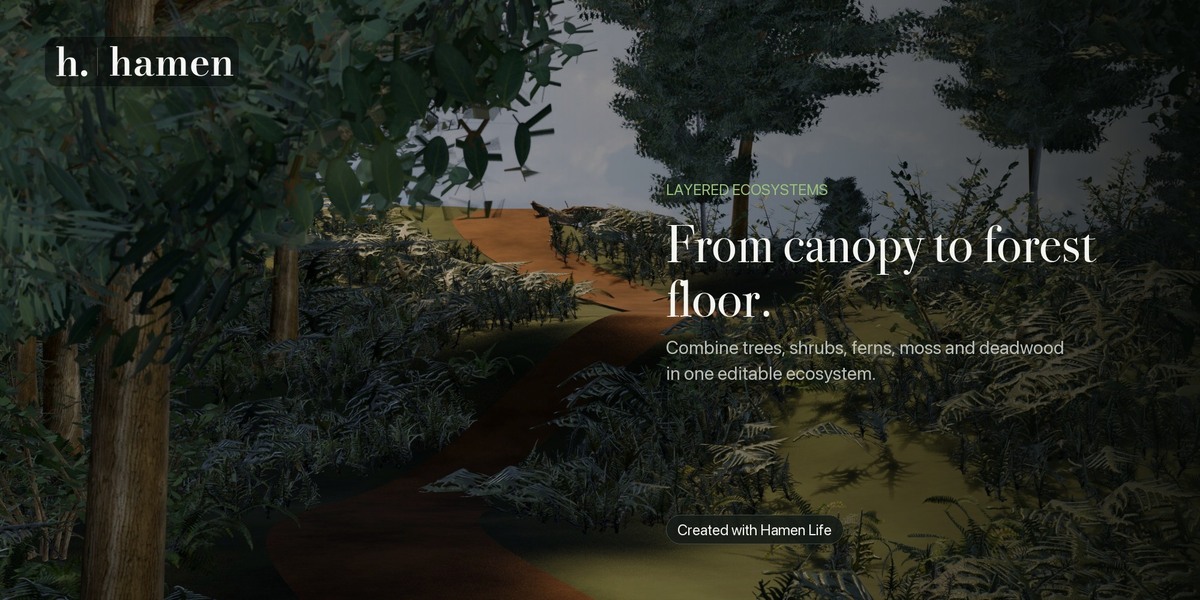
A single surface can support multiple independent ecosystems. For example, one landscape could contain a forest, meadow, wetland and rocky clearing, each with its own layers and controls.
Requirements
Blender 5.2
An existing mesh surface
Enough available memory for the density and assets used in your scene
Hamen Life 1.0.1 was formally validated using Blender 5.2.1 LTS on macOS. Other operating systems and Blender releases have not been formally verified for this release.
Hamen Landscape is not required. Hamen Life is a completely standalone add-on.
Installation
Download
hamen_life-1.0.1.zip.Do not extract the ZIP.
Open Blender.
Go to Edit → Preferences → Get Extensions.
Open the menu in the upper-right corner.
Choose Install from Disk.
Select
hamen_life-1.0.1.zip.Enable Hamen Life if Blender does not enable it automatically.
Return to the 3D View.
Press N to open the sidebar and select the Hamen Life tab.
The bottom of the Hamen Life panel should display Hamen Life 1.0.1.
Creating Your First Ecosystem
Select the mesh that will receive the vegetation.
Open the Hamen Life panel.
Press Add Ecosystem.
Select one of the ten complete ecosystem recipes, or begin with an empty ecosystem.
Add, remove or duplicate life layers.
Select a visual family for each layer.
Adjust density, spacing, scale and placement controls.
Press Refresh to apply setting changes.
You can also enable Auto refresh while designing the ecosystem. Auto refresh applies supported edits after approximately half a second without further changes.
For a first test, use a moderately subdivided plane or landscape mesh and keep the starting density low.
How Hamen Life Is Organized
Hamen Life uses three main levels of organization.
Surface
The selected mesh is the source surface. Hamen Life evaluates its geometry, transforms, slopes, elevations and assigned masks when placing assets.
The original mesh remains your terrain or scene geometry. Hamen Life does not sculpt or replace it.
Ecosystem
An ecosystem is an independent collection of vegetation layers and placement settings.
Each ecosystem has its own:
Name
Random seed
Overall amount
Visibility
Masks
Animation settings
Viewport and render density
Instance limits
Life layers
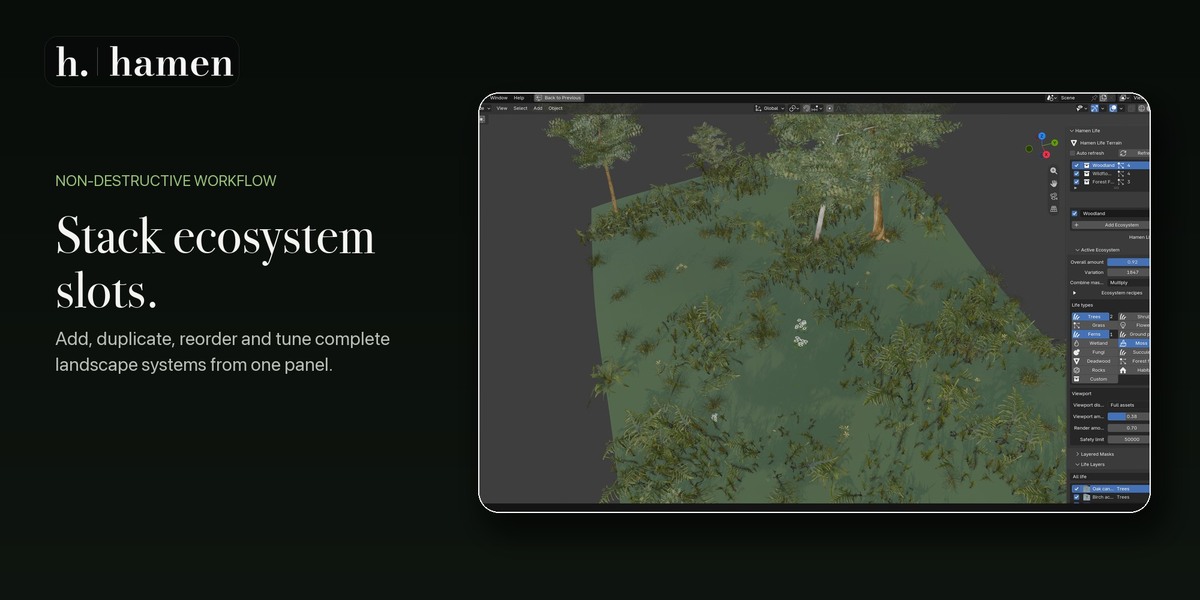
Multiple ecosystems can be added to the same surface. Ecosystems can be duplicated, reordered, disabled or edited independently.
Life Layer
A life layer represents one family of assets, such as oak trees, ferns, wildflowers, moss or sandstone clasts.
Each layer contains its own density, spacing, clustering, scale, orientation, placement filters, mask and variation settings.
This structure allows broad ecosystem controls and precise adjustments to individual asset families.
Ecosystem Recipes
Hamen Life includes ten complete visual recipes plus an empty starting option.
Recipes provide a useful initial combination of layers and settings. They are starting points rather than locked presets. Every generated ecosystem can be edited after creation.
You can:
Add or remove layers
Replace visual families
Change densities and scales
Reorder layers
Adjust masks
Change the random seed
Enable animation
Duplicate the ecosystem
Combine the recipe with additional ecosystems
Choose the empty option when you want to construct every layer manually.
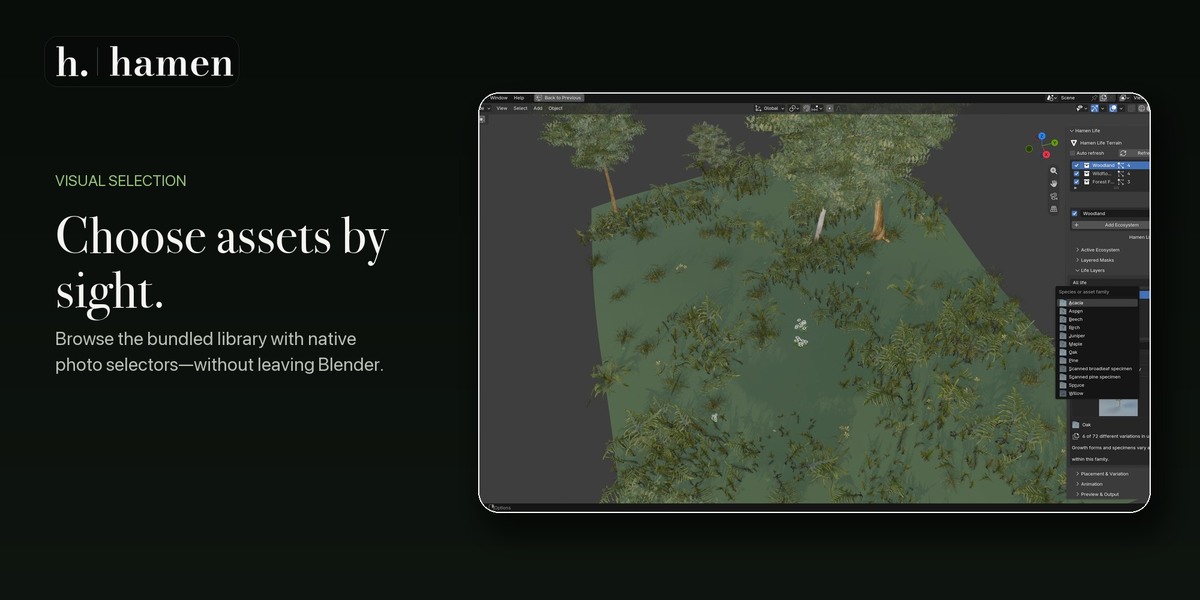
Visual Asset Library
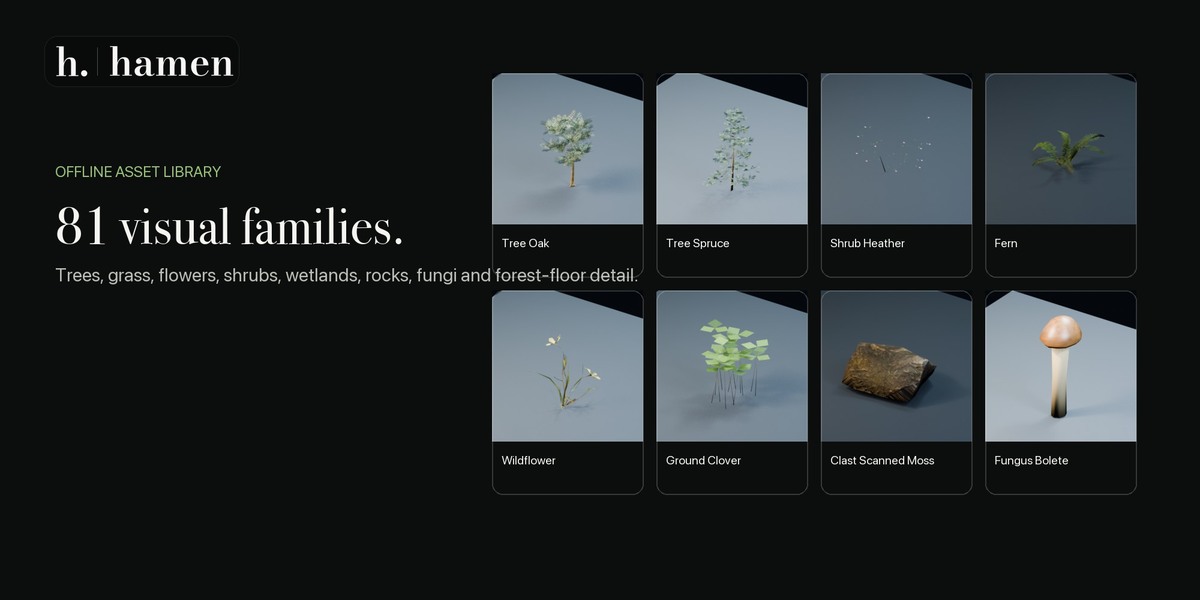
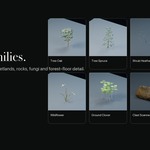
Hamen Life includes 81 visual life families backed by 3,874 selectable catalogue records.
Available categories include:
Trees
Shrubs
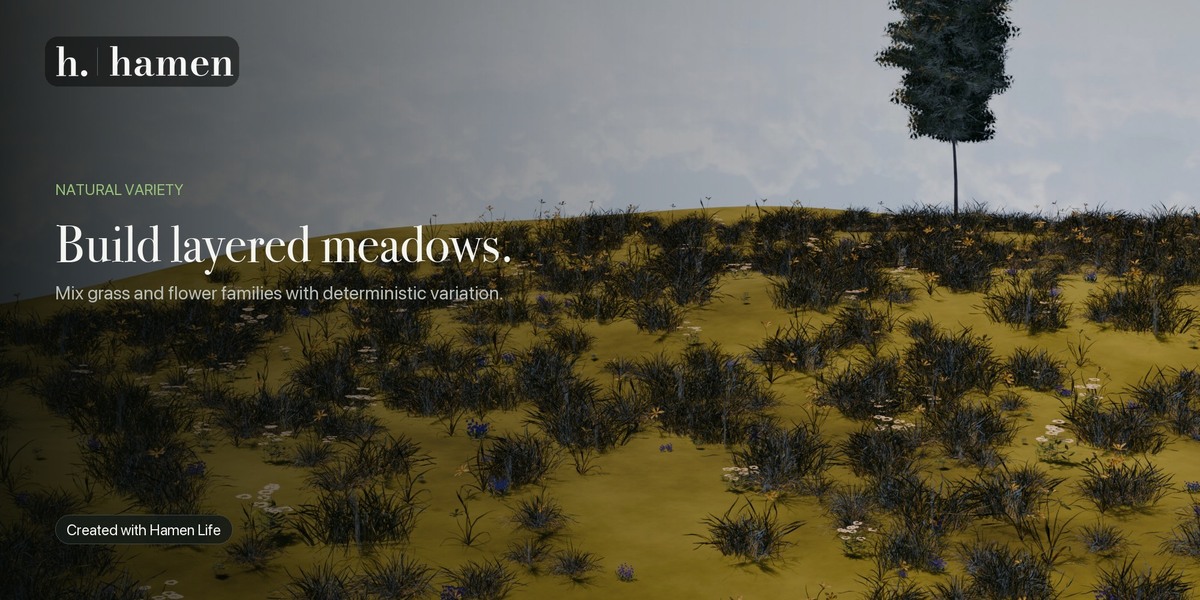
Grass
Flowers
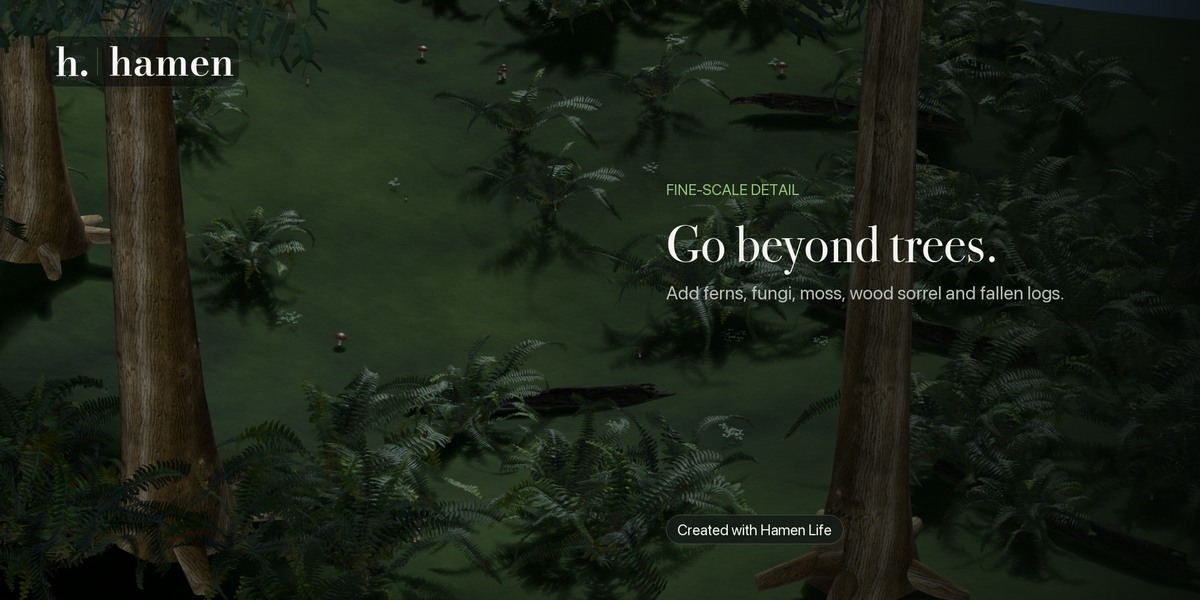
Ferns
Ground plants
Wetland plants
Moss
Fungi
Succulents
Rocks and clasts
Deadwood
Leaf litter
Seeds and cones
Forest debris
Habitat elements
Ruin fragments
Assets are selected through image-based controls. You do not need to memorize catalogue identifiers or search through external folders.
The 3,874 catalogue records include deterministic procedural specimens, original assets and clearly identified CC0 source assets. This figure does not represent 3,874 separate biological species or 3,874 individual scanned models.
The complete runtime library is bundled with the add-on. Hamen Life does not download assets while you work and does not require an online account.
Custom Asset Collections
Custom Blender collections can be used as user-supplied asset families.
Organize the objects you want to scatter inside a collection, then assign that collection through the appropriate custom-family controls. Hamen Life can use the collection as a deterministic asset pool.
Before using custom assets:
Apply intentional object transforms where appropriate.
Check that object origins are suitable for surface placement.
Confirm that the asset scale matches the scene.
Avoid including unrelated helper objects in the collection.
Test with a low density before creating a large distribution.
Changing relevant source-object transforms, modifiers or constraints may require a refresh.
Placement and Variation
Each layer provides controls for shaping its distribution.
Depending on the selected layer and distribution mode, these controls include:
Density
Minimum spacing
Clustering
Cluster scale
Minimum and maximum scale
Random yaw
Random tilt
Slope limits
Elevation limits
Proximity rules
Distribution method
Random seed
Specimen variation
Layer instance limit
Hamen Life supports random, even-spacing, stable and loose-grid distribution approaches.
Results are deterministic. Using the same source surface, settings and seed produces the same authored distribution.
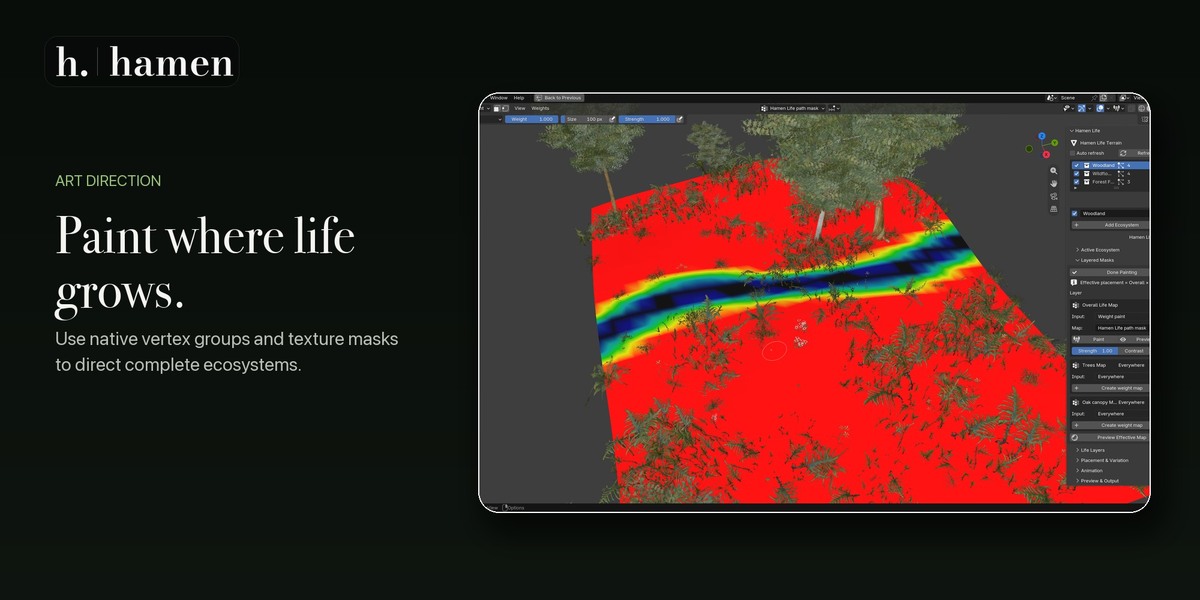
Masks and Art Direction
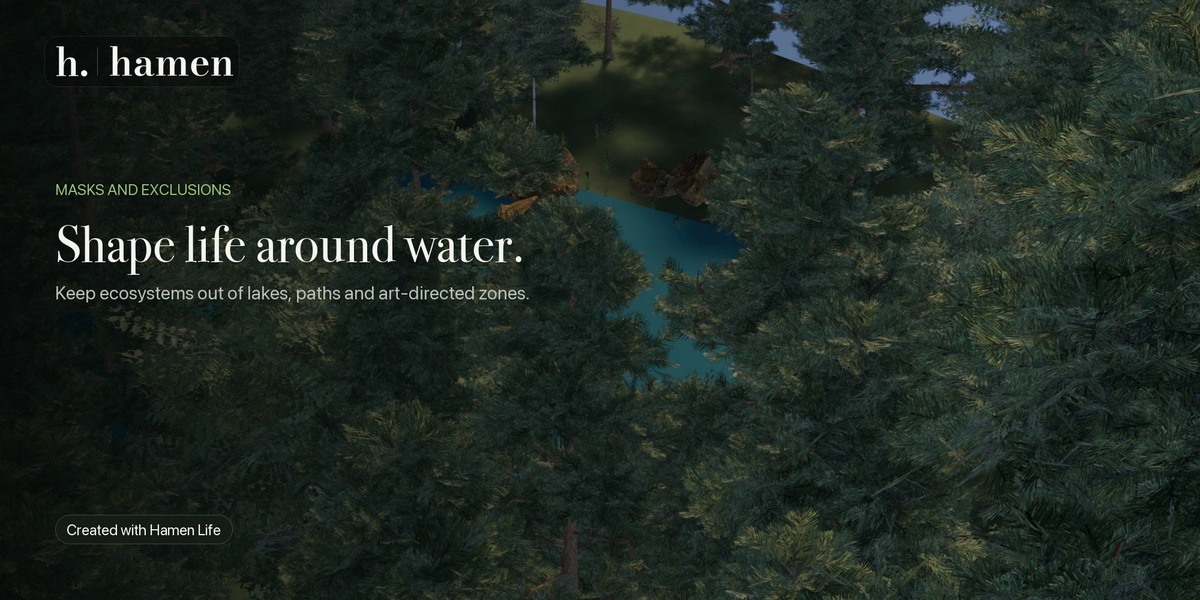
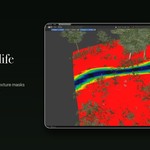
Hamen Life supports three levels of placement masks.
Overall Life Map
Controls the entire active ecosystem. Use it for broad boundaries such as coastlines, roads, clearings or the overall habitable area.
Type Map
Controls a category of life, such as Trees, Grass or Flowers. Use it when several layers should share the same boundary.
Layer Map
Controls one specific life layer. Use it for precise art direction without affecting other families.
By default, the three maps are multiplied:
Overall Life Map × Type Map × Layer Map
An unassigned map contributes a value of 1.0. A painted value of zero remains a strict exclusion.
Hamen Life also provides a Minimum combination mode when using the lowest supplied mask value is more appropriate than multiplication.
Previewing the Effective Map
Use Preview Effective Map to inspect the combined placement area before increasing density.
This is particularly useful when several masks overlap or when inversion and strength controls are being used.
Missing Masks
If an assigned vertex group or attribute is renamed or deleted, the affected input fails closed. It contributes zero instead of unexpectedly filling the surface with vegetation.
The Hamen Life panel reports the broken reference so it can be reassigned or cleared.
Weight-Paint Resolution
Vertex-group masks depend on the vertex density of the source mesh. A low-resolution mesh produces broad transitions, while a more subdivided mesh supports more detailed painted boundaries.
Hamen Life does not automatically subdivide the source mesh.
Refresh and Auto Refresh
Press Refresh after changing settings that affect the generated ecosystem.
Alternatively, enable Auto refresh at the top of the Hamen Life panel. Auto refresh is stored per source surface and begins disabled.
When enabled:
Supported setting changes are grouped together.
The refresh begins after approximately 0.5 seconds without another edit.
Only the owning surface is queued.
Rapid changes are combined into a single update where possible.
The normal instanced Geometry Nodes output is reused.
Auto refresh waits while:
The source is outside Object Mode
Blender is playing animation
Blender is rendering
Hamen Life is evaluating an animation bake
The surface contains an active baked ecosystem
If a bake exists, clear it before expecting changed animation or placement settings to rebuild the cached result.
Weight painting and ordinary source-mesh deformation flow through Blender’s dependency graph. Painting a valid assigned map does not require a separate Python rebuild for every brush stroke. Changing which map is assigned, its strength, inversion or combination mode does require a settings refresh.
For very dense ecosystems, disable Auto refresh while making a large sequence of changes and use the manual Refreshbutton when ready.
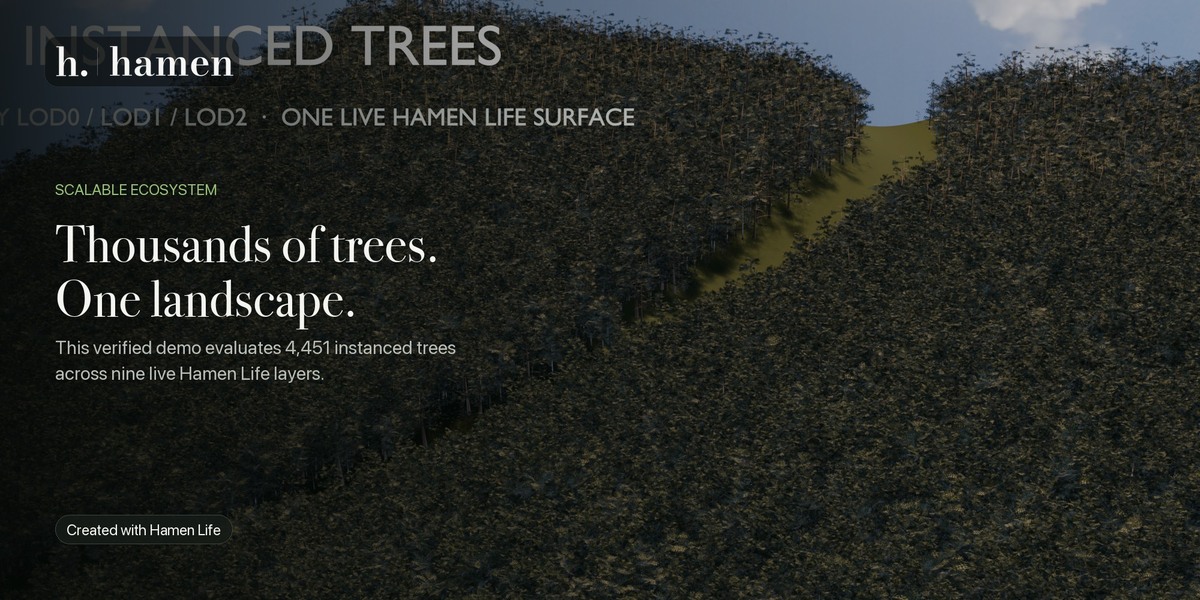
Viewport and Render Density
Viewport and render density are controlled separately.
Use a reduced viewport density while composing the landscape, then increase render density for the final output. This keeps interactive work lighter without requiring a second ecosystem.
Increase density gradually. Performance depends on:
Number of layers
Asset complexity
Surface size
Distribution density
Modifiers
Animation
Force fields
Viewport mode
Render engine
Available CPU, GPU and memory
Per-layer and per-ecosystem instance limits are available to prevent unintended placement counts.
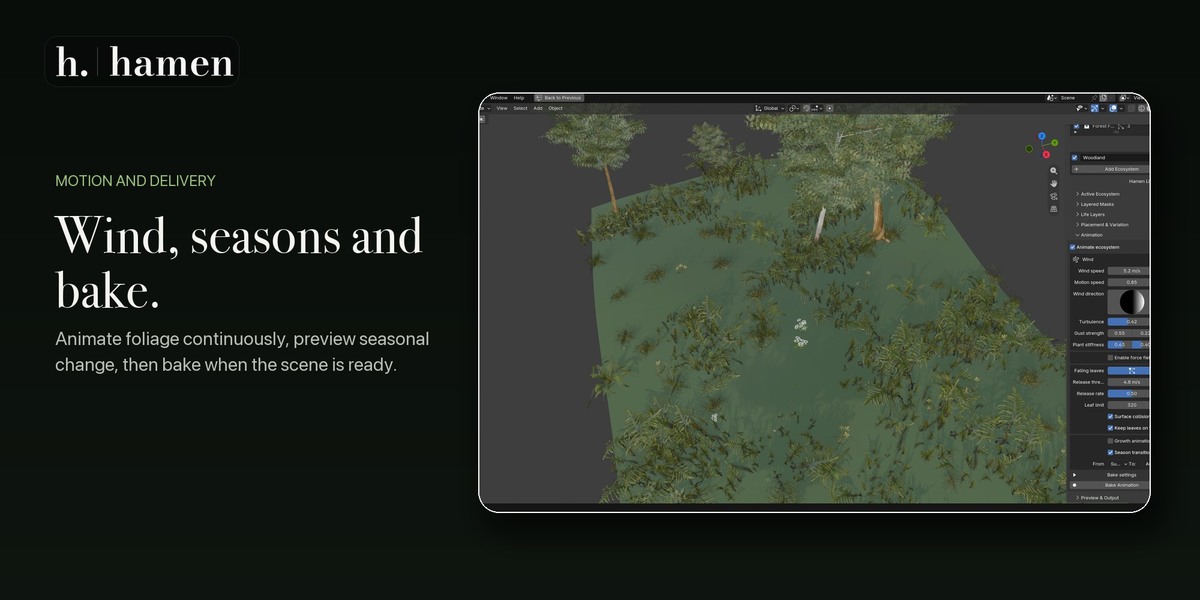
Wind
Every ecosystem can have independent procedural wind settings.
Controls include:
Direction
Strength
Motion speed
Turbulence
Gust strength
Gust frequency
Stiffness
Damping
Different vegetation types receive different response ranges. Trees use a restrained bend, shrubs respond more visibly, and grasses or ferns can receive a larger movement.
Heavy objects such as rocks, ruins and substantial deadwood remain still.
Wind does not require falling leaves. If you want continuous foliage movement without canopy loss, enable wind and leave Falling leaves disabled.
Hamen Life keeps the vegetation instanced while applying compact motion controls to its managed layers.
Blender Force Fields
Force-field response is optional and disabled by default.
When enabled, Hamen Life can sample compatible Blender field types from the scene or a nominated collection. Supported visual inputs include:
Wind
Force
Vortex
Turbulence
Harmonic
Charge
Fluid Flow
This is a bounded visual approximation based on Blender’s publicly available field settings. It is not a cloth simulation, fluid solver or two-way aerodynamic system.
Texture, Guide and solver-owned Smoke Flow fields are not reproduced.
Leave force fields disabled when their response is not needed, particularly in dense scenes.
Growth and Seasons
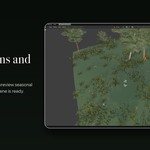
Growth and seasonal controls can be used to change the appearance of compatible ecosystem layers over time.
The resulting animation is deterministic at an arbitrary Blender frame. Scrubbing backward, reopening the file and rendering frames out of order reproduce the same authored state when the underlying settings and seed remain unchanged.
Not every asset family responds identically. Available visual effects depend on the structure and attributes of the selected family.
Falling Leaves
Falling leaves are an optional effect and are disabled unless enabled by the user.
When active, leaf cohorts are released after the combined wind and force magnitude crosses the configured threshold. Hamen Life determines release timing, origin, launch movement, flutter, flight duration and landing deterministically.
Compatible tree families can visually thin their canopy as leaves are released.
Options include keeping landed leaves on the target surface or hiding them after their flight.
The system uses a bounded carrier budget to prevent one ecosystem from creating an unlimited simulation.
Falling leaves use a downward contact query against the selected target surface. The system does not simulate:
Leaf-to-leaf collision
Branch fracture
Cloth deformation
Two-way aerodynamics
Full fluid interaction
For wind movement without falling or disappearing foliage, keep Falling leaves turned off.
Animation Baking
Use Bake Animation when you want durable, sampled playback for rendering, reopening the project or export.
The bake uses the selected frame range and sampling step.
Two storage modes are available.
Packed in Blend
Stores the complete Hamen Life cache on the source surface inside the Blender file.
This is the simplest option when the project needs to remain self-contained.
External Folder
Writes the playback data and a JSON manifest to the selected folder.
Keep that folder with the project when moving or archiving the scene.
Clearing a Bake
Use Clear Animation Bake to remove the cache owned by the active ecosystem and return it to live animation controls.
Changing wind, force-field or animation settings does not rewrite an existing bake. Clear the old bake and bake again to include the new settings.
Removing an ecosystem also clears cache data owned by that ecosystem.
Converting to Objects
Use Convert to Objects when ordinary editable mesh objects are required.
Conversion creates mesh copies of the evaluated ecosystem at the current frame. By default, the editable procedural ecosystem is preserved.
Conversion can be substantially heavier than the live instanced result. Save the project before converting a large ecosystem and consider testing the operation with reduced density.
Remain procedural for as long as practical.
Export
Hamen Life provides ecosystem export support for Alembic and USD.
Alembic
Alembic export evaluates the selected frame range and is suitable for placement-complete interchange workflows.
USD
USD export temporarily realizes the placement geometry, writes to a staging file, validates the result and only then replaces the requested destination.
This correctness-first process avoids unreliable same-file collection references. It should not be interpreted as instanced USD delivery.
Realized USD output can be significantly larger than the procedural Blender scene. Reduce density or instance limits before export when file size is important.
Saving and Moving Projects
Procedural ecosystem settings are stored with the Blender project.
Bundled Hamen assets do not require a runtime download. Images used by the included assets are packed into saved Blender files where applicable.
When using external animation caches or custom asset libraries, move those folders with the project and preserve their paths.
For the most portable result:
Use bundled Hamen assets.
Store animation caches inside the
.blendfile.Save before conversion or export.
Keep external custom collections and linked resources organized beside the project.
Licensing
The Hamen Life add-on source is licensed under GPL-3.0-or-later.
Included Poly Haven and ambientCG source assets are identified as CC0-1.0 in the bundled notices and asset manifest. Source attribution, URLs and checksums are included with the release.
Ordinary artwork and renders created with Hamen Life are not automatically placed under the add-on’s GPL software license. Consult the bundled third-party notices for the complete source-level licensing information.
Troubleshooting
Nothing Appears After Adding an Ecosystem
Confirm that a mesh is selected.
Return the source to Object Mode.
Confirm that the ecosystem and its layers are enabled.
Check that the selected layers have valid asset families.
Press Refresh.
Check the panel for missing-mask or instance-limit messages.
Temporarily clear assigned masks to determine whether they are excluding placement.
An Area Unexpectedly Becomes Empty
Inspect the Overall, Type and Layer map assignments.
An assigned map that was renamed or deleted intentionally fails closed. Reassign the correct map or remove the broken reference.
Also check map inversion, strength and combination mode.
Auto Refresh Is Waiting
Auto refresh waits while Blender is playing, rendering or editing the source outside Object Mode.
It also waits when the surface owns an animation bake. Stop the conflicting activity or clear the bake, then press Refreshif necessary.
Setting Changes Do Not Affect a Baked Animation
Baked samples are intentionally immutable.
Clear the existing bake, change the settings and bake the ecosystem again.
An External Bake Cannot Be Found
Restore the external cache folder and its manifest, correct the selected path, or clear the unavailable bake to return to live animation.
The Scene Becomes Slow
Lower viewport density.
Reduce layer density.
Use stricter instance limits.
Disable unneeded layers or ecosystems.
Disable force-field sampling.
Turn off Auto refresh while making many edits.
Avoid converting or realizing the ecosystem until required.
Test heavy operations on a saved copy of the project.
Exported Files Are Much Larger Than the Blender Scene
The live Hamen Life result is instanced. Conversion and correctness-first USD export realize geometry, which can use substantially more memory and storage.
Reduce density and instance limits before exporting.
Support Requests
When requesting support, include:
Hamen Life version
Blender version
Operating system
A short description of the expected result
The exact steps that reproduce the issue
A screenshot of the Hamen Life panel and any status message
Whether Auto refresh, animation baking or force fields are active
When practical, provide a simplified .blend file that reproduces the issue without unrelated project assets or private material.
Have questions about this product?
Login to message
| Blender Extension Compatible | Yes |
| Published | 19 days ago |
| Blender Version | 5.2 |
| Extension Type | Add-on |
| Render Engine Used | Cycles, Eevee |
| License | GPL |
Discover more products like this
scattering Trees animation forest low poly procedural blender addon ecosystem foliage geometry nodes environment vegetation