 Designers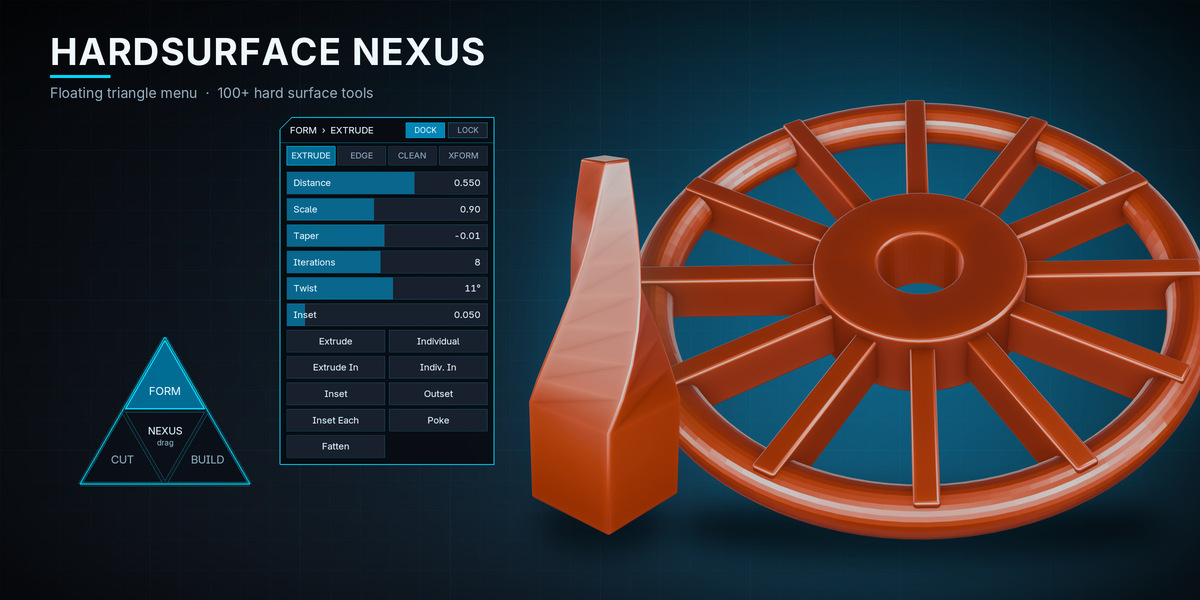

# Hardsurface Nexus: Documentation
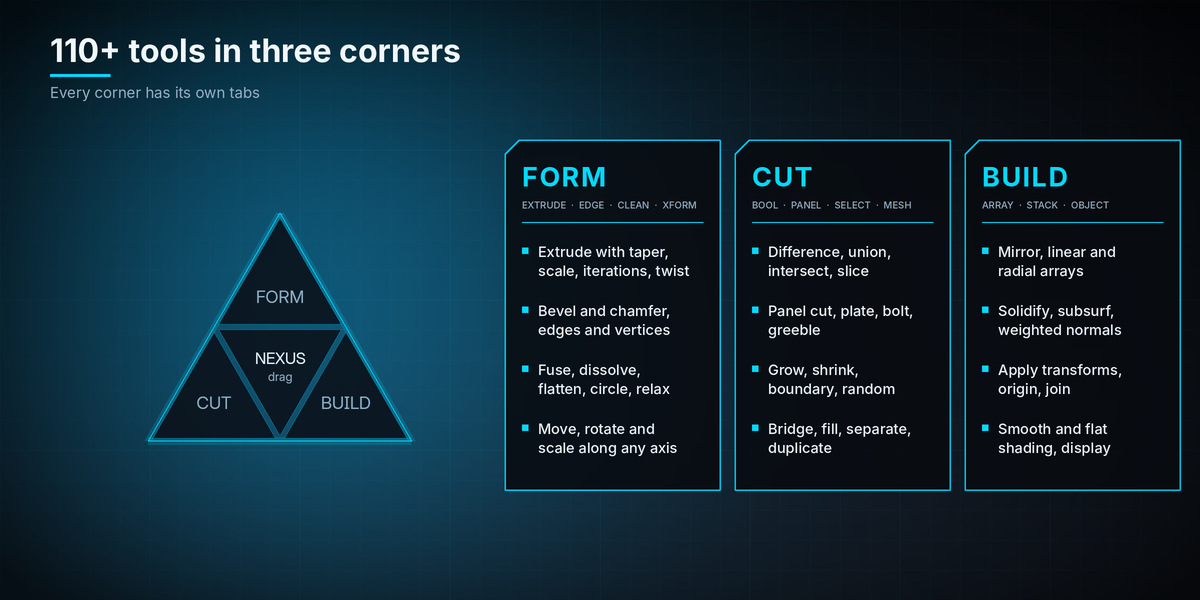
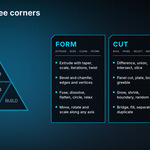
Hardsurface Nexus is a floating triangle menu for hard surface modeling. It sits on top of your 3D viewport, holds 100+ tools in three corners with tabs, and lets you place any slider or button wherever you want on screen.
## Installation
1. Open Edit > Preferences > Add-ons.
2. Choose Install from Disk (in newer versions, open the small arrow menu at the top right of the Add-ons tab first) and select the downloaded .zip file.
3. Enable "Hardsurface Nexus".
To update, disable and remove the old version first, then install the new one.
## Quick start
1. Hover over the 3D viewport and press Ctrl + . (Control and period). The triangle appears. You can also use the header button or Sidebar > Nexus > Show Overlay.
2. Click a corner: FORM, CUT or BUILD. The panel opens next to the triangle with that corner's tabs.
3. Set the sliders, then click a button. Every button is one undo step.
4. Drag any part of the triangle to move it. Click the centre triangle to open or close the panel.
5. Press Ctrl + . again to hide the menu.
If a tool cannot run, a short message appears in the status bar, for example "Enter Edit Mode first" or "Select one or more faces first".
## Controls
| Action | Result |
|---|---|
| Ctrl + . | Show or hide the menu (in the viewport under your mouse) |
| Drag any part of the triangle | Move the triangle |
| Click the centre triangle | Open or close the panel |
| Click a corner | Switch to FORM, CUT or BUILD |
| Click a tab | Switch page inside the corner |
| Drag on a slider | Set the value |
| Shift + drag on a slider | Fine control (10% speed) |
| Mouse wheel over a slider | Nudge the value |
| Right-click on a slider | Reset it to its default |
| Ctrl + mouse wheel over the menu | Scale the whole menu |
| LOCK (panel header) | Freeze the position of the triangle, panel and pinned widgets |
| FREE / DOCK (panel header) | Detach the panel from the triangle, or attach it again |
| Drag the panel header | Move the panel anywhere (detaches it) |
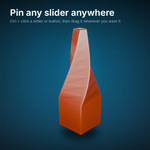
| Ctrl + click a slider, button or switch | Pin it as a floating widget |
## Pinned widgets
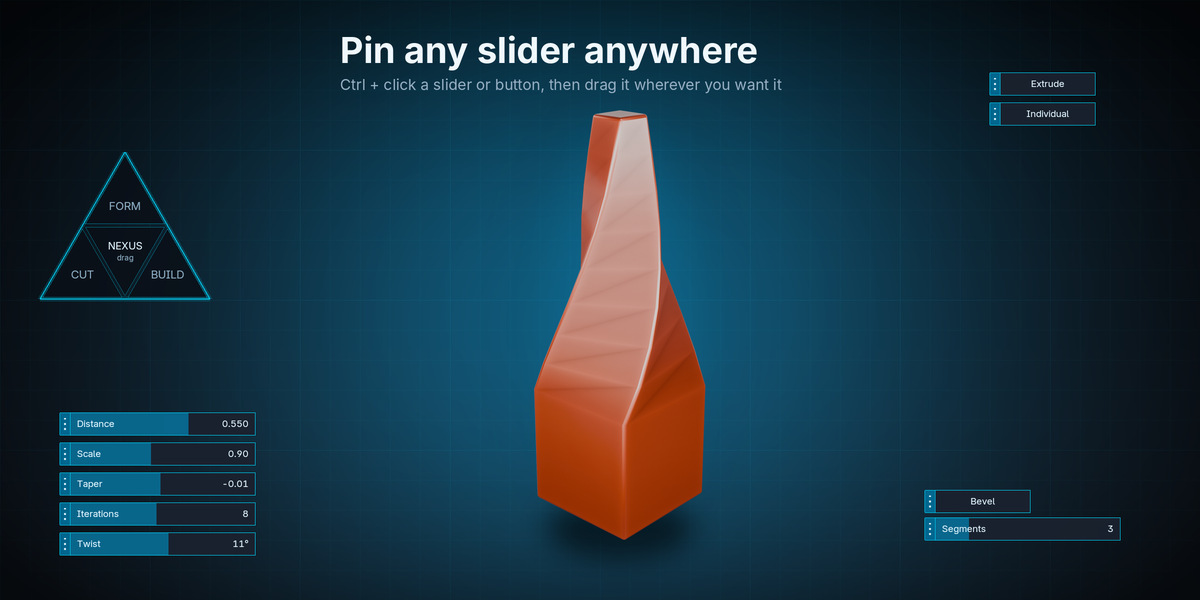
Ctrl + click any slider, button or switch and it becomes its own floating widget. Drag it by the dotted grip on its left edge to place it anywhere on screen. Ctrl + click it again to remove it.
Pinned widgets work exactly like the originals, they stay visible when the panel is closed, and they are saved in your .blend file together with the menu positions. Sidebar > Nexus shows how many you have and can remove them all.
## Tool reference
Tools marked Edit need Edit Mode, tools marked Object need Object Mode. Distances are in the object's local space, so apply the scale first (BUILD > OBJECT > Apply Scale) on scaled objects.
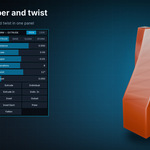
### FORM > EXTRUDE (Edit, faces)
| Control | What it does |
|---|---|
| Distance | How far each iteration moves along the face normal |
| Scale | Scale factor applied to the new faces at each iteration (1 = no change) |
| Taper | Added to Scale at every iteration, so the shape narrows or widens progressively |
| Iterations | Number of extrusion steps (1 to 16) |
| Twist | Rotation around the normal at each iteration, in degrees |
| Inset | Thickness used by the Inset buttons |
| Extrude | Extrudes each connected group of selected faces |
| Individual | Extrudes every selected face on its own |
| Extrude In / Indiv. In | Same, in the opposite direction |
| Inset / Outset / Inset Each | Insets (or outsets) the selection, or each face separately |
| Poke | Adds a point to each face, raised by Distance |
| Fatten | Moves selected vertices along their normals by Distance |
The new faces stay selected so you can chain operations.
### FORM > EDGE
| Control | What it does |
|---|---|
| Width, Segments, Profile | Settings for Bevel and Chamfer |
| Sharp Angle | Angle used by the Bevel modifier, Select Sharp and Smooth |
| Bevel | Edit: bevels selected edges. Object: adds a Bevel modifier that follows the sliders live |
| Chamfer | Same as Bevel, with a single segment |
| Bevel Verts / Chamfer Verts | Edit: bevels selected vertices |
| Mark Sharp / Clear Sharp | Marks or clears sharp edges (Edit) |
| Bevel Weight / Clear Weight | Sets or clears bevel weight on selected edges (Edit) |
| Crease / Clear Crease | Sets or clears crease on selected edges (Edit) |
| Select Sharp | Selects edges sharper than the angle (Edit) |
| Smooth | Object: smooth shading by angle. Edit: smooths the selected faces |
### FORM > CLEAN (Edit unless noted)
| Control | What it does |
|---|---|
| Fuse | Merges vertices closer than Fuse Dist. In Object Mode it joins the selected meshes first, then merges |
| Fuse Center / Collapse | Merges the selection to its centre, or collapses edges |
| Dissolve | Limited dissolve using the Dissolve angle |
| Dissolve Edges / Verts | Removes the selected edges or vertices and keeps the surface |
| Subdivide | Subdivides using Cuts |
| Triangulate / Tris > Quads | Converts faces |
| Flip / Recalc Normals | Flips normals, or recalculates them to point outside |
| Flatten | Projects selected vertices onto their best-fit plane (3 or more) |
| Spherize | Moves selected vertices toward a sphere by the Spherize amount |
| Circle | Flatten plus full spherize: turns a selected loop into a circle |
| Relax | Smooths selected vertices by the Relax amount |
### FORM > XFORM (Edit, vertices)
Move, Rotate and Scale sliders set the amount. The buttons apply it to the selection:
- Move Normal / X / Y / Z moves along the average normal or a local axis.
- Rotate Normal / X / Y / Z rotates around the selection centre.
- Scale All / X / Y / Z scales around the selection centre.
### CUT > BOOL (Object)
Select the cutter object(s) first and the target last, so the target is active.
| Control | What it does |
|---|---|
| Difference / Union / Intersect | Adds a Boolean modifier per cutter. Cutters are shown as wire |
| Slice | Cuts the target and keeps the removed part as a second object ("_slice") |
| Add Box / Cylinder / Sphere | Adds a cutter at the 3D cursor, sized by Cutter Size |
| Hide Cutters | Shows or hides the cutters used by the active object |
| Apply Bools / Clear Bools | Applies or removes the Boolean modifiers made by Nexus |
| Exact Solver | Uses the Exact solver for new Booleans, otherwise the fast one |
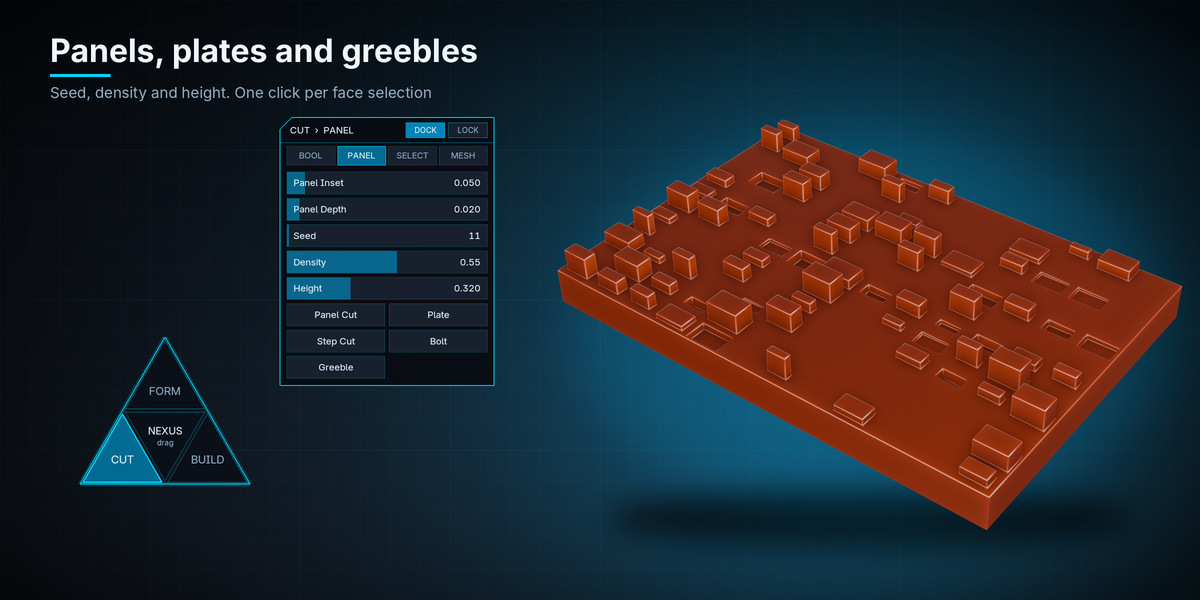
### CUT > PANEL (Edit, faces)
| Control | What it does |
|---|---|
| Panel Cut | Insets the faces and pushes them in by Panel Depth |
| Plate | Insets the faces and raises them by Panel Depth |
| Step Cut | Two nested cuts, one inside the other |
| Bolt | Insets each face and raises it |
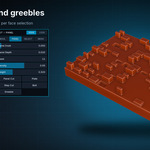
| Greeble | Adds random insets and raised blocks to the selected faces |
| Seed / Density / Height | Greeble randomness, share of faces affected, and maximum height |
The same Seed always gives the same result.
### CUT > SELECT and CUT > MESH (Edit)
SELECT: Vertex, Edge and Face mode, Toggle Edit (enters or leaves Edit Mode from either mode), Select All, None, Invert, Linked, Grow, Shrink, Boundary, and Random (with Ratio and Seed sliders).
MESH: Bridge (edge loops), Fill, Grid Fill, Duplicate, Separate (selection to a new object), Delete Faces, Delete Edges, Delete Verts.
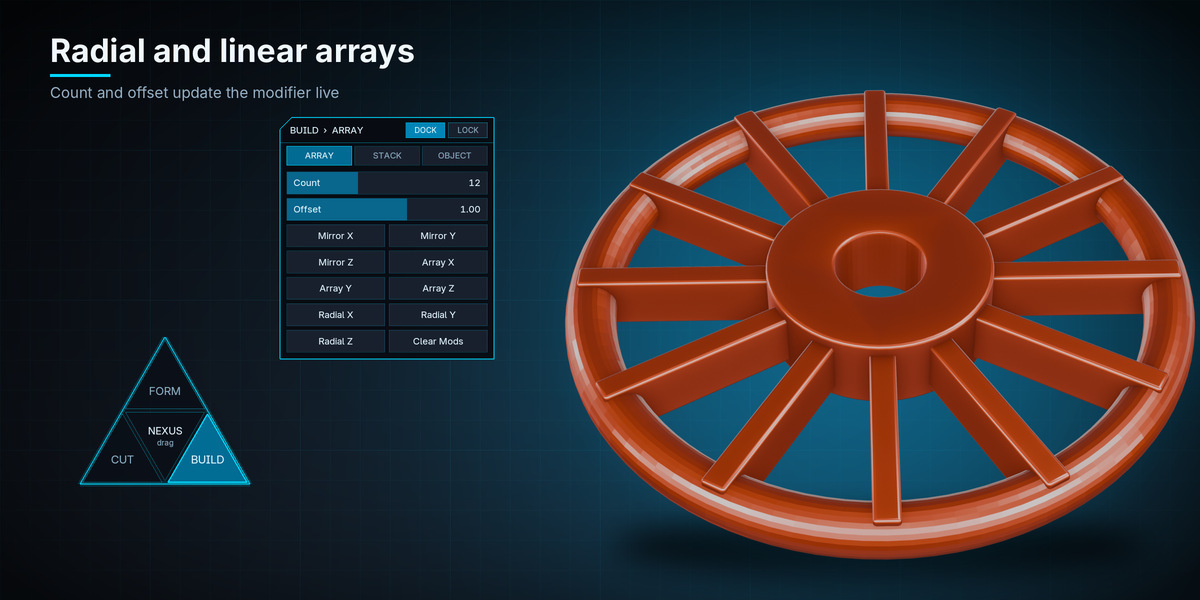
### BUILD > ARRAY (Object)
| Control | What it does |
|---|---|
| Count / Offset | Number of copies and spacing. Both update existing array modifiers live |
| Mirror X / Y / Z | Adds a Mirror modifier with clipping, or toggles an axis on it |
| Array X / Y / Z | Linear array along that axis |
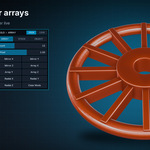
| Radial X / Y / Z | Spreads Count copies evenly over 360 degrees around that axis |
| Clear Mods | Removes all modifiers made by Nexus |
Radial arrays rotate around the object's origin and use a helper empty named "HSN_Radial_...", which is removed again with Clear Mods.
### BUILD > STACK (Object)
Solidify (Thickness), Subsurf (Levels), Weighted Normals, Wireframe, Triangulate, Bevel Mod, Apply All and Clear Mods. Apply All applies the Nexus modifiers in stack order.
### BUILD > OBJECT (Object)
Apply Scale, Apply All (location, rotation, scale), Origin Geo, Origin Cursor, Cursor to Sel, Duplicate, Join, Sep. Loose, Shade Smooth, Shade Flat, and the display switches Show Wire, Show Bounds and In Front.
## Example workflows
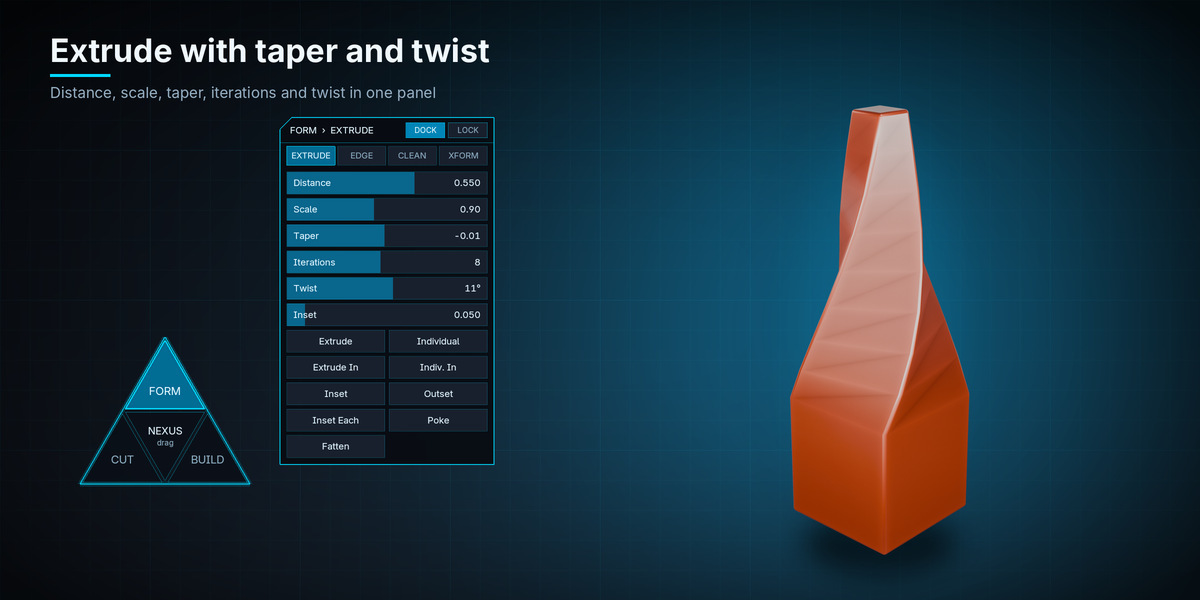
Tapered, twisted tower
1. In Edit Mode, select the top face of a cube.
2. FORM > EXTRUDE: Distance 0.55, Iterations 8, Scale 0.9, Taper -0.01, Twist 11. Click Extrude.
3. Back in Object Mode, FORM > EDGE: Width 0.05, Segments 4. Click Bevel, then Smooth.
Greebled panel
1. Select the top faces of a slab. Use FORM > CLEAN > Subdivide for more faces.
2. CUT > PANEL: set Seed, Density and Height, then click Greeble. Change the Seed for a new variation.
Radial wheel
1. Put the 3D cursor at the centre and use BUILD > OBJECT > Origin Cursor on a spoke.
2. BUILD > ARRAY: Count 12, then Radial Z. Change Count to update it live.
## Good to know
- Nexus modifiers are named "HSN ...". Apply All and Clear Mods only touch those, never your own modifiers.
- Tools work on the active mesh object. With several objects in Edit Mode, only the active one is changed.
- The menu is drawn in one viewport at a time. Press Ctrl + . inside another viewport to move it there.
- The menu switches off when you open another file. Press Ctrl + . again. Positions and pinned widgets are kept in each file.
- Right-clicking on the menu does not open the viewport context menu.
## Troubleshooting
The shortcut does nothing. Another add-on may use Ctrl + . Change it under Preferences > Keymap (search "Toggle Nexus Overlay"), or use the header button.
The menu is off screen after resizing a window. Use Sidebar > Nexus > Reset Overlay.
A button reports an error. Read the status bar message. Most often the mode or selection is wrong.
A tool seems too strong or too weak on a scaled object. Click Apply Scale first.
## Support and license
Questions or bug reports: [email protected]
Hardsurface Nexus is released under the GPL.
Have questions about this product?
Login to message
| Published | about 3 hours ago |
| Blender Version | 3.3 - 5.2 |
| Extension Type | N/A |
| Render Engine Used | Cycles, Eevee |
| License | GPL |
Discover more products like this
extrude greeble bevel hardsurface Modeling tools chamfer menu boolean hard surface array