Haussmannian Building Generator
 Sans-Colorant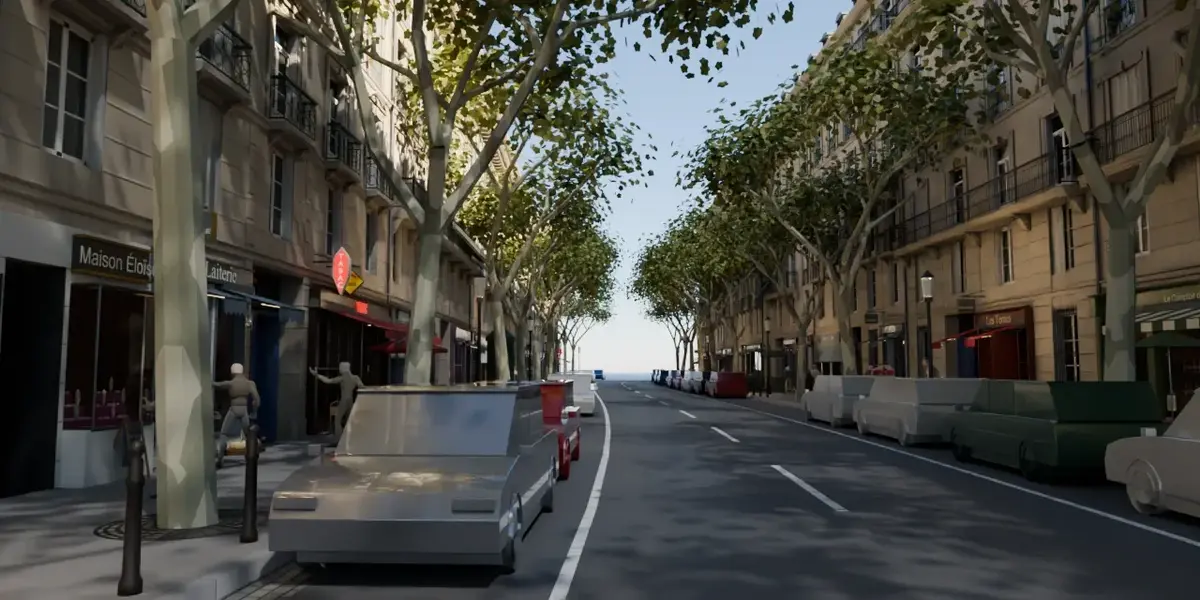

Haussmannian Building Generator — Documentation
Overview
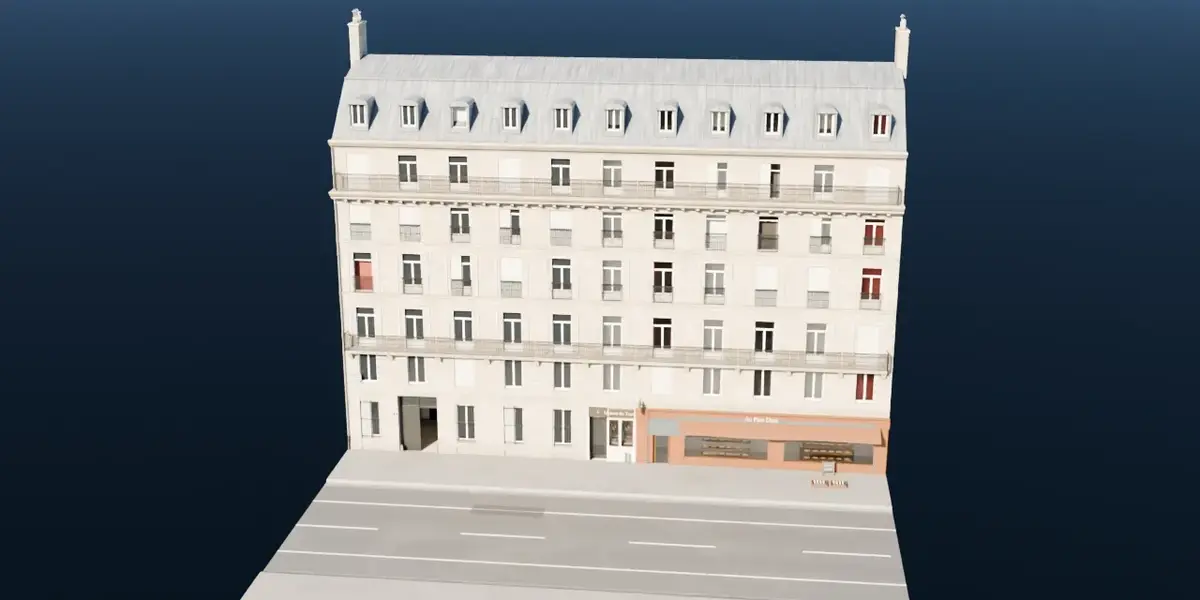
Haussmannian Building Generator is a procedural architectural environment generator for Blender, powered by Geometry Nodes.
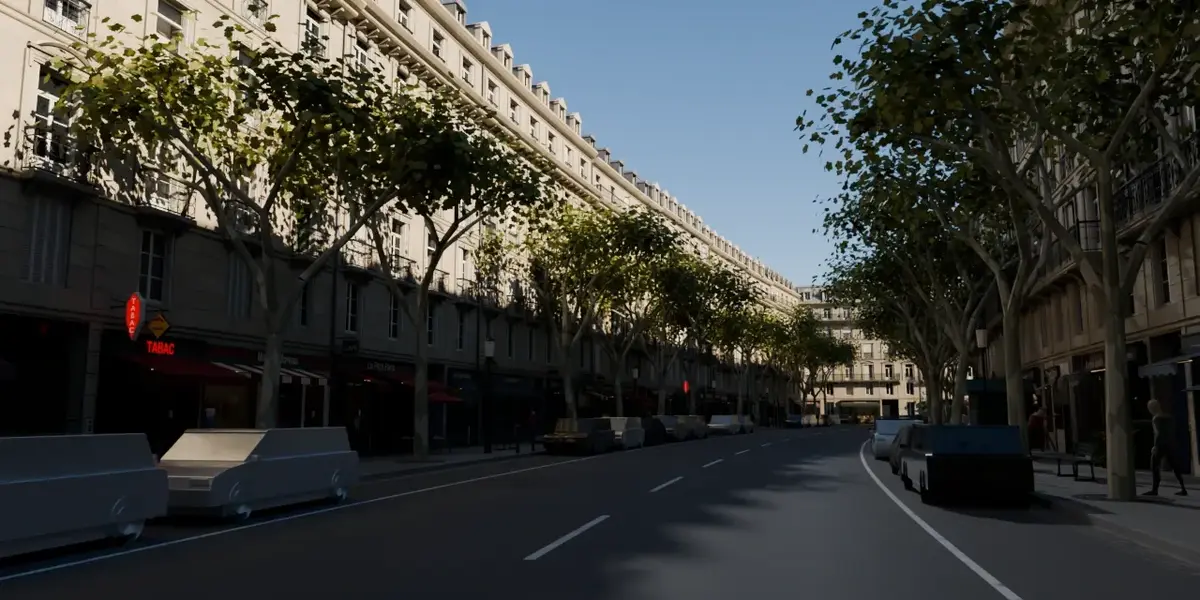
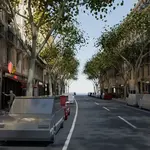
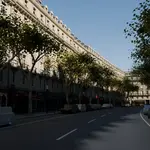
Create individual Haussmann-inspired buildings or complete Parisian streets, with customizable building arrangements, shopfronts and urban details.
The generator follows a curve, allowing building façades and rooftops to adapt to the layout of your street.
Designed for architectural visualization, environment design, animation and cinematic projects.
1. Main Features
Procedural Building Generation
Create different architectural compositions using a single procedural workflow:
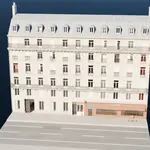
Generate a standalone Haussmannian building.
Define a specific number of buildings along one side of a street.
Generate two rows of buildings on opposite sides.
Use a curve to control the street layout.
Automatically arrange building façades and rooftops along the defined path.
Procedural Urban Environment
Customize your environment by individually enabling or disabling available urban elements:
Trees and vegetation
Vehicles and parking elements
Pedestrians
Street furniture
Build a simplified architectural scene or a more complete urban environment depending on your project's needs.
20 Shopfront Categories
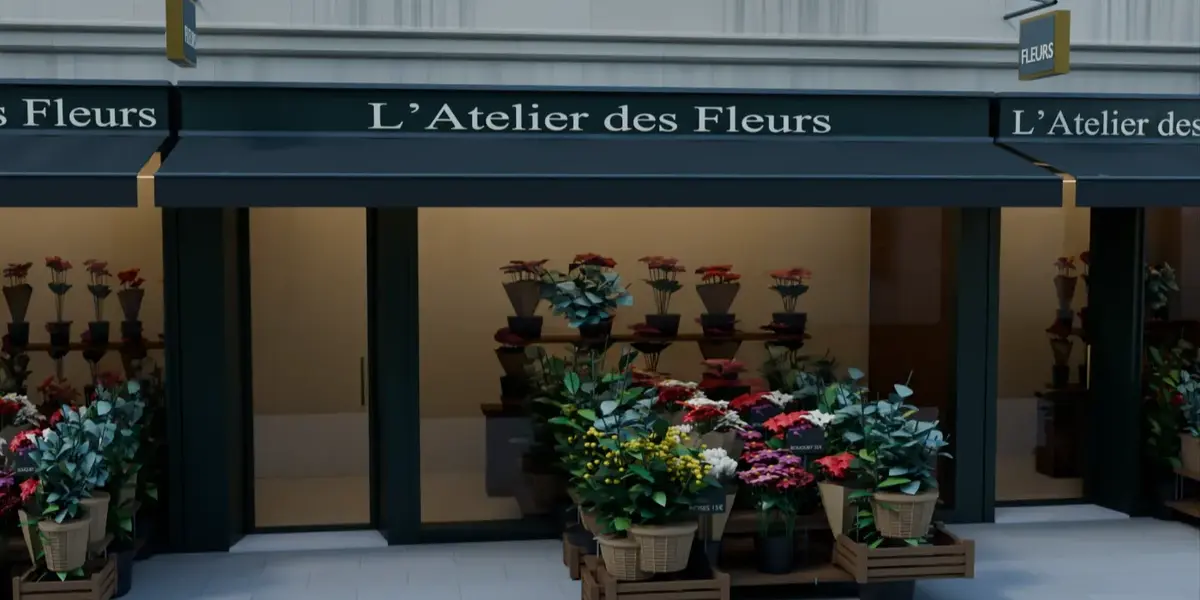
The generator includes 20 types of commercial storefronts.
Storefront variations allow you to create different street-level environments.
Examples demonstrated in the project include:
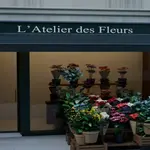
Flower shop with plants and outdoor displays
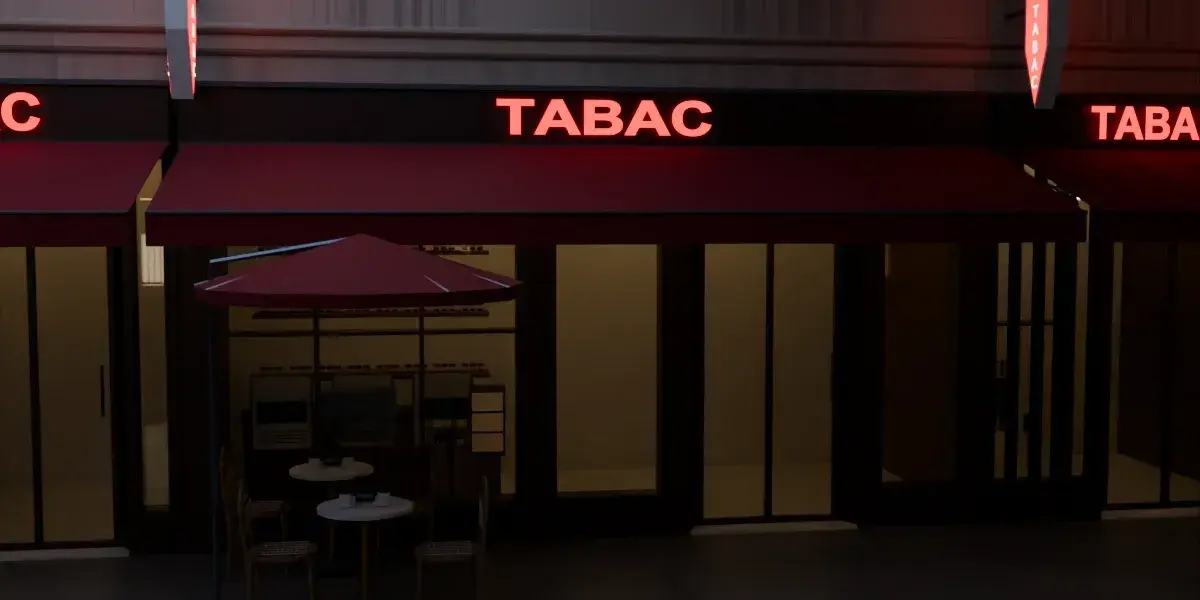
Café with terrace furniture
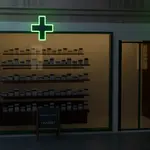
Pharmacy with illuminated signage
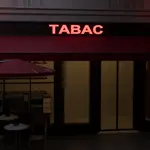
Tobacco shop with distinctive illuminated storefront details
Commercial placement, terraces and associated accessories are controlled through the procedural setup.
2. Getting Started
Step 1 — Open the Project
Download the product files.
Extract the downloaded archive.
Open the supplied Blender project.
Locate the procedural street generator in the scene.
Step 2 — Access the Generator
Select the generator object.
Open the Modifiers tab in Blender.
Find the Geometry Nodes modifier.
Access the exposed procedural controls.
The generator's available options determine the composition of your architectural scene.
Step 3 — Create Your First Building
Choose the single-building configuration.
Set the building count to one.
Disable unnecessary environmental elements.
Adjust the available building settings.
Inspect the result in the 3D viewport.
Step 4 — Generate a Street
Configure the curve controlling the street layout.
Select your preferred building arrangement.
Define the number of buildings.
Enable one-sided or two-sided generation.
Add the urban details required for your scene.
The buildings are procedurally arranged along the curve.
3. Customizing Commercial Storefronts
The generator provides 20 commercial categories to help create varied Parisian streets.
Use the exposed commercial controls to choose and position shopfronts.
Depending on the selected storefront, the scene can contain associated decorative elements, outdoor displays, terraces or signage.
You can combine different storefronts to create a more varied street environment.
4. Environment Controls
Urban details can be adjusted separately from the architectural generation.
Enable or disable trees, vehicles, pedestrians and street furniture depending on the desired level of scene complexity.
For a lighter scene, begin with the buildings alone and progressively enable the additional environmental elements.
5. Materials and Rendering
The promotional renders shown on this product page were produced using Blender Cycles.
The project uses procedural modeling and materials.
For the closest visual comparison with the demonstration images, use Cycles and adapt the rendering settings to your hardware.
Rendering performance will depend on scene complexity, enabled environmental elements, image resolution and available system resources.
6. Working in Your Own Blender Project
You can use Blender's Append functionality to transfer the required generator elements into another project.
Open your destination Blender project.
Select File > Append.
Navigate to the supplied project file.
Append the necessary objects or collections.
Preserve all required Geometry Nodes groups, materials and object dependencies.
Verify that the generator functions correctly in the destination scene.
Keep an untouched backup of the original project before making significant changes.
7. Important Notes and Limitations
The generator is specifically designed around Haussmann-inspired Parisian architecture.
The exact visual result depends on your procedural settings, materials and lighting.
Some environmental objects, including certain vehicles and vegetation, use simpler representations than fully handcrafted hero assets.
Very complex streets may require additional hardware resources.
Compatibility is limited to the Blender versions explicitly listed as supported on the product page.
8. Support
If you encounter a problem, please contact the creator through Superhive.
When reporting an issue, include:
Your Blender version
A description of the problem
A screenshot of the relevant settings
The steps required to reproduce the issue
Thank you for supporting Haussmannian Building Generator!
Create Paris. Your way.
Have questions about this product?
Login to message
| Published | 3 days ago |
| Blender Version | 4.5 - 5.2 |
| Render Engine Used | Cycles, Eevee |
| License | Royalty Free |

Discover more products like this
geometry nodes haussmannian parisian architecture architecture paris procedural modeling urban environment facade generator building generator procedural building