Hdri Blur Background & Reflections
 César Moncloa


Documentation
Overview
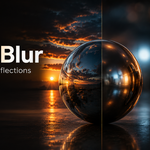
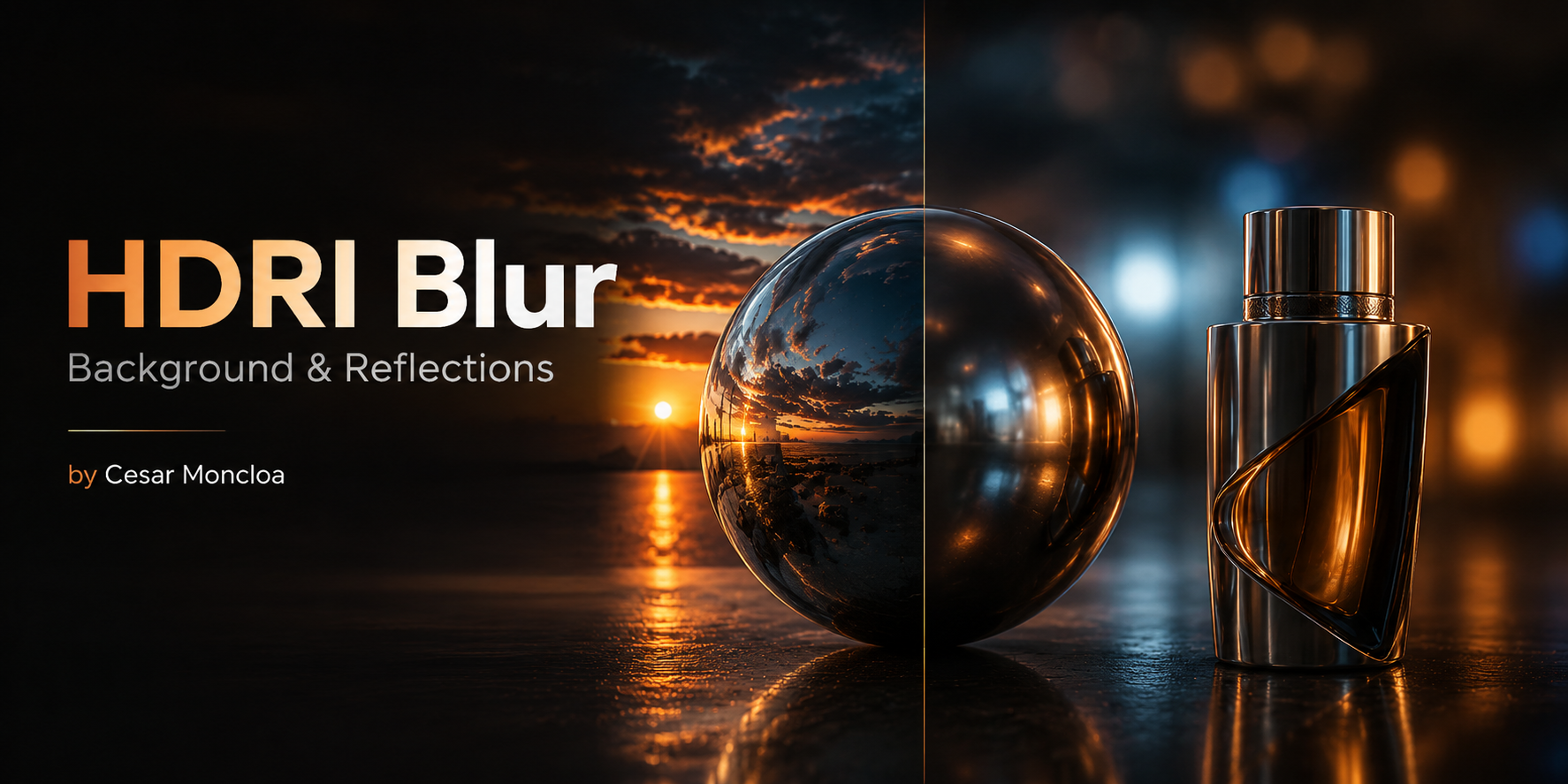
HDRI Blur Background & Reflections is a Blender add-on that lets you load an HDRI file, create a blurred version of it, and apply it directly to the World.
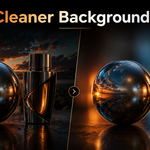
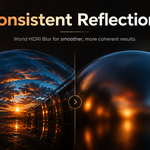
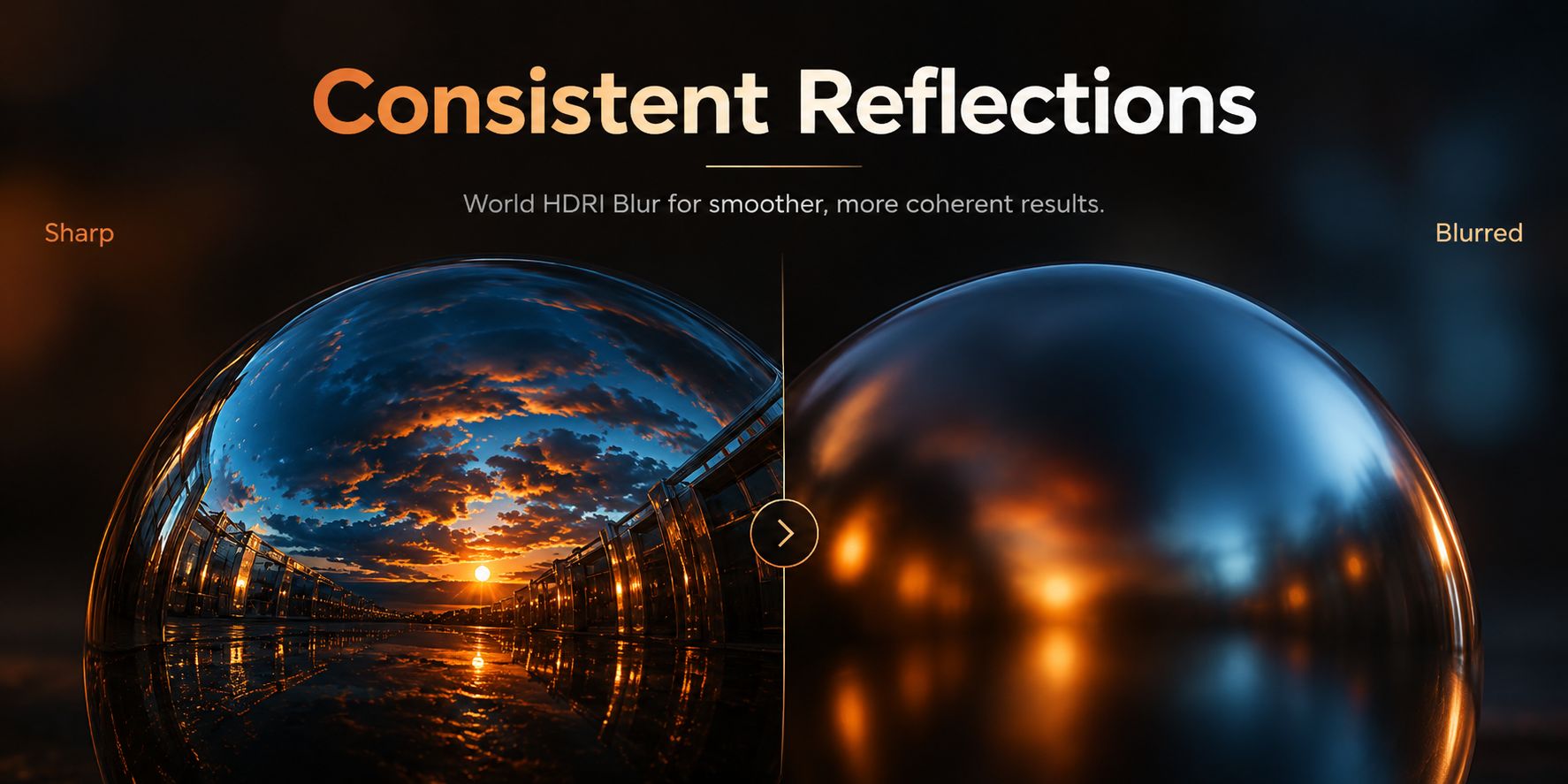
This helps create cleaner backgrounds while keeping lighting and reflections visually consistent.
The add-on is designed for:
• look development
• product visualization
• material previews
• portfolio renders
• reflective materials
• clean viewport and render presentation
Installation
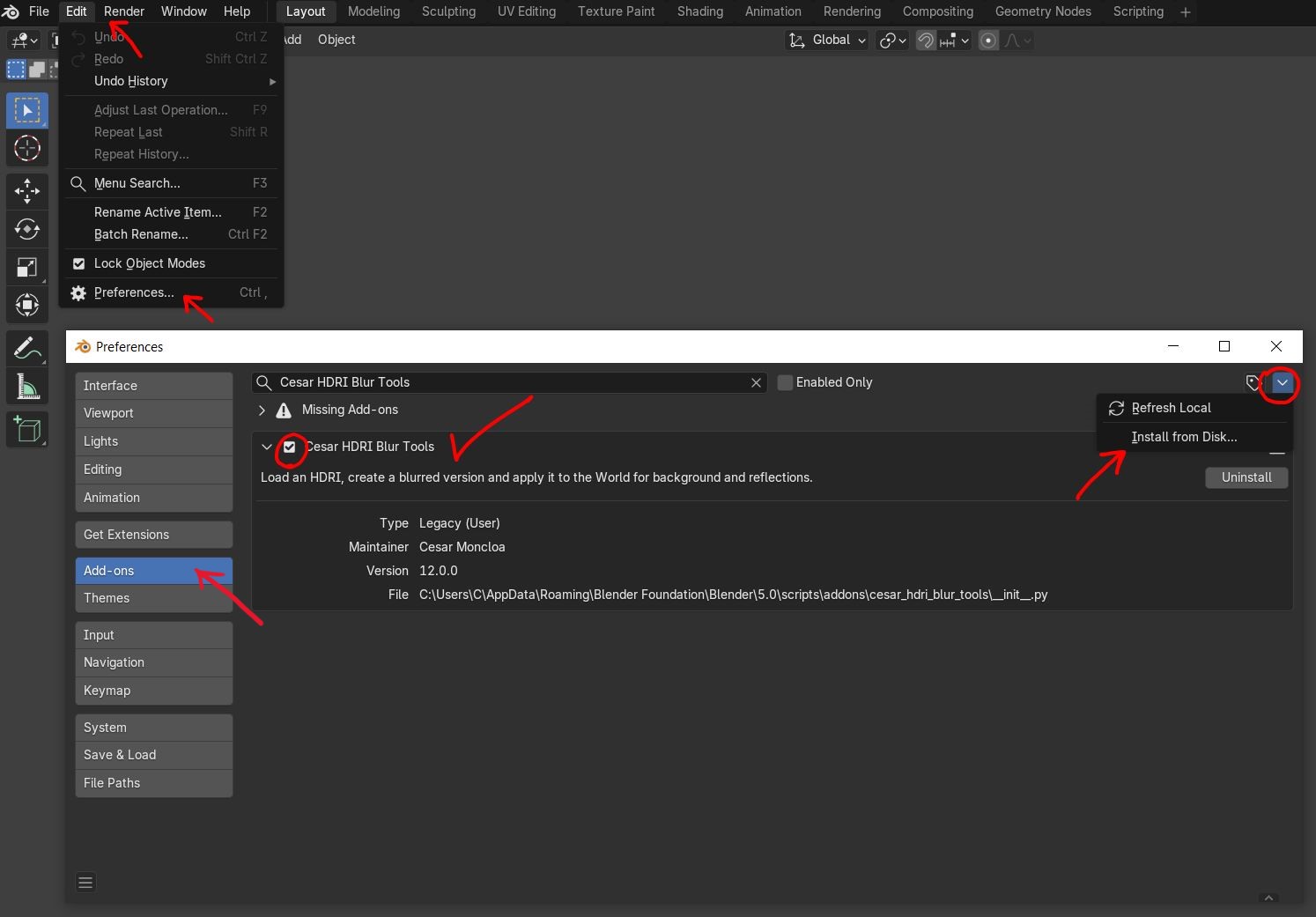
- Download the add-on ZIP file.
- Open Blender.
- Go to Edit > Preferences > Add-ons.
- Click Install.
- Select the add-on ZIP file.
- Enable the add-on.
- Open the 3D Viewport.
- Press N to open the sidebar.
- Go to the Cesar HDRI tab.
Where to Find the Add-on
After installation, the add-on appears here:
3D Viewport > Sidebar > Cesar HDRI
To open the sidebar, press:
N
How to Use
-
In the Cesar HDRI panel, choose an HDRI file.
Supported formats: .hdr and .exr. - Use Apply Original HDRI if you want to apply the selected HDRI without blur.
-
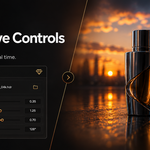
Adjust the Blur slider.
The add-on creates and applies a blurred version of the HDRI. -
Adjust Strength.
This controls the intensity of the World lighting. -
Adjust World Opacity.
This controls how visible the HDRI background is to the camera. -
Adjust Rotation.
This rotates the HDRI around the scene. - In the Viewport Shading options, enable Scene World to preview the World environment in the viewport.
Controls Explained
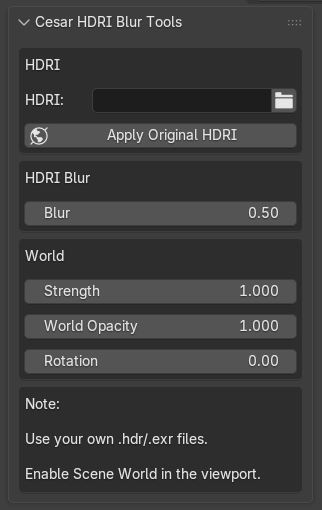
HDRI
Choose the .hdr or .exr file you want to use as the environment.
Apply Original HDRI
Applies the selected HDRI directly to the World without blur.
Use this when you want to compare the original HDRI with the blurred version.
Blur
Controls the amount of blur applied to the HDRI.
0.00 = no blur
1.00 = strong blur
The blur is applied to the HDRI used by the World, helping the background and reflections feel more coherent.
Strength
Controls the intensity of the World lighting.
The slider is designed around the common 0 to 2 range, but manual values above 2 can be typed if a stronger HDRI is needed.
World Opacity
Controls the visibility of the HDRI background.
0.00 = background hidden
1.00 = background fully visible
The HDRI can still affect lighting and reflections even when the visible background is reduced.
Rotation
Rotates the HDRI environment around the scene.
Range:
-360° to 360°
Using Blender’s Built-In HDRI Environments
You can also use Blender’s built-in HDRI environments if you save or locate the HDRI file used by Blender’s viewport lighting and load it into the add-on like any other .hdr or .exr file.
This allows you to create a look similar to Blender’s Viewport Shading, but with a blurred World environment that can also affect reflections.
Recommended Workflow
- Add a reflective object or material to your scene.
- Load an HDRI file in the Cesar HDRI panel.
- Adjust Blur until the background becomes softer and less distracting.
- Adjust Strength to control the lighting intensity.
- Adjust World Opacity to decide how visible or subtle the background should be.
- Adjust Rotation to place the lighting direction where it works best.
- Enable Scene World in the viewport to preview the final look.
Compatibility
Designed for Blender 4.x and Blender 5.x.
Tested during development in Blender 5.0.1.
Recommended compatibility field:
Blender 4.0+
If your Blender version handles World nodes differently, please contact support and I will review compatibility.
Included Files
• HDRI Blur Background & Reflections add-on ZIP
• README documentation
• GPL license file
License
This add-on is distributed under the GNU General Public License v3.0.
See the included LICENSE.txt file for details.
Have questions about this product?
Login to message
| Published | 4 months ago |
| Blender Version | 4.0 - 5.0 |
| Extension Type | N/A |
| Render Engine Used | Cycles, Eevee |
| License | GPL |
Discover more products like this
product rendering rendering reflections environment background hdri viewport look development artist-tools 3d tools Lighting Add-on