Hipoly
 Netron Systems



HiPoly Documentation
Installation & Setup
Requirements:
- Blender 4.5.0 or later
- Edit Mode access for mesh operations
- Object Mode access for HiPoly generation
Installation:
- Download the HiPoly.zip file from your purchase
- In Blender: Edit > Preferences > Add-ons > Install
- Select the HiPoly.zip file and click "Install Add-on"
- Enable "Mesh: HiPoly" in the add-ons list
- Find the HiPoly panel in 3D Viewport > Sidebar > HiPoly tab
Core Tools Reference
VertexHub
Hotkey: Ctrl+Alt+C
Mode: Edit Mode
Selection: 2+ vertices on the same face
How to use:
- Select vertices around the perimeter of a face
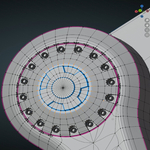
- Press Ctrl+Alt+C to activate VertexHub
- Move your mouse to position the center vertex
- Left-click to confirm, Right-click/ESC to cancel
VertexLink
Hotkey: Ctrl+Alt+V
Mode: Edit Mode
Selection: 2+ vertices
How to use:
- Select the vertices you want to connect
- Press Ctrl+Alt+V
- HiPoly connects all selected vertices to the active (last selected) vertex
Snap Tools
Mode: Edit Mode
Selection: Any
How to use:
- Click "Enable Snap Tools" to activate optimized snapping
- Click "Disable Snap Tools" to return to default settings
Edge Operations
Sharp Edge Selection
Mode: Edit Mode
Parameter: Sharpness Angle (0.1° - 180°)
How to use:
- Set your desired angle threshold
- Click "Sharp Select"
- All edges above the angle threshold are automatically selected
Edge Creasing
Mode: Edit Mode
Selection: Edges
Parameter: Crease Strength (0.0 - 1.0)
How to use:
- Select edges you want to crease
- Set crease strength value
- Click "Crease" to apply or "Uncrease" to remove
Parallel Offset
Hotkey: Ctrl+Alt+P
Mode: Edit Mode
Selection: Edges
Parameter: Width
How to use:
- Select edges
- Set offset width
- Click "Parallel Offset" or press Ctrl+Alt+P
HiPoly Generation System
Generate HiPoly
Mode: Object Mode
Target: Active mesh object
Parameters:
- Subdivisions (1-4): Higher = smoother but heavier geometry
- Smooth Iterations (0-500): Corrective smoothing passes
- Voxel Size (0.001-1.0): Smaller = higher resolution remesh
How to use:
- Select your base mesh in Object Mode
- Adjust parameters based on desired quality
- Click "Generate HiPoly"
- A new object with "_netron_hipoly" suffix is created
Optimization Tools
Decimate
Parameter: Decimate Ratio (0.0-1.0)
- 1.0 = No reduction
- 0.5 = 50% polygon reduction
- 0.1 = 90% polygon reduction
Apply All Modifiers
Applies all modifiers on the active object.
Reset Settings
Restores all parameters to factory defaults:
- Subdivisions: 3
- Smoothness: 150
- Voxel Size: 0.004
- Sharpness Angle: 30°
- Crease Strength: 1.0
- Decimate Ratio: 0.5
Performance Metrics
The Performance Metrics panel shows real-time mesh statistics:
- Vertices: Total vertex count
- Faces: Total face count
These numbers update automatically and help you monitor mesh complexity during modeling.
Troubleshooting
VertexHub not working:
- Ensure you're in Edit Mode
- Select at least 2 vertices on the same face
- Check that vertices belong to a face
VertexLink creates no connections:
- Verify vertices aren't already connected
- Ensure at least 2 vertices are selected
- Check for valid mesh topology
HiPoly Generation fails:
- Switch to Object Mode
- Ensure active object is a mesh
- Check object has valid geometry
Snap Tools not responding:
- Verify you're in Edit Mode
- Tool settings may conflict with existing preferences
Keyboard Shortcuts Summary
| Operation | Shortcut | Mode |
|---|---|---|
| VertexHub | Ctrl+Alt+C | Edit |
| VertexLink | Ctrl+Alt+V | Edit |
| Parallel Offset | Ctrl+Alt+P | Edit |