HitForge — Melee Hitboxes From Your Attack Animations for Unity: Active Frames, Weapon and Fist Capsules, Hurtboxes, a Sweep That Does Not Miss
 Skava
HitForge
v1.0.0 · Blender 4.2 LTS and later (tested on 4.2.9 and 5.2.2) · Unity 6 (tested; the scripts use no render pipeline) · Windows / macOS / Linux
1. What it does
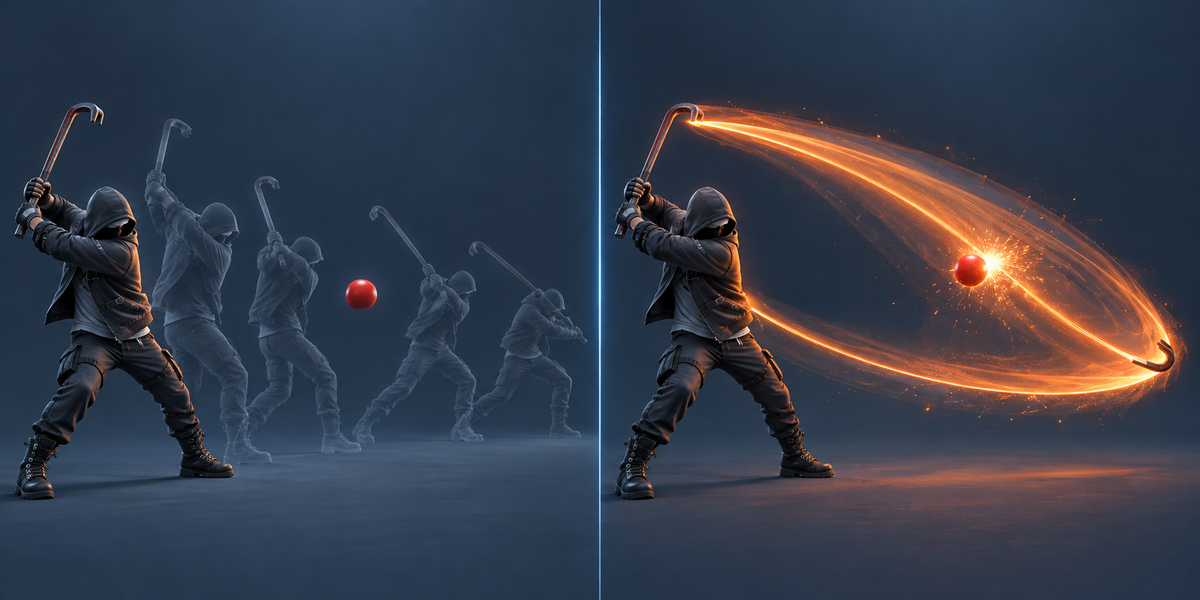
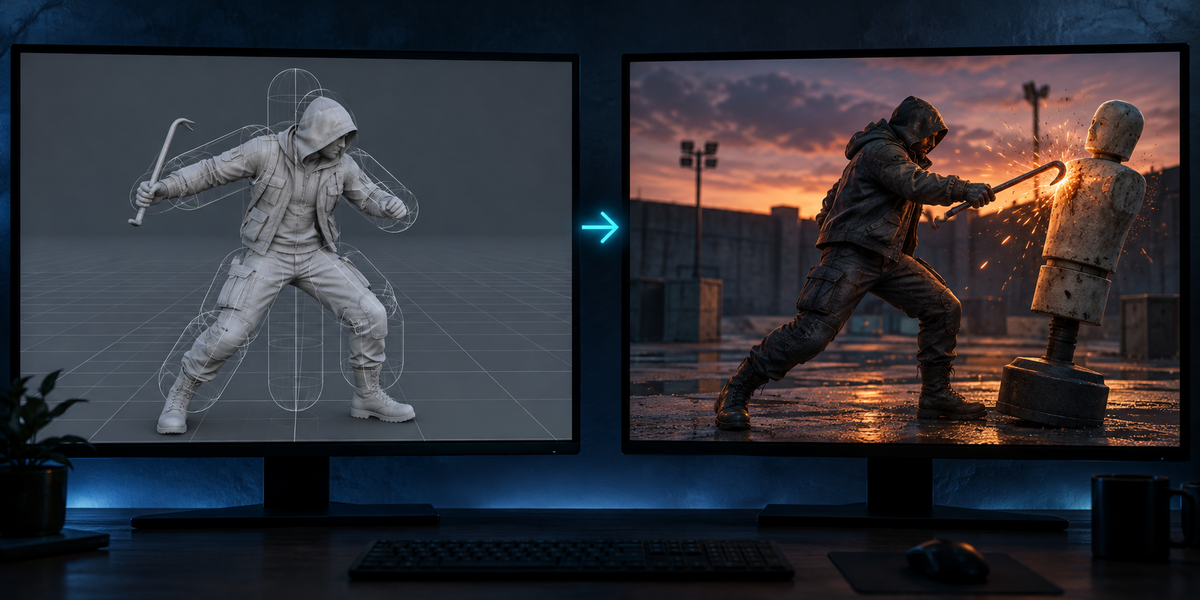
HitForge turns the attack animations of a character into melee hit detection for Unity. For every action of the armature it follows each striker (a weapon, a fist, a foot) frame by frame, finds the active windows (the frames where a blow is live), fits hurtboxes to the body, and writes everything Unity needs. In Unity a small runtime checks the whole path a striker travelled since the last frame, so a fast blow does not jump over a target at 30 fps.
2. Installing
Edit, Preferences, Add-ons, the arrow in the top right corner, Install from Disk, pick the zip, tick the checkbox. The panel is in the 3D Viewport sidebar (N), tab HitForge.
3. Quick start
- Pick the armature (eyedropper: select the armature or a mesh skinned to it).
- Strikers: select the weapon (parented to the hand bone) and press +; or, in Pose Mode, make the hand or foot bone active and press +. Give each striker a name: the engine uses it.
- Press Analyse Attacks. The panel shows the windows found and what a trigger collider, a straight sweep and HitForge would miss at 30 and 60 fps. Show Shapes puts the capsules and hurtboxes on the bones in the viewport; they follow the animation.
- Optional: Write Markers, move hit_on / hit_off in the Action Editor, analyse again.
- Choose a folder and press Export for Unity. In Unity: copy the folder into Assets, drag the character into a scene, select it and choose Tools > HitForge > Set Up Selected Character.
4. Strikers
- Weapon: a mesh that follows a bone of the armature: parented to the bone (Ctrl+P > Bone), or held by a Child Of, Copy Transforms or Armature constraint with full influence. If it follows nothing, choose the bone that holds it. Modifiers are applied before fitting.
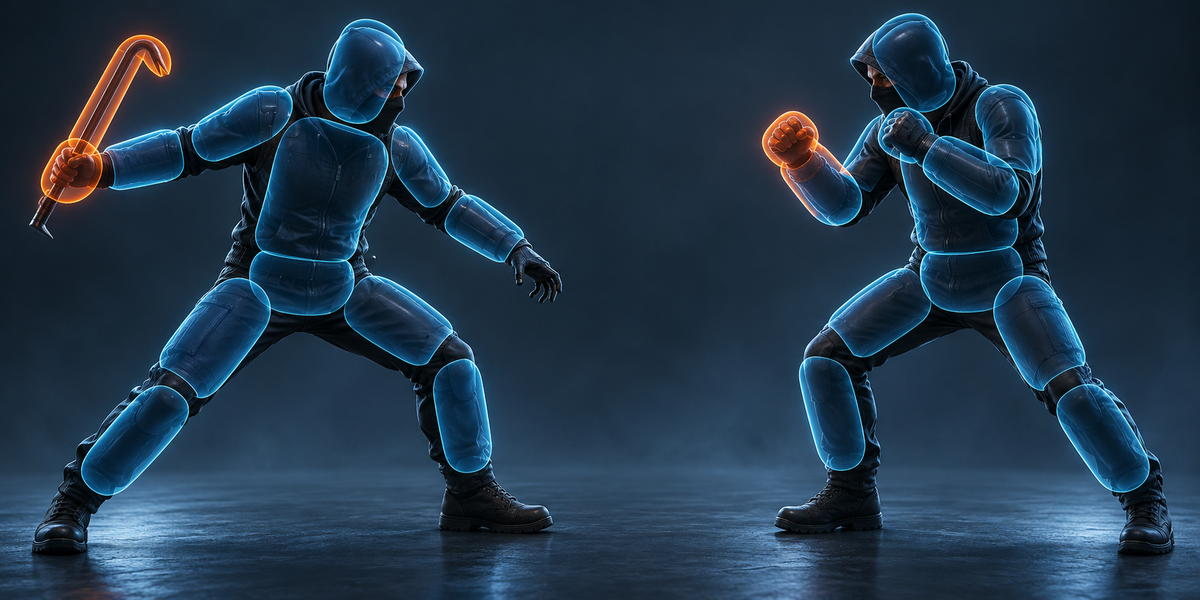
- Body Part: a bone and every deform bone under it (a fist is the hand and its fingers). It is fitted to the skin as it is posed on every frame of the blows, so a clenched fist gets the clenched shape, not the open hand of the rest pose.
- Each striker becomes 1 to 4 capsules (a long piece is cut in two while that saves at least 15% of the volume). The capsules hold every vertex and the faces between them (low-poly faces are sampled, so a flat cap or a blade with corners only on its edges is held whole); the panel shows the radii and the air: how far the capsules reach past the shape (95th percentile). Boxy objects get more air than long ones. Extra Reach (mm) grows them for a more forgiving hit. A body part is checked half way between the frames it was fitted on: the panel shows how far its skin leaves the capsules there.
5. Active windows
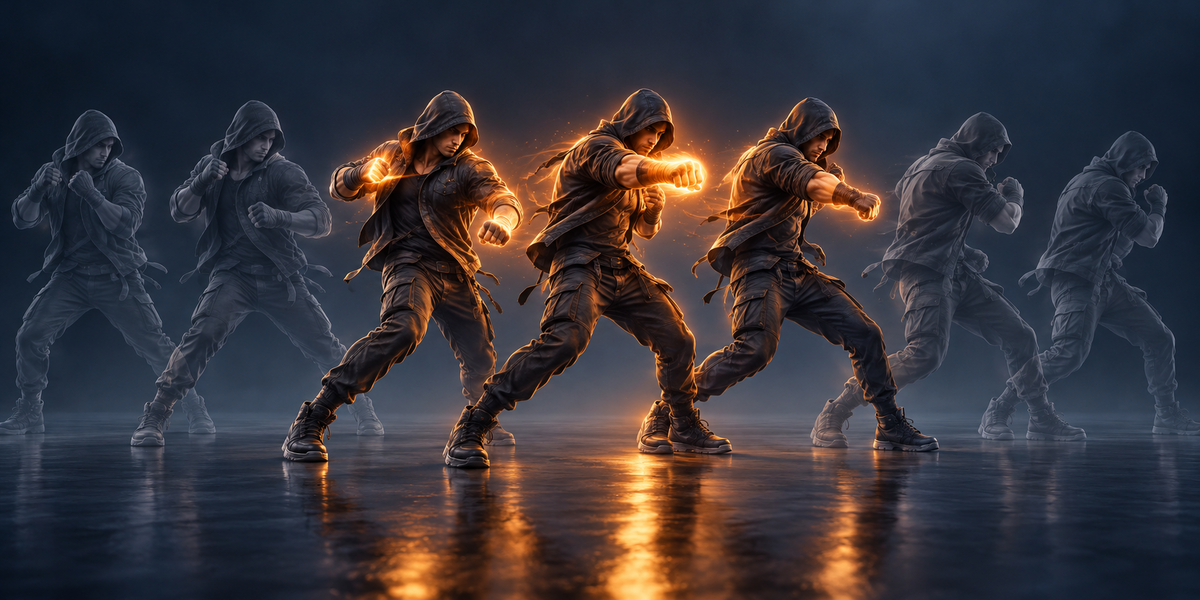
- The speed of the striker's fastest capsule end is read on 8 samples per frame. A window is a run of samples above Active Above × the action's top speed (default 0.5) whose own top reaches Slowest Blow (m/s) (default 4) and 70% of the action's top speed (a wind-up is fast, but slower than the blow). Each grows by Lead-in frames; windows that then overlap or come less than a frame apart become one, so one window's end never cuts the next blow short. Markers outside a shortened action are clamped into it.
- A jump that lasts no more than about a frame (a mocap clip starting from another pose, a key that snaps a bone round) is not a blow and does not set the top speed; the panel notes it.
- Markers win: pose markers named hit_on and hit_off in an action (or hit_on:Name for one striker) replace the speed rule for that action. Write Markers writes the windows found in that form; it replaces only the markers of the strikers in the result.
- Speeds are in metres per second from the scene's unit scale and the armature's scale (also when an action keys the armature's scale). Meshes that are hidden or not in the view layer are left out, and the panel says which.
6. What is measured
- For each window, 1500 targets (spheres of Smallest Target (cm) radius, default 5) are placed where the striker really touches them at some moment of the window. The blow is then replayed at 30 and 60 fps, four times with the frames shifted by a quarter frame.
- Trigger collider: the striker checks only where it is on each frame. Straight sweep: it also checks along a straight line from the previous frame. HitForge: it checks along the curve through its last three frames, in steps no longer than half its radius (at most 64 per frame; when a blow moves farther than 32 of its radii in one frame, the panel says so). That is exactly what the Unity runtime does.
- The engine shows a clip's first and last pose outside it, so blows at the ends of a clip are measured the same way.
- Hurtboxes: the skin is checked against them every second frame of every action: how far it leaves them (95th and 99th percentile, per part and overall).
7. In Unity
- Set Up Selected Character finds <armature>.hitforge.json next to the model (or asks), writes the events HitForgeOn / HitForgeOff (string parameter: the striker's name) into the clips of the model's import settings (your own events stay), fits Blender's space to the character on the bone positions (axes, scale, mirroring, whatever the FBX export did), and places a HitForgeStriker per striker and the hurtbox colliders (triggers) on the bones, plus HitForgeCharacter next to the Animator. A rig without a skinned mesh is fitted on a frame of its own clip that Blender recorded.
- Then it checks: the events are in the clips, and each striker posed by Unity's clip lands within so many mm of Blender's. A few mm come from Unity's Animation Compression; a wrong file or axis puts it a hand's length away and the check says CHECK.
- Measure Selected Character replays every window in the editor at 30 and 60 fps with Unity's physics (300 targets per window): the HitForge count is what the runtime component itself reports, fed with the events from the clip; the trigger count overlaps the striker where it is on each frame while it is on.
- In your code: GetComponent<HitForge.HitForgeCharacter>().Hit += h => ..., or the onHit UnityEvent. A hit gives the striker, the collider, its hurtbox and character (if any), the closest point and the striker's velocity. Each target (a character, a Rigidbody or a collider) is hit once per window; the character's own colliders are ignored. If the clip that opened a window stops playing before its HitForgeOff (an interrupted attack), the striker switches off. ResetHistory() after a teleport.
- Setting up again keeps the HitForgeCharacter component (its layers and the onHit listeners you wired) and each striker's object with anything you put under it. Clips you trimmed or split in the import settings are followed. Remove From Selected Character removes only what HitForge made.
8. Limits
- The sweep follows the striker's own path; a target that moves fast between two frames is checked where it is on the frame.
- A blended or layered Animator plays the poses it blends; the events come from the clips that play. The windows are those of the clip.
- FBX does not carry constraints: a weapon held by a constraint must be parented to its bone in Unity (the striker is placed on the bone either way). A deforming armature that follows a control rig is analysed; bake the actions onto it before exporting the FBX (the panel says so).
Have questions about this product?
Login to message
| Published | 8 days ago |
| Blender Version | 4.2 - 5.2 |
| Extension Type | N/A |
| License | GPL |