 Mrs Eliza


Tips, troubleshooting and FAQ
Tips for great results
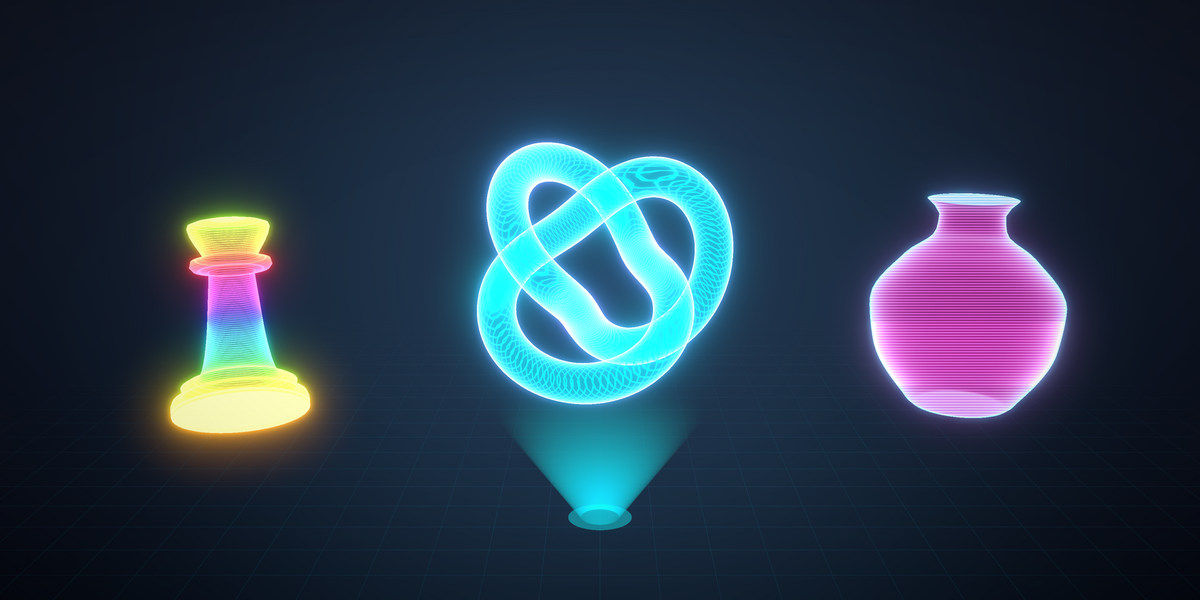
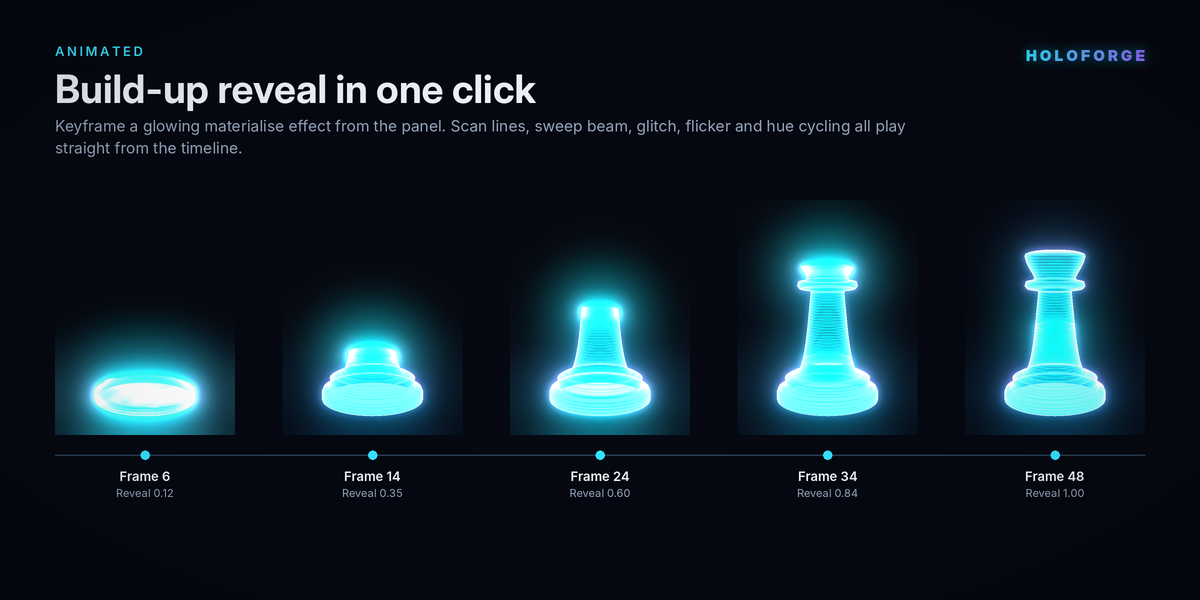
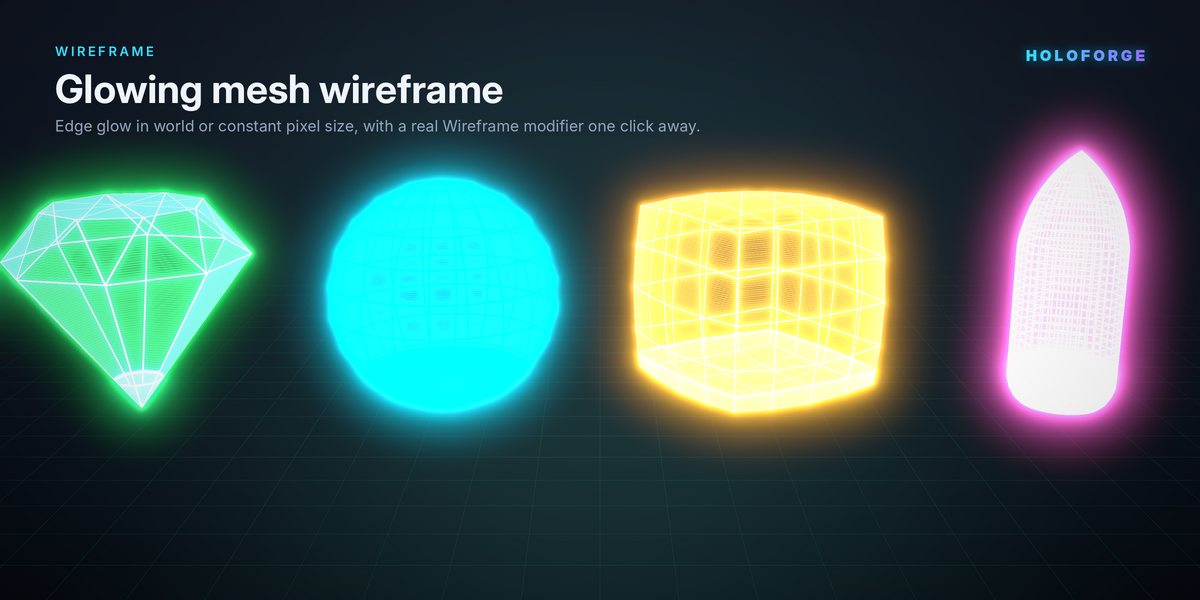
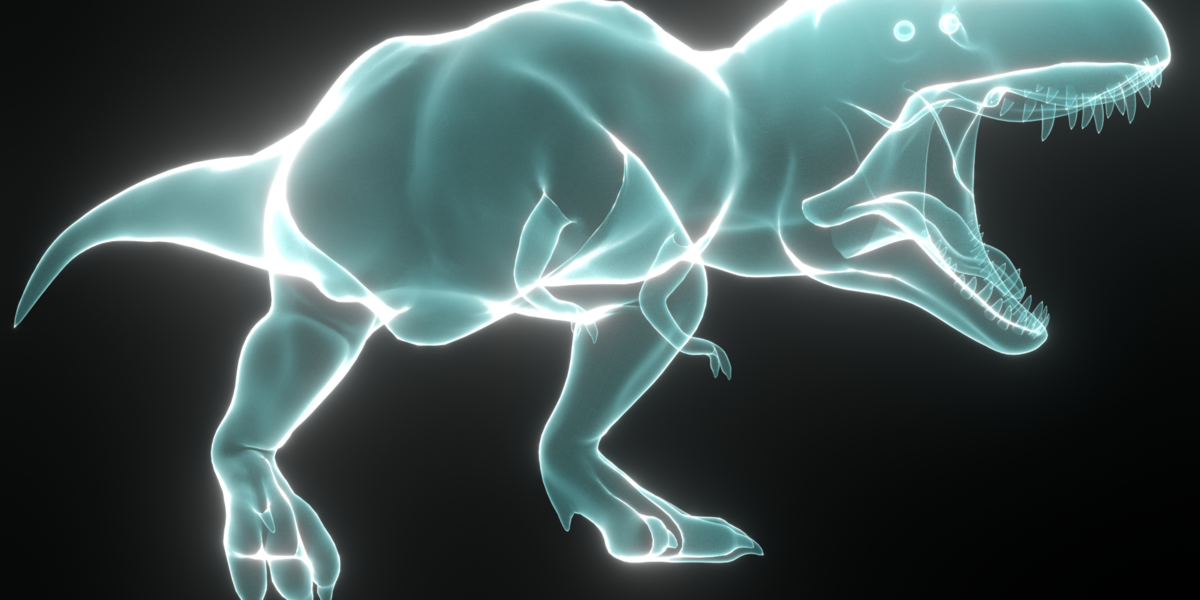
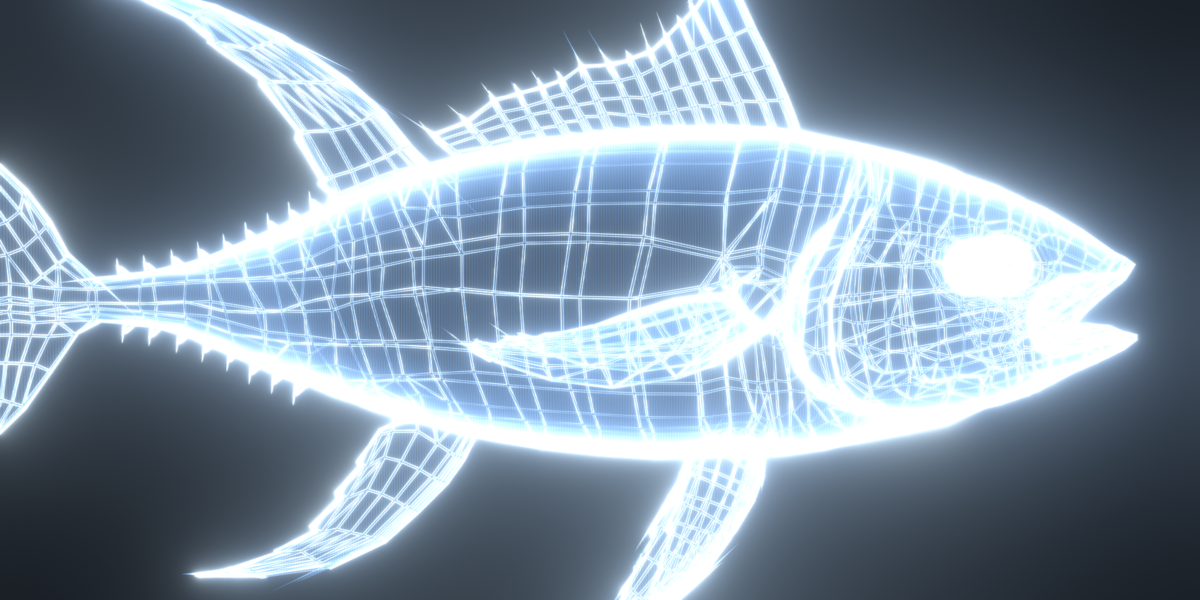
Holograms look best against a dark background, so keep the HF Void world or use a dark environment. Smooth, subdivided meshes give cleaner rims than low-poly ones. Use Screen scan lines for a projected, broadcast look, and object-axis scan lines when the lines should stick to the object as it moves. For a crowd of holograms, use Unique Material per Object with Desync Animation, so they never flicker in step. When you want a hologram hanging in mid-air, combine any effect with Projector Beam and an Animate Build-Up.
Troubleshooting
If you see no glow, check that the viewport is in Material Preview or Rendered mode and that the scene has the HoloForge Glow node in the compositor. Click Set Up Scene Glow to add it again.
If the panel shows "Controls not linked to this material", the material was probably duplicated by hand in Blender. Click Relink Controls so the sliders drive this copy instead of the original.
If the whole object pulses on and off when Pixelate is used, the Scan Density is an exact multiple of the Pixelate value. Nudge either number slightly.
If editing one object changes others too, they share one material. Click Make Unique on the object you want to edit on its own.
If baked textures look flat, remember that baking captures one frame from a straight-on point of view. Rim and rainbow effects that depend on the viewing angle, and Screen-axis scan lines, cannot be fully captured in a flat texture.
Have questions about this product?
Login to message
| Published | over 2 years ago |
| Blender Version | 4.2 - 5.0 |
| Render Engine Used | Cycles, Eevee |
| Misc Data | Uvs-Unwrapped, Rigged, Animated, Low-High-Resolution, Normal-Mapped, Textured |
| License | GPL |
Discover more products like this
Sci-fi Effects procedural materials 3d modeling blender tools cyberpunk hologram effect Digital Hologram Glowing Shaders visual effects blender addon Wireframe Effect HoloForge