 Mrs Eliza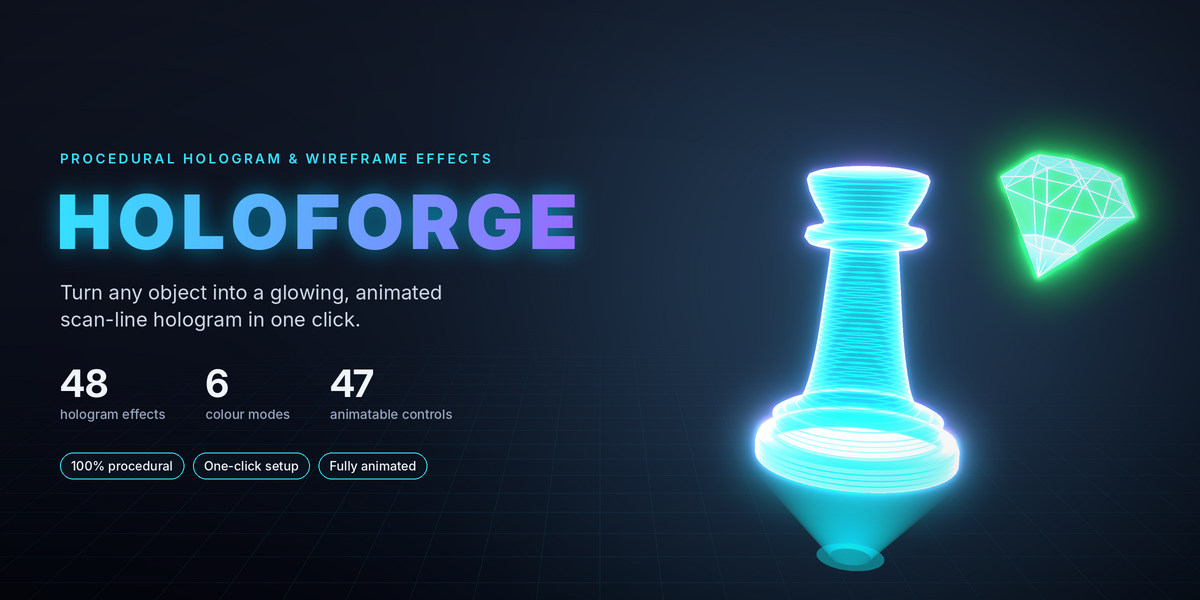

Introduction
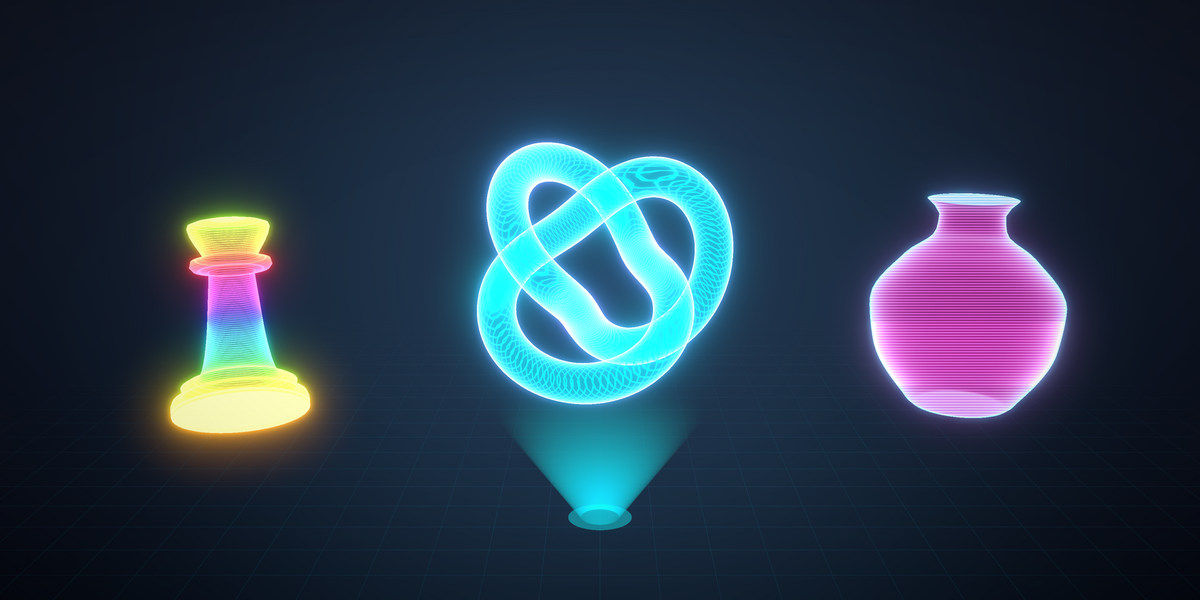
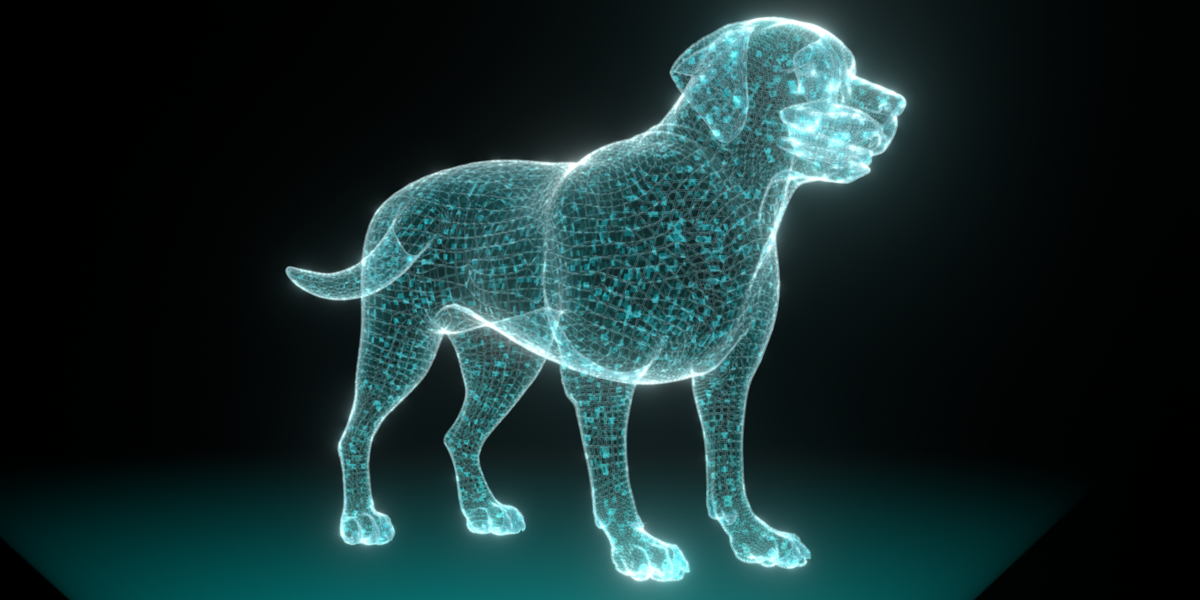
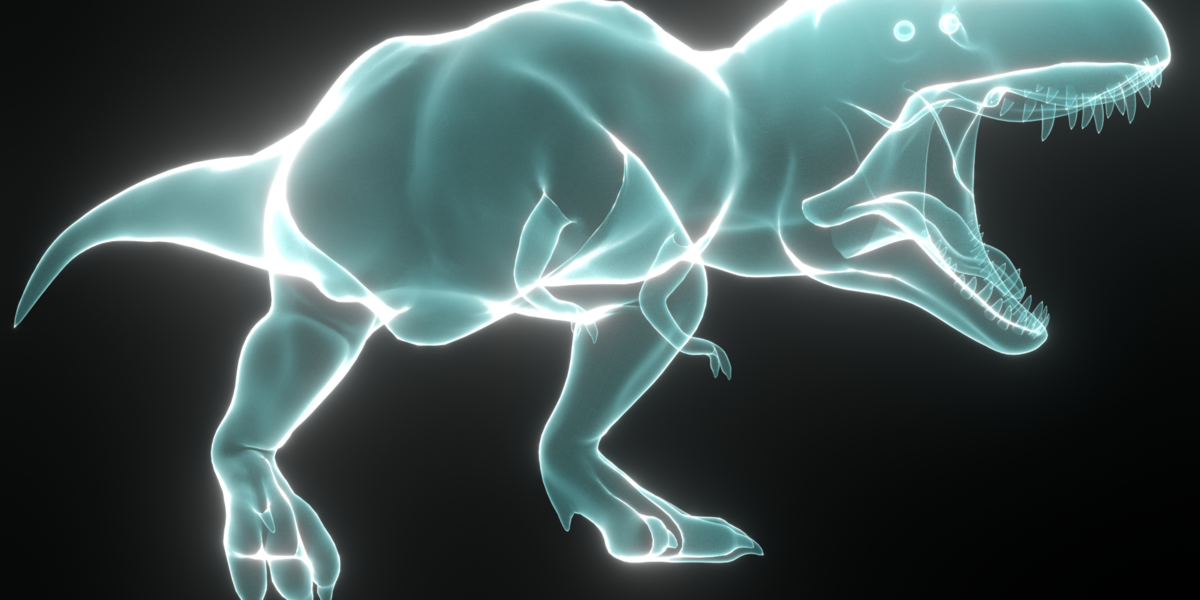
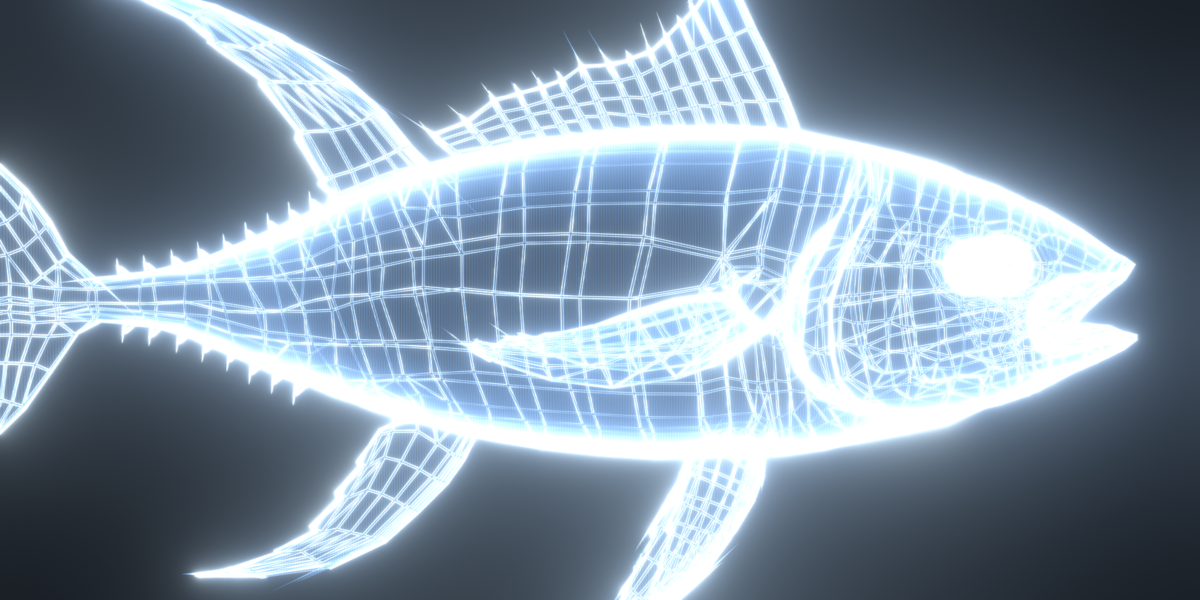
HoloForge turns any object in Blender into a glowing, animated, scan-line hologram with one click. It ships with a library of 48 ready-made hologram effects. Every effect is fully procedural, fully animated and fully adjustable.
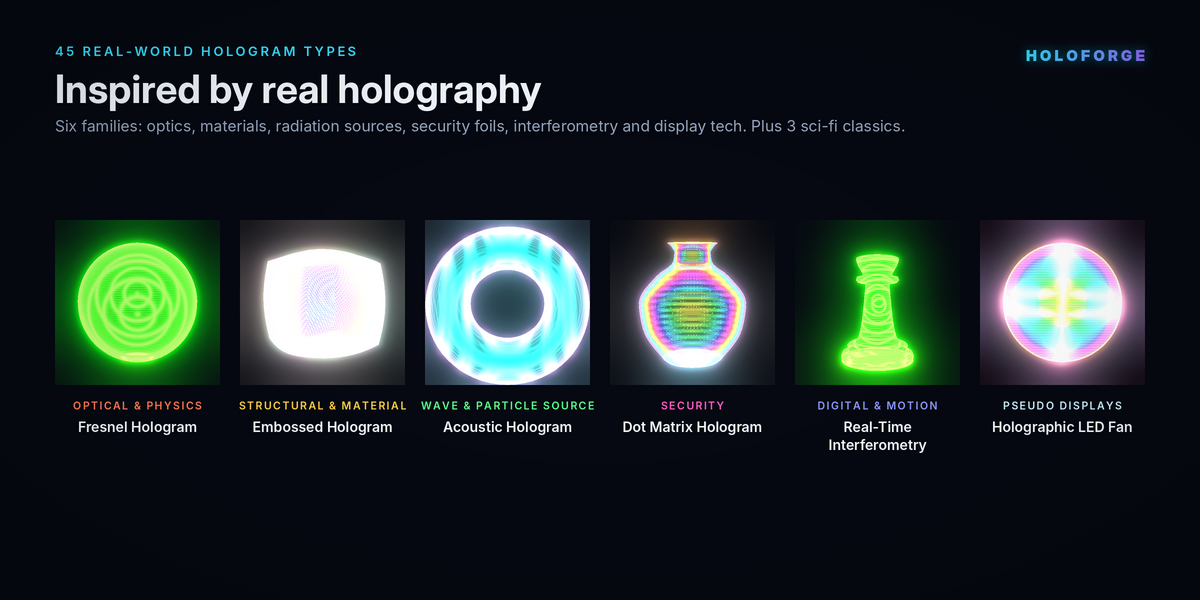
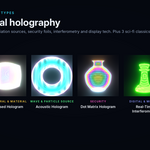
The library covers 45 real hologram types grouped into six families: optical and physics holograms, structural and material holograms, wave and particle source holograms, security holograms, digital and interferometric holograms, and pseudo-hologram display technologies. Three signature sci-fi looks complete the set: the classic movie hologram, a military wireframe and an unstable glitching transmission.
HoloForge is built for motion designers, game artists, product visualisers and anyone who needs a futuristic look fast. You can stay with a single click and a preset, or open every parameter and build your own look from scratch.
Key features
HoloForge is built around seven promises: procedural, high quality, colourful, preset-driven, animated, one-click and fully customisable.
Procedural
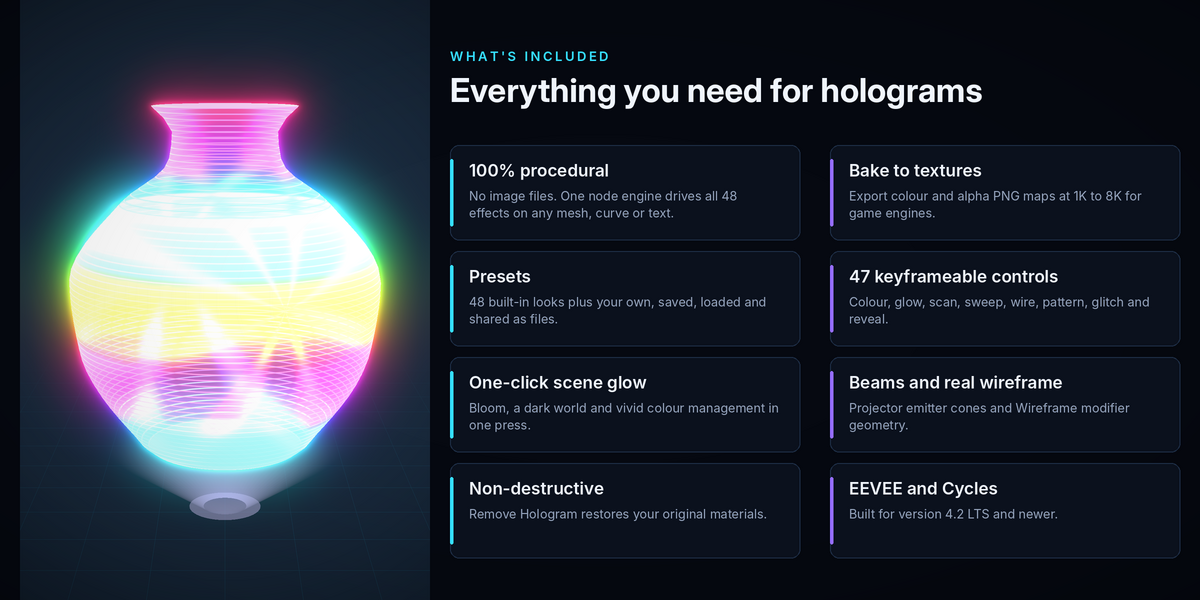
Every effect is made entirely from Blender shader nodes. There are no image files to load, no textures to lose and no resolution limit. One shared engine node group, called HoloForge Engine, powers all 48 effects. It works on meshes, curves, surfaces, metaballs and text objects alike.
High-quality textures
Because the detail is generated mathematically, it stays sharp at any camera distance and any render size. A Noise Detail setting controls how fine the procedural noise is. When you need real image files, the Bake Textures tool exports colour and transparency maps as PNG images at 1K, 2K, 4K or 8K resolution for game engines and other software.
Neon, gradient, solid and more
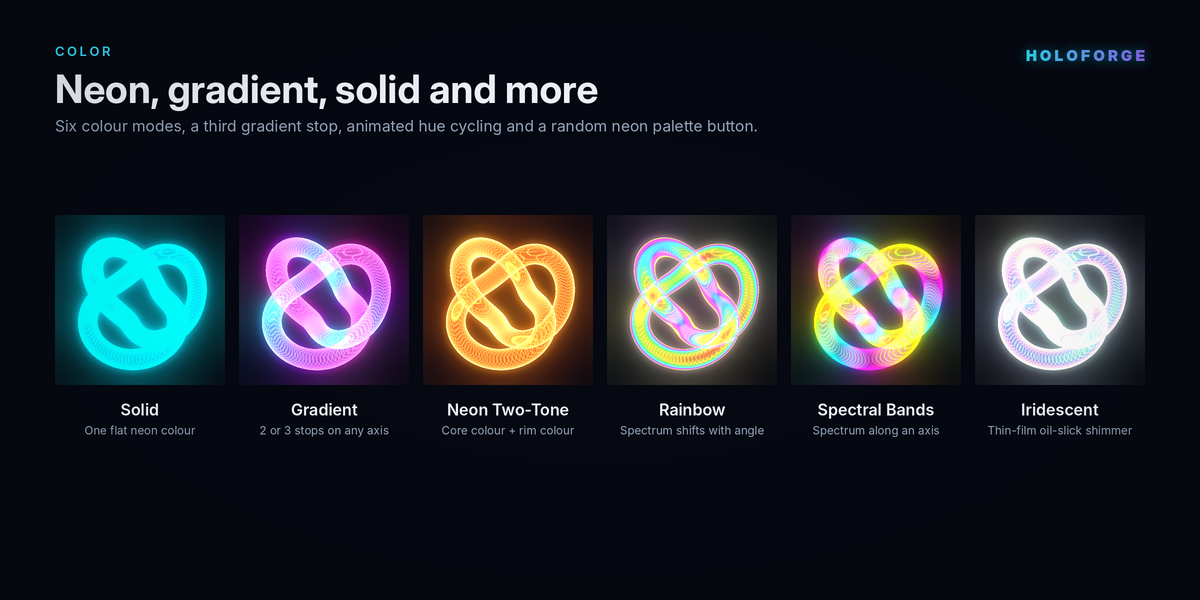
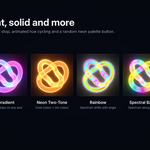
Six colour modes cover every hologram style. Solid gives one flat neon colour. Gradient blends two or three colours along any axis or across the viewing angle. Neon Two-Tone gives a coloured core with a different rim. Rainbow shifts through the spectrum as the viewing angle changes, like a diffraction foil. Spectral Bands lays rainbow bands along an axis. Iridescent gives a thin-film, oil-slick shimmer tinted by your main colour. A Random Neon Palette button picks a harmonious set of three colours for you.
Presets
The 48 library effects act as built-in presets. You can also save your own looks as named presets, load them on any object, delete them and import preset files shared by other artists.
Animated
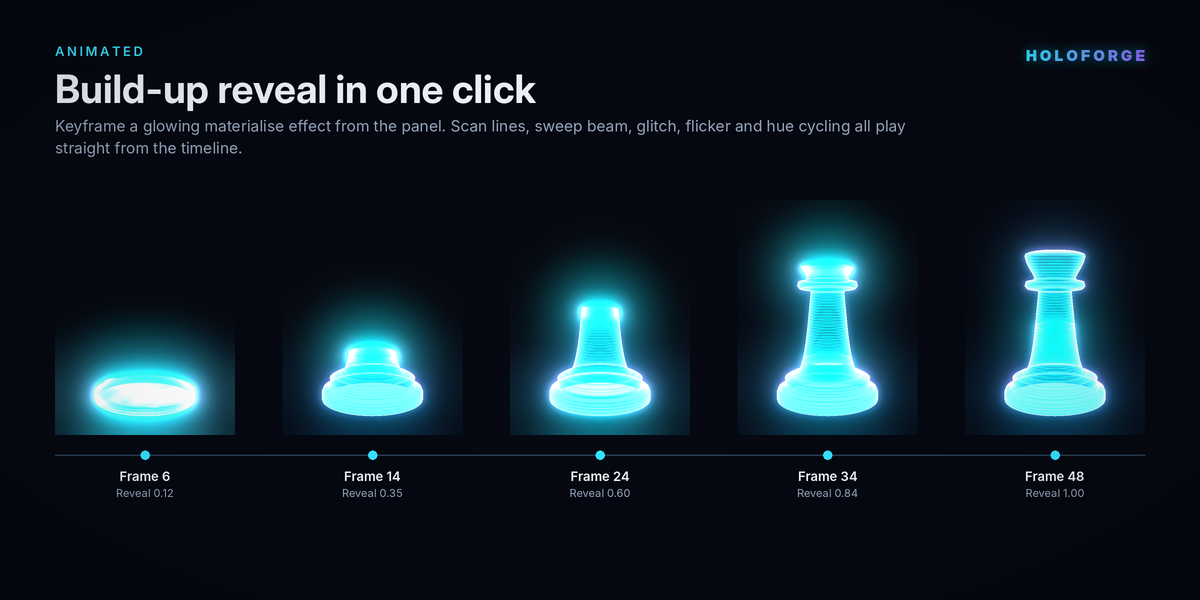
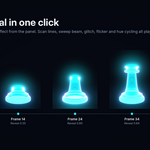
Scan lines scroll, a bright scanning beam sweeps across the object, the hologram flickers, glitches tear across it, patterns move and colours cycle. All of it follows Blender's timeline, so scrubbing and rendering work with no extra setup. A one-click Build-Up tool keyframes a glowing reveal so the hologram materialises in front of the camera.
One-click setup
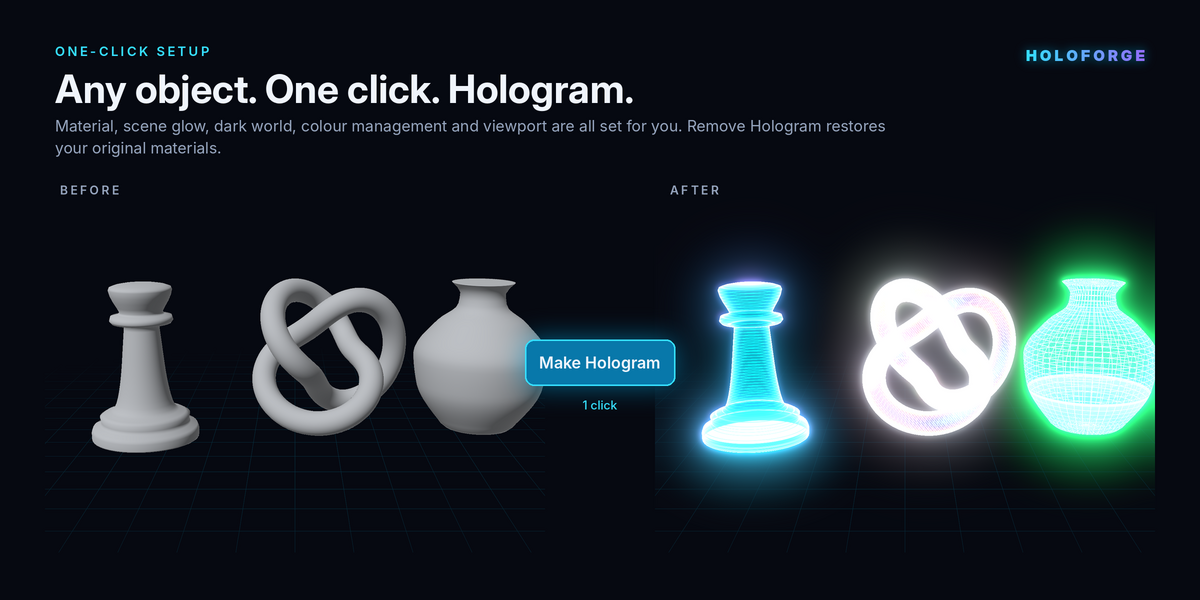
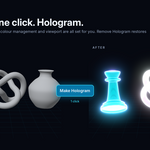
The Make Hologram button builds the material, assigns it, adds glow to the scene, sets a dark background, sets vivid colour management and switches your viewport so you see the result at once.
Fully customisable
Around fifty parameters sit in tidy sidebar panels, and every one of them can be keyframed. The engine is an ordinary node group, so advanced users can open it and extend it.
Requirements and installation
HoloForge needs Blender 4.2 or newer and works with both the EEVEE and Cycles render engines. It runs on Windows, macOS and Linux, with no extra software or Python packages.
To install it:
- Download the file holoforge_v1.0.0.zip and keep it zipped.
- In Blender, open Edit, then Preferences, then Get Extensions.
- Click the small arrow in the top-right corner and choose Install from Disk.
- Select the zip file and confirm.
- Close Preferences, open the 3D Viewport sidebar with the N key and click the HoloForge tab.
The first time the panel opens, HoloForge draws its gallery thumbnails in the background. This takes a moment and never freezes Blender. To update to a newer version, install the new zip the same way. To uninstall, find HoloForge in the extensions list and click Uninstall.
Quick start
You can have your first hologram in three steps.
- Select one or more objects. If nothing is selected, HoloForge creates a smooth Suzanne monkey for you to test on.
- In the Hologram Library panel, choose a category and click an effect in the gallery. A short description of the look appears under the gallery.
- Press Make Hologram.
Your objects now glow. Press play on the timeline to watch the scan lines scroll and the beam sweep. Your original materials are saved, so Remove Hologram puts everything back exactly as it was.
Two more buttons sit under Make Hologram. Surprise Me picks a random effect from the whole library and applies it. Load Into Active swaps the selected library effect into your current hologram, keeping its material, its reveal setting and its time offset.
One-click options
The One-Click Options sub-panel controls what Make Hologram does besides building the material.
Scene Glow is on by default. It switches the scene to EEVEE, adds a bloom glare node to the compositor, sets a near-black world called HF Void and sets the Standard view transform so neon colours stay vivid. Blender 4.2 and later have no bloom checkbox in EEVEE, so the compositor provides the glow.
Material Preview is on by default. It switches your 3D viewports to Material Preview and turns on the viewport compositor, so you see the glow live while you work.
Unique Material per Object gives every selected object its own material, so each one can be edited separately. When it is on, Desync Animation gives each object a random time offset, so a crowd of holograms never flickers in perfect unison.
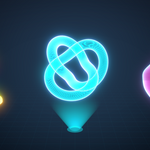
Projector Beam adds a glowing emitter disc and a soft cone of light under each object. Both are parented to the object, so they follow it when it moves.
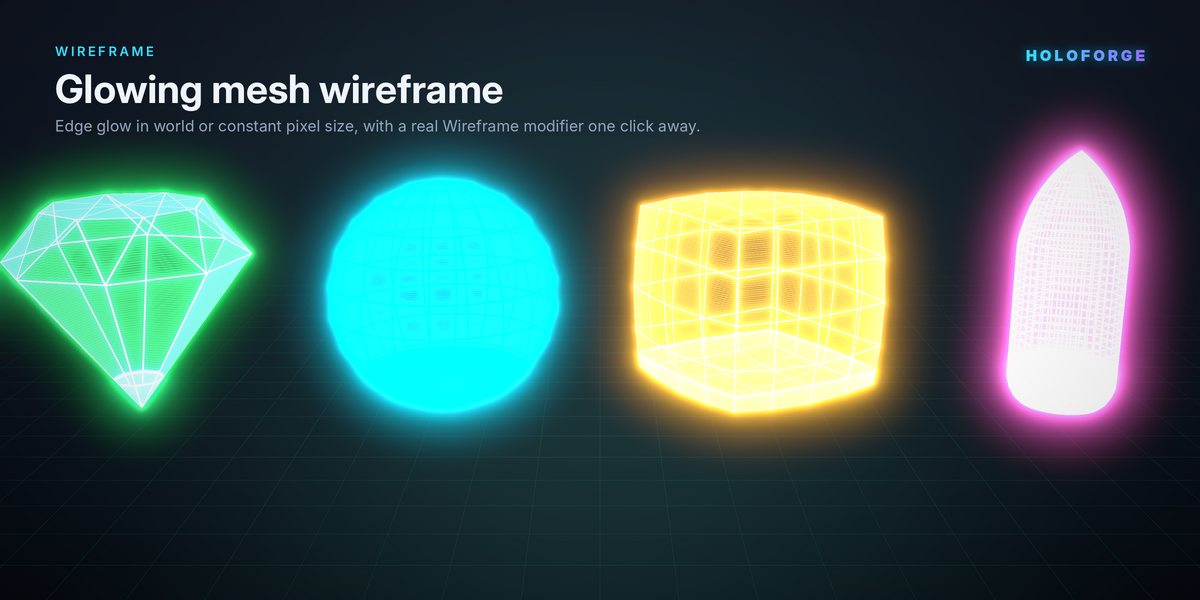
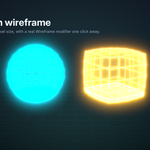
Mesh Wireframe adds a real Wireframe modifier, turning the mesh edges into actual geometry. Wire Thickness sets the tube size, and Keep Surface decides whether the faces stay visible as well as the wires.
Create Demo Object if Nothing Selected controls the Suzanne fallback.
At the bottom of the panel, Category Showcase spawns a labelled grid of every effect in the current category. Whole Library spawns all 48 at once. Each hologram sits above its name, which makes it easy to compare looks in your own lighting and camera.
The effect library
The library holds 48 effects in seven categories. Each physics-named effect is an artistic interpretation: it takes the defining visual trait of that hologram type and turns it into a stylised, animated shader. None of them is an optical simulation.
Signature Sci-Fi
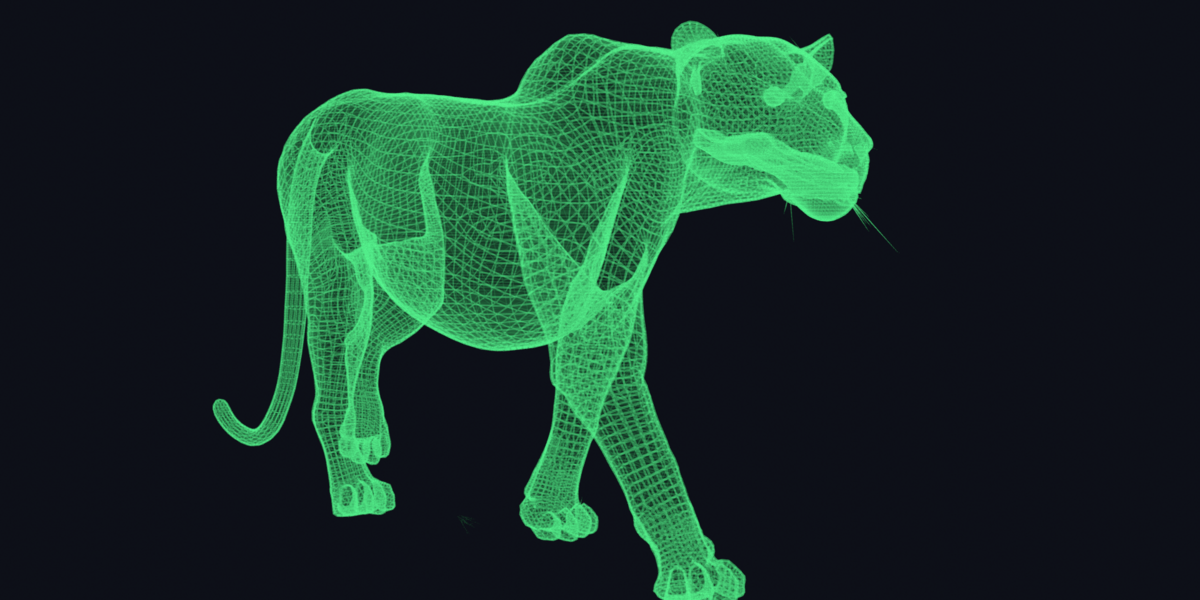
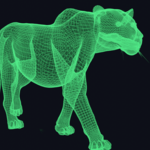
Sci-Fi Scan is the classic movie hologram, with a cyan core, a violet rim, rolling scan lines and a scanning beam. Tactical Wireframe gives a military HUD look, with a glowing green mesh wireframe and a fast sweep. Glitch Transmission looks like an unstable incoming call: a magenta and cyan split, screen-space lines and heavy glitching.
Optical and Physics Holograms
Transmission Hologram is lit from behind by a laser, so it glows in monochrome helium-neon red with fine fringes. Reflection (Denisyuk) is viewable in white light, with a golden-green colour that brightens at a viewing angle. Rainbow (Benton) shows a full spectrum that slides as you move up and down. Edge-Lit Hologram is lit through the edge of its plate, so light pours up from the bottom and fades towards the top.
Fourier Hologram is recorded in the frequency domain and appears as a lattice of spectral spots around a bright centre. Fraunhofer Hologram shows far-field diffraction as crisp Airy rings expanding from the centre. Fresnel Hologram shows near-field zone-plate rings in laser green. Image-Plane Hologram focuses its image on the plate, so it is bright, solid and sharp, with almost no scanning artefacts.
Structural and Material Holograms
Thick (Volume) Hologram shows dense, stacked Bragg layers through the whole body in deep blue. Thin (Plane) Hologram is surface-only, thin and faint, with faint diffraction orders. Embossed Hologram is the credit-card foil: a silver base with rainbow diffraction that flashes as the object turns. Phase Hologram is a transparent relief that bends light, rendered as glassy cyan with a refraction-like wobble.
Amplitude Hologram shows high-contrast dark and bright absorption fringes in warm amber. Photopolymer Hologram is vivid, clean and very bright, from emerald to teal. Dichromated Gelatin (DCG) gives luminous gold-green iridescence. Silver Halide Hologram recreates classic photographic emulsion, with a warm red-sepia image and visible grain.
Wave and Particle Source Holograms
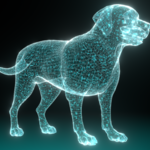
Optical / Laser Hologram shows coherent laser light as shimmering speckle with a green glow. Acoustic Hologram shows a sound-pressure field, with animated pressure waves rippling outward from teal to magenta. Electron Hologram shows fine parallel fringes in cool, micrograph blue-white. X-Ray Hologram has bright cyan-white edges over a dark, see-through body.
Atomic Hologram shows ordered dots on a crystal grid in violet. Neutron Hologram shows pale crystalline cells with a soft lime glow. Microwave Hologram imitates long-wavelength radar imaging, with coarse thick bands and large rings in radar orange.
Security and Authentication Holograms
2D Hologram stacks flat layers that swap colour as the object tilts. 2D/3D Hologram adds apparent depth, with spectral bands and strong edge depth. True 3D Security Hologram has deep green-silver iridescence and a fine grid. Dot Matrix Hologram is written dot by dot, with each pixel acting as a tiny grating that flashes its own colour.
E-Beam Lithography Hologram shows ultra-fine, razor-sharp rainbow micro-lines. Kinemax Hologram is a kinetic security foil, with bold animated motion and colour flow. Pixelgram Hologram is made of blocky cells, each catching a different hue. Matrix Hologram is a crisp grid of spectral tiles.
Digital, Capture and Motion Holograms
Computer-Generated (CGH) shows a computed phase map as quantised pixels of noisy cyan interference. Holographic Stereogram is built from many 2D views, shown as vertical parallax slits sweeping sideways. Pulse Laser Hologram imitates a nanosecond ruby-laser flash, deep red with strobing pulses.
Real-Time Holographic Interferometry shows live fringes racing across the surface as it deforms. Double-Exposure Interferometry shows a frozen deformation map as static black and white contour fringes. Time-Average Interferometry shows vibration-mode fringes, with a bright nodal zone and slowly breathing rings. Multiplex Hologram is a cylindrical integral hologram, with warm vertical film strips rotating around the subject. Digital Holographic Microscopy shows a false-colour phase image over a cellular structure.
Pseudo-Hologram Displays
Pepper's Ghost Display imitates a reflection on angled glass: soft, ghostly, see-through and gently wavering. Holographic LED Fan shows spinning radial blades of pixels, punchy RGB colour and fully transparent gaps. Volumetric Display shows very dense glowing slices stacked through space. Laser Plasma Display shows crackling white-violet points of light in mid-air. Light Field Display is smooth and solid, with subtly angle-dependent colour. Pyramidal Display recreates the phone-pyramid trick, with a classic cyan glow, screen scan lines and crisp edges.
Customising a hologram
Select a hologram object and the Active Hologram panel appears. It shows the material, the library effect it is based on and these tools:
- Reset to Effect returns every setting to the original library look.
- Random Palette applies a fresh neon colour scheme.
- Make Unique gives the active object its own copy of the material.
- Copy to Selected pushes the active settings onto every other selected object.
- Show Back Faces decides whether the inside and back of the object glow too.
The parameter sub-panels sit below these tools.
Color
Color Mode picks one of the six colour styles. Color A is the main or core colour, Color B is the secondary or rim colour, and Color C is an optional third gradient stop, switched on with Use Color C. Gradient Axis sets the direction of gradients and spectral bands: X, Y, Z or View Angle. Gradient Scale stretches the gradient, and Gradient Offset slides it. Spectrum Bands sets how many times the rainbow repeats. Saturation sets colour intensity. Hue Cycle Speed rotates the hue over time.
Glow and Rim
Emission Strength is the overall brightness. Opacity controls how much the hologram hides what is behind it. Body Fill is the base glow across the whole surface. Rim Strength sets the brightness of the Fresnel edge glow, and Rim Tightness sets how thin that rim is.
Scan Lines
Scan Strength sets line brightness, Scan Density sets how many lines there are and Line Width sets their thickness. Scroll Speed moves the lines, and negative values scroll the other way. Scan Axis sets their direction: X, Y, Z or Screen. Screen gives camera-space lines like an old CRT or projector. Line Masking makes the body visible only through the lines, which gives the classic interlaced hologram look.
Scan Sweep
The sweep is a bright beam that travels across the object, leaving a fading trail. Sweep Strength sets its brightness, Sweep Trail sets the trail length and Sweep Speed sets how many passes happen per second.
Wireframe
Wire Strength sets how brightly the mesh edges glow, and Wire Size sets their thickness. Pixel-Size Wire keeps the lines a constant width on screen, whatever the distance. The panel also has buttons to add or remove a real Wireframe modifier, for actual geometric wire tubes.
Pattern
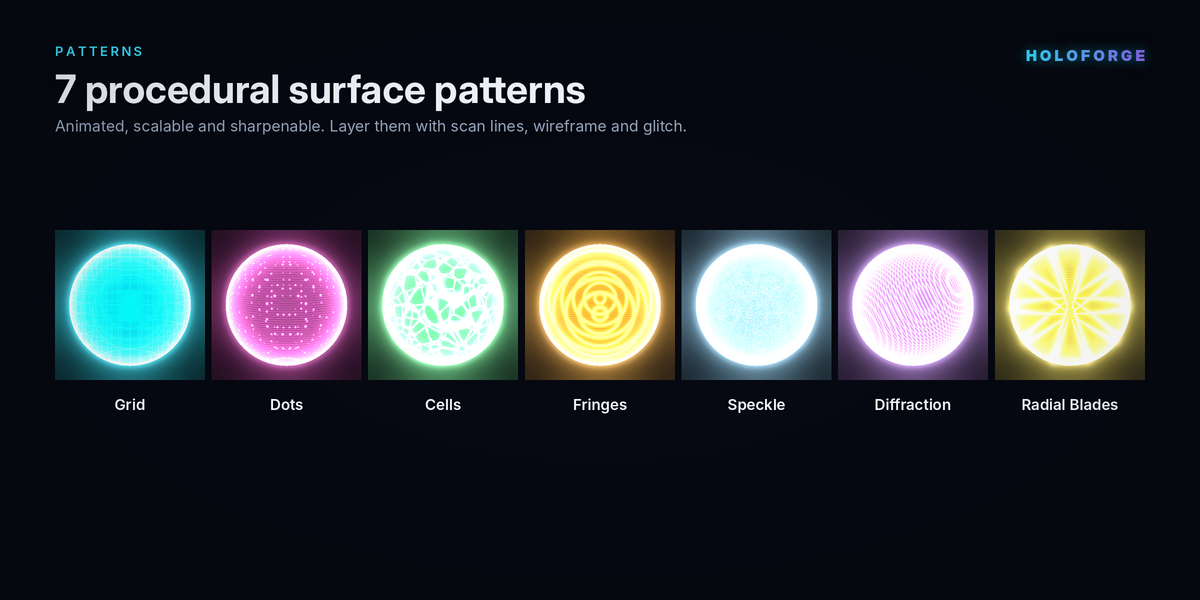
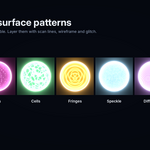
Pattern adds a procedural texture to the surface. The choices are None, Grid, Dots, Cells, Fringes, Speckle, Diffraction and Radial Blades. Pattern Strength sets brightness, Pattern Scale sets frequency, Pattern Speed animates it and Pattern Sharpness moves it between soft and crisp.
Distortion and Glitch
Noise Distortion wobbles every pattern with animated noise. Glitch tears random horizontal bands sideways and flashes them brighter, and Glitch Speed sets how often that happens. Flicker dips the brightness unpredictably, and Flicker Speed sets its rate. Pixelate breaks colour and scan lines into blocky voxel cells, while patterns keep drawing between the blocks.
Reveal and Build-Up
Reveal runs from 0, fully hidden, to 1, fully built. Reveal Axis sets the build direction, and Invert Reveal builds from the opposite side. Edge Width and Edge Glow control the bright, noisy edge that travels across the object as it materialises.
Animation and Quality
Global Speed multiplies every animation at once, and 0 freezes the hologram completely. Time Offset shifts one hologram in time so it stays out of step with others. Noise Detail sets how many layers of procedural noise are used. Higher values give finer detail but render more slowly.
Animation, presets, scene tools and baking
Animating holograms
Holograms animate by themselves as soon as you press play. Every moving element is tied to the timeline frame, so the animation renders identically every time and scrubbing shows the exact frame. No Python scripts run during playback, so it also works when automatic script execution is turned off.
Every parameter has a keyframe dot beside it. You can animate colour changes, a glitch burst at a dramatic moment, a flicker that calms down, or an emission spike when the hologram activates.
For the classic materialise effect, open Reveal / Build-Up, set the Duration in frames and click Animate Build-Up. HoloForge keys the reveal from hidden to fully built, starting at the current frame. Switch on Out first and it also holds the hologram, then dissolves it away again. Clear Build-Up removes those keys and shows the hologram in full.
Your own presets
The My Presets panel saves the current hologram under any name you type. Saved presets appear in the dropdown, ready to load onto any hologram with one click, or to delete. Each preset is a small JSON file in your Blender user folder. You can share these files with other artists, who load them with Import Preset File.
Scene tools
The Scene & Export panel repeats two one-click helpers for use at any time. Set Up Scene Glow adds the bloom compositing, dark world and vivid colour management, and it never adds a second glare node if one already exists. Add Projector Beam adds the emitter disc and light cone under each selected object, tinted with the hologram's main colour.
Baking to image textures
Bake Textures turns the procedural hologram into ordinary PNG images. Choose a resolution of 1K, 2K, 4K or 8K, pick an output folder and decide whether to include an alpha map. HoloForge temporarily switches to Cycles, creates UVs automatically if the mesh has none, bakes a colour map and an alpha map and then restores your scene.
The maps capture the current frame. To use them in a game engine, plug the colour map into emission, multiply it by your preferred strength and use the alpha map for transparency.