 Mars0hod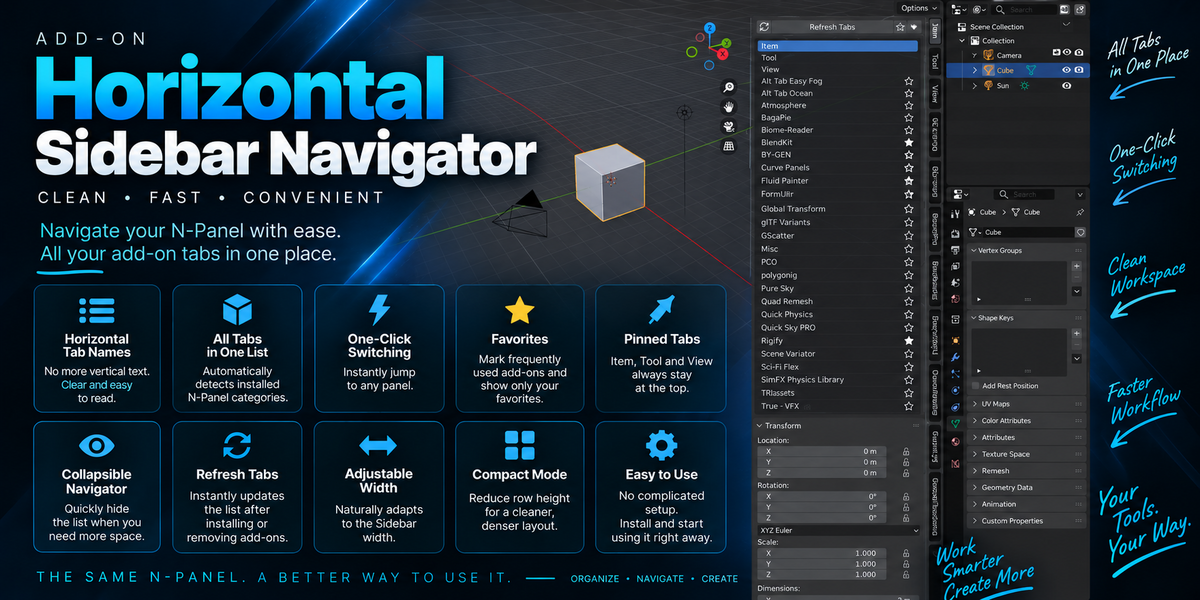
Horizontal Sidebar Navigator — Quick Start
Installation
- Open Blender.
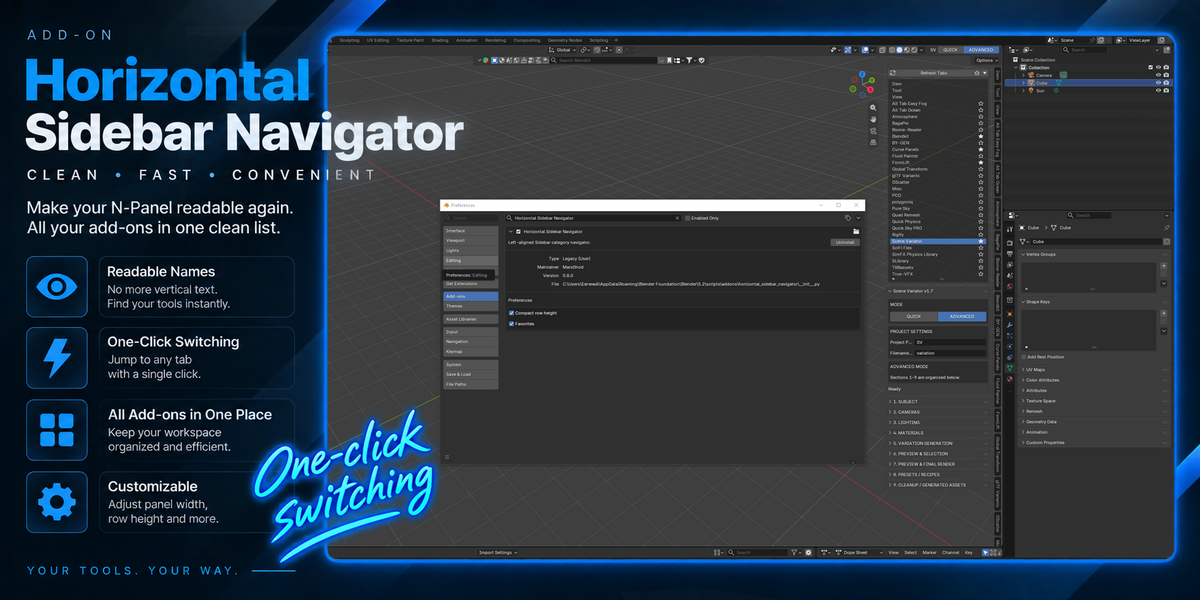
- Go to Edit → Preferences → Add-ons.
- Choose Install from Disk and select the downloaded ZIP file.
- Enable Horizontal Sidebar Navigator.
Getting Started
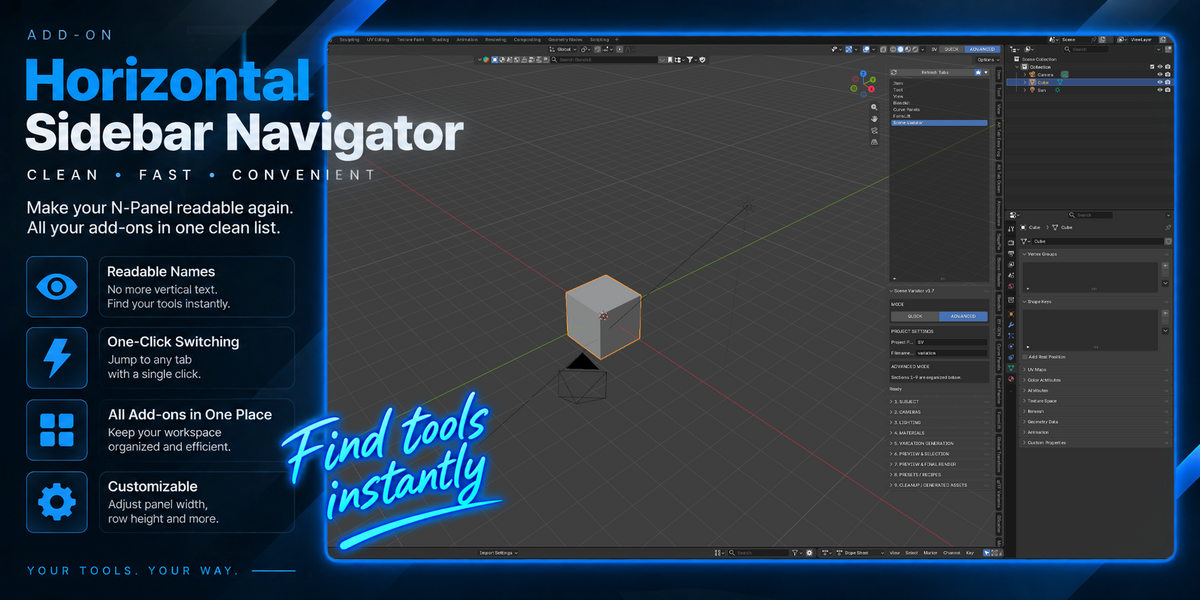
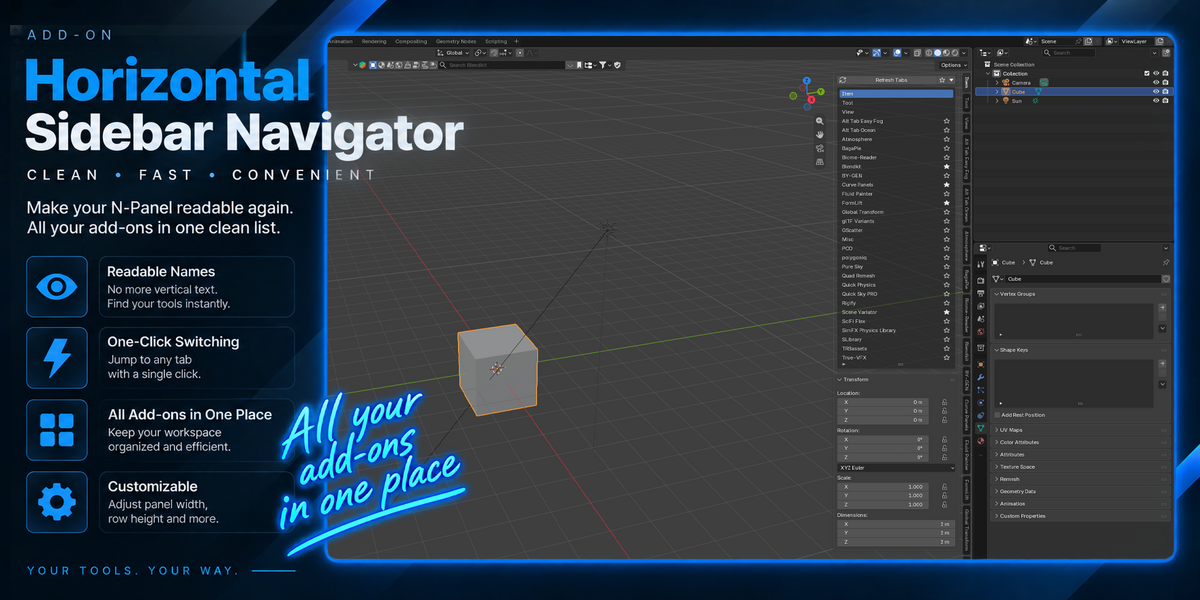
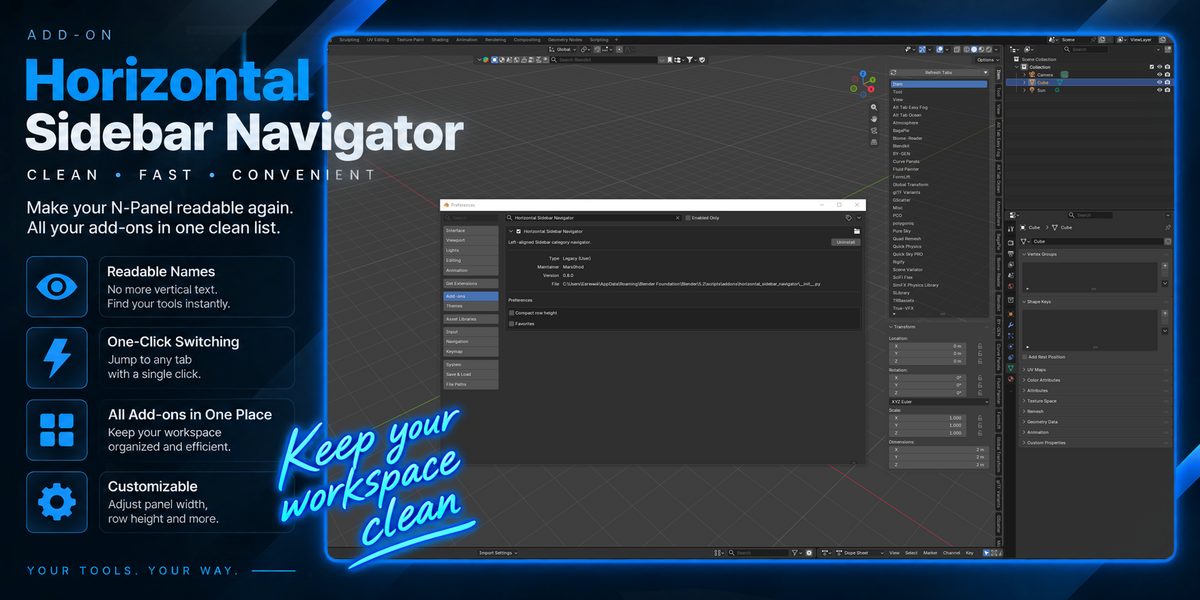
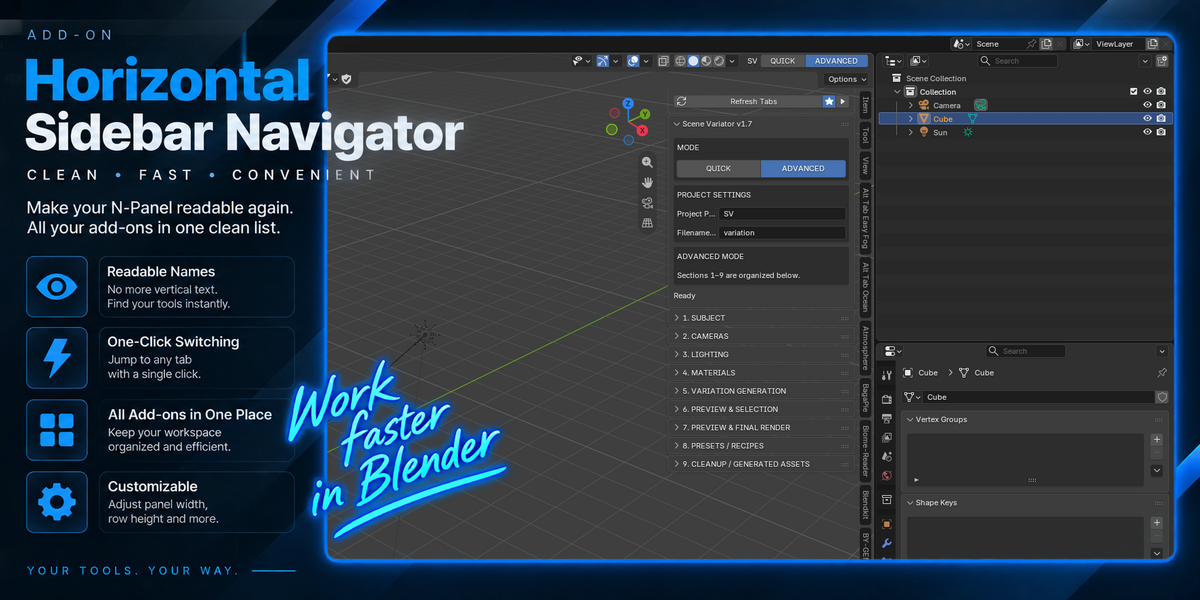
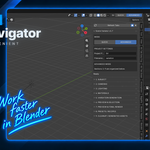
Open the 3D Viewport Sidebar by pressing N. The navigator automatically detects available N-Panel categories and displays them as a clean list with readable horizontal names.
Switching Tabs
Click any category in the navigator to instantly switch to that N-Panel tab.
Favorites
Open the add-on Preferences and enable Favorites. Use the star button next to a category to add or remove it from Favorites. Click the Favorites button at the top of the navigator to display only your favorite add-ons.
Pinned Tabs
Item, Tool and View always remain pinned at the top for quick access.
Refresh Tabs
After installing, enabling, disabling or removing another add-on, click Refresh Tabs to update the category list.
Collapse Navigator
Use the collapse button at the top to quickly hide or restore the navigator list.
Adjustable Width
Resize Blender's Sidebar normally by dragging its border. The navigator automatically adapts to the available width.
Compact Mode
Enable Compact row height in the add-on Preferences to fit more categories on screen.
Compatibility
Tested with Blender 5.2.
Have questions about this product?
Login to message
| Published | 12 days ago |
| Blender Version | 5.2 |
| Extension Type | N/A |
| Render Engine Used | Cycles |
| License | GPL |
