HotkeyPilot
 Pilot Studio
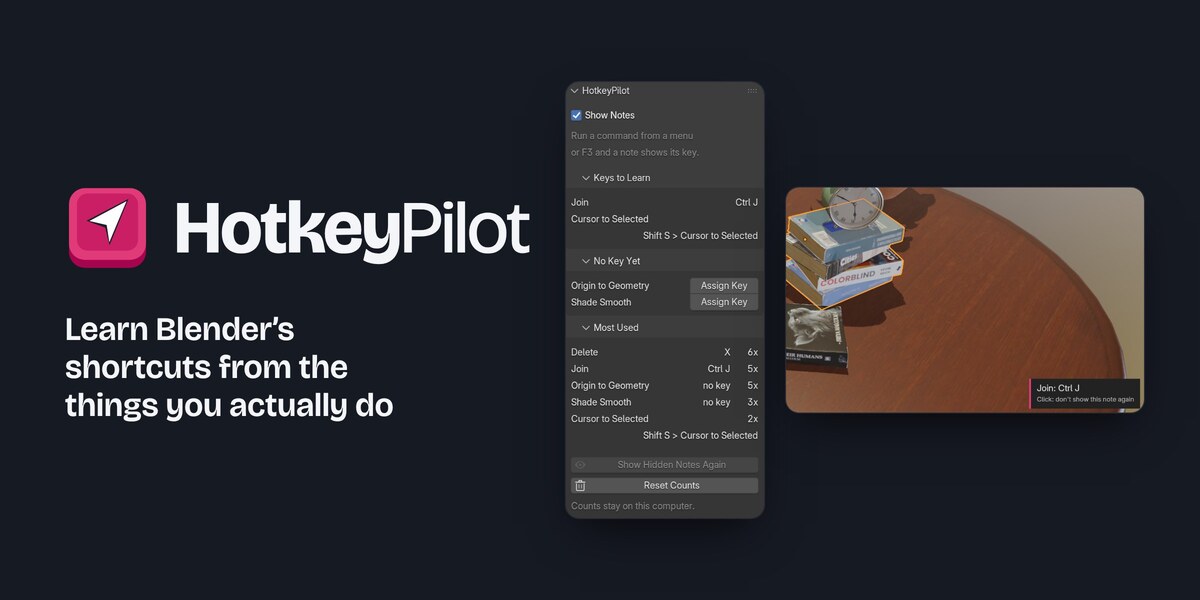
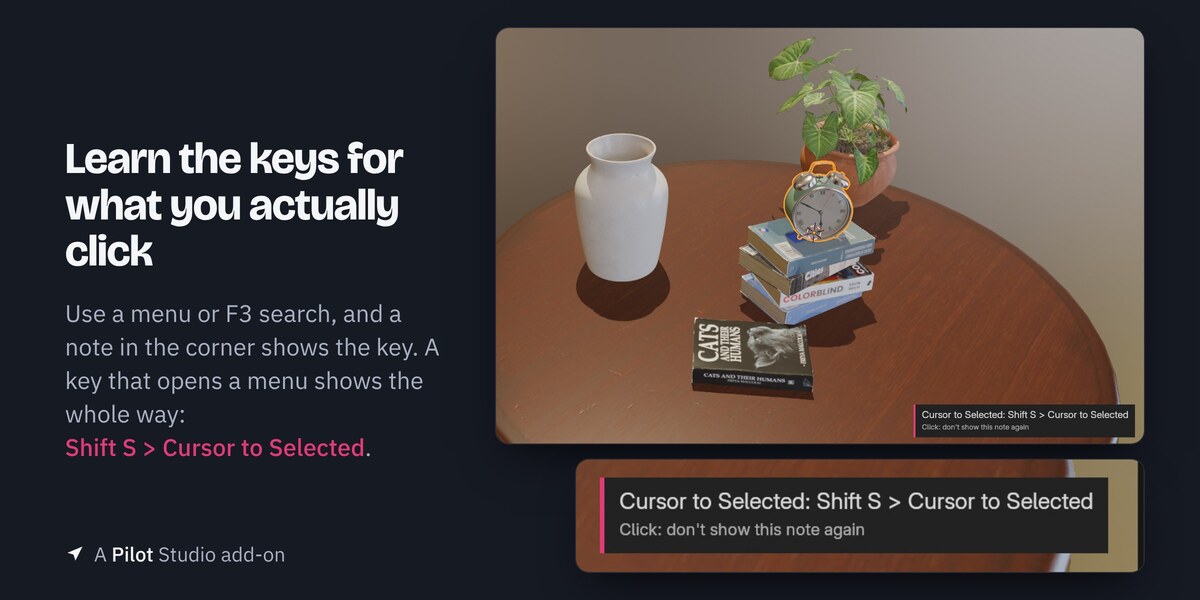
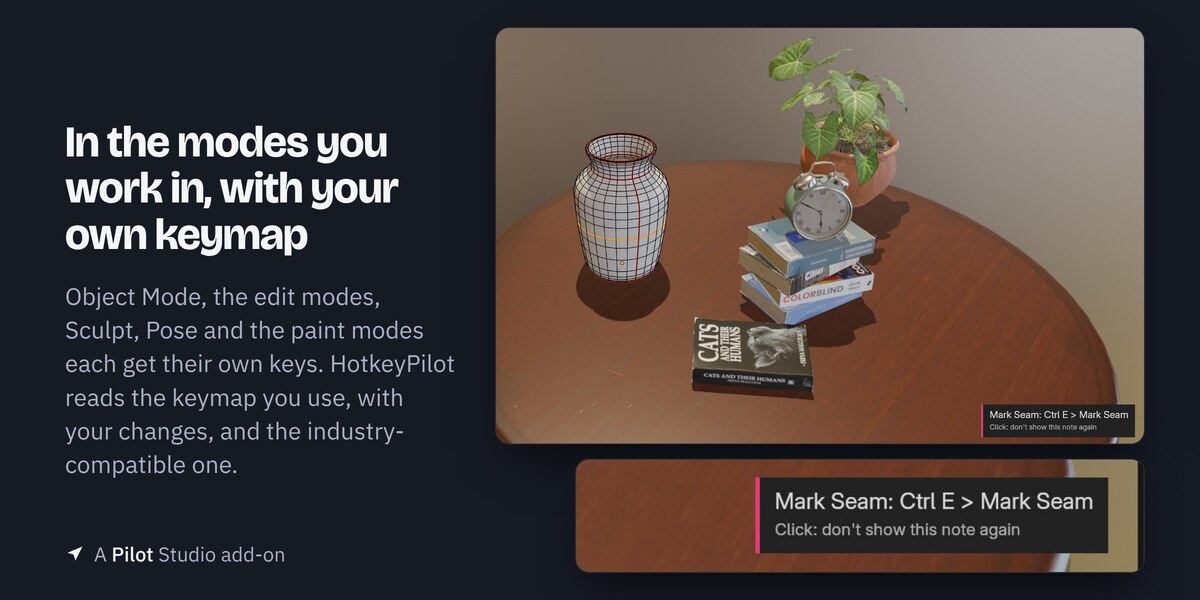





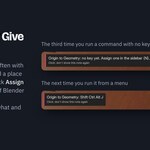
The note. After you run a command from a menu or F3 search in the 3D Viewport, a note in the bottom right corner shows its key. It stays for 3 seconds, and a moment longer while you move the mouse over it. A click on the note hides that command's note for good. After you have used a command's key three times, its note stops.
The panel. Press N in the 3D Viewport and click the HotkeyPilot tab.
- Show Notes: untick it for a quiet screen. HotkeyPilot keeps counting.
- Keys to Learn: commands with a key that you still run from a menu more often than by the key.
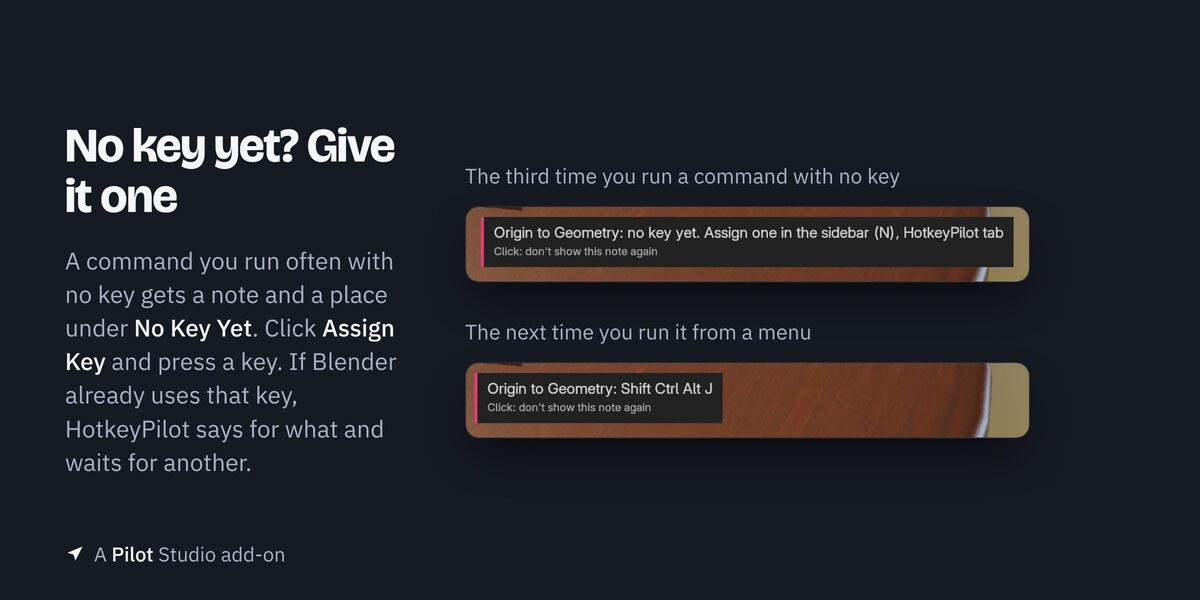
- No Key Yet: commands you have run three times or more that no key reaches. Assign Key waits for the key you press. Esc cancels. The key goes into your keymap, so you can change it in Edit > Preferences > Keymap later.
- Most Used: your five most run commands, with their keys and how often you ran them. Show Hidden Notes Again brings back notes you hid. Reset Counts forgets every count and hidden note; keys you assigned stay.
Settings. In Edit > Preferences > Add-ons, under HotkeyPilot:
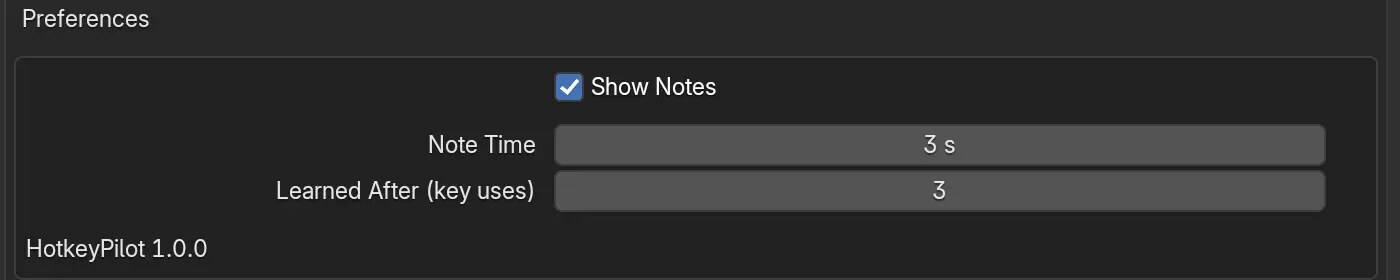
- Show Notes: on by default.
- Note Time: how long a note stays, 1 to 15 seconds. The default is 3.
- Learned After: how many key uses stop a command's note. The default is 3; 0 means never.
Report a Problem. Help > HotkeyPilot: Report a Problem saves a zip on your computer with your Blender and HotkeyPilot versions, your system and keymap, the settings, what you wrote, the last commands HotkeyPilot noticed and the last error. Your counts stay out of it. Email it to [email protected].
Full guide: https://hotkeypilot.pilotstudio.dev
Have questions about this product?
Login to message
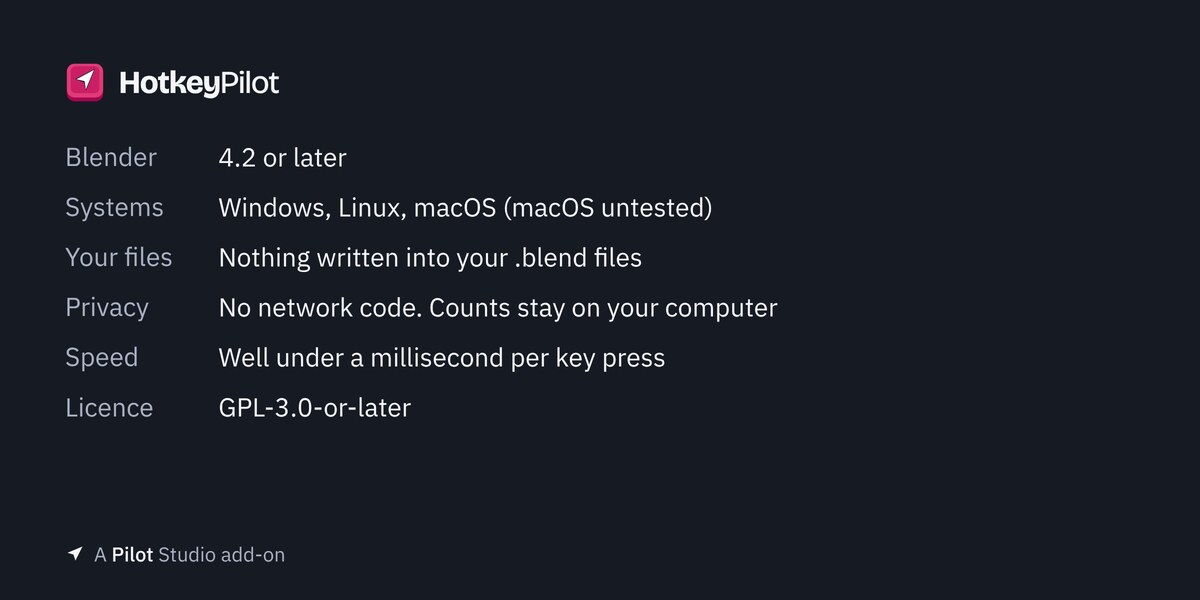
| Blender Extension Compatible | Yes |
| Dev Fund Contributor | |
| Published | about 1 hour ago |
| Blender Version | 4.2 - 5.3 |
| Extension Type | Add-on |
| Render Engine Used | Cycles, Eevee |
| License | GPL |
Discover more products like this
interface Hotkeys training learn blender productivity 3d viewport shortcuts tips keymap keyboard beginner Workflow