Iceberg Generator — Procedural Icebergs in Seconds (9 Types, Above & Below Water Control)
 Orbbit Tools
Iceberg Generator — User Guide
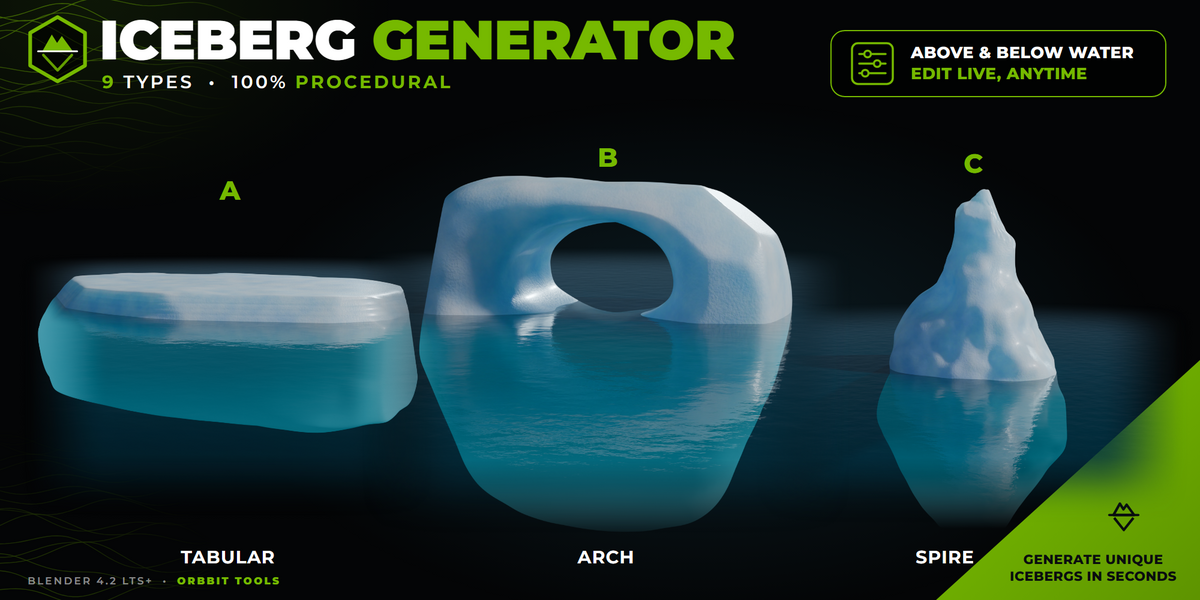
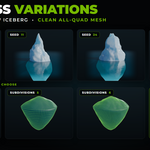
Iceberg Generator by Orbbit Tools models icebergs in Blender in seconds. You get a clean, all-quad mesh with separate control over the part above the water and the part below it.
It only models the shape. Materials, UVs, LODs, collision and export are up to you (by hand or with other add-ons).
Contents
- Requirements
- Installation
- Quick start
- How it works
- The panel
- Presets, Surprise Me and Vary
- Formations: fragments, floes, caves, arches
- Finishing an iceberg
- Tips
- Troubleshooting
Requirements
- Blender 4.2 LTS or newer (tested on 4.2 LTS and 5.2 LTS).
- Works offline. The add-on never touches the network or your files.
Installation
- In Blender, open Edit > Preferences > Get Extensions.
- Click the ⌄ menu (top right) and choose Install from Disk.
- Select the file
orbbit_iceberg_generator-1.0.0.zip.
The panel appears in the 3D Viewport sidebar: press N and open the Orbbit Tools tab.
Language: the add-on is in English and Spanish and follows Blender's language (Preferences > Interface > Translation).
Quick start
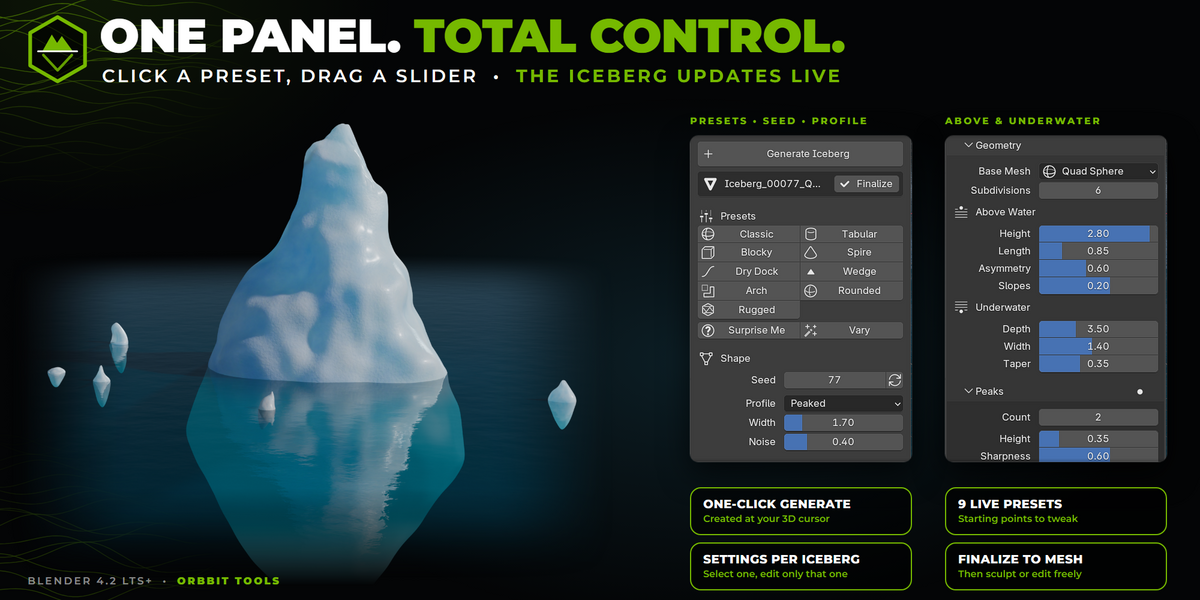
- Press Generate Iceberg. A new iceberg appears at the 3D cursor.
- Click a preset (Classic, Tabular, Spire…) to change its type.
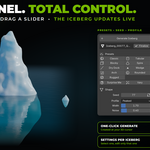
- Drag the sliders. The iceberg updates as you move them.
That's it. Everything else is optional.
How it works
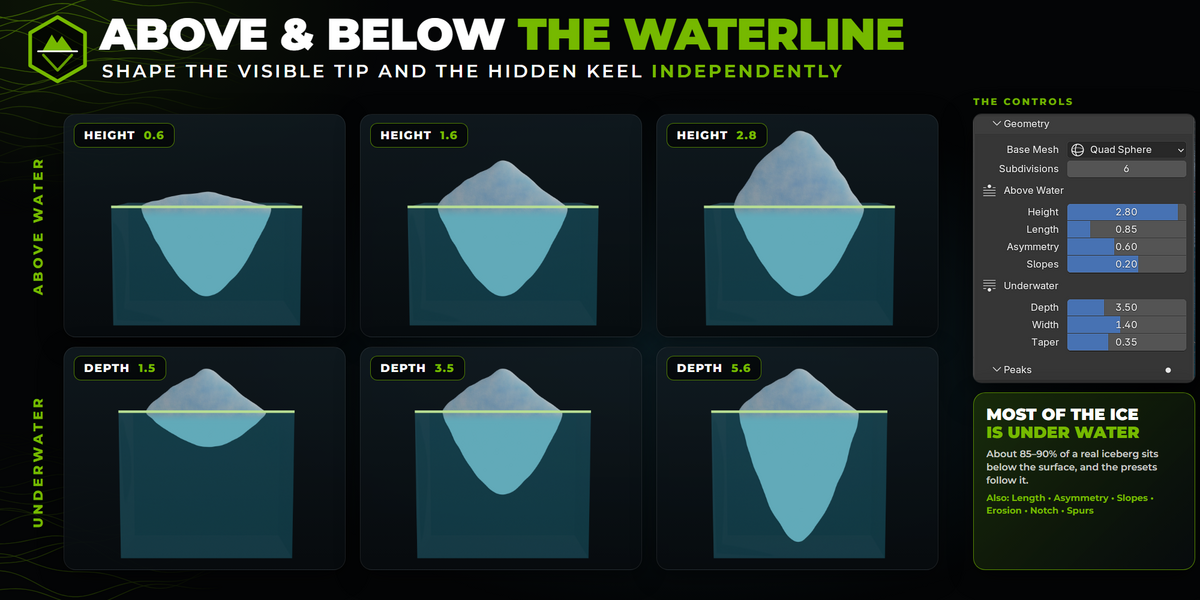
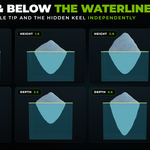
- The origin is the waterline. The object's origin sits exactly on the water surface. Place the iceberg on your ocean at height 0 and it floats at the right depth. Most of the ice is under water, as in reality.
- Each iceberg keeps its own settings. Select an iceberg and the panel shows its values. Change anything and that iceberg updates. Other icebergs are not affected.
- With nothing selected, the panel shows the settings for the next new iceberg.
- Generate with an iceberg selected makes a copy of it with a new seed: a quick way to get a similar iceberg.
- Undo works for every change (Ctrl+Z).
The panel
The panel is organised from simple to advanced. The main panel is enough for a good iceberg. The subpanels below it hold optional extras.
A dot in the header of a closed subpanel means something inside it is in use.
Main panel
| Control | What it does |
|---|---|
| Generate Iceberg | Creates a new iceberg at the 3D cursor. |
| Finalize | Turns the selected iceberg into a regular mesh (see Finishing an iceberg). |
| Presets | Starting points based on real iceberg types. |
| Surprise Me | A random preset with small variations and a new seed. |
| Vary | Nudges the current proportions a little and keeps everything else. |
| Seed | Changes the random details. The ⟳ button picks a random seed. |
| Auto Increment | (New iceberg settings only) Adds 1 to the seed after each new iceberg. |
| Profile | Shape of the part above the water: Peaked, Flat, Jagged, Wedge, Dry Dock or Floe. |
| Width | Overall size of the iceberg. |
| Noise | How rough and irregular the surface is. |
Geometry
| Control | What it does |
|---|---|
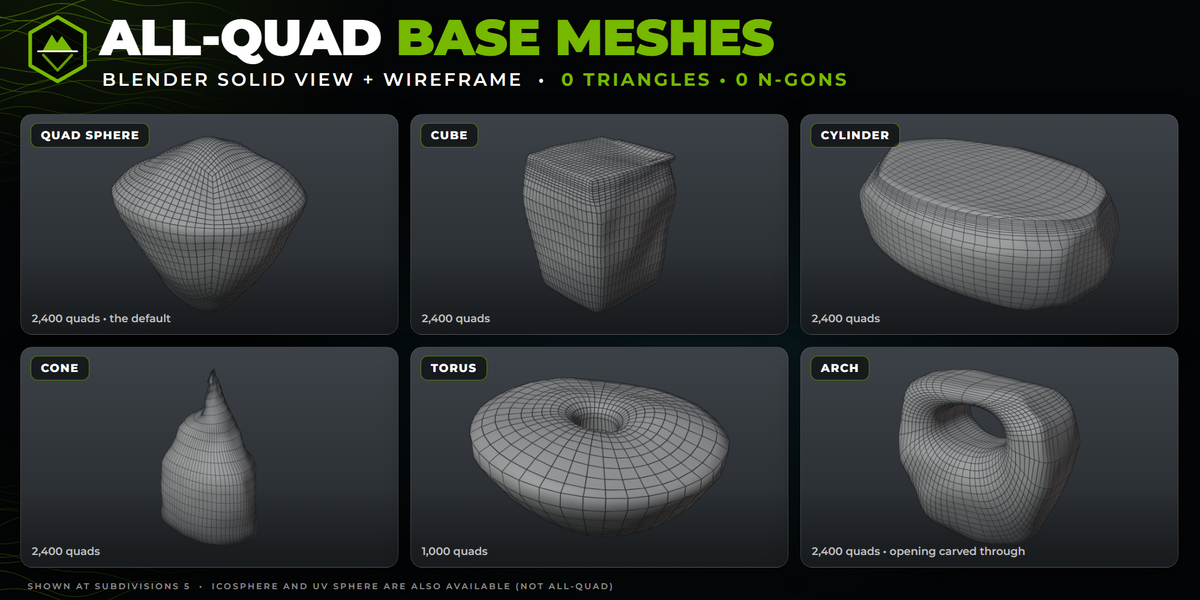
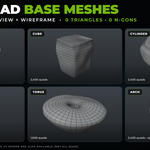
| Base Mesh | The starting shape. Quad Sphere (default) gives the cleanest result. Cube, Cylinder, Cone, Torus and Arch are also all quads. |
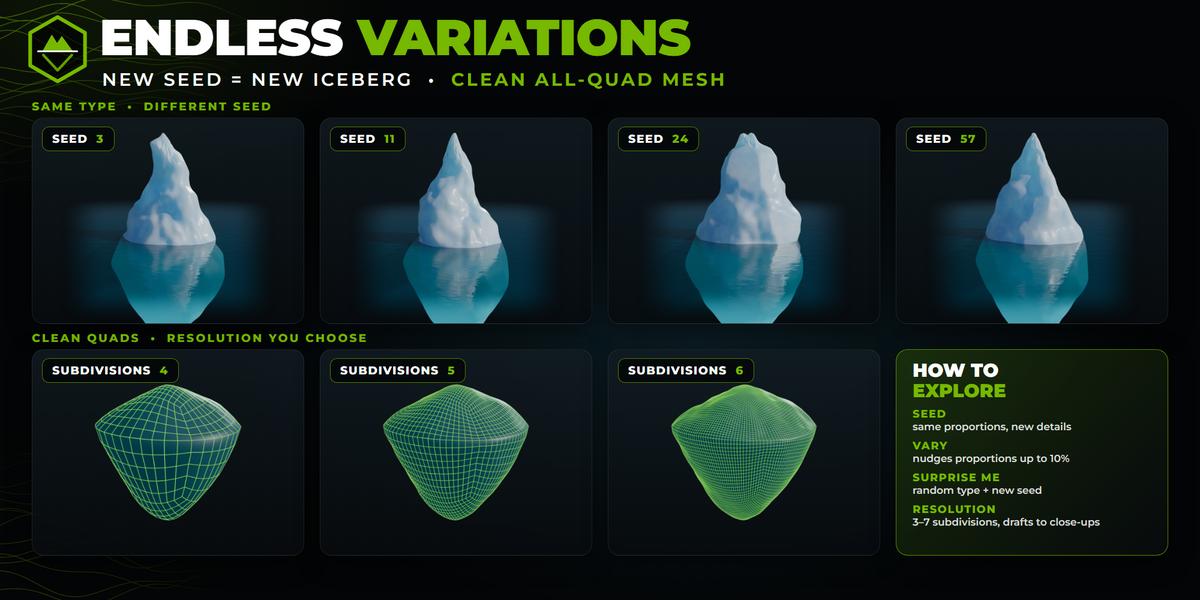
| Subdivisions | Mesh resolution (3–7). Higher values give finer detail and update more slowly. |
| Above Water: Height | How tall the visible part is. |
| Above Water: Length | Length compared with width. Values above 1 give a long iceberg. |
| Above Water: Asymmetry | A random lean and offset, so the iceberg is less symmetrical. |
| Above Water: Slopes | Positive values give steep cliffs and negative values give gentle slopes. |
| Underwater: Depth | How deep the submerged part goes. |
| Underwater: Width | Width of the submerged part compared with the part above. |
| Underwater: Taper | How much the submerged part narrows towards the bottom. |
Peaks (subpanel)
| Control | What it does |
|---|---|
| Count | Extra peaks on top (0 = none). |
| Height | How tall the peaks are. |
| Sharpness | From rounded domes (0) to pointed spires (1). |
| Spread | Gathered in the centre (0) or spread towards the edges (1). |
Deformation (subpanel)
| Control | What it does |
|---|---|
| Tilt | Leans the whole iceberg (up to 40°). The waterline then cuts it at an angle. |
| Direction | Which way it leans. |
| Bend | Curves the iceberg along its length. |
| Twist | Twists it around the vertical axis. |
Underwater Detail (subpanel)
| Control | What it does |
|---|---|
| Erosion | Rounds the edges and corners of the submerged part, where ice melts fastest. |
| Bumps | Large lumps on the submerged part. |
| Transition | How gradually the underwater width blends in. Low values give a sharp ledge just under the water. |
| Notch | A groove carved by the waves along the waterline. |
| Spurs and Length | Submerged spurs (rams) sticking out sideways just under the water. |
Surface
| Control | What it does |
|---|---|
| Type | Style of the noise above the water: Sharp (angular, the classic look), Smooth or Ridged (crests and broken edges). |
| Above Water | Extra roughness for the part above the water. |
| Scale | Size of the noise. Low values give big, broad shapes. |
| Octaves | Layers of finer detail. |
Erosion and Facets (subpanel)
| Control | What it does |
|---|---|
| Erosion | Rounds edges and fine detail, like ice worn by water and weather. |
| Facets and Size | Flat faces cut into the ice, like fresh calving surfaces. Size goes from many small facets (0) to a few large ones (1). |
Cracks and Strata (subpanel)
| Control | What it does |
|---|---|
| Cracks | Thin vertical grooves above the water. They look best with 6 or more subdivisions. |
| Strata and Layers | Subtle, straight ledges along steep walls, where ice layers eroded unevenly. |
Formations
See Formations below.
Output
| Control | What it does |
|---|---|
| Subdivision Surface | Adds a Subdivision Surface modifier to smooth the iceberg. |
| Viewport Levels | Smoothing in the viewport (renders use one level more). |
| Replace Previous | Deletes the previous procedural icebergs when you generate a new one. Finalized icebergs are always kept. |
Presets, Surprise Me and Vary
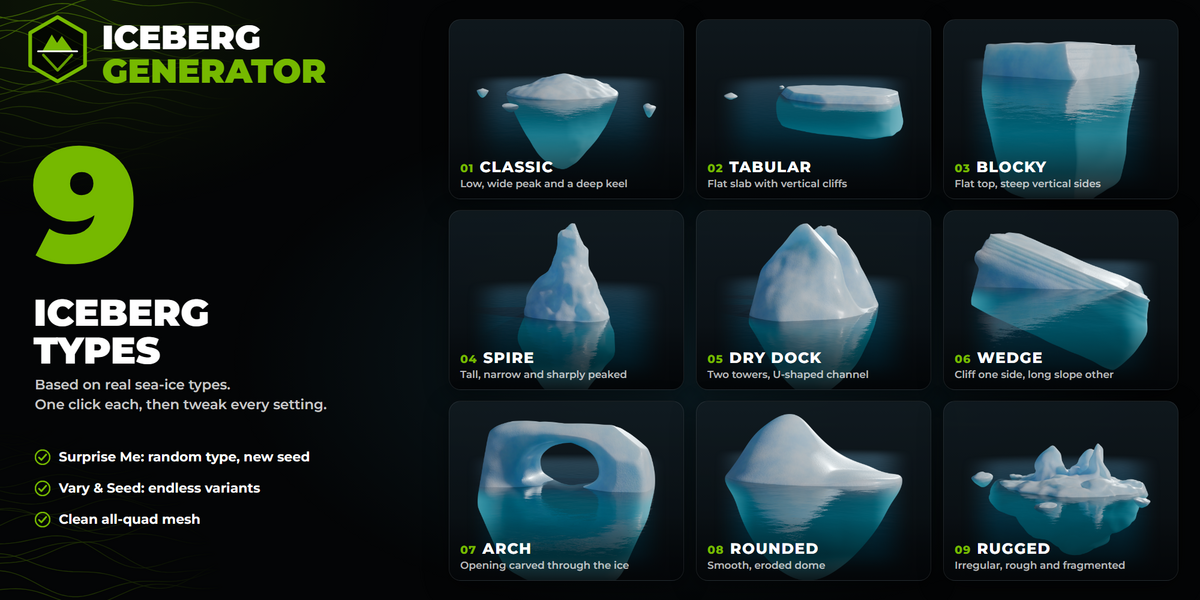
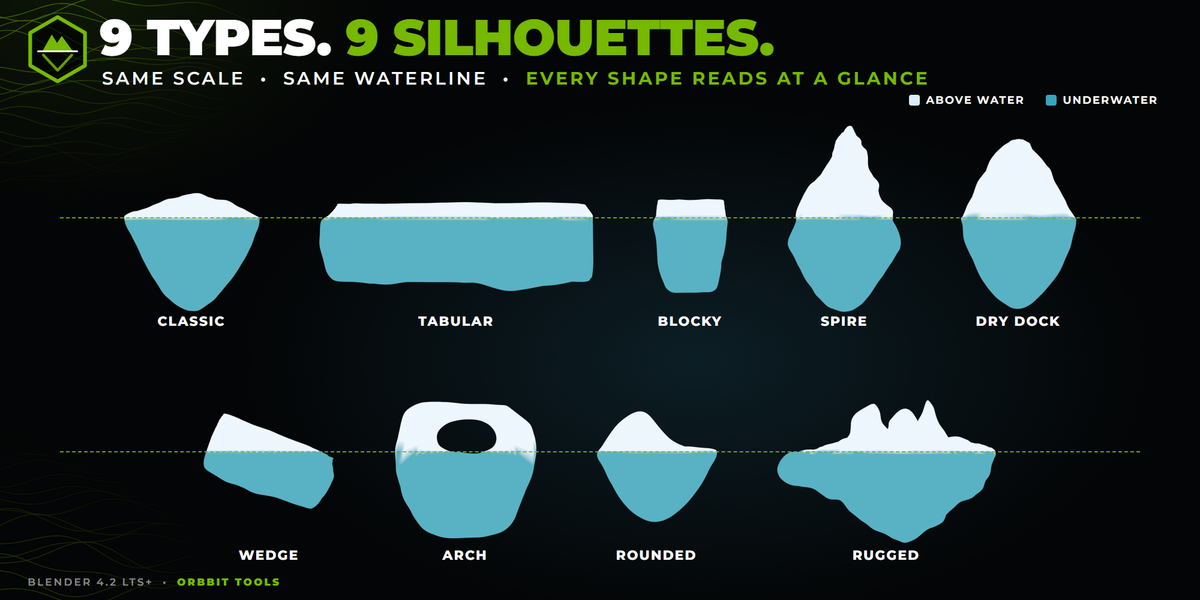
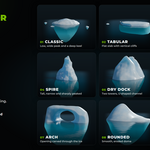
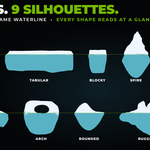
Presets follow the real iceberg types used by sea-ice observers:
| Preset | Looks like |
|---|---|
| Classic | A low, wide peak and a deep keel. Same as a new iceberg. |
| Tabular | A wide, flat slab with vertical cliffs, calved from an ice shelf. |
| Blocky | Flat top and steep sides, taller than a tabular iceberg. |
| Spire | Tall, narrow and sharply peaked. |
| Dry Dock | Two towers with a U-shaped channel eroded between them. |
| Wedge | A tipped-over slab: a cliff on one side, a long slope on the other. |
| Arch | A block with an opening carved through it. |
| Rounded | A smooth, eroded dome. |
| Rugged | Irregular, rough and fragmented. |
A preset is a starting point. It never changes the seed or the resolution, and you can adjust everything afterwards.
Surprise Me picks a random preset (never the same one twice in a row), varies its proportions a little and gives it a new seed. It's good when you don't know exactly what you want and are looking for a happy accident.
Got a result you like? Make variants of it:
- Seed (⟳) keeps the proportions and changes the random details: noise, peaks, facets and fragments.
- Vary keeps the seed and the type and shifts the proportions by up to 10%.
- Generate Iceberg with that iceberg selected makes a copy with a new seed.
Nothing is lost: everything is stored in the iceberg's own settings, and Ctrl+Z always takes you back.
Formations
Fragments and floes
| Control | What it does |
|---|---|
| Count | How many pieces float around the iceberg (up to 12). |
| Style | Chunks (rounded pieces), Floes (flat plates) or Mixed. |
| Size | Size of the pieces compared with the iceberg. |
| Spread | How far they drift from the iceberg. |
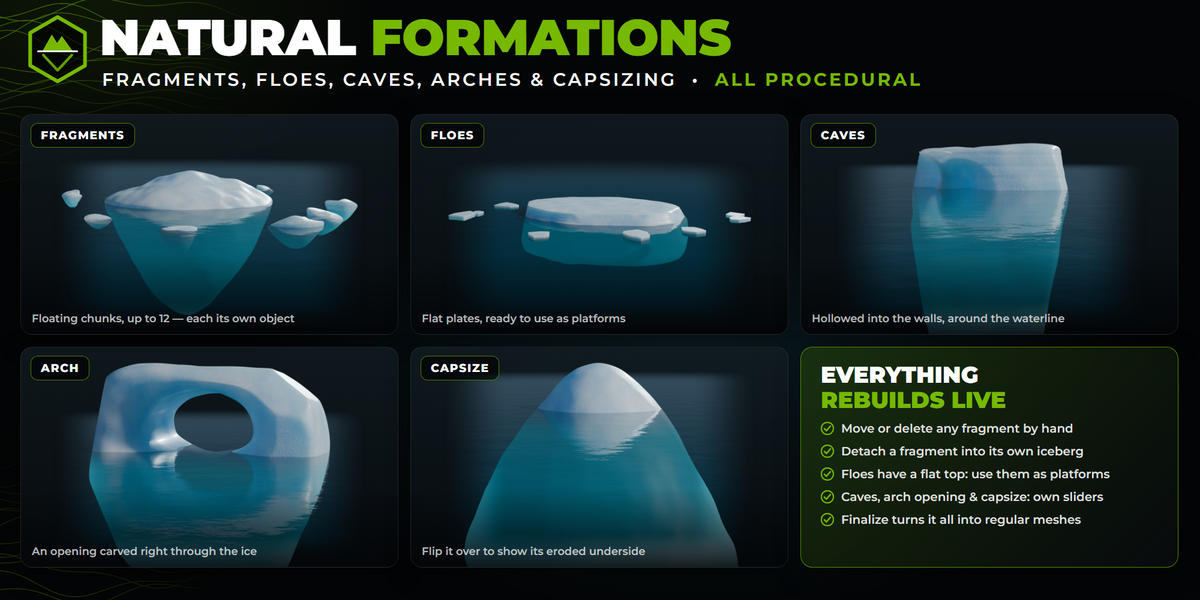
- Each fragment is its own object, parented to the iceberg. They update together.
- Move a fragment by hand and it keeps its place, even when you change the iceberg's settings.
- Delete a fragment and it doesn't come back.
- Select a fragment and the panel shows its iceberg's settings. Select Iceberg jumps to the iceberg, and Detach turns the fragment into an independent iceberg with its own settings.
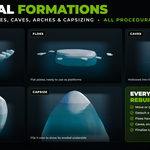
- Floes have a flat, level top, straight sides and a broken polygonal outline. They are ready to use as platforms. For one big platform, use the Floe profile with the Cylinder base mesh.
Caves
| Control | What it does |
|---|---|
| Count | Caves hollowed into the walls, mostly around the waterline (up to 4). |
| Size | Size of the openings. |
| Depth | How deep they go into the ice. |
Arch opening
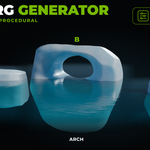
Choose the Arch base mesh (or the Arch preset) to get an opening right through the iceberg.
- Size and Height shape the opening.
- A low opening sits partly under water, like a sea tunnel.
- The mesh stays all quads.
Capsize
Capsize turns the iceberg over, up to upside down. It floats again with the same height above the water and shows its smooth, eroded underside. For a slight lean, use Tilt instead.
Finishing an iceberg
A procedural iceberg is rebuilt from its settings every time you change one. Edits you make by hand in Edit Mode would be lost on the next change, so:
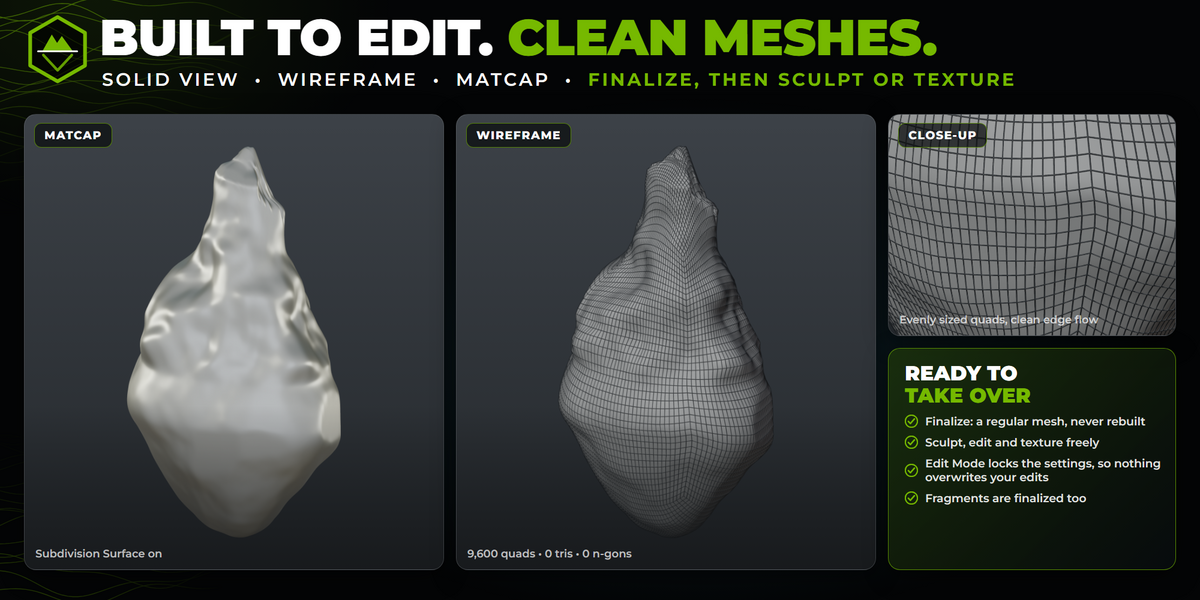
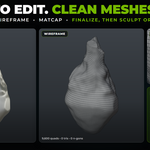
- When you're happy with the shape, press Finalize.
- The iceberg (and its fragments) become regular meshes. They are never rebuilt again.
- Now edit, sculpt or texture them freely.
While an iceberg is in Edit Mode, its settings are locked so nothing overwrites your edits.
Tips
- Speed: the default resolution (5) updates instantly. Use 6–7 for close-ups and final renders.
- More detail: raise Subdivisions. Detail finer than the mesh can show is left out on purpose, so the surface never looks jagged.
- Smoother look: turn on Subdivision Surface (Output) or raise Erosion.
- Realism: real icebergs are much wider than they are tall, and about 85–90% of the ice is under water. The presets already follow this.
- Many icebergs fast: turn on Auto Increment and press Generate several times, or use Surprise Me between clicks.
Troubleshooting
I see two iceberg panels. An older version of the add-on is still enabled. Disable it in Preferences > Add-ons / Extensions.
The sliders are greyed out. The iceberg is in Edit Mode. Go back to Object Mode (Tab).
My hand edits disappeared. The iceberg was rebuilt from its settings. Finalize it before editing by hand.
The surface looks soft at low resolution. That is intentional: the mesh can't show finer detail without looking jagged. Raise Subdivisions for more detail.
I duplicated an iceberg and the copy has no fragments. Duplicate the iceberg together with its fragments (select them all), or change the fragment Count on the copy to regenerate them.
The Floe profile looks wrong on the Cone base mesh. Use the Cylinder base mesh with the Floe profile.
Iceberg Generator by Orbbit Tools · Licensed under GPL-3.0-or-later.
Have questions about this product?
Login to message
| Blender Extension Compatible | Yes |
| Published | about 3 hours ago |
| Blender Version | 4.2 - 5.2 |
| Extension Type | Add-on |
| Render Engine Used | Cycles, Eevee |
| License | GPL |
Discover more products like this
glacier ice quad mesh Generator arctic Geometry game assets environment landscape procedural iceberg ocean