 たんたか庵 / Tantaka Tan
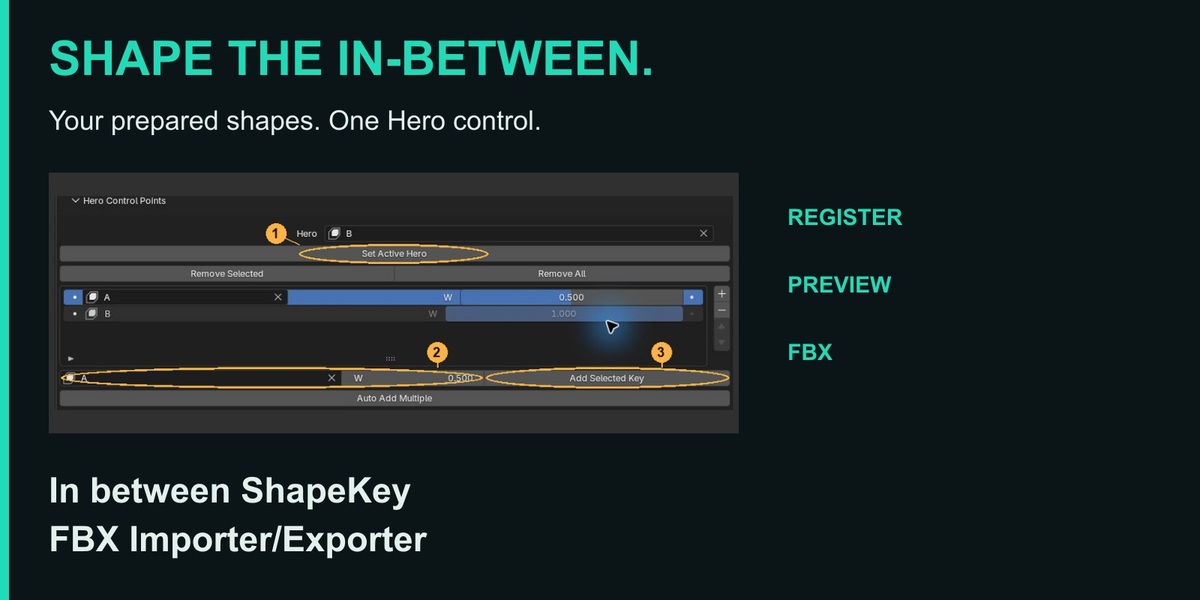
36-second overview
Tested on Windows only. Target series: Blender 3.6 / 4.2 / 4.5 / 5.2 LTS. macOS and Linux have not been tested. Versions below 3.6 and non-LTS releases are outside the support and validation scope.
Put your prepared intermediate shapes where you want them. Preview with one slider and transfer supported in-between FBX files in Blender.
Shape the in-between.
Choose the eyelid shape halfway through a blink, or refine the mouth on its way to a smile. Register shapes you have already made at positions along one slider, then preview the transition. In between ShapeKey FBX Importer/Exporter brings that setup into supported in-between FBX import and export workflows in Blender.
Made for artists who want to
• Choose the eyelid shape halfway through a blink
• Refine the mouth as it moves toward a smile
• Control prepared intermediate shapes together and transfer supported in-between FBX files
Key features and requirements
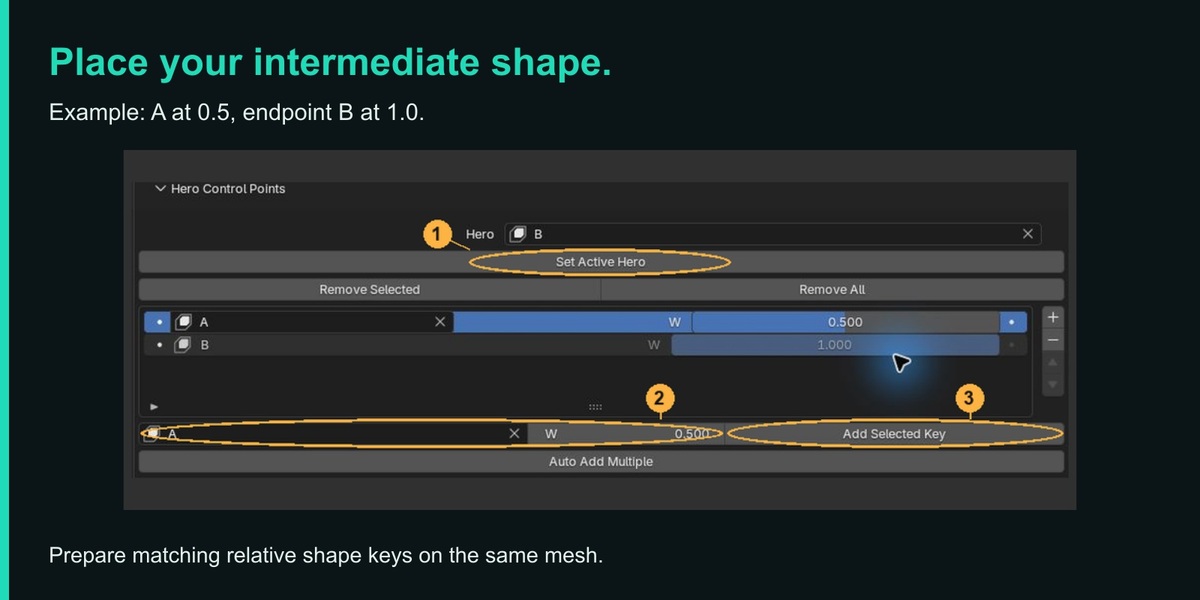
1. Place multiple intermediate expressions along one control
Use: Pass through a wide grin on the way to an open mouth, for example. W is the Hero position at which a prepared shape is reached.
Requirements and checks: Prepare relative shape keys on the same mesh with matching vertex counts and order. Intermediate shapes are not generated. Different keys cannot share a W within one Hero; its endpoint is 1.
2. Register multiple keys together
Use: Use Auto Add Multiple when you have many prepared intermediate shapes. Organize candidates by name, prefix or suffix.
Requirements and checks: Select the destination Hero inside the dialog. Prefix/suffix organization requires name sorting ON; normally leave Include Already Mapped OFF. Shape meaning is not inferred, so check the resulting order, W values and deformation.
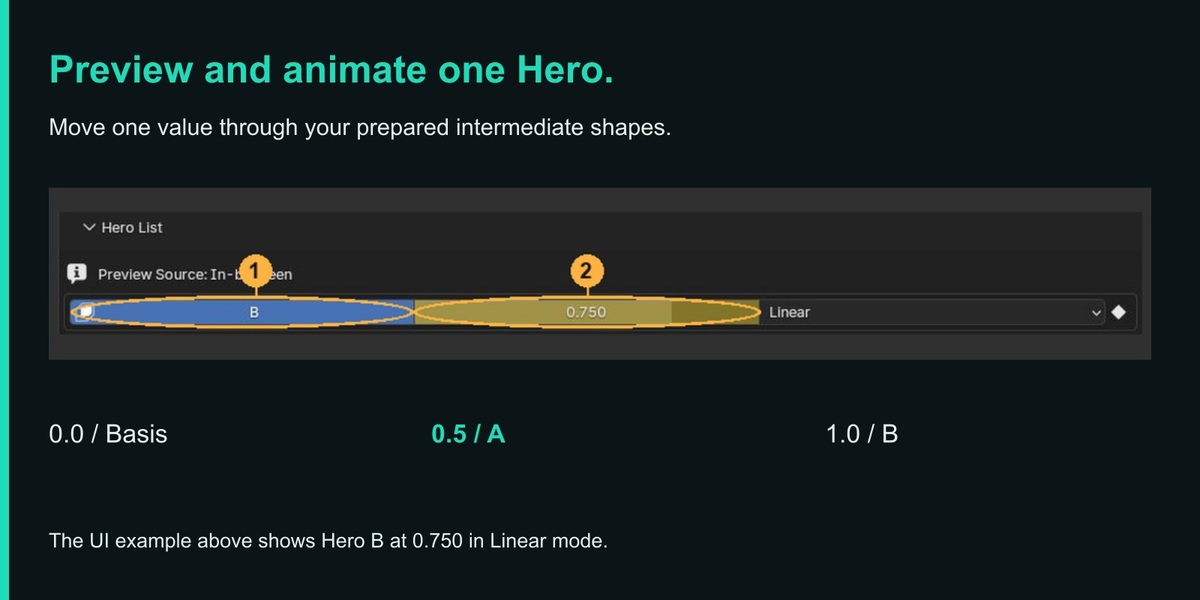
3. Preview and keyframe a single Hero control
Use: Use one Hero slider to preview the transition from Basis through your intermediate shapes to the endpoint, then keyframe that value.
Requirements and checks: Preview in Object Mode and check that Preview Source is In-between. For values already animated or driven, check their existing controls. Transferring motion through FBX also requires animation export settings.
4. Choose continuous or staged transitions
Use: Use Linear for continuously changing expressions. Use STEP for staged changes, such as parts appearing, when you want to suppress blending between shapes.
Requirements and checks: Set the mode on the Hero. For STEP export, also check the target settings for that export route; turn Use STEP Target Suffix OFF to target all intervals. Exact instantaneous switching is not guaranteed in every destination, so verify the exported result.
5. Transfer supported setups through dedicated FBX menus
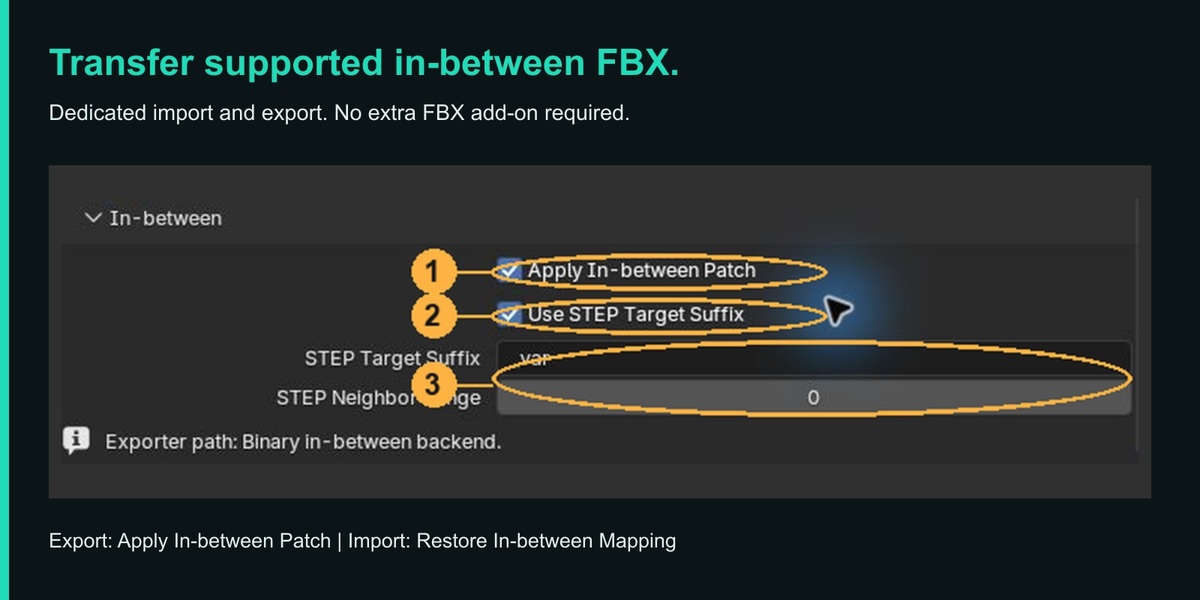
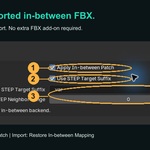
Use: Use File > Export / Import > In-between FBX (.fbx) to transfer supported intermediate shapes and their positions. This dedicated route needs no external add-on.
Requirements and checks: Enable Apply In-between Patch for export and Restore In-between Mapping for import. Restoration requires explicit in-between structure and supported source data. Check modifier warnings, then every position and any required motion in the destination.
Optional FBX workflows
1. Better FBX: restore the setup or add shapes only
Use: Restore supported Heroes, intermediate shapes, positions and motion. If you prefer to build your own controls, choose to add verified missing shapes as ordinary shape keys.
Requirements and checks: Install and enable Better FBX separately and turn automatic restoration ON in this add-on. Full restoration requires shapes-only OFF; motion also requires animation import ON. Shapes-only creates no in-between setup or motion. Unsafe or ambiguous cases are skipped. Shape-mismatch correction is limited to verified vertex/face correspondence and should be tried on a working copy.
2. Export through Better FBX or Auto-Rig Pro
Use: Apply this add-on’s in-between setup to an FBX exported by an external product you already use.
Requirements and checks: Obtain, install and enable that product separately; neither is included. Check the supported connection and automatic processing, then export Binary FBX containing the source shape keys and any required shape key animation. ASCII FBX is unsupported. Missing shapes or motion cannot be supplied by this post-processing step.
3. Apply a setup to an existing Binary FBX
Use: A manual route can apply in-between settings to an already exported file, including when automatic export integration is unavailable.
Requirements and checks: Use Binary FBX containing the source shape keys and a matching Blender model with the intended mappings. Apply to a separately named copy: external file changes cannot be undone with Blender Undo. Check shapes and motion in the destination afterward.
The basic workflow
1. Prepare the basis, an intermediate shape, and the final shape as relative shape keys on the same mesh.
2. Register the final shape as the Hero control, then register the intermediate shape at a position such as 0.5.
3. Move the Hero value from 0 to 0.5 to 1. Check the basis, your intermediate shape, and the final shape.
4. To transfer the result, use the dedicated FBX export menu. Check every position and the required animation in the destination application.
90-second walkthrough
Clothing case study: Maya in-betweens in Blender (60 seconds)
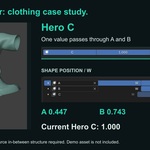
See a clothing setup with prepared intermediate shapes move from Maya to Blender through FBX. The video follows the actual export and dedicated import through completion, then shows the hem deforming with one Hero C control.
Intermediate A is at 0.447, B at 0.743, and endpoint C at 1.000. The active Hero C row and current value are enlarged, with a position guide showing each intermediate shape.
This case was checked with Maya 2024 and Blender 5.2.1. The source FBX needs explicit in-between structure containing the prepared shapes and their positions.
Current unsupported features and limitations (v1.0.0)
Automatic shape creation or conversion
Intermediate shapes are not generated automatically. Automatic conversion of absolute shape keys or matching meshes with different vertex counts or order is unsupported. Prepare corresponding relative shape keys on the same mesh.
Full restoration of every FBX animation
For FBX animation import and restoration, LINEAR is the basic target; ordinary Step (CONSTANT) in a single Take is also supported under specific conditions. Step Next, unsupported Bezier tangents and layer combinations have separate restrictions. You can still keyframe a Hero in Blender and export supported FBX animation. With animation import ON, unsupported curves or combinations cause restoration to stop or be skipped. Ordinary Step with multiple Takes and motion whose correspondence cannot be verified across Takes also have limitations. If only shapes are needed, consider animation import OFF or Keys Only in a separate scene.
Rebuilding source rigs, Drivers and NLA
Arbitrary expressions, constraints, Drivers and NLA combinations are not rebuilt as editable controls. Full restoration is skipped in cases such as Drivers or NLA on the target mesh or its shape key data. Controls on an unrelated Object or separate Armature do not by themselves make the input unsupported. Selecting a Hero Take does not switch rig or ordinary shape key Takes automatically.
ASCII FBX and missing source data
External FBX post-processing requires Binary FBX. ASCII FBX, generating shapes or motion absent from the FBX, and automatic restoration without explicit source in-between structure are unsupported.
Unity-specific .anim generation
Unity-specific .anim files are not generated. Supported Hero motion is transferred as animation inside the FBX. Ordinary supported FBX animation is still available.
Complete material and texture conversion
The add-on does not fully translate arbitrary shaders, nodes, materials or textures into identical appearances in another application. Check materials, UVs, image references and transparency in the destination.
Keep the working .blend and original FBX, and export to a separate filename. A visible model alone does not confirm restoration: check the base, each intermediate position, endpoint, initial values and required motion in the destination. See guide chapters 14, 16, 23 and 24 for details.
Conditional features and known issues
Better FBX: static-pose values may change
A known unresolved issue affects a static pose with shape key animation data but no assigned Action: exporting with Better FBX Animation ON can change the in-between value and deformation after re-import. For static shapes only, consider Animation OFF. If motion is needed, use the dedicated In-between FBX exporter or another suitable route, export to a new filename, and verify initial values and every required frame.
Re-exporting restored clothing and other skinned meshes
When a restored Hero animation is stored in the mesh Object’s Action on a skinned mesh with an animated parent, re-export through Better FBX can change deformation in another application. Re-export remains available for supported setups. Keep the source data and verify the initial pose, intermediate shapes and every required frame in the destination.
Shape correction, modifiers and STEP
Shape correction requires verifiable vertex/face correspondence; ambiguous matches are not guessed. Modifier settings can cause exported shape keys to be omitted. STEP may differ from an exact instantaneous switch in the destination and can increase file size and import time.
Japanese and English PDF guides
Japanese and English PDF user guides are provided as separate files alongside the add-on ZIP. They cover installation, registration, preview and animation, Linear/STEP, dedicated FBX transfer, optional integrations and troubleshooting, plus current unsupported features, limitations and known issues. Existing operation screenshots are retained.
Version history
v1.0.0 | Initial release — October 29, 2026
Register, reposition and batch-add prepared intermediate shapes.
Preview and keyframe a Hero control; choose Linear or STEP.
Dedicated FBX import/export and supported external FBX workflows.
Japanese and English PDF user guides provided separately from the add-on ZIP.
Package contents and license
Installable add-on ZIP, English PDF guide, and Japanese PDF guide. Demo characters and clothing, Maya, Better FBX and Auto-Rig Pro are not included. Code: GPL-3.0-or-later; retain the included third-party notices.