In Between ShapeKey FBX Importer/Exporter
 たんたか庵 / Tantaka Tan
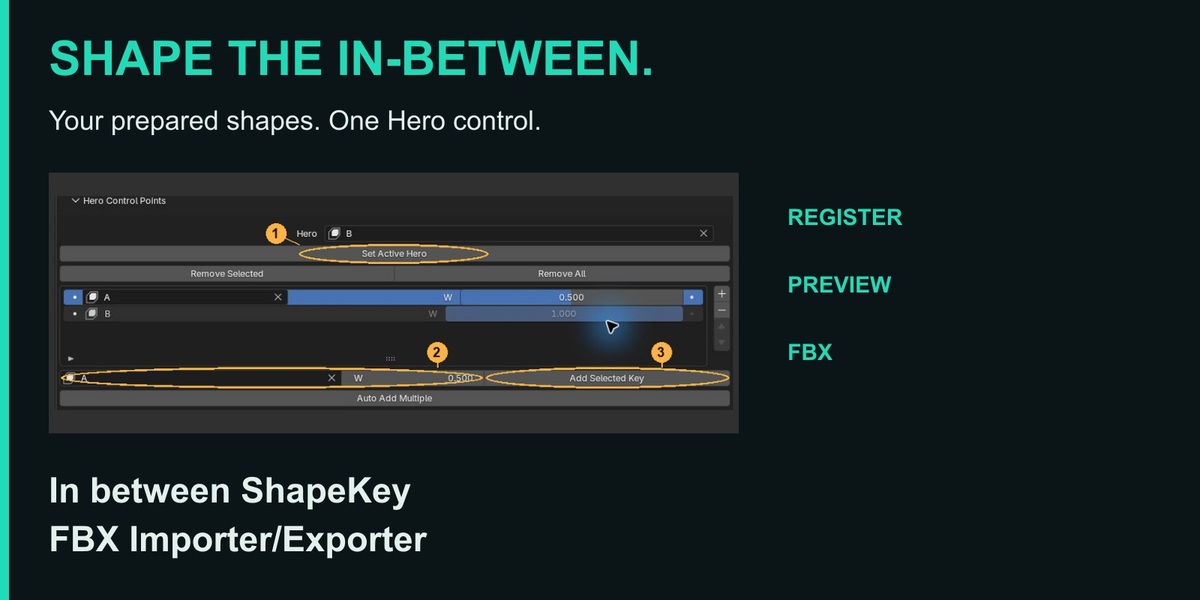
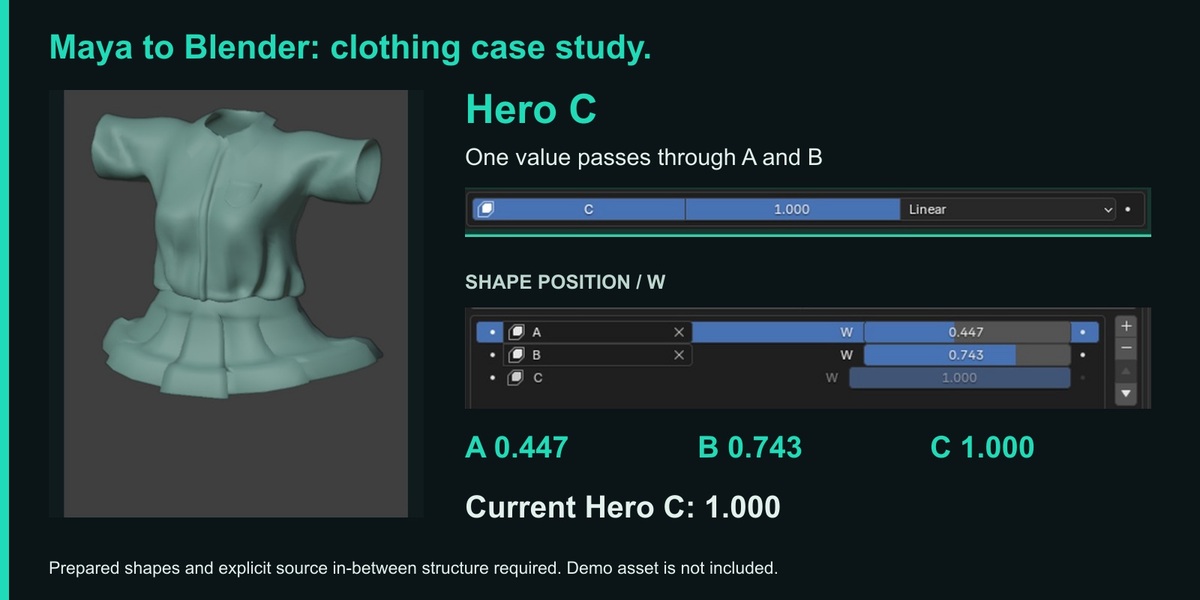
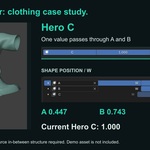
Written operating guide. The English and Japanese PDFs are also supplied as separate downloads with the original illustrated steps.
Guide contents
- 01 What you can do and what to prepare
- 02 Install the add-on and find its panel
- 03 Register one intermediate shape
- 04 Edit and remove control points
- 05 Set weights and register multiple keys
- 06 Preview shapes and animate the Hero
- 07 Choose Linear or STEP
- 08 Export with In-between FBX
- 09 Handle export warnings and stops
- 10 Choose an FBX import route
- 11 Import with Better FBX
- 12 Add shapes as ordinary keys
- 13 Correct shape mismatches
- 14 Check animation and existing controls
- 15 Use an external exporter
- 16 Check the known Better FBX issue
- 17 Recover from automatic export failure
- 18 Apply settings to an existing FBX
- 19 Verify the result in Unity or Maya
- 20 Troubleshooting checklist
- 21 Read restoration-skipped reasons
- 22 Save, share and update
- 23 Currently unsupported features
- 24 Conditional features and known issues
01 What you can do and what to prepare
Start with a simple example containing one intermediate shape.
In between ShapeKey FBX Importer/Exporter is a Blender add-on that groups several shape keys you have created under one Hero. Moving the Hero value passes through the intermediate shapes. Use it to set up and preview these shapes, and to import or export supported FBX files.
| Shape to prepare | Hero value | Result |
|---|---|---|
| Basis | 0.0 | Base shape |
| Smile_Half | 0.5 | Your intermediate shape |
| Smile (Hero) | 1.0 | Final shape |
Create the shapes first Intermediate shapes are not generated automatically. Prepare the base, intermediate and final shapes as ordinary Blender shape keys.
Supported setup
- Tested on Windows only. Target series: Blender 3.6 / 4.2 / 4.5 / 5.2 LTS. macOS and Linux have not been tested. Versions below 3.6 and non-LTS releases are outside the support and validation scope.
- The workflow is based on relative shape keys. All shapes must share the same vertex count and vertex order. The add-on does not automatically convert absolute shape keys or separate meshes with added or removed vertices.
- The dedicated In-between FBX import/export route does not require an external add-on. If you use Better FBX or Auto-Rig Pro integration, install and enable the relevant product separately.
Save a working copy before editing an important model. Keep your working state in a .blend file, and use FBX for exchange.
02 Install the add-on and find its panel
- In Blender, open Edit > Preferences > Add-ons and choose Install from Disk..., or the installation command for your version.
- Select the supplied ZIP without extracting it, then enable In between ShapeKey FBX Importer/Exporter.
- Select a mesh that has shape keys and make it the active object. Switch to Object Mode. Open Shape Keys in Object Data Properties, shown by the green triangle icon.
- Scroll down and expand In-between Tools.
If the panel is missing It is not shown when a bone or camera is selected, or when the mesh has no shape keys yet. Check the active mesh and whether it has shape keys. Better FBX import settings are in the add-on preferences. The External FBX Exporters panel under Shape Keys is for export.
03 Register one intermediate shape
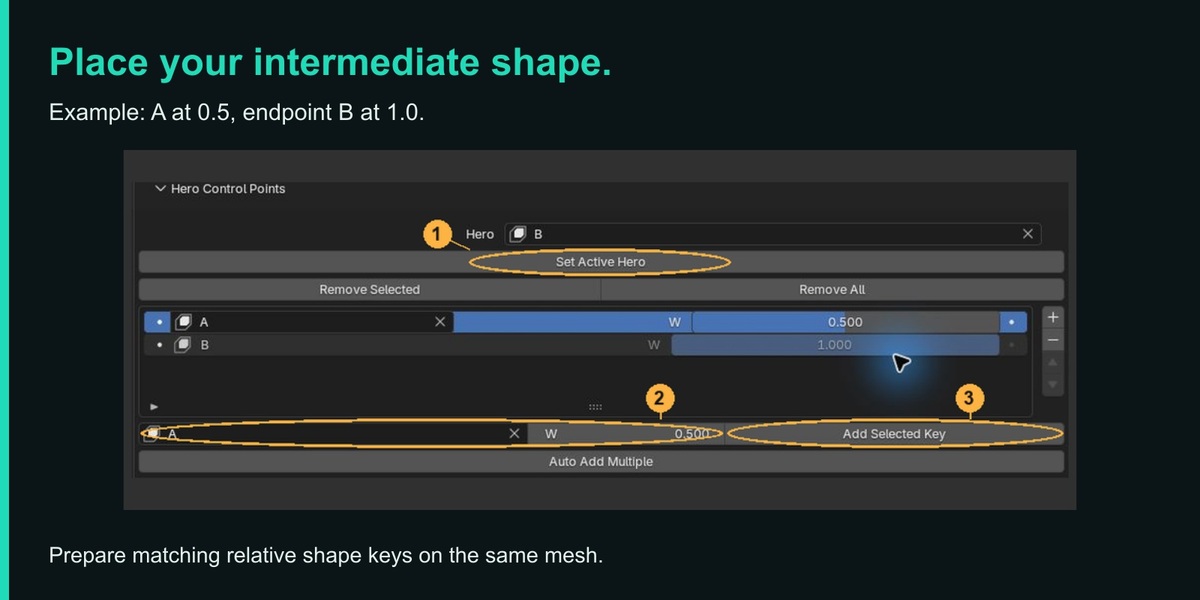
Example: prepare Basis, A and B. Register A at 0.5 and B as the Hero at 1.0.
- If the mesh has no keys, click + in the standard Shape Keys panel to add Basis. Click + again to add the intermediate key A and final key B, and name them. Select A or B and move vertices in Edit Mode to create each shape. Do not add or delete vertices.
- Return to Object Mode and select B in Blender's standard shape key list.
- Under Hero Control Points, click Set Active Hero.
- In the selector below the control point list, choose A. Set W to 0.5 on that same row and click Add Selected Key. Selecting a key alone does not register it.
- Check that the list contains A=0.5 and B=1.0.
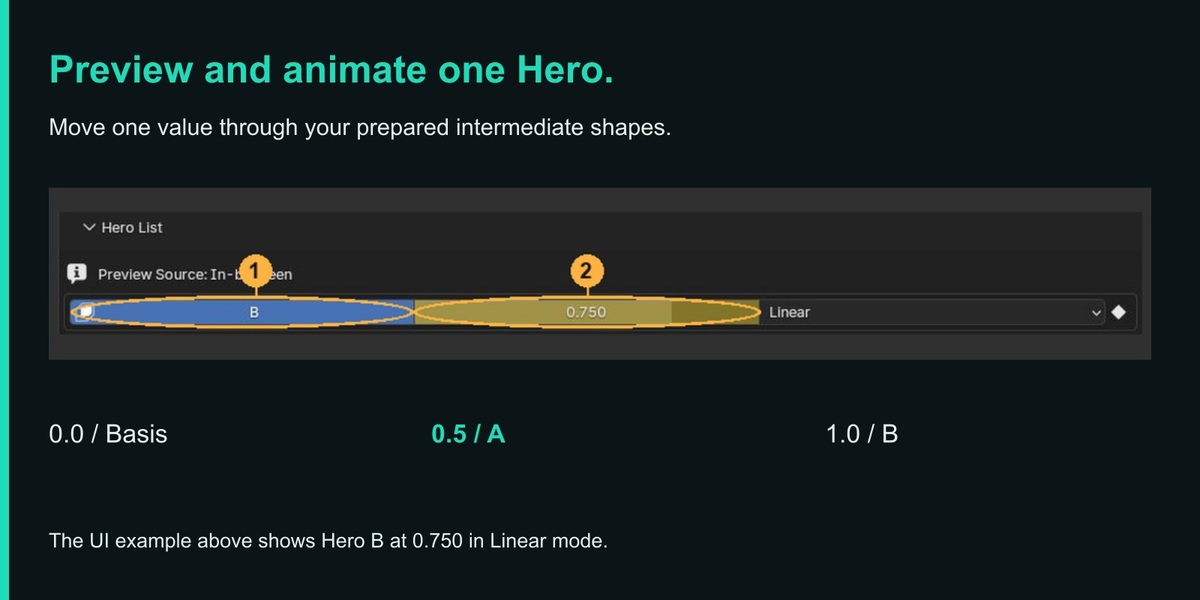
- Click the name B in Hero List, set its interpolation to Linear, and move the slider on the same row from 0.0 to 1.0.
- Check that Preview Source is In-between and that 0.0=Basis, 0.5=A and 1.0=B. Save the .blend file.
Selecting a Hero and previewing it are separate actions Clicking the Hero name selects the target. Also operate that Hero's slider to switch to its preview. If keyframes or a Driver (a control linked to another value or expression) drive the model, avoid overwriting values casually. Check the relevant control or timeline instead.
04 Edit and remove control points
| Panel | Use |
|---|---|
| Hero List | Select a Hero, change its value and interpolation, and set keyframes. |
| Hero Control Points | Edit the shapes and weights assigned to the selected Hero. |
| Configured In-betweens | Review saved mappings. Remove mappings using the controls in Hero Control Points. |
- + adds an empty control point slot. Assign an existing shape key and W in that row. It does not create a new shape.
- You can replace a shape key using the selector in its row. Basis and duplicate selections are rejected. Select the row at its left edge before removing or moving it.
- Enter W from 0.0 to 1.0. Changes to the shape key or W in a control point row update the mapping directly; no separate Apply command is needed. Save the working state in your .blend file.
- The up/down buttons change the display order. W determines the order in which shapes are reached. The Hero remains fixed at the endpoint, 1.0.
| Remove command | Settings removed |
|---|---|
| Remove Selected / - | The selected control point. The minus button removes the slot and, if assigned, its mapping. |
| Remove All | The selected Hero's control point mappings and Hero settings. |
| Clear All Mappings | All mappings, interpolation settings and saved display order for the active mesh. |
These commands do not delete the shape key geometry. Mapping edits support Undo / Redo. Check the active mesh before clearing all mappings.
05 Set weights and register multiple keys
W specifies where along the Hero value a shape is reached, from 0.0 to 1.0. Enter 0.5 for the 50% position. It does not directly halve the deformation strength. The Hero endpoint is fixed at 1.0. Different keys cannot share the same position within one Hero.
| Example mapping | As you move the Hero |
|---|---|
| A=0.25, B=0.5, C=0.75, Hero=1.0 | The exact shapes A, B and C are reached at 0.25, 0.5 and 0.75. Linear interpolation connects neighboring shapes continuously. |
Auto Add Multiple
- Click the button and check the destination Hero inside the dialog. The example shows B selected; choose a different Hero if needed.
- Normally leave Include Already Mapped OFF to avoid reassigning keys already mapped to another Hero.
- Turn Sort By Name ON if you want to organize keys by name.
- To filter by the beginning of a name, turn Sort By Prefix Group ON and enter a value such as A,B in Prefix Group. To filter by the ending, turn Sort By Suffix Group ON and enter a value such as _L,_R in Suffix Group.
- Check the criteria, click OK, then inspect the assigned keys, W values and deformation.
Prefix/suffix organization is used with name sorting ON. With name sorting OFF, the original key order is used. If both filters are specified, only keys matching both are included. Prefix order takes priority, then suffix order within each prefix group.
Separate group entries with commas. An empty field includes all groups; spaces in prefixes are part of the name. Basis, the Hero itself and folder markers are excluded. Three intermediate keys normally receive 0.25, 0.5 and 0.75. The tool does not infer their meaning or intended order, so adjust W manually when needed.
06 Preview shapes and animate the Hero
- First check the result in Object Mode. Click the Hero name in Hero List and move the value on the same row.
- If Preview Source shows In-between, the Hero preview is controlling the result.
- To inspect an individual key, change its value in Blender's standard Shape Keys panel. Preview Source switches to Blender Shape Key.
- To return to In-between, operate the Hero slider again. There is no dedicated mode switch.
If shapes overlap or values revert Switching to the standard sliders does not automatically reset other keys to 0. On a working copy, reset only unwanted values. A valid Hero Driver continues to take priority. Keyframed or driven values may return when the frame changes; check their controls or the timeline. Edit Mode and pinned shape display may differ from the normal combined result.
Set keyframes on the Hero value
- Select the Hero name and set its value at the starting frame.
- Insert a keyframe using the keyframe indicator at the right end of the row, or the value's right-click menu.
- Go to another frame, change the value, insert another keyframe, and play back to check that the intermediate shape is reached.
To transfer animation through FBX, enable the required export animation settings as well. When using an external exporter, that exporter must itself support exporting shape key animation.
07 Choose Linear or STEP
| Mode | Use it for |
|---|---|
| Linear | Smooth changes between the base, intermediate and final shapes, such as facial expressions. Start here in most cases. |
| STEP (0/1) | Staged changes, such as parts appearing, where you want to suppress blending between shapes. |
- Set the target Hero's interpolation to STEP (0/1) in Hero List.
- Open the STEP settings for the export route you will use. For the dedicated exporter, use its export dialog. For Better FBX or other linked exporters, use External FBX Exporters. Check each route separately.
- To suppress blending throughout the sequence, turn Use STEP Target Suffix OFF.
- To limit STEP to some keys, turn it ON and set the name ending (for example, _var) and STEP Neighbor Range.
| Neighbor Range | Targets |
|---|---|
| 0 | Only keys with the matching suffix. |
| 1 | Matching keys and one key on each side. |
| 2 | Matching keys and two keys on each side. |
Defaults and what to check Defaults are suffix filtering ON, suffix _var and range 0. Untargeted intervals remain Linear, so some blending may still be visible. An empty suffix targets all keys. Suffix settings alone do not change a Linear Hero to STEP.
This is separate from Constant interpolation on the timeline. STEP may increase FBX size and import time. Even full STEP is not guaranteed to switch at exactly the same instant in every destination application. Check the result there.
08 Export with In-between FBX
- Check the Hero, control points, interpolation and preview, then save the .blend file.
- Open File > Export > In-between FBX (.fbx).
- Choose the standard FBX settings you need: export scope, axes, units, scale, Geometry, Armature and animation.
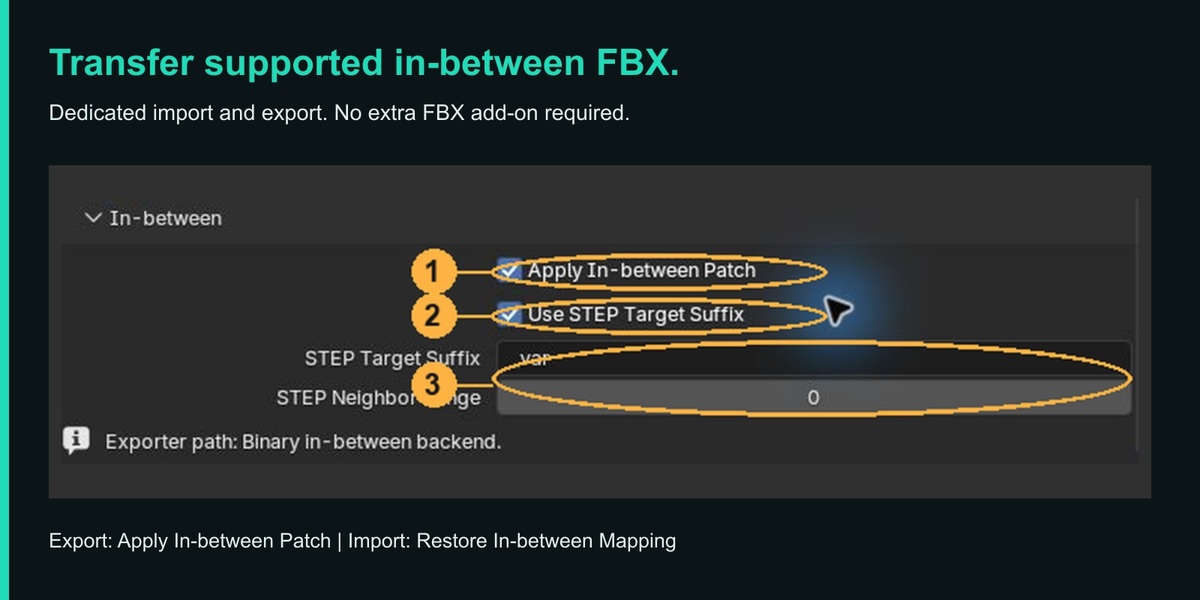
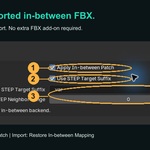
- Scroll down on the right and turn Apply In-between Patch ON. If using STEP, check the target settings in this dialog too.
- Check the modifier warnings at the top of the settings and export to a different FBX filename.
- In the destination application, check the base, each intermediate position, the endpoint and every required animation frame.
| Setting | Exported result |
|---|---|
| Patch ON | Mapped shape keys are grouped as in-betweens under each Hero. |
| Patch OFF | Keys are exported as ordinary independent shape keys. The in-between structure is not saved. |
Transfer the intended starting pose Current Hero or shape key values are reflected in the corresponding FBX initial values. To deliver a neutral pose, check the current frame and values. Whether initial values are used also depends on the destination importer.
Use the standard Blender FBX settings for vertex colors and normals. When exporting through Better FBX, check Better's own settings instead.
09 Handle export warnings and stops
The mesh exports, but the expression does not
If Apply Modifiers is ON and the evaluated vertex structure is incompatible with shape keys, shape keys and in-betweens may be missing from the export. A warning does not necessarily stop export; a file may still be created.
- If the dedicated export dialog shows a red warning at the top, read the object and modifier names.
- On a working copy, consider turning Apply Modifiers OFF, or disabling the Viewport display of the modifier named in the warning.
- Export again and check shape key and in-between deformation in the destination application.
Armature, Weighted Normal, Normal Edit, Data Transfer and Smooth by Angle are treated as exceptions that can preserve shape keys. Do not disable every modifier indiscriminately. Follow the specific warning and check the exported result.
Export stops because one Hero cannot represent the values
Changing several standard shape key values may create a combination that no single Hero value can represent. Read the mesh, Hero, frame or other details shown in the error.
| Goal or situation | What to do |
|---|---|
| Transfer as in-betweens | Select the Hero and set its value using the Hero slider. If keyframes or Drivers determine the values, check those controls too. |
| Export stops during animation | Check the frames being exported, not just the current value. Resetting the current value alone does not fix an invalid combination at another frame. |
| Keep an independent combination of keys | Turn the dedicated exporter's patch OFF to export ordinary keys. In this case the in-between structure is not saved. |
Undo does not restore external files Use another filename to preserve an existing FBX. When checking animation values, verify the entire required range in the destination application, not only the current frame.
10 Choose an FBX import route
| Route | Purpose and behavior on failure |
|---|---|
| Dedicated In-between FBX Import | Uses Blender's standard import route. No external add-on is needed for restoration. If restoration fails, the standard import is rolled back. |
| Better FBX dialog + auto restoration | Uses Better's settings, batch import and related options. If this add-on skips restoration, the Better import result is retained. |
Use the dedicated importer
- Open File > Import > In-between FBX (.fbx) and select the FBX.
- Scroll down on the right and turn Restore In-between Mapping ON.
- If animation is needed, enable Animation in the standard settings. Match the frame offset when comparing the same frames.
- After import, check Hero List and control points on the target mesh, then inspect deformation through the Hero controls or timeline.
The second checkbox in the image Normally leave Fallback to Standard Import on Metadata Error OFF. It permits continuing with standard import after a metadata parsing error. It does not ignore every error or guarantee successful in-between restoration.
With restoration OFF, the file is passed to Blender's standard importer, which may be unable to read an in-between FBX it does not support. The ordinary standard Import menu alone does not restore this add-on's mappings. Channels without an explicit in-between structure are not restored as Heroes. The dedicated importer has no selector for Better FBX.
11 Import with Better FBX
Full restoration in this guide means restoring Hero and intermediate shapes, their positions and supported animation together. Animation is restored only when animation import is ON. This differs from adding shapes as independent ordinary keys.
- Install and enable Better FBX separately.
- Under Edit > Preferences > Add-ons, expand this add-on's settings and configure auto restoration under Better FBX import integration.
- Choose a purpose from the table, then import through Better FBX's own normal import dialog.
- Check the result and reason shown in this add-on's settings, the mesh's Hero List, and the actual deformation.
| Purpose | Auto restore | Keys only | Correction |
|---|---|---|---|
| Use Better's result alone | OFF | Inactive | Inactive |
| Restore Heroes, in-betweens and supported animation | ON | OFF | Start OFF |
| Correct shape mismatches and restore | ON | OFF | ON |
| Add shapes as independent ordinary keys | ON | ON | Inactive |
Settings apply to the next import Auto restoration defaults to OFF. Its subordinate options are inactive when it is OFF; correction is inactive when Keys Only is ON. These options apply only to Better FBX import. They do not retroactively apply or undo changes to an already imported model. To compare modes, reimport into a new scene or working copy.
"Restoration skipped; native import retained" means this add-on skipped restoration and kept Better's result. Seeing a model does not prove restoration succeeded; check the reason. Full restoration does not automatically switch to Keys Only mode.
12 Add shapes as ordinary keys
Use this when you want to edit individual shapes or build the controls yourself.
Turn auto restoration ON and enable Add Shape Keys Only (No In-between Setup), then import through Better's normal dialog.
- Verified missing shapes are added as independent ordinary shape keys with value 0.
- Existing key geometry, names, values, Actions, Drivers and NLA are not replaced. No new in-between mappings, intermediate weights or Hero animation are created.
- If an existing key has the same name but a different shape, the source FBX shape may be added under a name beginning with __B2_SOURCE__. Safe existing matches are not duplicated, so the number of added keys is not fixed.
Adding shapes does not change existing motion For example, adding an intermediate blink shape does not make an existing blink pass through it. To restore Hero and in-between controls automatically, turn Keys Only OFF and reimport into a different scene. OFF does not mean discarding intermediate shapes.
When inspecting one shape, remove contributions from other keys on a working copy. If values revert, check the existing Action or Driver; do not delete those controls just to inspect a shape. Even Keys Only may be skipped if its effect on existing controls cannot be verified safely.
13 Correct shape mismatches
Try this on a working copy only when you want to prioritize shapes from the source FBX.
If Better's imported shapes differ from the source FBX, use Correct Shape Mismatches with auto restoration ON and Keys Only OFF. It defaults to OFF. Do not enable it if you want to keep Better's deformation result unchanged.
Leave backup keys unchanged Original Better keys are retained under names beginning with __B2_NATIVE_BACKUP__, with value 0 and muted. Do not delete or enable them until needed. Enabling them may add overlapping deformation.
- The mesh, base coordinates, vertices and faces must have a verifiable correspondence. The feature does not guess how to repair arbitrary vertex reordering or ambiguous matches.
- Optimize for Blender and Use Pivot do not always have to be OFF. Rotation, translation and equal scaling along all three axes (without reflection) can be handled only where the source correspondence is verified. Rename By Filename also requires the target to be identified uniquely.
- Correction uses the source FBX as its reference. It does not guarantee the exact result of the entire original authoring scene. Do not change units or Scale unnaturally just to remove a warning.
Before accepting the result, check the base, each intermediate position, the endpoint, intermediate frames and rigged deformation. If correspondence cannot be verified, correction is not forced and restoration is skipped.
14 Check animation and existing controls
A Driver links a value to another value or expression. NLA arranges and combines Actions (sets of animation). Working in Blender does not mean the same controls remain editable in the FBX destination.
When Drivers or NLA are present
- Full restoration is skipped if the target mesh Object or its shape key data has Drivers or NLA. Simple Drivers, muted controls and empty NLA tracks also count. References to the target keys from other Objects, Scenes or materials are protected too.
- Drivers or NLA on an unrelated Object or separate Armature do not by themselves make restoration unsupported.
- Do not delete existing Drivers or force a bake just to restore the data. Read the reason shown. Keys Only may also be skipped if safety cannot be verified, for example when adding a key would activate a control.
Main curve and Take limits
A Take is a separate animation sequence within an FBX file. For example, idle and walk motions may be stored separately.
| Condition | What to expect |
|---|---|
| Curve type | FBX import and restoration primarily support LINEAR. Ordinary Step (CONSTANT) in a single Take is also supported under specific conditions. Unsupported Bezier tangents, Step Next and layer combinations are not approximated and reported as successful. |
| Value range | Negative values, values above the FBX channel's maximum weight, and values that cannot be treated as valid numbers may be unsupported. |
| Multiple Takes | Full restoration is skipped if correspondence cannot be verified across all Takes. Step with multiple Takes has limitations; even a single Take is not guaranteed to play exactly like the source application. |
These are FBX import and restoration limits. You can still keyframe a Hero in Blender and export supported FBX animation.
Choose a route for your goal
If motion is unnecessary, consider animation import OFF. Supported shapes and mappings are restored without creating a new Hero Action. For independent shapes only, choose Keys Only. Both still require verified shape correspondence. Reimport into another scene after changing settings.
Turning animation import OFF does not remove protection for existing Drivers or NLA. Check the reason and, if appropriate, try Keys Only in another scene. It too may be skipped when safety cannot be verified.
Supported multiple FBX files, Takes and existing rigs can be imported only when the targets are uniquely identifiable. If Better batch restoration fails, changes made by this add-on are rolled back for the whole batch, retaining Better's imported result.
Switching Takes Selecting a Hero Take does not switch the rig or ordinary shape key Takes automatically. Select the corresponding Actions separately. Inactive Hero Takes may be retained in muted NLA tracks.
15 Use an external exporter
Export a Binary FBX containing shape keys from Better FBX or Auto-Rig Pro's own dialog, and apply this add-on's in-between setup. Install and enable the external add-on separately.
| Status | What it means |
|---|---|
| Hook connected | A connection to the supported export function was detected. Still check settings and the exported result. |
| Available / hook disconnected | The external function exists but is not connected. Do not assume automatic processing will succeed. |
| Not installed | The supported function was not detected. Check installation, enablement and product version. |
- Set up the target mesh's Hero and intermediate shapes.
- In External FBX Exporters, turn Auto-patch External FBX Exports ON and check connection status. Auto processing defaults to ON.
- For STEP, check the settings in this external exporter panel. They are separate from the dedicated exporter's settings.
- In the external product's dialog, export a Binary FBX containing the source shape keys and required shape key animation under another filename.
- Check the base, intermediate shapes, endpoint, initial values and animation in the destination application.
Exporting Driver-based deformation with Better FBX Enable Driver-Based Shape Key in Better FBX. Check this especially when combining Hero control with an existing shape key Action. This is a Better export setting.
This add-on cannot supply shapes or shape key animation that the external product did not export. The export route must let the external product finish writing before this add-on continues. ASCII FBX is unsupported.
Auto processing OFF does not always allow an ordinary export For a connected integration containing mapped targets, OFF, an unsupported format or failed validation may cancel the export. Exports without mapped targets retain the external exporter's result.
16 Check the known Better FBX issue
Known issue: values may change even for a static pose When shape key animation data exists but no Action is assigned, exporting that static pose with Better FBX Animation ON can change the in-between value when the add-on-processed FBX is reimported. Exact value preservation is not guaranteed in this configuration.
| What you need | Choose this approach |
|---|---|
| Static shapes only | Consider Better Animation OFF. Check the initial value and shape in the destination. |
| Animation as well | Do not discard required motion by turning Animation OFF as a workaround. Use the dedicated In-between FBX exporter or another suitable route and verify the required values and motion. |
Check before delivery
- Import the exported file into the destination application or another scene.
- Check the initial pose and Hero value first.
- Check the base, each intermediate position and the endpoint.
- If animated, check every required frame. A visible shape alone does not prove values and motion were preserved.
If you cannot tell whether this issue applies and motion is required, start with the dedicated In-between FBX exporter. Use File > Export > In-between FBX (.fbx), save under another filename, and check the initial values and required motion. Do not delete Actions or Drivers from data that needs animation just to remove the issue.
17 Recover from automatic export failure
Before automatic integration overwrites an existing FBX, it protects the old FBX by copying it into .b2inb_recovery_... in the output folder. If protection fails, external export does not start. Allow disk space and processing time for the copy and verification.
| File or folder | Meaning and action |
|---|---|
| Original .fbx | On failure, recovery from the old copy is attempted. Read the notification and verify that the contents were retained. |
| .FBXbk / .1.FBXbk, etc. | This is the failed new output, not the old FBX from before the overwrite. Do not use it as the old version. |
| .b2inb_recovery_... | Recovery folder containing the protected old FBX copy. If recovery fails, check the location given in the notification. |
| .b2inb_export_...lock | May remain after a forced stop. Confirm that no related export operation is still running and check the required old copies before resolving the interrupted state. Old locks are not automatically deleted; recovery after a power failure is not automatic. |
- Record the error notification and locations, then check the affected files.
- If recovery fails, secure the old copy identified in the notification. Do not delete the recovery folder until you know it is no longer needed.
- For a new export with no previous FBX, there is no old version to restore; only the failed output is set aside.
- For multiple-file exports, completed successful new files are retained and only failed files are recovered. The whole export batch is not rolled back.
Know what is protected This protection covers FBX outputs known in advance to the automatic integration. It does not guarantee full recovery of textures, concurrent writes by other processes or storage failure. Make your own copy before manually applying settings to an existing FBX.
18 Apply settings to an existing FBX
This applies the current Blender model's in-between setup to a Binary FBX containing the corresponding ordinary shape keys. It writes directly to the selected FBX, so make a copy first.
- Export a Binary FBX containing the source shape keys, and make a copy with another filename. ASCII FBX is unsupported.
- Open the corresponding Blender model and check its Hero, control points, W and interpolation.
- Choose File > Export > Apply In-between to Existing FBX (.fbx), or Apply to Existing FBX in External FBX Exporters.
- Check the scope of Selected Objects Only.
- Check STEP suffix settings, then apply to the copied FBX. Linear / STEP comes from each Hero's settings.
- Check shapes and motion in the destination application.
| Selected Objects Only | Mappings used (Hero membership and position) |
|---|---|
| OFF (default) | Mappings from meshes in the scene; not limited to the current selection. |
| ON | Mappings from selected meshes only. Use this to limit the scope. |
Shapes and motion must already exist in the FBX Source shape keys must be present as ordinary BlendShape channels. Applying this add-on's settings does not generate shapes or animation absent from the FBX.
With a connected Better / Auto-Rig Pro integration, simply turning auto processing OFF may not allow an ordinary export. Read status and errors rather than repeatedly forcing an overwrite. Blender Undo cannot undo a manual write to the external FBX.
19 Verify the result in Unity or Maya
| Destination | What to look for |
|---|---|
| Unity | One BlendShape slider per Hero. Intermediate shapes belong inside that Hero rather than appearing as independent sliders. Blender's 0.0-1.0 normally corresponds to 0-100. |
| Maya | Intermediate targets belong to the Hero's Blend Shape channel. Display names also depend on import settings. |
Shape and motion checklist
- Check the base shape at the Basis position.
- At every mapped intermediate position, verify that the corresponding shape is reached.
- Check the final shape at the Hero endpoint.
- Move between those positions and check the Linear or STEP result.
- Check the initial values, the full required animation and deformation with the rig.
- Check shape names, axes, units, scale, normals and any required vertex colors or materials in the destination.
STEP can increase file size and import time. If it is too heavy, consider Linear, limiting STEP targets by suffix, or reducing unnecessary intermediate shapes.
Transferring shapes and transferring controls are different The add-on does not reproduce arbitrary Drivers, NLA combinations or lost rig controls unchanged. Results can vary with the destination version, import settings, BlendShape evaluation and handling of initial values.
20 Troubleshooting checklist
| Symptom | Check and action |
|---|---|
| Panel is missing | Select a mesh with shape keys, use Object Mode, open Object Data Properties and scroll down. |
| Cannot add an intermediate shape | Check for another key at the same W, Basis, the Hero itself or a duplicate key. Choose another W, or replace the key in its control point row. |
| Moving the Hero has no effect | Select its name, then operate the value on the same row. Check that Preview Source is In-between. Also check control points, remaining key values, Drivers and keyframes. |
| Values revert or shapes overlap | Check animation or Driver controls. Other keys are not automatically reset to 0; reset only unwanted values on a working copy. |
| FBX has no deformation | Check the target mesh and verify that the Hero is registered as the 1.0 endpoint. Check that Apply In-between Patch is ON and review modifier warnings. Review Apply Modifiers or the indicated modifier and export again. |
| Export stops | Check the reported target and frame, keyframes and Drivers, not just the current value. For independent key combinations, consider patch OFF in the dedicated exporter. |
| STEP still shows blending | Check Hero STEP, then try full STEP by turning suffix filtering OFF for the export route, or increase Neighbor Range. |
| Only ordinary keys after import | Check dedicated Import + restore ON, or Better auto restoration ON. Verify source in-between structure and that Keys Only is not selected. |
| External export does not apply the setup | Check Hook connected, auto processing ON, Binary format, and that the external exporter includes shape keys and required motion. |
| Mappings still appear after removal | Existing data may be recognized from names such as Smile__w50. Check for Name in the list. Removing an explicit mapping is separate from stopping name-based recognition. Do not delete the shape geometry to resolve this. |
21 Read restoration-skipped reasons
Better auto restoration results appear in this add-on's settings. Restoration skipped; native import retained means changes made by this add-on were rolled back and Better's result was kept. It is not successful full restoration.
| Example message | Meaning and next step |
|---|---|
| Cannot uniquely associate FBX source with mesh | The source FBX cannot be uniquely matched to the target mesh. Isolate with one file in a new scene and check name and shape correspondence. |
| changed the basis coordinates or vertex order | Base coordinates or vertex order cannot be verified. Check whether correction supports the case; do not force a guessed match. |
| existing NLA or drivers / Driver shape input | Existing controls may be affected. Driver/NLA protection still applies with animation import OFF. Do not delete the controls casually; if appropriate, try Keys Only in another scene. |
| Hero Shape Key ... must use weight 100 | Hero and endpoint definitions do not agree. Check mappings and source FBX names/channel correspondence. |
| Restored ... targets, ... animation keys | These are processing counts. Zero animation keys is normal in Keys Only mode. The message does not prove that every frame or the entire source scene matches. |
- Record the reason and decide whether you need shapes, in-between controls, motion, or a combination.
- For independent shapes, consider Keys Only. If mappings are needed but motion is not, consider animation import OFF. Shape correspondence and protection of existing controls still apply.
- After changing settings, reimport into a new scene or working copy. Full restoration does not switch automatically to Keys Only.
If unresolved, record the Blender, add-on and external product versions; import/export route; settings; target names; steps; and full error text when requesting support.
22 Save, share and update
| What to save | Location and notes |
|---|---|
| Mappings, interpolation and edited model | Save in the working .blend. FBX does not replace a working file that preserves all editing state and UI settings. |
| Better auto restoration options | Stored in Blender preferences. Save preferences if automatic saving is OFF. |
| Writes to an FBX | Blender Undo does not revert them. Preserve required old versions under another filename. |
- Objects sharing the same Mesh data also share shape key geometry. Make the mesh single-user if independent Hero control is required.
- For read-only linked data, use Library Override or make it local as appropriate, and check that it is editable.
- Mappings update automatically when you rename shape keys. After many renames or reorderings, check the Hero and control point correspondence.
- Before updating, save the .blend, disable the old version and install the supplied ZIP. Do not enable old and new copies simultaneously under different names. Restart Blender and check settings and Hero display.
- Disabling or uninstalling the add-on leaves ordinary shape geometry, but preview evaluation by this add-on, restoration and export are no longer available.
About this guide
This English edition, prepared on 17 October 2026, translates the Japanese designer guide, revision 2 dated 16 October 2026, based on the In between ShapeKey FBX Importer/Exporter 1.0.0 source guide of 13 October 2026. No add-on changes, new runtime testing or external compatibility testing were performed. The operation screenshots were recaptured in the English UI of Blender 5.2.1 on 20 October 2026. Circles and numbers are guide annotations, not Blender controls. Product-name wording updated on 20 October 2026.
English control names are used throughout. Screenshots show the English UI; use the numbered callouts and captions to locate the corresponding controls. Labels and layout may vary with Blender version, language or panel width. Widen the panel when labels are truncated. See the bundled LICENSE for terms and the bundled documents for external integration details.
Limitations update: October 26, 2026. Chapters 23 and 24 added.
23 Currently unsupported features
v1.0.0 / October 26, 2026. Check before use.
Automatic shape creation or conversion
Intermediate shapes are not generated automatically. Automatic conversion of absolute shape keys or matching meshes with different vertex counts or order is unsupported. Prepare corresponding relative shape keys on the same mesh.
Full restoration of every FBX animation
For FBX animation import and restoration, LINEAR is the basic target; ordinary Step (CONSTANT) in a single Take is also supported under specific conditions. Step Next, unsupported Bezier tangents and layer combinations have separate restrictions. You can still keyframe a Hero in Blender and export supported FBX animation. With animation import ON, unsupported curves or combinations cause restoration to stop or be skipped. Ordinary Step with multiple Takes and motion whose correspondence cannot be verified across Takes also have limitations. If only shapes are needed, consider animation import OFF or Keys Only in a separate scene.
Rebuilding source rigs, Drivers and NLA
Arbitrary expressions, constraints, Drivers and NLA combinations are not rebuilt as editable controls. Full restoration is skipped in cases such as Drivers or NLA on the target mesh or its shape key data. Controls on an unrelated Object or separate Armature do not by themselves make the input unsupported. Selecting a Hero Take does not switch rig or ordinary shape key Takes automatically.
ASCII FBX and missing source data
External FBX post-processing requires Binary FBX. ASCII FBX, generating shapes or motion absent from the FBX, and automatic restoration without explicit source in-between structure are unsupported.
Unity-specific .anim generation
Unity-specific .anim files are not generated. Supported Hero motion is transferred as animation inside the FBX. Ordinary supported FBX animation is still available.
Complete material and texture conversion
The add-on does not fully translate arbitrary shaders, nodes, materials or textures into identical appearances in another application. Check materials, UVs, image references and transparency in the destination.
24 Conditional features and known issues
These workflows have specific conditions or known issues.
Better FBX: static-pose values may change
A known unresolved issue affects a static pose with shape key animation data but no assigned Action: exporting with Better FBX Animation ON can change the in-between value and deformation after re-import. For static shapes only, consider Animation OFF. If motion is needed, use the dedicated In-between FBX exporter or another suitable route, export to a new filename, and verify initial values and every required frame.
Re-exporting restored clothing and other skinned meshes
When a restored Hero animation is stored in the mesh Object’s Action on a skinned mesh with an animated parent, re-export through Better FBX can change deformation in another application. Re-export remains available for supported setups. Keep the source data and verify the initial pose, intermediate shapes and every required frame in the destination.
Shape correction, modifiers and STEP
Shape correction requires verifiable vertex/face correspondence; ambiguous matches are not guessed. Modifier settings can cause exported shape keys to be omitted. STEP may differ from an exact instantaneous switch in the destination and can increase file size and import time.
Tested environment
Tested on Windows only. Target series: Blender 3.6 / 4.2 / 4.5 / 5.2 LTS. macOS and Linux have not been tested. Versions below 3.6 and non-LTS releases are outside the support and validation scope.
Keep the working .blend and original FBX, and export to a separate filename. A visible model alone does not confirm restoration: check the base, each intermediate position, endpoint, initial values and required motion in the destination. See guide chapters 14, 16, 23 and 24 for details.
Have questions about this product?
Login to message
| Published | 2 days ago |
| Blender Version | 3.6 - 5.2 |
| Extension Type | N/A |
| Render Engine Used | Cycles |
| License | GPL |
Discover more products like this
clothing shape keys fbx in-between animation maya facial-expressions