Infinite Scenes Add-On
 Blender Easy
in VSE
Blender Easy
in VSE


1. Installation
Open Blender and go to Edit > Preferences > Add-ons.
Click Install and select the
infinite_scene.zipfile.Enable Mesh: Infinite Scene in the list.
The tool is located in the 3D Viewport Sidebar (N-panel) under the Infinite Scene tab.
2. The Interface
A. Source & Distribution
Scene Collection: The "Brain" of the tool. Select the collection containing the objects you want to scatter.
Copies: Determines how many times the collection is duplicated along the grid.
Distance: Controls the spacing between each instance.
B. Height Variation
Random Height: Adds vertical randomness to each instance, perfect for avoiding flat-looking cities or forests.
Inverse Height: Flips the height calculation, allowing for "hanging" structures or ceiling-based scattering.
C. Rotation
90° Random: Snaps instances to 90-degree increments. This is vital for city grids to ensure buildings face the right way.
Random Rotation: Provides a smooth, 360-degree random spin for organic placements like rocks or trees.
D. Scale
Uniform Random: Scales the entire instance proportionally to maintain its original shape.
Vector Scale: Provides XYZ control for non-uniform scaling (e.g., making some buildings taller while keeping them narrow).
E. System
Seed: Changes the random "math" of the scene. Click this to find a variation you like.
Squared Grid: Forces the distribution into a perfect 1:1 grid, useful for architectural layouts.
3. Workflow & Best Practices
Initial Setup
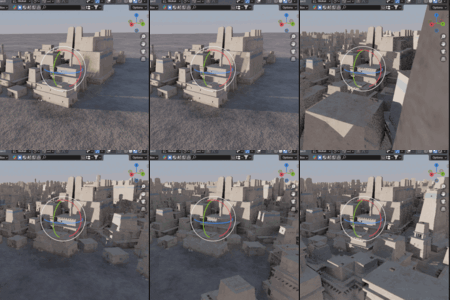
When you click "Initialize Scene," the add-on creates a Geometry Nodes modifier on your active object and links the internal engine. You can move, rotate, or scale the "Base Object" to transform the entire generated environment.
Optimization Tip
Because the tool uses Instancing, the viewport will stay fast. However, if you are scattering high-poly assets (millions of polygons), it is recommended to keep the Copies slider low while adjusting the look, then increase it for the final render.
Working with Collections
Keep your source collection clean. Any object inside that collection will be treated as part of the "scatter group." If you want to exclude an object, simply move it to a different collection in the Outliner.
4. Troubleshooting
"Initialize Scene" button doesn't work: Ensure you have a Mesh object (like a Plane or Cube) selected first.
Instances are overlapping: Increase the Distance slider or adjust the origin points of your source objects to the center.
The UI shows "Check Name": This happens if the underlying Node Group has been renamed manually. Re-initialize on a new object to reset the connection.
 Included
Includes 12 months of
- Support from Blender Easy
- Product updates
Extend this product’s Support Period +12 months: 50% of product price
Have questions before purchasing?
Login to message
| Sales | 10+ |
| Dev Fund Contributor | |
| Published | 6 months ago |
| Blender Version | 4.5 - 5.1 |
| Extension Type | N/A |
| Render Engine Used | Cycles, Eevee |
| License | Mit |