 Precise Tools









Introduction
Dealing with instances in Blender can feel clumsy and frustrating, Instance Wrangler removes all the typical headaches and leaves you in control with surgical precision.
Instance Wrangler is a Blender add on made by Precise Tools. It provides a complete toolkit for precise control of Instances, Transforms and new copies. It even unlocks previously impossible actions and workflows. It is the ultimate "Go home on time" tool for professionals working on complex scenes or assets.
Instance Wrangler consists of a number of feature rich Toolsets, such as Multi Transform, Advanced Copy, Instance Management and the Data Cycler. Each of these are intuitive and simple to use, but offer a lot of depth at closer inspection.
Documentation
For extensive documentation on Instance Wrangler, visit our documentation pages:
https://precise.readthedocs.io/
For tutorials and instructions, visit our Youtube Channel:
https://www.youtube.com/@Precise-Tools
Multi Transform
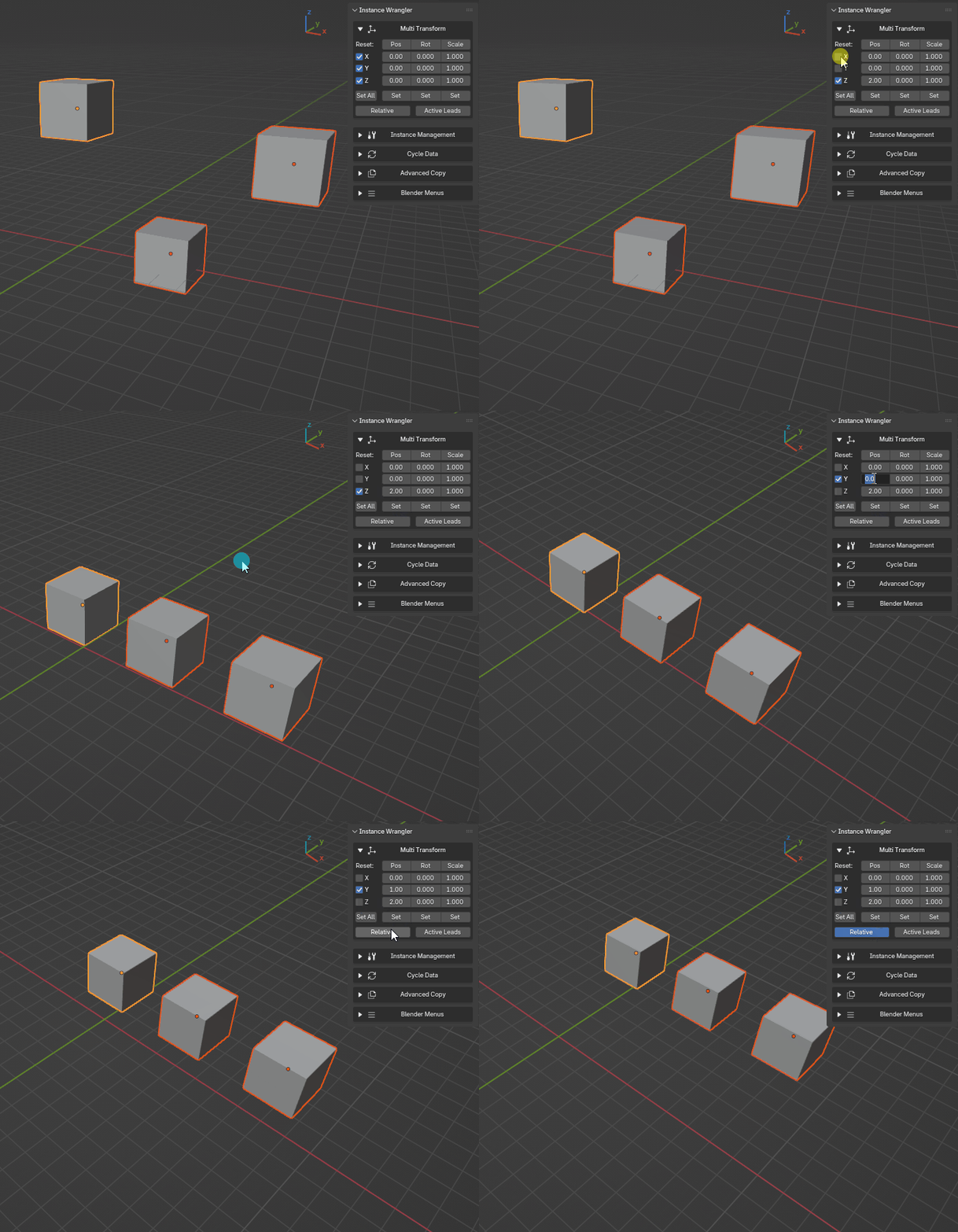
Multi Transform is a toolkit which lets you precisely edit transforms for multiple objects at once, using an intuitive axis-driven grid. Choose to set Position, Rotation and Scale values simultaneously or individually for the X, Y and Z axis together or one at a time. The values can be set to behave like setting a target (absolute mode) or as an incremental shift (relative mode).
|
|
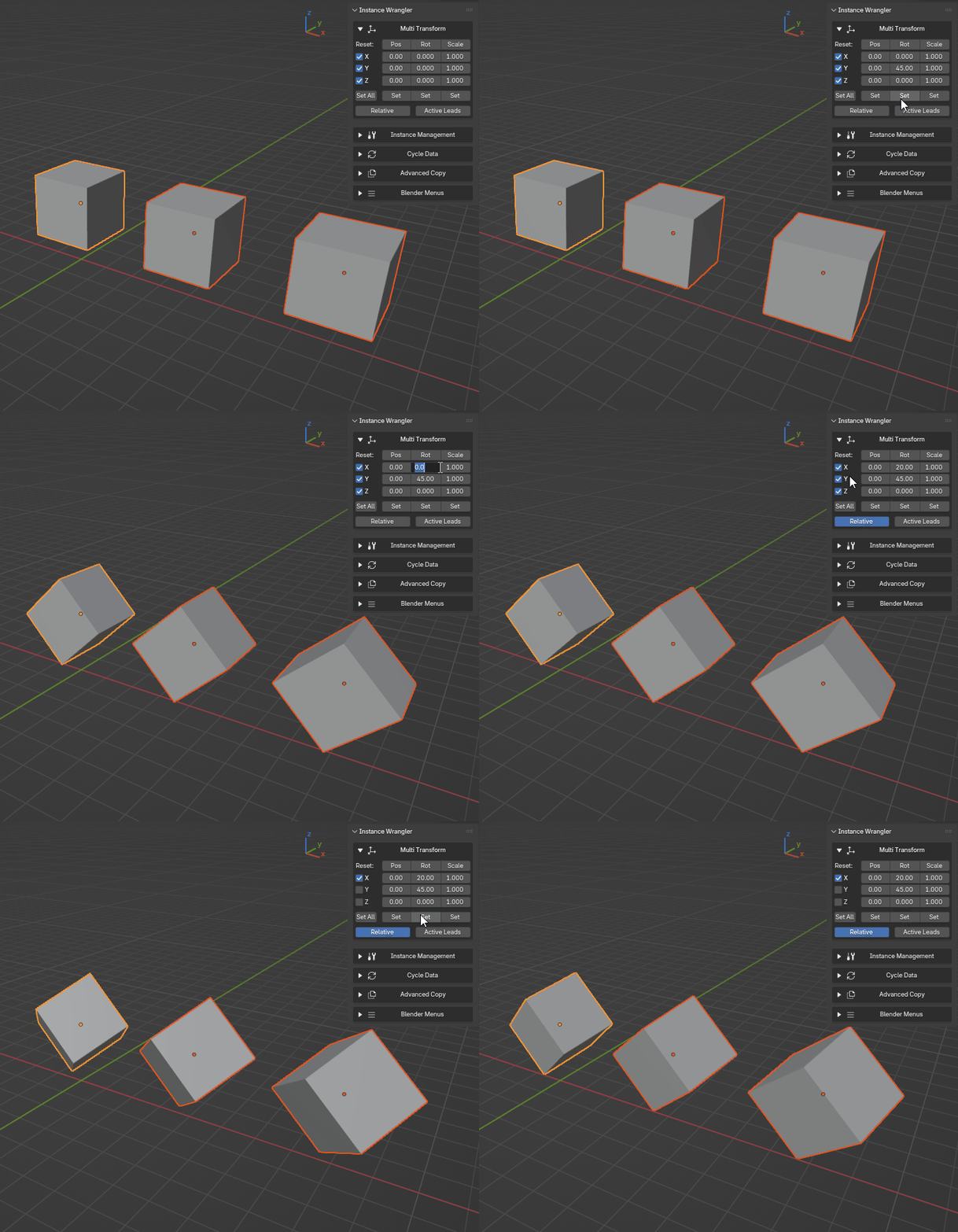
Active Leads is the exciting and playful part of Multi Transform, although it is still just as functional and precise. Use Active Leads to treat the active object as a "fake parent", the other objects will move, rotate or scale along with it as a single, cohesive group.
|
|
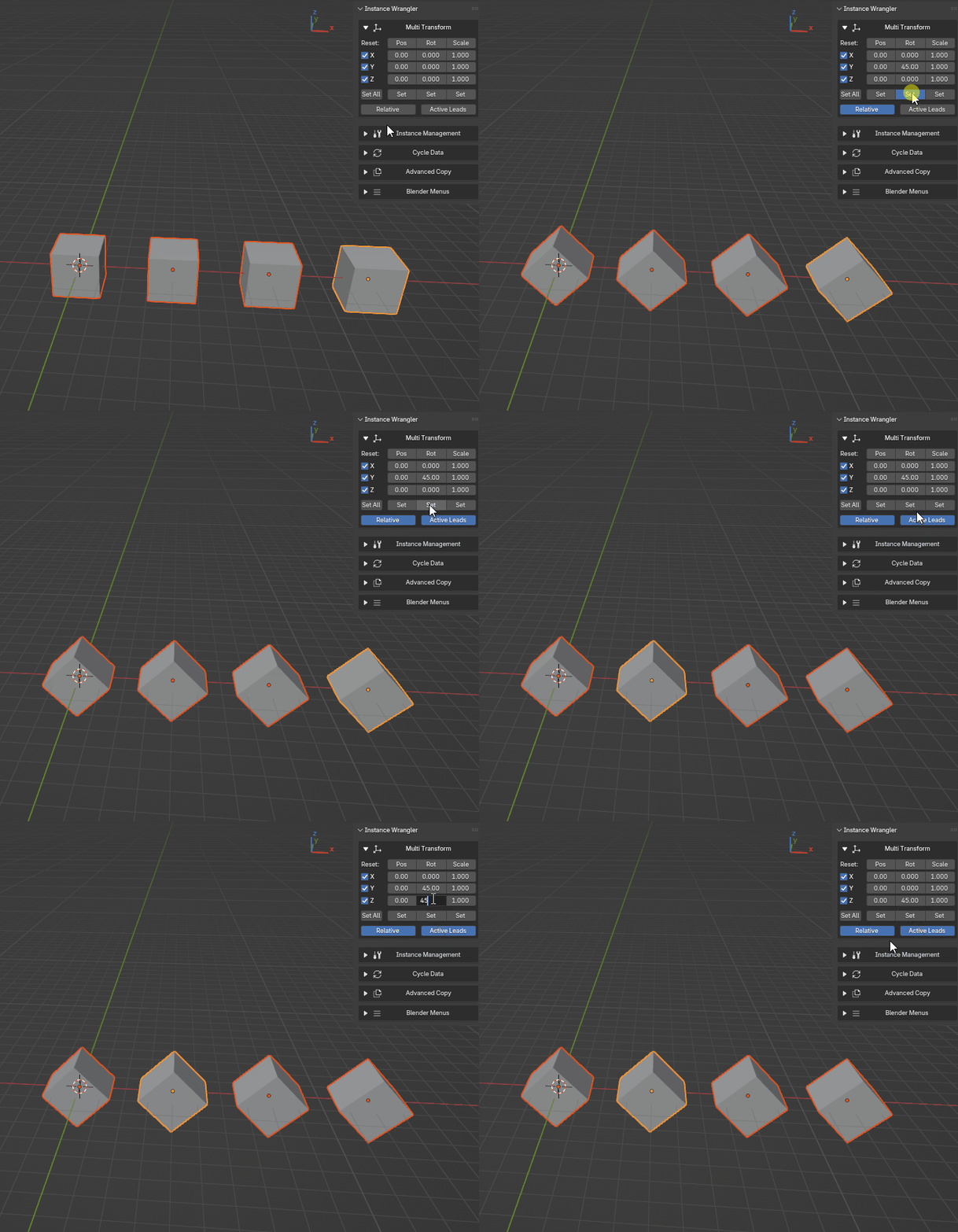
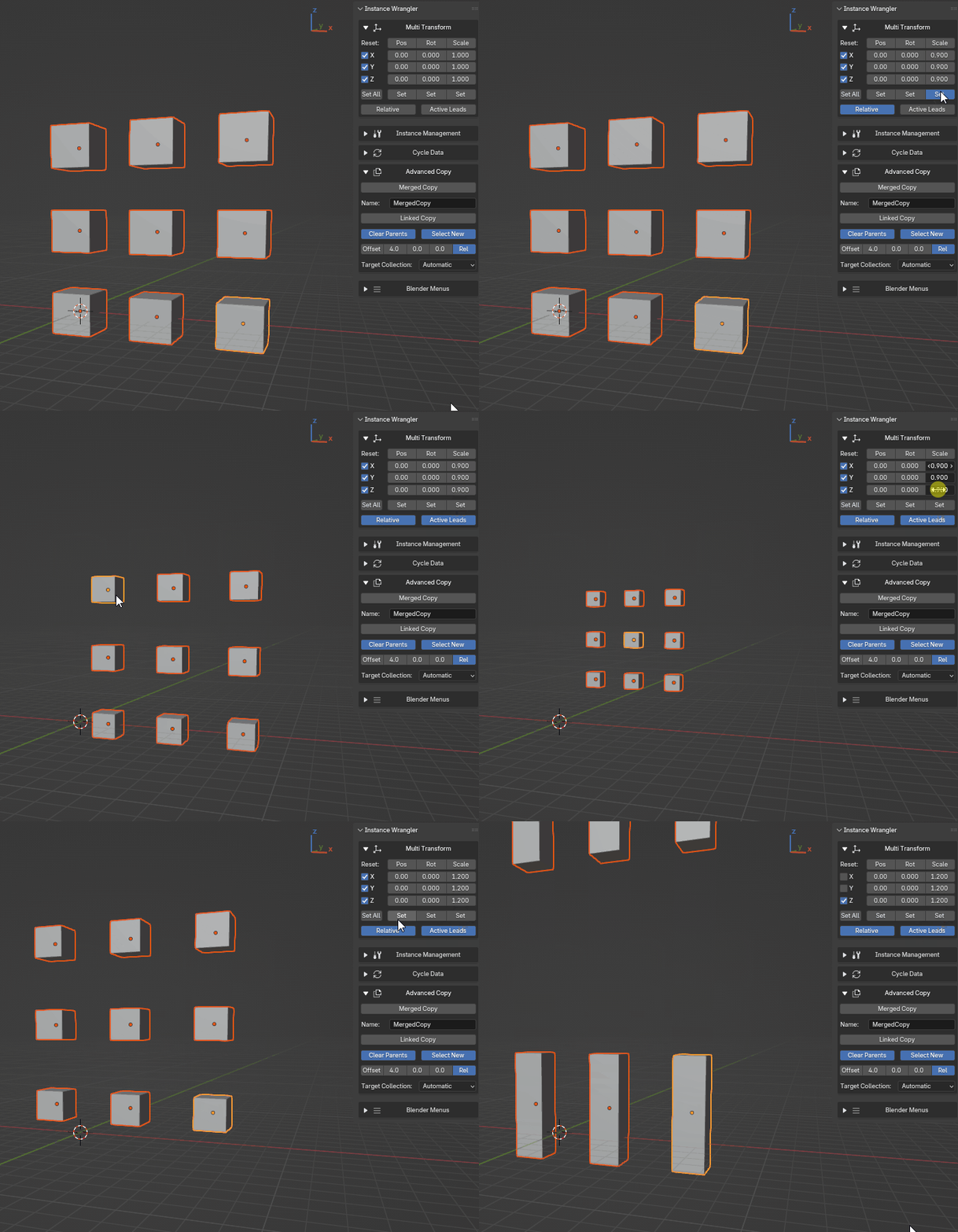
Use Multi Transform in combination with Advanced Copy to create a convenient offset for new copies. Or dive deep into the rabbit hole and create psychedelic patterns with combinations of incremental rotation and scale.
Advanced Copy
Lets you effortlessly create linked or merged copies from complex hierarchies of various object types.
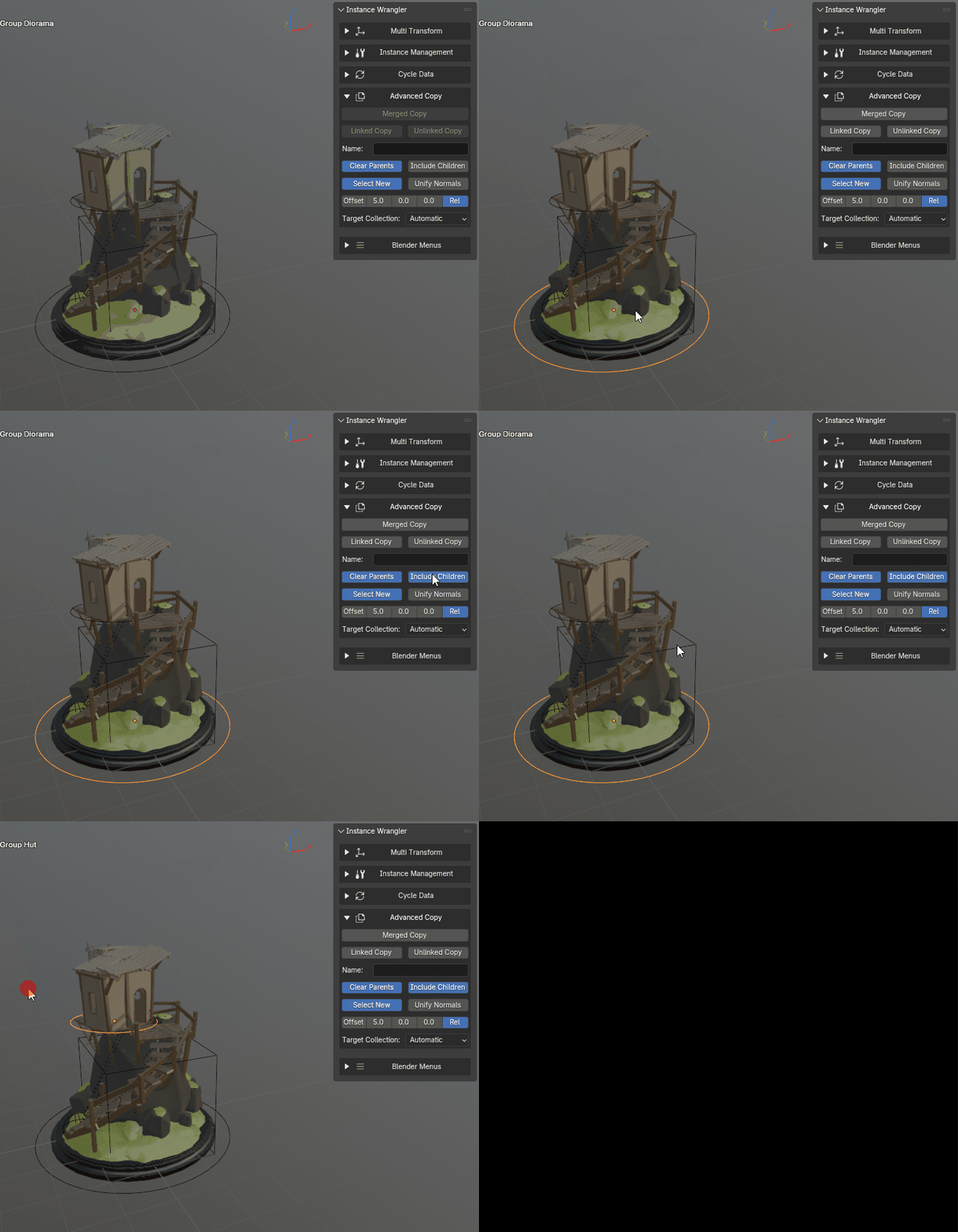
Merged Copy is invaluable for creating a single, clean, game-ready mesh from a selection of multiple, potentially diverse objects (meshes, curves, surfaces, text objects and grease pencil objects). It automates the process of duplicating, cleaning, converting, joining, and positioning objects. This is ideal for creating simplified proxy models, preparing assets for game engines, or combining parts for 3D printing.
The pivot point, name, target collection and parenting hierarchy can all be managed as you're creating copies.
|
|
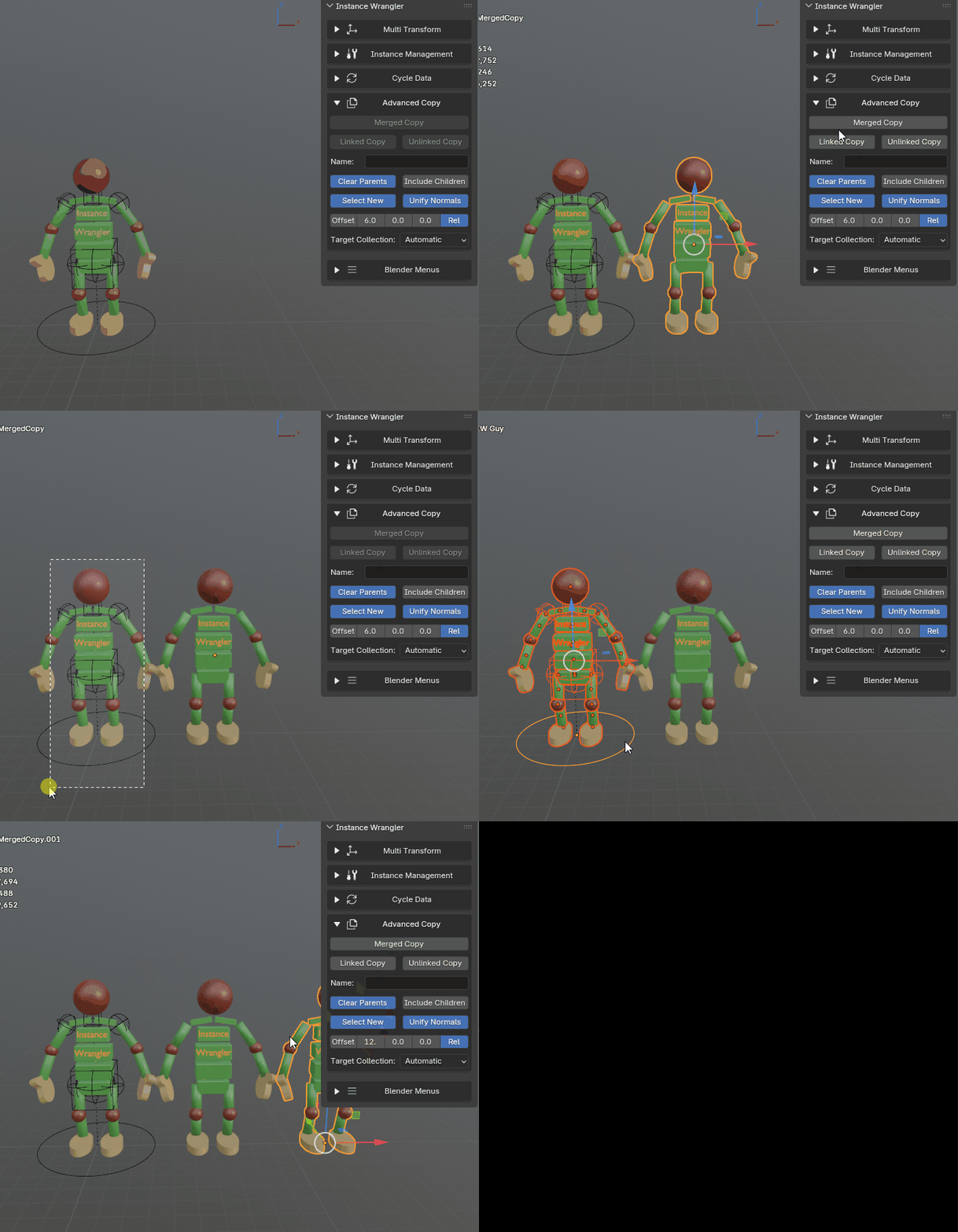
Linked Copy and Unlinked Copy creates simple linked or unlinked duplicates but the full set of Advanced Copy tools and settings can also be applied, such as setting the target collection, managing hierarchies and setting the names using wildcards to reference the original names.
|
|
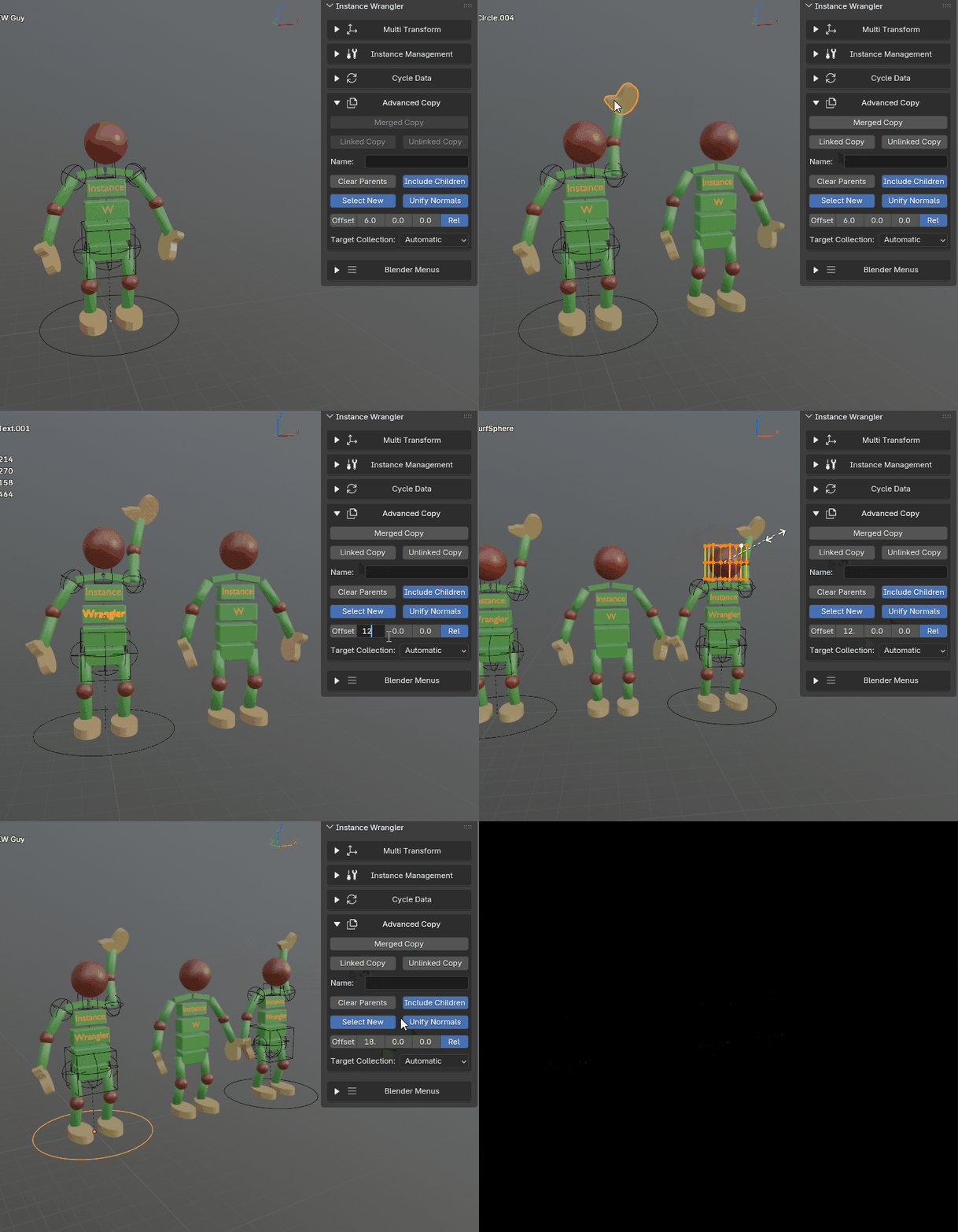

Apply Multi Transform lets you apply transforms from the Multi Transform Toolset to your newly created copies. Not only is this very handy for applying a quick offset to your new copies, but it can also create complex and creative patterns. Using Skip Active you can let your new copies revolve around a centrally selected object.
Instance Management
Instance Management is a comprehensive suite of tools for managing linked duplicates. It already holds a number of powerful tools and more will be added in the future.
Apply Transforms
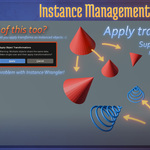
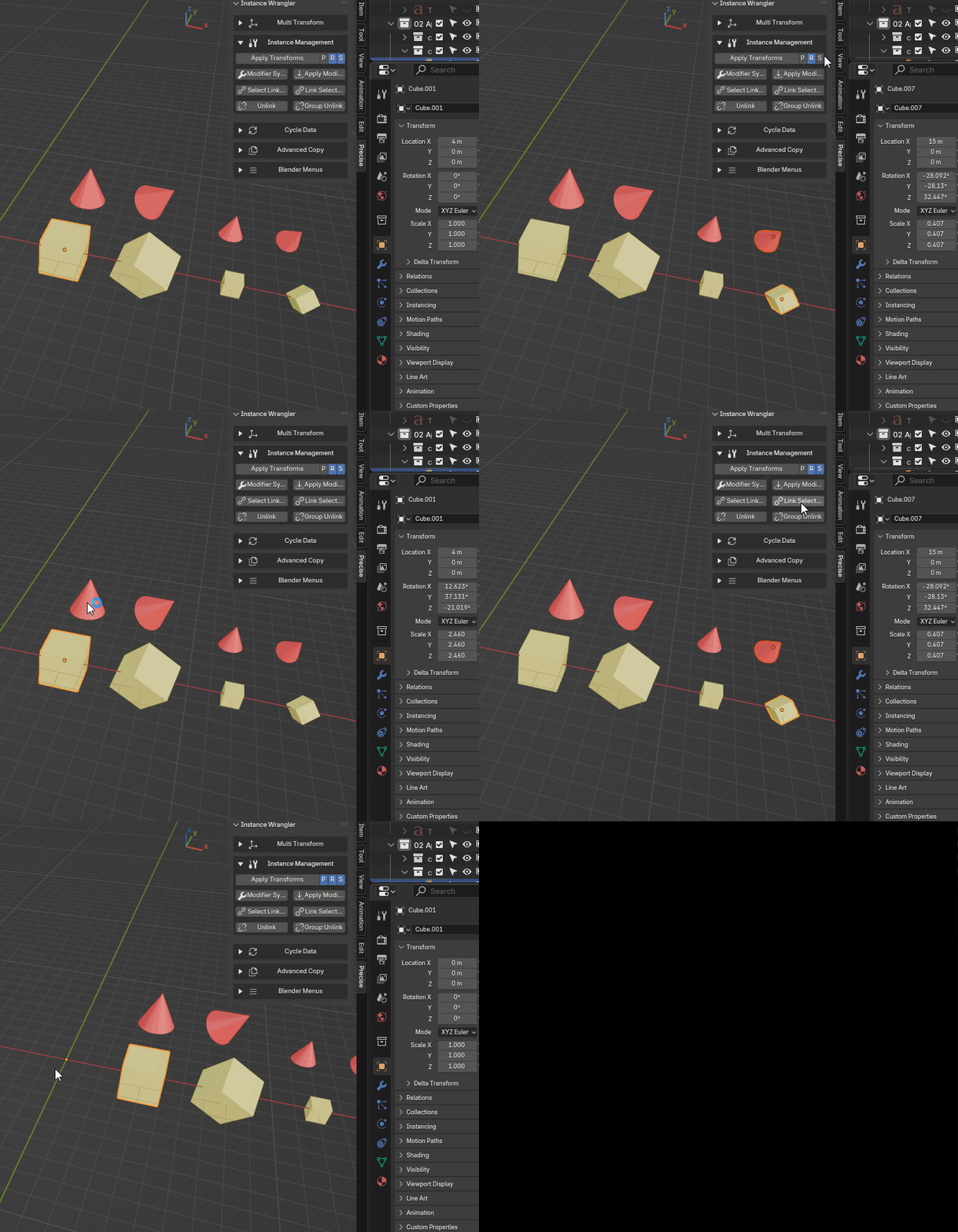
Apply Transforms solves a core Blender limitation by allowing you to apply transforms on Instanced objects without breaking their data links. It allows you to “bake” the position, rotation, and/or scale of an object while keeping its data linked to all its instances. On top of that, it will work for multiple groups of instances at the same time.
Modifier Sync
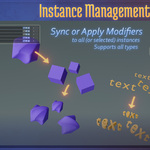
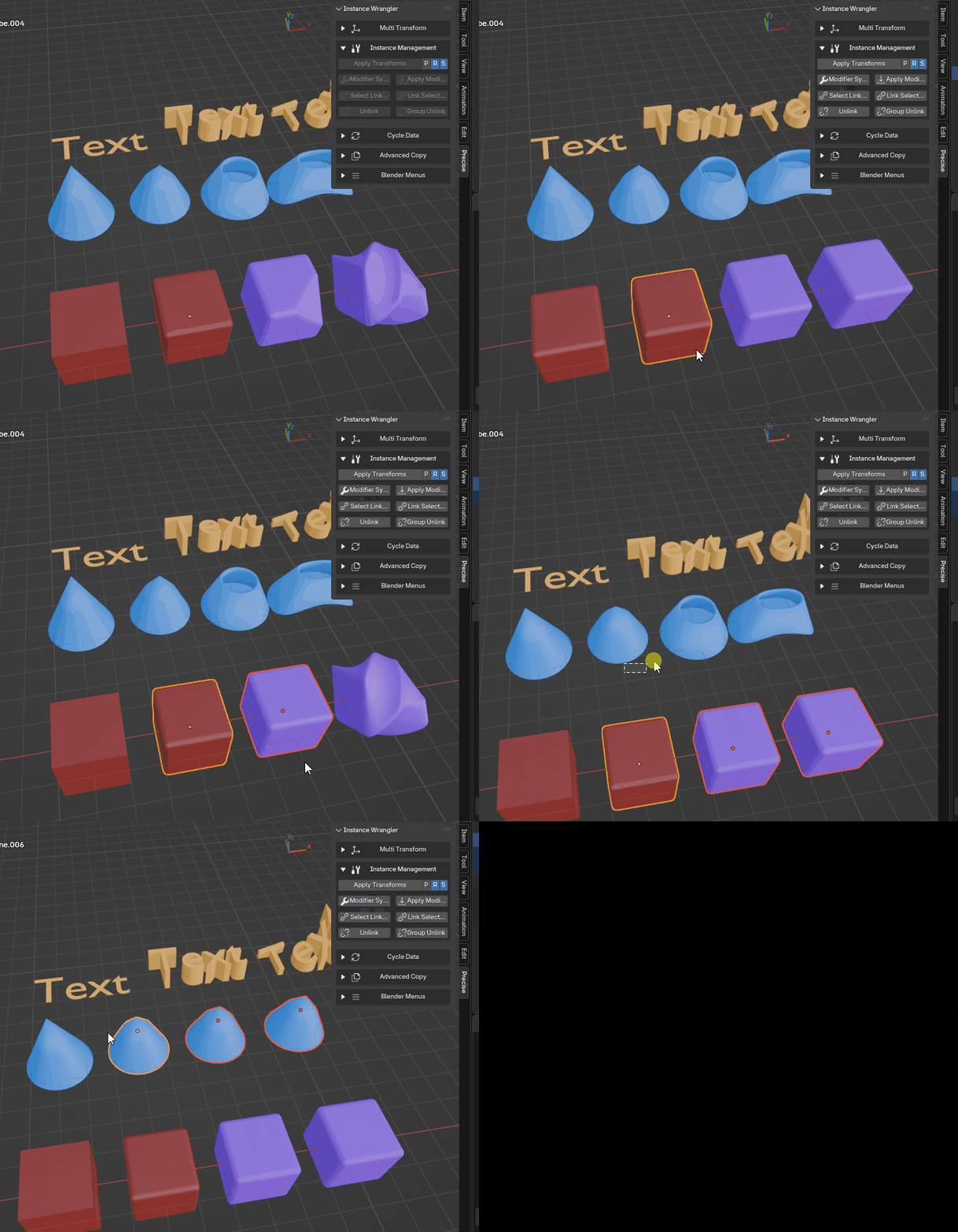
Modifier Sync copies the complete modifier stack from a source object to all of its linked duplicates. This ensures all instances of an object share the exact same modifiers. You can sync multiple source objects simultaneously and it works with any object type that can have modifiers, including Meshes, Curves, and Text. Limited sync allows you precisely determine which objects get synced.
Apply Modifiers
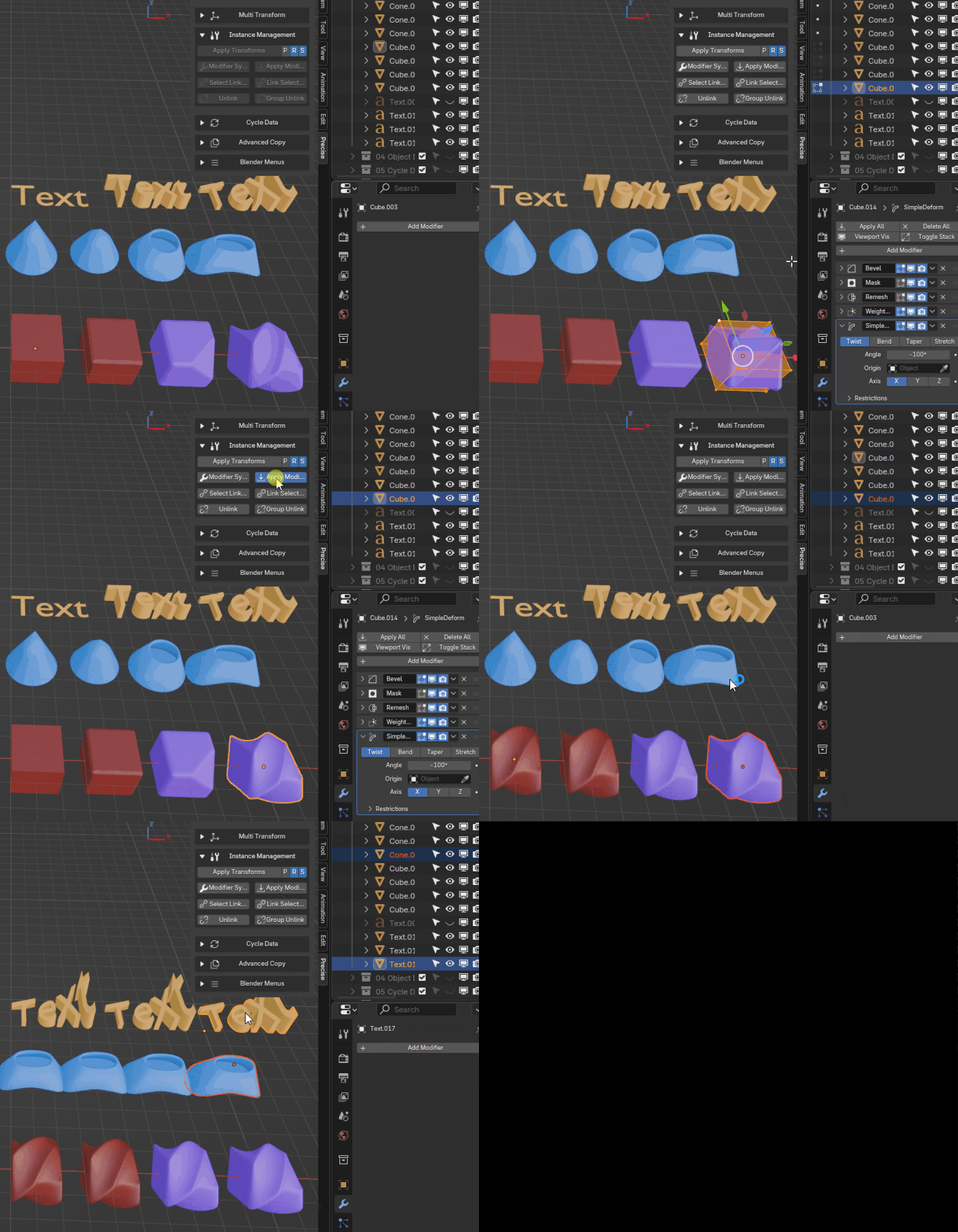
Apply Modifiers permanently “bakes” an object’s modifier stack into its geometry. Its strength lies in its versatility, handling most object types that support modifiers—such as Meshes, Curves, and Text—while intelligently managing linked duplicates to ensure modifiers are applied consistently across all instances. Of course it works on multiple objects of different types at the same time as well.
Select Linked
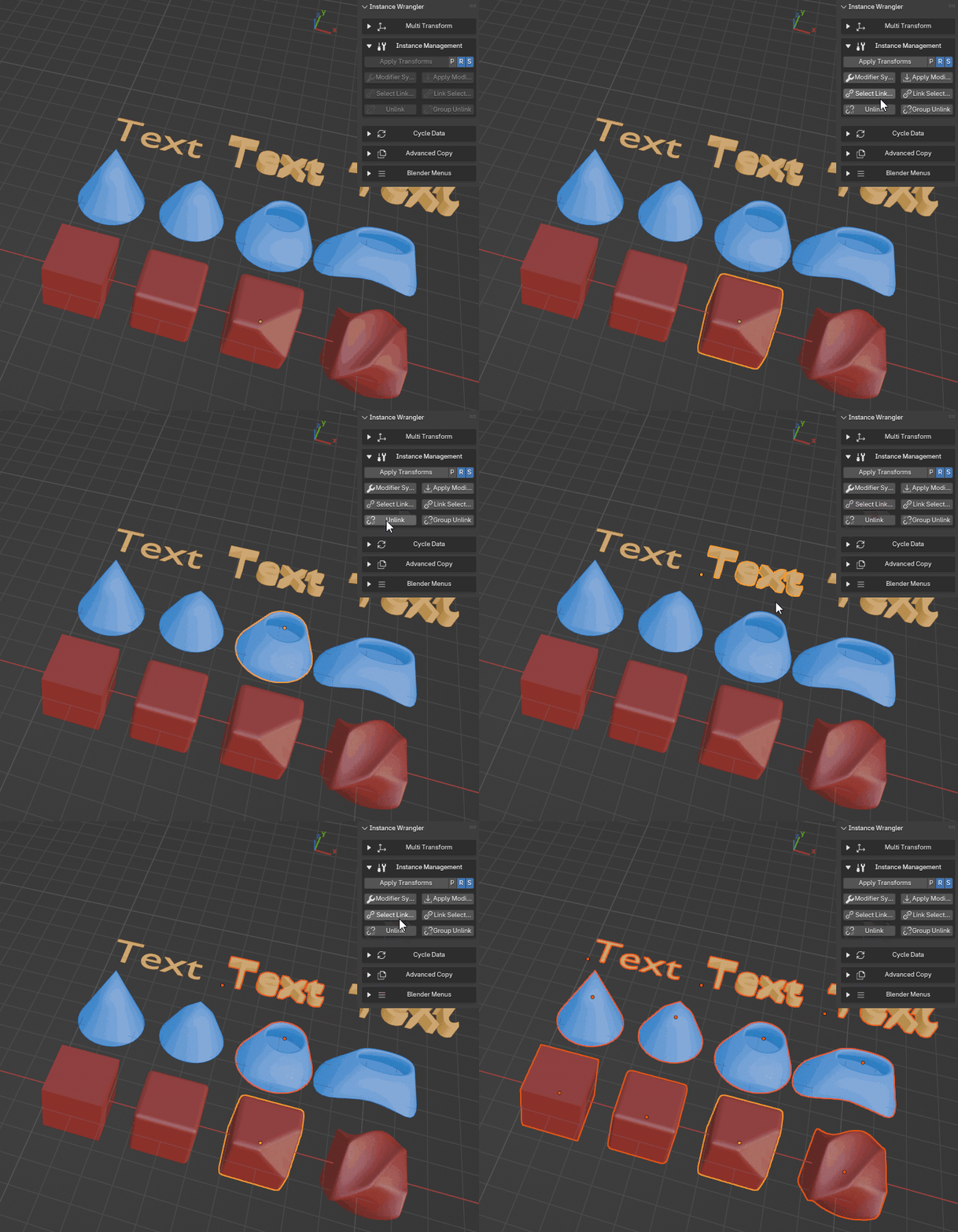
The Select Linked tool is a utility designed to quickly expand your selection to include all linked duplicates of the object(s) you currently have selected. Its purpose is to gather all instances of an asset at once, no matter where they are in your scene.
Link Selected
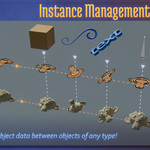
The Link Selected tool makes all selected objects become linked duplicates (instances) of the active object. It does this by assigning the active object’s Object Data to every other object in the selection.
This tool is very similar to Blender’s native Ctrl+L > Link Object Data function, but with a crucial advantage: it can automatically convert the type of the selected objects to match the source.
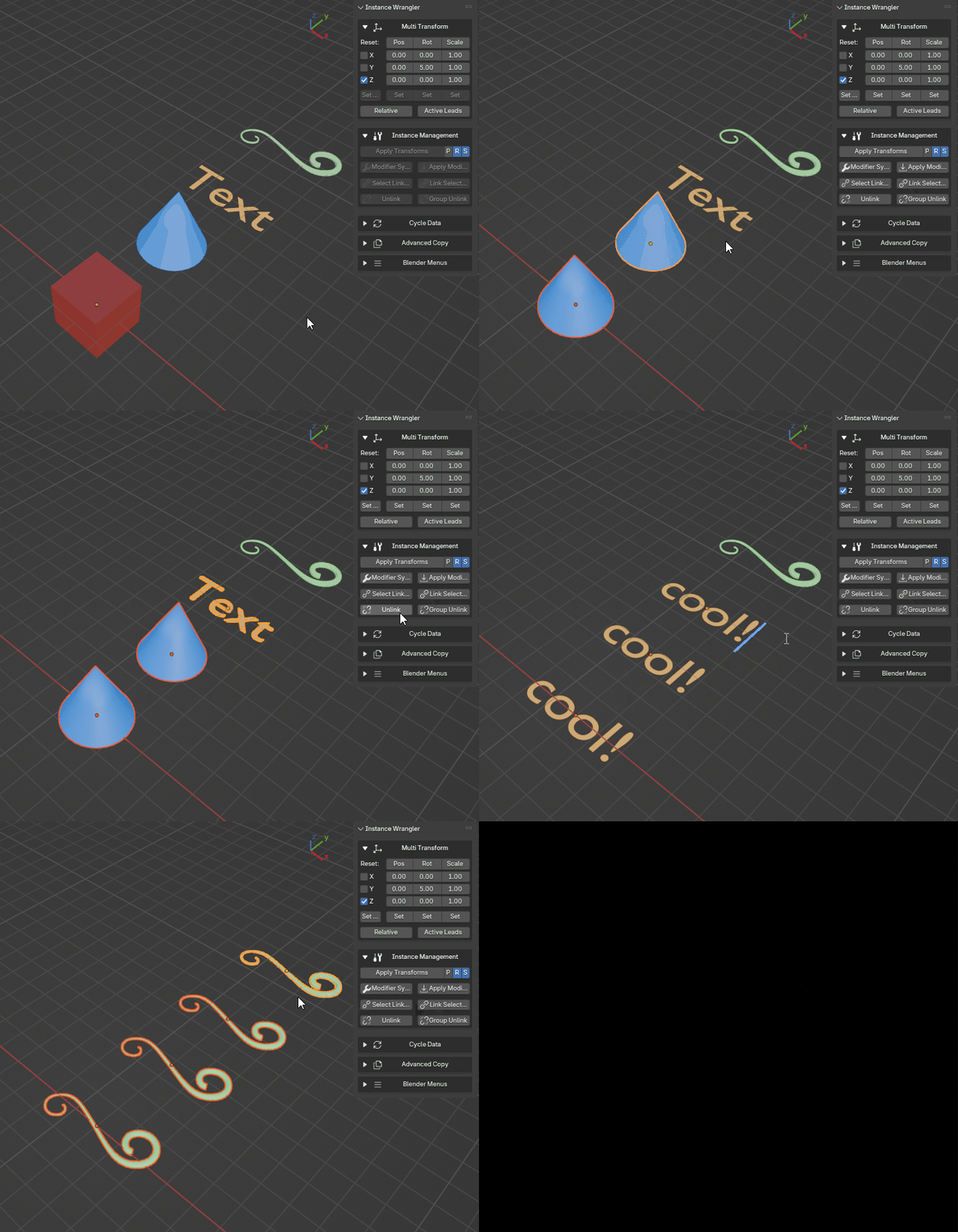
Unlink
The Unlink tool is the direct opposite of linking. It takes a selection of linked duplicates and makes each one independent by giving it a unique copy of its Object Data.
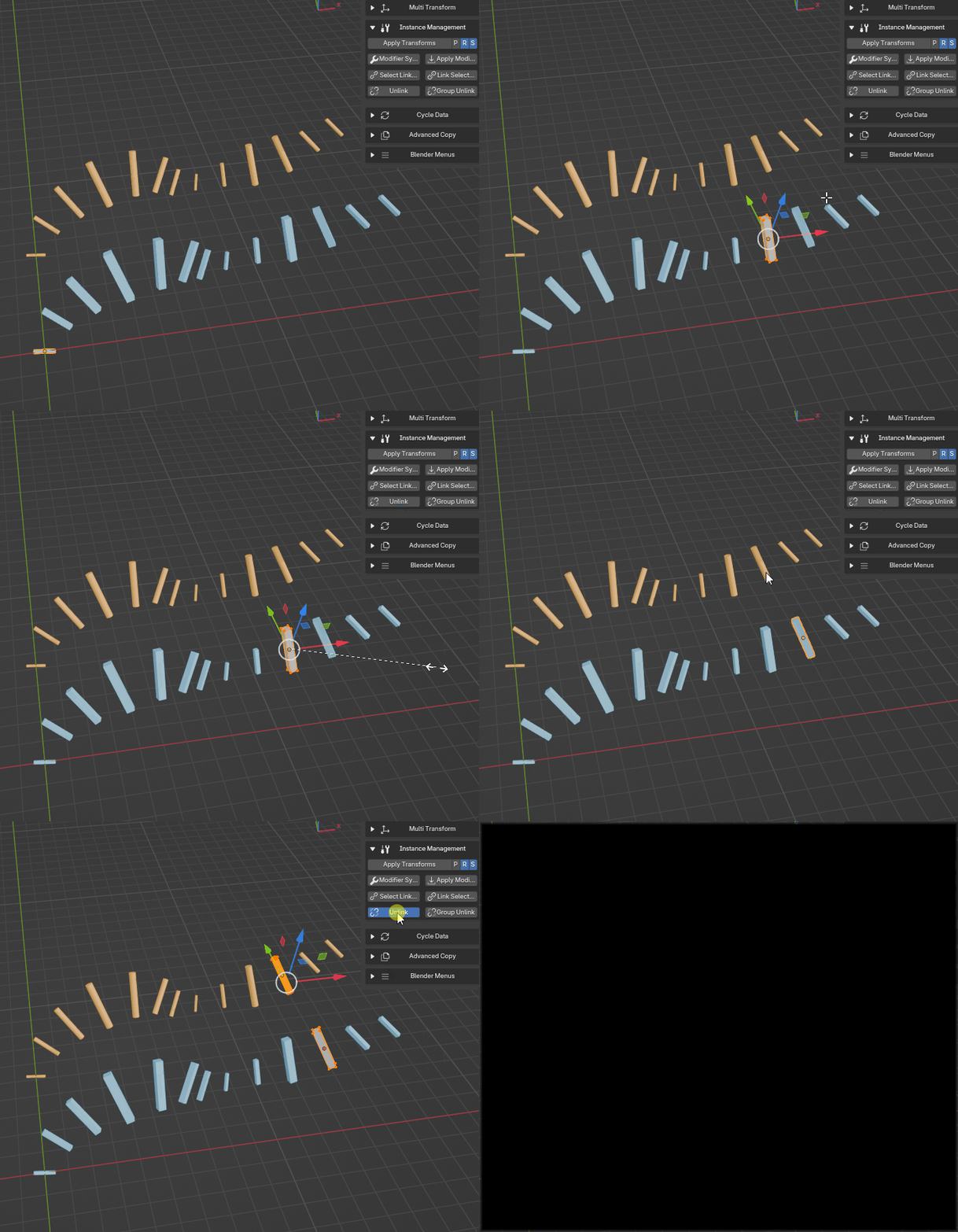
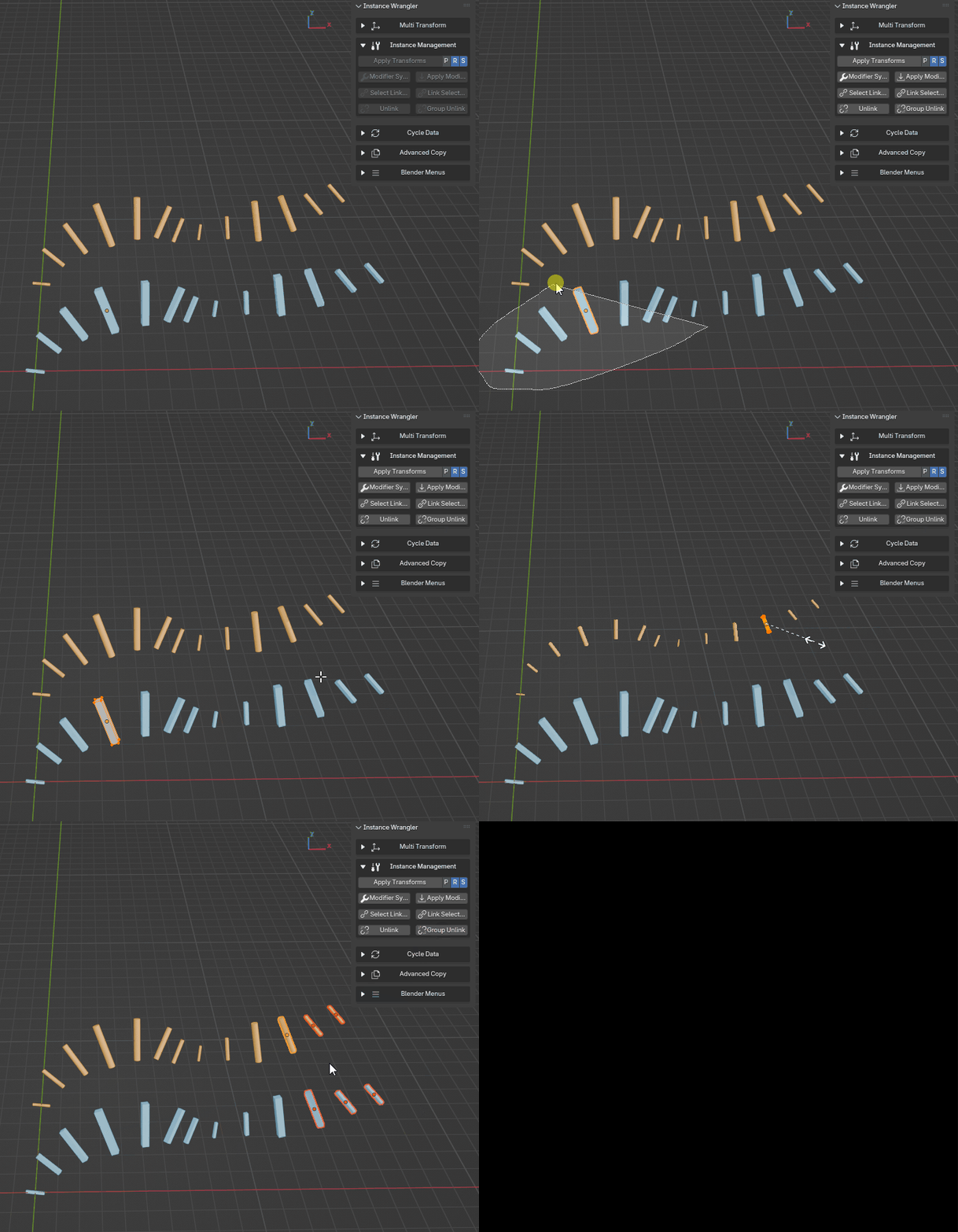
Group Unlink
The Group Unlink tool creates a new, independent instance group from your current selection. It “splits off” the selected objects from their unselected peers, while keeping the selected objects linked to each other.
This provides a crucial workflow that is distinct from the standard Unlink operator, which makes every object unique. Group Unlink makes the selection unique as a new group.
Data Cycler
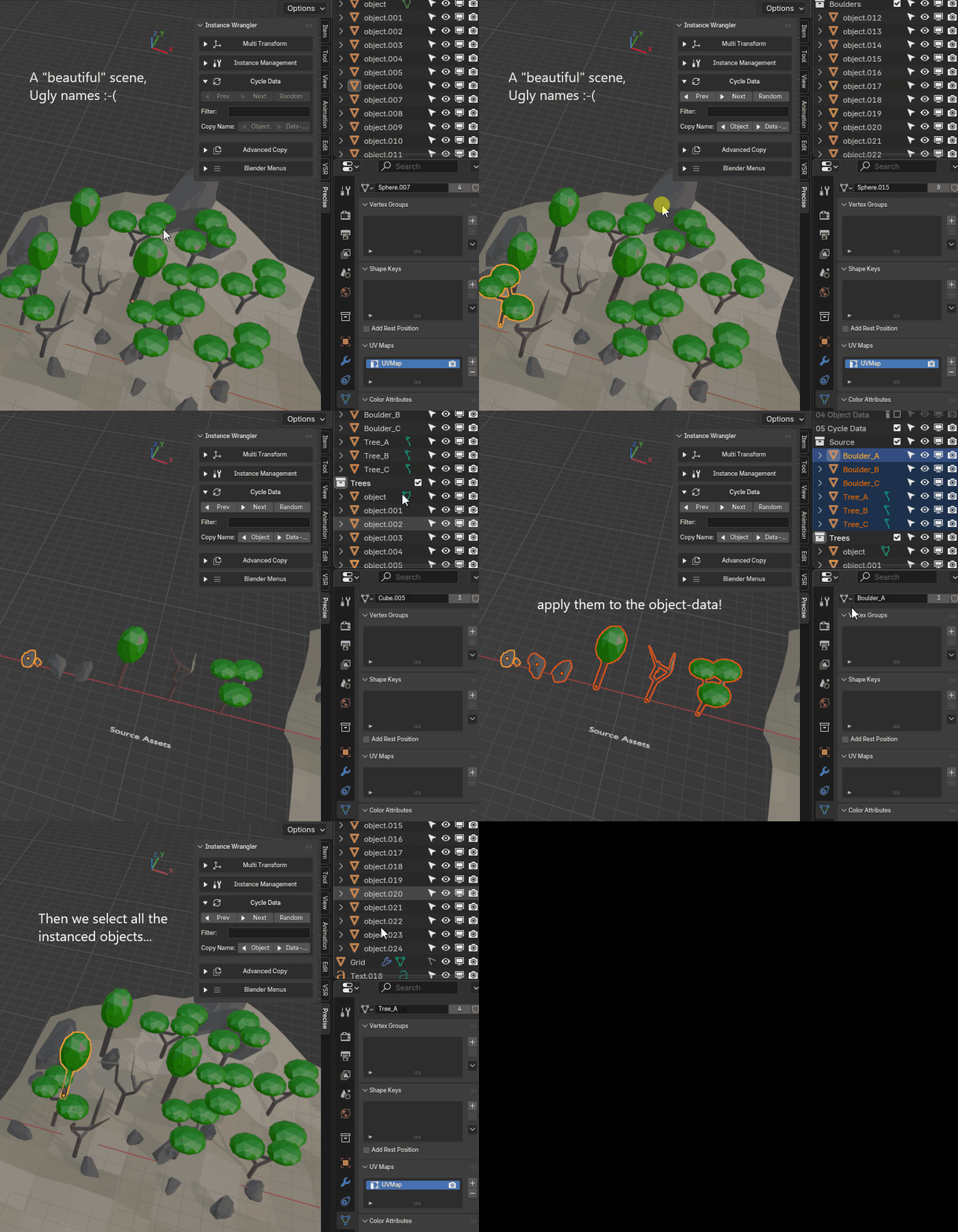
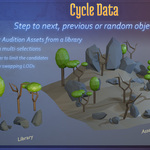
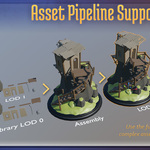
The Cycle Data tool allows you to replace an object’s underlying Object Data (like its mesh or curve geometry) with another data-block of the same type available in your Blender file. Think of it as quickly trying on different versions of an asset without ever moving the object itself. The object’s location, rotation, scale, and even its modifiers are all preserved; only its core data is swapped. It can also be used to swap LOD's on instanced objects in a game development pipeline. A name filter and randomizer allow for extra fine grain control.
|
|
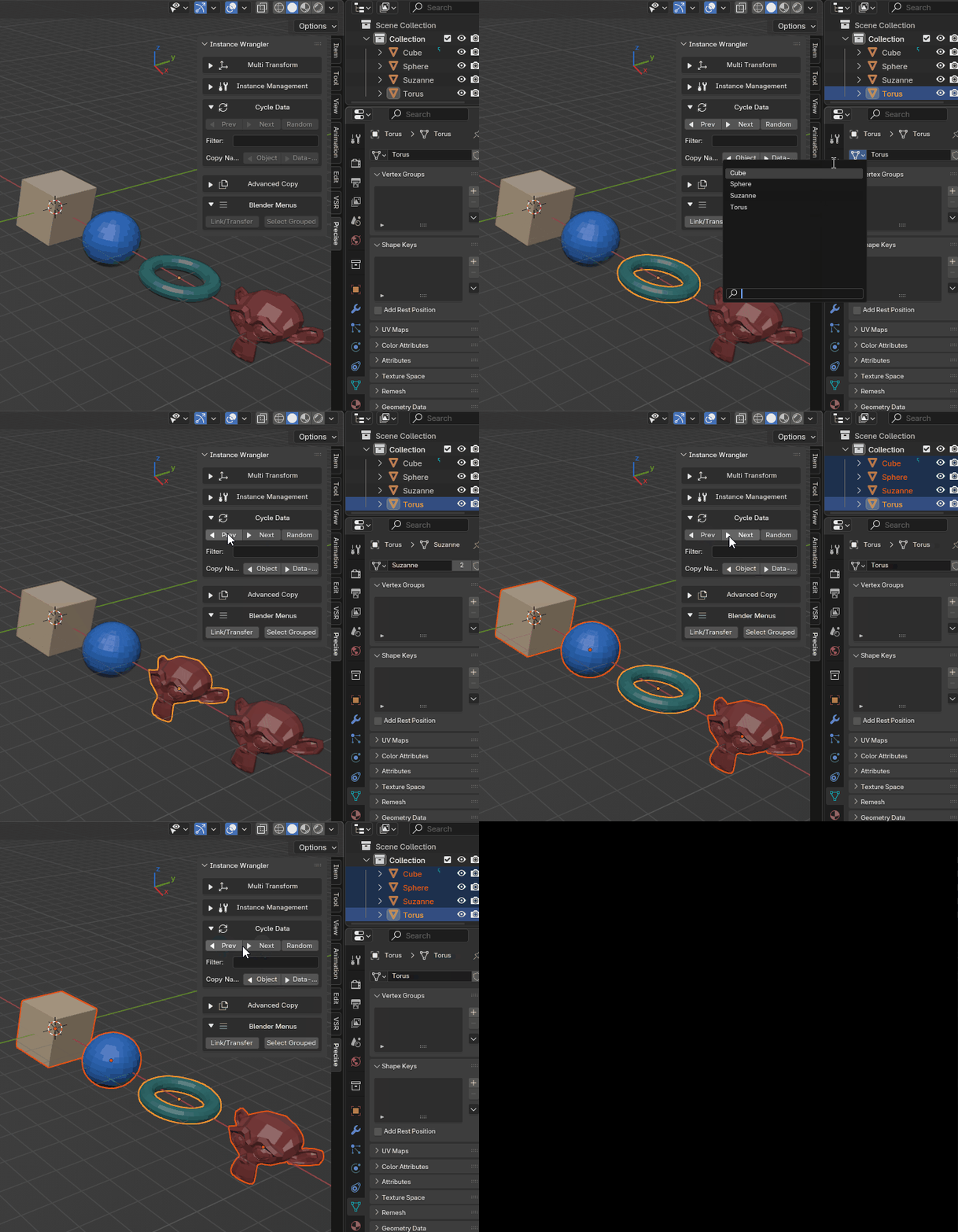
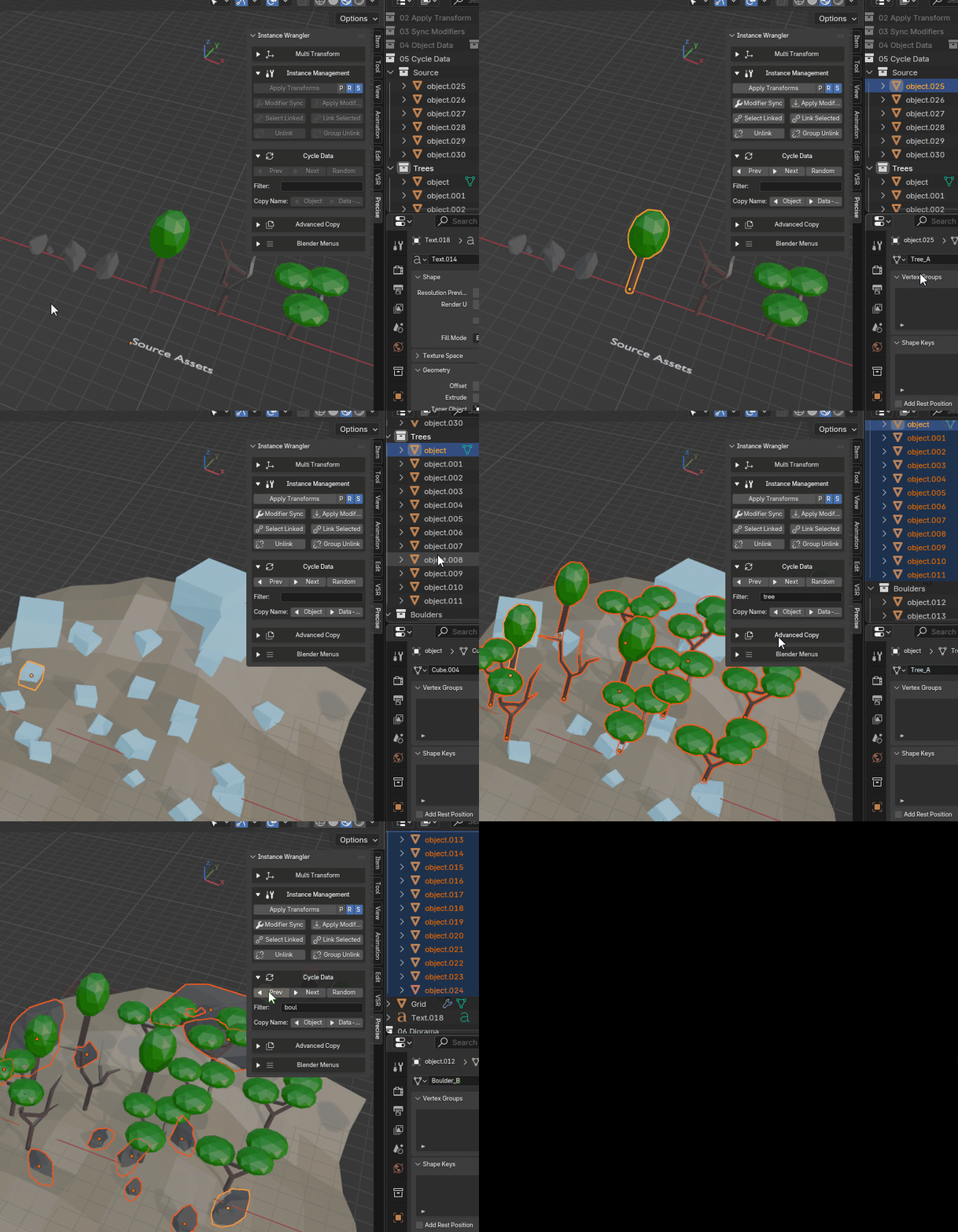
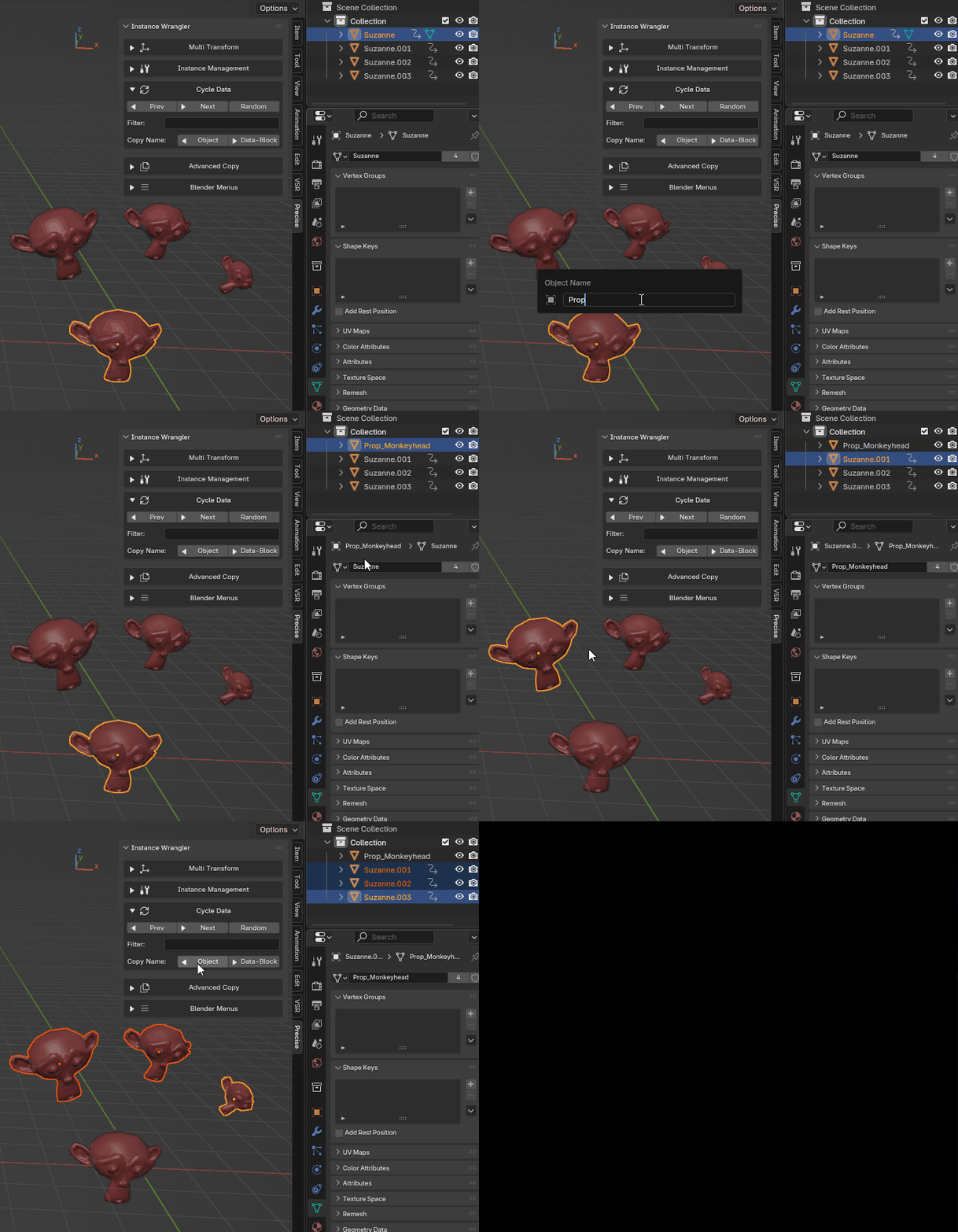
Copy Name (between Objects and Data blocks) helps managing the names of your objects and their associated Object Data. In scenes with many linked duplicates, keeping names consistent is crucial for organization. These tools allow you to quickly enforce a clear naming convention across entire instance groups.
|
|