Instant Render
 BS Creative


# Instant Render (Blender 5.0+)
Fast EEVEE viewport rendering for stills and animation previews.
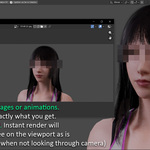
Render exactly what you see in the viewport. No camera required. What you see is what you get.
## Install and Access (Step by Step)
1) Install the ZIP
- In Blender, open Edit > Preferences > Add-ons.
- In the top right corner of the open window, there is a dropdown arrow
- Click it > Install from disk > Choose the addon `.zip` you downloaded.
- Confirm to install > save preferences.
2) Enable the addon
- In the Add-ons list, search for Instant Render (or (BS) | Instant Render).
- Tick the checkbox to enable it.
3) Find the tool
- Go to Top Bar > Render > EEVEE | Instant render.
- (Optional) Right-click the menu item and choose Add to Quick Favorites for one-click access.
Tip: The addon is designed for EEVEE viewport rendering workflows.
## What It Does
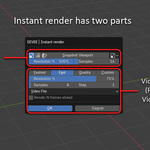
Instant Render adds EEVEE | Instant render to Top Bar -> Render and gives you one compact popup with two sections:
1. Snapshot section (for still images)
2. Video / Sequence section (for animation renders)
This tool is made for rapid iteration: blocking, previewing motion, checking looks, and sending quick approvals.
## Why It Is Useful
- What you see is what you get viewport rendering
- No camera required (renders active viewport view)
- If you are in camera view, it renders the camera view
- Fast quality presets for quick switching
- Optional render acceleration using frame stepping
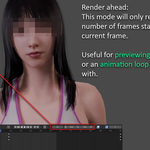
- Render only the next part of an animation with Render N Frames Ahead
- Separate snapshot and animation controls for cleaner workflow
- Organized output in an Instant Render folder inside your output path
## Compatibility
- Blender: 5.0+
- Designed for: EEVEE / non-path-traced viewport workflows
- Not supported for intended use: Cycles-style path-traced workflows
## Main Features
1) Snapshot section (still images)
- Snapshot Viewport: Captures the current viewport view with one click (viewport view when not in camera view, camera view when in camera view).
- Format Options: Choose between JPEG, PNG, or OpenEXR for output
- Resolution %: Adjust output resolution as a percentage of viewport size or render resolution if viewing through a camera
- Sample Settings: Configure the number of samples for render quality
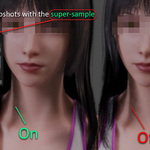
- Super-sampling: Enable 2x super-sampling for cleaner, anti-aliased stills
- Auto-open: Automatically open rendered snapshots in Blender's Image Editor
Best for quick still previews and look checks.
2) Animation section (video / image sequence)
- Output mode:
- Video File
- Image Sequence (JPEG / PNG / OpenEXR)
- Presets:
- Quickly switch between predefined quality and speed settings
- Options include Fastest, Fast, Quality, or Custom configurations
- Controls:
- Resolution %: Adjust output resolution as a percentage of viewport size or render resolution if viewing through a camera
- Sample Settings: Configure the number of samples for render quality
- Step: Skip frames to speed up animation previews. final fps = render fps / step
Best for fast animation test renders and timing checks.
3) Render N Frames Ahead
When enabled, renders a set number of frames starting from the current frame.
Use this to preview short actions or loops without rendering the entire timeline.
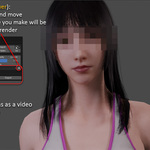
4) Interactive Render (image sequence mode)
Optional interactive mode allows scene interaction during render, but:
- It is slower
- Moving/changing viewport during render can affect captured result
Use carefully when you need interactivity mid-render.
## Output Behavior
Instant Render uses your Blender output directory and creates subfolders automatically:
- `Output/Instant Render/Snapshots`
- `Output/Instant Render/Video-Sequence`
So your regular renders stay organized while Instant Render outputs stay grouped together.
## Quick Start
1. Set Blender output directory.
2. Open Render -> EEVEE | Instant render.
3. Choose Fast / Quality / Custom.
4. For stills: use Snapshot Viewport.
5. For animation: choose Video File or Image Sequence, then render.
6. (Optional) Enable Render N Frames Ahead for previewing a set number of frames starting from the current frame.
## Notes
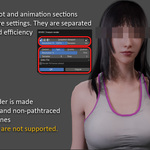
- This addon is made for viewport rendering workflows. You do not need to use a camera or set up render flags / states. what you see is what you get.
- Snapshot settings and animation settings are intentionally separated.
- Tool is optimized for preview speed and workflow efficiency.
- Ideal for real-time style viewport output and iteration
- Does not support path-traced engines like Cycles
- Change default quality preset for animation renders in the addon preferences.
## Troubleshooting
- No output / canceled render: check output directory is valid and writable.
- Unexpected folder: Instant Render always saves into its own subfolder under your output path.
- Render looks different than expected: in interactive sequence mode, avoid navigating viewport while rendering.
Discover more products like this
animation Render crop Blender playblast screenshot playblast render viewport eevee animation render animation preview image-render 3D Character Animation