Instant Spawn King Pro
 KING ZEN STUDIOS



AUTO SPAWN KING
User Documentation
KING ZEN STUDIOS
1. Introduction
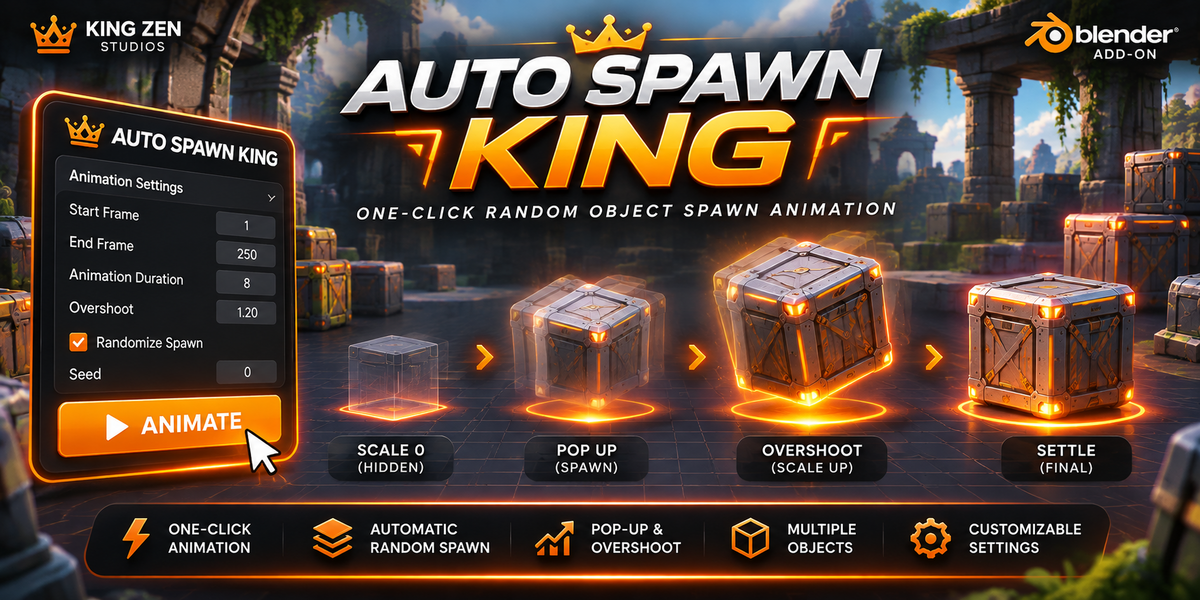
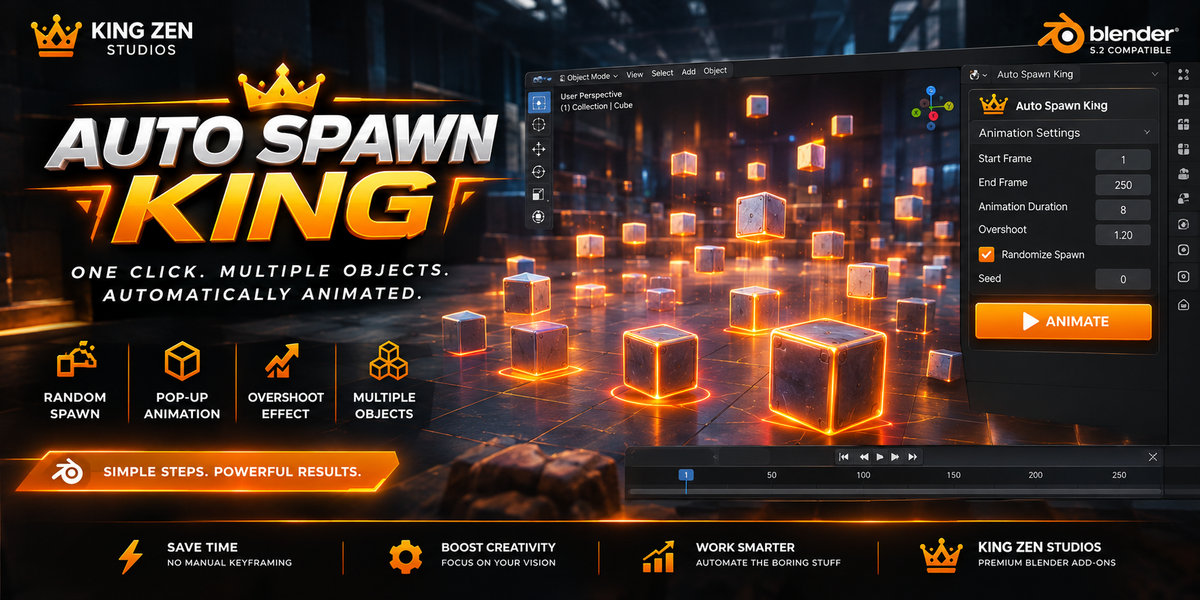
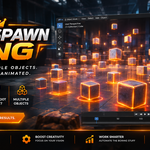
AUTO SPAWN KING is a Blender animation tool designed to automate the process of creating randomized object spawn animations.
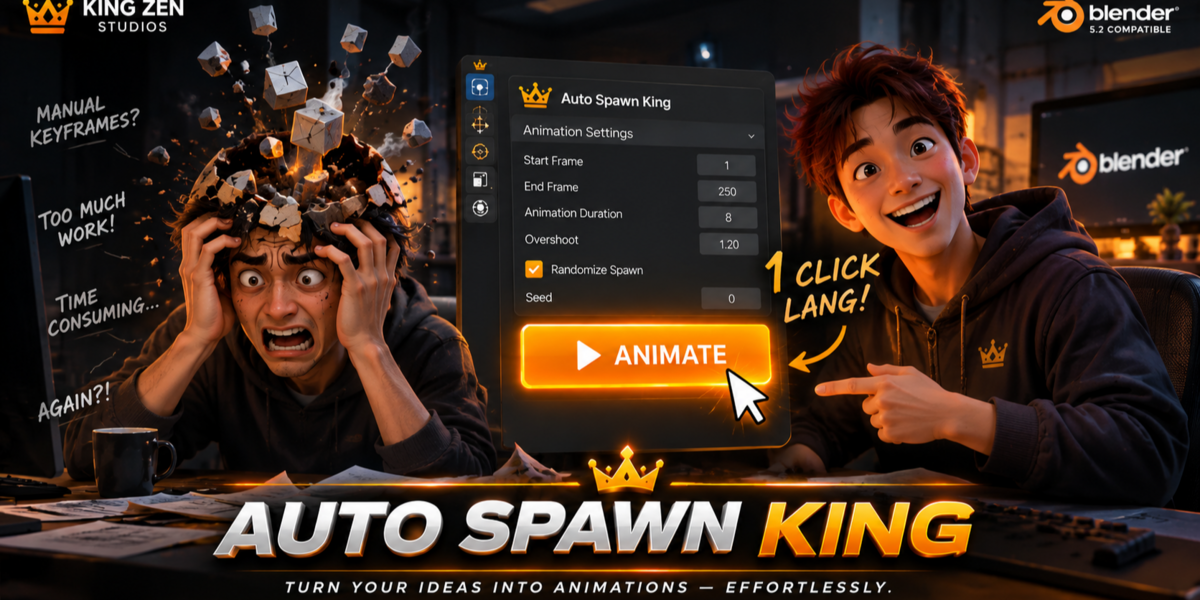
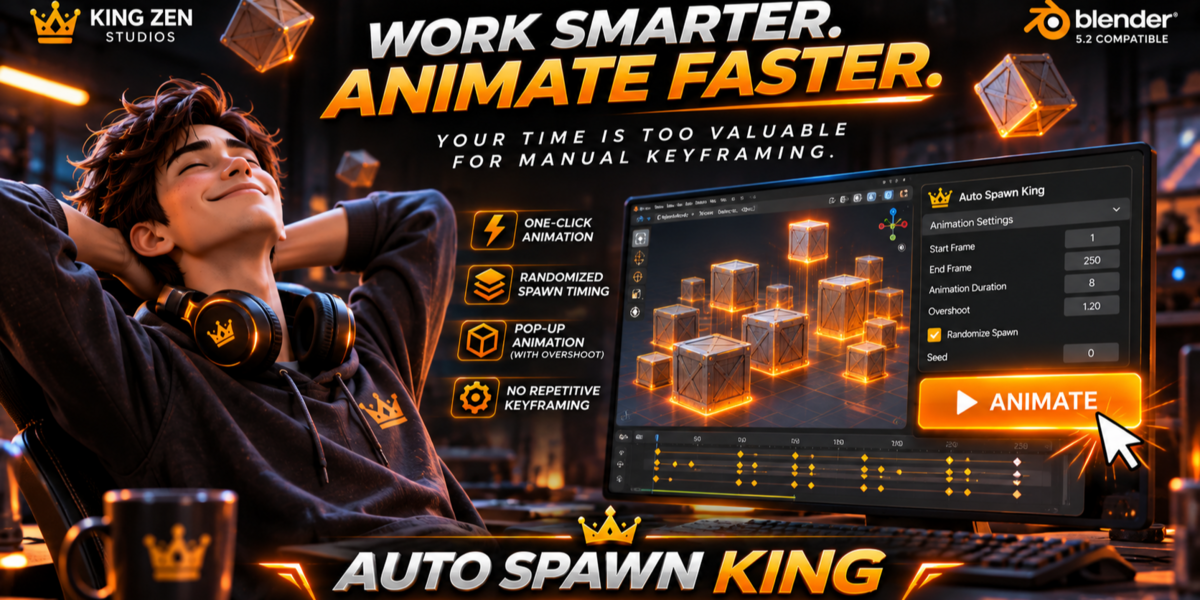
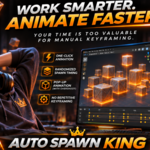
Instead of manually keyframing every object, you can select multiple mesh objects and generate their animations with a single click.
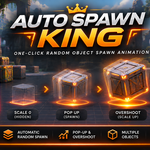
The add-on creates a pop-up animation with an overshoot effect, making objects appear dynamically in your scene.
SELECT. SET. ANIMATE.
2. Requirements
Blender 5.2
AUTO SPAWN KING add-on
A Blender scene containing mesh objects
3. Installation
Download the AUTO SPAWN KING add-on ZIP file.
Open Blender.
Navigate to Edit > Preferences.
Select the Add-ons section.
Click the Install from Disk button.
Locate and select the downloaded ZIP file.
Enable AUTO SPAWN KING.
Access the add-on from its designated interface panel.
4. How to Use
Step 1: Select Your Objects
Select the mesh objects you want to animate.
You can select multiple objects at once.
Step 2: Configure Animation Settings
Adjust the animation parameters:
Start Frame
Defines the earliest frame where an object can begin spawning.
End Frame
Defines the latest frame where an object can begin spawning.
Animation Duration
Controls the duration of the spawn animation.
Overshoot
Controls how far the object scales beyond its original size before settling.
Randomize Spawn
Allows objects to receive different spawn timings within the selected frame range.
Seed
Provides a way to control randomization for repeatable results, if supported by the installed version.
Step 3: Generate Animation
Click the ANIMATE button.
AUTO SPAWN KING will automatically generate the spawn animation for the selected objects.
Step 4: Preview Your Animation
Play the timeline to preview the generated animations.
Each object will appear at its assigned spawn time using the configured scale animation.
5. Animation Behavior
The default animation concept follows four stages:
1. Hidden
The object begins at zero scale.
2. Pop Up
The object starts appearing at its assigned spawn frame.
3. Overshoot
The object temporarily scales beyond its original size.
4. Settle
The object returns to its original scale.
6. Recommended Use Cases
AUTO SPAWN KING can be useful for:
Procedural environment animation
Motion graphics
Product presentations
Object reveal animations
Scattered object animations
Game environment showcases
Large-scale scene animations
7. Troubleshooting
Nothing happens when I click ANIMATE.
Make sure you have selected at least one mesh object before generating the animation.
Some objects do not animate.
Check whether the selected objects are mesh objects and whether they are included in the active selection.
The animation starts too early or too late.
Adjust the Start Frame and End Frame settings.
Objects become larger than expected.
Reduce the Overshoot value to make the scaling effect more subtle.
8. Support
For product support, bug reports, and feedback, contact:
KING ZEN STUDIOS
Thank you for using AUTO SPAWN KING.
Have questions about this product?
Login to message
| Published | about 3 hours ago |
| Blender Version | 5.2 - 5.3 |
| Extension Type | N/A |
| License | GPL |

Discover more products like this
productivity tool blender addon animation tools motion graphics animation Keyframe animation Procedural Animation Object animation automatic animation Workflow Automation