Insydium NeXus
 insydium
in Animation
insydium
in Animation

















This is an overview to get you installed, licensed and building. Every section links to the full page in the NeXus for Blender documentation, which covers every modifier and every setting in detail.
Before you start
NeXus needs Blender 4.3 or later. That covers Blender 4.3, the 4.5 LTS release and Blender 5.
It is GPU accelerated, so you need a modern GPU with up to date drivers and at least 4GB of VRAM. Vulkan 1.3 on Windows and Linux. Metal 3 on macOS.
- Windows 8.1 or later, 64-bit. You also need the Microsoft Visual C++ 2015-2022 Redistributable (x64), which most machines already have.
- macOS 13.0 (Ventura) or later. On Intel Macs, Blender itself stops at 4.5 LTS.
- Linux with glibc 2.31 or later, for example Ubuntu 20.04 LTS
NeXus uses online licensing. It contacts our licence server to check your licence, so you need an active internet connection to activate it and to run it.
Step 1: get your licence
Your licence lives in a free INSYDIUM Customer Account, so claim it before you install.
- Create a free INSYDIUM Customer Account at insydium.ltd. Sign in if you already have one. Any email address is fine. It does not need to match the one you used on Superhive.
- Go to insydium.ltd/superhive and enter your Superhive order reference. It is the six character code of letters and numbers in the title of your Superhive order page, shown just before the longer order number. Open the order from your Superhive order history to see it.
- Your licence and your repository access token appear in your account straight away. The token looks like
insx_1_...
Step 2: install NeXus
There are two ways in. The repository is the better one.
From our repository, recommended
Blender reads our repository and picks the build that matches your Blender version and your machine. Every future update then arrives the same way Blender handles its own extensions. Set it up once:
- Open Edit › Preferences › Get Extensions.
- Open the Repositories dropdown at the top right and click +, then Add Extension Repository.
- Set the URL to
https://extensions.insydium.ltd - Tick Requires Access Token.
- Paste your access token into Secret, then click Create.
- Back in Get Extensions, search for INSYDIUM and click Install on INSYDIUM NeXus.
From the download on this page
The files here are for the newest Blender release. One for Windows, one for macOS on Apple Silicon and one for Linux. Download the one for your machine, then open Edit › Preferences › Add-ons and install it from disk.
On any other Blender version, including 4.5 LTS, use the repository instead. It fetches the right build for you.
Step 3: activate
Open Edit › Preferences › Add-ons, find INSYDIUM NeXus and expand it. The Licensing section wants three things:
- Name, exactly as it appears on your INSYDIUM account
- Email, the address registered to that account
- Licence, the key from your account
There is no Apply button. NeXus checks with the licence server as soon as all three fields are filled. A status line underneath reports what is happening. Once the key validates it is masked in the field.
Until NeXus is licensed, the Add › INSYDIUM NeXus menu is greyed out with an Enter License item at the top. The NeXus sidebar tab does not appear at all. Both come to life the moment the licence is accepted.
Full page: Installation and Licensing
Adding NeXus objects
Everything in NeXus is an object you add from one menu. In the 3D viewport, open the Add menu or press Shift+A, then choose INSYDIUM NeXus at the bottom. You add objects in Object Mode.
The menu is a single list, grouped into categories with dividers between them: Emitter, Objects, Simulation, Generators, Logic, Particle, Force and Utility. There are no nested submenus to dig through.

Choosing an entry creates the object at the world origin and makes it the active selection. Each NeXus object is a Blender Empty, so it moves, rotates and parents like any other object in your scene.
You can also add from the + button on the NeXus Hierarchy list. Same entries either way.
Full page: Adding NeXus Objects
The NeXus panel
Every NeXus object is configured from one tabbed panel in the Properties editor › Physics tab, the bouncing ball icon. Select a NeXus object and the panel appears there.
The layout is the same for every object: a tab row, an Enabled toggle, that object's own controls and a row of buttons at the bottom. The tabs are Object Properties, Groups Affected, Mapping and Falloff.
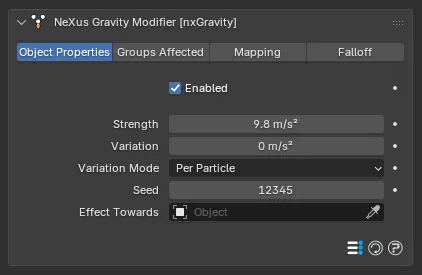
The panel title tells you what you have selected, for example NeXus Gravity Modifier [nxGravity]. If the Physics tab looks empty, a NeXus object is not the active selection.
The NeXus Hierarchy
Press N in the viewport to open the sidebar, then click the NeXus tab down the right hand edge.
This is where a simulation is organised. Blender has no object manager for NeXus objects, so the Hierarchy provides one. It lists every NeXus object in the scene as a tree in the order they evaluate, then lets you add, remove, duplicate, reorder and indent them to nest one under another.
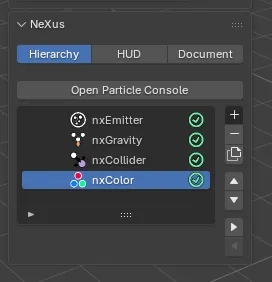
The tab has three pages:
- Hierarchy: the object list, plus the button that opens the Particle Console
- HUD: the on screen readout in the viewport, on or off per view
- Document: the settings that apply to the whole scene
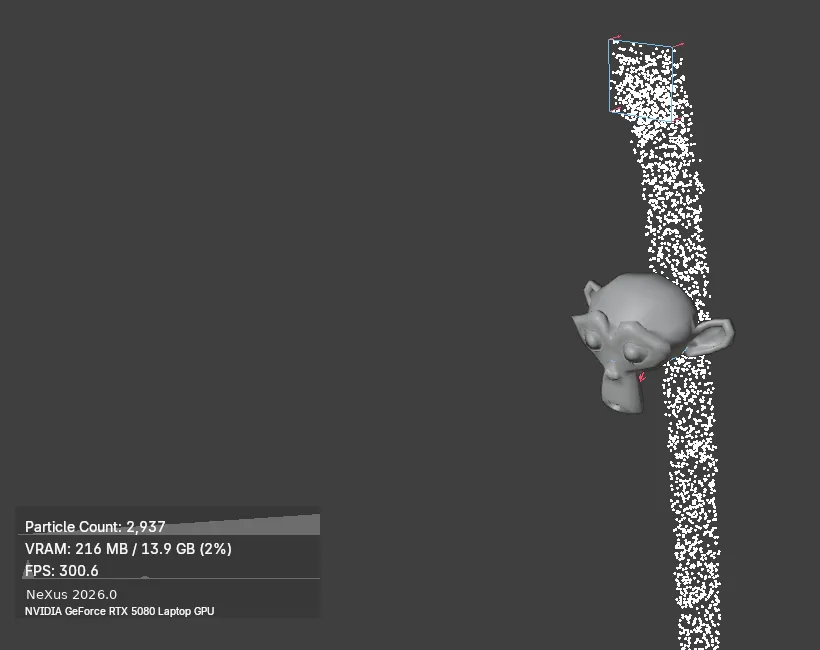
Groups Affected, Mapping and Falloff
Three tabs on the NeXus panel do most of the shaping work.
Groups Affected decides which emitters a modifier acts on, so one force does not have to touch everything in the scene.
Mapping drives a parameter from live particle data, so a setting changes per particle and over the life of the simulation instead of holding one value. Each entry is a layer that reads a particle property such as age or speed, then uses it to modulate a setting, with a curve to shape how one maps onto the other. Not every modifier has it. The lighter object types, nxEmitter, nxCollider, nxGroup, nxGenerator, nxTrail, nxCache and nxFalloff, have no mappable parameters.
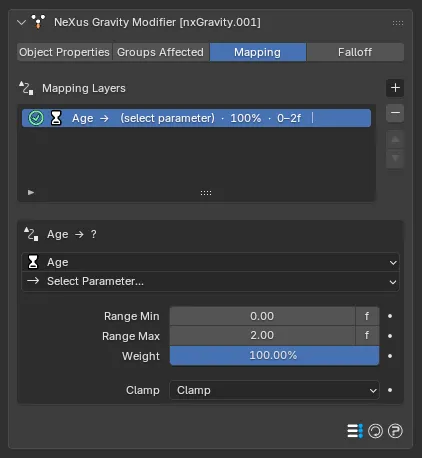
Falloff limits where a modifier applies in space.
Full page: Mapping and nxFalloff
The Particle Console
A live inspector for the running simulation. It reads particle data straight from the GPU and shows counts, distributions and per particle values as the sim plays.
Open it from the NeXus tab, Hierarchy page, Open Particle Console. It opens as its own floating window so you can watch it while the viewport plays. It refreshes every frame.
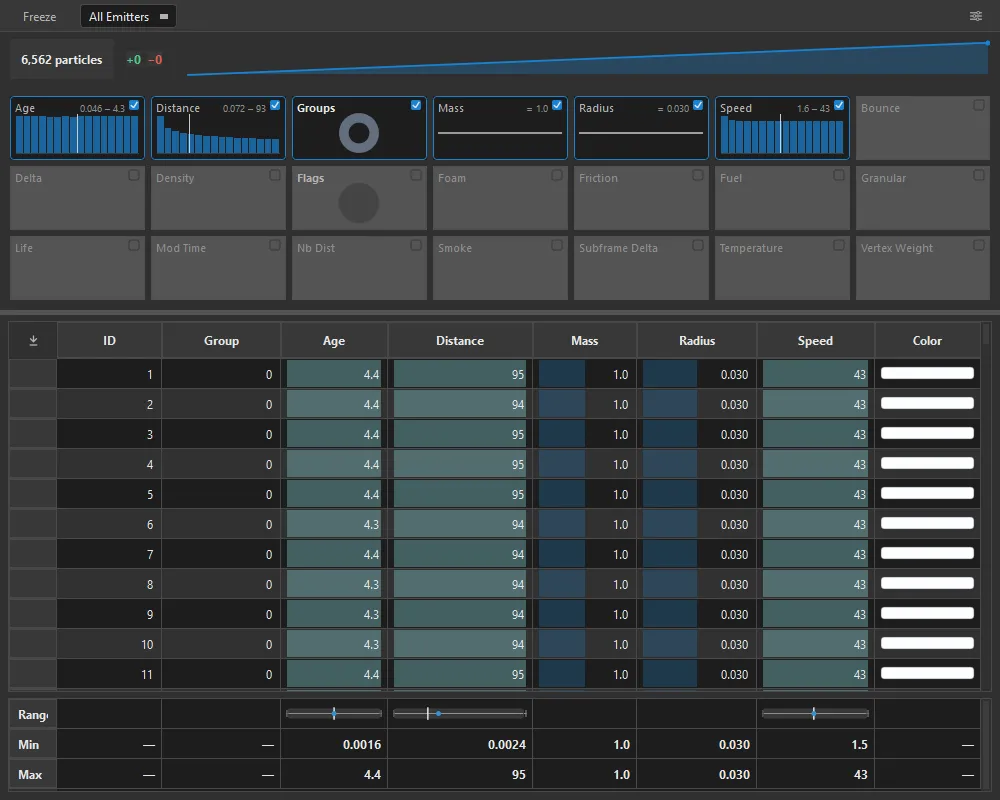
Use it to see how many particles you have, how their speed or age is spread across the population, which have collided or died and the exact values on any single particle.
Node integration
The NeXus Particle Info node reads live per particle data inside Blender's shader and geometry node editors, so you can colour a material by speed, scale instances by particle age or orient them by particle rotation.
One thing to switch on first. The node reads from a point cloud, so on your nxEmitter open the Export tab and turn on Create Point Cloud. NeXus then builds a Blender point cloud as a child of the emitter and rebuilds it every frame. The Transfer Properties setting decides which channels reach it, so it also decides which node outputs carry data.
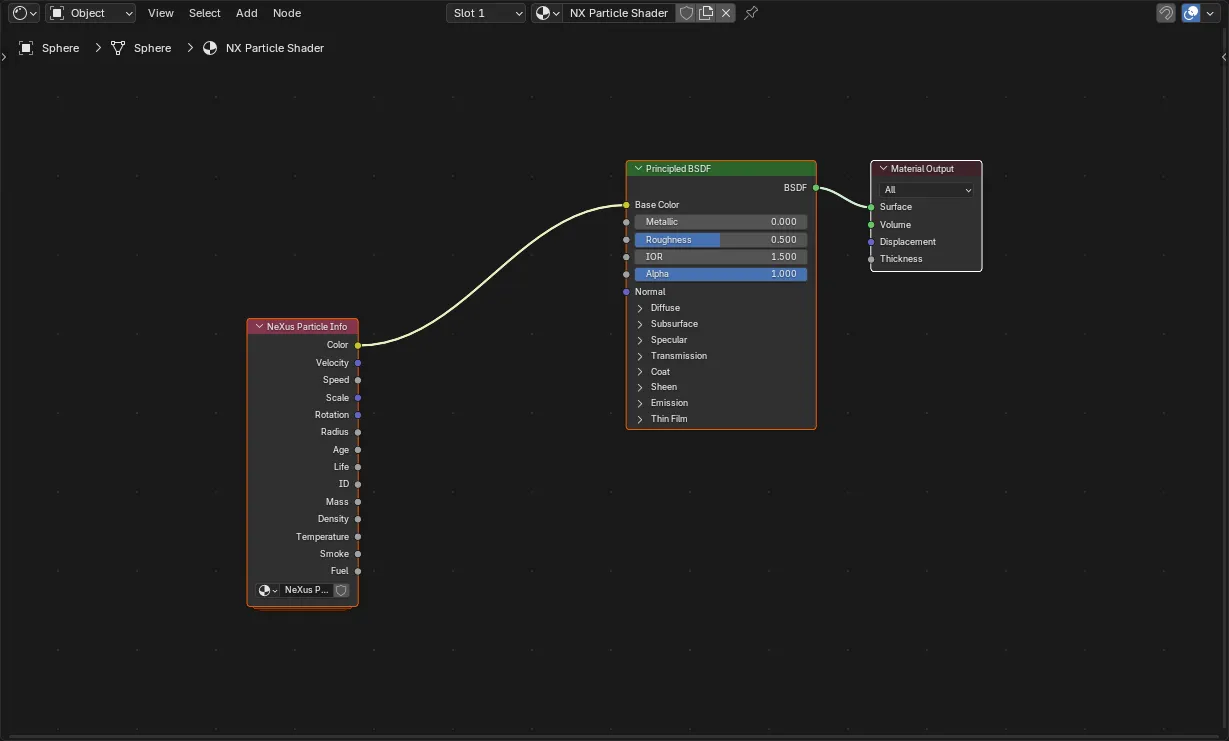
Preferences
In Edit › Preferences › Add-ons, expand INSYDIUM NeXus. These settings apply to every scene, not to one object. Until your licence is active, only Licensing and Updates are shown.
The sections are Licensing, Updates, Privacy, General, Time Display, Cache, Quill and Version Details. Privacy is where you turn off anonymous usage statistics. Cache is where you set the folder simulations are written to.
Your first simulation
Five minutes, start to finish.
- In the 3D viewport, press Shift+A and choose INSYDIUM NeXus › nxEmitter. That is your particle source.
- With the emitter selected, open the Properties editor and pick the Physics tab. Every NeXus setting for that object lives here.
- Press play on the timeline. Particles are born and draw in the viewport as the simulation runs.
- Add a force: Shift+A › INSYDIUM NeXus › nxGravity. Play again and the particles fall.
- Give them something to hit. Add a mesh, then add nxCollider and point it at that mesh.
- Press N and open the NeXus tab. Your three objects are listed there. Reorder them, nest one under another, then use Groups Affected on the force so it only acts on the emitters you choose.
From there:
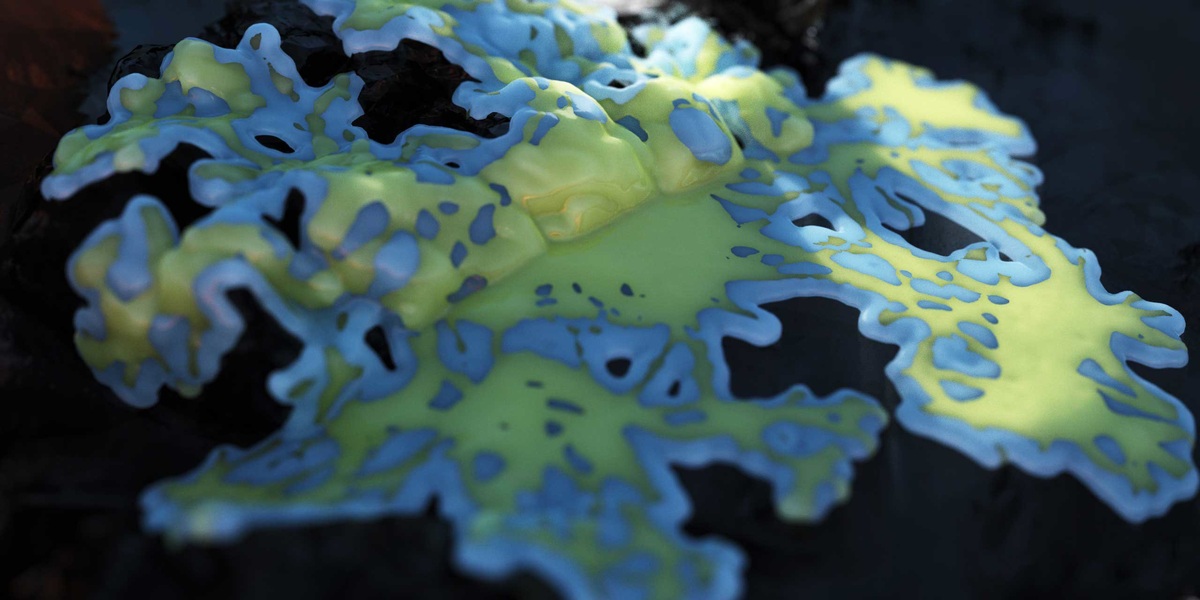
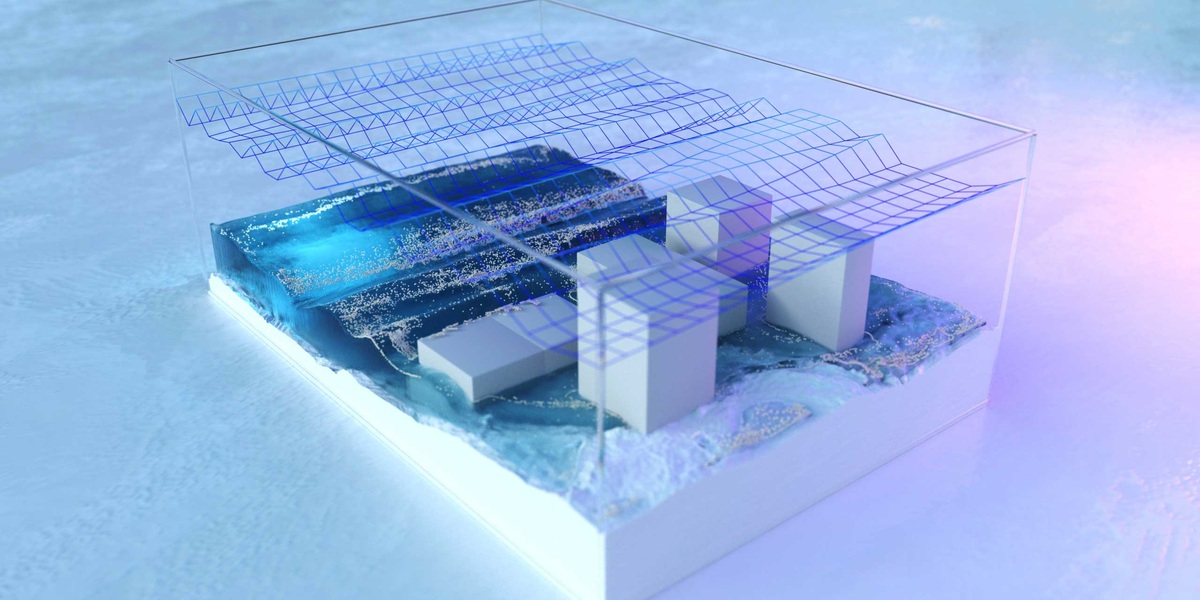
- Want liquid? Pick nxLiquid Fill or nxLiquid Flow for a working FLIP setup in one click. For full control use nxFluids and choose your solver: PBD, SPH, FLIP or APIC.
- Want fire and smoke? Add nxExplosiaFX.
- Want geometry? nxGenerator instances a mesh at every particle. nxMesher builds a polygon surface from the particles. nxTrail gives you trails as a viewport overlay or as curves.
- Ready to render? Add nxCache to write the simulation to disk so playback and rendering are stable.
- Something looks wrong? Open the Particle Console and inspect the running simulation.
The modifiers
Grouped the way the Add › INSYDIUM NeXus menu groups them:
- Emitter: nxEmitter, nxLiquid Fill, nxLiquid Flow, nxGroup, nxCache
- Objects: nxCollider
- Simulation: nxConstraints, nxExplosiaFX, nxFlowField, nxFluids, nxFoam, nxPPCollisions, nxSheeter, nxSplash, nxWave
- Generators: nxGenerator, nxMesher, nxTrail
- Logic: nxQuestion
- Particle: nxBlend, nxColor, nxKill, nxScale
- Force: nxAttract, nxAvoid, nxCover, nxDendrite, nxDirection, nxDrag, nxExplode, nxFlock, nxFollowGeo, nxGravity, nxInfectio, nxLimit, nxPush, nxRotate, nxSpeed, nxSpin, nxSticky, nxTurbulence, nxVorticity, nxWind
- Utility: nxUpres
Every one has its own reference page in the full documentation, including the sub pages for the nxFluids solvers and the nxQuestion layers.
Updating
New versions come out regularly. If you set up the repository, open Edit › Preferences › Get Extensions and update INSYDIUM NeXus from there.
If something goes wrong
NeXus does not appear in Get Extensions. Check three things. You are on Blender 4.3 or above. The repository URL is exactly https://extensions.insydium.ltd. Requires Access Token is ticked with your token in the Secret field. Then search for INSYDIUM again.
It installed but will not activate. All three licensing fields must match your INSYDIUM account exactly: name, email and licence. Activation is online, so check your connection too. The status line under the fields tells you which part is failing.
The Add menu is greyed out or the NeXus sidebar tab is missing. Both appear only once the licence is accepted. Go back to Step 3.
The Physics tab looks empty. The panel is only drawn when a NeXus object is the active selection.
Still stuck. Message us here on Superhive or join our Discord, where the team and other artists help out.
More help
- Full documentation, every modifier and every setting
- Training and tutorials on YouTube
- Community Discord
Privacy
NeXus sends anonymous usage statistics. You can turn this off in the NeXus preferences, under Privacy. Nothing personal is stored.
 Included
Includes 12 months of
- Support from insydium
- Product updates
Extend this product’s Support Period +12 months: 50% of product price
Have questions before purchasing?
Login to message
| Blender Extension Compatible | Yes |
| Sales | 10+ |
| Published | about 2 months ago |
| Blender Version | 4.3 - 5.2 |
| Extension Type | Add-on |
| Render Engine Used | Cycles, Eevee, Octane |
| License | GPL |