Interference Checker
 tamausa-product


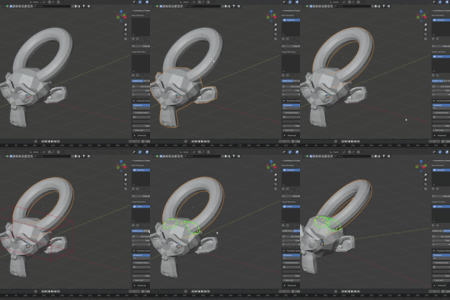
Interference Checker - Documentation
Installation
1. Download the .zip file
2. Drag and drop the .zip into Blender's viewport
3. Click OK to install and enable
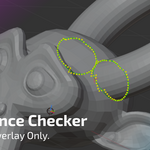
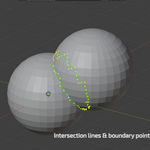
Interference Check
1. Add mesh objects to Base Geometry and Target Geometry lists
2. Select detection mode:
- AABB (Fast): Quick bounding box check
- BVH (Precise): Accurate mesh-level detection
- Combined: AABB pre-filter + BVH precision
3. Click "Run Interference Check"
4. Click "Clear Overlay" to remove overlay without resetting lists
5. Click "Reset" to clear all
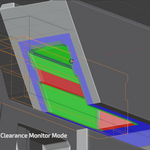
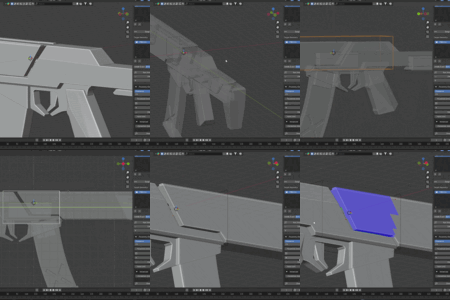
Proximity Check
1. Place 3D cursor at the area you want to inspect
2. Click "Put" to place IC_ProximityBox
3. Scale/move the box using Blender's standard tools (S/G)
4. Select Mode:
- Clearance: Highlights faces below threshold in red
- Fit: Highlights faces matching target value in green
5. Set Threshold (mm)
6. Click "Check Proximity"
7. Click "Clear Overlay" to remove heatmap
Tips
- Set the male-side geometry as Base Geometry for best results
- Keep IC_ProximityBox focused on the area of interest
- Increase subdivision level for improved accuracy
- Use Correction (mm) in Advanced settings to compensate for printer expansion
Known Limitations
- Boolean hole interiors may show reduced accuracy
- Proximity check accuracy improves with higher subdivision levels
Have questions about this product?
Login to message
| Blender Extension Compatible | Yes |
| Published | 6 months ago |
| Blender Version | 4.5 |
| Extension Type | Add-on |
| Render Engine Used | Cycles, Eevee |
| License | GPL |
Discover more products like this
Interference heatmap fit-check boolean-free 3d print blender addon GPU-overlay resin print bvh proximity mesh clearance