JinYu Light Control
 JinYu Studio



JINYU LIGHT CONTROL V5.20.5 — QUICK DOCUMENTATION
1. OVERVIEW
JinYu Light Control is a Blender lighting workflow add-on for creating, editing, organizing, texturing, projecting, animating, and managing scene lights from the JinYu sidebar.
V5.20.5 improves the combined Gobo and Projection workflow, adds live volumetric-density updates, and allows managed light arrays to be converted into independent lights.
2. REQUIREMENTS
• Blender 4.2 or later
• Cycles or EEVEE
• Install and enable only one JinYu Light Control edition at a time
3. INSTALLATION
1. Download the ZIP for the edition you purchased. Do not extract it.
2. Open Blender and go to Edit > Preferences > Get Extensions.
3. Open the menu in the upper-right corner and choose Install from Disk.
4. Select the JinYu Light Control V5.20.5 ZIP.
5. Enable the extension if Blender does not enable it automatically.
6. Open a 3D Viewport, press N, and select the JinYu tab.
4. UPDATING FROM AN EARLIER VERSION
1. Save a backup copy of your project.
2. Close any active JinYu interactive editing operation.
3. Disable the previous JinYu Light Control version.
4. Remove the previous extension if Blender requires it before reinstalling.
5. Install the V5.20.5 ZIP and restart Blender if the old interface is still visible.
6. Test existing Gobos, projections, IES lights, arrays, and Light Groups before overwriting the original project.
5. BASIC WORKFLOW
• Press Shift+E in the 3D Viewport to add a light.
• Select a light and press E to start interactive light control.
• Use the Lights panel to select, solo, hide, organize, and edit scene lights.
• Use Collections, Light Linking, and Light Groups to organize lighting relationships and render output.
6. GOBO, PROJECTION, AND IES
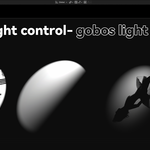
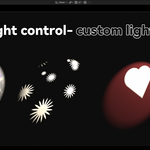
Gobo applies an image or video pattern to a light. Projection creates a bounded volumetric beam for a native Spot light. In V5.20.5, Gobo and Projection can be enabled in either order and remain synchronized.
Projection Volume Density and related beam controls update immediately while editing.
IES profiles are selected from the configured external IES library. Set the Asset Path in the add-on preferences and preserve the supplied folder structure.
Cycles preserves the original colors of Gobo textures. EEVEE projects the texture as a grayscale intensity pattern.
7. LIGHT ARRAYS
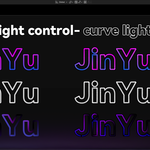
JinYu Light Control can create transform, circular, and curve-based light arrays.
While an array is managed, its members may share the source Light datablock, so changing color or energy can affect every member.
When the layout is complete, use:
Apply Array and Make Lights Independent
This converts the array members into regular scene objects with unique Light datablocks. Each light can then have its own color, energy, animation, and supported node settings.
Keep a backup if you may need to return to the managed-array workflow later.
8. RENDER ENGINE NOTES
• Cycles and EEVEE are supported.
• Projection is available for native Spot lights.
• Native Light Group output and multilayer EXR preparation require Cycles.
• Some Gobo, IES, Custom Lighting, and volumetric results differ between Cycles and EEVEE.
• Always test the final scene with the Blender version and render engine intended for production.
9. COMPLETE DOCUMENTATION
The purchase documentation package contains the complete English and Simplified Chinese V5.20.5 user guides, licensing information, bundled-asset information, and troubleshooting instructions.
Have questions about this product?
Login to message
| Blender Extension Compatible | Yes |
| Dev Fund Contributor | |
| Published | about 2 months ago |
| Blender Version | 4.2 - 5.2 |
| Extension Type | Add-on |
| Render Engine Used | Cycles, Eevee |
| License | GPL |
Discover more products like this
Lighting IES light-array gobos Light animation light-linking eevee light groups Cycles light-control volumetric lighting hdri