Juggernaut: Batch Bone Tools And Gpu Driven Rig Control
 Trestle Trotter


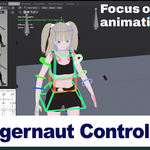
Juggernaut Control Rig Beta Documentation
Important: In order to make the new version "Juggernaut 0.1.19" Uninstall Previous Versions and install cleanly.
The add-on manifest has been refactored so it's important to clean previous versions.
Installation from Superhive market.
Go to your product downloads and follow the instructions inside blender. It's a 1 time setup that will allow you to drag and drop the add-on directly into blender.
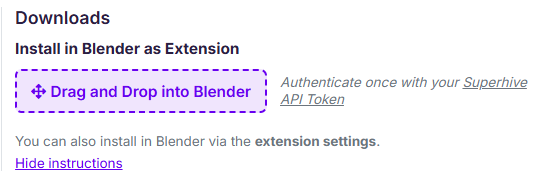
You can also download the zip manually and drag and drop it directly into blender to install.
No manual install from disk required.
How to start
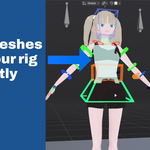
Open 3D View > Sidebar > Juggernaut, choose a rig, and press Refresh Bones. Configure the widget template, choose a target mode, then press Apply Widget.
Use the Juggernaut Rig sidebar tab for the mirrored control hierarchy. Its hierarchy buttons select pose controls directly, eye buttons manage visibility, and the filters redraw the map for controls, regular bones, or hidden items. The Juggernaut tab contains the widget-only list and batch editing controls for visibility and depth mode.
The main Juggernaut panel has independent Object, Edit, and Pose mode toggles. Disabled modes show Blender's original armature instead. In Object Mode, clicking any visible widget selects its owning armature.
New widgets default to X-Ray so they remain visible through character geometry.
Object geometry is evaluated through the dependency graph, so modifiers and Geometry Nodes are supported. GPU geometry is cached and rebuilt when its source changes.
Common Operators
 X-Ray Mode: Activate it per bone (multiple selection allowed) to see bones through the mesh.
 Occluded Mode: Activate it per bone (multiple selection allowed) to block bones visibility through the mesh.
 Bone Visibility On
 Bone Visibility Off
Widget Operations
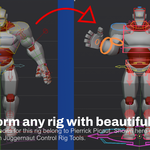
 Apply Template Widget: Applies the template widget to selected batch.
 Clear Widget: Remove widget from selected batch.
 Copy Active Bone Widget as template.
 Restore Default Values for: Location, Rotation, Scale, Widget.
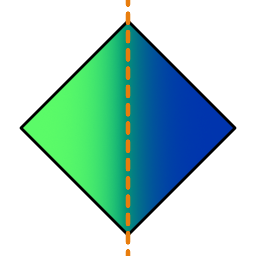 Symmetrize: Copy widget from left to right using common suffix conventions.
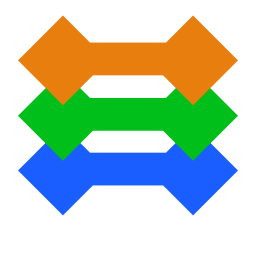 Batch Bone Edit: Available when selecting multiple widget bones.
Widget Template Panel
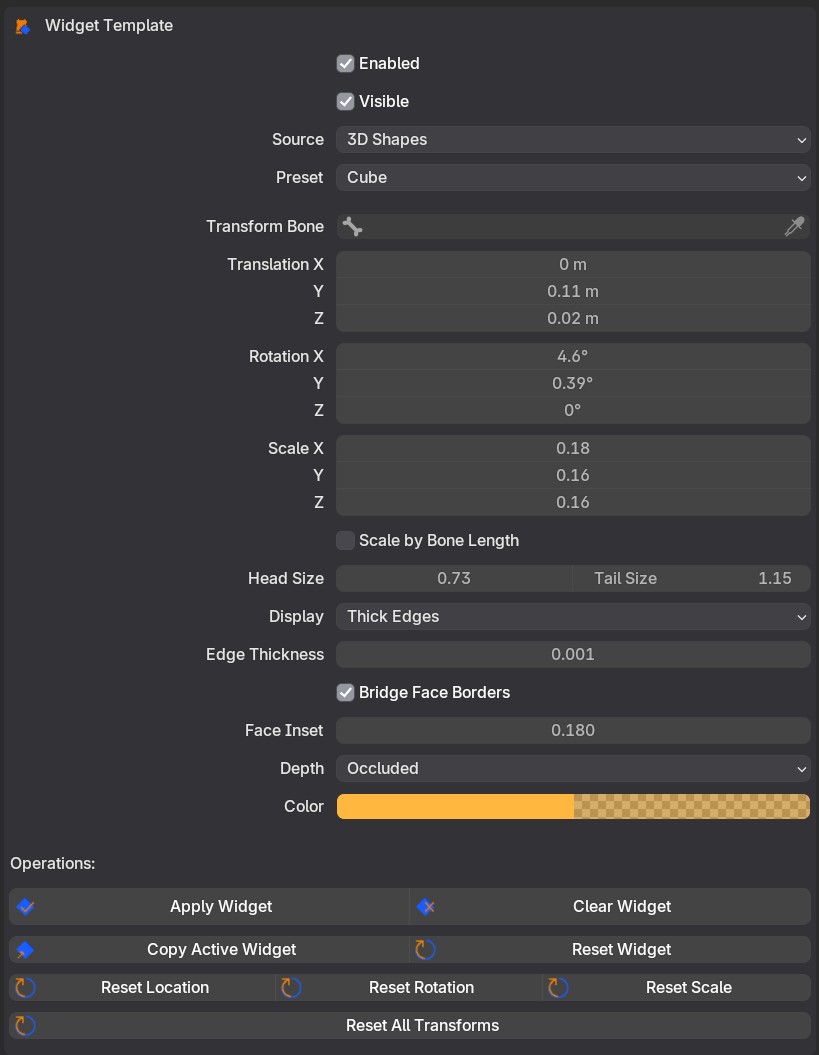
In this panel you can define the preset to apply to each bone in your selection defined at the Targets Panel.
Choose a source:
3D Shapes
2D Shapes
Custom Object
These are the only currently available sources right now.
3D Shapes and 2D Shapes have Preset Shapes available to select from with its own parameters.
Note: Currently 2D Shapes require negative scale values to work properly with Xray Mode.
Active Bone Panel
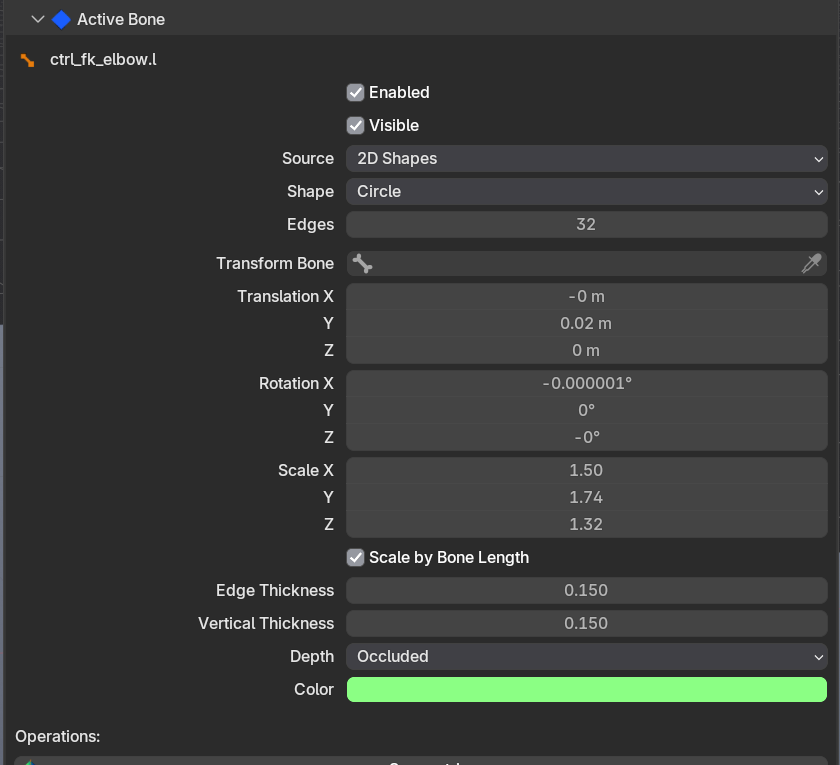
Shares same settings as the templates panel which are used by the currently selected bone.
Change this parameters to see live changes from the current selection.
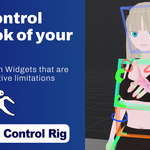
The Juggernaut Rig Sidebar Panel:
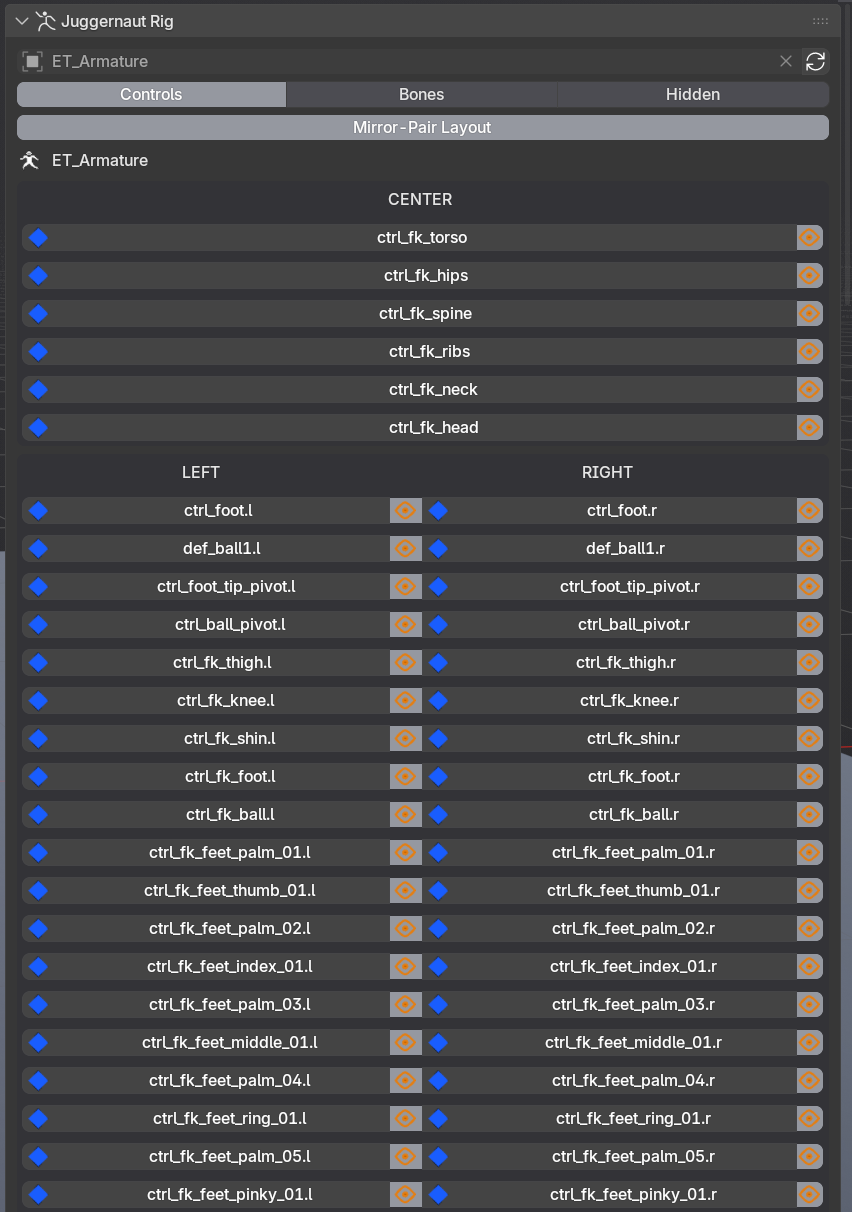
See all of your controllers directly from the Juggernaut Rig dedicated sidebar panel.
The current implementation is minimal; In the future I intend to make it a clean and customizable rig control panel.
-
$12 $20
Includes every tool from Juggernaut Control Rig Full commercial license for 1 person
-
$54 $90
Includes every tool from Juggernaut Control Rig Full commercial license for 10 people
-
$108 $180
Includes every tool from Juggernaut Control Rig Full commercial license for 20 people
Have questions about this product?
Login to message
| Blender Extension Compatible | Yes |
| Published | 3 months ago |
| Blender Version | 4.2 - 5.1 |
| Extension Type | Add-on |
| Render Engine Used | Cycles, Eevee |
| License | GPL |

Discover more products like this
animation tools rig widgets control-rig Rigging Tools batch bone animation juggernaut