JustRef Pro
 Danilo Caliro
Overview
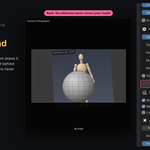
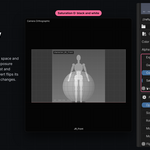
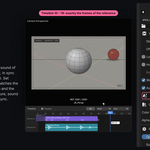
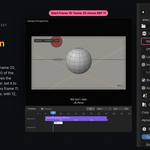
JustRef Pro shows reference images, image sequences and videos (plates) in the 3D Viewport, each one locked to its own camera. A plate always stays in front of its camera like a viewfinder, and it is drawn only in the views that look through that camera — so every view can show a different reference at the same time, in any mode, Sculpt Mode included. Videos and image sequences play in sync with the timeline: made for animation reference, previz, layout and story reels.
Installation
- Open Blender® (4.2 or newer) → Edit > Preferences > Get Extensions (or the Extensions tab).
- Click the dropdown next to "Install from Disk" and select justref_pro_v1.0.0.zip — no need to unzip it first.
- Enable the add-on if it isn't active automatically.
- Open the 3D Viewport sidebar (N key) → JustRef Pro tab.
Quick start
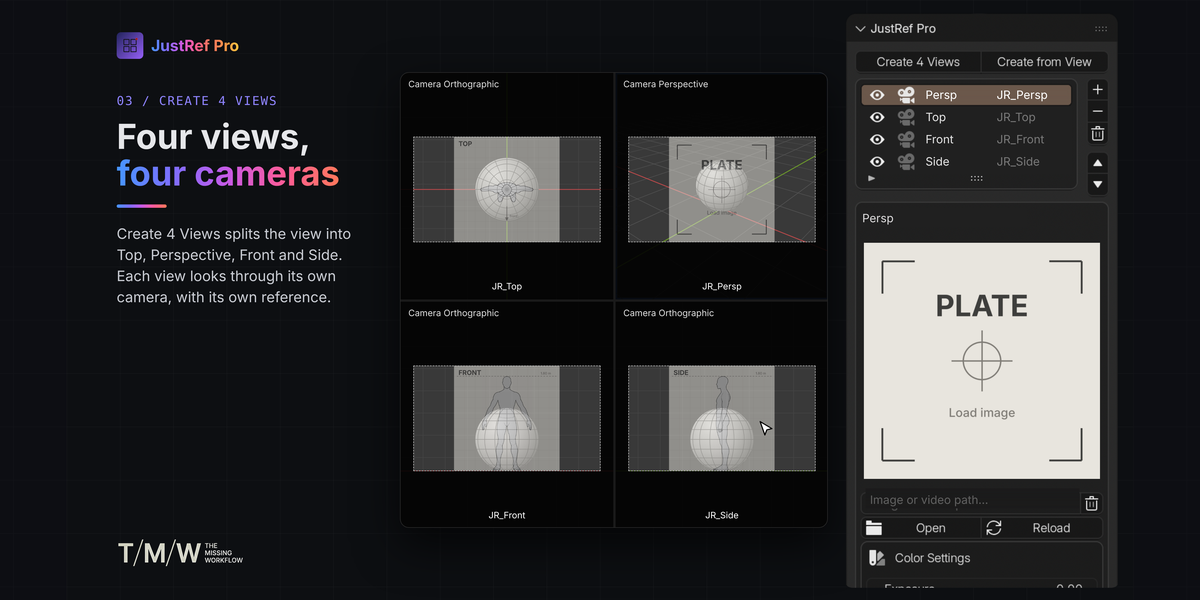
- Create 4 Views — after a confirmation, splits the current view into four views (Top and Persp above, Front and Side below), each looking through its own camera with its own plate. Top, Front and Side open with the sidebar closed: press N to open it on the JustRef Pro tab.
- Create from View — creates a plate with a new camera that copies the active camera of the current view (same settings and focal length) and looks through it. If the view has no camera, the new camera is placed where the view is looking.
- Load an image, an image sequence or a video with Open, or paste its path in the image field.
Plate list
| COLUMN / BUTTON | ACTION |
|---|---|
| Eye | Shows or hides the plate in every view. |
| Camera icon | Makes the current view look through that camera. The icon is white for the camera of the current view, grey for the others. |
| Plate name | Double-click to rename. Selecting a different row also selects its camera (Object Mode). |
| Camera name | Selects the camera in the scene and in the Outliner (Object Mode). |
| + | Adds an empty plate, with no camera. Choose the camera with the camera picker. |
| − | Removes the plate from the list. Its camera is kept. |
| Trash | Deletes the plate and its camera, after a confirmation. |
| Arrows | Move the plate up or down in the list. |
The list and the eye toggles are shared by all views; each view remembers its own selected plate.
Plate settings
- Preview — the loaded image, fitted inside the square preview without stretching. For videos and image sequences the preview opens on the middle frame; the arrows below it show the first frame, 25%, 50%, 75% and the last frame. Only the preview changes: the plate and the timeline stay where they are.
- Image or video path — an image, an image sequence or a video: paste a path or use Open. Reload reads the file again from disk; the trash button next to the path removes the image and keeps the empty plate.
- Color Settings — color space, alpha and color settings of the plate (see Color Settings).
- Plate Settings:
- Opacity, Size, Rotation, Move Horizontally, Move Vertically — place the plate inside the camera frame.
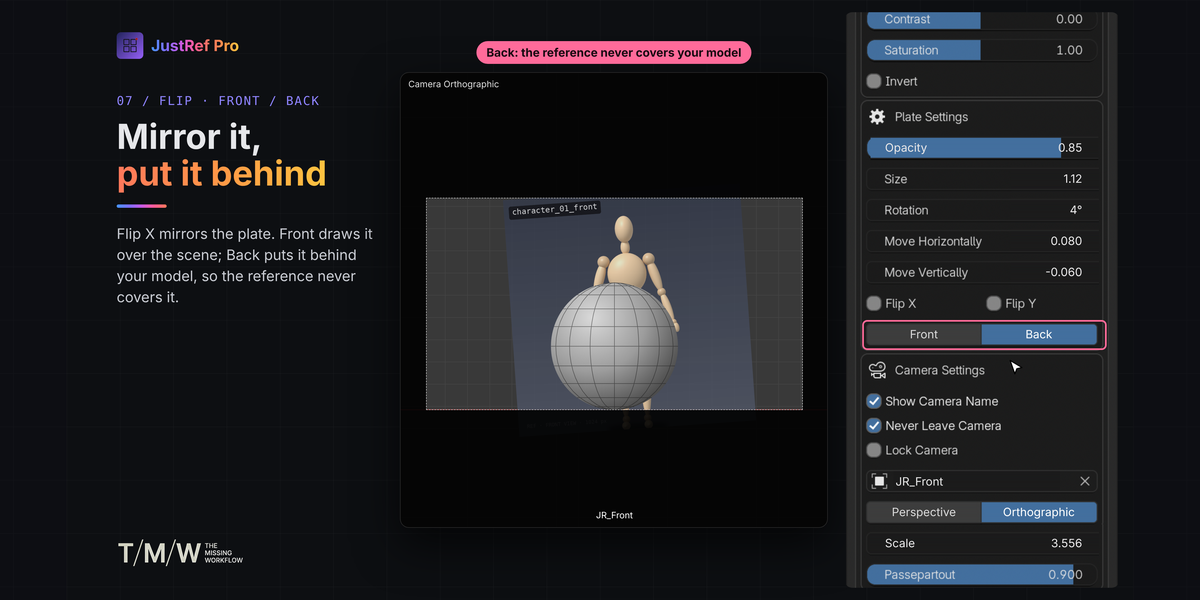
- Flip X, Flip Y — mirror the plate horizontally or vertically.
- Front / Back — Front draws the plate over the whole scene; Back draws it behind the objects, so your model stays visible on top of the reference. Images start in Front, videos and image sequences in Back.
- Camera Settings:
- Show Camera Name — shows the camera name at the bottom of the views that look through this camera.
- Never Leave Camera — on by default: the view stays inside the camera while you orbit, pan and zoom (see Navigation). Turn it off for the standard Blender navigation, where orbiting leaves the camera view.
- Lock Camera — locks the camera: camera and plate stay fixed.
- Camera — the camera this plate is attached to, with eyedropper.
- Perspective / Orthographic and Focal Length / Scale — the real settings of the camera; the slider follows the camera type.
- Passepartout — the camera passepartout. New cameras start at 0.9.
Video and image sequences
Load a video (MP4, MOV and the other formats Blender® reads) or any one file of a numbered image sequence (shot_0001.png, shot_0002.png…, all in the same folder, same name and extension): JustRef Pro finds the whole sequence and plays it inside the camera, in sync with the timeline. Playback is handled by Blender® itself, through the camera background image.
| SETTING | ACTION |
|---|---|
| Image Sequence | Shown for numbered files: on, all the numbered files are played as one sequence; off, only the chosen file is shown. |
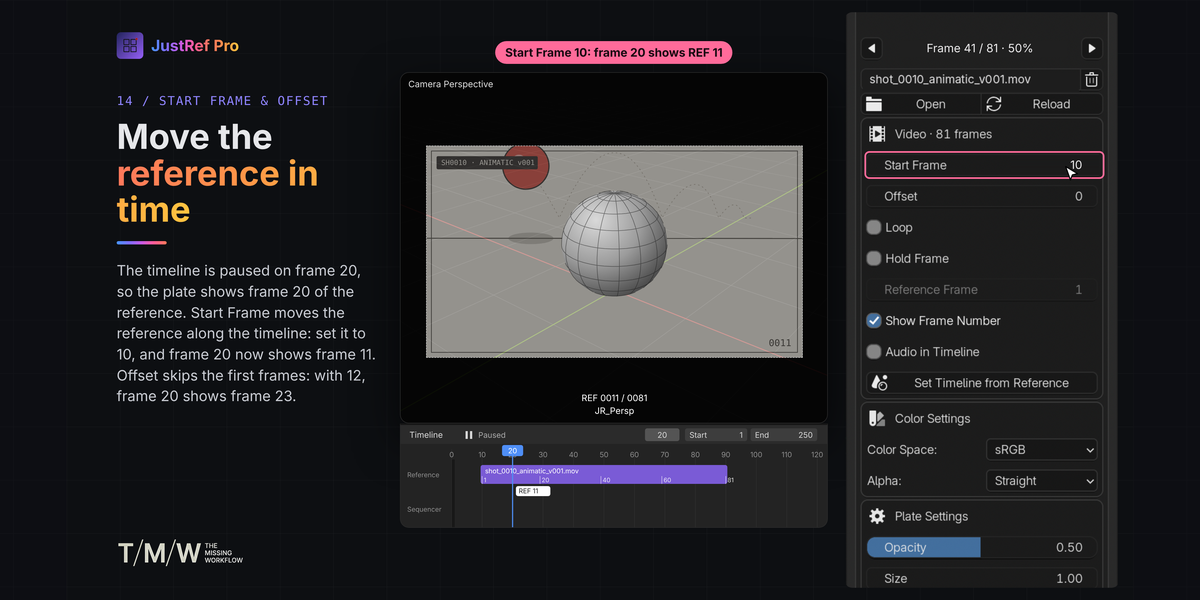
| Start Frame | Scene frame where the reference starts. |
| Offset | Skips frames at the start of the reference. |
| Loop | Plays the reference again from the start when it ends. |
| Hold Frame | Freezes the reference on one frame, whatever the timeline does. |
| Reference Frame | The frame shown while Hold Frame is on: drag it to scrub the reference without moving the timeline. |
| Show Frame Number | Shows REF 0042 / 0240 above the camera name, in the views that look through the camera. |
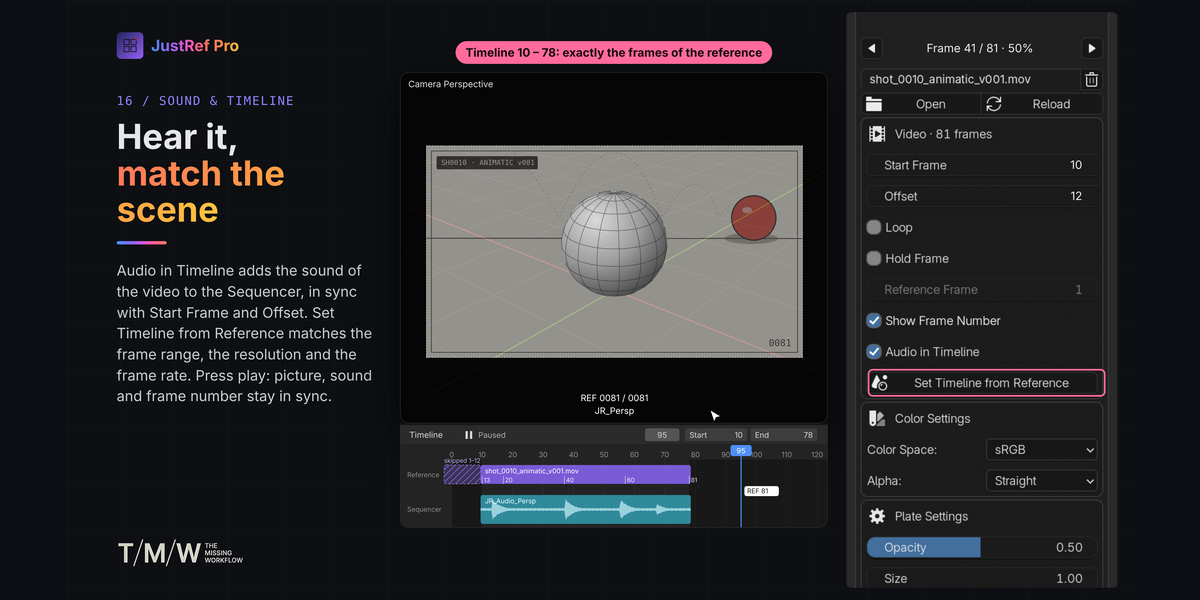
| Audio in Timeline | Videos only: adds the sound of the video to the Video Sequencer, starting at Start Frame and trimmed by Offset. It follows Start Frame and Offset when you change them; turn it off to remove the sound. Hold Frame and Loop do not apply to the sound. |
| Set Timeline from Reference | Sets the timeline frame range from Start Frame to the end of the reference, plus the render resolution and, for videos, the frame rate. |
Opacity, Size, Rotation and Move work on videos and sequences too. Videos and sequences are drawn by the camera background image, so the camera shows them in its Background Images list as well: JustRef Pro keeps them in sync, there is no need to edit them there.
Color Settings
| SETTING | ACTION |
|---|---|
| Color Space | How Blender® reads the file. New files start in sRGB; EXR and HDR images and HDR videos keep the color space Blender® reads from the file. Choose Non-Color for data such as normal or height maps, or any other color space of your Blender® configuration. |
| Alpha | How the file stores transparency: Straight, Premultiplied, Channel Packed, or None to ignore it. |
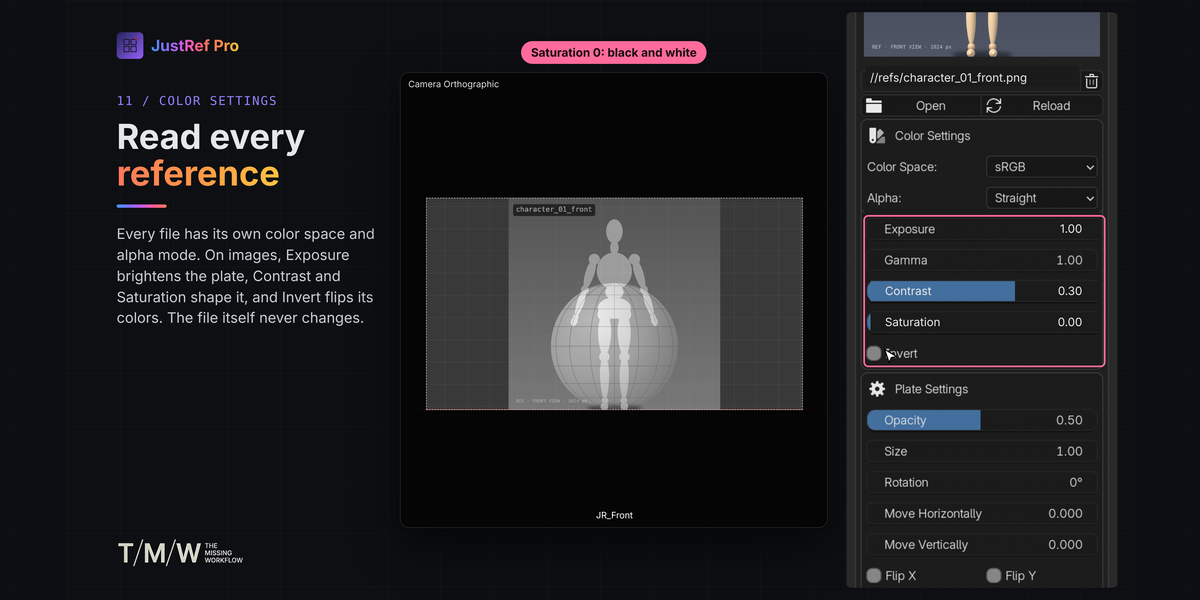
| Exposure | Brightens or darkens the plate, in stops. |
| Gamma | Higher values brighten the mid-tones, lower values darken them. |
| Contrast | Raises or lowers the contrast. |
| Saturation | 0 shows the plate in black and white, 2 doubles the saturation. |
| Invert | Inverts the colors: useful to read a dark reference against a dark scene. |
Color Space and Alpha belong to the image file, so they apply to every plate that uses the same file. Exposure, Gamma, Contrast, Saturation and Invert belong to the plate and never change the file; they work on images, while videos and sequences are shown with their own colors.
Coming from JustRef
JustRef Pro is a separate add-on: JustRef and JustRef Pro can be installed together. When a scene contains plates made with JustRef and the JustRef Pro list is empty, the panel shows Import JustRef Plates: it copies plates, cameras and settings into JustRef Pro. JustRef does not need to be installed for the import.
Navigation
With Never Leave Camera on (the default), a view that looks through a JustRef Pro camera never leaves the camera:
| CAMERA | NAVIGATION |
|---|---|
| Perspective | Orbit, pan and zoom move the camera. |
| Orthographic | Rotation is blocked; pan and zoom move the view inside the camera frame. |
| Locked | Rotation is blocked; pan and zoom move the view inside the camera frame, camera and plate stay fixed. |
With Never Leave Camera off, the view uses the standard Blender navigation. Never Leave Camera, Show Camera Name and Lock Camera belong to the camera, so every view that looks through it behaves the same way.
Cameras and placeholders
- Cameras created by JustRef Pro (or JustRef) are named JR_ and are collected in the JustRef Cameras collection. Only these cameras can be deleted by the trash button — your own cameras are never touched.
- Create 4 Views makes orthographic Top, Front and Side cameras whose plate covers 2 × 2 m, resting on the floor and centered on the world origin, and a 50 mm Persp camera.
- Empty plates show a placeholder, packed into the .blend file: Plate for generic plates, and Top, Front and Side with a 1.80 m reference figure for the 4 Views cameras.
Have questions about this product?
Login to message
| Blender Extension Compatible | Yes |
| Dev Fund Contributor | |
| Published | about 5 hours ago |
| Blender Version | 4.2 - 5.2 |
| Extension Type | Add-on |
| Render Engine Used | Cycles |
| License | GPL |
Discover more products like this
blueprint reference scuplting plate viewport pureref animation imageplane green screen alpha layout modelsheet