 Danilo Caliro

What it does
JustRef Pro is the evolved, expanded version of JustRef — the original free add-on. It builds on the same camera-based reference workflow, introducing video and image sequence playback, timeline synchronization, advanced color controls and additional tools for a more complete production workflow. Already using the free version? You can also import your existing JustRef setups directly into JustRef Pro.
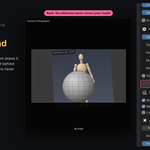
JustRef Pro brings reference images, image sequences and videos directly into the Blender® 3D Viewport, with each plate attached to its own camera.
Every plate stays in front of its camera like a viewfinder, and is drawn only in the views looking through that camera. This means every viewport can display a different reference at the same time — in any mode, including Sculpt Mode.
Videos, GIFs and image sequences play in sync with Blender's timeline, making JustRef Pro useful throughout the 3D production process.
Modelers, sculptors, character and environment artists, animators, layout artists, compositors, previz artists and anyone who works with visual references in 3D production.
Multiple cameras. Multiple references. Images, sequences and video. One workflow.
01 — VIDEO & IMAGE SEQUENCES
Bring moving references directly into your camera views.
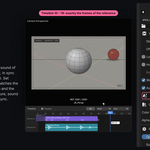
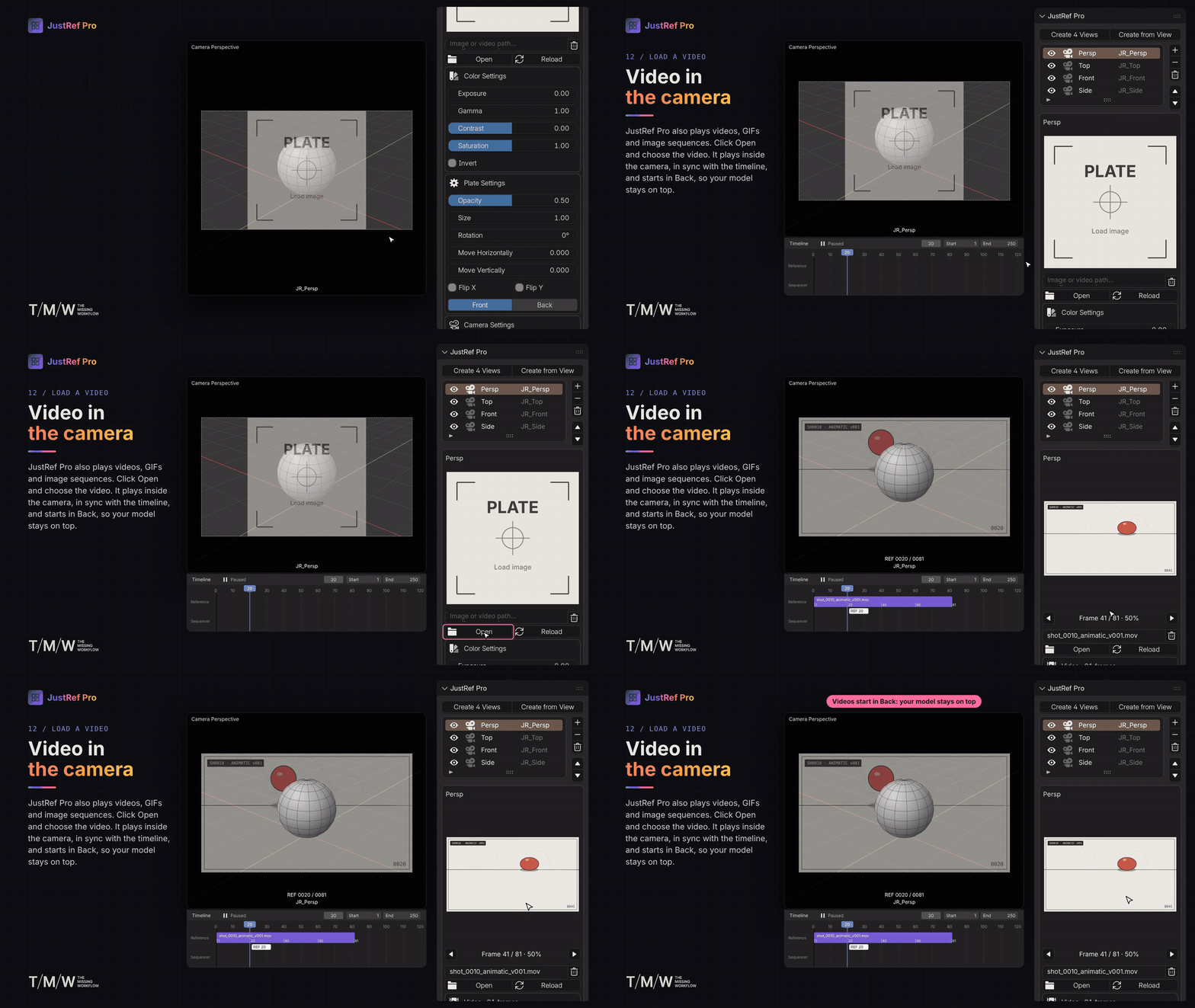
Load a video, GIF or a numbered image sequence. JustRef Pro finds the sequence files in the same folder and plays the reference in sync with Blender's timeline.
Control how your reference behaves:
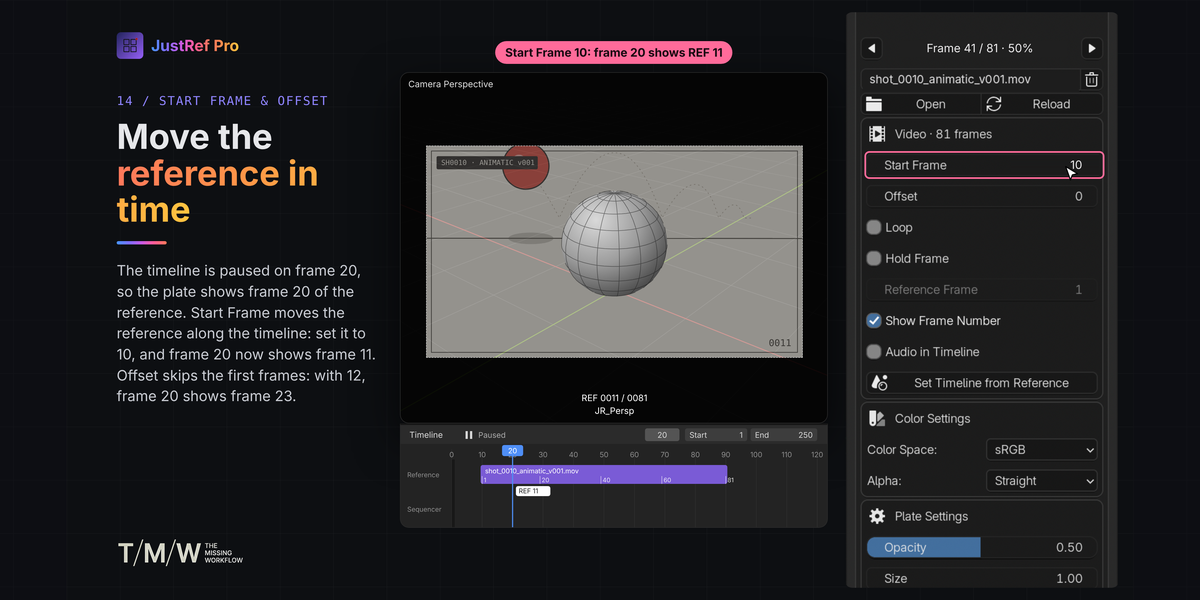
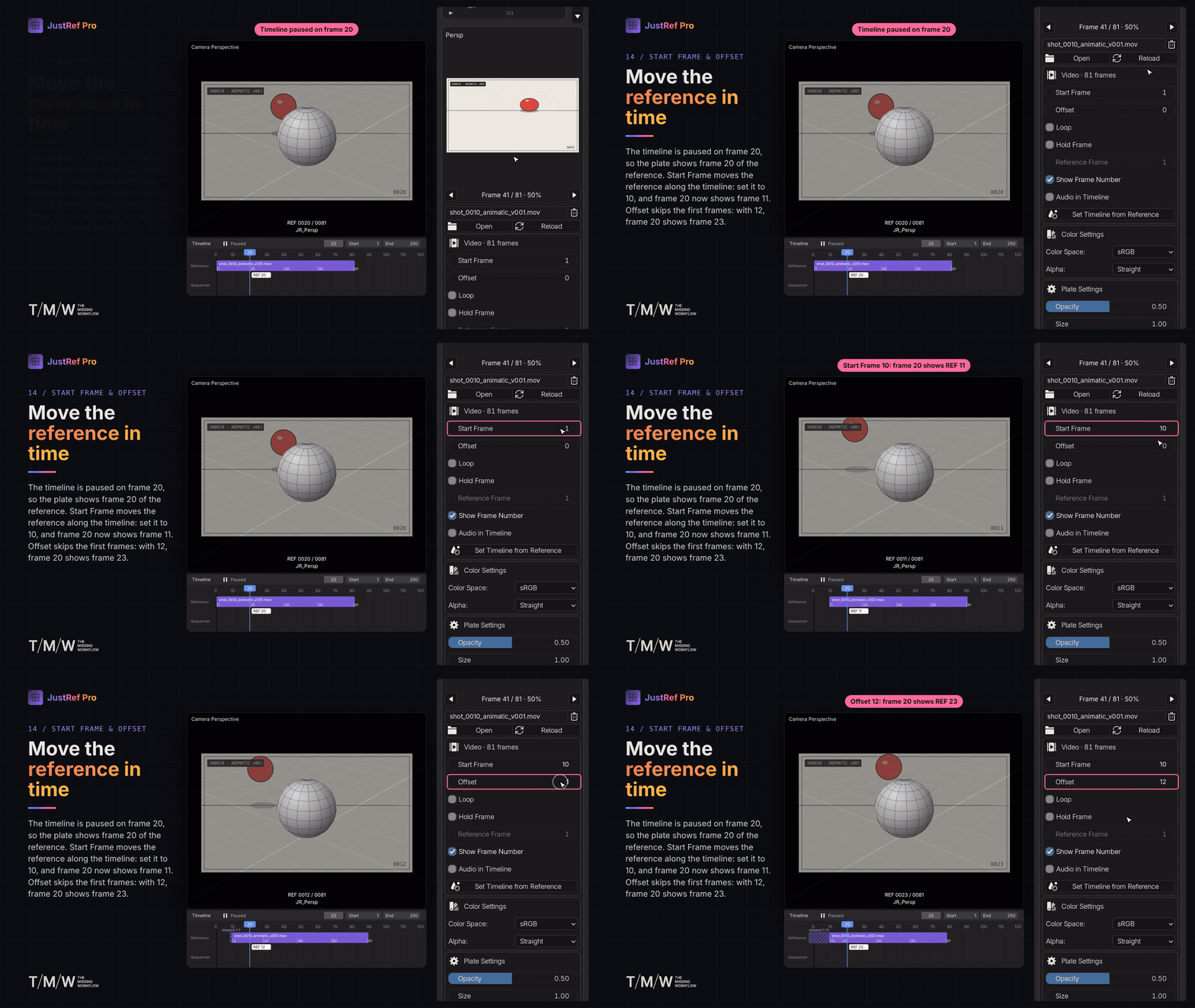
- Start Frame — choose where the reference begins on the timeline.
- Offset — skip frames at the beginning of the source.
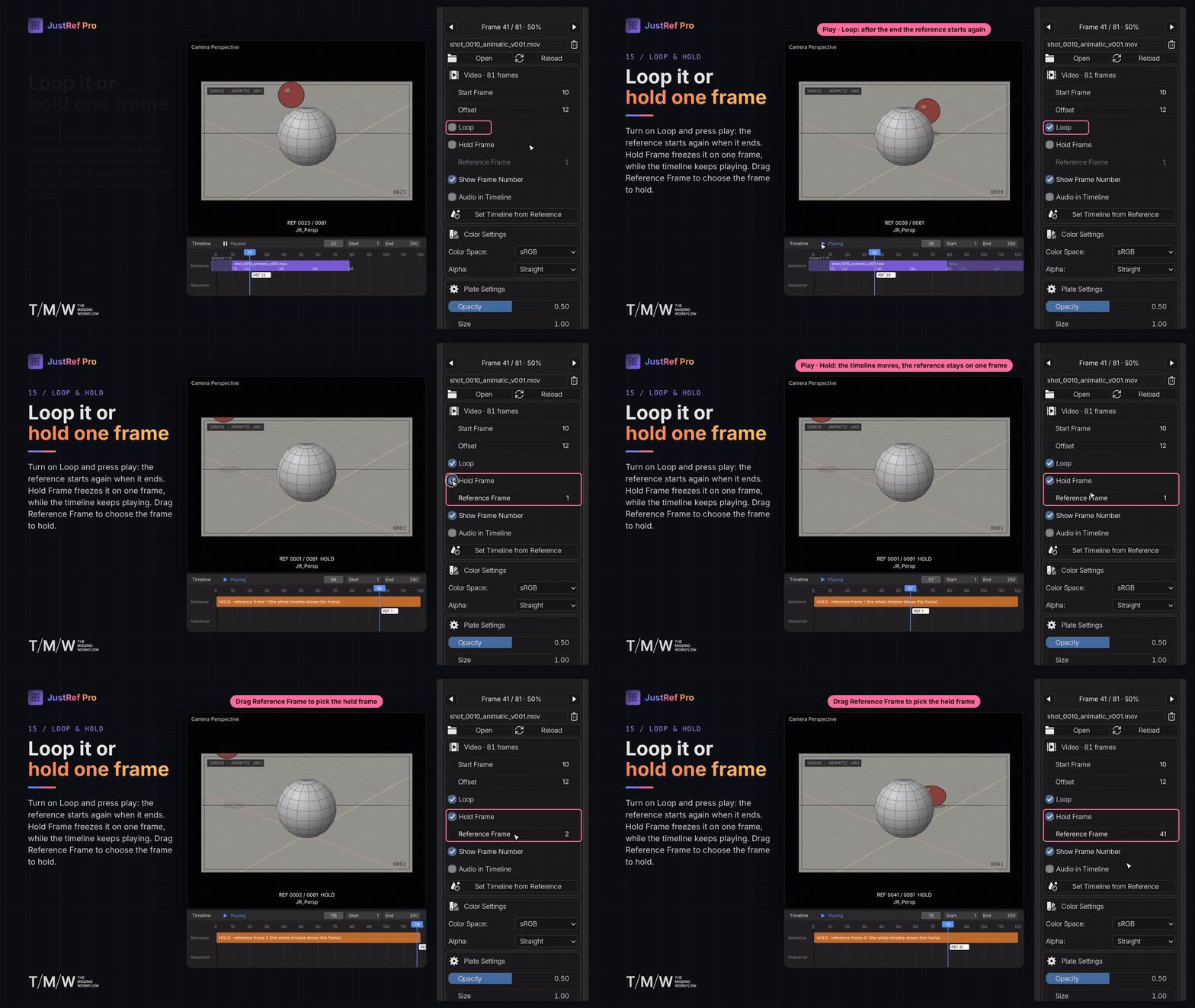
- Loop — restart the reference when it reaches the end.
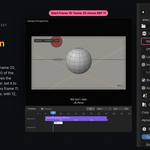
- Hold Frame — freeze the reference on a specific frame, independently of the timeline.
- Reference Frame — scrub through the source without moving the timeline.
- Show Frame Number — display the current reference frame above the camera name.
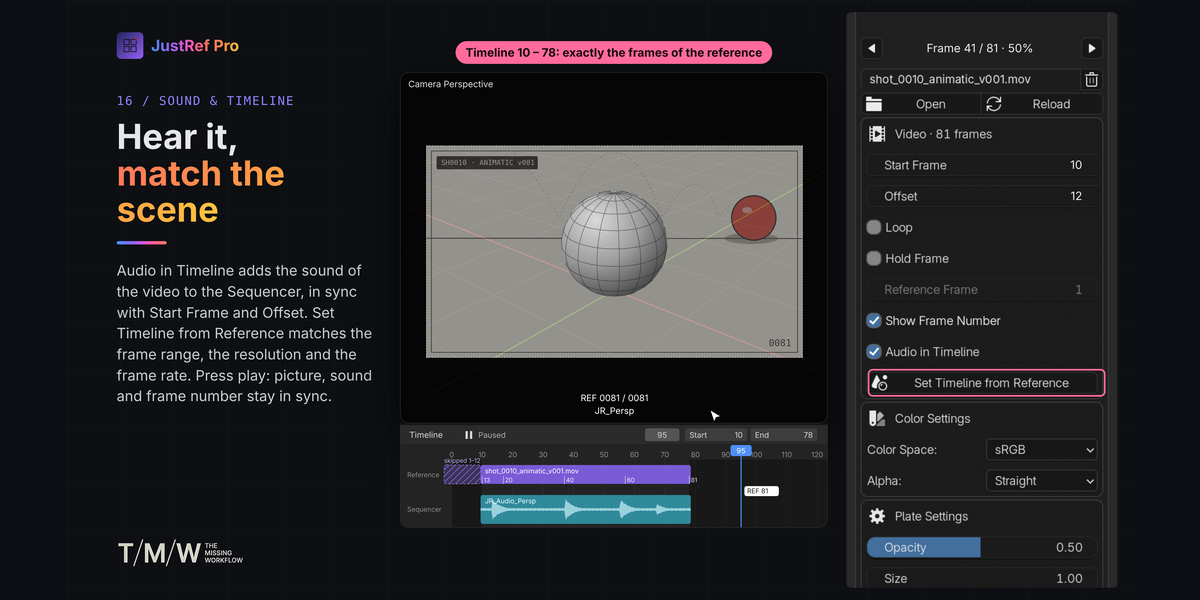
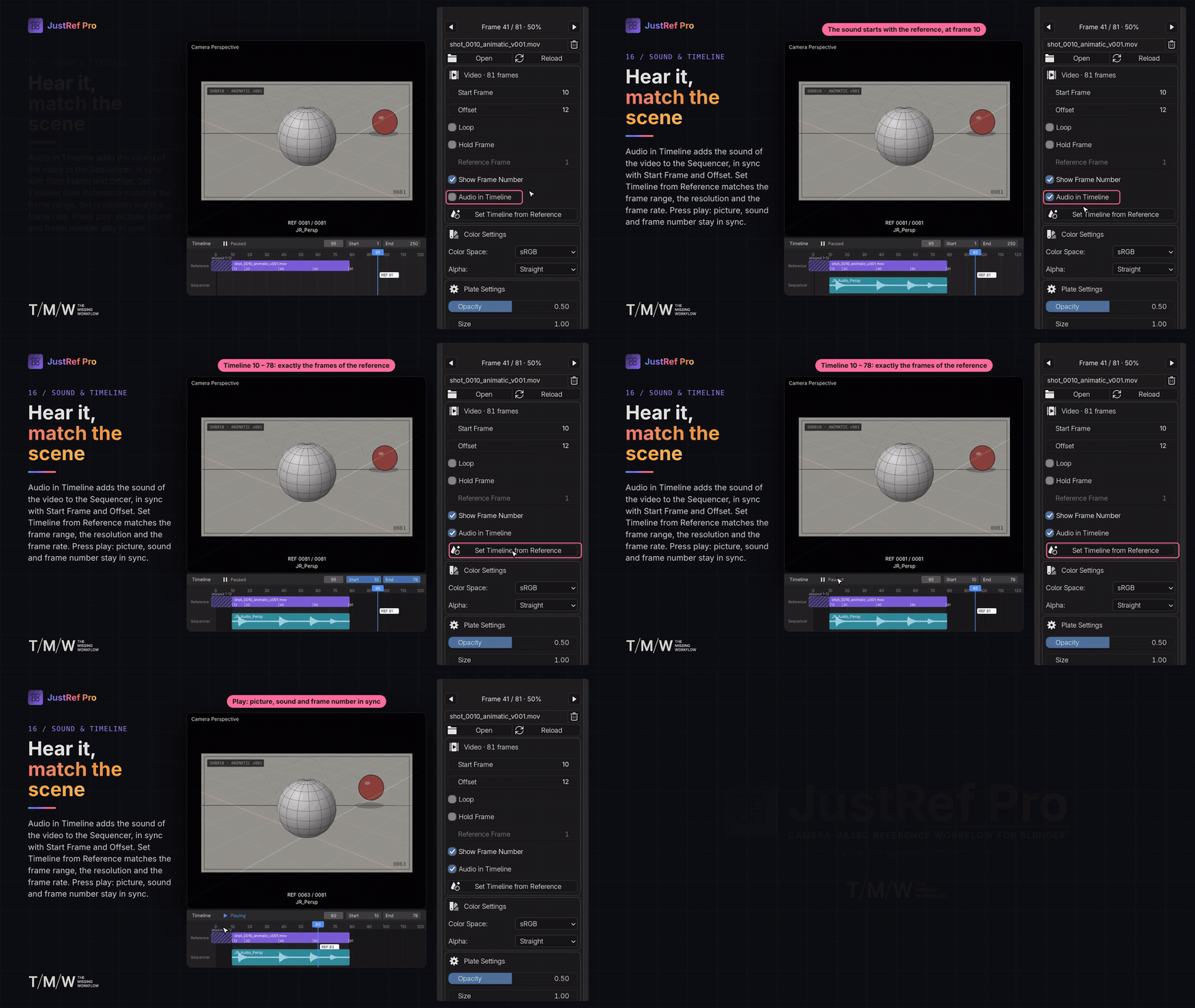
- Set Timeline from Reference — set the timeline range from the reference duration, along with the render resolution and, for videos, the frame rate.
Need the video's audio? Audio in Timeline adds it to the Video Sequencer, aligned with the reference's Start Frame and Offset.
Playback is handled by Blender itself through the camera background image.
02 — CREATE YOUR CAMERA VIEWS
Blueprint, model-sheets and concepts, build your reference setup around the way you work.
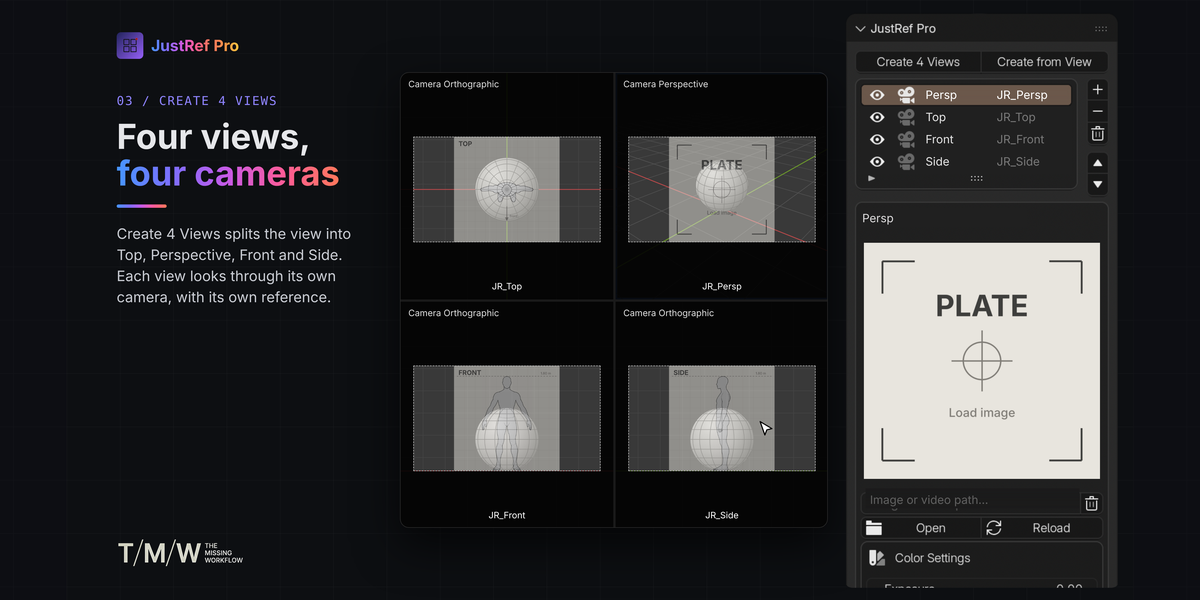
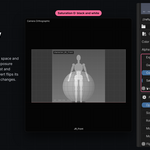
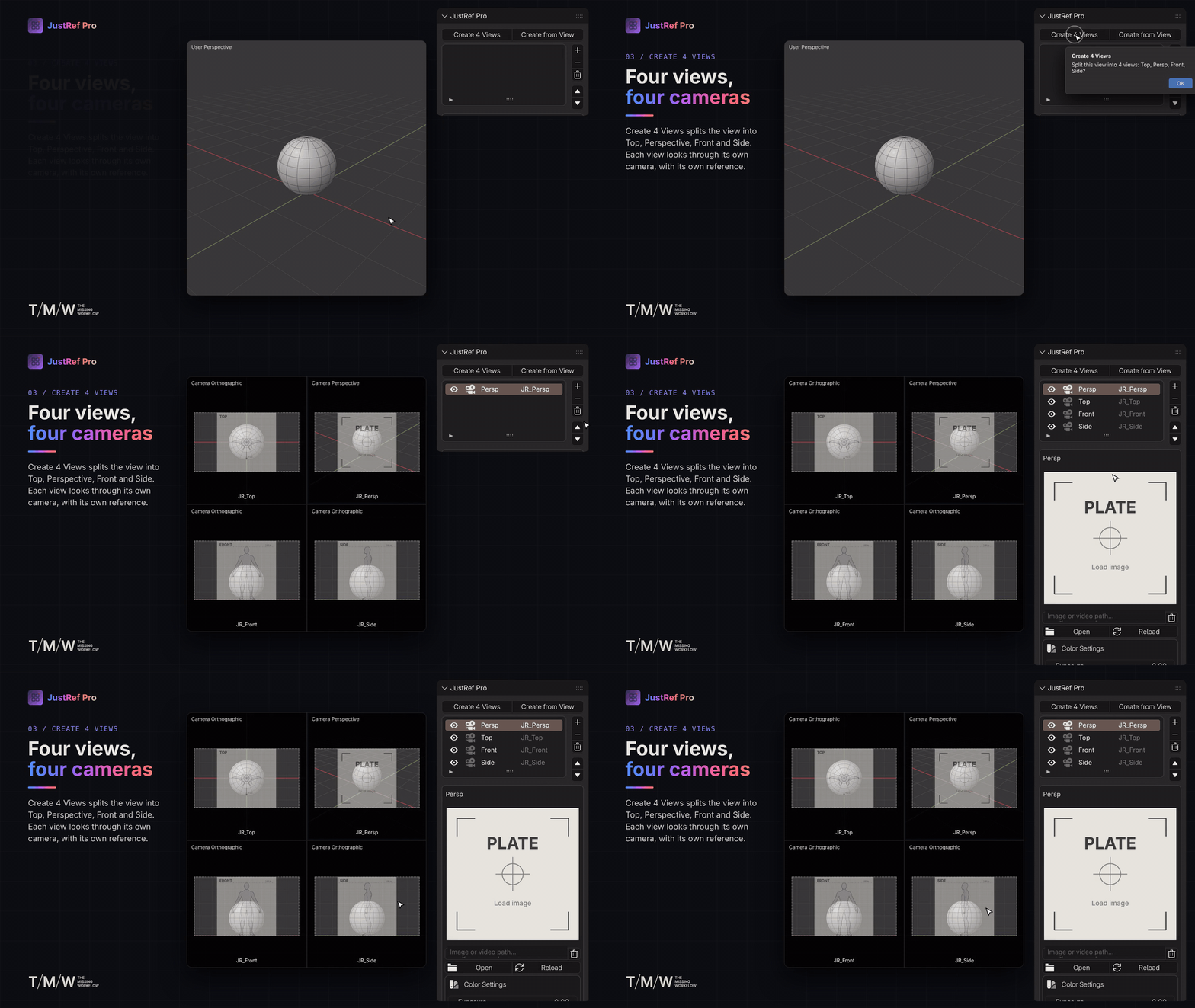
Create 4 Views splits the current viewport into four independent views:
- Top
- Perspective
- Front
- Side
Each view looks through its own camera and can display its own reference plate.
With Create from View, generate a camera directly from your current viewport. If you're already looking through a camera, JustRef Pro copies its settings and focal length. Otherwise, the new camera is placed where your view is looking.

03 — MULTIPLE CAMERAS. INDEPENDENT REFERENCES.
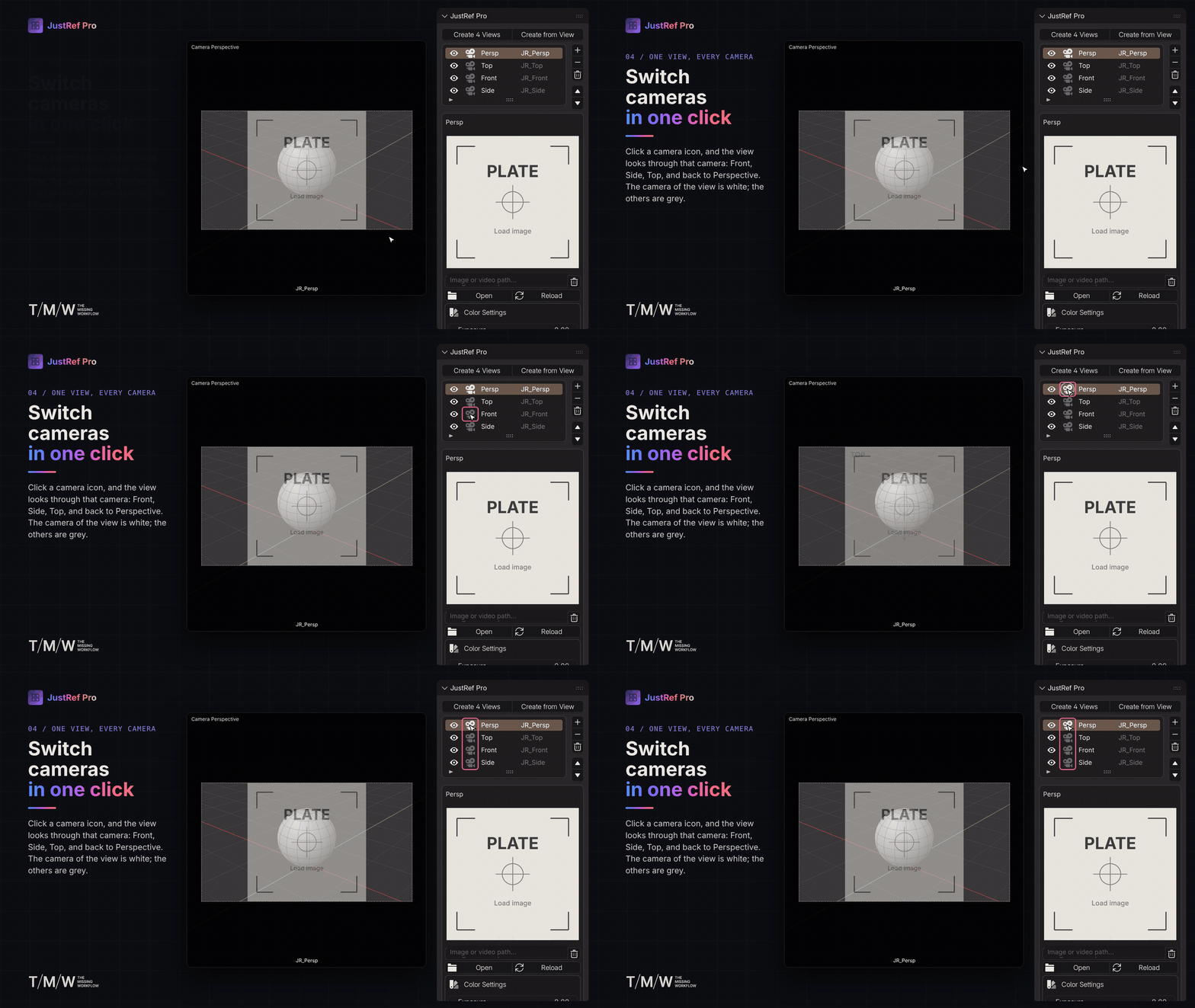
Every camera has its own plate. Every viewport remembers its own selected plate.
Switch between cameras directly from the plate list. Each viewport can look through a different camera and display a different reference — all at the same time.
Show or hide plates across all views, rename entries, reorder the list, select cameras and manage your setup without cluttering the scene.
04 — LOAD & MANAGE YOUR REFERENCES
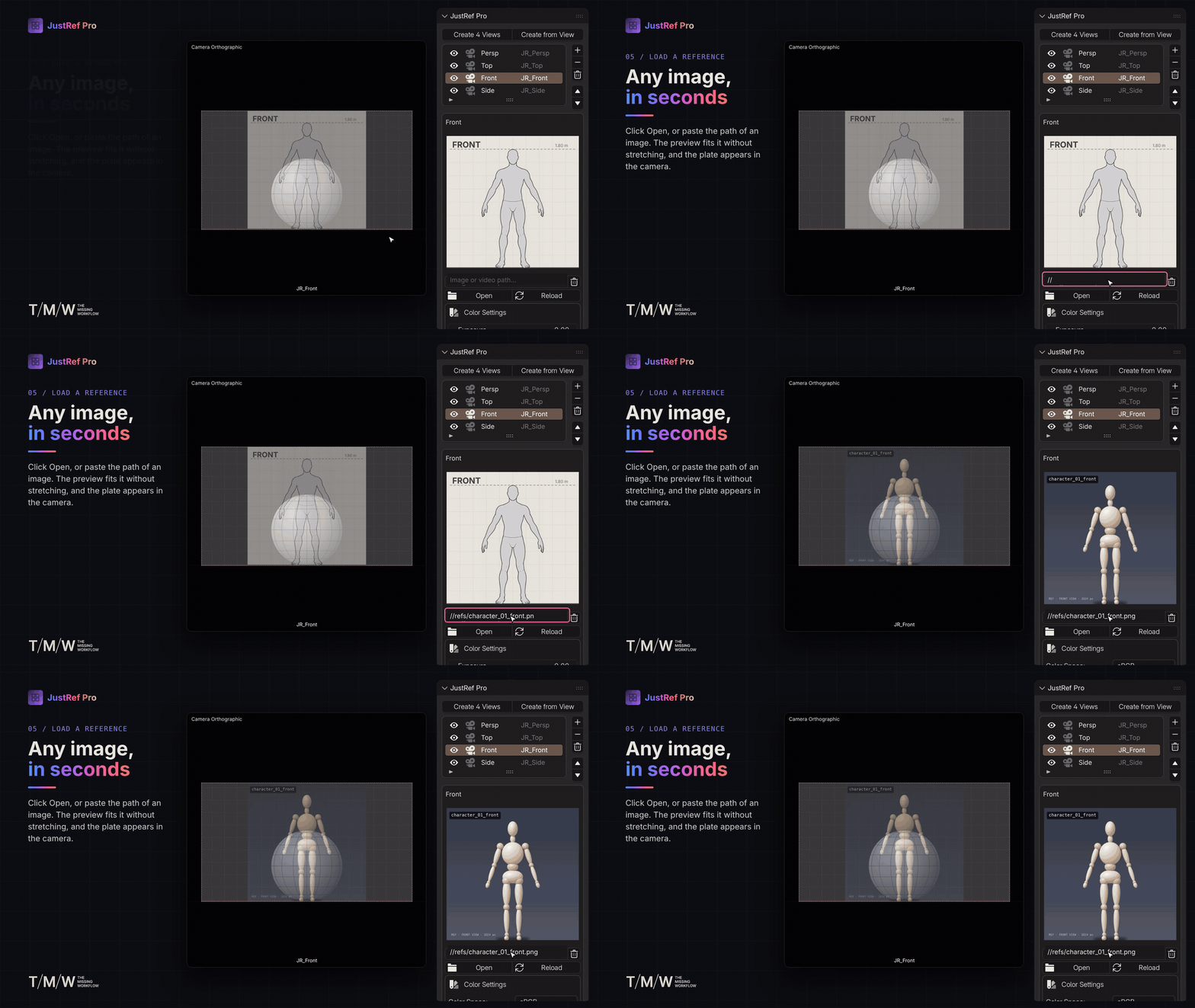
Load an image, video or image sequence using Open, or paste its path directly into the image field.
The preview preserves the original image proportions without stretching. For videos and image sequences, it opens on the middle frame, with quick navigation to the first frame, 25%, 50%, 75% and the last frame.
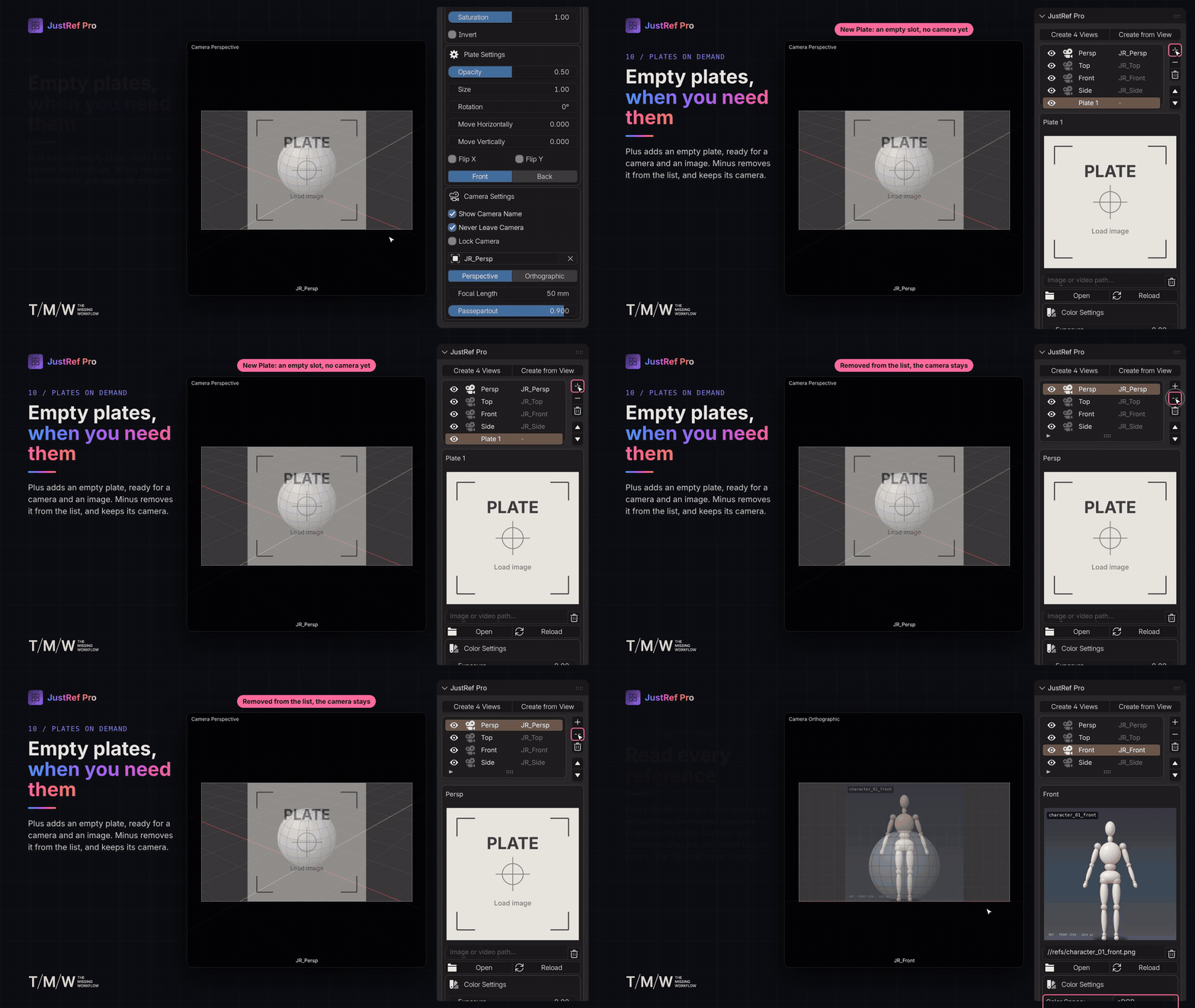
Reload a source from disk, clear its contents while keeping the plate, or add and remove plates whenever you need them.
05 — ADVANCED PLATE SETTINGS
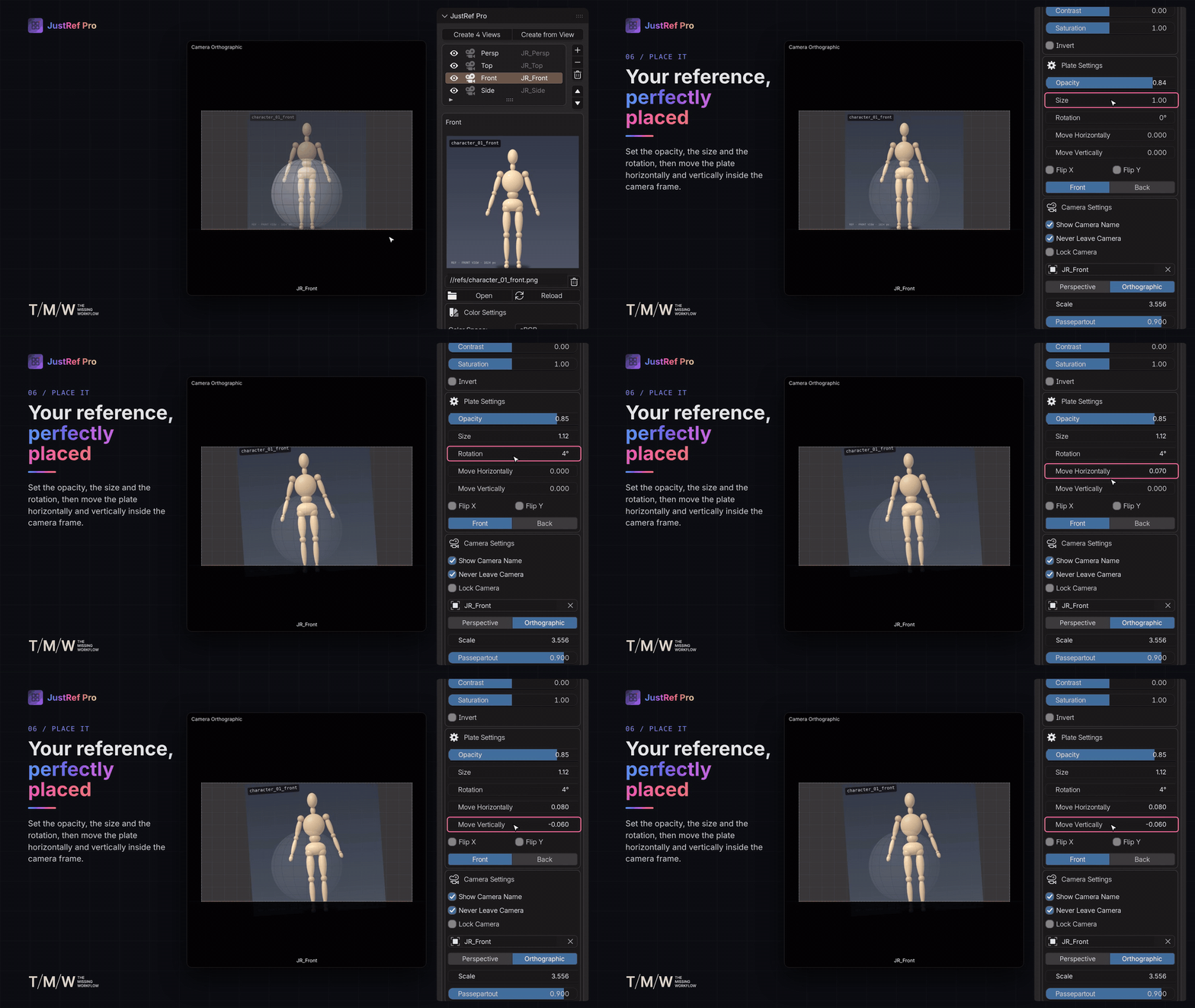
Position and customize every reference directly inside its camera frame.
- Opacity — control reference transparency.
- Size — scale the plate.
- Rotation — rotate the reference.
- Move Horizontally / Vertically — position the plate precisely.
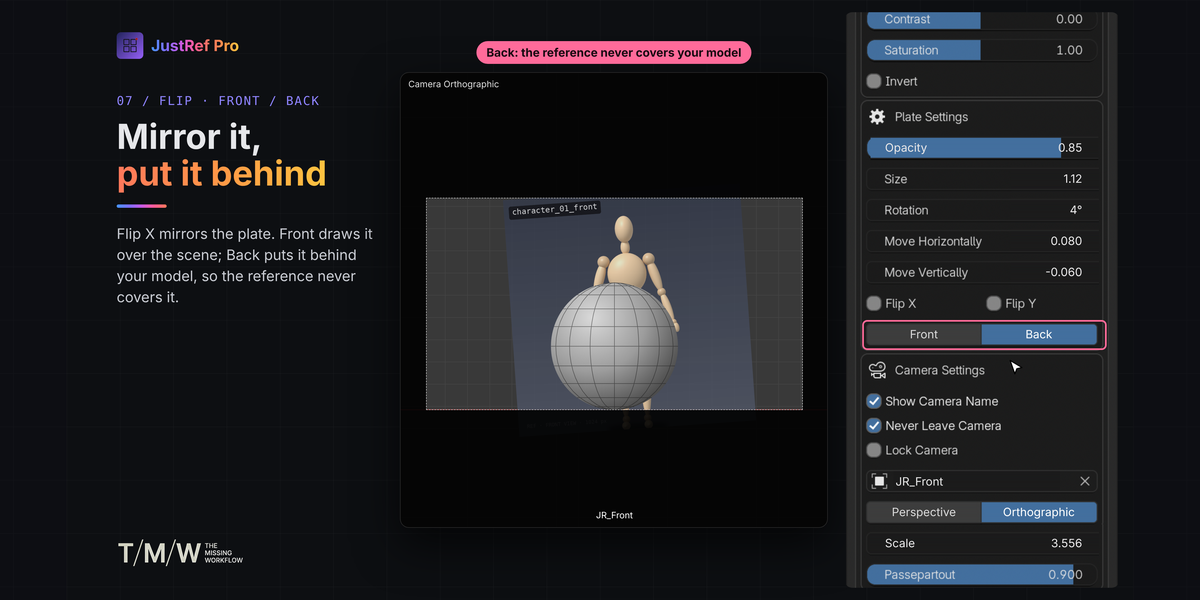
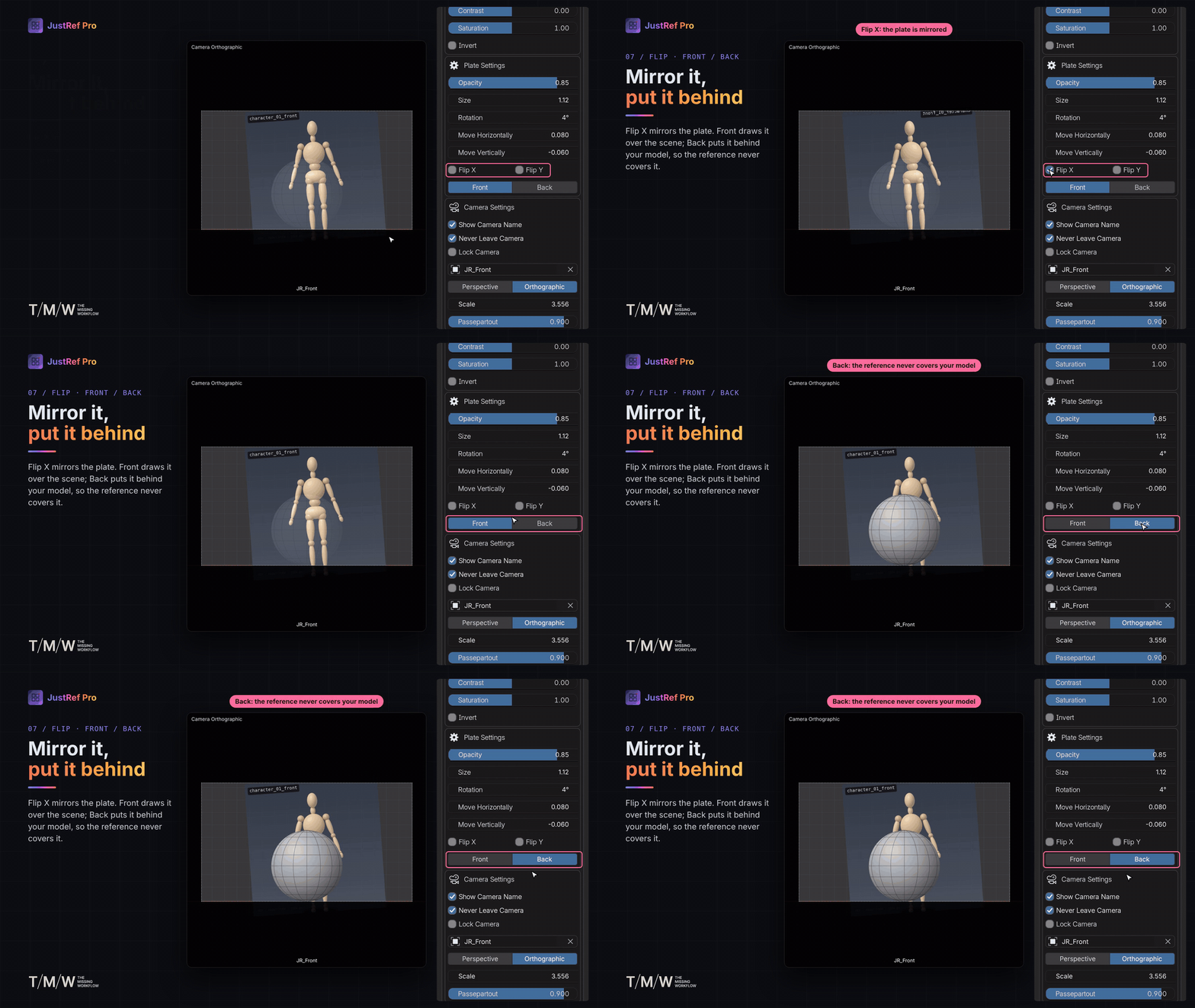
- Flip X / Flip Y — mirror the reference horizontally or vertically.
- Front / Back — draw the plate over the whole scene or behind the objects, keeping your model visible on top.
Images start in Front mode, while videos and image sequences start in Back mode.
06 — COLOR SETTINGS
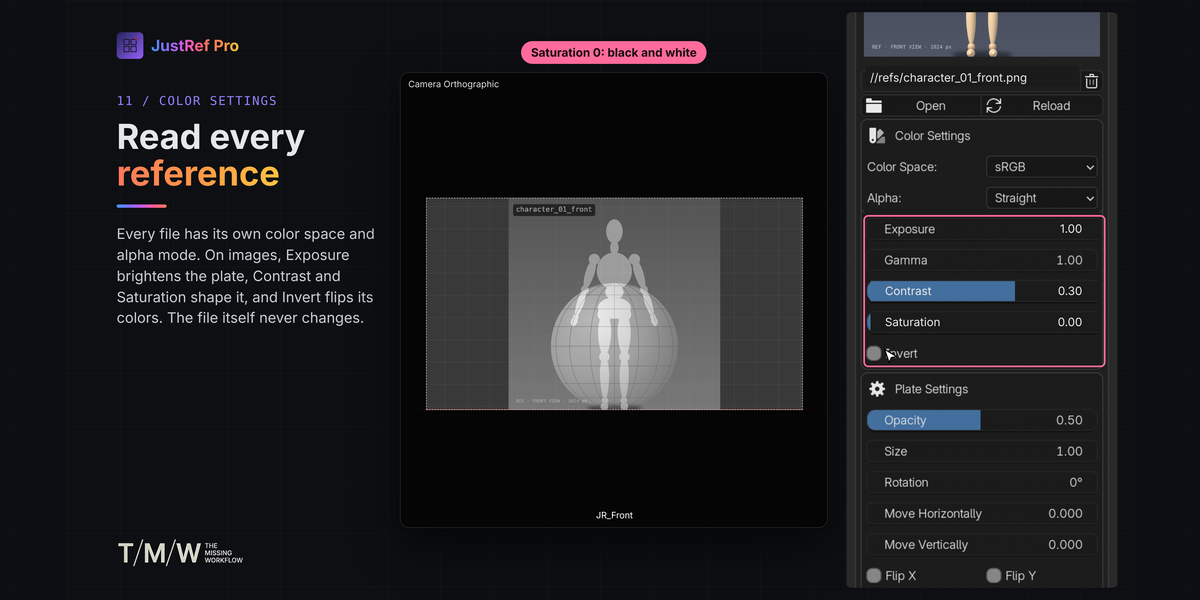
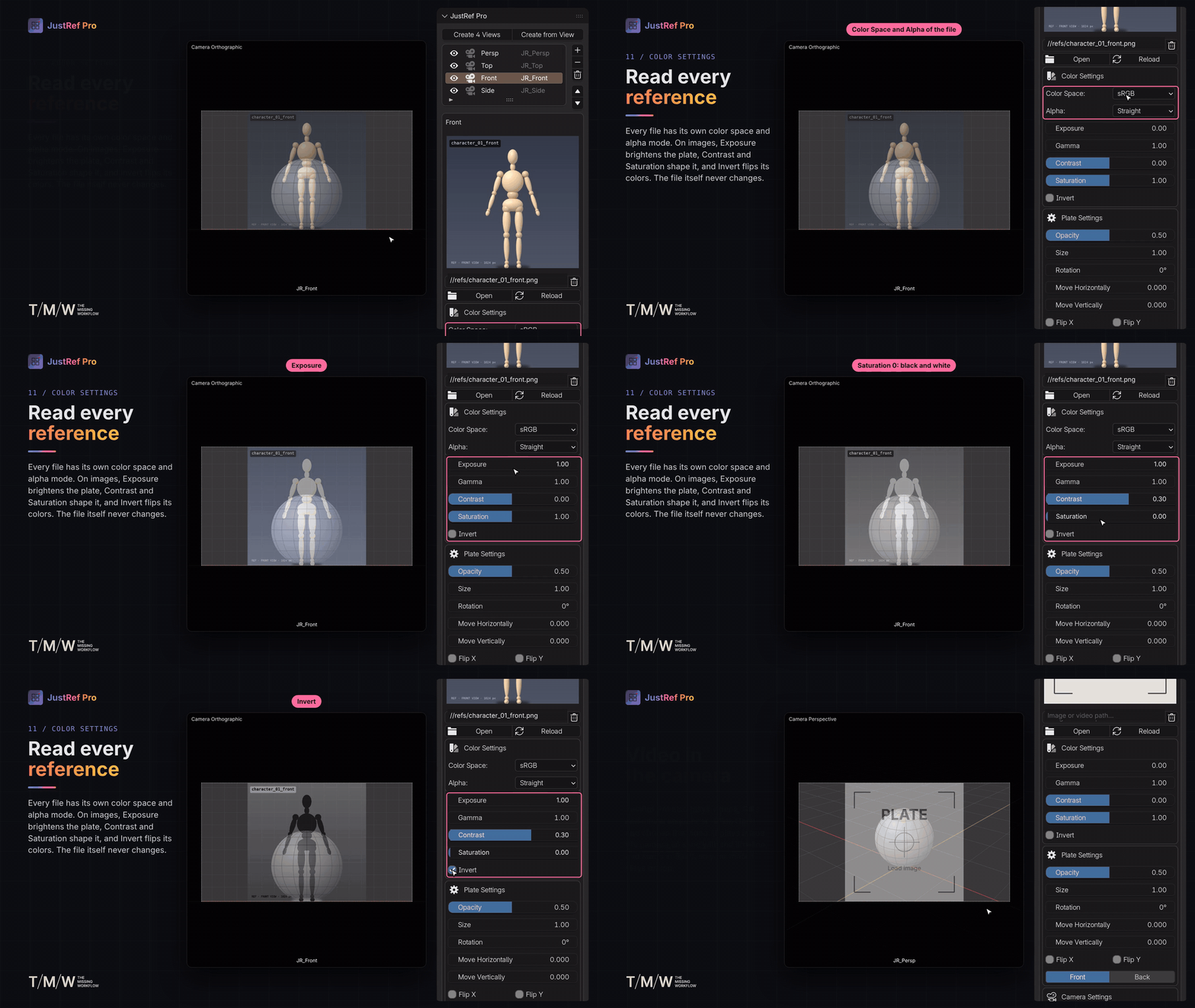
Fine-tune how your references are displayed without modifying the original image files.
- Color Space — choose how Blender reads the image, including Non-Color for data such as normal or height maps.
- Alpha — choose Straight, Premultiplied, Channel Packed or None.
- Exposure — brighten or darken the plate in stops.
- Gamma — adjust mid-tone brightness.
- Contrast — increase or decrease contrast.
- Saturation — control color intensity or display the reference in black and white.
- Invert — invert the colors, useful for reading dark references against dark scenes.
Color Space and Alpha belong to the image file and apply to every plate using that file. Exposure, Gamma, Contrast, Saturation and Invert belong to the individual plate and never modify the source file.
Individual color adjustments work on images. Videos and image sequences are displayed with their own colors.
07 — NEVER LEAVE CAMERA
Keep your viewport inside the camera while navigating.
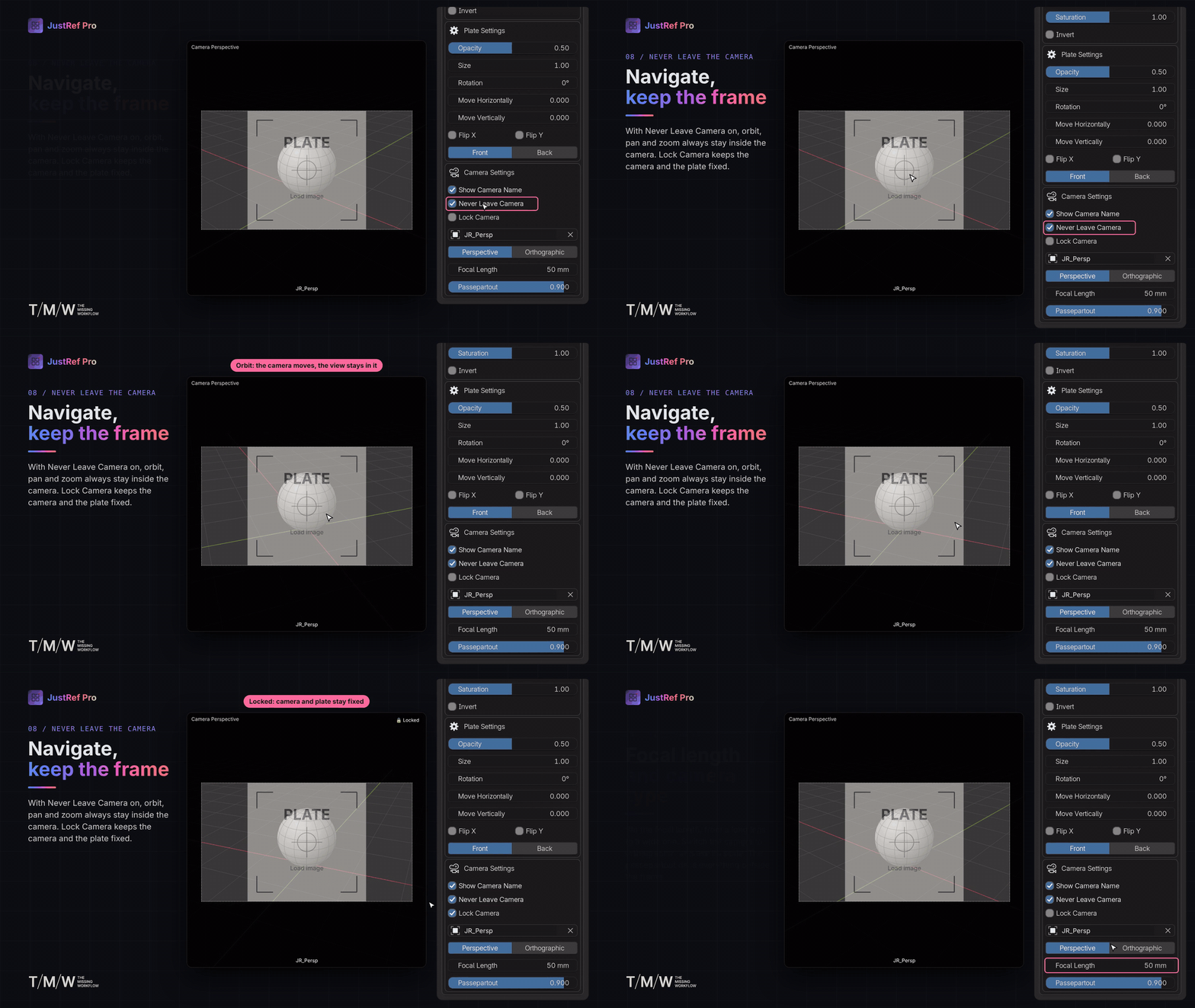
With Never Leave Camera enabled, orbit, pan and zoom stay within the camera view. The behavior adapts to the camera type:
- Perspective — orbit, pan and zoom move the camera.
- Orthographic — rotation is blocked; pan and zoom move the view inside the camera frame.
- Locked — rotation is blocked; pan and zoom move the view inside the frame while the camera and plate stay fixed.
Prefer standard Blender navigation? Turn Never Leave Camera off.
08 — REAL CAMERA SETTINGS
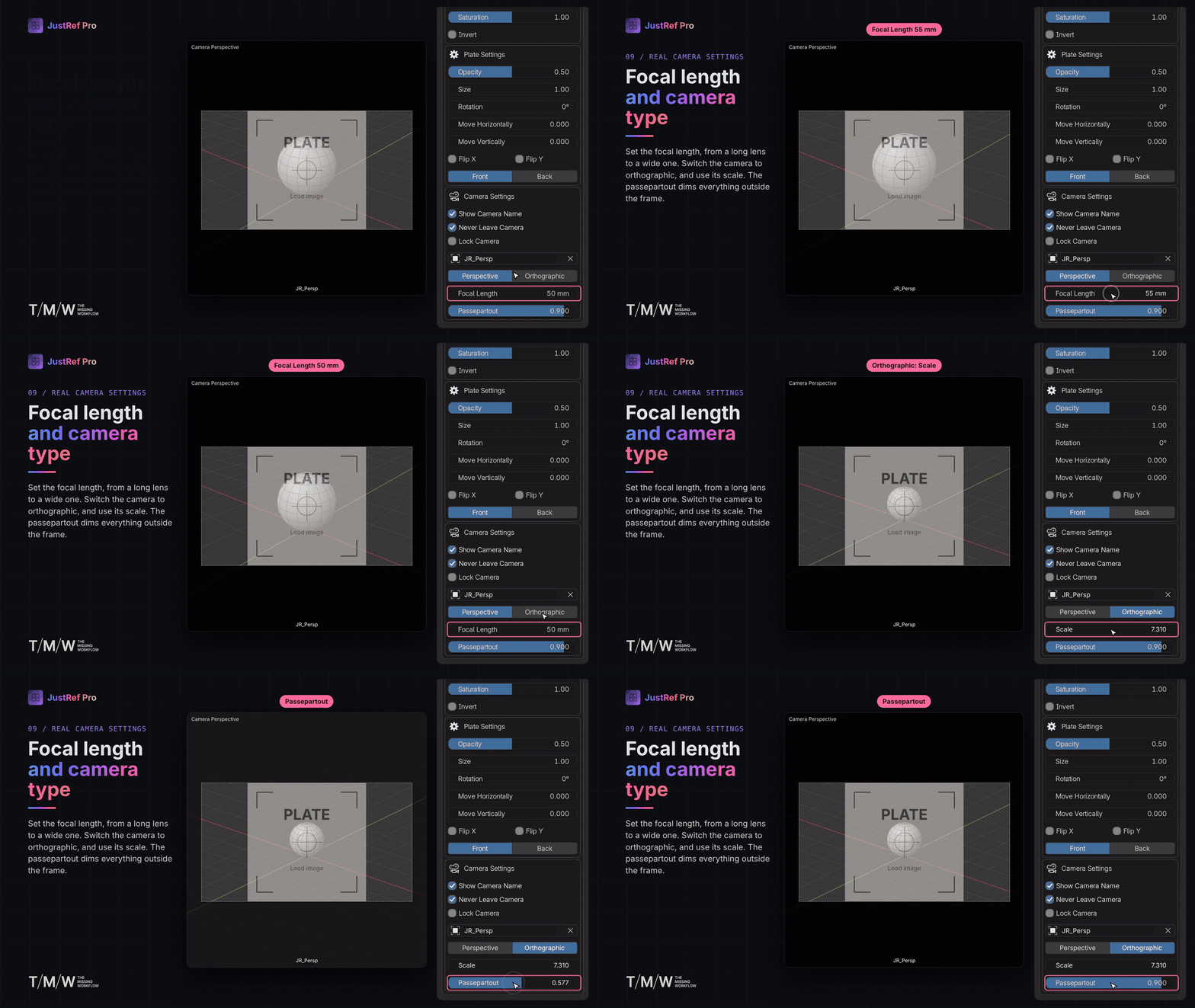
Access the actual settings of the camera attached to each plate.
- Perspective / Orthographic — choose the camera projection.
- Focal Length / Scale — adjust the appropriate value for the selected camera type.
- Passepartout — control the area outside the camera frame. New cameras start at 0.9.
- Show Camera Name — display the camera name at the bottom of the viewport.
- Lock Camera — keep the camera and plate fixed.
09 — ORGANIZED CAMERA MANAGEMENT
JustRef Pro keeps its cameras organized and separate from your own scene cameras.
- JustRef Pro cameras use the JR_ prefix.
- They are collected in the JustRef Cameras collection.
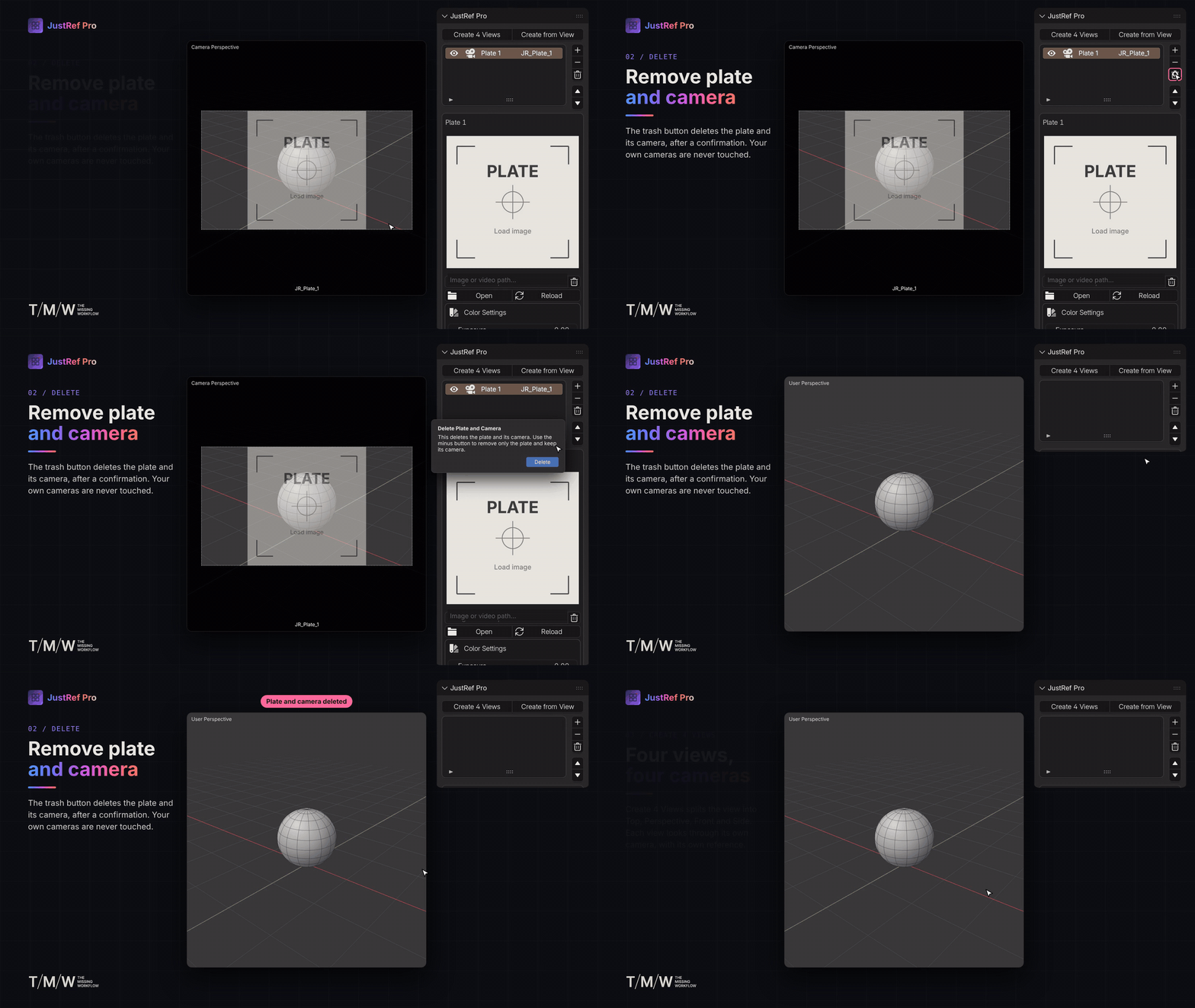
- Only cameras created by JustRef or JustRef Pro can be deleted using the plate trash button.
- Your own cameras are never touched.
- Empty plates include built-in placeholders packed into the .blend file.
10 — BRING YOUR EXISTING JUSTREF SETUPS
Already using the original JustRef?
JustRef Pro can import your existing JustRef image planes, cameras and settings directly from a scene. When a scene contains JustRef plates and the JustRef Pro list is empty, the Import JustRef Plates option becomes available.
JustRef does not need to be installed to perform the import. Both can also be installed side by side.
FEATURES AT A GLANCE
- Camera-based reference plates.
- Images, videos, GIFs and numbered image sequences.
- Timeline-synchronized playback.
- Video audio integration with the Video Sequencer.
- Independent references in multiple viewports.
- Four-view camera setup.
- Create cameras directly from the current view.
- Advanced plate positioning and display controls.
- Per-plate color adjustments.
- Perspective and Orthographic camera support.
- Never Leave Camera navigation and camera locking.
- Import existing JustRef setups.
- Compatible with all Blender modes, including Sculpt Mode.
REQUIREMENTS
- Blender® 4.2 or newer.
- No external dependencies or additional libraries.
WHAT'S INCLUDED
- JustRef Pro add-on package.
- Offline HTML documentation.
- Built-in reference placeholders.
GOOD TO KNOW
Reference plates are never rendered
JustRef Pro plates and image-planes are viewport references only. They never appear in final renders — whether you render a still image with F12 or an animation, and regardless of the render engine.
How it works
Static images are drawn directly in the viewport and do not exist as scene objects. Videos, GIFs and image sequences use Blender's camera Background Images, which are viewport-only visual aids and are not rendered.
Video playback performance
Playback speed depends on the source file and Blender®. Long or heavy videos may play more smoothly when using an image sequence or a proxy-sized video.
Viewport overlays
Turning Blender's viewport overlays off also hides the reference plates.
Camera setup
The 2 × 2 m plate size used by the orthographic cameras in Create 4 Views is based on the render resolution at the moment the cameras are created.
INSTALLATION
- Open Blender® (4.2 or newer) and go to Edit > Preferences > Get Extensions (or the Extensions tab).
- Click the dropdown next to Install from Disk and select justref_pro_v1.0.0.zip. No need to unzip it first.
- Enable the add-on if it isn't active automatically.
- Open the 3D Viewport sidebar with the N key and select the JustRef Pro tab.
JustRef Pro · Created by Danilo Caliro · The Missing Workflow
Blender® is a registered trademark of the Blender Foundation. JustRef Pro is not affiliated with or endorsed by the Blender Foundation.