Kaboom Documentation
1_ Fracture Objects
Select the object to fracture
|
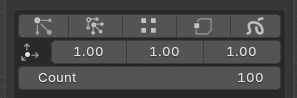
Choose the fracturing mode in the first buttons line:
← ‘Own particles’,’Child Particles’,’Own Vertices’,’Child Vertices’,’View Annotation’
BE CAREFULL,objects must be manifold to works correctly
← Scale proportions for resulting shards← Number of shards
|
|
Then click Fracture to see the result
|
2_ Fractured Groups List / States / Actions
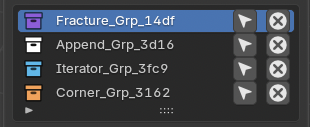
The fracture result is stored in a Fractured Group, visible in the Fractured Group List.

|
Create new fractured group with a selection of objects
|
|
Name of the group can be edited by the collection name in the outliner
4 fractured group types due of the generation process
  show / hide group objects show / hide group objects
 select group objects select group objects
 delete group objects, fractured group and restore object source delete group objects, fractured group and restore object source
|

|
Flags mean that the fractured group
 ‘is baked’ ‘is baked’
 ‘has debris particles’ ‘has debris particles’
 ‘has smoke particles and fluid modifier’ ‘has smoke particles and fluid modifier’
|
|
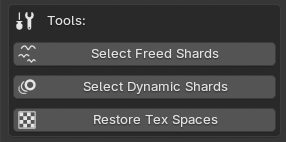
← Select non constrained objects of the active group
← Select dynamic objects of the active group at the current frame
← Uniformize Object Texture Space
|
|
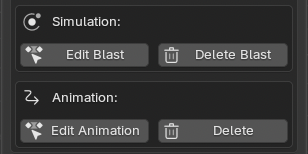
← Simulation Actions stored in NLA tracks
← Animation Actions stored in NLA tracks
|
|
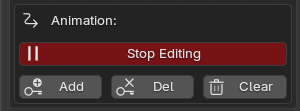
Simulation/Animation Actions can be edited:
Actions become active in the DopeSheet
Click on STOP EDITING to push actions to NLA stacks
← Add/Del/Clear are applied on all group objects
|
|
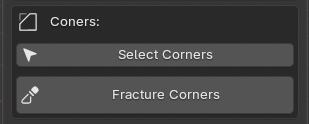
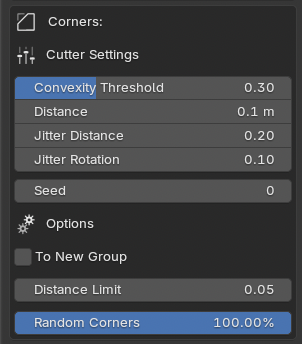
Fracture Corners of Active Group objects
← Select Corners Objects from the active group
← Fracture Corners of non corners objects
|
|
|
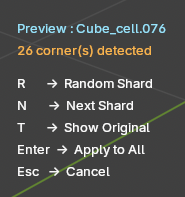 Fracture Corners Modal Preview Fracture Corners Modal Preview
Before fracture all corners, a preview is shown on one object
user can edit parameters in live
← Convexity Threshold: low value detect more corners
← Distance between plane cut and the corner vertex
modal menu in view 3D
← To New Group creates a fracture group for the corners objects
← Distance Limit between 2 corners
← Pourcentage of detected corners kept
|
|
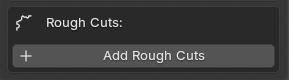
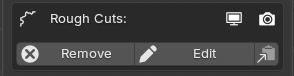
Create roughed cut to shards of the active fractured group.
Fractured Group must be FINAL BAKED
|
|
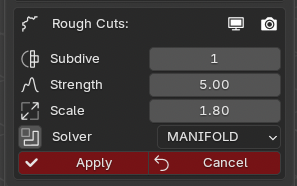
When enabling Rough Cuts, a preview is showing on the selected/first shard before apply to all
 Show View3D / Render rough cuts Show View3D / Render rough cuts
 Toggle button to test Boolean Operation Toggle button to test Boolean Operation
|
|
If active fractured group has rough cuts, the user can remove them or edit them with a preview showing on the selected / first shard ← copy Rough Cuts parameters to paste them to another fractured group
|
3_ Simulation
There are 2 simulation methods : BLAST or KRUMBLE
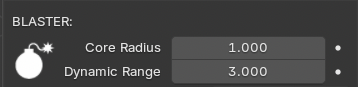
BLAST: is done with the Blaster Tool

|
Add blaster to scene. |
|
Core radius:
is the influence distance of the force applied to the shards.
Dynamic Range:
is the influence distance to enable the dynamic of the shards.
|
|
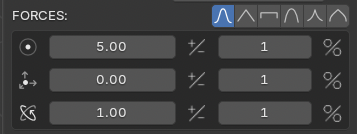
Force apply to shards in the Blaster Core Radius.
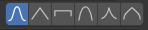 Force Falloff presets Force Falloff presets
← Radial Force + random percent
← Directional Force + random percent
← Spin + random percent
|
The simulation will creates rigid body objects , creates initial motion of shards that are influenced by the blaster Core and animates the dynamic activations
|
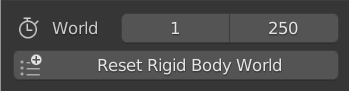
Range of Rigid Body World of rhe blender scene
‘Reset’ is a tool that help the user to delete cache of the rigid body world
|
|
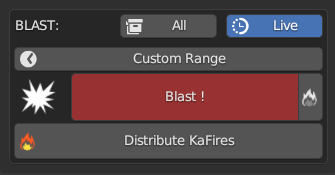
 for simulation affects all fractured group, if not, only the active fractured group will be simulated for simulation affects all fractured group, if not, only the active fractured group will be simulated
 this update viewport during the simulation this update viewport during the simulation
To launch the simulation click on ‘Blast !’
 Distribute KaFires during Simulation. Distribute KaFires during Simulation.
KaFires are located scaled and rotated at each the Blaster location keyframes except the first and the last.
|
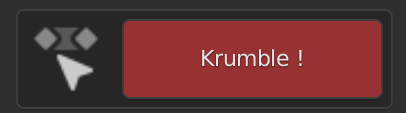
KRUMBLE : Creates rigid body objects and add dynamic activation keyframe to the active group shards at the current frame of the scene
|
Create dynamic keyframe at the current frame of the timeline to the active fractured group objects |
4_ Rigid Bodies
The simulation uses the blender interne rigid body engine. Here parameters of RB objects can be edited
|
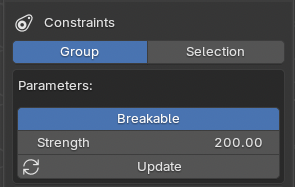
Constraints:
Action Domain:
All Constraints Actions are apply to Fractured Group or to Selected Objects
Parameters:
Add Breakable or Fixed Constraints to selected Rigid Body Objects
 Update Strength value Update Strength value
← Remove by Group or Selection
|
|
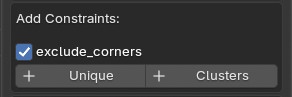
Add Constraints:
Include or Exclude corners objects
add unique global constraints or by clusters
|
|
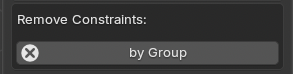
Remove Constraints:
Remove constraints of Fractured Group or Selected Objects
(depend of action domain chosen)
|

|
Update mass of Rigid Body Objects
|

|
Set selected Object to Passive Dynamic Rigid Body Object |
5_ Baking Simulation to Keyframes
This operation is necessary to add rough cut or add particles

|
Bake all fractured Groups to Keyframes:
Proxy Bake is used for apply a new simulation
Final Bake freeze simulation
|
6_ Particles and Smoke

|
Buttons to switch between particle mode |
|
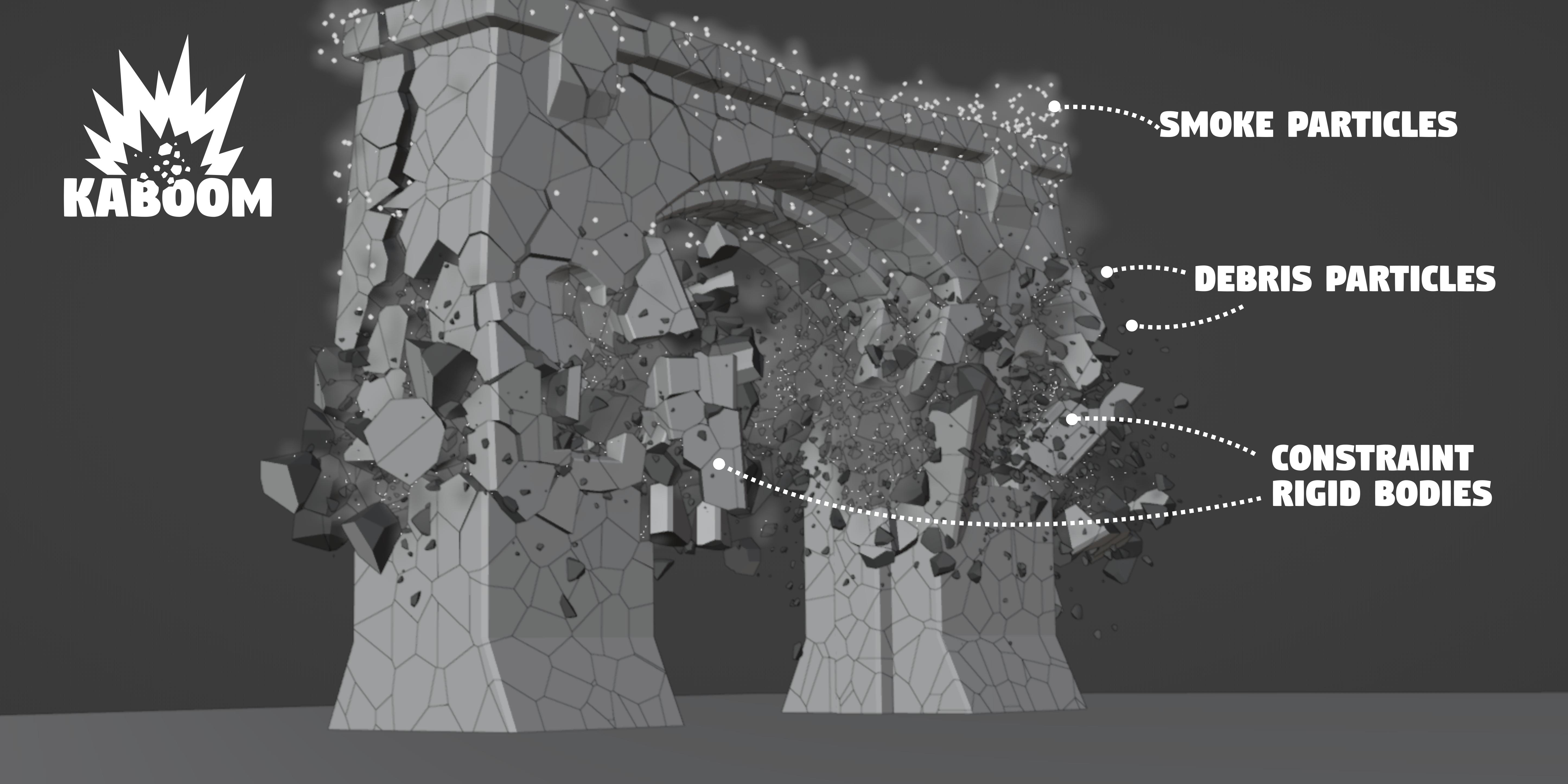
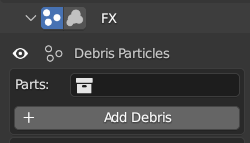
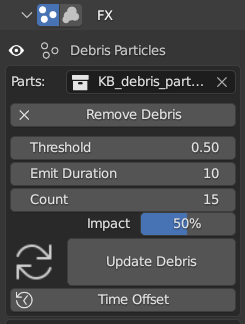
Add Debris, particle systems use the "Parts Collection" for instances. If the collection selector is empty , kaboom creates automatically a new collection with debris instances. |
|
 Hide/Show particles in viewport Hide/Show particles in viewport
← Particles instances collection
← Remove particles of the active fractured group
← Acceleration limit trigger
← Duration of emission in frames
← Number of particles emitted
← Percent of count for collision emission
← Copy active particle system parameters to all other
← Decals + or - particles emission times
|
|
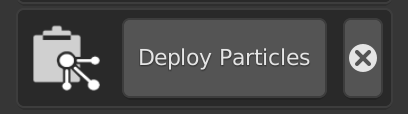
Copy selected object particles parameters to all of active fractured group objects |
|
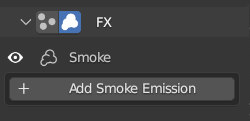
Add Smoke Emission on active fractured group |
|
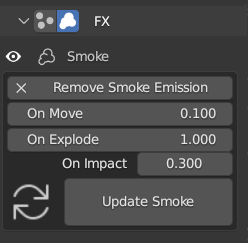
Hide/Show
← Remove particles of the active fractured group
← Intensity of emission on move
← Intensity of emission on deflagration (explode and collision)
← Intensity of vertically emission on collision
← Update Smoke of the active fractured group
|
|
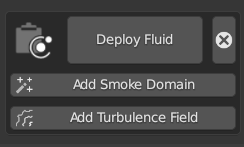
Copy selected object fluid parameters to all of active fractured group objects
← Add Smoke domain with auto size of bounding box the selected objects
← Add an animated turbulence field in the scene
|
|
Standards Particles cache operators
|
 Picto Filmo