Blender 4.2+ • Retopology & poly modelling • Native Rust core

 One tool, every retopology action. Hover, drag, or hold a key. The tool knows what you meant.
01 / BUILD
PolyPen
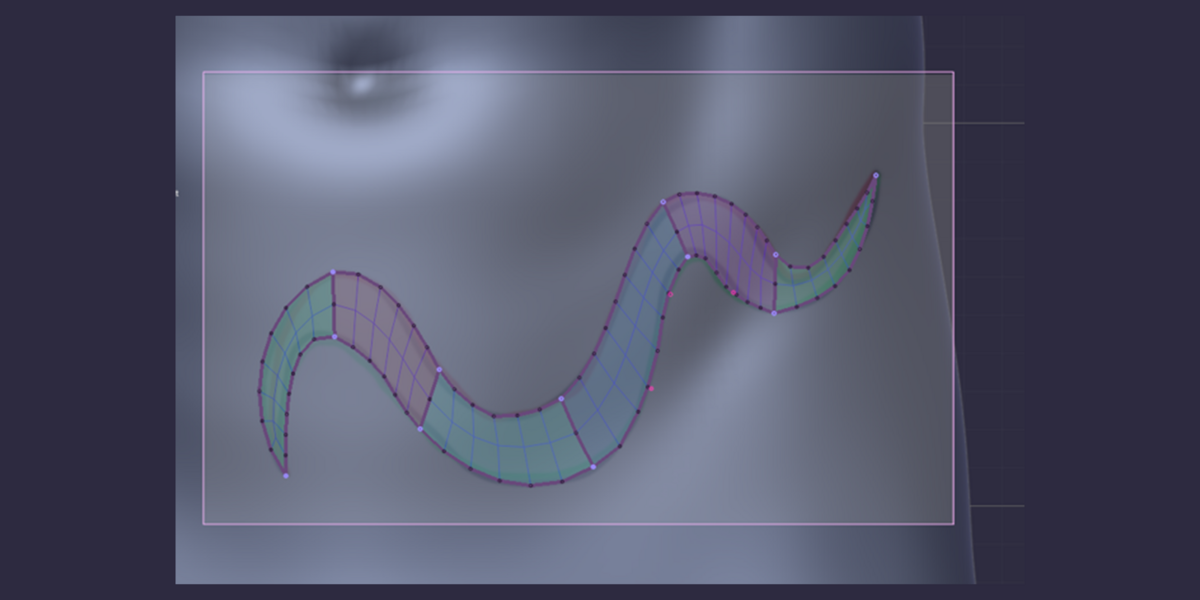
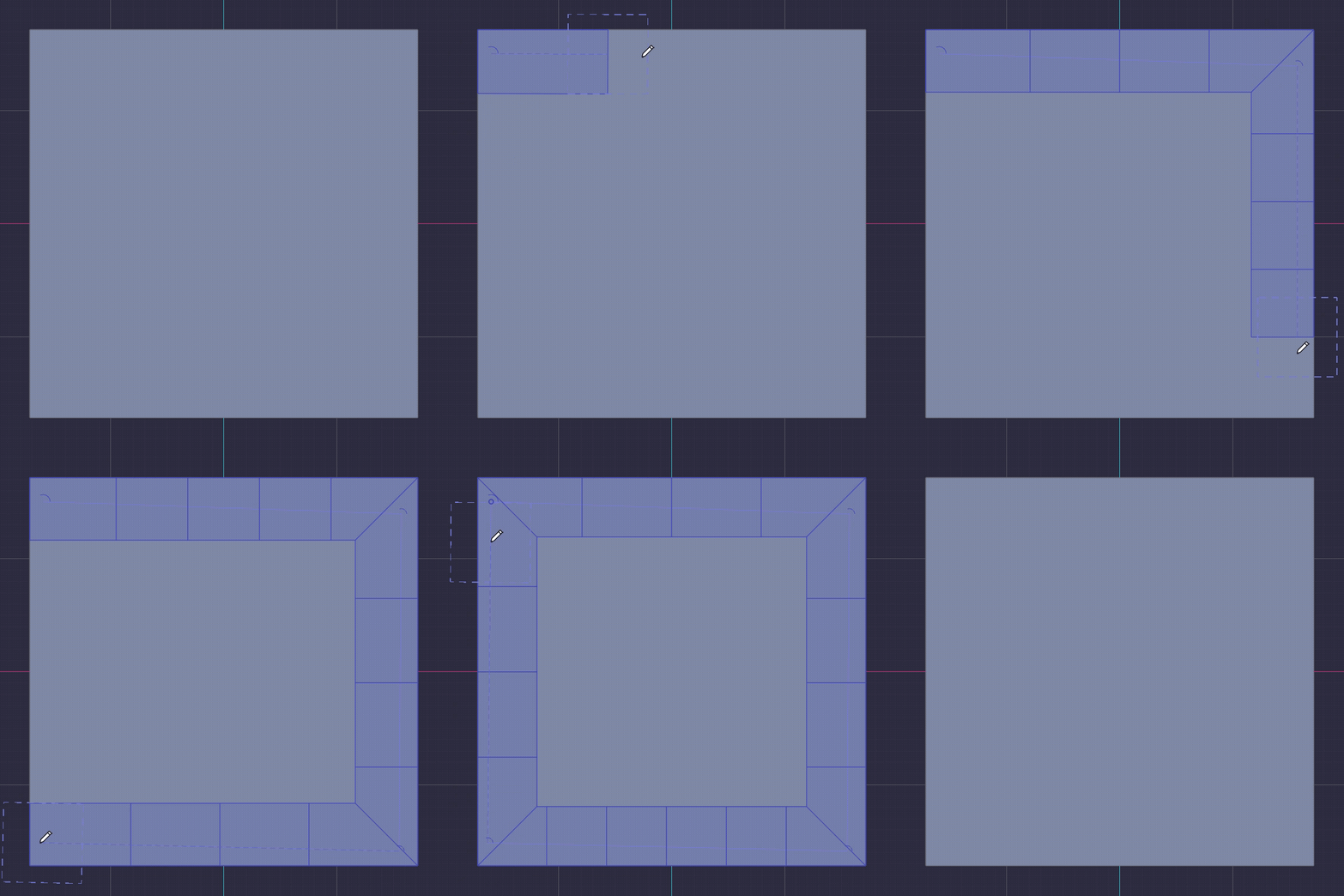
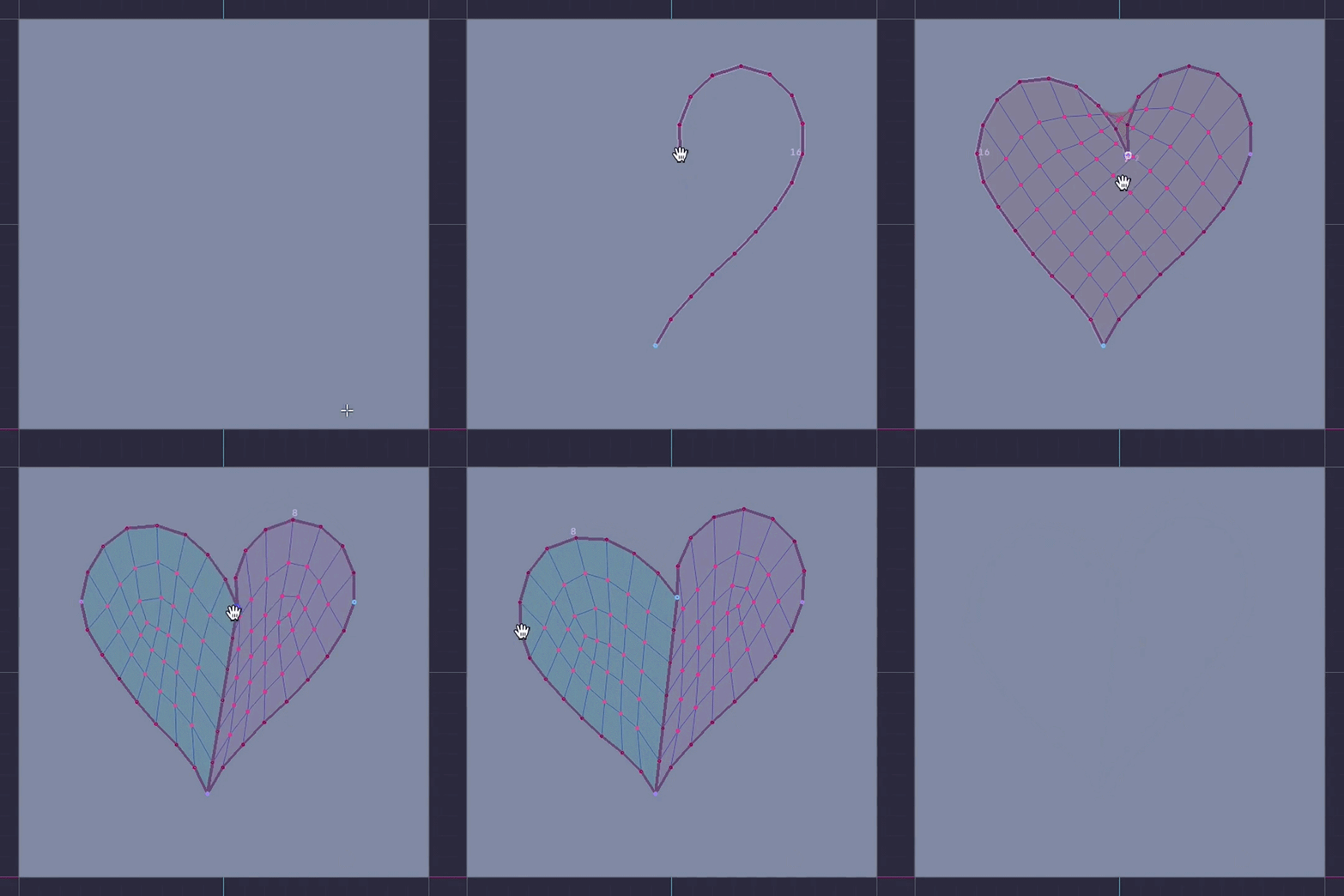
Draw straight lines or freehand, follow corners and sharp features, edit everything afterwards. The best PolyPen in the game.
The most direct way to draw topology there is.
|
02 / BUILD
AutoQuad
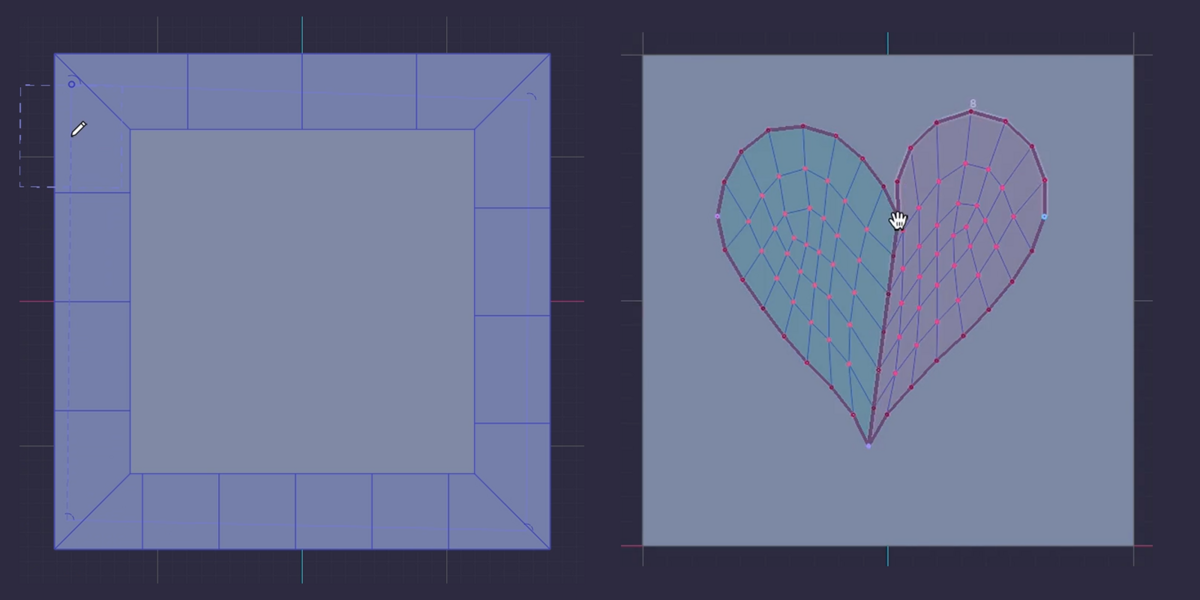
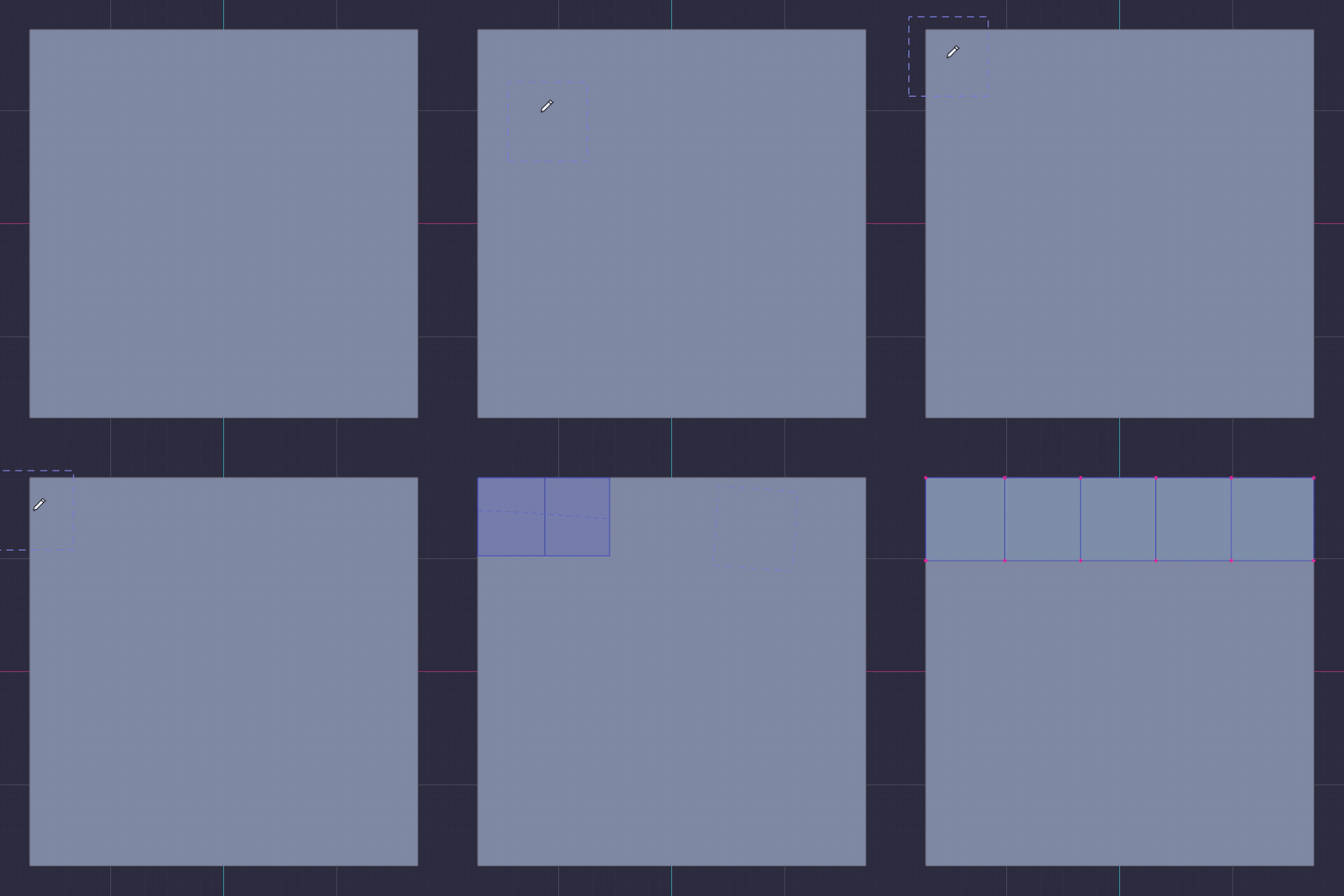
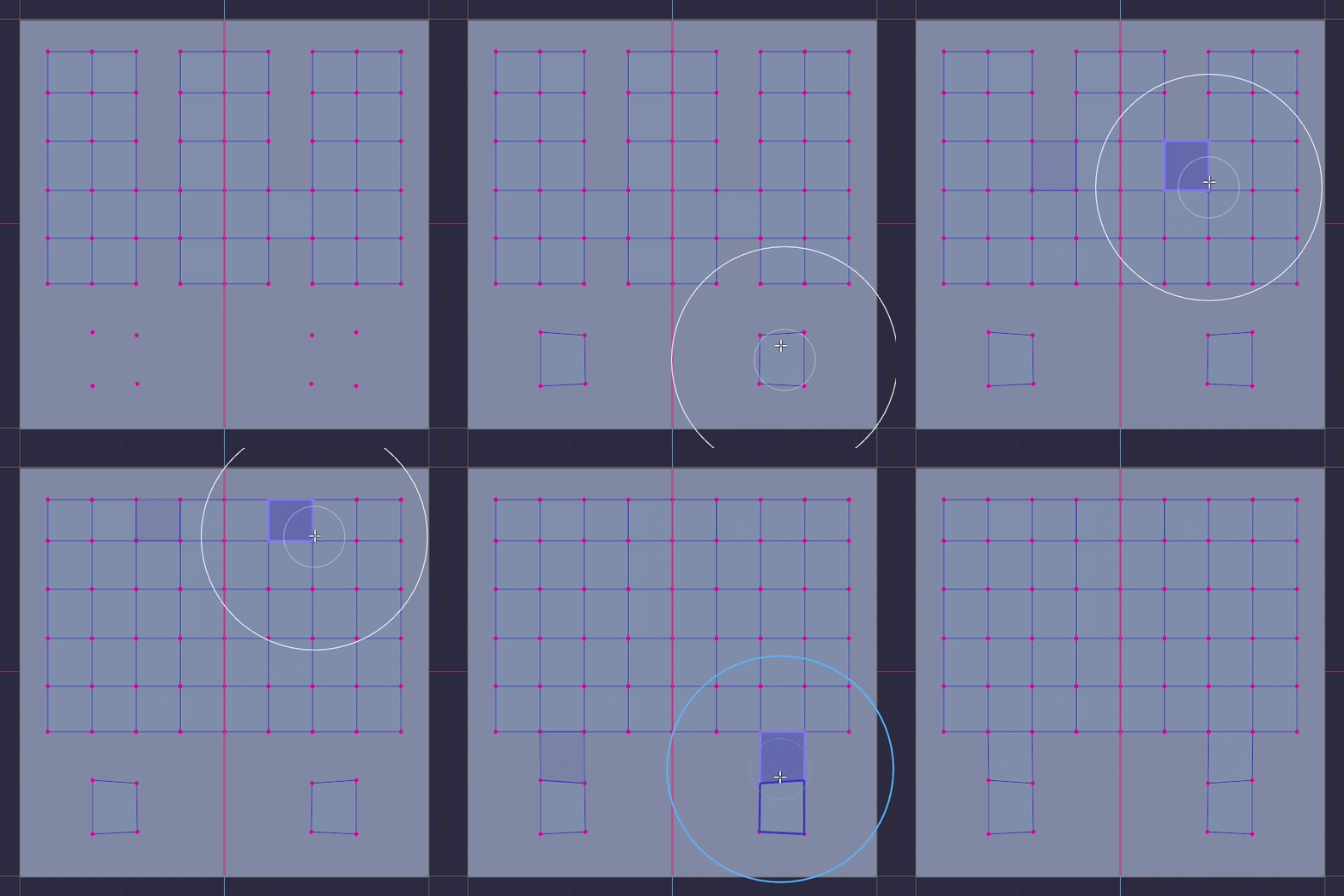
Hover a boundary vertex or edge and the next quad is predicted from the faces around it. Click and it exists. Hold Shift on a boundary edge to force the prediction from that edge.
Growing a patch one quad at a time,
without placing a single vertex by hand.
|
|
03 / BUILD
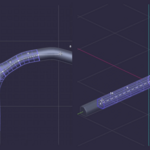
Tube Tool
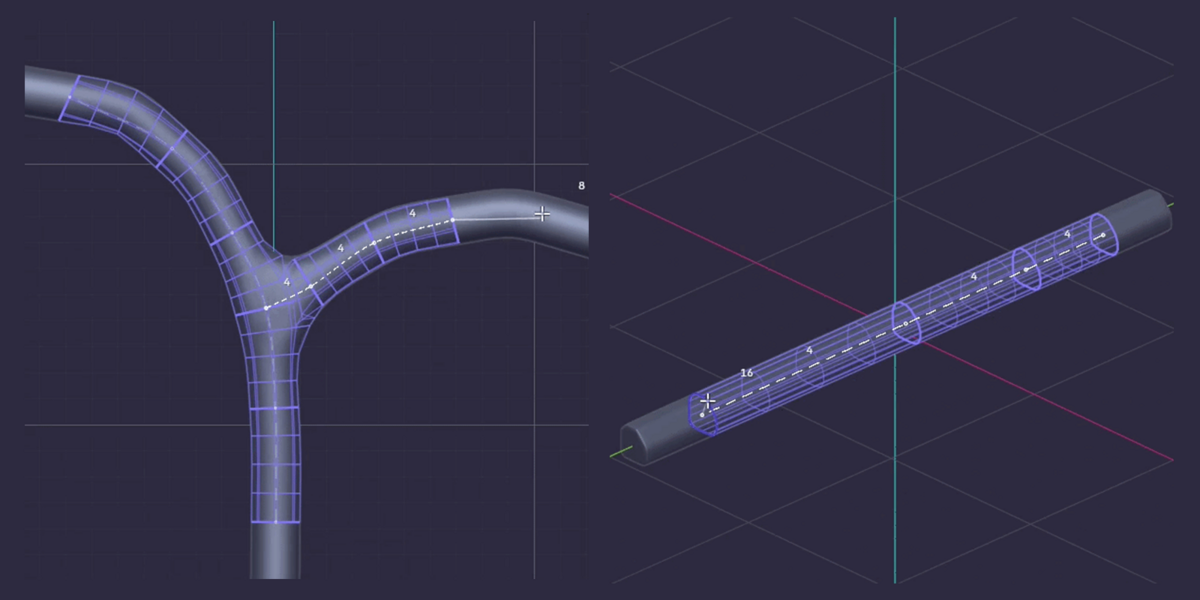
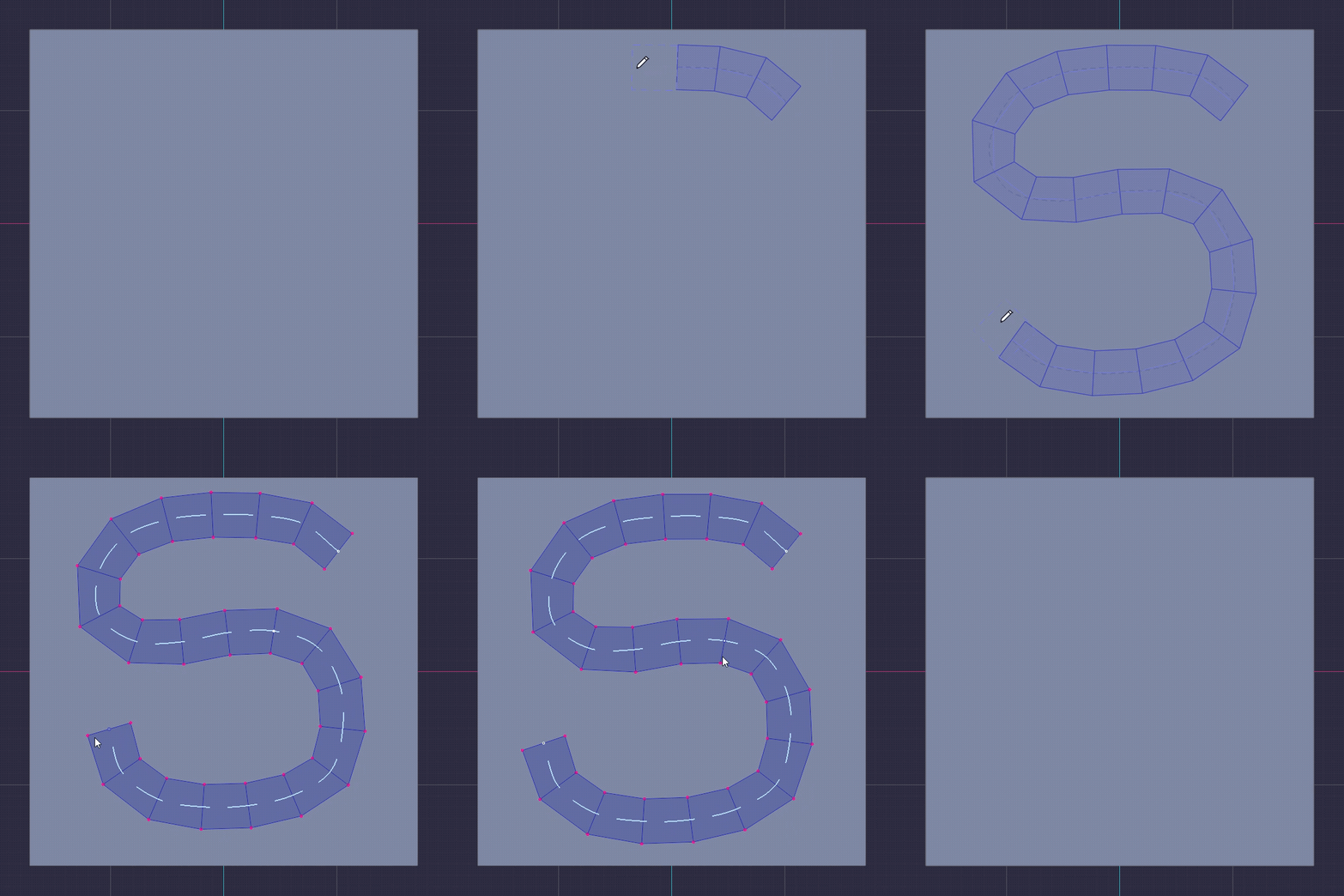
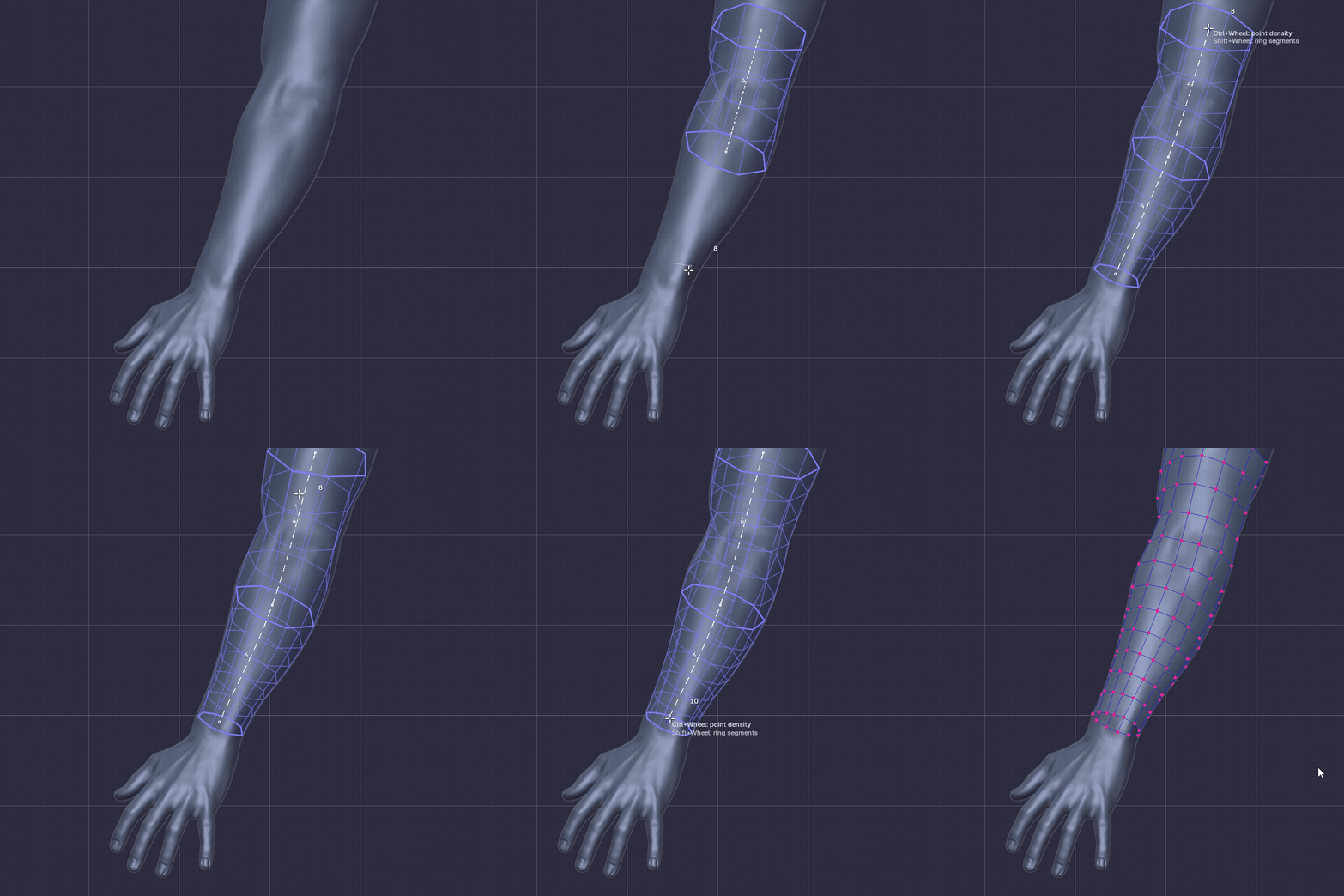
Click a few points along an arm, a cable or a finger. A sleeve of quad rings is built along them, centred inside the form.
Cylindrical parts in seconds, already centred inside the form instead of stuck to one side of it.
|
|
04 / BUILD
Ridge Mode
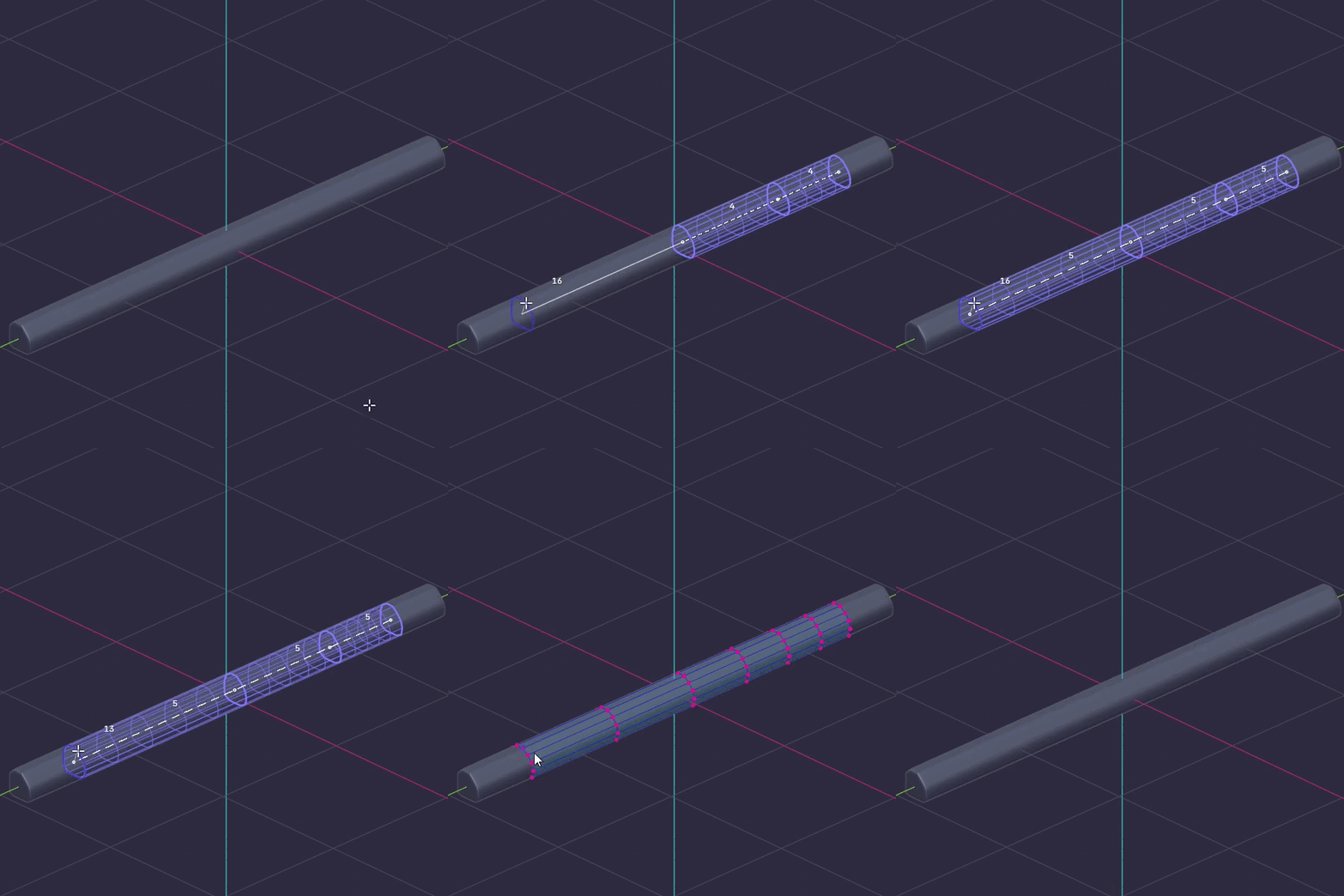
Press Tab in the Tube Tool. Instead of a round sleeve, every station is a planar cut through the reference: the exact profile of a beam, a rail or a moulding, with sharp corners matched from one station to the next.
Hard-surface profiles traced straight off the reference.
|
|
05 / BUILD
Vine
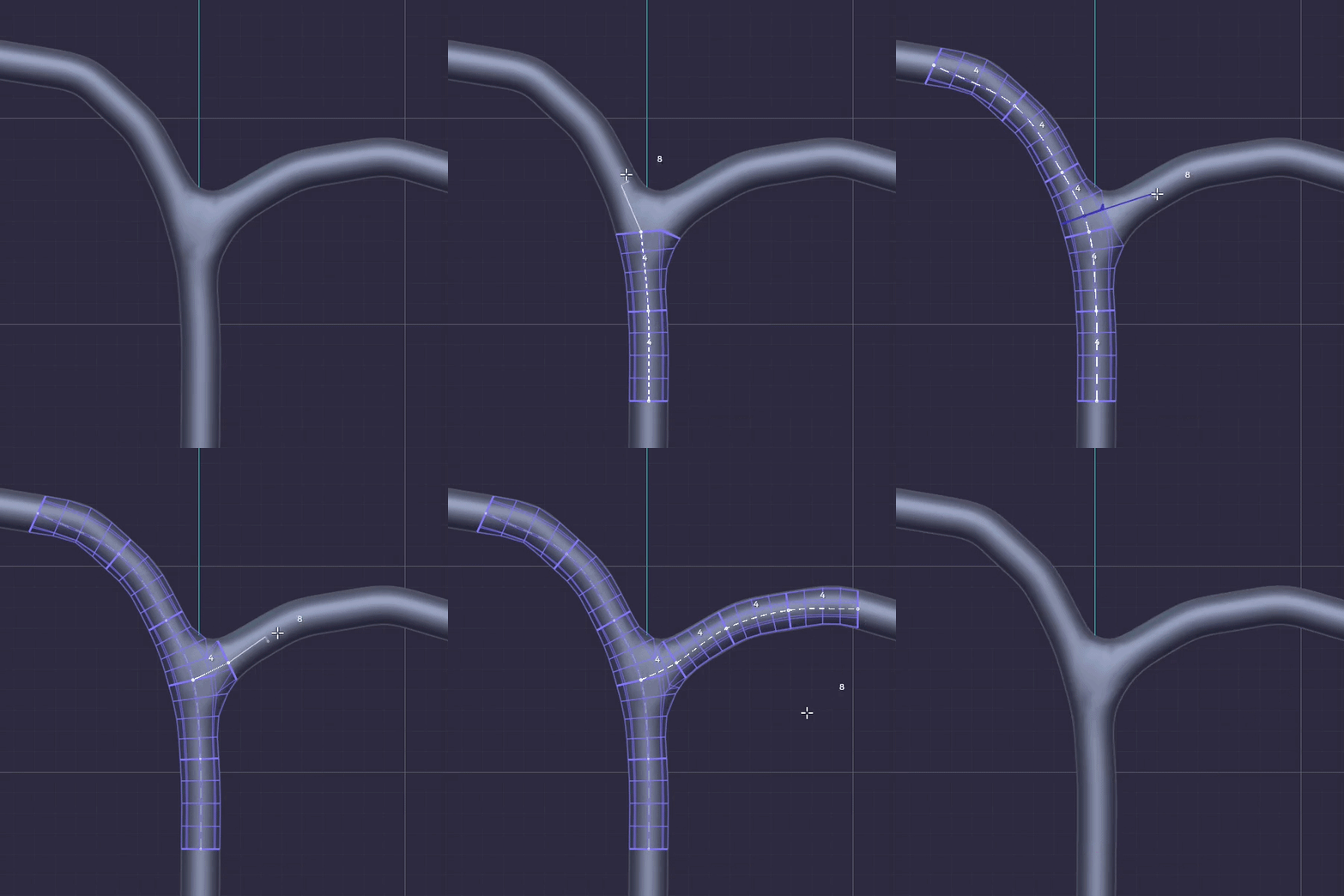
Shift+click on an existing sleeve to start a branch. The child tube is joined to its parent through a hole cut in the sleeve, so trees, roots, veins and vines come out as one connected mesh.
Branching forms
without stitching a single junction by hand.
|
06 / BUILD
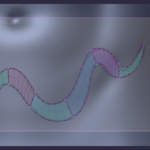
KEwlSheeet
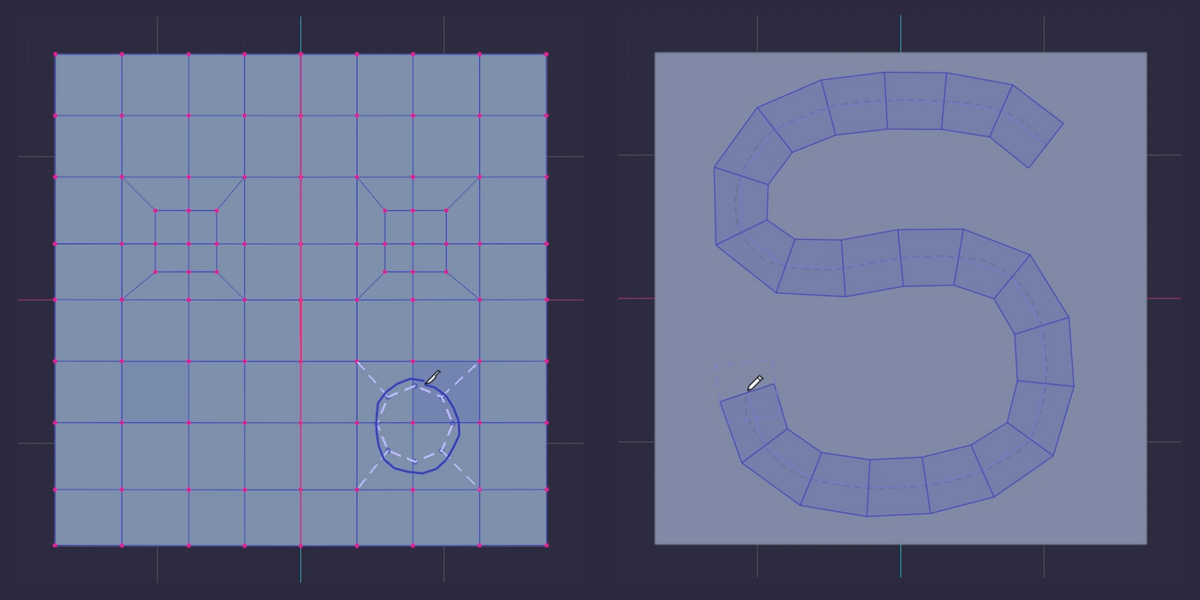
The lite version of KEwlSheeet inside the pen, only the essential tools: sketch curves on the surface, they cut each other, and every closed region fills with quads. Rotate, switch and slide the pattern of the hovered patch.
07 / BUILD
Extrude
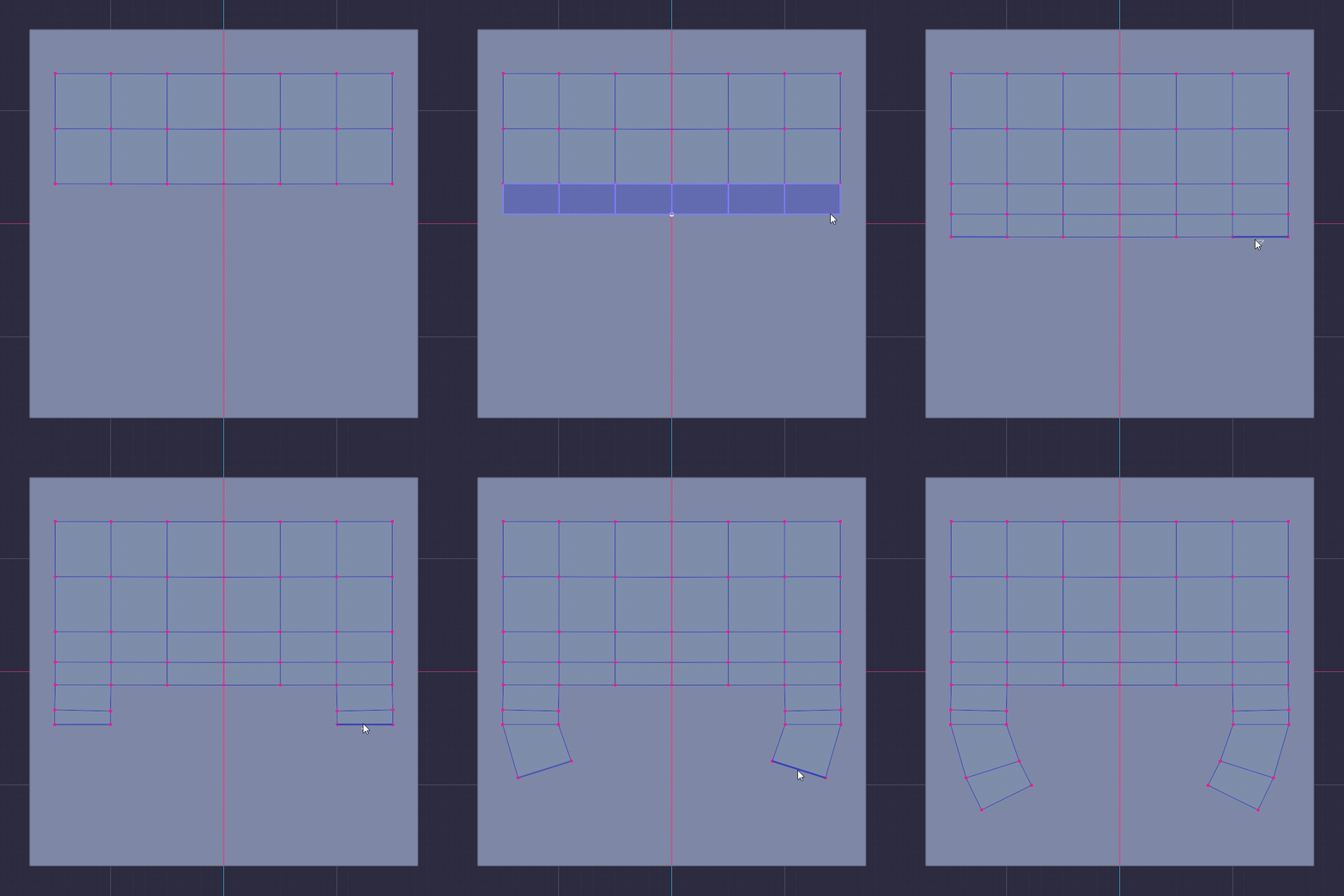
Vertex, edge, edge loop or edge ring: the extrude you get is the one the hovered element implies, snapped as you drag.
No menu asking what you want to extrude: you are pointing at it.
|
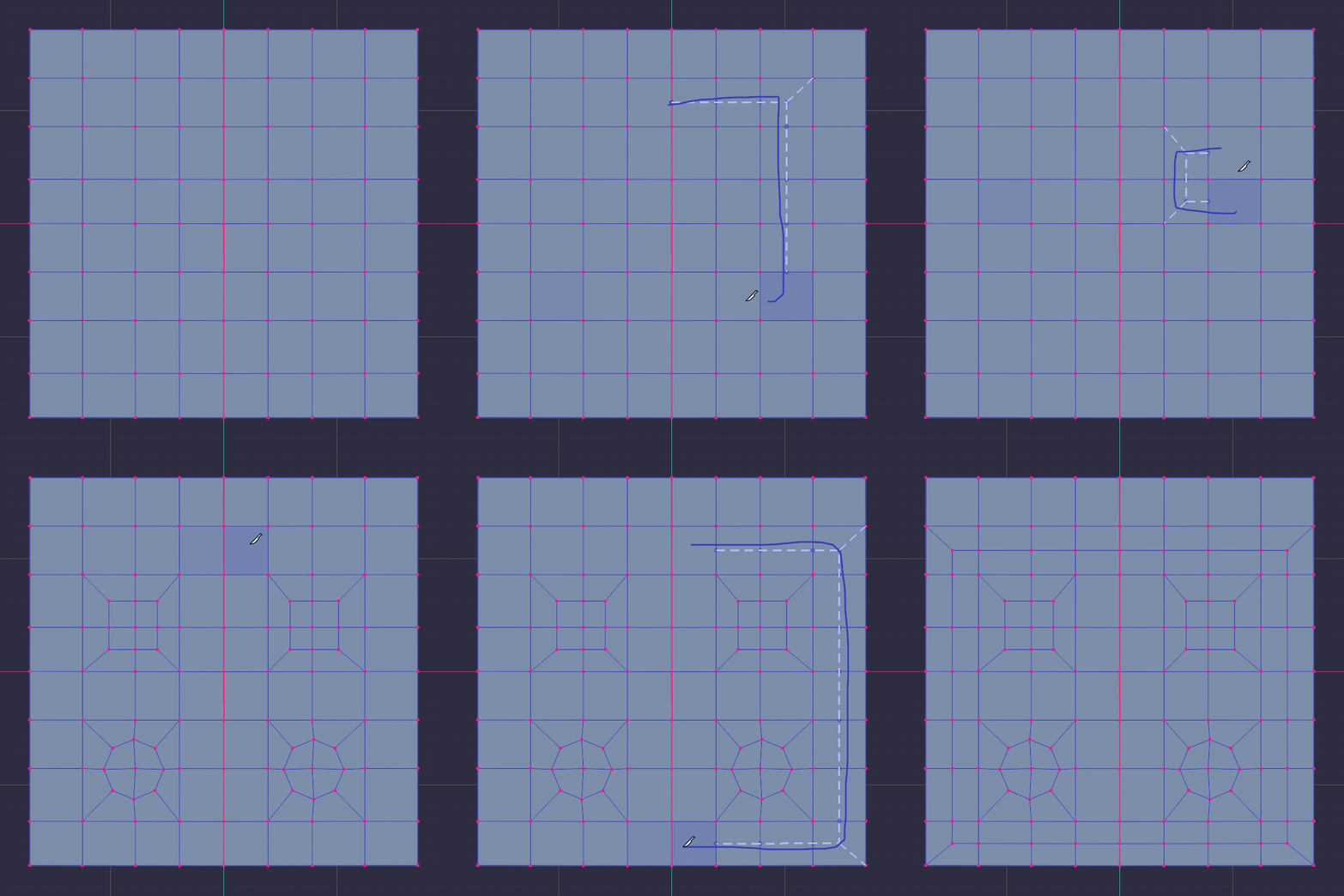
08 / CUT
Knife
A drawing knife. Faces are only split where the cut actually crosses them,
so no floating vertex is ever left behind.
|
|
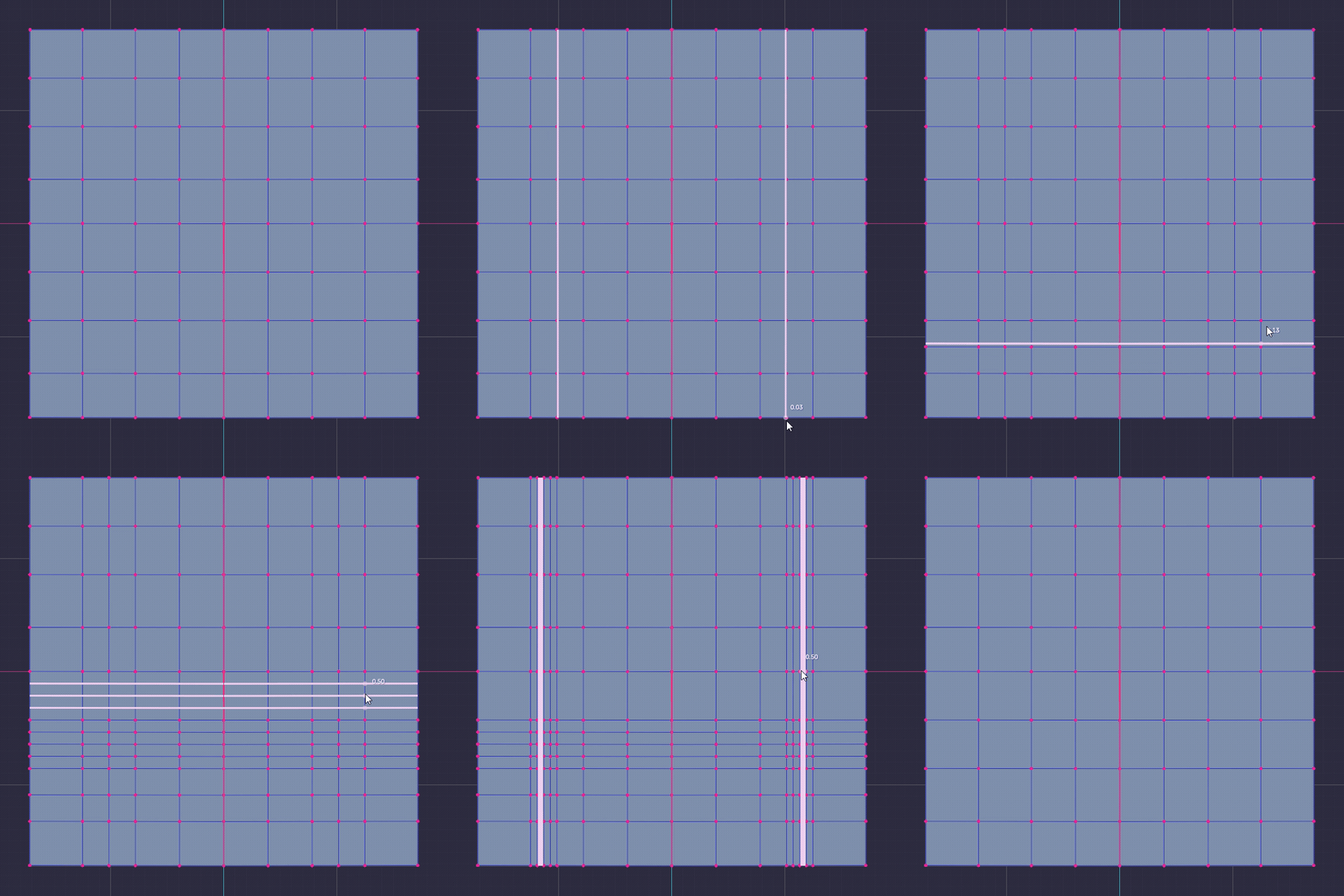
09 / CUT
Loop Cut
Hover an edge and drag: the loop is placed,
previewed and slid in one gesture.
|
|
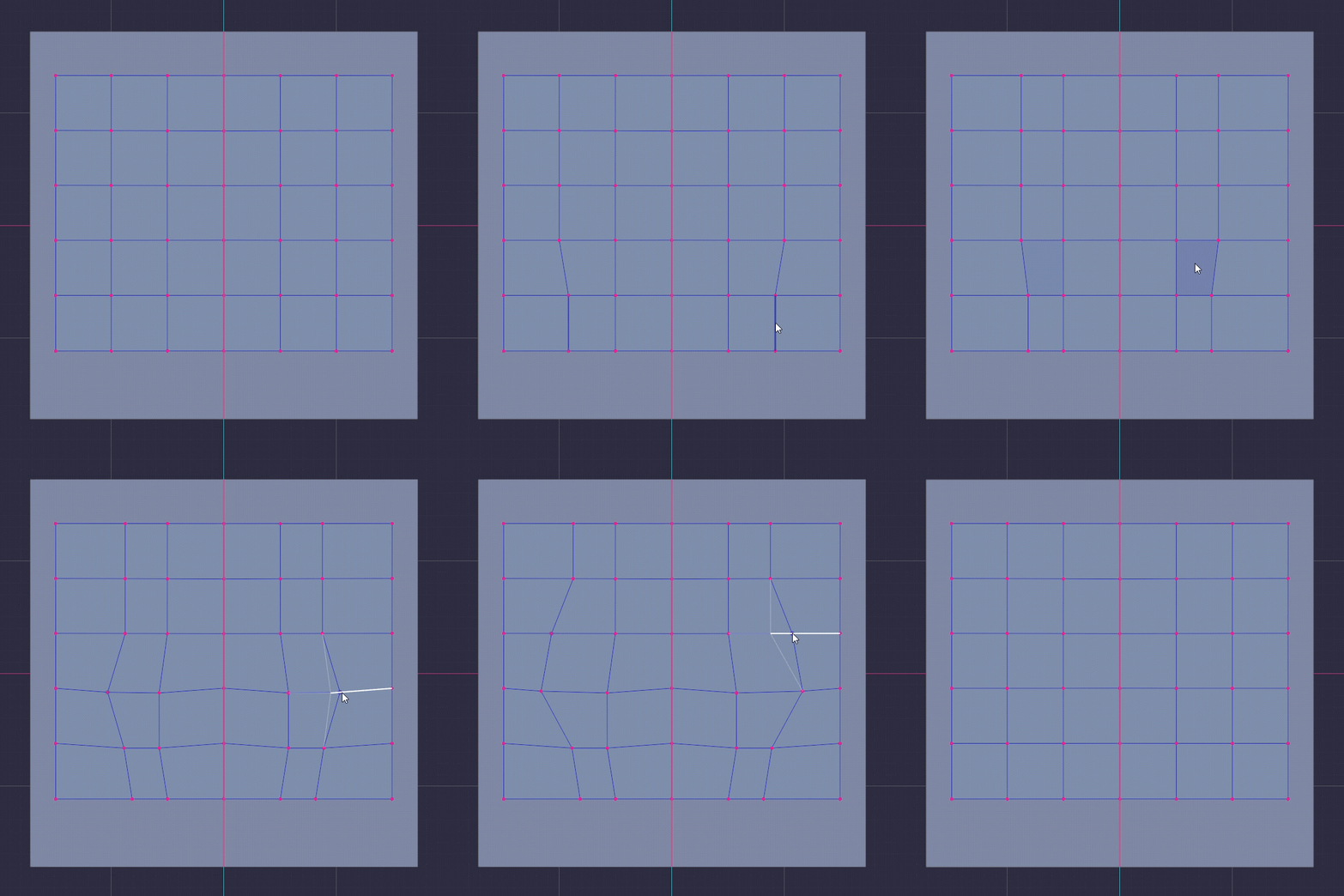
10 / EDIT
Grab & Slide
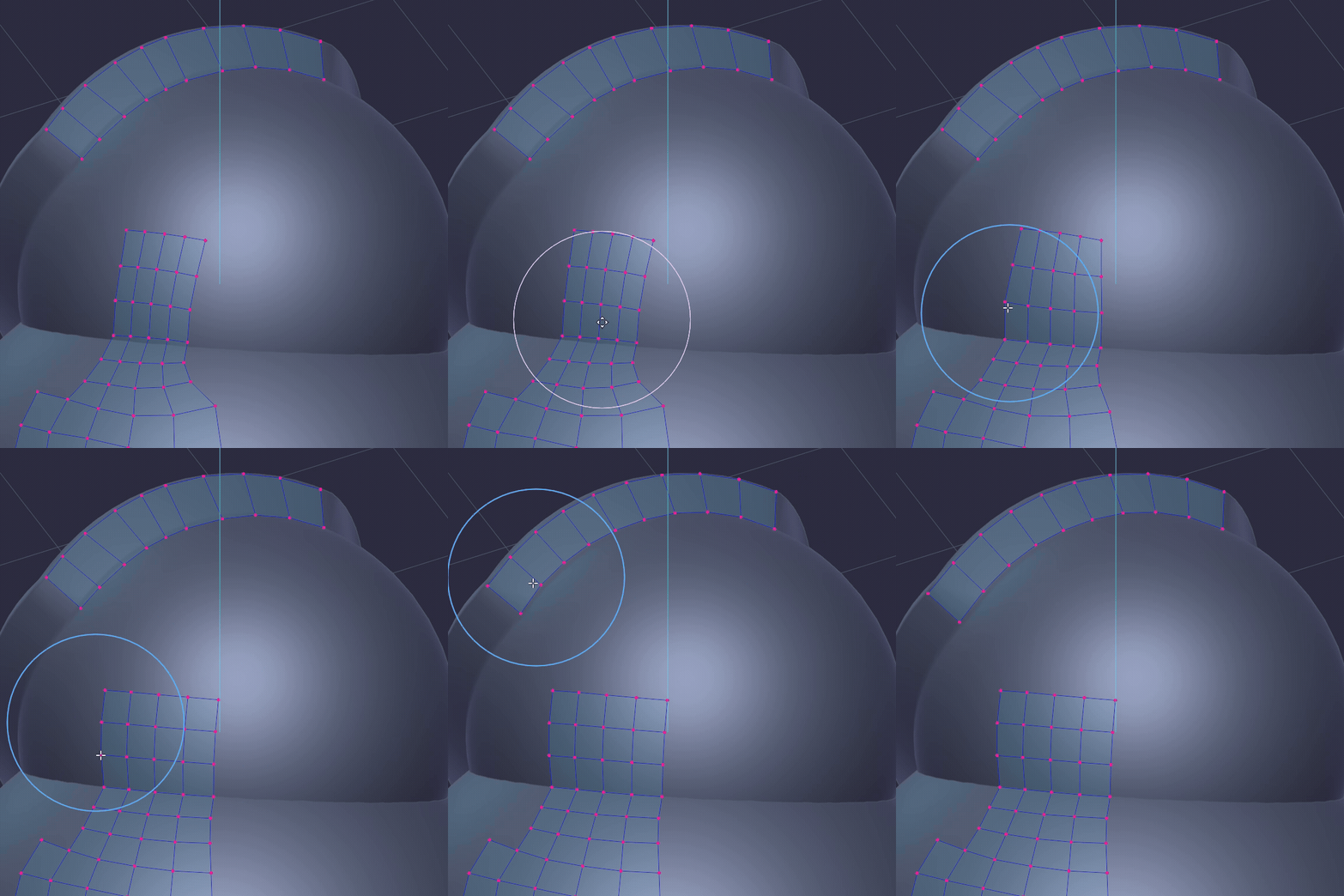
Hover a vertex, edge or face and drag to move it,
snapped to the surface. Slide keeps a vertex on its edges.
|
|
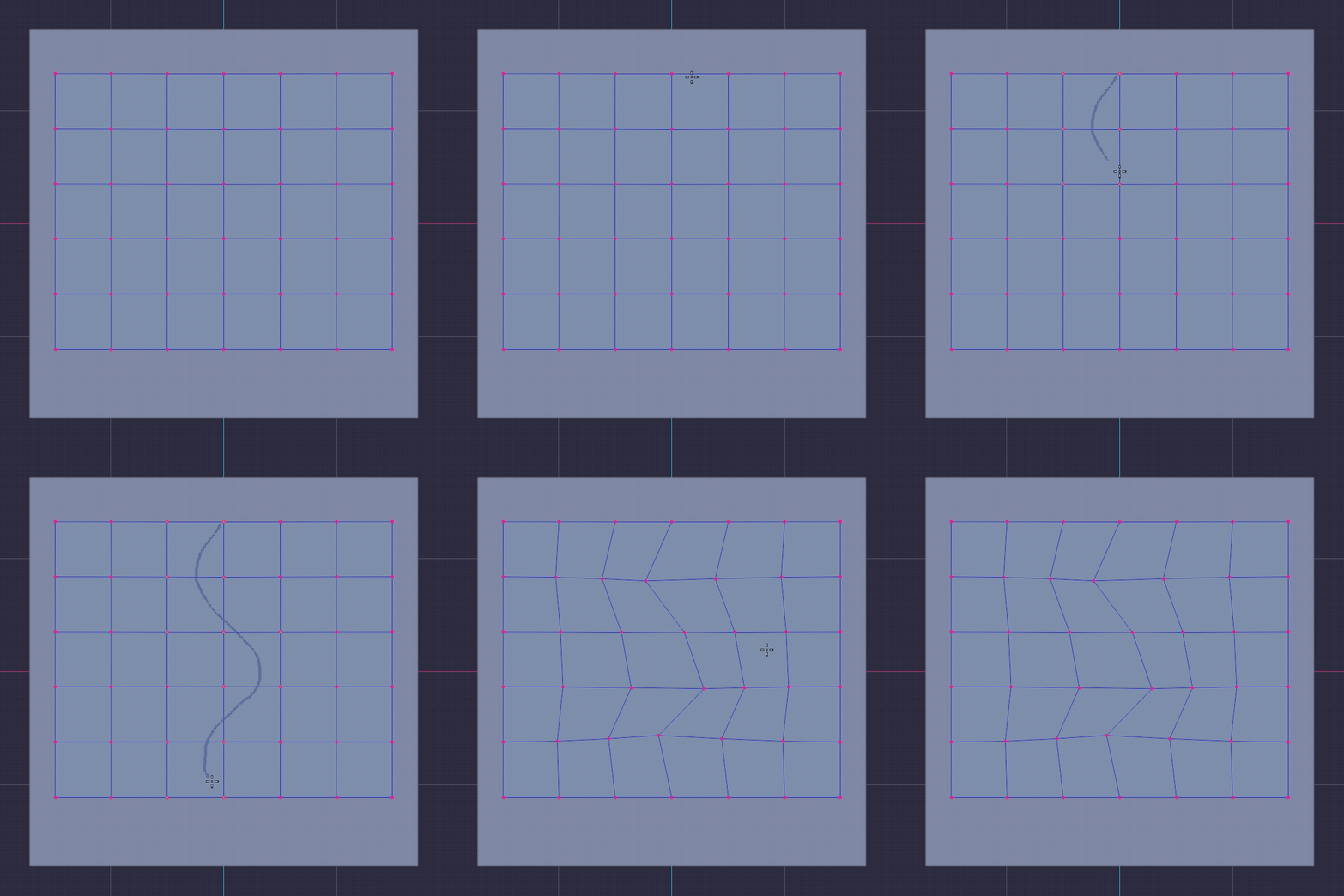
11 / EDIT
Re-sketch
Draw a new path over an existing edge loop:
the loop is pulled onto your stroke
and the rings around it relax so the flow follows.
|
12 / EDIT
Scale, Rotate & Move
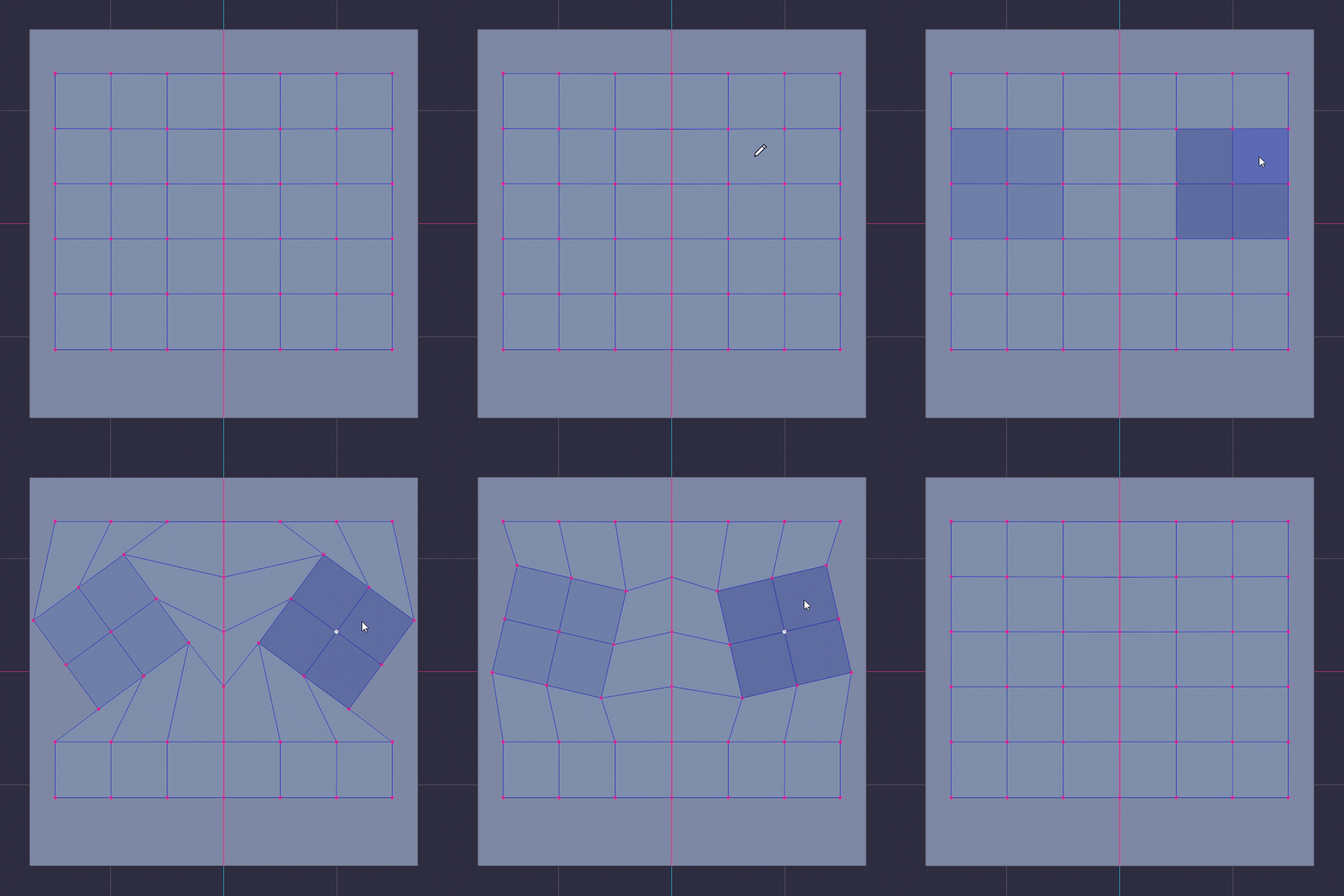
Paint the faces to affect, then scale, rotate or move them around their centre with the cursor,
re-projected on the surface.
Local transforms that stay on the model.
|
13 / EDIT
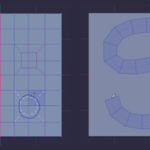
Circularize
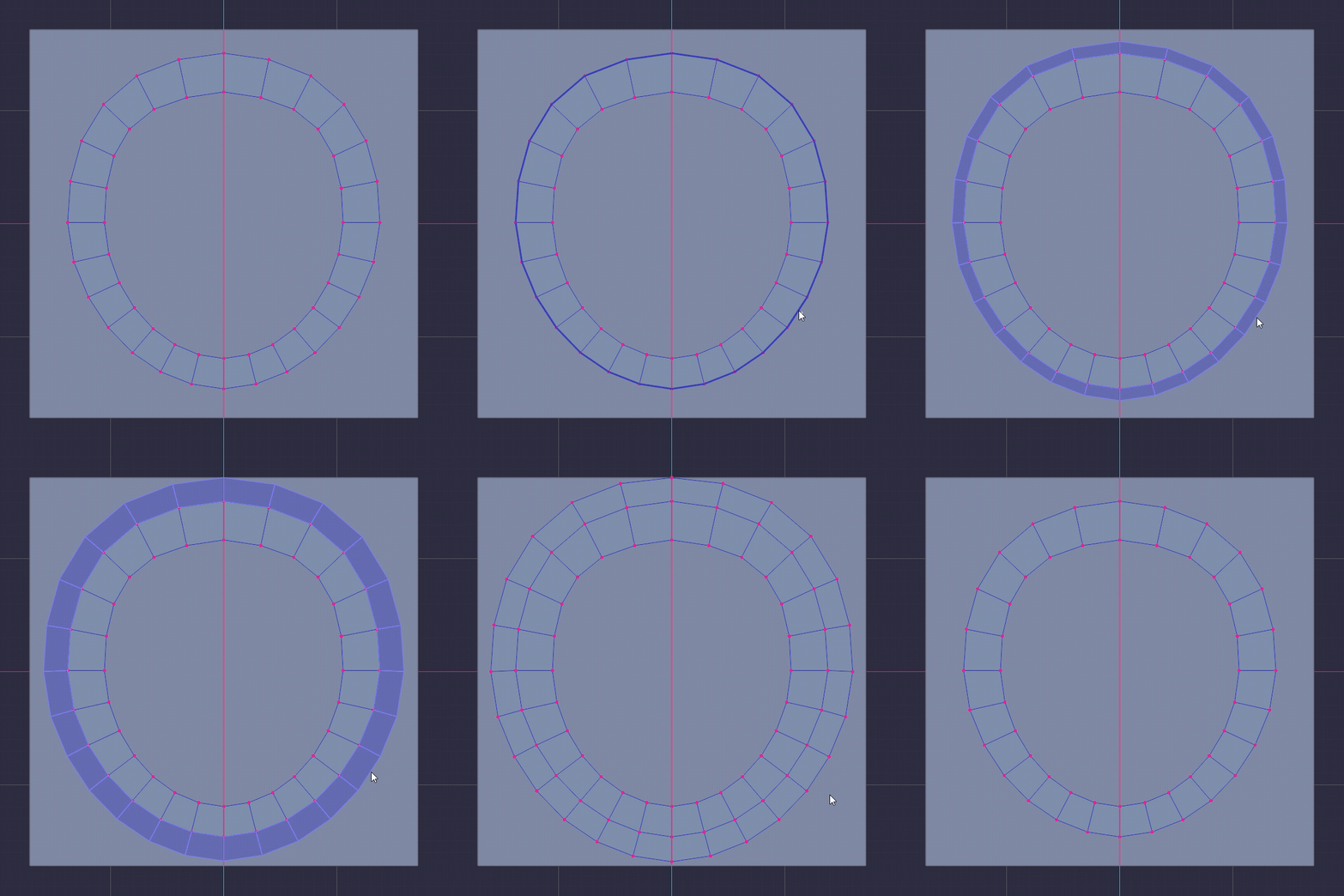
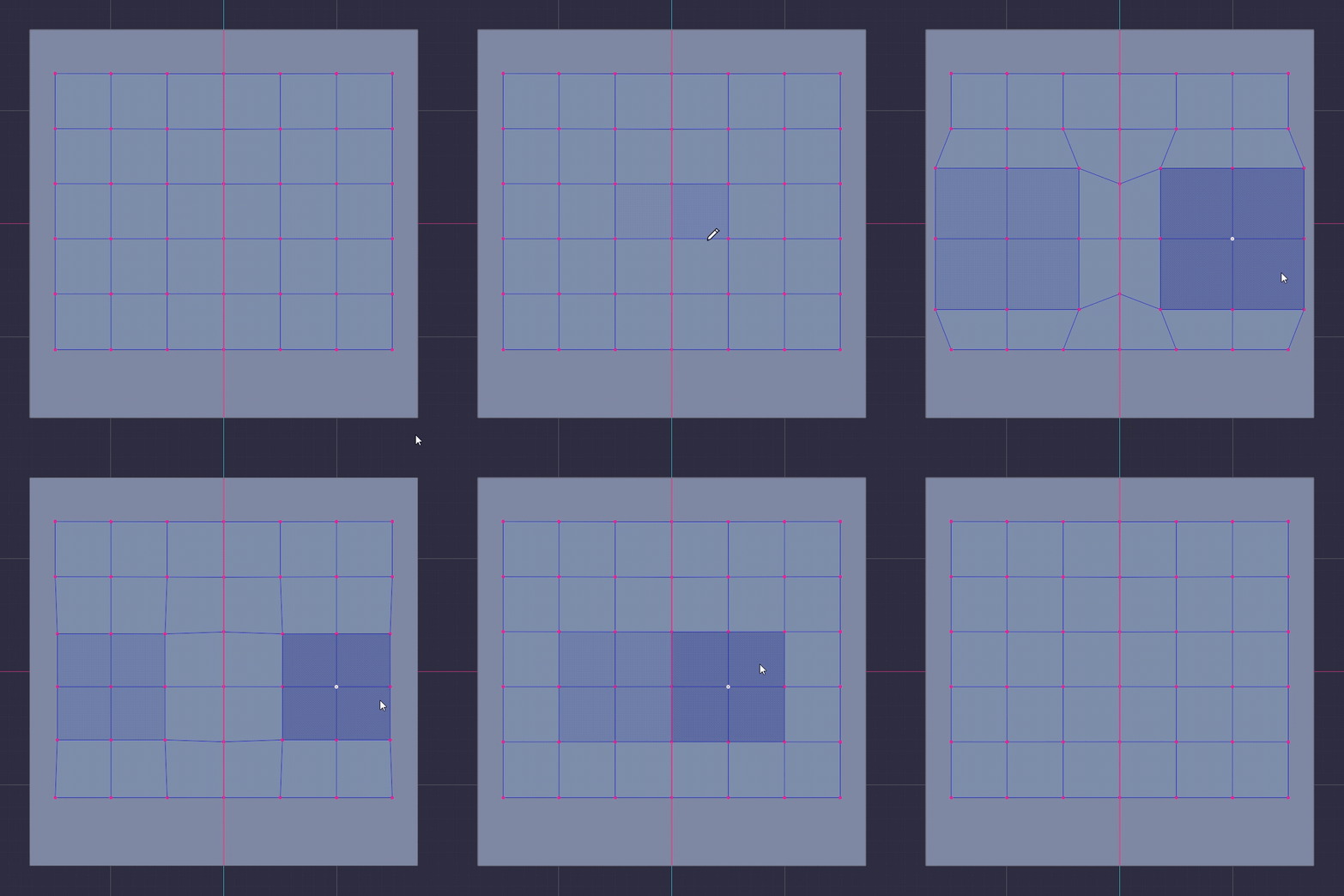
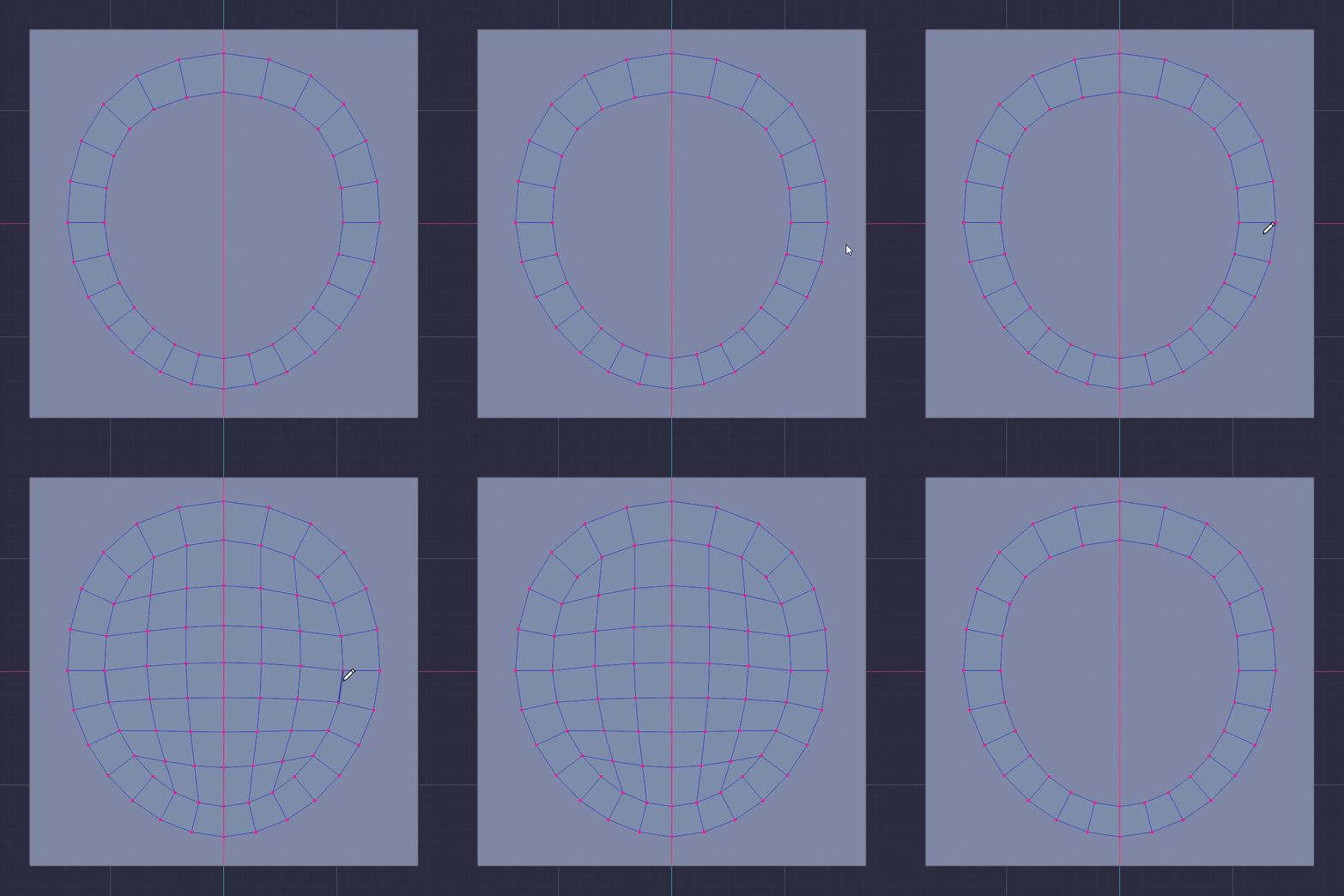
Paint the faces, release,
and the ring is made perfectly round,
then snapped back onto the reference.
|
|
14 / EDIT
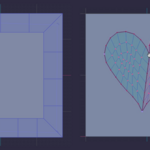
Inset
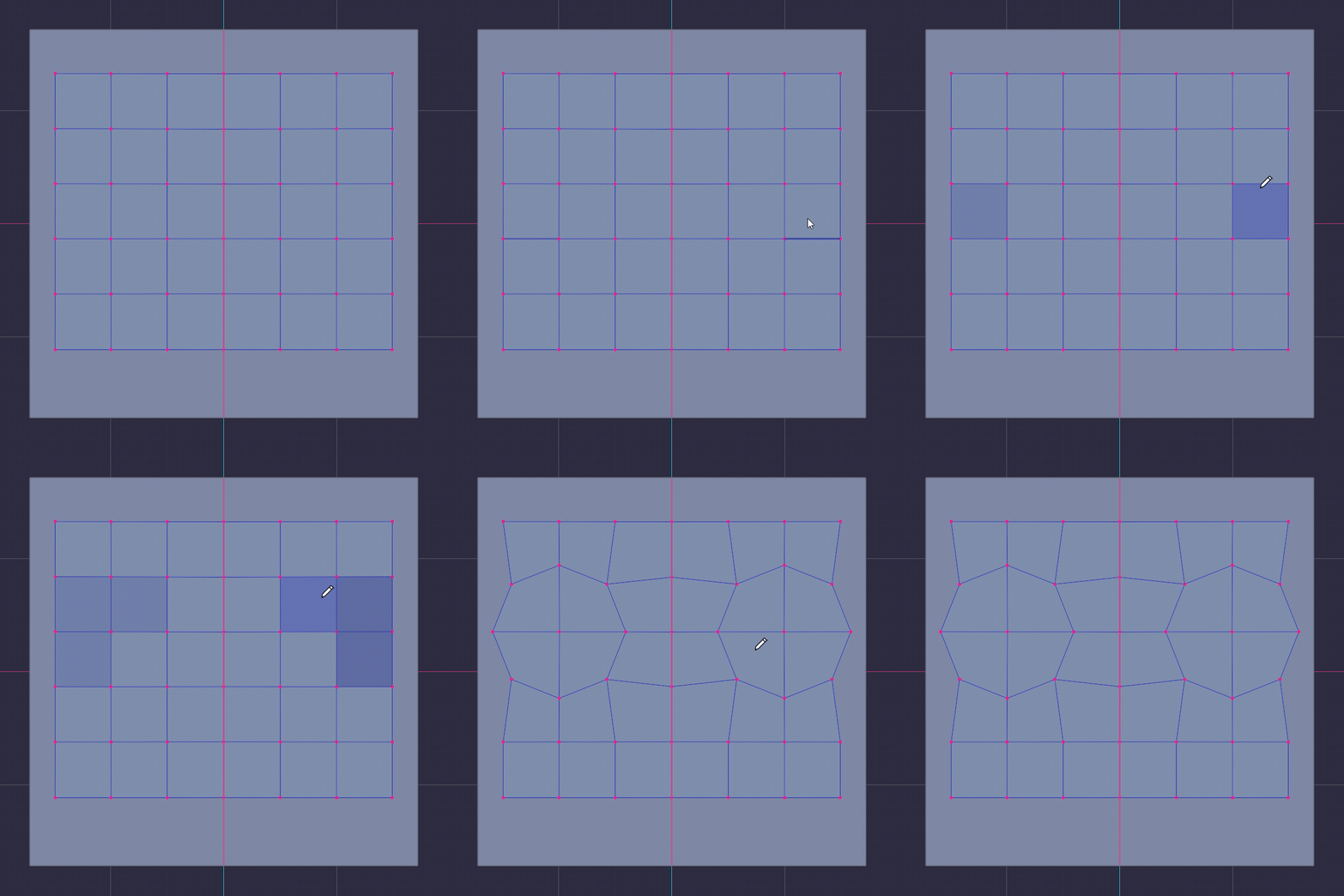
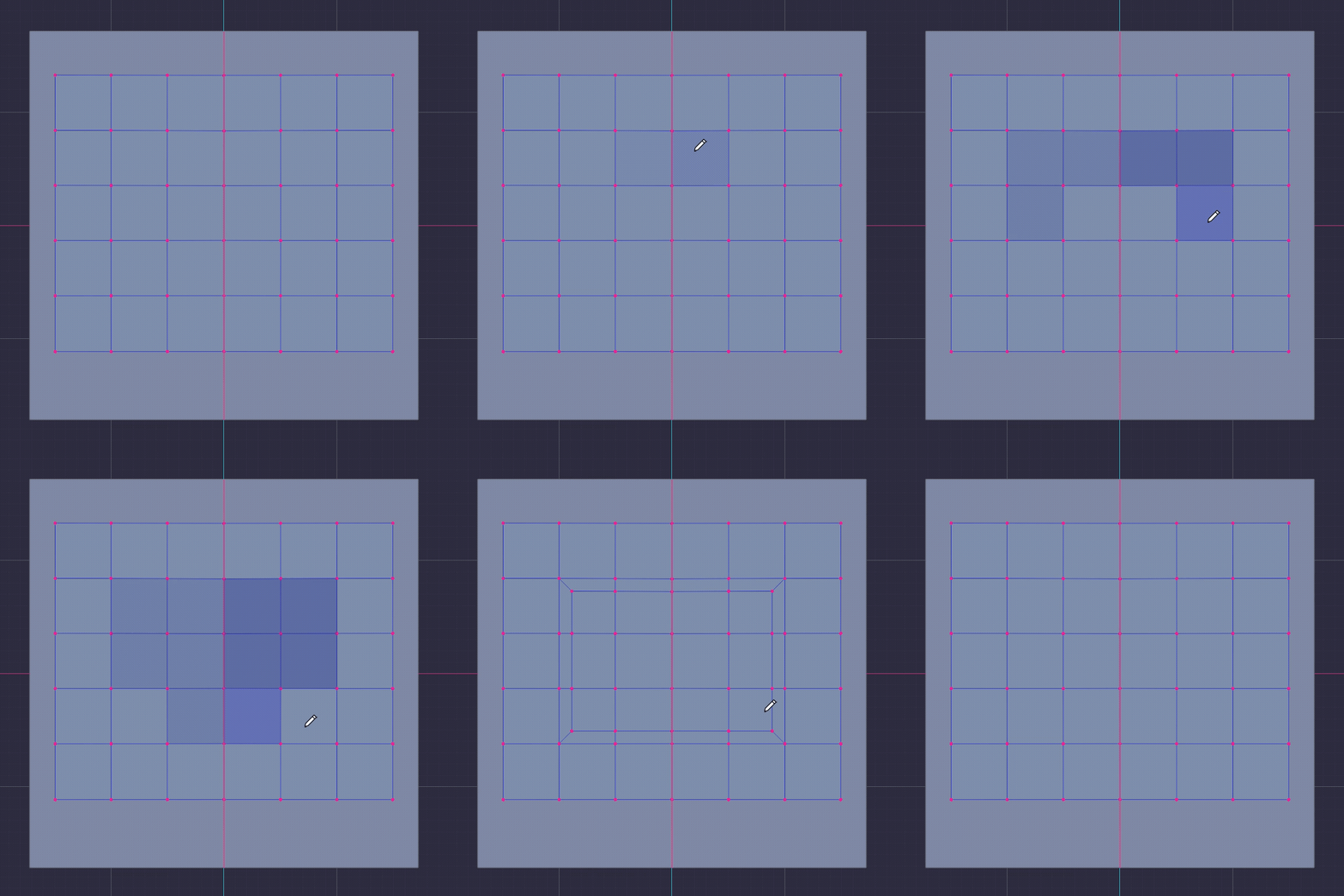
Paint the faces and inset them with a safe inset that does not self-intersect on concave outlines.
|
|
15 / EDIT
Merge
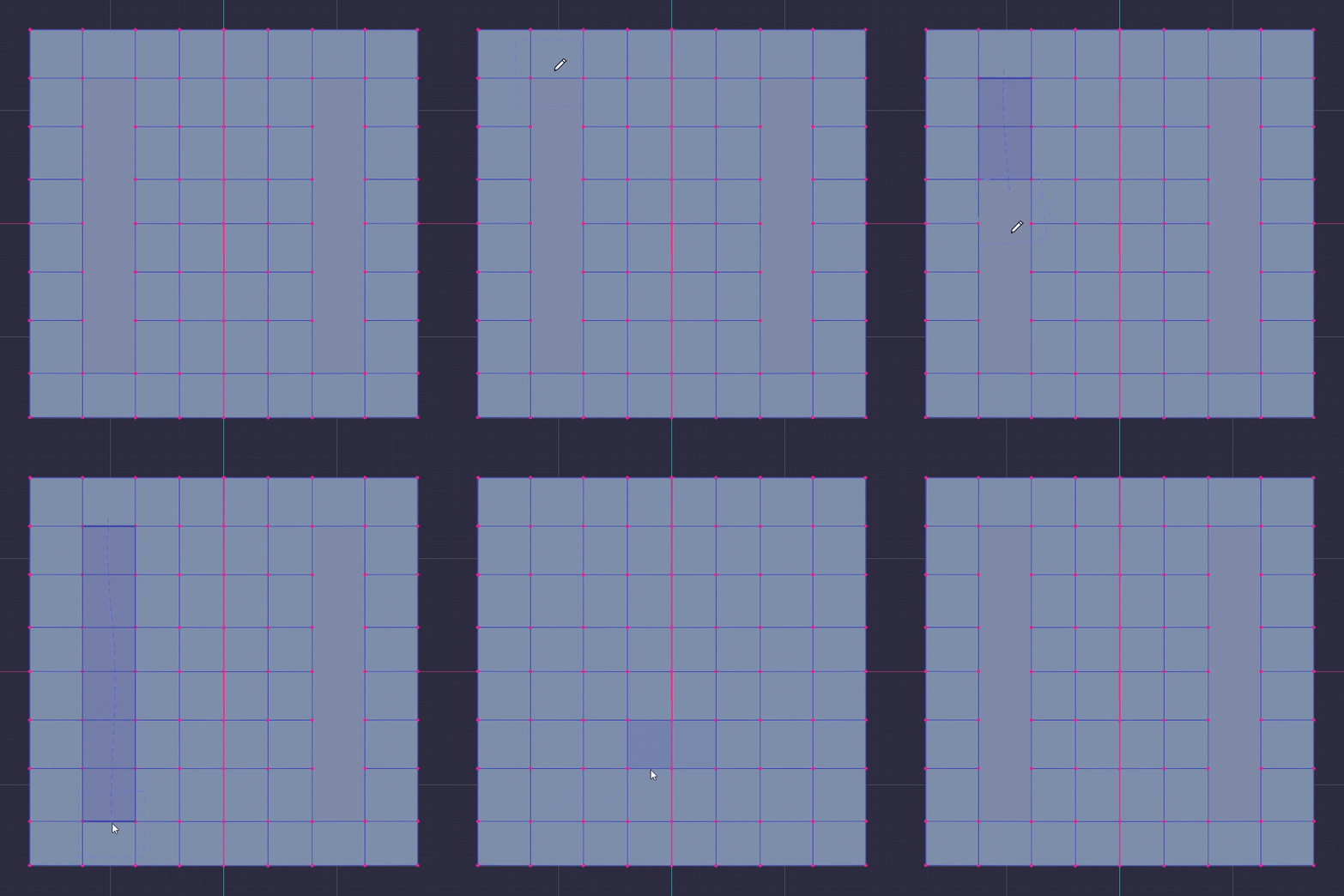
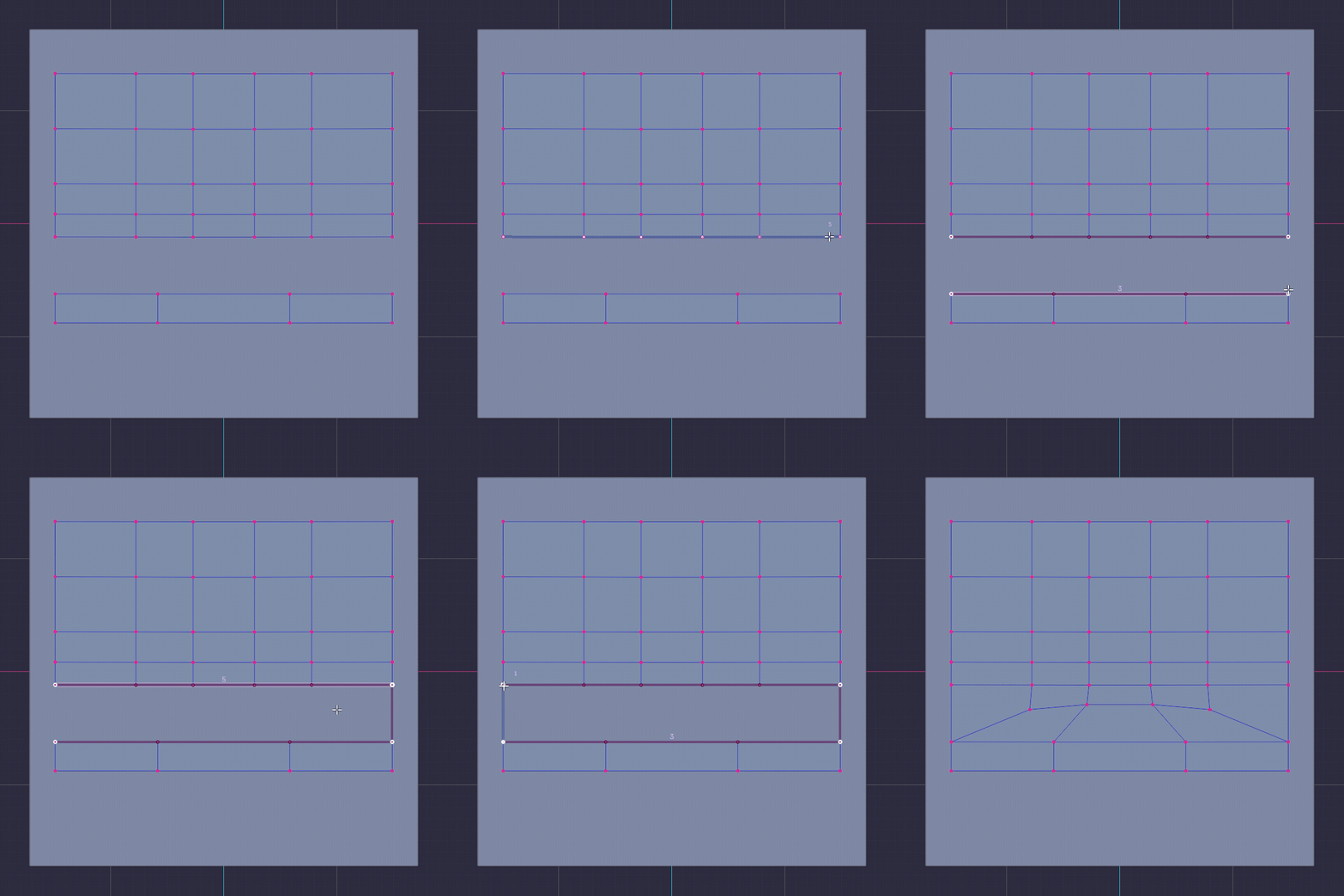
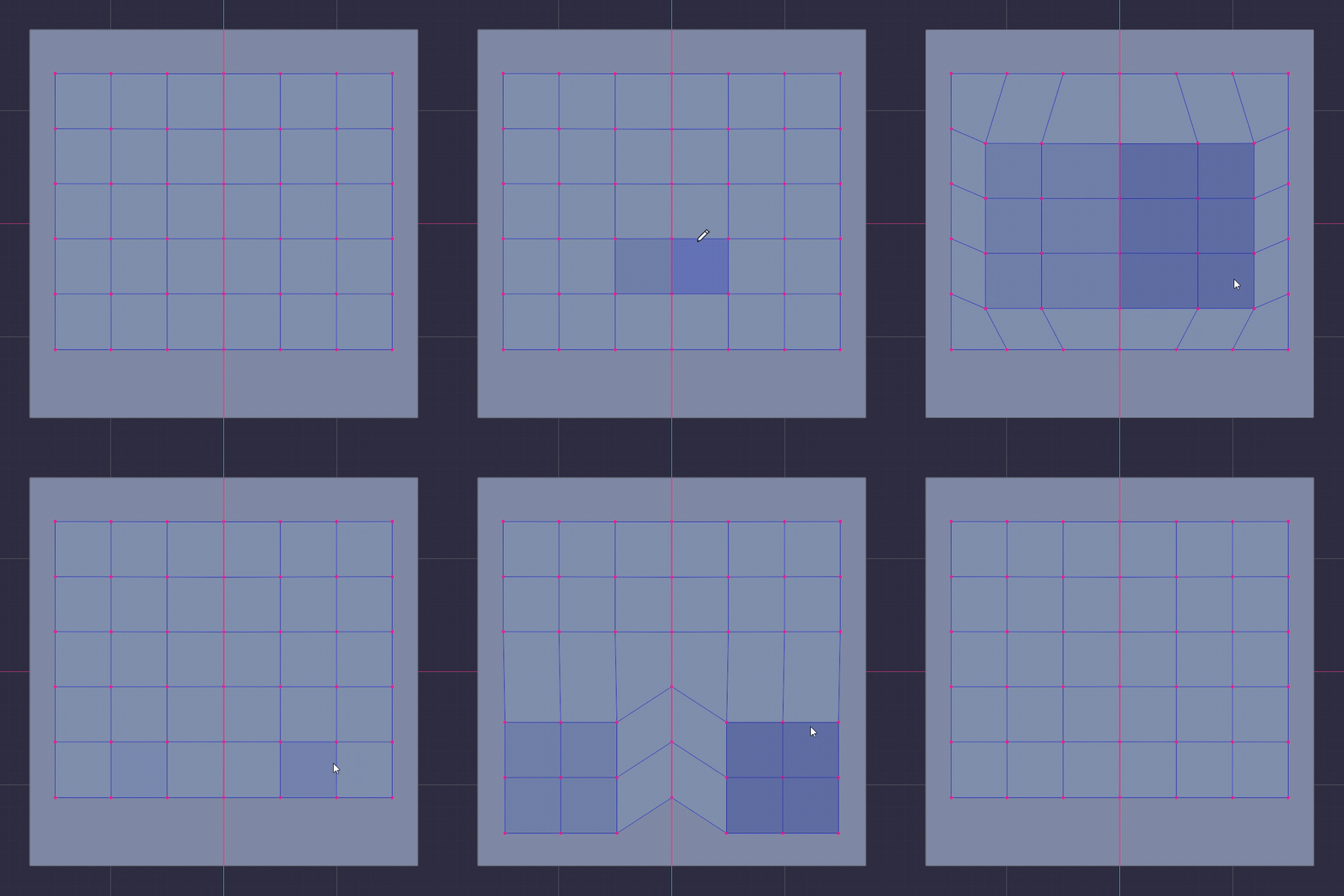
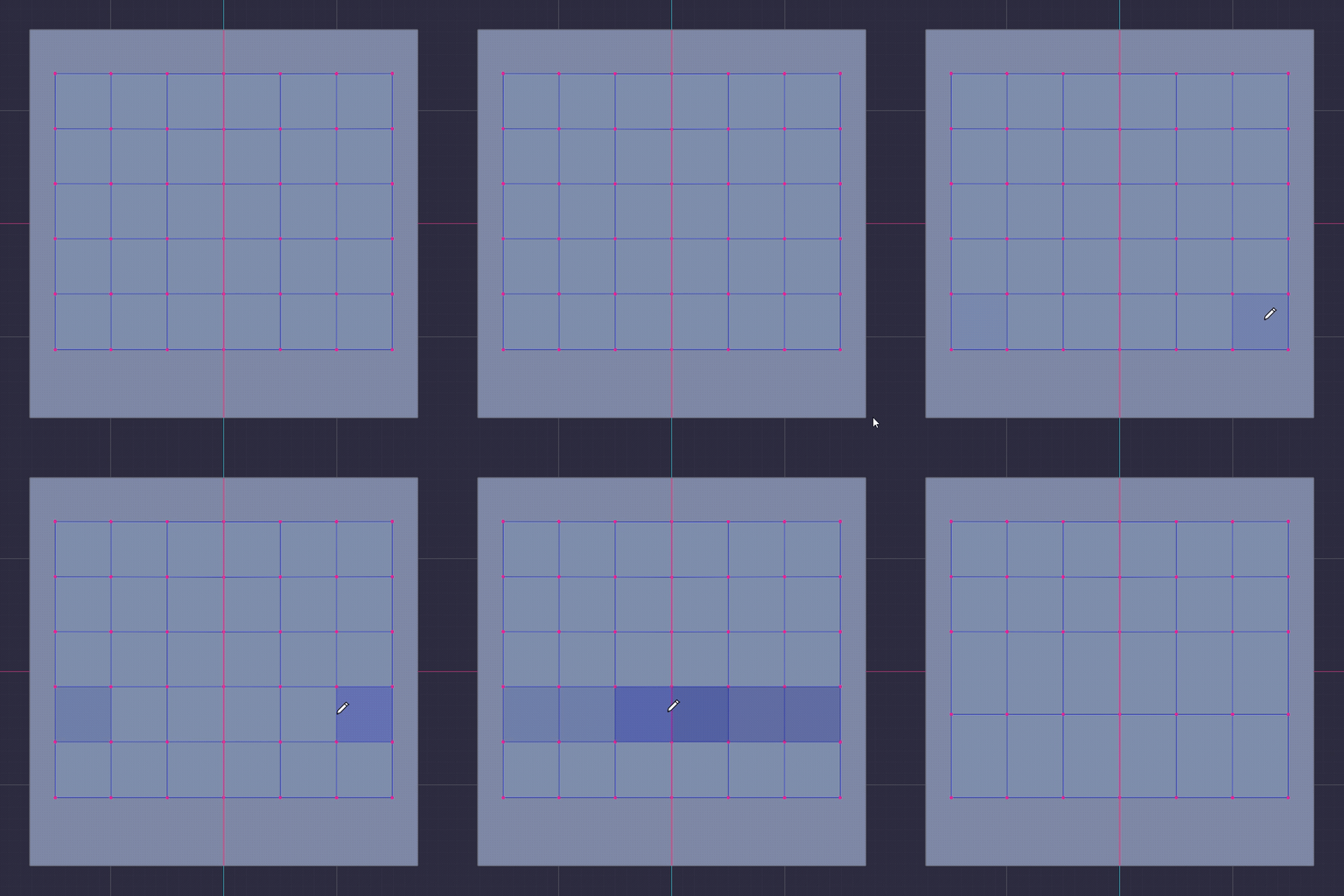
Paint a strip of faces and it collapses into a single edge loop, still on the surface.
|
|
16 / EDIT
OmniFill
Hold the key and the hole under the cursor lights up. Click and it closes with an all-quad patch.
No selecting the border first. Point at ANY hole.
|
|
17 / EDIT
Delete / Dissolve
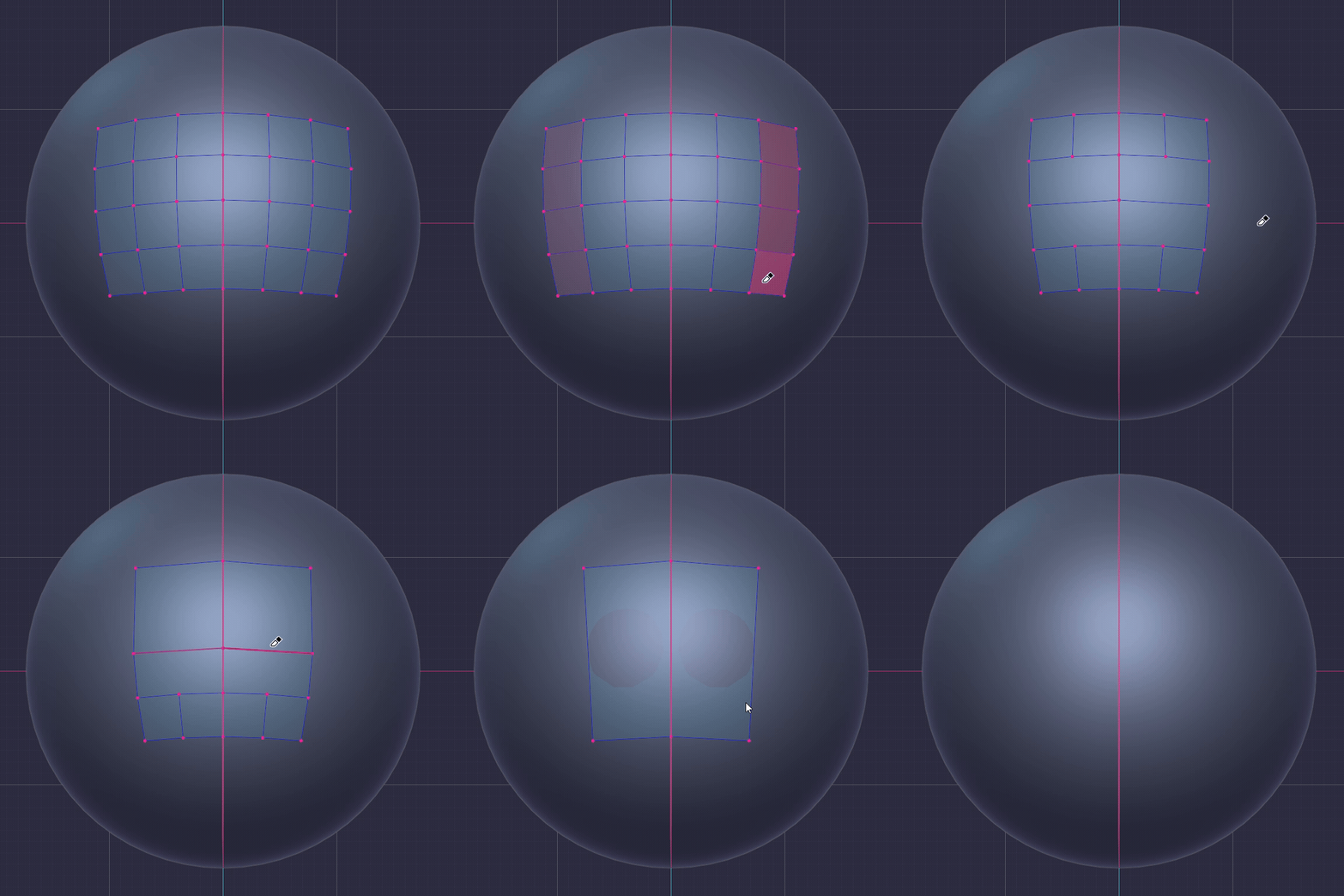
Hold the key and paint over what should go: vertices, edges or faces, the type fixed by the first element you touch. Release to delete or dissolve.
|
|
18 / BRUSH
Brushes
Move, relax and delete as brushes,
Relax can be limited to boundaries or interiors,
stays on the surface and snaps to sharp features.
|
One button, every action
Hover + drag
Grab the element under the cursor
and move it, snapped.
|
Click in empty space
Start or continue a polygon.
Close it and the face is made.
|
Keymap editor
A built-in rebinding panel:
click an action, press a key.
|
HUD
Highlight colours, sizes, alpha and distances
are all adjustable,
|
Specs
| Blender |
4.2 and up. Installs as a Blender Extension: drag the .zip in. |
| Core |
Native core for every platform. |
| Platforms |
Windows x64 · Linux x64 · macOS Apple Silicon & Intel |
| Licence |
GPL-3.0-or-later |
| Support |
Discord: discord.gg/jfDPKf5ju2
|
Questions you're about to ask
How is this different from the others?
Faster and better surface snapping, snapping to sharp features, the brush set,
the best PolyPen in the game, Tube Tool with Ridge and Vine, the KEwlSheeet tool, the drawing knife...
Do I have to memorise gestures?
The HUD tells you what the current hover will do, and every binding is editable.
Does it snap to a reference?
Yes. Everything you build or move stays on the reference surface while you drag.
Will it fight my existing keymap?
The keymap editor exists for exactly that. Rebind anything.
Model at the speed you think.
One tool, no mode switching. The topology is the only thing left to think about.
Get KEwlPen
Free updates • All platforms in one download • Blender 4.2+
 KewlSheet