 AmJViz


KeyMouse HUD Documentation
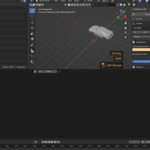
KeyMouse HUD is a lightweight Blender extension that displays keyboard shortcuts, mouse clicks, and scroll actions directly inside the 3D Viewport. It is designed for tutorials, courses, demonstrations, livestreams, and screen recordings.
Compatibility
Blender 4.2 or newer
Windows, macOS, and Linux
Displayed inside the 3D Viewport
Installation
Download the KeyMouse HUD ZIP file.
Do not extract the ZIP archive.
Open Blender and go to Edit → Preferences.
Open the Extensions or Add-ons section.
Select Install from Disk.
Choose the downloaded ZIP file and complete the installation.
Getting Started
Open a 3D Viewport.
Press N to open the Sidebar.
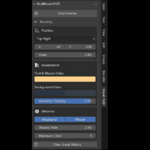
Select the Input HUD tab.
Click Start Overlay.
Use your keyboard or mouse to see inputs appear in the Viewport.
Click Stop Overlay when you no longer need the display.
The overlay passes input through to Blender, so normal shortcuts and tools continue to work.
Displayed Inputs
KeyMouse HUD can display:
Keyboard keys
Modifier combinations such as Ctrl, Shift, Alt, and OS Key
Left, right, and middle mouse clicks
Mouse-wheel actions
Additional mouse buttons
Supported trackpad gestures
Repeated inputs grouped into a single entry
Continuous mouse-pointer movement is intentionally not displayed to keep the overlay clean and readable.
Position Settings
Choose from nine predefined positions:
Top Left, Top Center, and Top Right
Center Left, Center, and Center Right
Bottom Left, Bottom Center, and Bottom Right
Use Horizontal Offset and Vertical Offset for precise placement.
Appearance Settings
Text & Mouse Color: Changes both the text color and active mouse-button highlight.
Background Color: Changes the background behind each displayed input.
Intensity / Opacity: Controls overall overlay visibility.
Scale: Changes the size of the text, mouse icon, and background.
Behavior Settings
Keyboard: Enables or disables keyboard-input display.
Mouse: Enables or disables mouse-input display.
Display Time: Controls how long each input remains visible.
Maximum Lines: Controls the maximum number of recent inputs displayed.
Clear Input History: Immediately removes currently visible entries.
Privacy
KeyMouse HUD processes input locally inside Blender. It does not permanently save, transmit, or upload keyboard and mouse history. Display history is temporary and exists only in Blender’s memory while the extension is running.
License and Copyright
Copyright © 2026 AmJViZ
Licensed under GNU GPL-3.0-or-later.
Have questions about this product?
Login to message
| Blender Extension Compatible | Yes |
| Published | about 2 months ago |
| Blender Version | 4.2 - 5.2 |
| Extension Type | Add-on |
| Render Engine Used | Cycles, Eevee |
| License | GPL |

Discover more products like this
shortcutvu screencast keys key-viewer blender screenshot addon blenderscreentime Shortcut blender screenshot tools