Kohli Arts Remesh
 Kohli Arts
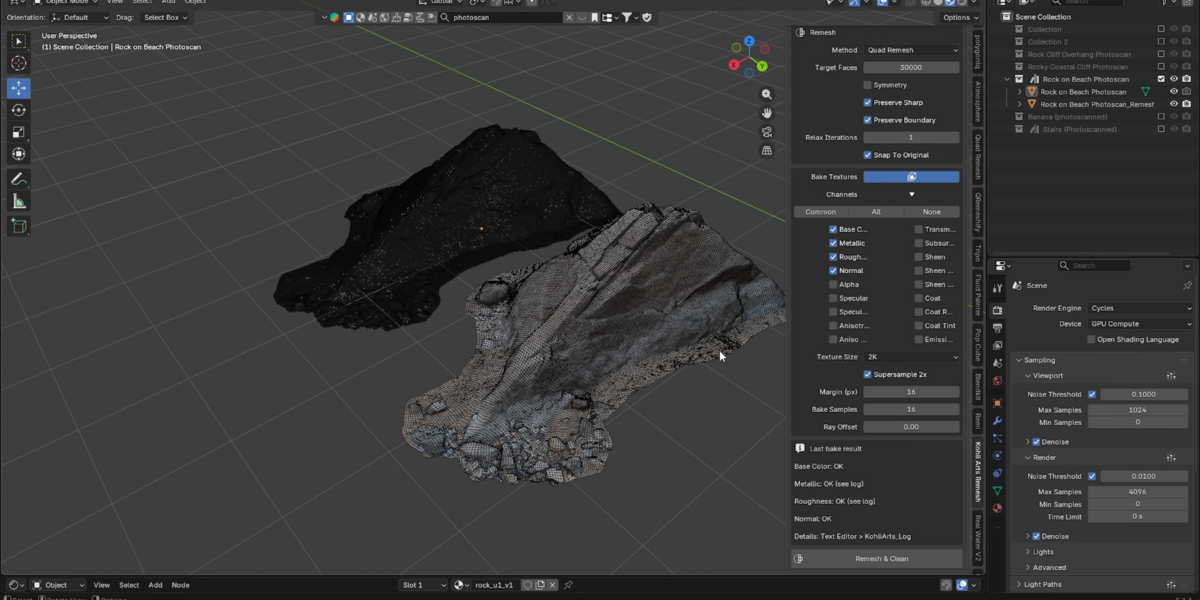
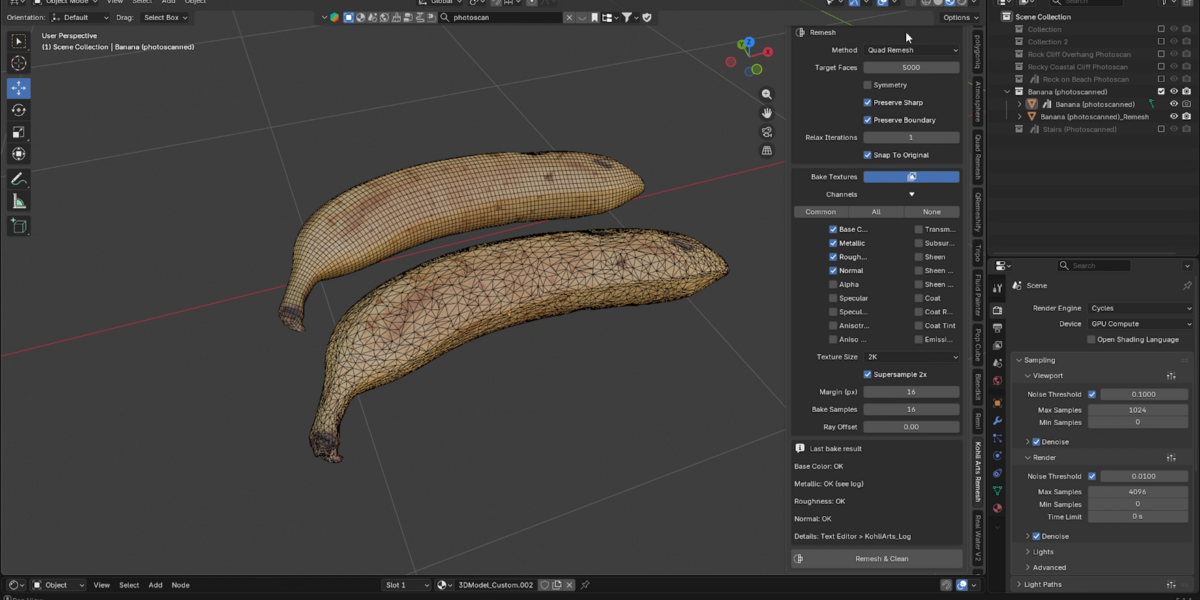
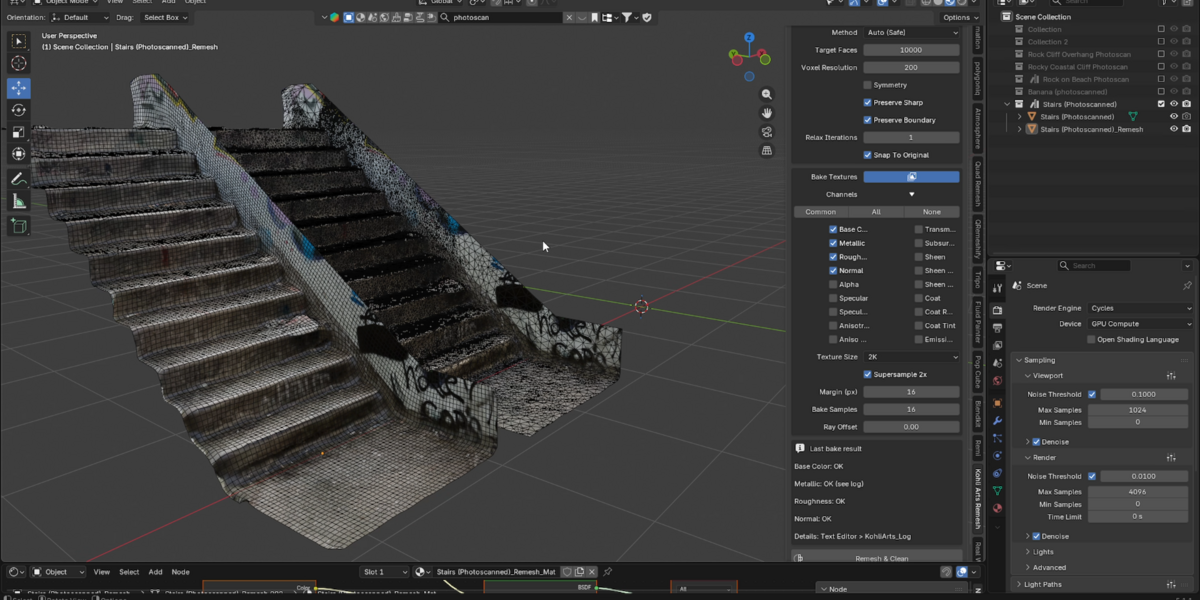

Installation
- Download the ZIP file from your Superhive orders page. Do not unzip it.
- In Blender, open Edit > Preferences > Get Extensions.
- Open the small arrow menu at the top right and choose Install from Disk...
- Select the ZIP file and confirm.
- In the 3D viewport press N and open the Kohli Arts Remesh tab.
Quick start
- Select your mesh in Object Mode (the active object is the one that gets processed).
- Set Target Faces (8000 is the default starting point).
- Click Remesh & Clean. On very dense meshes Blender can look frozen for a while. Please wait.
- The result is a new object named YourObject_Remesh. Your original object is kept and hidden. Use the eye icon in the Outliner to show it again.
Panel reference
Cleanup
- Remove Floaters / Min Piece Size %: deletes small disconnected pieces smaller than this share of the largest piece (default 0.5%). Lower it or turn it off if small parts of your model disappear.
- Fill Small Holes / Max Hole Sides: closes small holes (default 8 sides).
- Pre-Decimate Huge Meshes / Face Limit: reduces very dense meshes before remeshing so it stays fast and stable (default 150000 faces).
Remesh
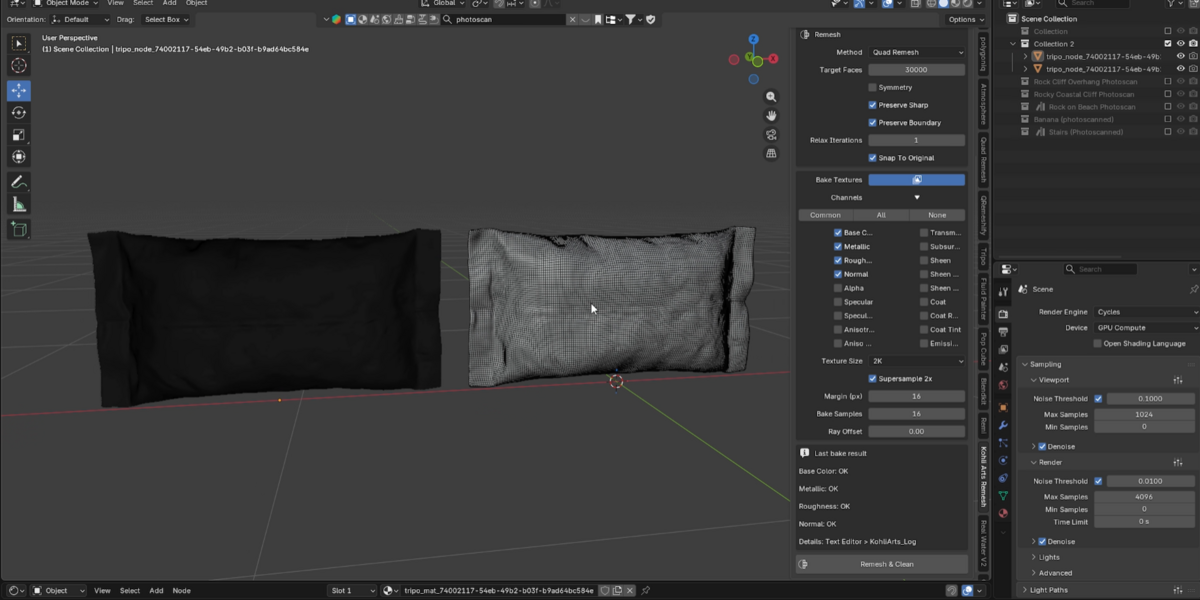
- Method: Auto (Safe) tries a quad remesh first and falls back to a voxel pass if needed. Quad Remesh uses QuadriFlow only. Voxel Remesh uses a voxel remesh and then reduces to the target.
- Target Faces: number of faces of the new mesh.
- Voxel Resolution: detail of the voxel pass (Auto and Voxel methods).
- Symmetry, Preserve Sharp, Preserve Boundary: QuadriFlow options.
- Relax Iterations: smooths the new surface (default 2).
- Snap To Original: projects the new mesh back onto the original surface.
Bake Textures
- Pick the Channels to bake from the original material. Use the Common, All and None buttons for quick selection. Common = Base Color, Metallic, Roughness and Normal.
- Other channels: Alpha, Specular, Specular Tint, Anisotropic, Anisotropic Rotation, Transmission, Subsurface, Sheen, Sheen Roughness, Sheen Tint, Coat, Coat Roughness, Coat Tint and Emission Color.
- If a channel has no texture in the original (just a fixed value), the value is copied and no image is created. Other Principled BSDF values, such as IOR, are copied too.
- Texture Size (1K to 8K), Supersample 2x (cleaner edges), Margin, Bake Samples and Ray Offset (default 0.002).
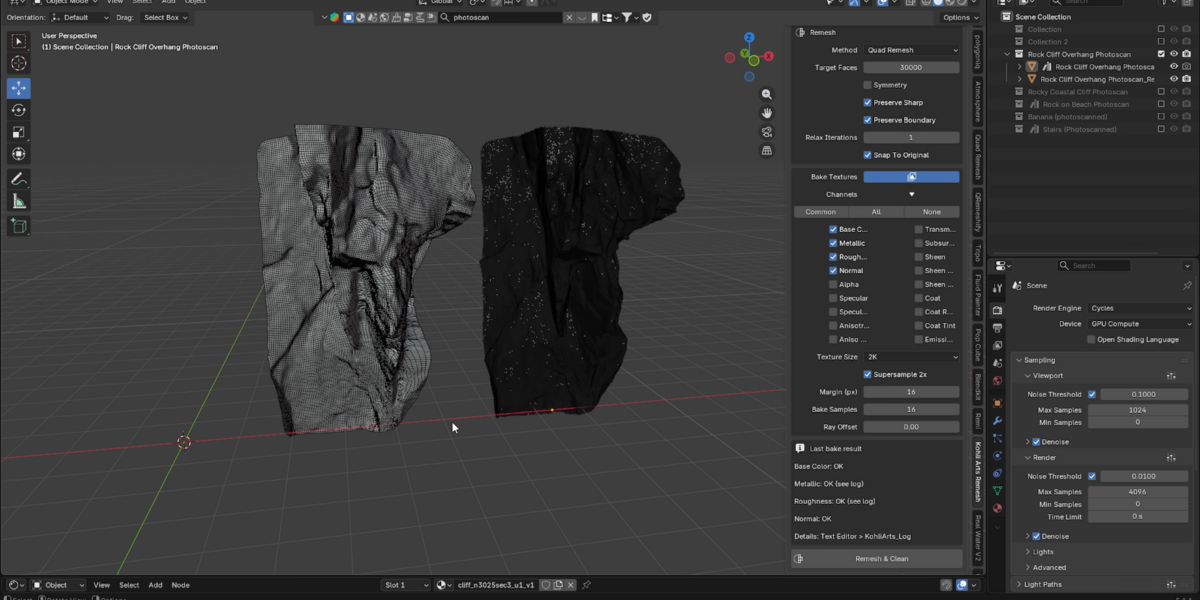
- After baking, the panel shows the result of each channel. Full details are saved in the Text Editor as KohliArts_Log.
Tips
- Large, detailed objects (for example a road or terrain scan) need a bigger Texture Size such as 4K.
- Baked textures are packed inside your .blend file. Save the file. To export an image, use the Image Editor and Image > Save As.
- Apply any modifiers on the original before running the add-on. Modifiers are ignored.
Troubleshooting
- "QuadriFlow failed": switch Method to Auto (Safe) or lower the Face Limit.
- A channel shows FAILED: open the KohliArts_Log text for the reason. Make sure the original object has a material and a UV map.
- Dark patches or missing areas in the baked texture: raise Ray Offset a little (for example 0.005) and increase Margin.
- Baked colors differ from the original: the add-on reads the original Principled BSDF. Materials built from other shaders may not bake every channel.
Limitations
- One object at a time (no batch mode yet).
- Texture baking uses Cycles and runs with the device set in your Render settings.
- Remeshing runs inside Blender and cannot be cancelled while it works.
- Results depend on the quality of the source model.
Support: contact the creator through the Superhive inbox.
Have questions about this product?
Login to message
| Blender Extension Compatible | Yes |
| Published | 1 day ago |
| Blender Version | 5.1 |
| Extension Type | Add-on |
| Render Engine Used | Cycles |
| License | GPL |

Discover more products like this
Blender remesh quad remesh retopology addon convert triangles to quads quadremesh remesh one click quad remesh quadriflow automated remesh mash texture bake quad remesher