Koshizu Trees - Japanese Trees for Blender
 Koshizu Space
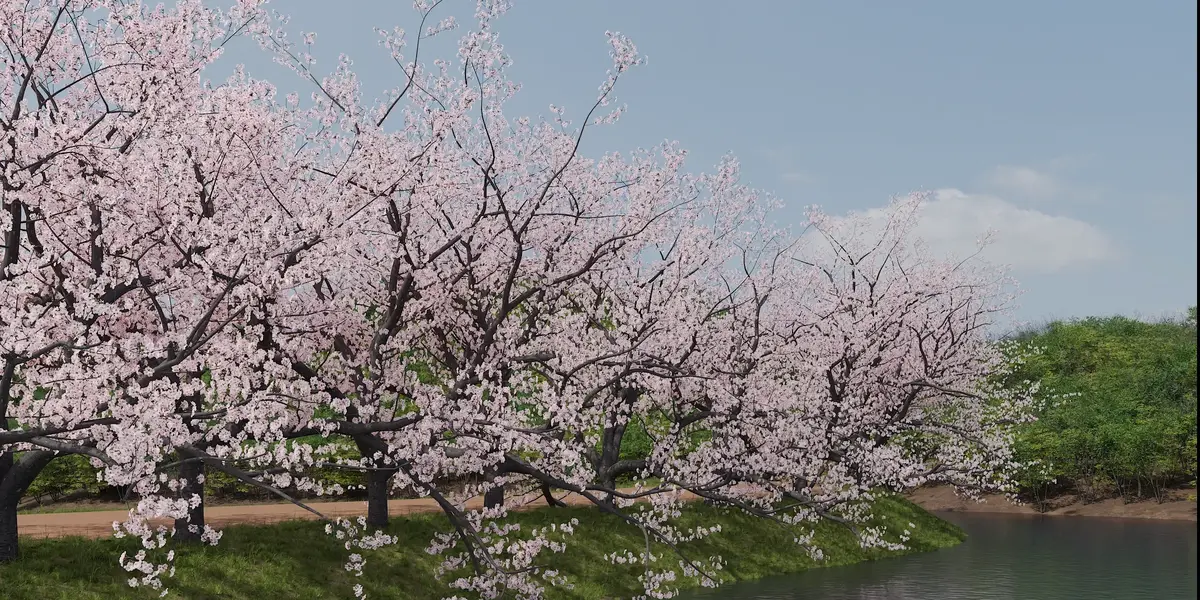
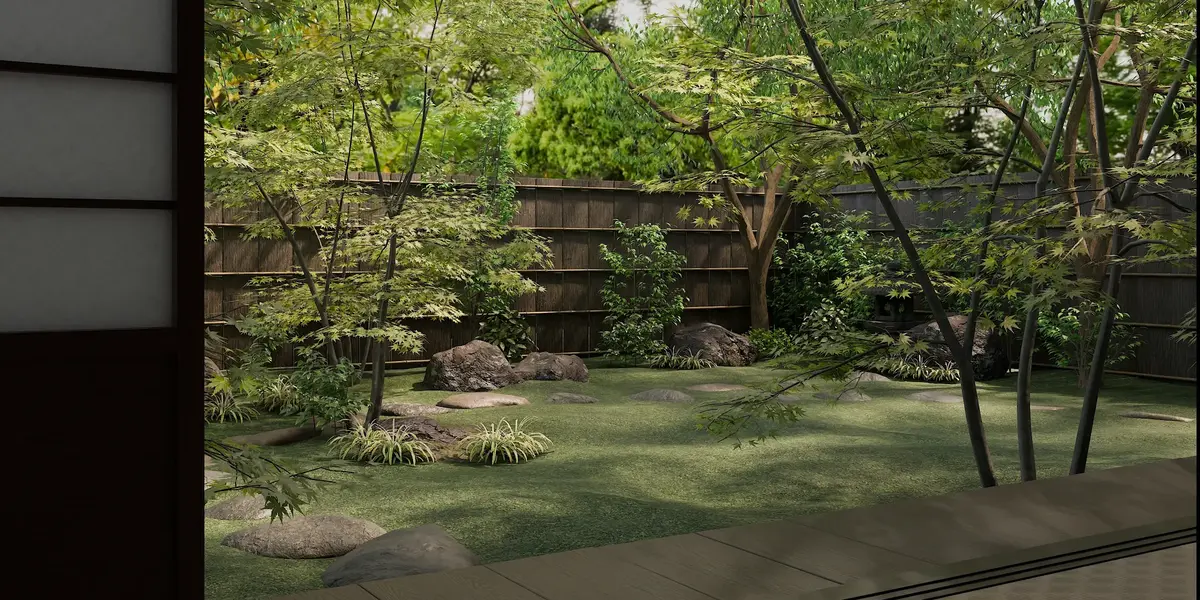
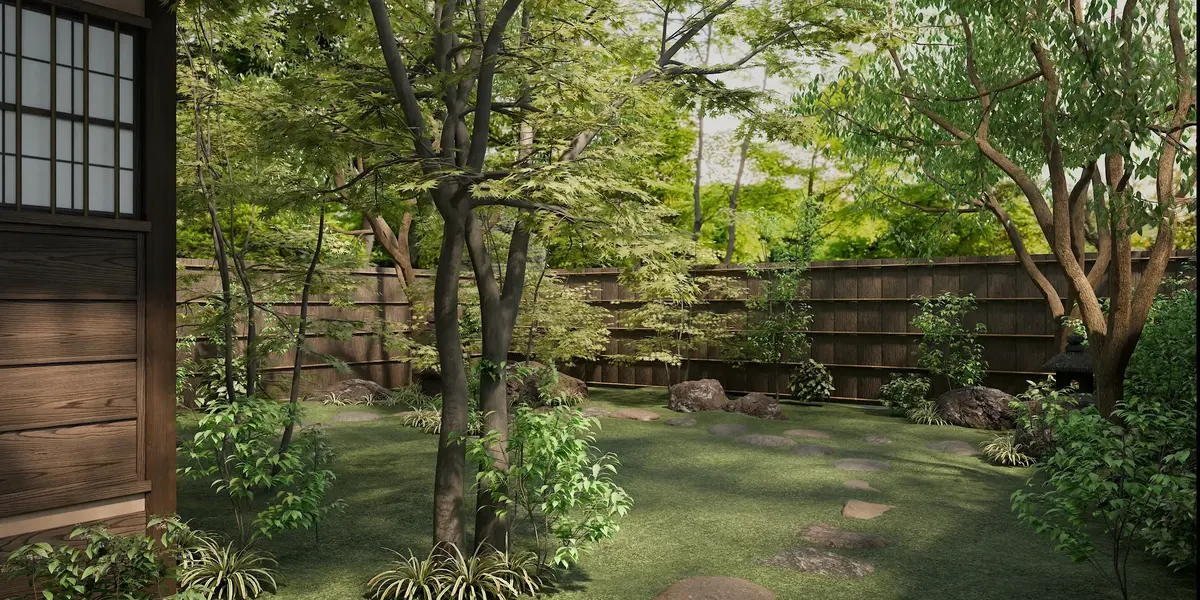
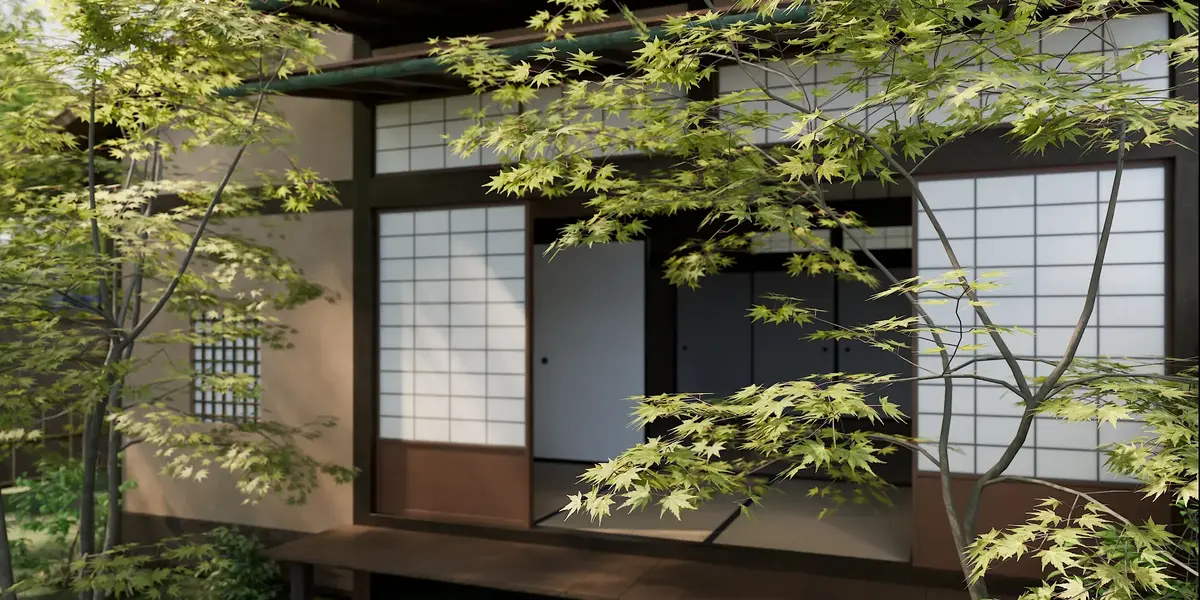
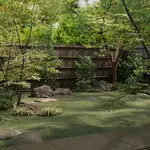
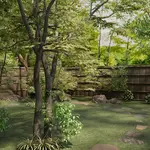
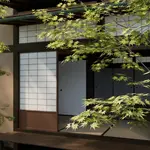
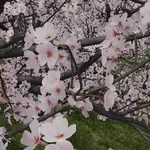
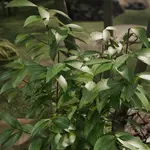
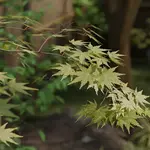
Koshizu Trees — Documentation (v1.0)
Koshizu Trees is a Geometry Nodes tree generator for Blender, focused on Japanese tree species. Pick a species, place it in your scene, and shape it by hand or with a few sliders. Open the Advanced controls when you want to refine every detail.
REQUIREMENTS
- Blender 4.5 or later (tested on 4.5 and 5.1)
- Windows, macOS or Linux
INSTALLATION
1. Download koshizu_trees_1.0.0.zip. Do not unzip it.
2. In Blender, open Edit > Preferences > Add-ons.
3. Open the menu at the top right and choose Install from Disk, then select the zip file.
4. Make sure Koshizu Trees is enabled.
5. In the 3D Viewport, press N to open the sidebar and select the Koshizu Trees tab.
Updating to a new version
1. Export any presets you want to keep (see Export below).
2. Disable and remove Koshizu Trees in Preferences > Add-ons.
3. Restart Blender.
4. Install the new zip file as above.
QUICK START
1. Open the Koshizu Trees tab in the sidebar.
2. Click Browse, choose a species, and click Use This Species. A new tree appears in your scene.
3. Drag the gizmo at the tip of the tree to set its height and lean.
4. Open Shape & Foliage to adjust its form, or click the Randomize button next to Seed for a different variation.
INCLUDED SPECIES
- Kusunoki - Camphor Tree (single trunk)
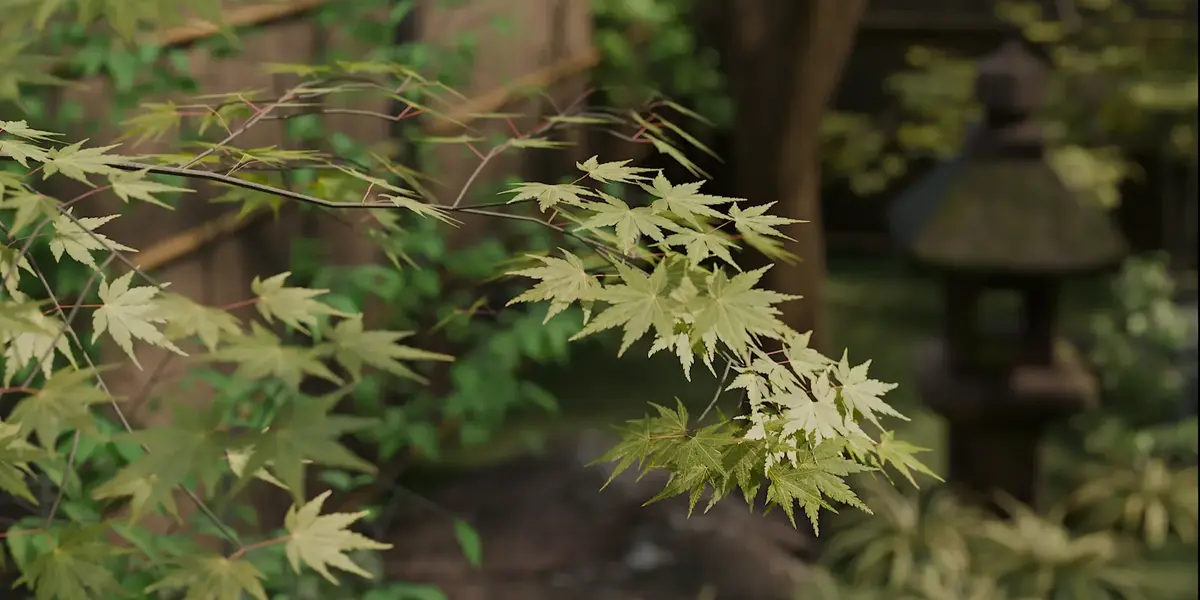
- Momiji - Japanese Maple (single trunk / multi-stemmed)
- Aodamo - Japanese Ash (single trunk / multi-stemmed)
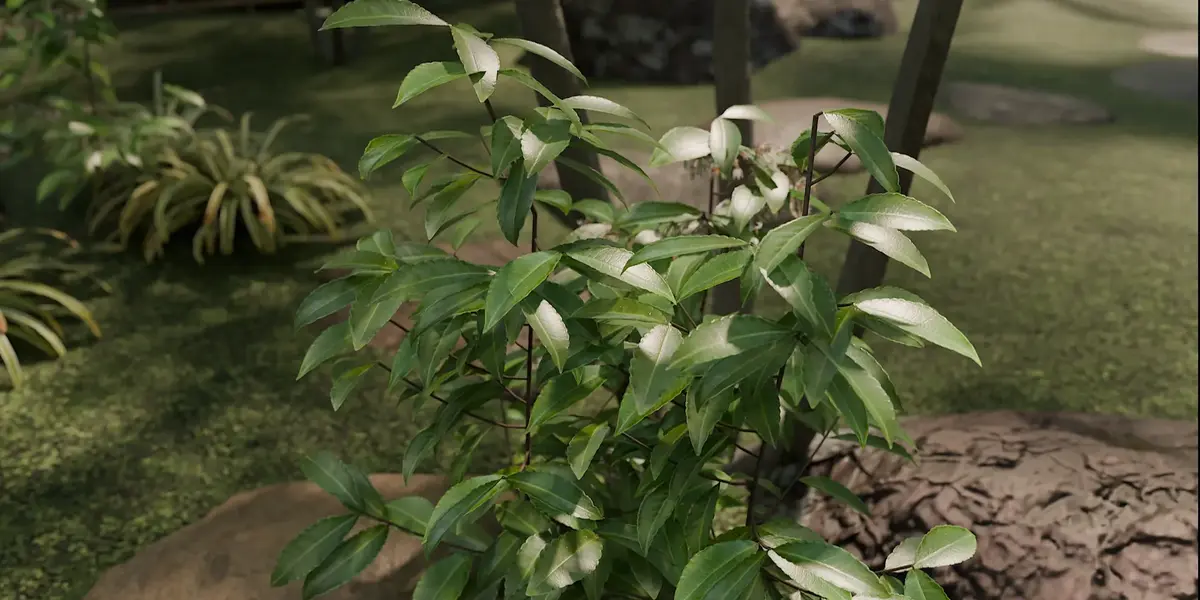
- Manryo - Ardisia Crenata (shrub)
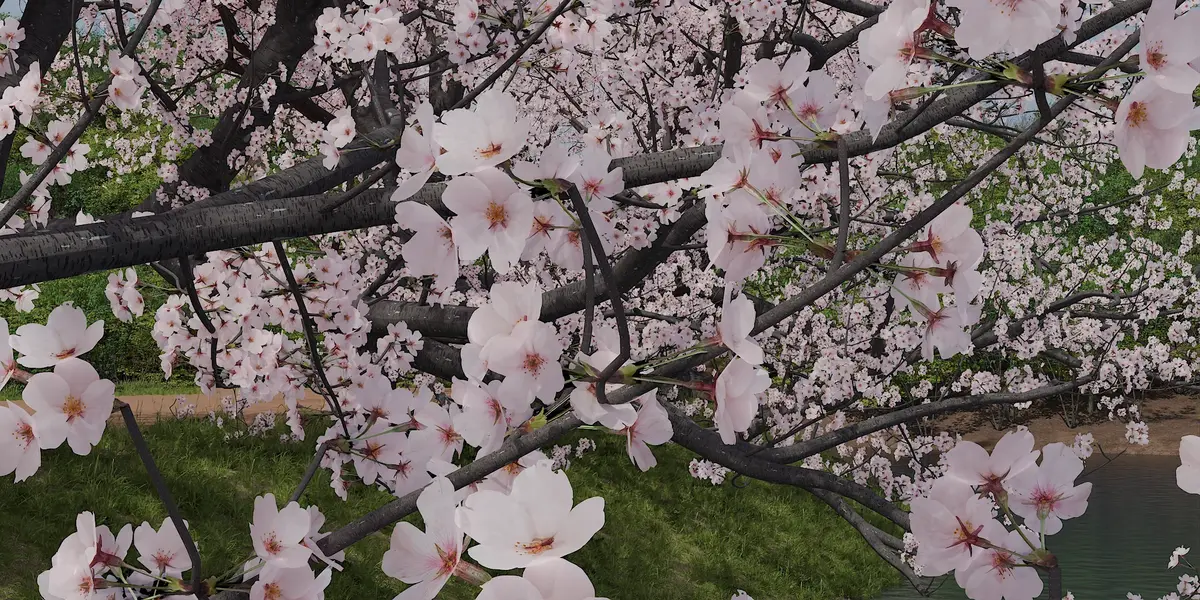
- Sakura - Cherry Blossoms (in bloom)
SHAPING A TREE BY HAND
When a Koshizu Trees tree is selected, gizmos appear at the tip of the trunk.
- Drag the arrows at the tip to raise or lower the tree and to lean it to one side.
- Use the rotation ring to turn the direction the top of the tree faces.
If the gizmos don't appear, check that gizmos are turned on in the 3D Viewport header.
THE SIDEBAR
Browse
Opens the species browser.
- Bundled shows the species included with Koshizu Trees. My Presets shows presets you have saved.
- Type in the search field to filter by Japanese or English name.
- Each thumbnail includes a human silhouette to show the scale of the tree.
- Click Use This Species to add the tree. If a Koshizu Trees tree is already selected, its species is replaced instead.
Scatter
Places many trees of one species across a surface.
1. Select the mesh you want to scatter on, such as a ground plane.
2. Click Scatter, choose a species, and set Count (1 to 200), Min Distance (minimum spacing between trees) and Scale Min / Scale Max.
3. Click Scatter. The trees are placed in a new collection.
Each scattered tree is a full Koshizu Trees object that you can still adjust. Large numbers of heavy species, such as Sakura, can slow down the viewport.
Save as My Preset
Saves the selected tree's current settings as your own preset. It then appears under My Presets in Browse.
Export / Import
- Export saves the selected tree's settings as a .json file, for backup or to share with your own team.
- Import loads a .json preset, adds it to My Presets, and adds the tree to your scene.
Apply as Static
Converts the selected Koshizu Trees objects into regular meshes. Use it to freeze a tree's shape, edit the mesh by hand, or export to other software. After applying, the tree can no longer be adjusted with Koshizu Trees (Ctrl+Z to undo).
Batch Edit Attribute
Changes one setting on several trees at once. Select two or more Koshizu Trees objects, choose a setting (use the search field), enter a value and confirm.
SHAPE & FOLIAGE
Adjusts the selected tree. Use the Basic / Advanced switch at the top.
- Basic shows the essential controls.
- Advanced shows every shape and foliage control.
Sections: General, Leaves, Flowers (species with flowers), Branch, Branch Generation 1-5, Twig, Twig Generation 1-3. The number of generation sections follows Branch Max Generation and Twig Max Generation.
Basic controls
- General: Crown Shape
- Leaves / Flowers: Interval (spacing; lower values mean denser foliage)
- Branch: Trunk Thickness, Trunk Tip Thickness, Branch Max Generation, Branch Radial Resolution
- Branch Generation: Branch Count Min / Max, Branch Angle, Branch Angle Variation
- Twig: Twig Tip Radius, Twig Max Generation
- Twig Generation: Twig Count Min / Max, Base Length, Twig Interval
Advanced mode adds controls for the direction of leaves, flowers, branches and twigs (Roll, Pitch, Twist and their variations), fork positions, curves and distortion. A few more settings are available in the Modifier Properties tab.
Seed and Randomize
The Seed controls the random variation of the tree. Click Randomize to try a new variation; type a number to return to one you liked.
Tips
- Branch Max Generation can be set to 0 for a trunk only.
- Very wide Branch Angle values make the joins at forks more visible (see Known limitations).
PERFORMANCE TIPS
Some settings add a lot of geometry and can slow the viewport:
- Lower Interval values (more leaves, twigs or flowers)
- Higher Branch Max Generation or Twig Max Generation
- Higher Density, Branch Radial Resolution or Branch Longitudinal Resolution
- Many trees from Scatter, especially Sakura
Increase values gradually, and save your file before trying extreme settings. When a tree is final, Apply as Static fixes its shape.
KNOWN LIMITATIONS
- Fork joins: branches are built from separate curves, so they meet at fork points rather than merging into one continuous mesh. At wide fork angles and in close-up views, the joins can be visible.
- Twig placement: occasionally the position or direction of some twigs can look unnatural.
- Different Blender versions: with the same settings and Seed, twig placement can differ slightly between Blender versions. Use Apply as Static to lock a tree's shape.
SUPPORT
Have questions about this product?
Login to message
| Published | 4 days ago |
| Blender Version | 4.5 - 5.1 |
| Render Engine Used | Cycles, Eevee |
| Misc Data | Uvs-Unwrapped, Normal-Mapped, Textured |
| License | GPL |
Discover more products like this
vegetation tree-generator maple cherry blossom procedural momiji Trees sakura geometry nodes japanese-garden japanese environment