| KretosAI | Windows · Blender 4.0+ |
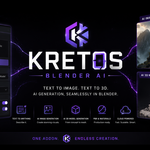
| Kretos BLENDER AI
get 35% off on all products with coupon tonda35
Generate seamless PBR textures, 360° HDR environments, and 3D meshes directly inside Blender — using local offline AI models on your GPU or cloud APIs with no GPU required.
| 3 Modes | 13+ Offline Models | 6 Cloud Providers |
|
|
| // What It Does Type a prompt.
Get a material, world, or mesh. |
| 🎨 Object Tab Generate full PBR texture sets — diffuse, normal, roughness, AO, displacement — and apply them directly to your active object. | 🌐 World Tab Generate 360° equirectangular HDR environment maps and apply them as your scene world — complete with a Mapping node for rotation. | 🧊 3D Tab Generate 3D meshes from text or image input. Models import directly into the viewport as new mesh objects, ready to use. |
|
|
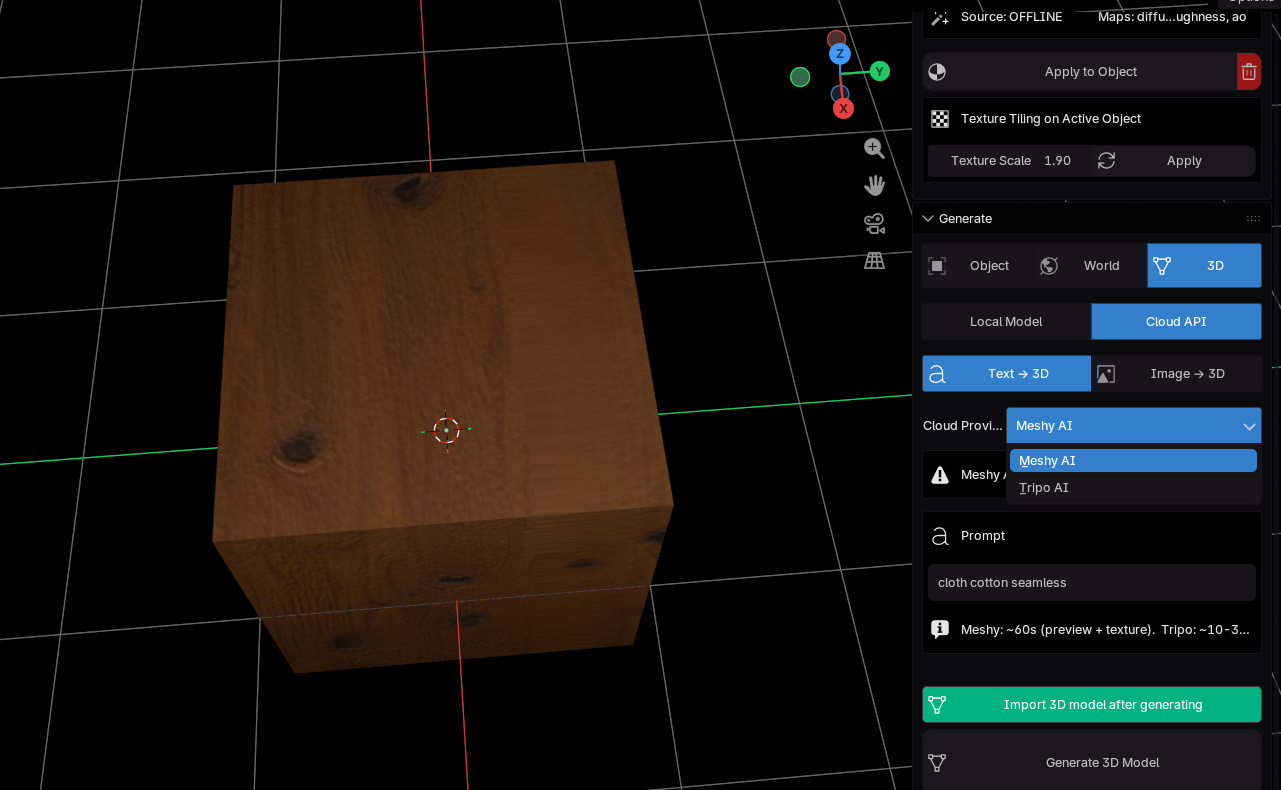
| // Two Ways to Generate Local GPU or Cloud API.
Your choice every time.
|
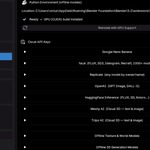
| | Local Model — runs on your GPU Download AI models (FLUX, SDXL, Juggernaut XL, StableMaterials, LDM3D, TripoSR, Shap-E and 20+ more) from HuggingFace. They run entirely on your machine — no internet after download, no API costs, no data leaves your PC. Requires: Nvidia GPU · Python environment setup · Model download |
|
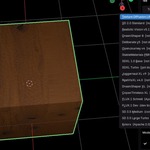
| | Cloud API — no GPU required Use external APIs with your own API key. Supports fal.ai (1000+ models), Replicate (any model by ID), OpenAI (GPT Image, DALL-E), HuggingFace Inference, Google Nano Banana for textures — and Meshy & Tripo AI for 3D. Requires: API key from provider · Internet connection · No GPU needed |
|
|
| // Key Features Everything in one panel.
|
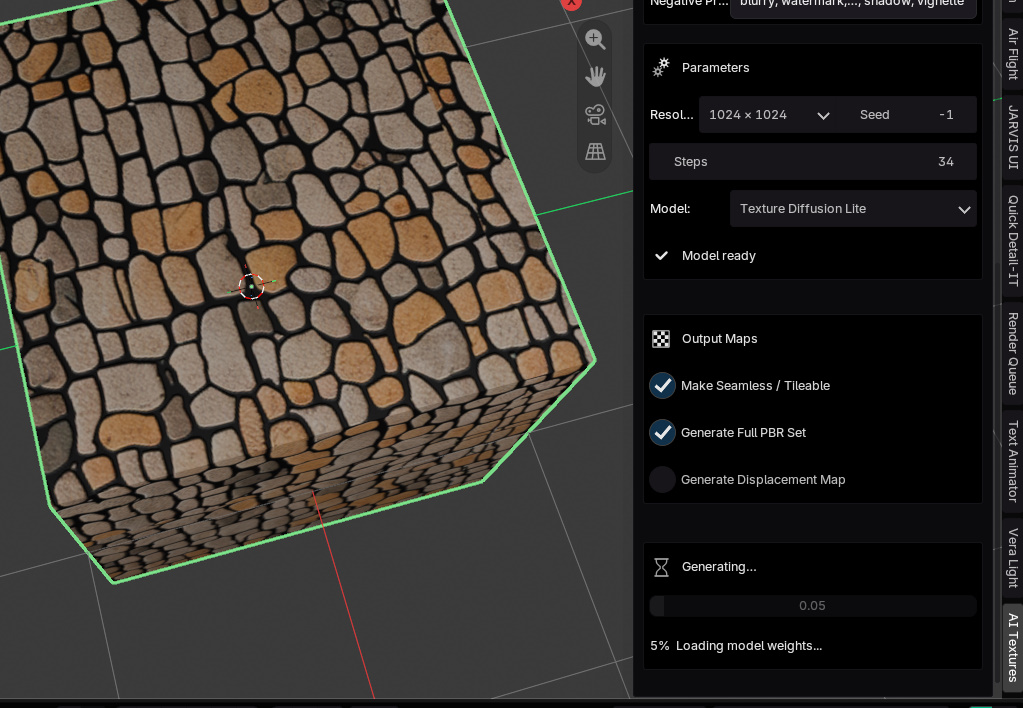
| | Non-blocking generation with live progress bar Blender never freezes. Generation runs in a background thread. A progress bar fills in real time with step-level updates from the model. |
|
| | Full PBR map generation Generates diffuse, normal, roughness, AO, and displacement maps. StableMaterials outputs real multi-channel PBR. All maps are wired into a Principled BSDF node tree automatically. |
|
| | Gallery with history and quick re-apply Every generation is saved to disk with a thumbnail. Browse past results in a visual gallery, re-apply any texture or world with one click, or delete what you don't need. |
|
| | Texture tiling control in the gallery Set a scale value and click Apply to update the Mapping node on the active material. Scale up to tile more, scale down to stretch — without re-generating. |
|
| | Auto-apply checkboxes per tab Enable "Apply to Object", "Set as World", or "Import 3D Model" to have results applied immediately on generation finish — no extra clicks needed. |
|
| | VRAM check before generation Before launching any local model, the addon checks available GPU memory and compares it against the model's requirement. You get a clear warning instead of an out-of-memory crash mid-generation. |
|
|
| // Supported Models Download what you need.
Skip what you don't.
|
| Texture / Object FLUX.1 Schnell
FLUX.1 Dev
SD 3.5 Medium
Juggernaut XL v9
RealVisXL v4
DreamShaper 8
StableMaterials
Kolors · SDXL |
|
| World / HDR LDM3D Panorama
FLUX Schnell Pano
SDXL Panorama
DreamShaper Pano
Google Nano Banana
fal.ai cloud
Replicate cloud |
|
| 3D Generation Shap-E (text)
Point-E (text)
OpenLRM Base/Large
TripoSR · TripoSG
Zero123++ · CRM
InstantMesh
Meshy API · Tripo API |
|
|
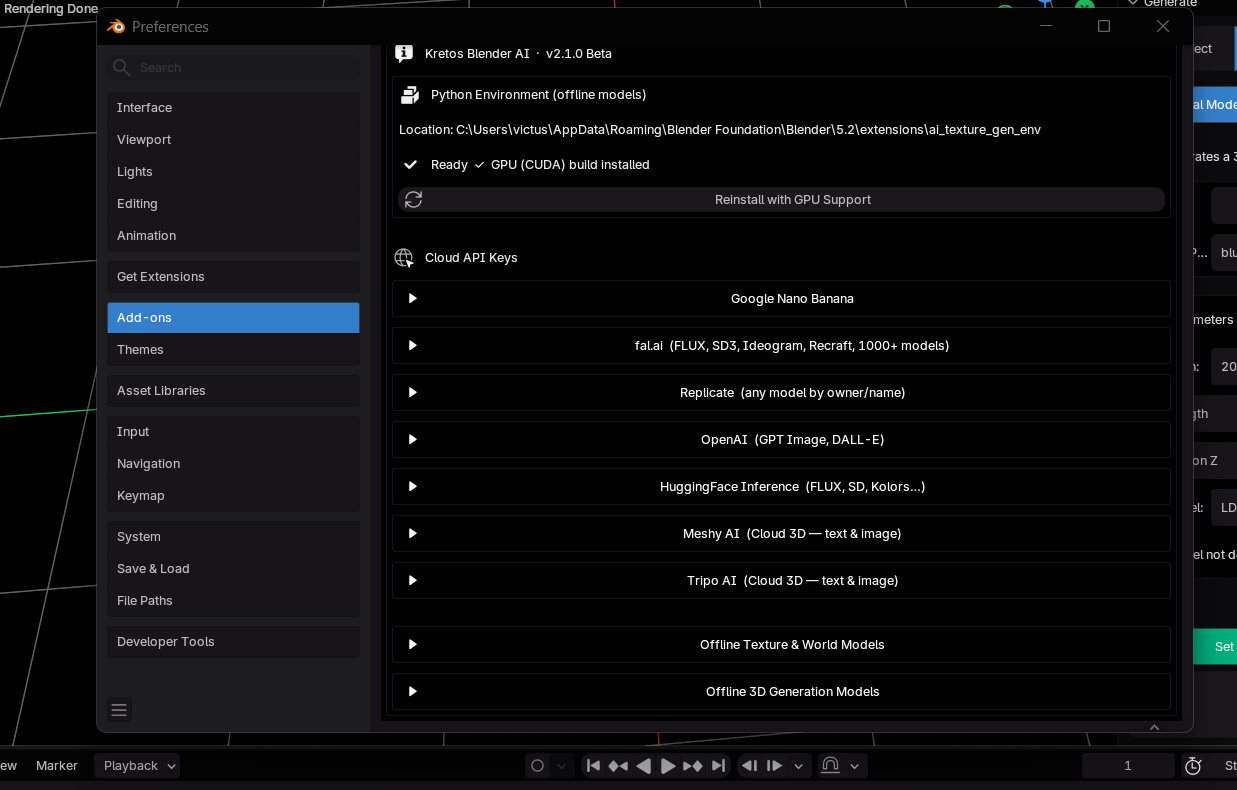
| All local models download from HuggingFace using the built-in download manager in Preferences. Download only the models you plan to use. Sizes range from ~1.5 GB (Shap-E) to ~24 GB (FLUX full). |
|
| // Quick Start First texture in five steps. |
| | Set Up the Python Environment Open Edit → Preferences → Add-ons → Kretos Blender AI. Click Set Up Environment. This installs PyTorch (CUDA GPU build) and all AI dependencies into an isolated folder — not into Blender's own Python. Takes 5-15 minutes on first run. |
| | Download a Model In the same Preferences panel, open Offline Texture & World Models and click Download next to any model. Start with SDXL 1.0 or DreamShaper 8 for a good balance of quality and VRAM use. |
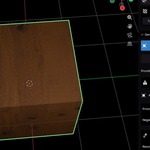
| | Open the Panel In the 3D Viewport, press N to open the sidebar. Click the Kretos AI tab. You'll see two panels: Gallery (top) and Generate (below). |
| | Write a Prompt and Generate In the Generate panel, select Object tab. Set source to Local Model. Pick your downloaded model. Type a prompt like "weathered red brick wall, seamless, 4K". Click Generate Texture. |
| | Apply to Your Object When generation finishes, the result appears in the Gallery. Select your object, then click Apply to Object in the Gallery panel. Or enable Apply to Object after generating to do this automatically. |
|
|
| // Things to Note Read before you start. |
| Windows Only This addon is currently compatible with Windows only. macOS and Linux support is planned for a future release. The Python environment setup, CUDA detection, and some file-locking workarounds are Windows-specific in this version. |
|
| Nvidia GPU strongly recommended for local models The addon installs a CUDA 12.8 PyTorch build. Your GPU driver must be version 520 or newer. Generation on CPU is possible but extremely slow (30+ minutes per image). Check your VRAM against each model's requirement before downloading. |
|
| First-time environment setup downloads ~3-4 GB PyTorch CUDA (~2.5 GB) + diffusers/transformers/shap-e and other packages (~500 MB). This happens once. After that, reinstalling the addon does not re-download if the environment folder is intact. |
|
| HuggingFace models may require a token or license agreement FLUX.1 Dev requires accepting a license on the HuggingFace website before downloading. Set your HF token in Preferences under HuggingFace. Models like FLUX.1 Schnell and StableMaterials are fully open (Apache 2.0 / MIT) and download without a token. |
|
| Close other GPU-heavy applications before generating Games, other AI tools, or a viewport with heavy geometry can leave VRAM occupied. The addon checks free VRAM before launching and warns you, but if generation still fails with an out-of-memory error, close other applications and try again. |
|
| HuggingFace hf-inference provider dropped image generation (July 2025) If you use the HuggingFace cloud option, set the inference provider to fal-ai — not hf-inference. As of July 2025, hf-inference only handles CPU tasks like embeddings and classification. Image generation goes through fal-ai or replicate using the same HF token. |
|
|
| // Beta & Bug Reports Help make it better. Kretos Blender AI is in public beta. Core functionality works but you may encounter edge cases, model-specific quirks, or platform differences. Every bug report directly improves the addon. |
| When reporting a bug, include:
| 1. What you were doing (which tab, which model, which source) | | 2. The exact error message from the Info bar or System Console | | 3. Your GPU model and VRAM amount | | 4. Blender version and Windows version | | 5. Output from Window → Toggle System Console if available |
Report bugs through the product page where you purchased this addon. We read every report and push fixes regularly. |
|
|
| ⚠ Beta — v2.1.0 This addon is in active development. Core features work but you may encounter bugs or edge cases. Every report helps — see the bug report section in the documentation page for what to include. |
|
| KretosAI Blender Addon · v2.1.0 Beta · Windows Compatible with Blender 5.0+ · Windows only
This addon is open to bug reports — help us improve it.
© 2025 All rights reserved. | © 2025 |
|
| |
 EdenWeby 3D