|
KretosAI/ DOCUMENTATION
| v2.1.0 Beta · Windows |
|
| // Complete Reference Documentation Full reference for Kretos Blender AI — installation, environment setup, all three generation modes, cloud APIs, model management, troubleshooting, and FAQs. |
| // Contents
| Setup 01 · Installation
02 · Python Environment
03 · Downloading Models
04 · Cloud API Keys | Usage 05 · Object Tab (Texture)
06 · World Tab (HDR)
07 · 3D Tab (Mesh)
08 · Gallery · Troubleshooting · FAQ |
|
|
| |
| Kretos Blender AI installs as a standard Blender addon folder. It requires Windows and Blender 4.0 or newer.
| 1 |
Download the addon zip
Download Kretos_blender_ai.zip from your purchase page.
|
| | 2 |
Open Blender Preferences
Go to Edit → Preferences → Add-ons. Click Install… in the top right.
|
| | 3 |
Select the zip and install
Navigate to the downloaded zip and click Install Add-on. Do not unzip first.
|
| | 4 |
Enable the addon
Search for "Kretos" and tick the checkbox. The Kretos AI tab appears in the 3D Viewport sidebar (N key).
|
|
Windows only. Blender 4.0 or newer required. The addon folder is installed to your Blender scripts/addons directory — no admin rights needed. |
|
|
| |
| All AI inference runs in an isolated Python virtual environment — completely separate from Blender's own Python. This prevents any conflicts with Blender's bundled packages and means the addon never modifies Blender's installation.
| What gets installed
| PyTorch CUDA | → | diffusers + transformers | → | shap-e + point-e + CLIP | → | trimesh · rembg · utils |
|
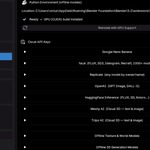
To set up: open Preferences → Kretos Blender AI. Click Set Up Environment. The panel shows live download progress — you can keep using Blender during setup. First run downloads ~3-4 GB. If generation runs on CPU instead of GPU, click Reinstall with GPU Support. This deletes the existing environment and rebuilds it with the correct CUDA PyTorch wheel.
Environment location: Stored in your Blender extensions folder, not inside the addon itself. Deleting the addon folder does not delete the environment. You can delete it manually from Preferences. |
|
|
| |
| Open Preferences → Kretos Blender AI. Expand Offline Texture & World Models or Offline 3D Generation Models. Click Download next to any model. Downloads happen in the background — progress shows in the panel.
| Recommendation | Use Case | Min VRAM |
| DreamShaper 8 |
Best starter — fast, versatile, low VRAM |
4 GB |
| Juggernaut XL v9 |
Best photorealistic textures at high res |
10 GB |
| StableMaterials |
Real PBR multi-map output (not derived) |
6 GB |
| Shap-E |
Text → 3D mesh (MIT, fastest) |
4 GB |
| TripoSR |
Image → 3D mesh (MIT, fastest image-to-3D) |
4 GB |
FLUX.1 Dev note: Requires accepting a license on huggingface.co before downloading. Set your HF token in Preferences under HuggingFace, then accept the license on the model page. FLUX.1 Schnell (Apache 2.0) needs no token. |
|
|
| |
| Cloud providers require an API key set in Preferences → Kretos Blender AI. Each provider section is collapsible. A green checkmark appears once a key is entered.
| Provider |
Use For |
Where to Get Key |
| Google |
Textures + World HDR |
ai.google.dev/gemini-api/docs/api-key |
| fal.ai |
Textures (1000+ models) |
fal.ai/dashboard → API Keys |
| Replicate |
Textures (any model) |
replicate.com → Account → API tokens |
| OpenAI |
Textures (GPT Image, DALL-E) |
platform.openai.com → API Keys |
| HuggingFace |
Textures + offline downloads |
huggingface.co/settings/tokens |
| Meshy |
Cloud 3D generation |
meshy.ai → Account → API Keys |
| Tripo AI |
Cloud 3D generation |
platform.tripo3d.ai → API Keys |
HuggingFace + image generation: Set the inference provider to fal-ai — not hf-inference. As of July 2025, hf-inference no longer supports image generation. fal-ai and replicate use the same HF token. |
|
|
| 05 Object Tab — Texture Generation |
|
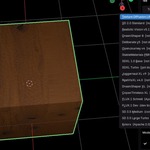
| Generates a PBR texture set and applies it to the active object. Select Local Model (runs on GPU) or Cloud API (no GPU needed).
| Setting |
What it does |
| Prompt |
Describe the material. Be specific: material type, surface quality, style. E.g. "worn concrete floor, cracks, moss". |
| Negative Prompt |
What to exclude. Default covers common issues: blur, watermarks, seams, shadows. |
| Resolution |
512 for fast tests, 1024 for standard, 2048 for high quality. Higher = more VRAM and time. |
| Steps |
Denoising steps. 20-30 is usually enough. More steps = sharper but slower. SDXL Turbo ignores this (always 4). |
| Make Seamless |
Applies an offset-blend tiling correction. Always on for surface textures. Slightly softens fine details. |
| Generate Full PBR Set |
Derives normal, roughness, and AO from the diffuse image. StableMaterials generates real maps instead. |
| Texture Scale |
In the Gallery panel — adjusts the Mapping node Scale on the applied material. Enter value and click Apply. |
The generated material uses a Principled BSDF node tree with a Mapping node. All texture images are saved to disk in the gallery output folder and persist between Blender sessions. |
|
| 06 World Tab — HDR Environment |
|
| Generates a 360° equirectangular environment map and sets it as the scene world background. The world node tree is built automatically: TexCoord → Mapping → EnvTexture → Background → World Output.
| Setting |
What it does |
| Prompt |
Describe the environment. E.g. "golden hour sunset over a mountain lake, dramatic clouds". |
| Resolution |
1024×512 for fast preview, 2048×1024 for good quality, 4096×2048 for final renders. |
| Strength |
Background emission strength. 1.0 is neutral. Increase for brighter lighting contribution. |
| Rotation Z |
Rotates the environment horizontally. Adjusts the Mapping node's Z rotation directly. |
| Set as World after generating |
Auto-applies to the scene on finish. On by default. Uncheck to only save to gallery. |
Google Nano Banana Pro gives the best quality for panoramic environments. For local generation, LDM3D Panorama (Intel) produces true equirectangular output. Other local models run at 2:1 aspect ratio for an approximate panoramic result. |
|
| 07 3D Tab — Mesh Generation |
|
| Generates a 3D mesh from text or image. Two source modes: Local Model (GPU, runs Shap-E/TripoSR/etc) or Cloud API (Meshy/Tripo AI, no GPU, faster results).
| Text → 3D Type a prompt describing the object. Shap-E and Point-E work locally. Meshy and Tripo work via cloud. Best for objects that are hard to photograph. Local: Shap-E · Point-E · OpenLRM
Cloud: Meshy · Tripo |
|
| Image → 3D Browse a PNG or JPEG. The model reconstructs a 3D mesh from the image. Works best with a single clear subject on a white or transparent background. Local: TripoSR · TripoSG · CRM · InstantMesh
Cloud: Meshy · Tripo |
|
Cloud 3D recommended for most users. Meshy text→3D takes ~60s (preview + texture). Tripo takes ~10-30s. Both produce better geometry and textures than most local models. Local models require significant VRAM and are slower on consumer GPUs. |
|
|
| |
| The Gallery panel (top panel in the N-panel tab) shows a thumbnail grid of every past generation. All results are saved to disk and persist between Blender sessions.
|
Apply to Object
Applies the selected texture generation to the active object as a full PBR material.
| |
Set as World
Shown for world/HDR entries. Applies the selected panorama as the scene world (rebuilds the world node tree).
| |
Import 3D Model
Shown for 3D mesh entries. Imports the .glb file as a new mesh object, selects and activates it.
| |
Texture Scale
Set a scale multiplier and click Apply to update the Mapping node Scale on the active material. Values >1 tile more, <1 stretch more.
| |
Delete
Permanently removes the generation, its files on disk, and its gallery entry. This cannot be undone.
|
|
|
| |
| Environment says "ready" but models run on CPU The environment was set up before the CUDA torch fix. Click Reinstall with GPU Support in Preferences. This rebuilds the venv with the proper CUDA PyTorch wheel from download.pytorch.org. | | CUDA out of memory Close other GPU-heavy applications. Check the model's VRAM requirement against your available VRAM. The addon shows a warning before generation if free VRAM is below the model's minimum. Try a lighter model (DreamShaper 8 at 4 GB instead of SDXL at 10 GB). | | Could not delete environment — Access denied A Python process is still running in the venv. Open Task Manager, end any python.exe processes, then try reinstalling. The addon also attempts to kill these automatically via taskkill. | | Shap-E fails with "Access is denied: shap_e_model_cache" Shap-E tries to cache weights in the current working directory (Blender's install folder — read-only). The addon patches this automatically. If it still occurs, ensure you are on the latest addon version. | | HuggingFace cloud returns HTTP 410 or HTTP 400 Set the inference provider to fal-ai, not hf-inference. As of July 2025 hf-inference does not support text-to-image for modern models. The panel shows a warning when hf-inference is selected with an incompatible model. | | 3D model generated but nothing appears in the viewport Check the System Console (Window → Toggle System Console) for the import error. The addon needs a 3D Viewport area open to resolve the correct import context. Ensure the 3D Viewport is visible (not minimised) when generating. | | Panel shows "Checking environment…" on every startup This is normal. On startup the addon runs a background subprocess check (imports torch, diffusers, etc.) to verify the environment is intact. It takes 5-30 seconds depending on your machine. The full Getting Started checklist only appears if the check confirms the environment is missing or broken. | | No Mapping node found — texture scale not working The Texture Scale control looks for a Mapping node in the active material. This is created automatically when you apply a generated texture through the addon. If you applied the texture manually or through another addon, add a Mapping node to the material's node tree manually. |
|
|
| |
| Can I use this on a laptop? Yes, if your laptop has an Nvidia GPU with 4+ GB VRAM. Smaller models like DreamShaper 8 or Shap-E run comfortably on 4-6 GB. For laptops without a dedicated GPU, use the Cloud API providers — no local GPU required. | | Do I need internet to use offline models? Only for the initial download. Once downloaded, local models run completely offline. No data is sent anywhere during generation. Cloud APIs always require internet. | | Can I use the generated textures commercially? It depends on which model generated them. FLUX.1 Schnell (Apache 2.0), StableMaterials (Apache 2.0), DreamShaper 8, and most SDXL models are commercially usable. FLUX.1 Dev has a non-commercial dev license. Check each model's license on HuggingFace before commercial use. Cloud API outputs are subject to each provider's terms of service. | | Why does the first generation on startup take longer? The first time a model is used in a session, PyTorch loads the weights from disk into VRAM and compiles any CUDA kernels. This can take 1-3 minutes. Subsequent generations in the same session are much faster. | | Where are generated files stored? All outputs are saved in your Blender extensions folder under kretos_ai_gen_output/. Each generation gets a timestamped subfolder containing the PNG maps and a JSON metadata file used by the gallery. | | Can I use Replicate to access models not in the default list? Yes. In Preferences → Replicate, enter any model as owner/name in the Custom Model ID field (e.g. stability-ai/sdxl). This overrides the dropdown. The model must accept a prompt input and return an image URL. | | How do I report a bug? Report through the product page where you purchased the addon. Include: what you were doing, the exact error message from the Info bar, your GPU and VRAM, Blender version, and the output from Window → Toggle System Console if available. We read and respond to every report. |
|
|
| ⚠ Beta — v2.1.0 Kratos Blender AI is in active development. Core functionality works but you may encounter bugs, model-specific quirks, or edge cases. Every bug report directly improves the addon. When reporting, include:
1. What you were doing — tab, model, source (local or cloud) | 2. Exact error message from the Info bar or System Console | 3. GPU model and VRAM amount | 4. Blender version and Windows version | 5. Output from Window → Toggle System Console if available |
Report through the product page where you purchased this addon. |
|
| KretosAI Documentation · v2.1.0 Beta · Windows Compatible with Blender 4.0+ · Windows only
This addon is in beta — bug reports welcome and appreciated.
© 2025 All rights reserved. |
|
| |
 EdenWeby 3D