 KV Studio


Installation Guide
For Blender 4.5 ~ 5.2
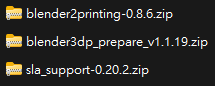
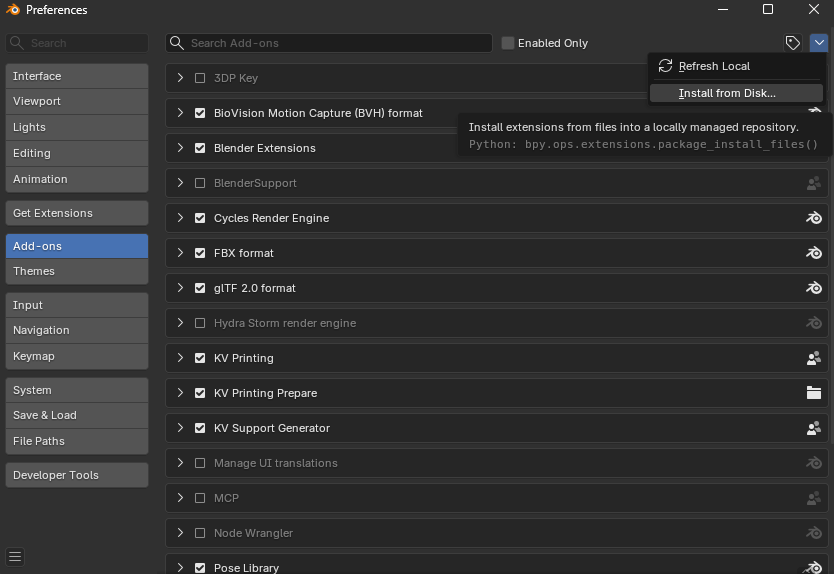
Go to the [Edit] menu > [Preferences] > [Add-ons] tab, and "Install from Disk"
--------------------------------------------------------------------------
**New Feature for V2, update at 29/09/2026
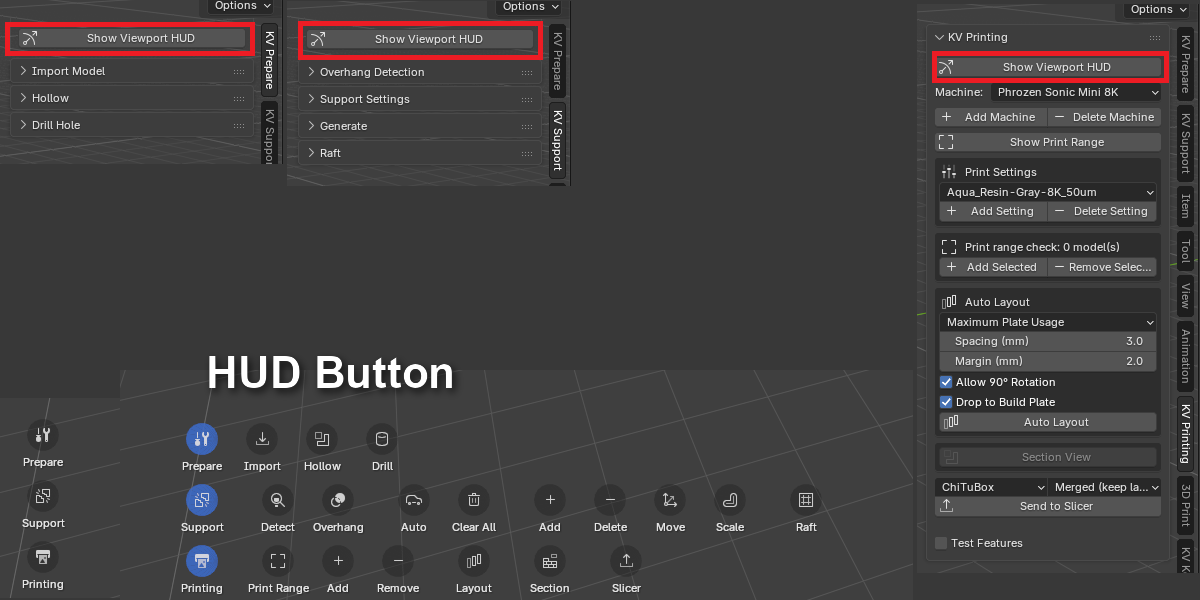
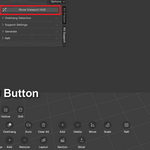
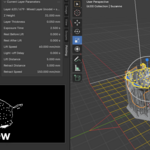
**HUD
Show HUD.
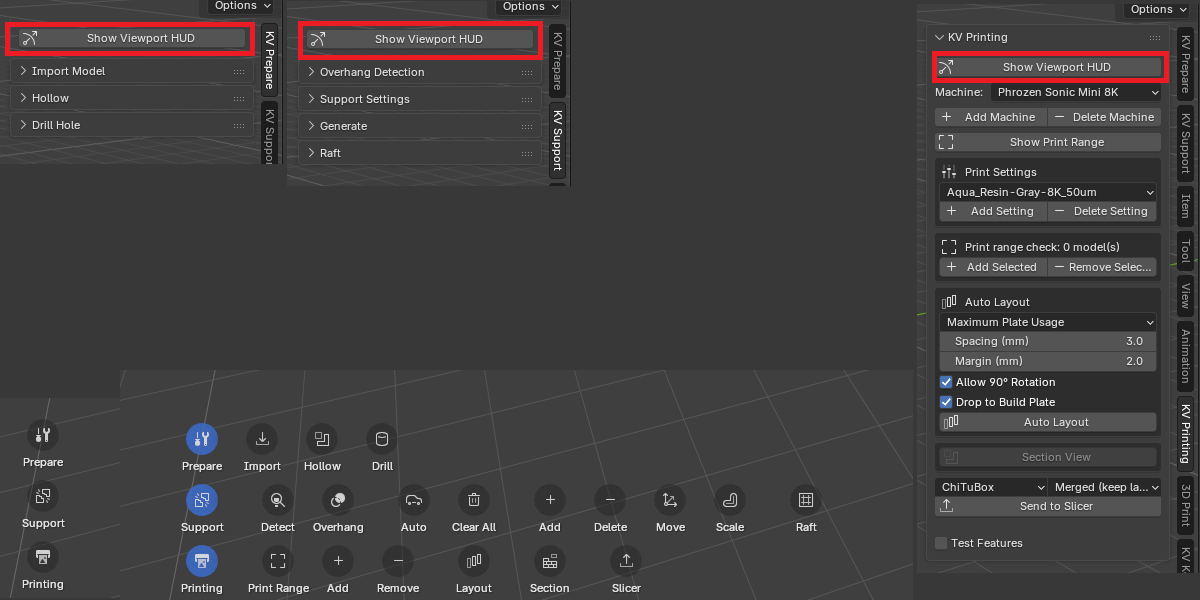
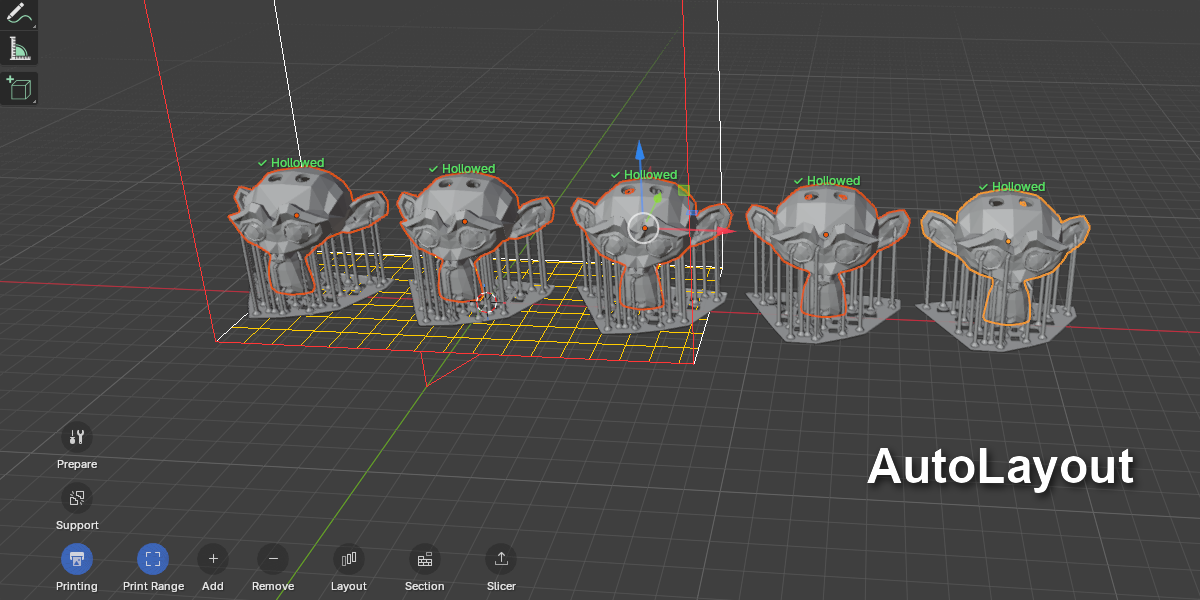
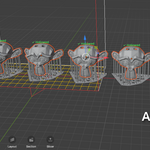
**Auto Layout
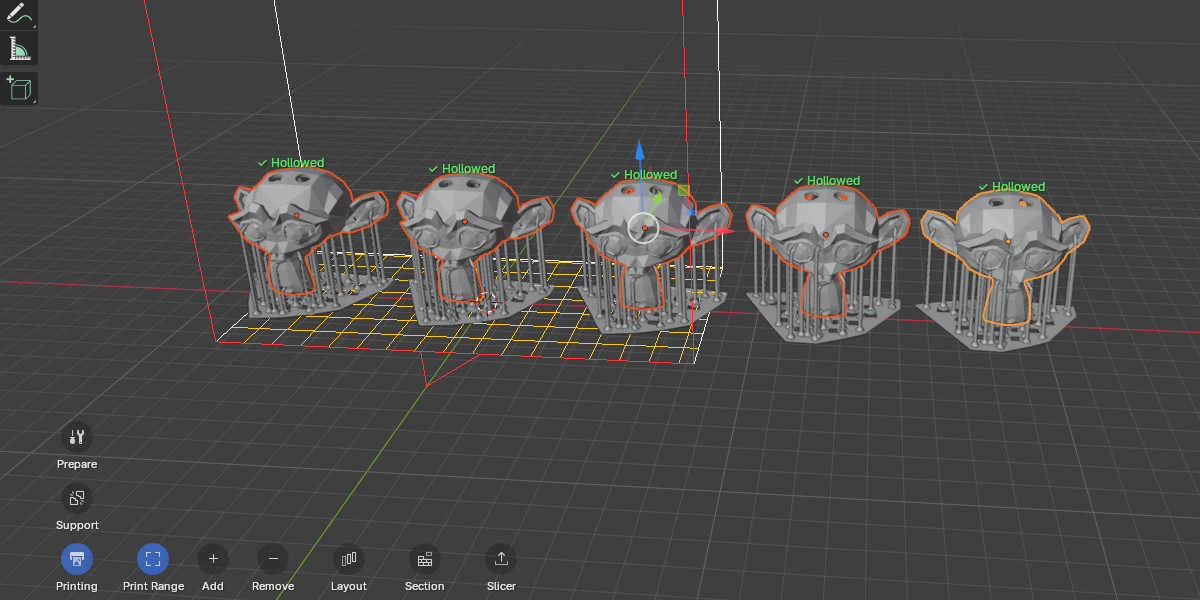
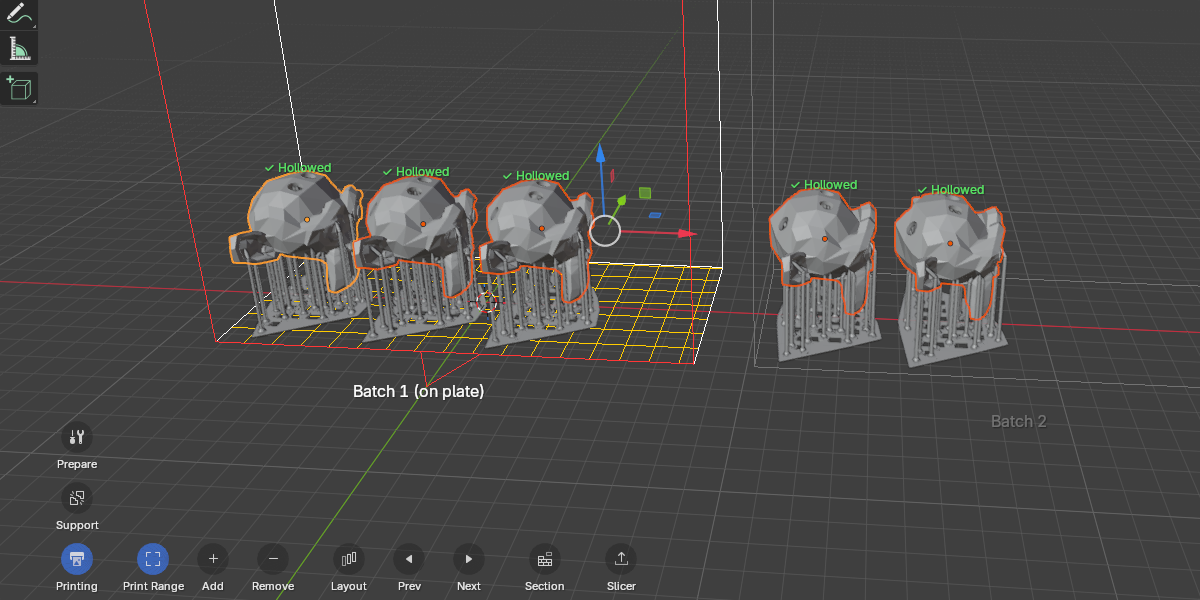
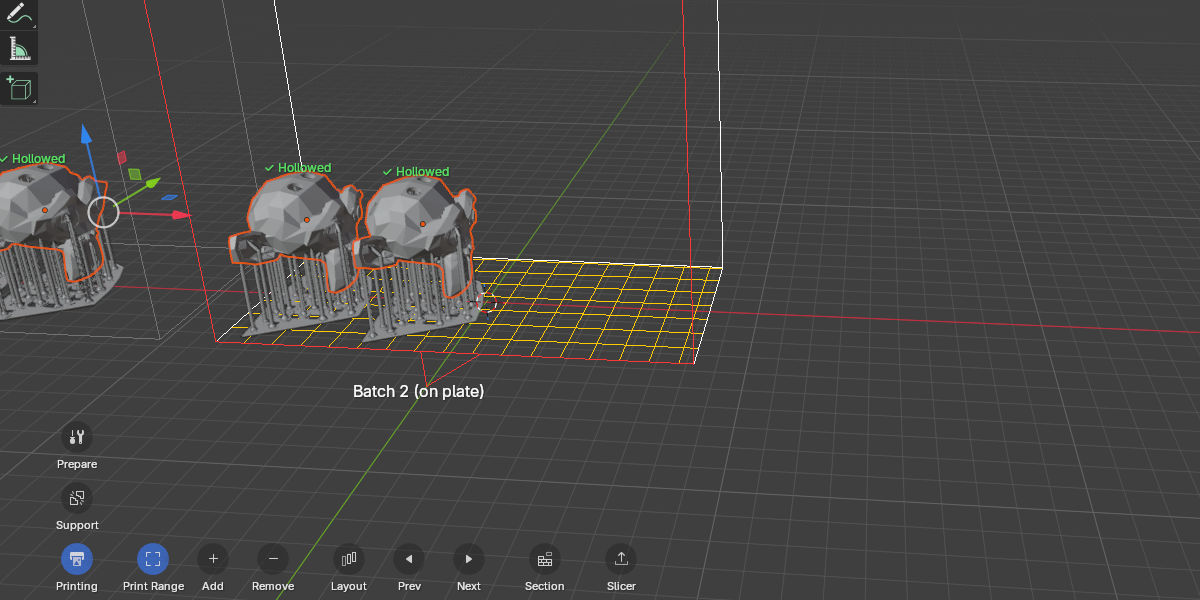
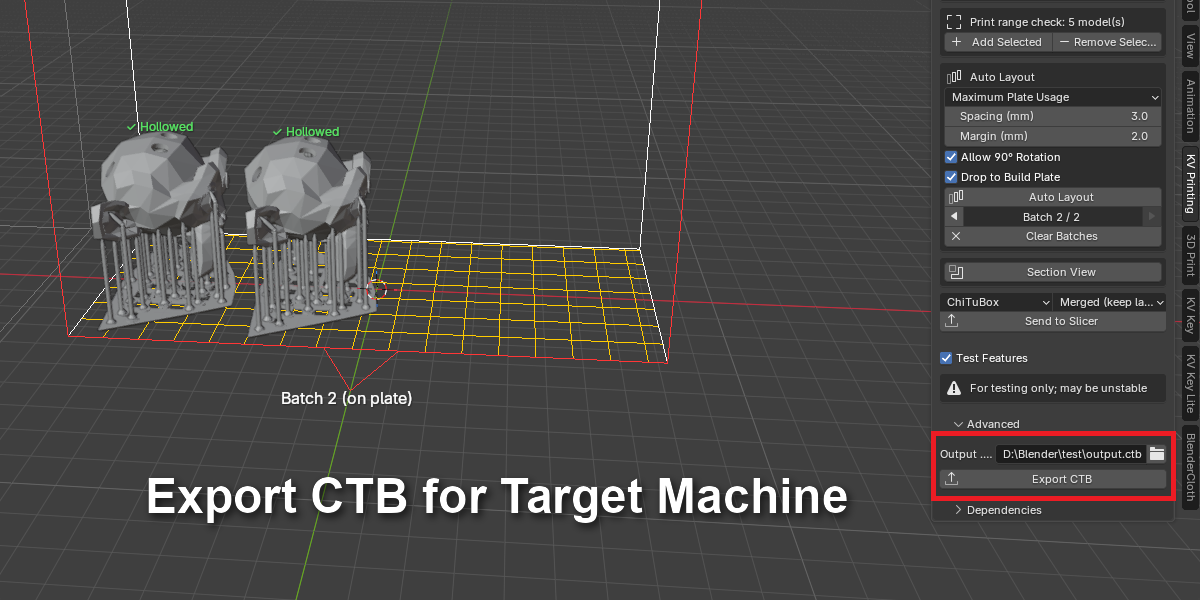
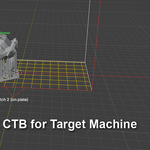
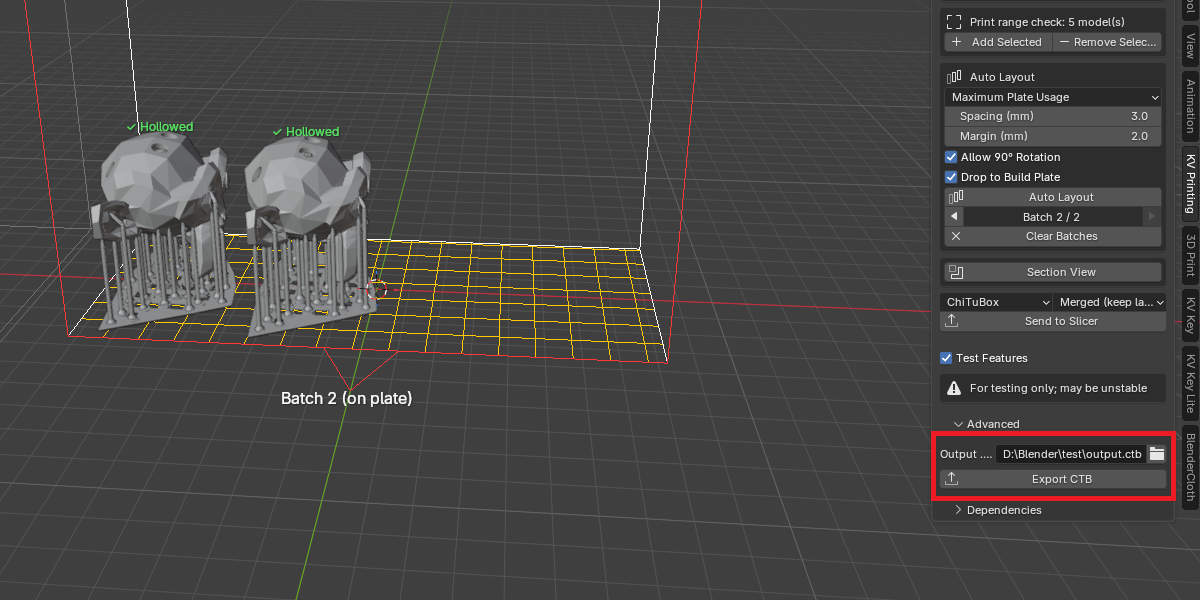
**Export CTB for Target Machine
Select a machine、set resin and export path,you can create a ctb file for printing directly.
--------------------------------------------------------------------------
KV Printing Prepare
Press N to open the sidebar, switch to the KV Prepare tab. The three panels, top to bottom, are the order you use them in.
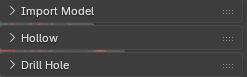
Import Model
Press Import Model and pick your files — multi-select, STL / OBJ / FBX / GLB / GLTF supported.
Hollow
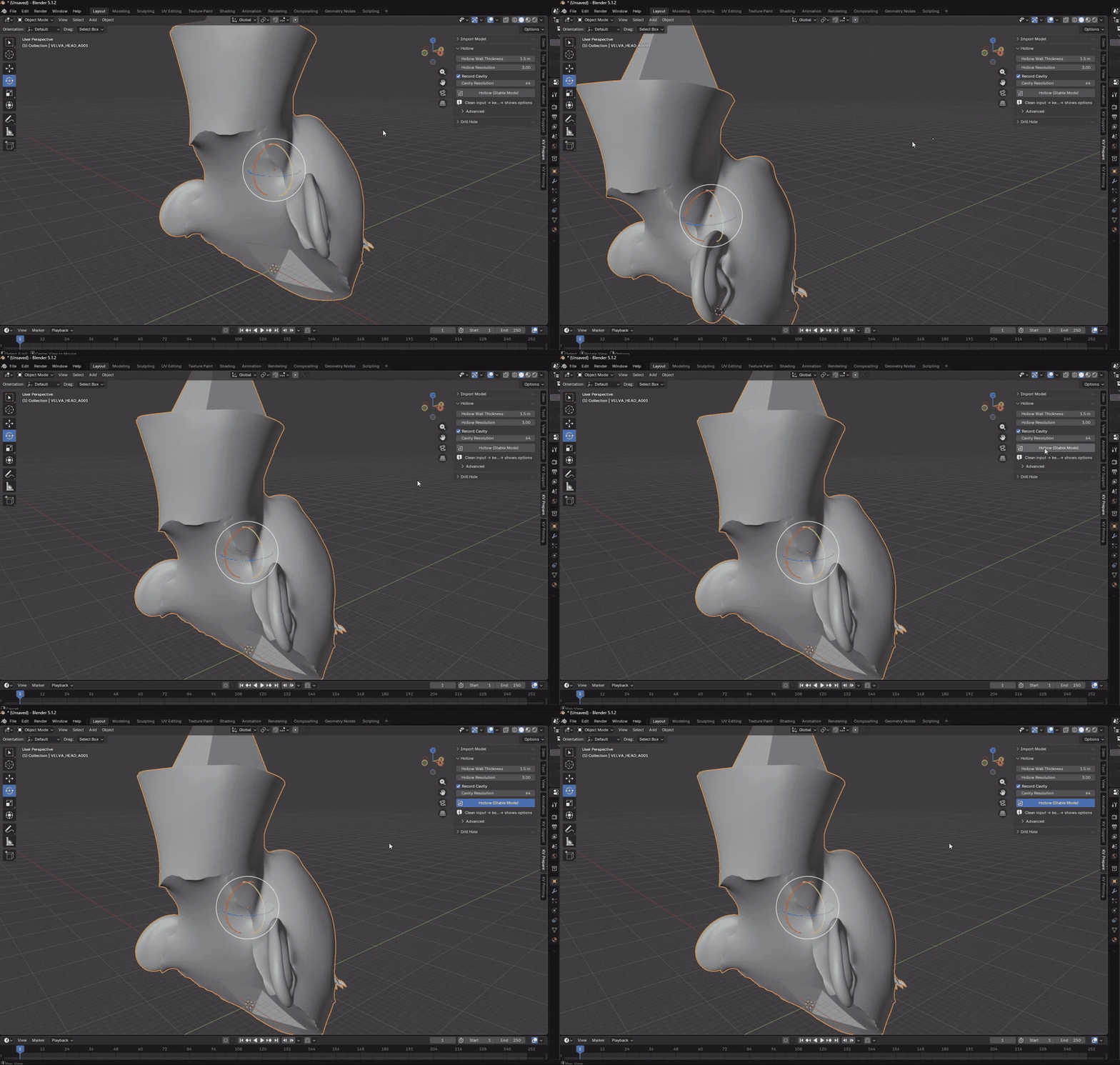
Select the object, enter Hollow Wall Thickness, hit Hollow (Stable Mode). No edit mode, no stacking modifiers yourself.
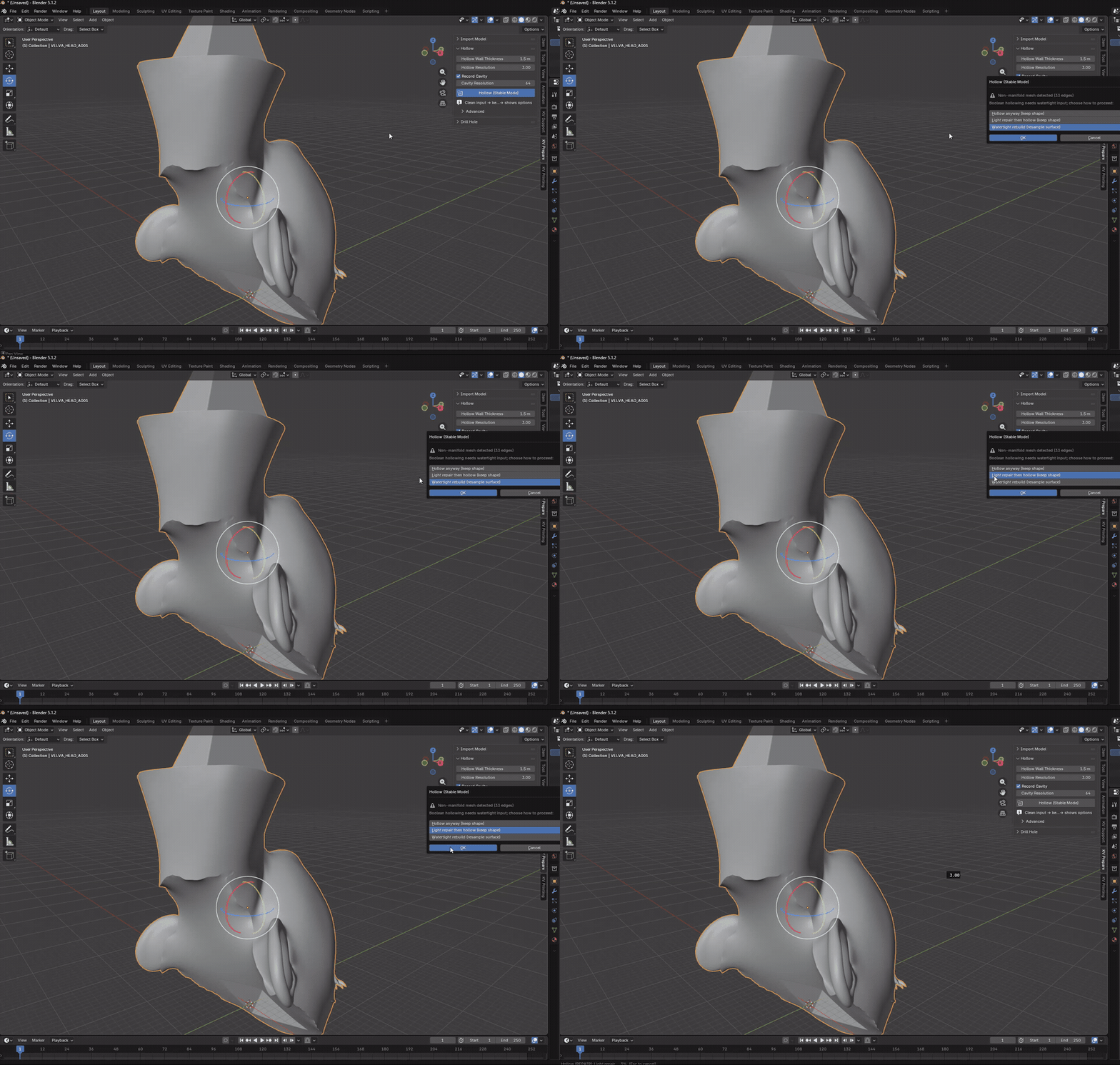
Broken mesh? You pick the strategy.
- Watertight rebuild (default): rebuilds the outer surface too, guaranteeing a clean manifold result. Use it when the damage is severe, or when you're not sure which to pick.
- Light repair then hollow: fills holes, welds, recalculates normals, then hollows. For minor damage when you want to keep surface detail.
- Hollow anyway: leaves the outer surface completely untouched. For when you know the damage is harmless and want the original, unmodified.
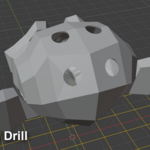
Drill Hole
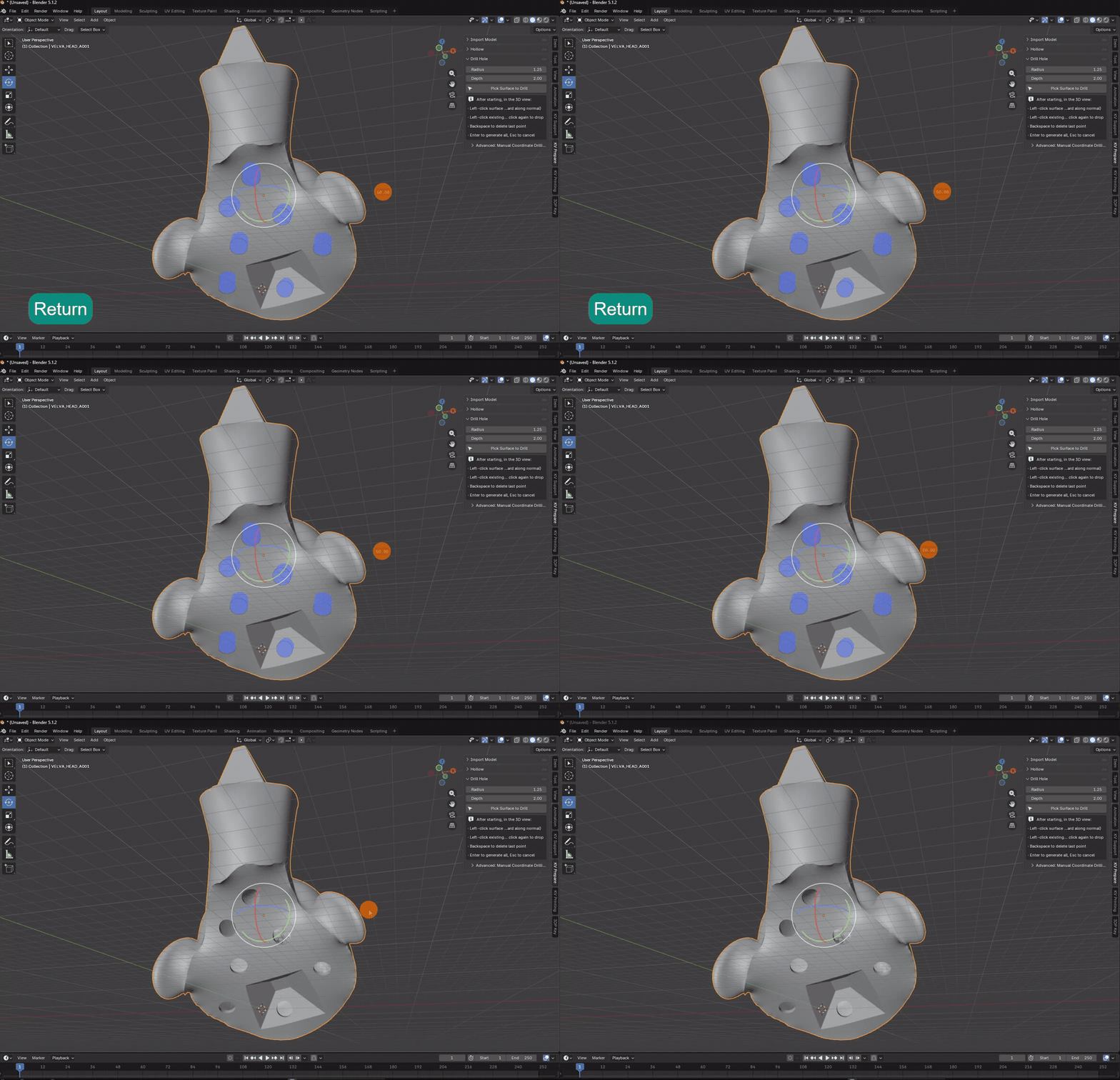
Press Pick Surface to Drill to enter pick mode.
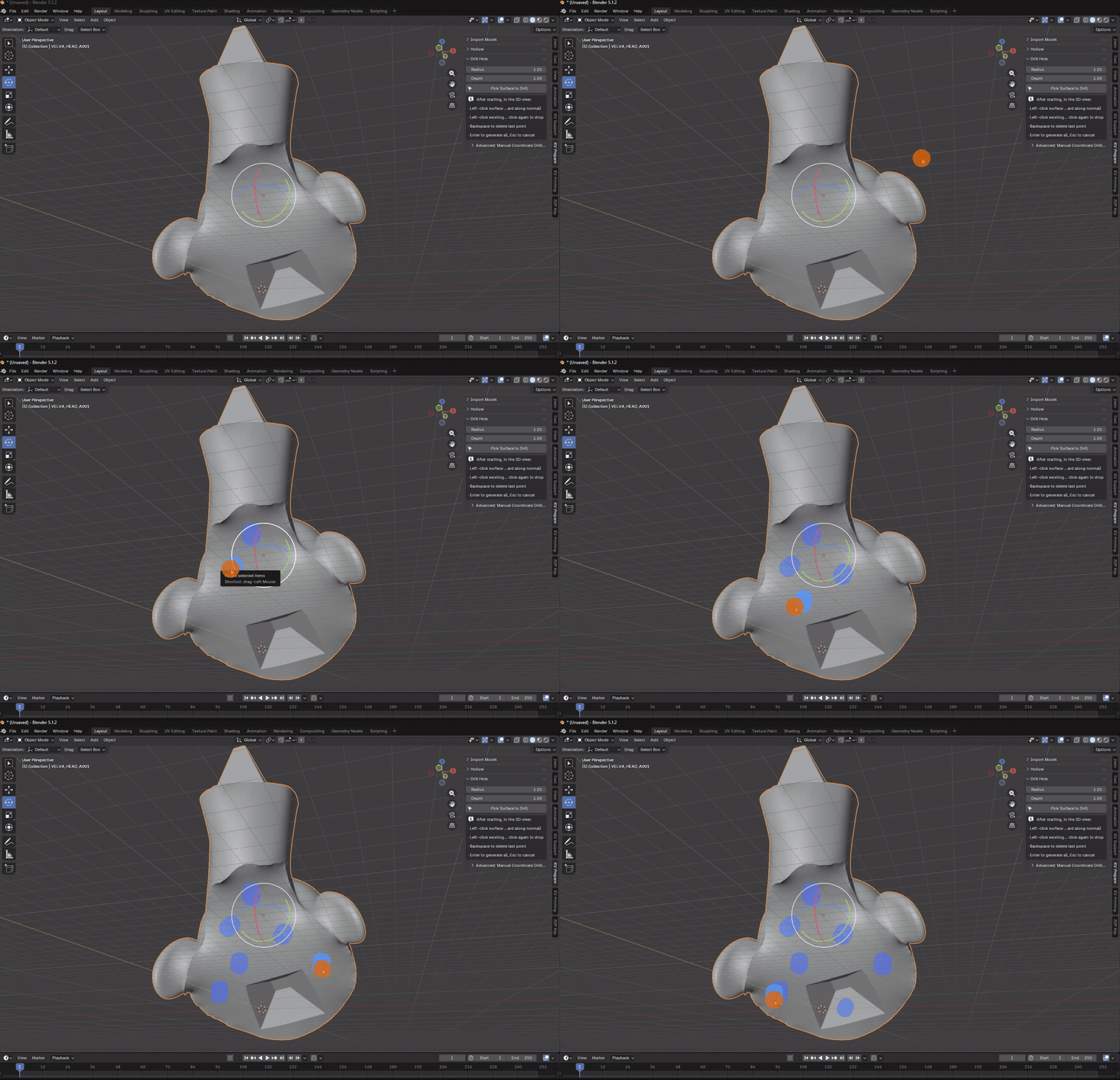
Left-click it to pick it up into move mode (highlighted orange).
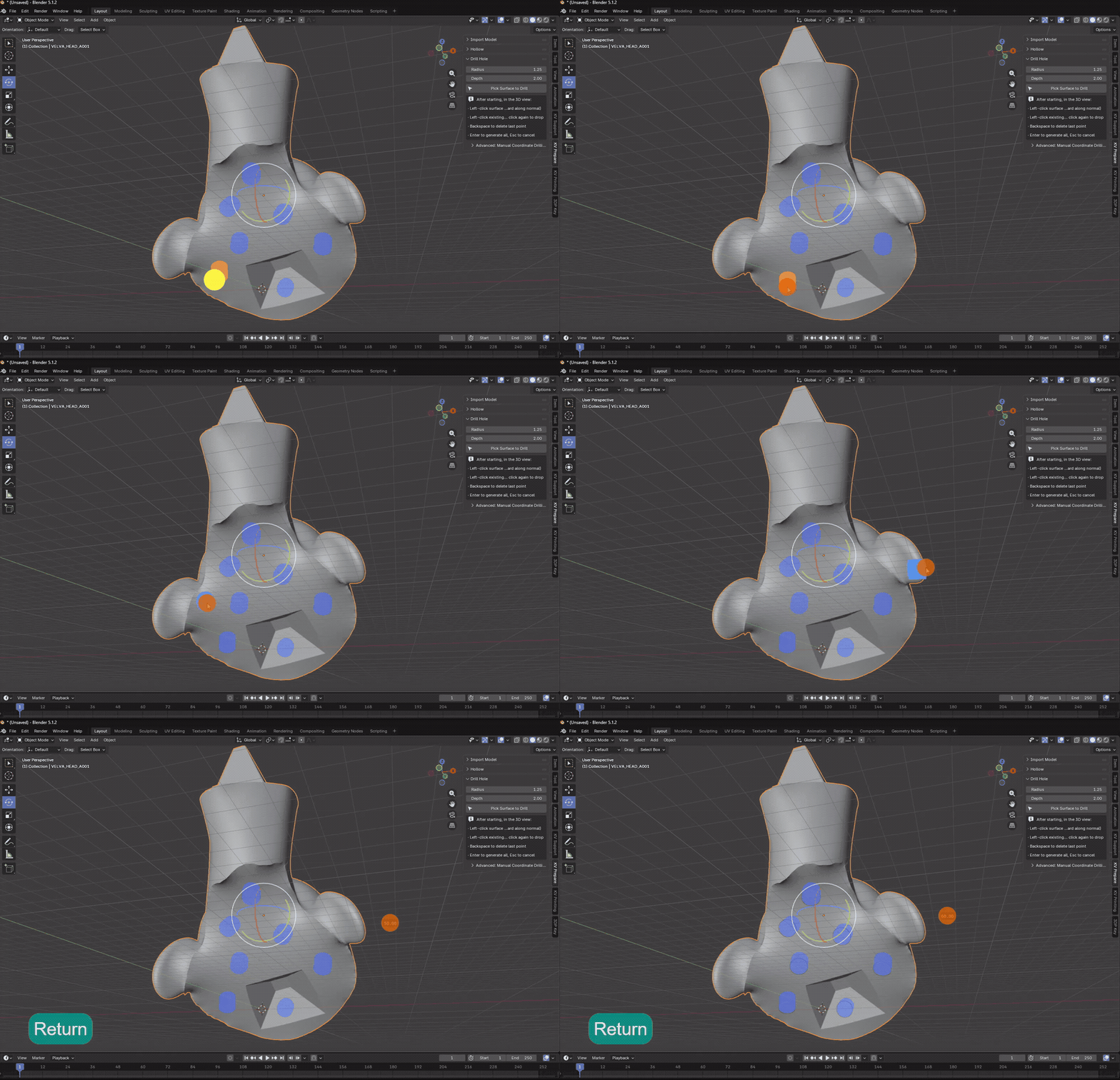
Once the holes are laid out, press Enter and all of them are cut in a single pass.
KV Support Generator
A complete support pipeline living in one N-panel tab in the 3D viewport.
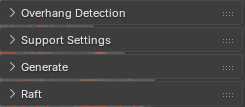
Overhang Check
Threshold adjustable across the full 0°–90° range, default 45°
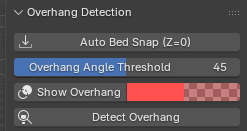
Support Settings
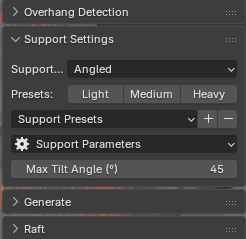
Support Preset and Support Parameters
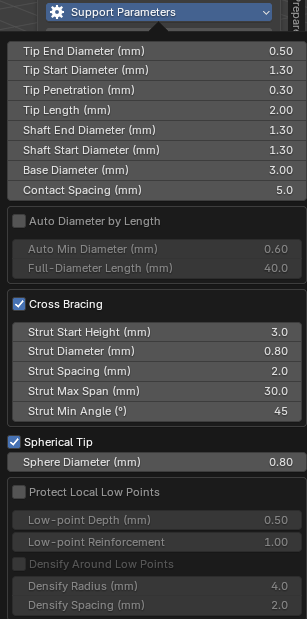
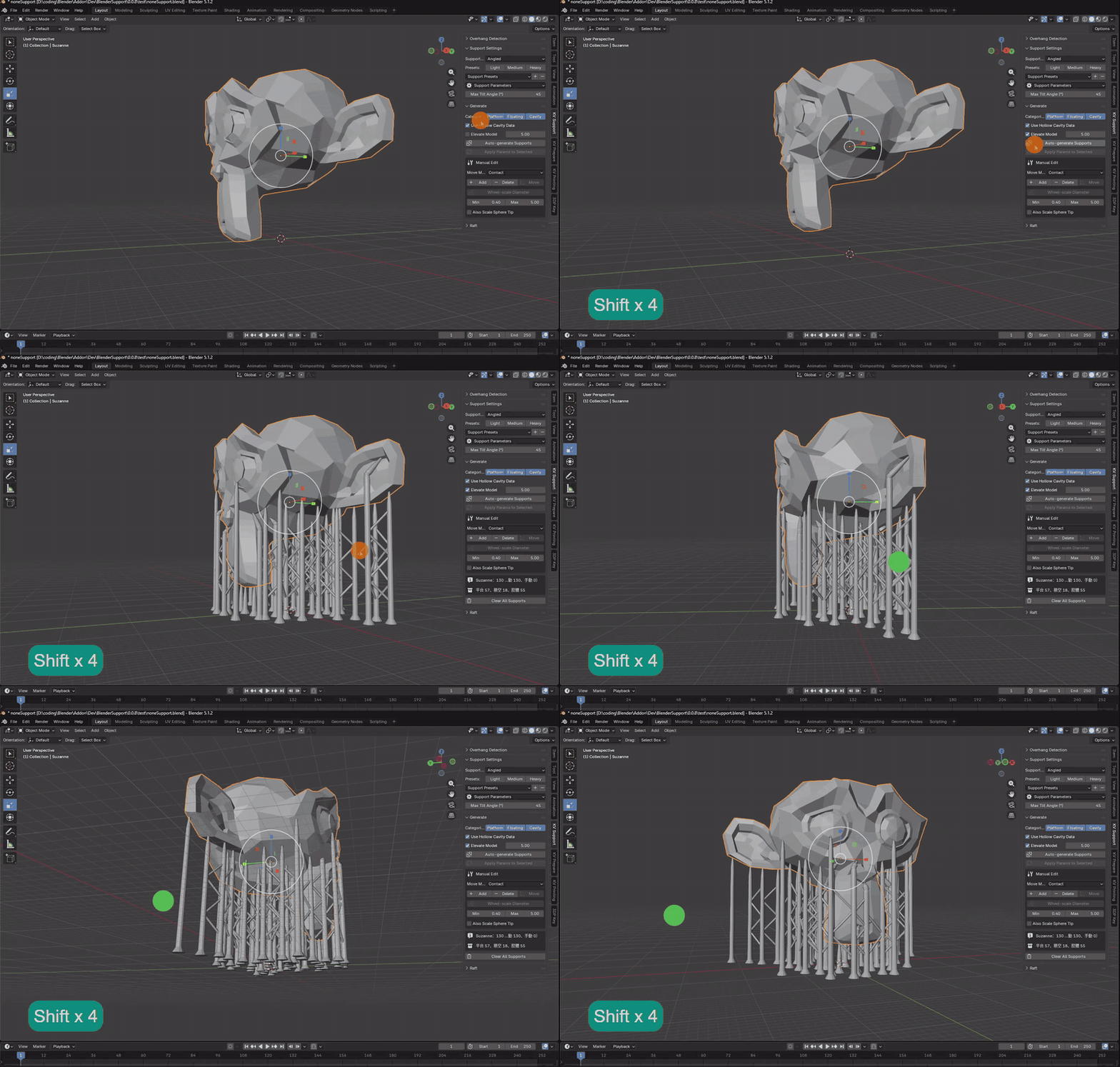
Generate
Auto-generate Supports.
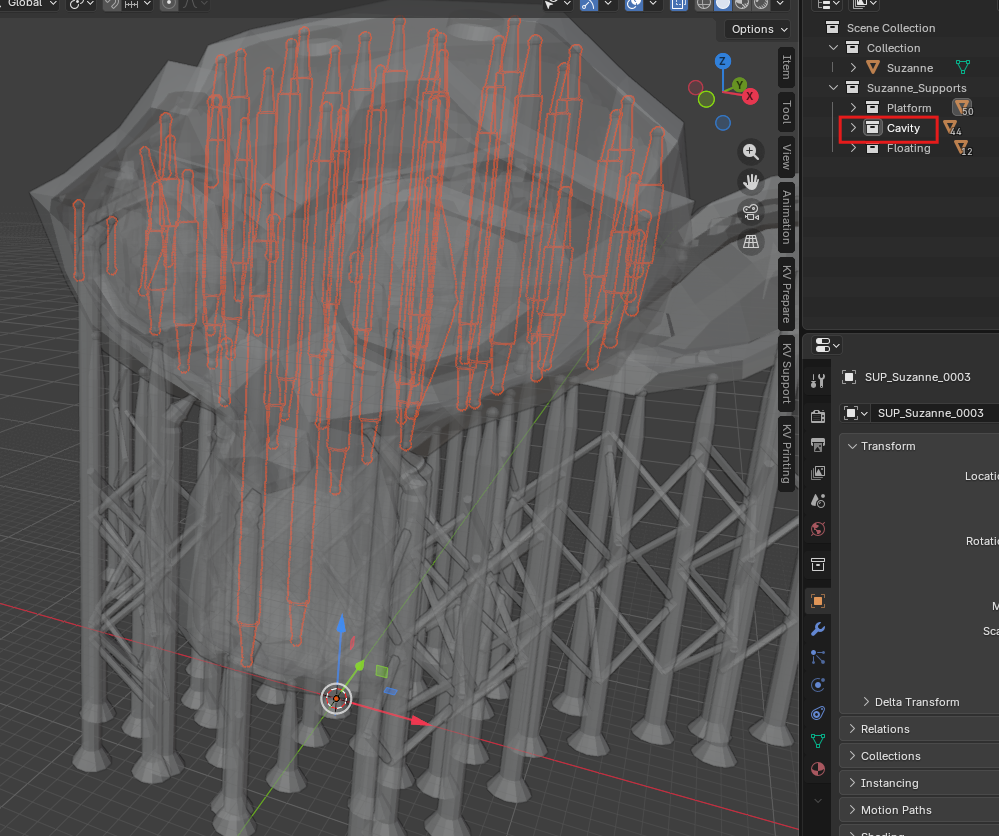
Toggle Platform, Floating and Cavity categories independently — each lands in its own sub-collection
Manual Supports
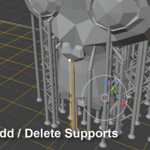
Enter Add mode and click anywhere on the surface — a support is built to that exact contact point using the current parameters.
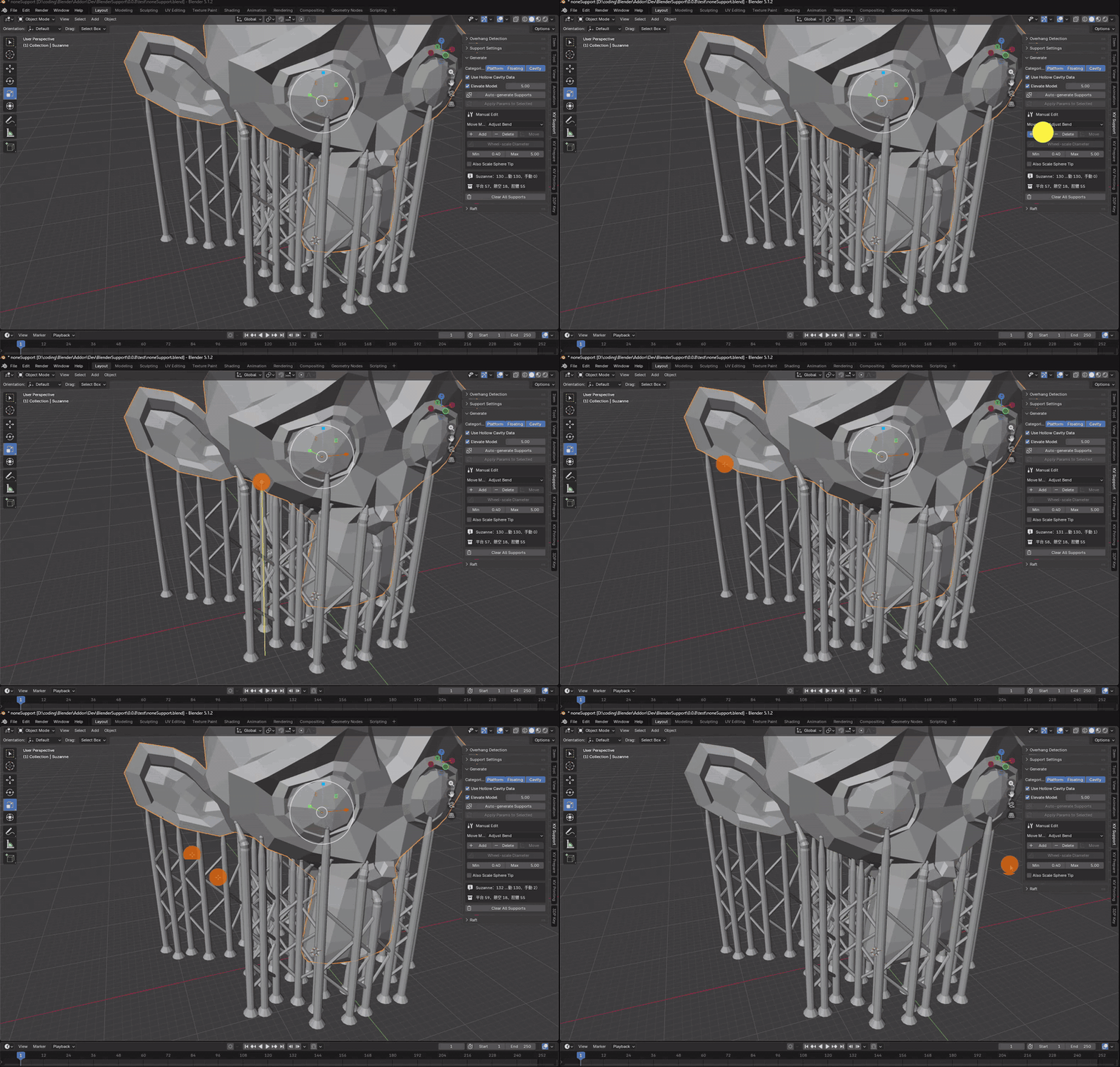
Switch to Delete mode and click a support to remove it.
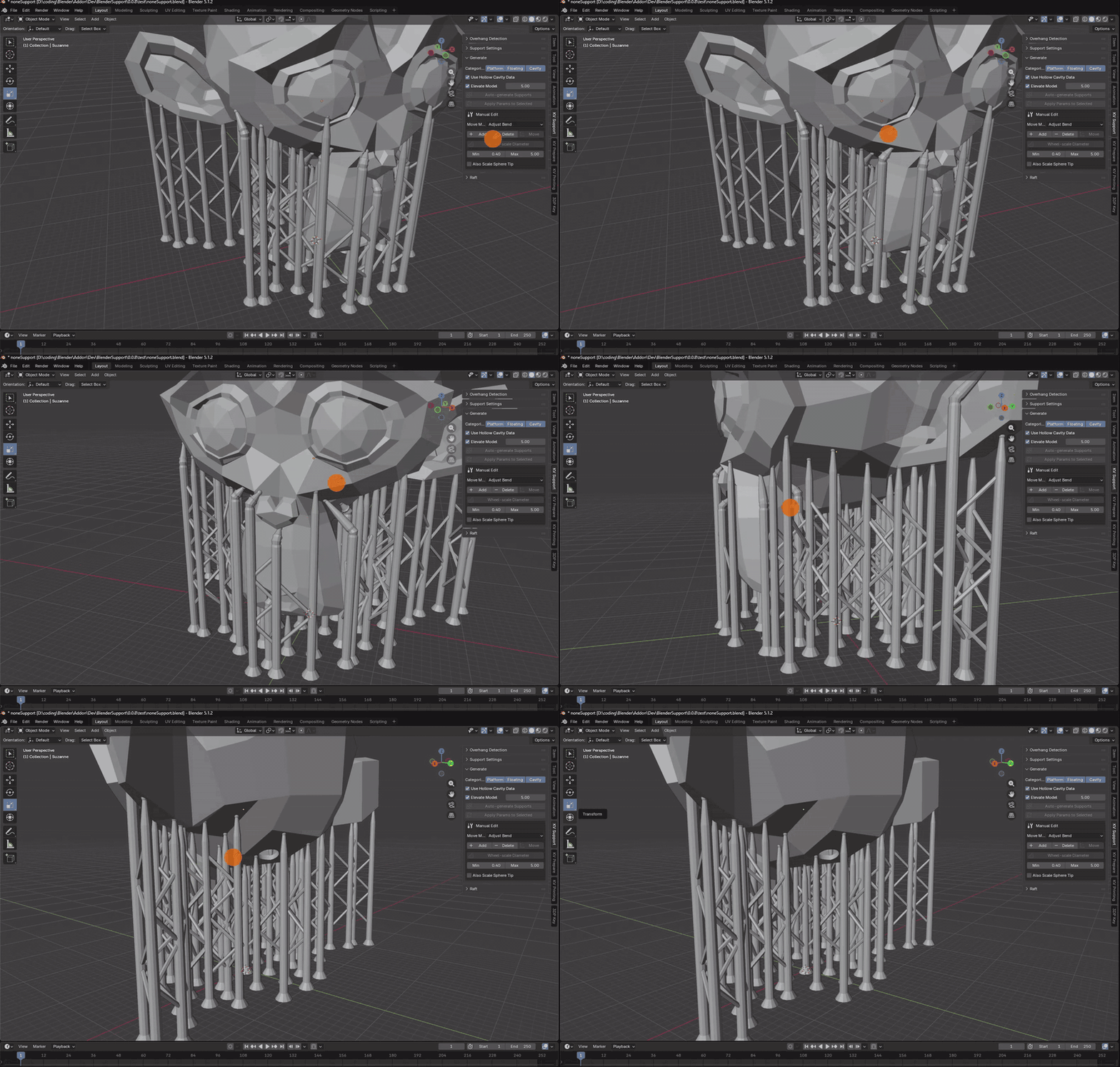
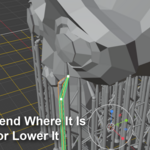
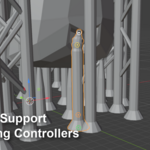
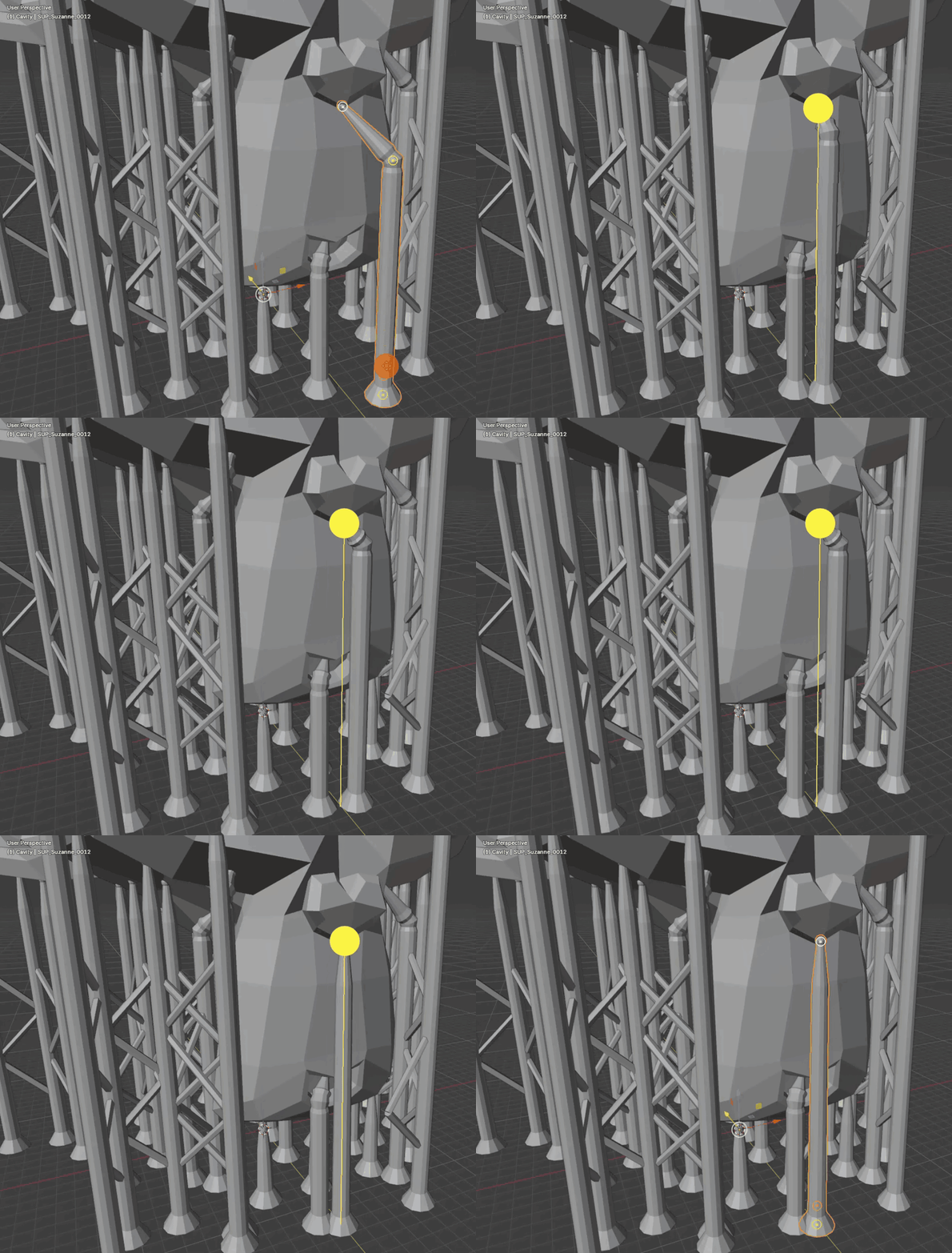
Move mode decides which part of the support the Move tool grabs, and a ghost preview follows your cursor until you confirm with a left click — or cancel with Esc and leave the original exactly as it was.
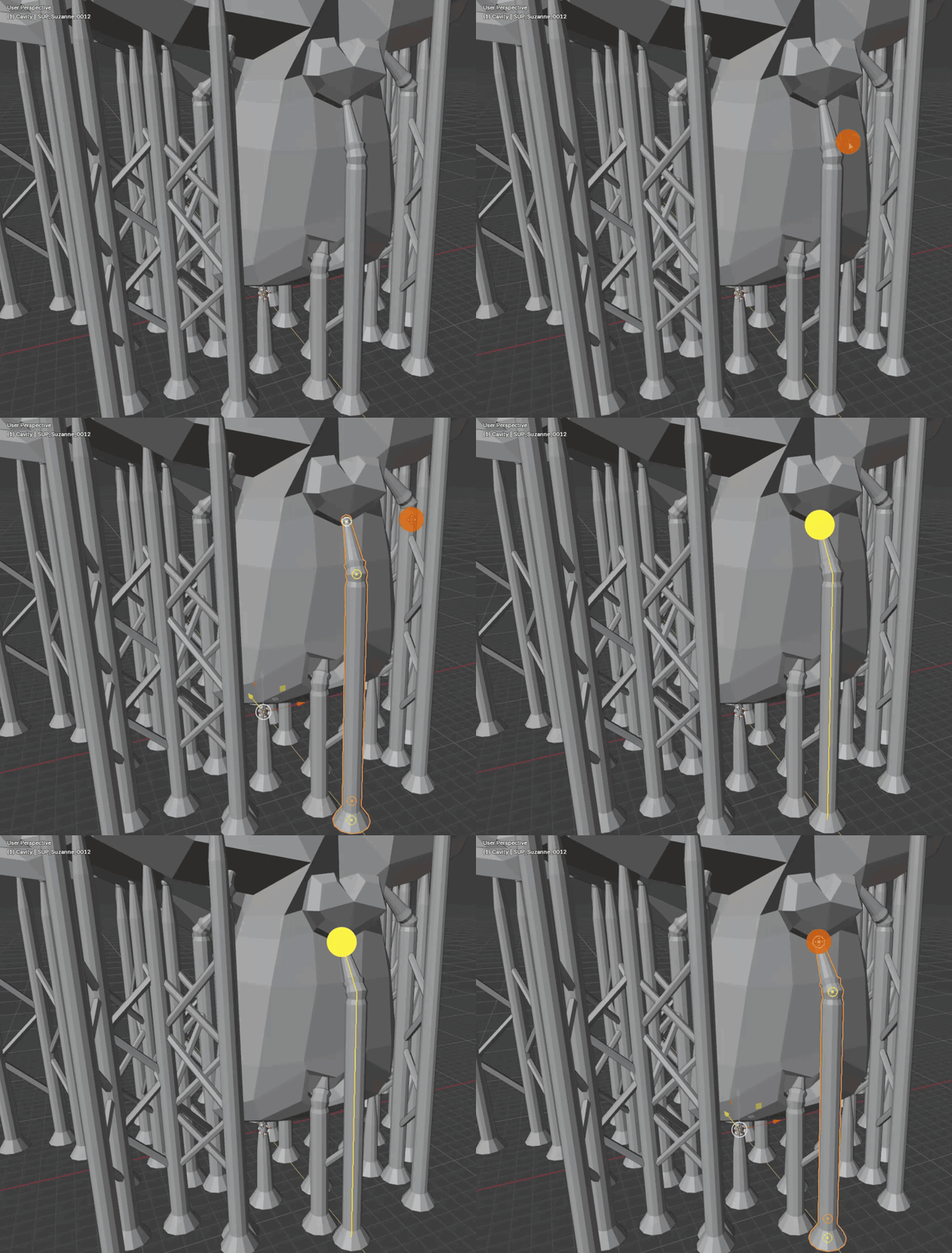
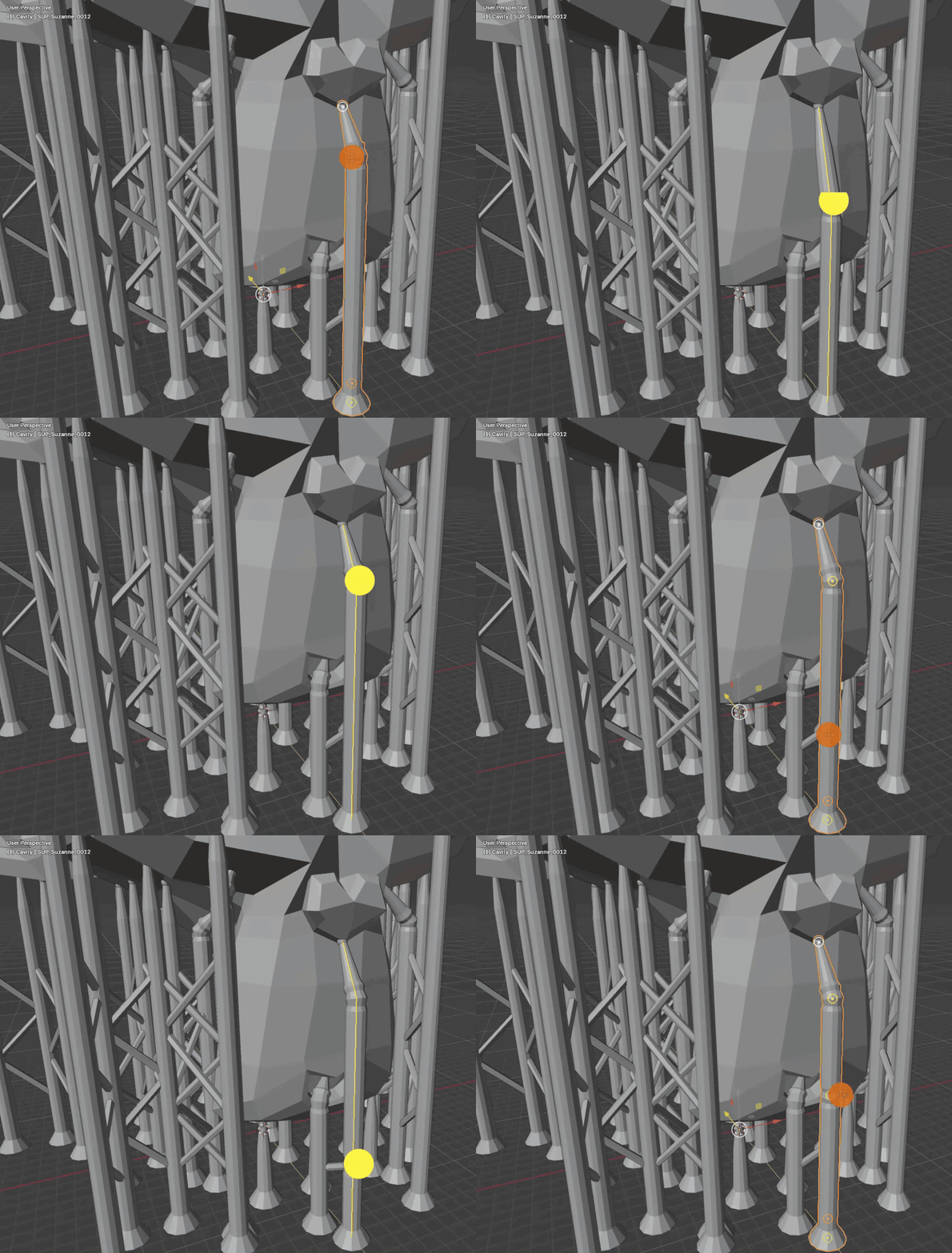
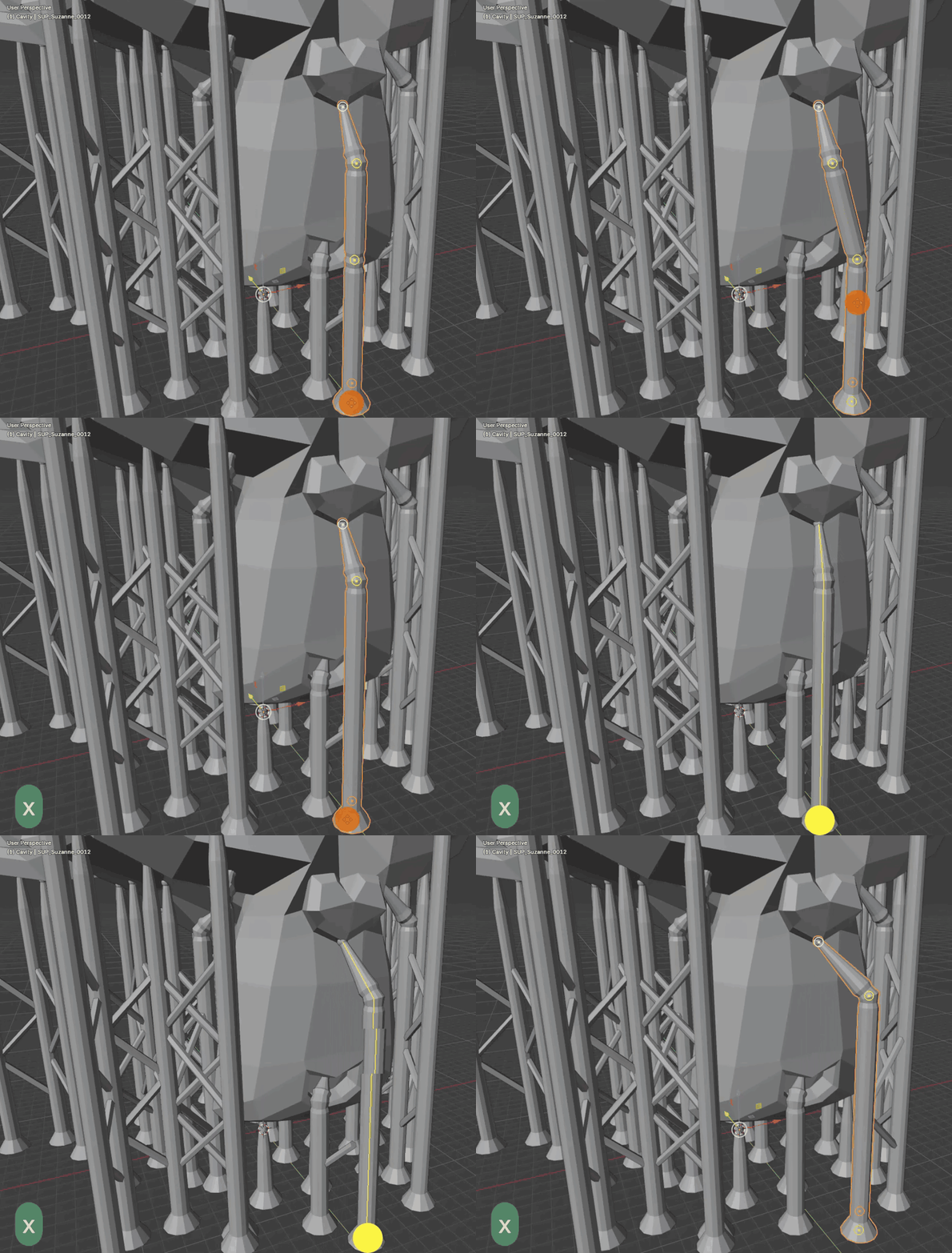
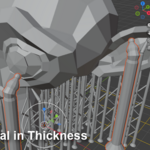
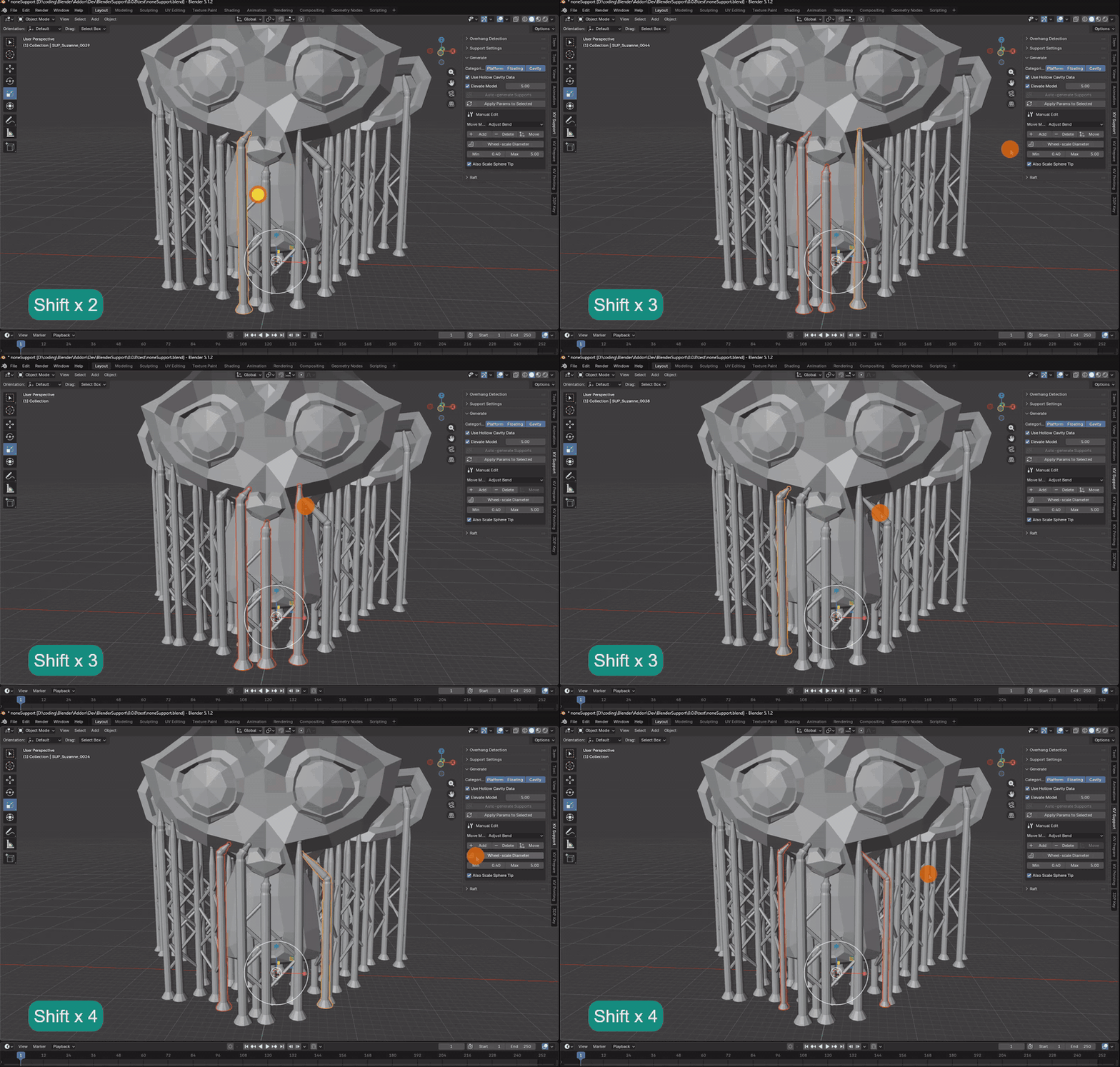
Select any number of supports, run Wheel-scale Diameter and scroll.
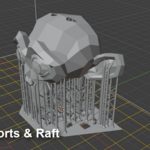
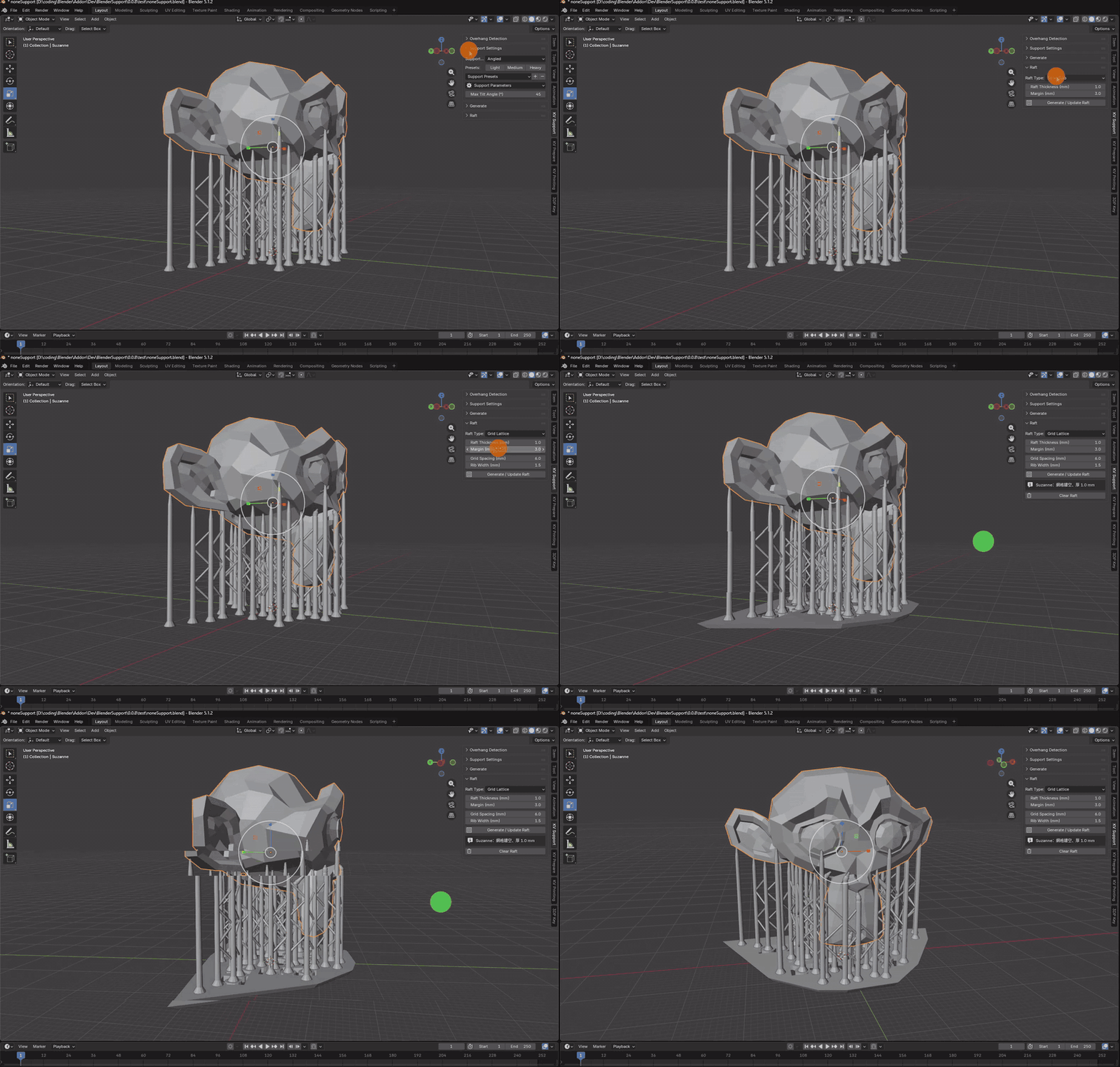
Raft
Three rafts, for three kinds of print
Solid Slab — strongest plate adhesion
Grid Lattice — square holes and ribs; saves resin and drops peel force so it lifts off the plate easily
Separate Discs — a small disc under each grounded support instead of one continuous raft
Solid and grid rafts lift the model and its supports by the raft thickness automatically
KV Printing
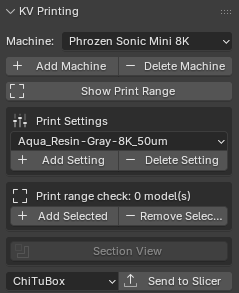
Show Print Range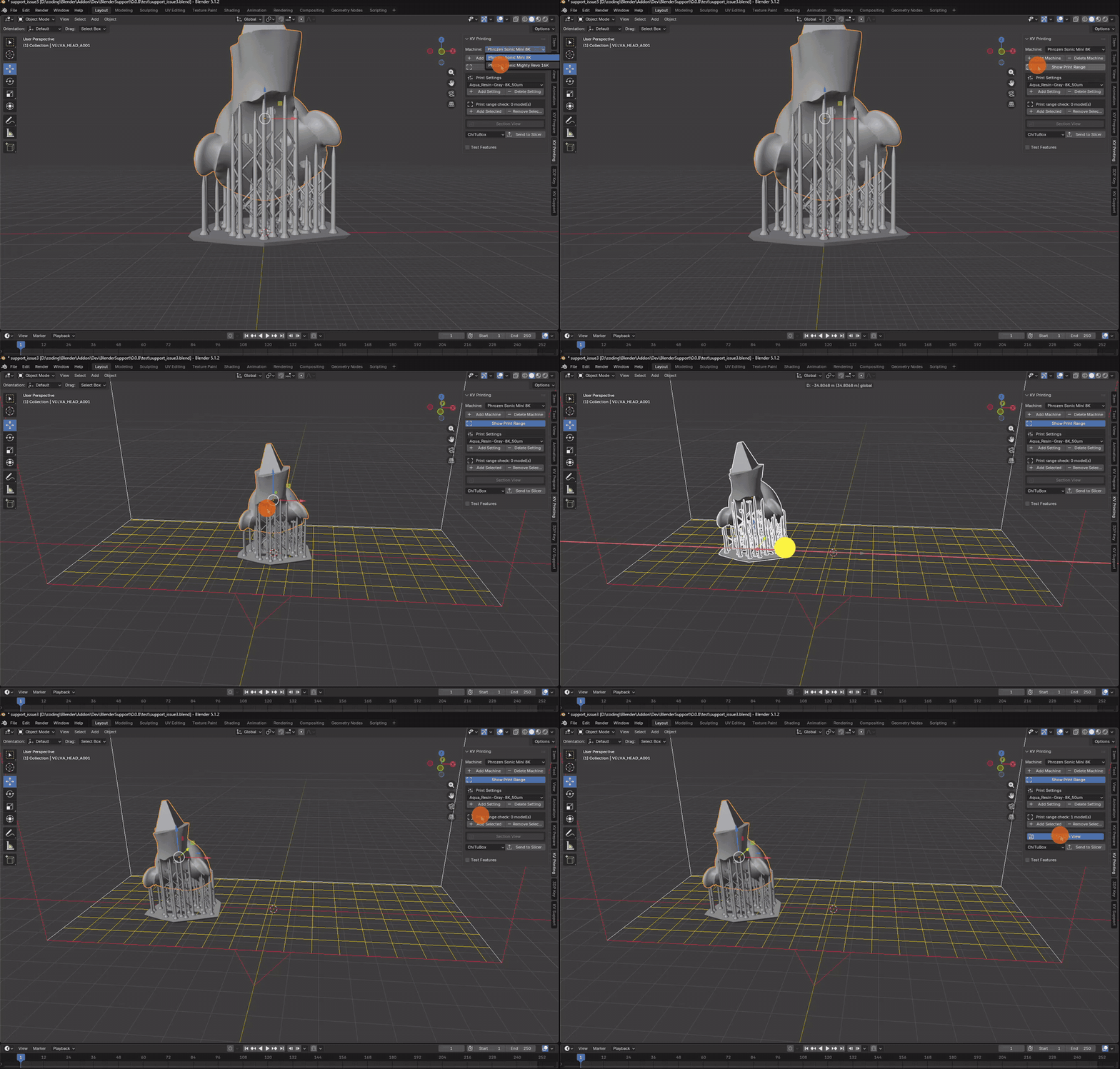 Add Machine
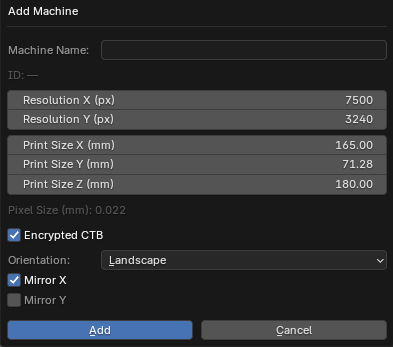
Add Machine
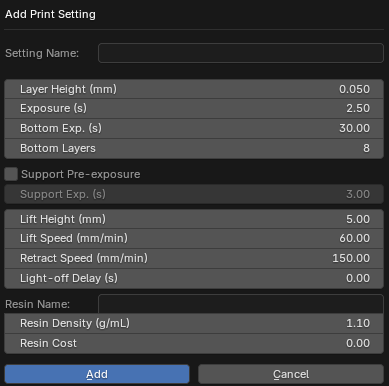
Add Print Settings
This function does not currently affect any operations.
This setting will be needed later when developing the slice file( ctb、goo... ) feature.
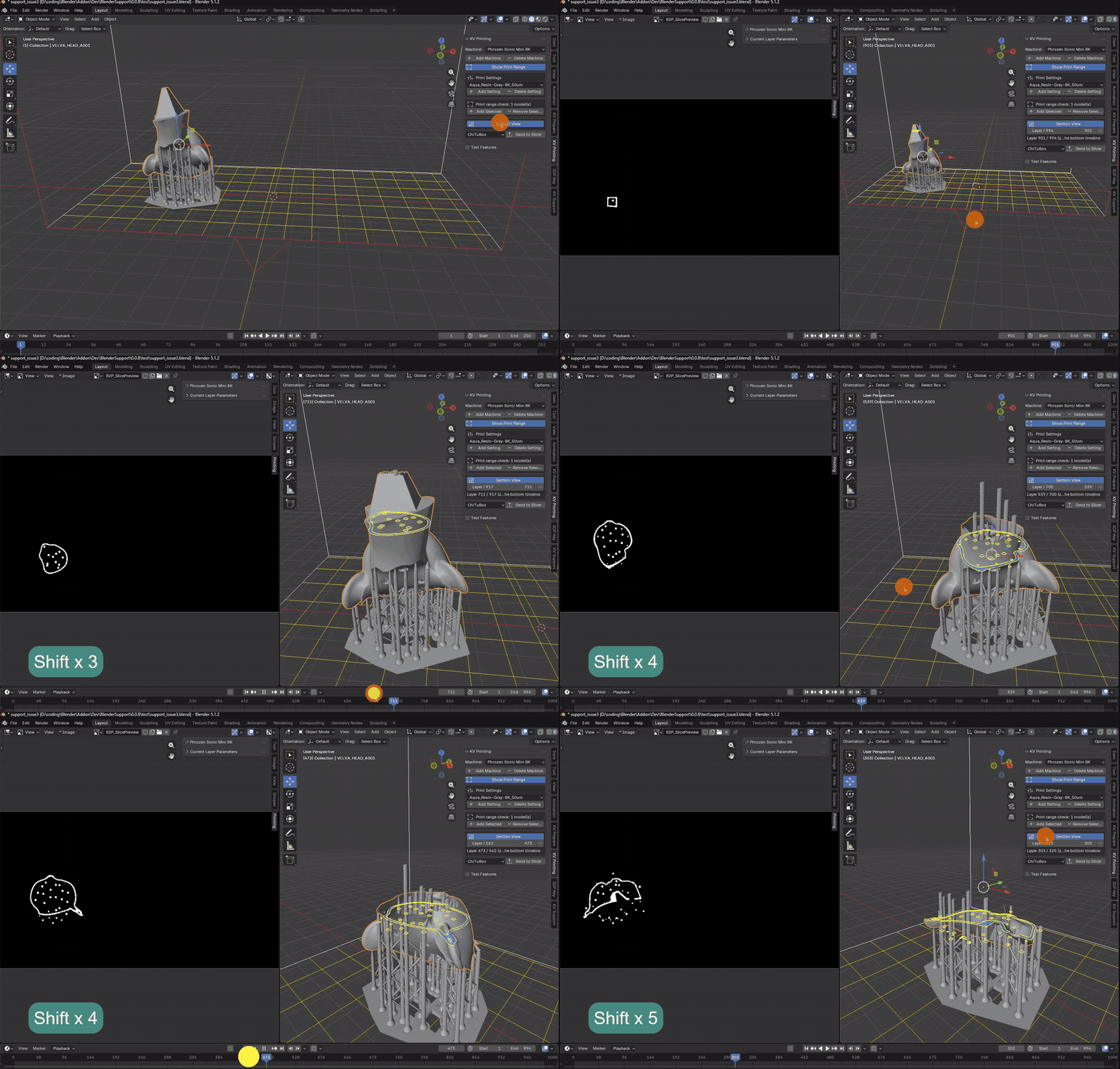
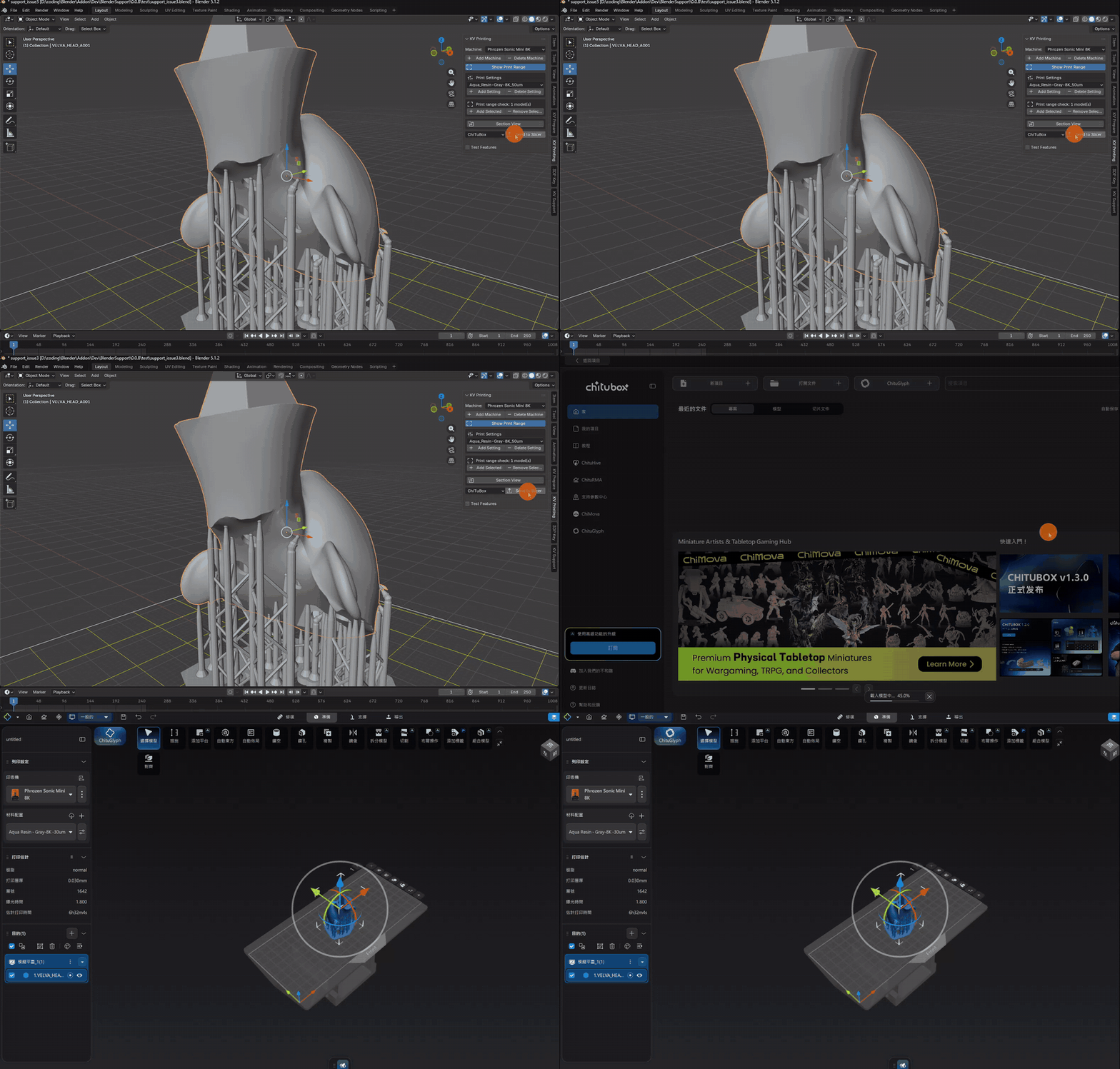
Section View
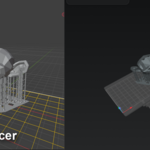
Send to Slicer
for now support chitubox and lycheer only.
Have questions about this product?
Login to message
| Published | 3 months ago |
| Blender Version | 4.5 - 5.2 |
| Extension Type | N/A |
| Render Engine Used | Cycles, Eevee |
| License | GPL |