Laptop With Animated Lid
 FladmarkDesign


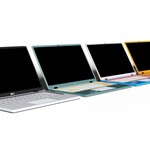
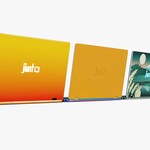
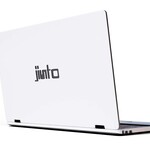
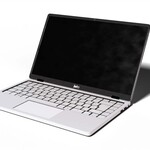
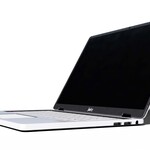
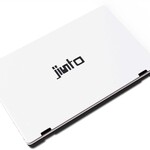
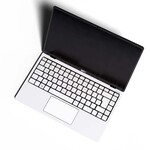
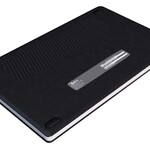
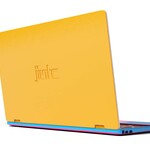
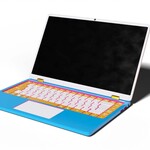
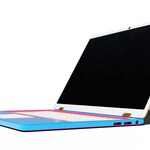
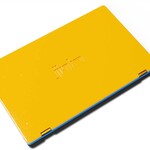
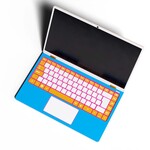
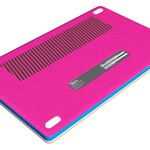
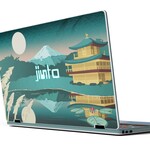
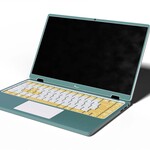
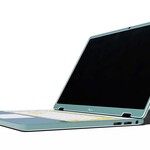
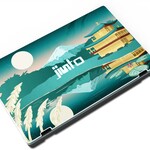
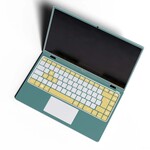
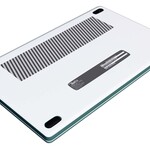
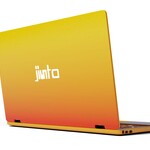
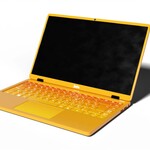
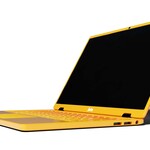
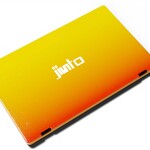
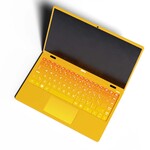
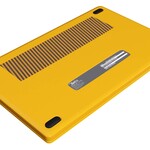
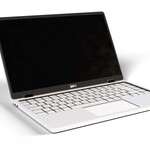
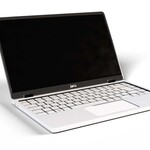
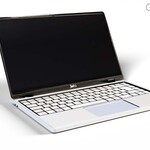
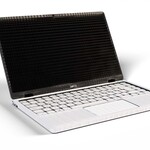
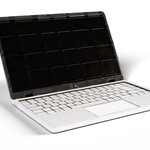
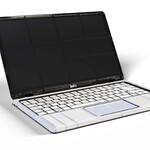
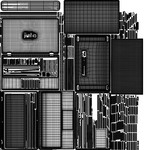
Please ensure you export Textures.zip to the same root folder as the FBX/OBJ files. String should be "./Textures/xxx.png"
______________________________________
Formats included:
FBX (Laptop_FullPoly, Laptop_HighPoly, Laptop_GameReady)
GLB (Laptop_FullPoly, Laptop_HighPoly, Laptop_GameReady)
OBJ (Laptop_FullPoly, Laptop_HighPoly, Laptop_GameReady) with corresponding MTL files
Native Blend file (Laptop.blend. Created in Blender 4.5, compatible with other versions)
Unity Asset Package(Laptop.unitypackage)
Please note that animations are not included in .OBJ format
______________________________________
This package includes three levels of detail: Full Poly, High Poly, and Game Ready
Full Poly:
2 Objects (Base and Lid)
265,612 Polygons
132,989 Vertices
1 Animation (Lid Close)
High Poly:
2 Objects (Base and Lid)
32,328 Polygons
16,341 Vertices
1 Animation (Lid Close)
Game Ready:
2 Objects (Base and Lid)
2,576 Polygons
1,302 Vertices
1 Animation (Lid Close)
Each LOD has a corresponding set of PBR-textures in 2K and 4K resolution
Diffuse/Base Color, Metal, Roughness, Normal, Emission
There are a total of four color variations
Standard (White and Black), Bubblegum (White, Blue, Pink, and Orange), Sunset (Yellow and Red Gradient), and Landscape (Green and White, with a landscape image on the backplate)
These are included as additional Diffuse/Base Color and Emission maps for each LOD and resolution. To change between variations, please replace the corresponding maps with the new maps, ensuring both the bcolor and emit maps share the same suffix (_Standard, _Bubblegum, _Sunset, or _Landscape)
In the .blend file you can swap between these color variations by opening the Laptop_XX_material material and connecting the node group with the appropriate name to the Surface node on Material Output
In the .unitypackage file, color variations have been packaged as additional materials. To swap between them, drag and drop the appropriate material onto both the base and lid models.
______________________________________
3 assets are included in this pack. For technical reasons these are not animated, but still appropriate as scene props. To change between the color variations of these assets, make the asset a "Single User" through the Object -> Relations menu in your viewport, then go into your shading window and connect 1 of the 4 color-blocks into your Material Output.
 Included
Includes 12 months of
- Support from FladmarkDesign
- Product updates
Extend this product’s Support Period +12 months: 50% of product price
Have questions before purchasing?
Login to message
| Dev Fund Contributor | |
| Published | 8 months ago |
| Blender Version | 4.5 - 5.2 |
| Render Engine Used | Cycles, Eevee |
| Misc Data | Uvs-Unwrapped, Manifold-Mesh, Animated, Low-High-Resolution, Normal-Mapped, Textured |
| License | Creative Commons |
Discover more products like this
Laptop desktop 3d laptop modern near future cyberpunk Computer gaming laptop Electronics PC electronic laptops