Connector Fit Qa — Assembly Preflight Before You Print
 LayerMechanic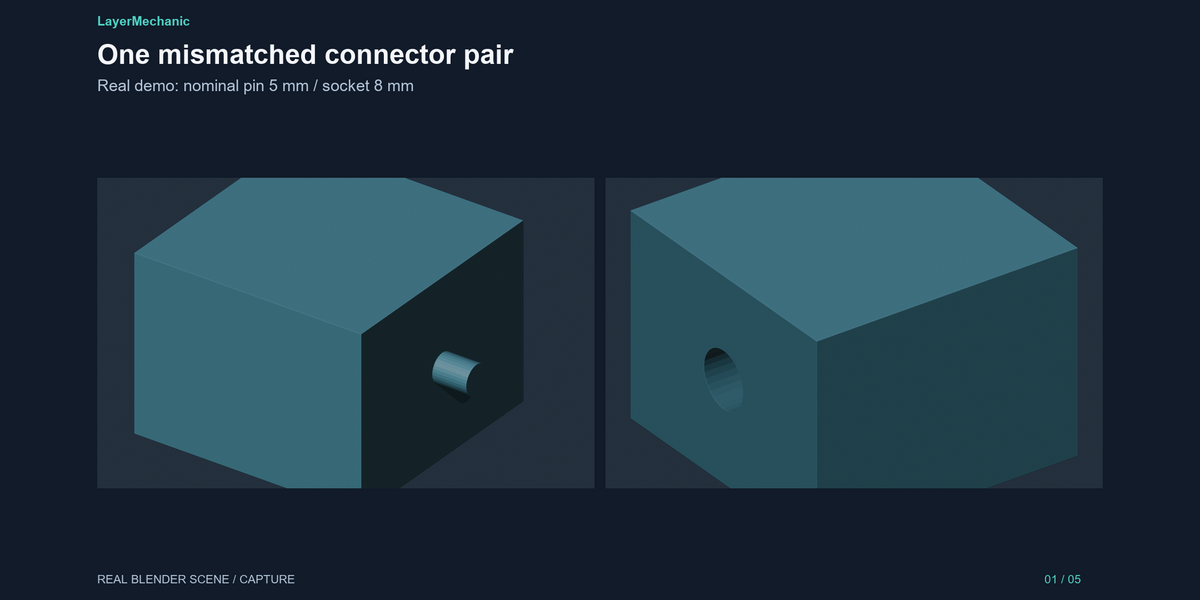
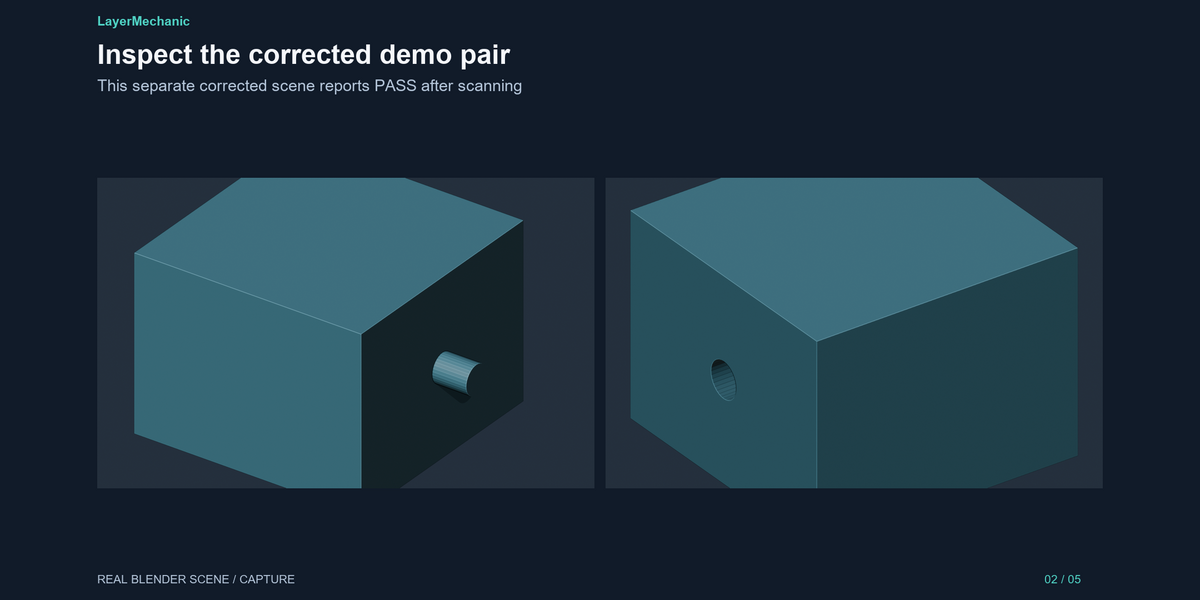
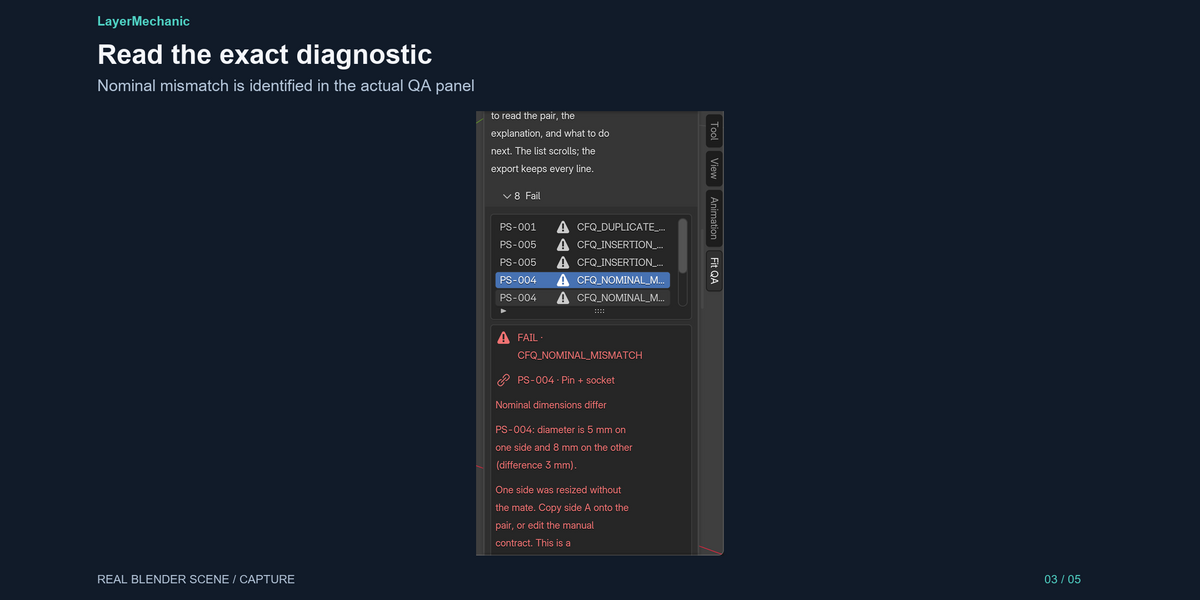
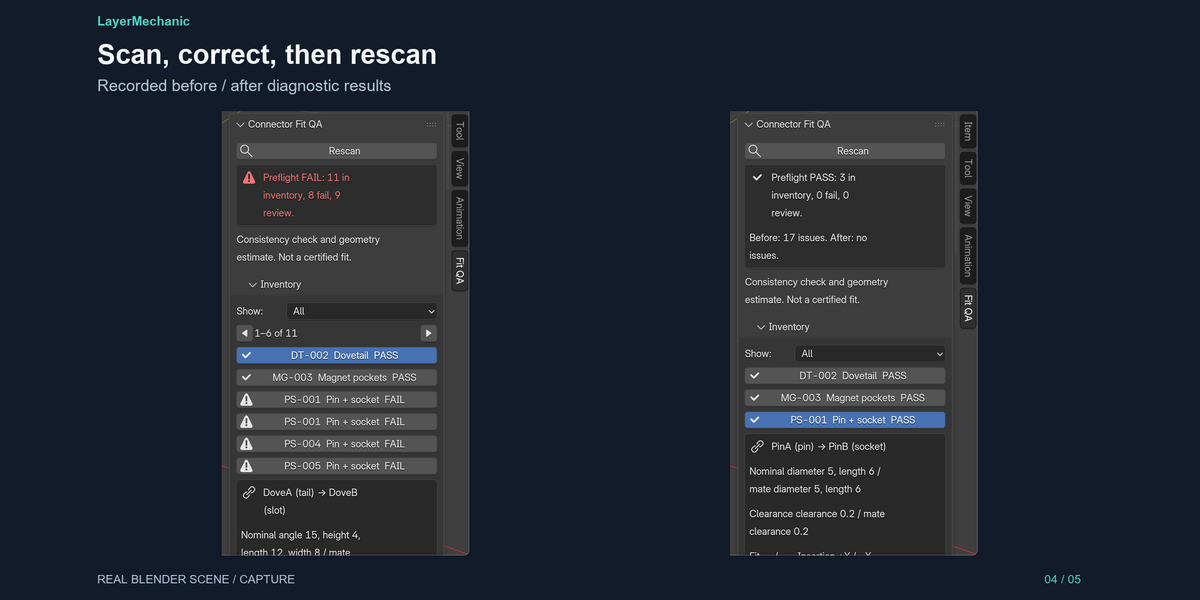
Installation
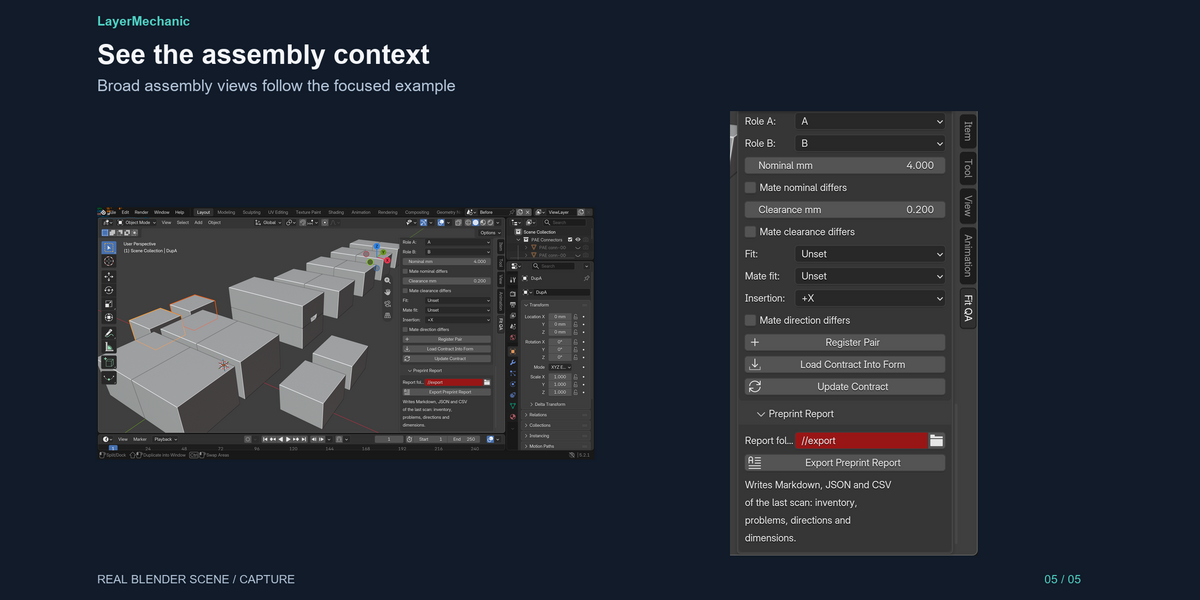
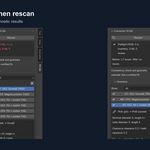
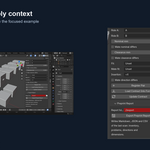
1. Download connector_fit_qa-1.0.1.zip. Do not unzip it. 2. Blender → Edit → Preferences → Get Extensions → Install from Disk (the v arrow on the header). 3. Pick the ZIP. Enable Connector Fit QA if it is not enabled. 4. In the 3D Viewport, press N. Open the Fit QA tab. 5. Open your assembly, or the included demo, and click Scan Assembly.
The add-on writes a preprint report only when you export, and only into the folder you choose.
Compatibility
- Blender 5.2.0 and newer. Developed and tested on Blender 5.2.1 LTS.
- Windows 11 x64 tested on Blender 5.2.1 LTS. macOS and Linux are untested. No network access.
- Reads assembly metadata written by Engine 01 1.0.0 and by products that store Engine 01 pairs or features (Pin & Socket Maker, Dovetail Maker, Magnet Pocket Maker).
- Several Engine 01 products can be enabled together. They share the file, not a Python module.
- Dimensions in the panel and the report are millimetres.
Support and updates — LayerMechanic — Connector Fit QA (Superhive)
- Support: Mekora Labs Support — [email protected]. Target response: within 2 business days.
- Support covers: installation problems on documented supported configurations; reproducible bugs (include Blender version, the scene if shareable, and the exported
connector_fit_qa_report.json); questions about documented workflows; download / release-file problems. - Support does not cover: custom CAD design; printer calibration consulting; electrical, structural, or waterproof/IP certification; custom feature development; guarantees on unsupported Blender versions or platforms.
- This product does not collect usage data.
- Updates: free bug fixes and compatibility updates during the 1.x product line. Minor workflow improvements may be included in 1.x.
- Refunds: handled according to Superhive's applicable refund policy. If the product materially fails to perform as described on a supported configuration, contact Mekora Labs Support first.
- Compatibility: tested on Blender 5.2.1 LTS, Windows 11 x64.
Listing FAQ
Does it build the connectors? No. It checks pairs and pockets that are already described in the file, and contracts you register by hand.
Will it detect a dovetail that is only a boolean? No. Register the two objects if you want that joint in the inventory. The dimensions you enter are the contract, not a measurement.
Is PASS a guarantee? No. PASS means the checks that ran did not find a contract problem or a geometry estimate that needs attention. It is not a certified fit and not a print-success prediction.
What gets a FAIL? A deterministic problem in the stored contract: missing mate, unexpected member count, missing role, a part object that is gone or duplicated, a pair id used twice, nominal sizes that differ, insertion directions that contradict, anti-reversal flags that disagree.
What is only a review? Clearance or fit-name disagreements, orientation metadata, and geometry estimates (thin wall, breakthrough, overlap).
Can I undo a registration? Yes. Register, update, remove, and assign-new-id use Blender's undo.
The optional demo .blend is available as a separate product download. Install the add-on ZIP unchanged; open the demo after enabling the add-on.
Have questions about this product?
Login to message
| Blender Extension Compatible | Yes |
| Published | about 14 hours ago |
| Blender Version | 5.2 |
| Extension Type | Add-on |
| License | GPL |