 PixelsMixer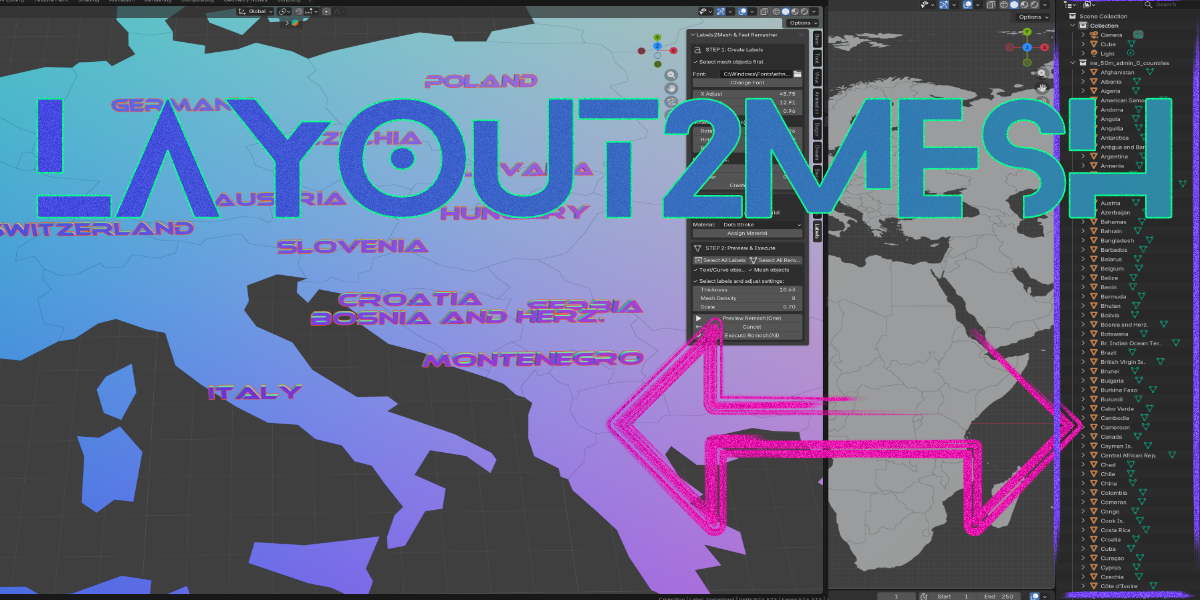
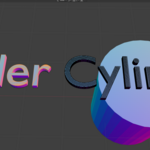
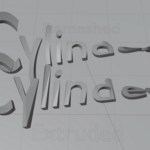
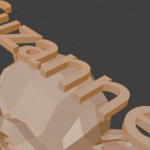
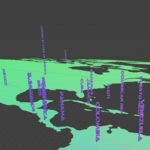
# Labels2Mesh & Fast Remesher — Blender Addon
**Turn text into clean mesh labels in seconds. Batch-create, position, rotate, and remesh — all from one panel.**
---
## What It Does
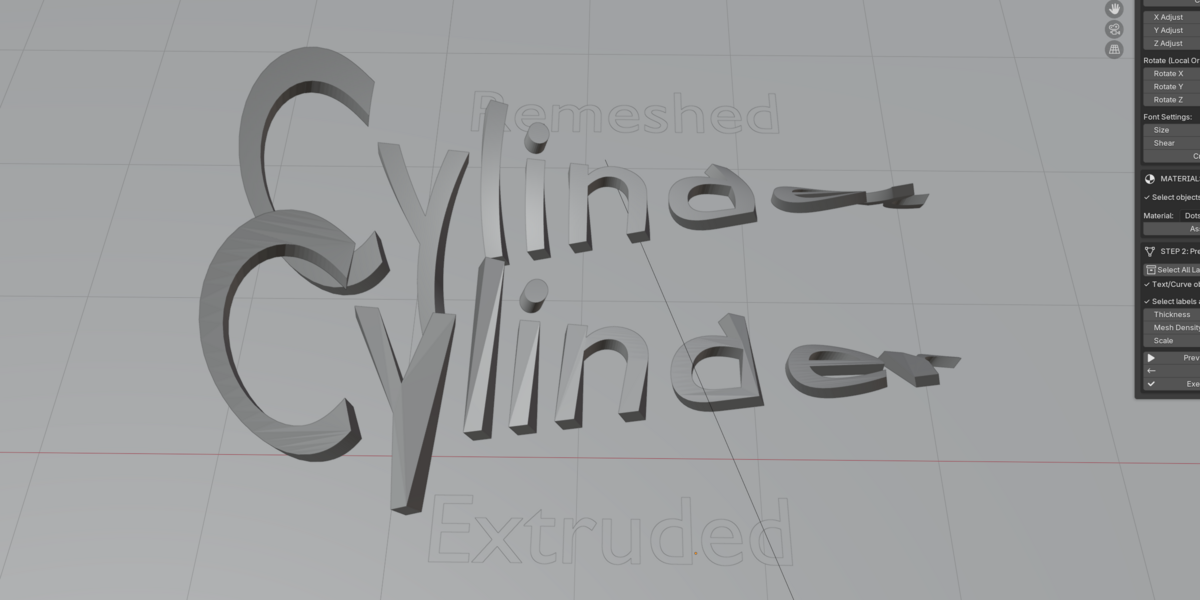
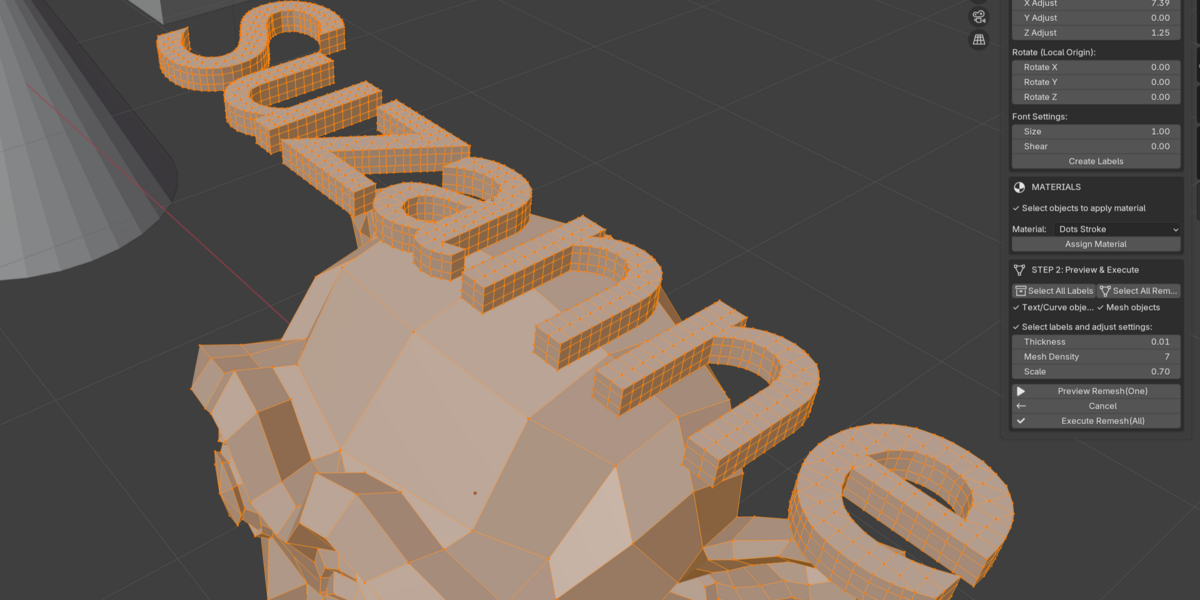
Labels2Mesh creates text labels for your mesh objects and converts them into optimized mesh geometry — ready for 3D printing, game engines, or any pipeline that requires clean topology.
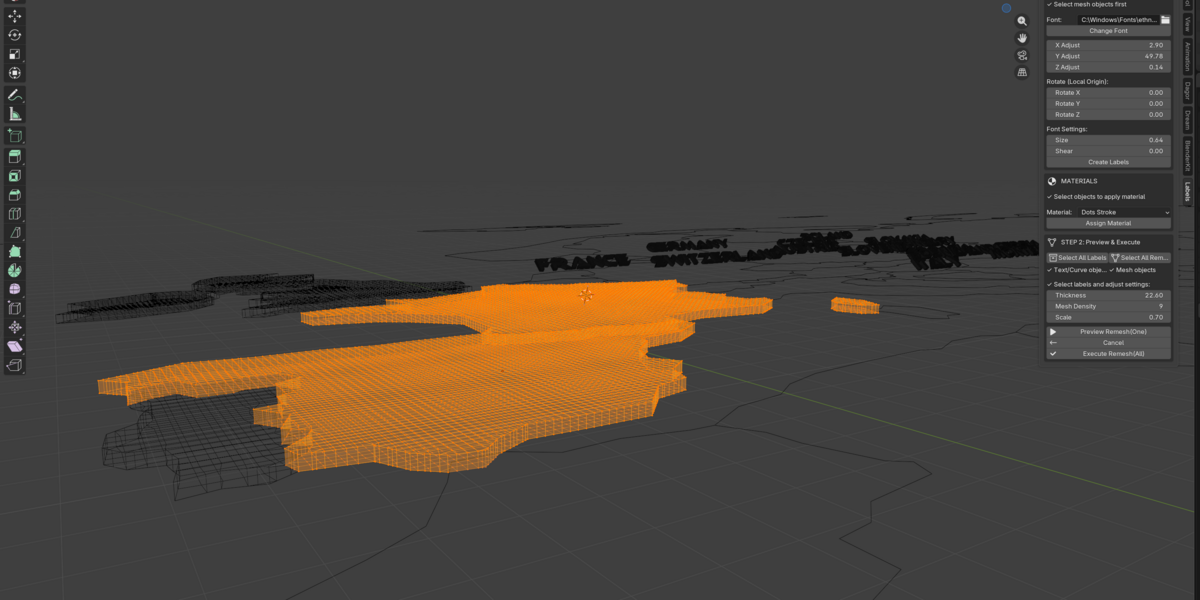
It also works as a **fast batch remesher** for any selected objects (text, curves, or meshes).
---
## Key Features
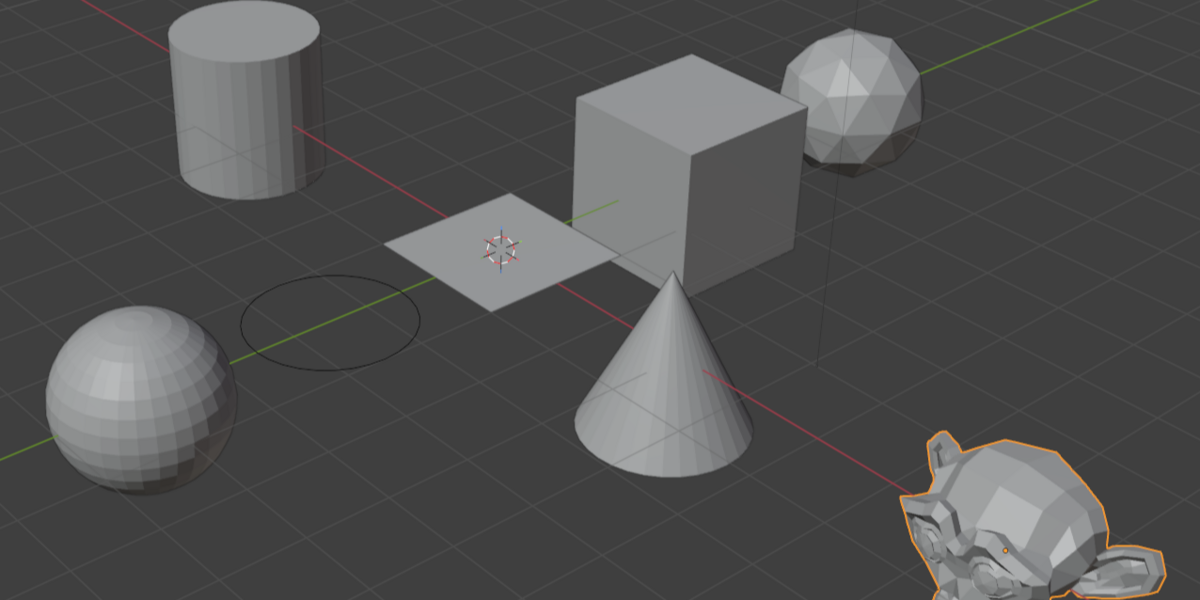
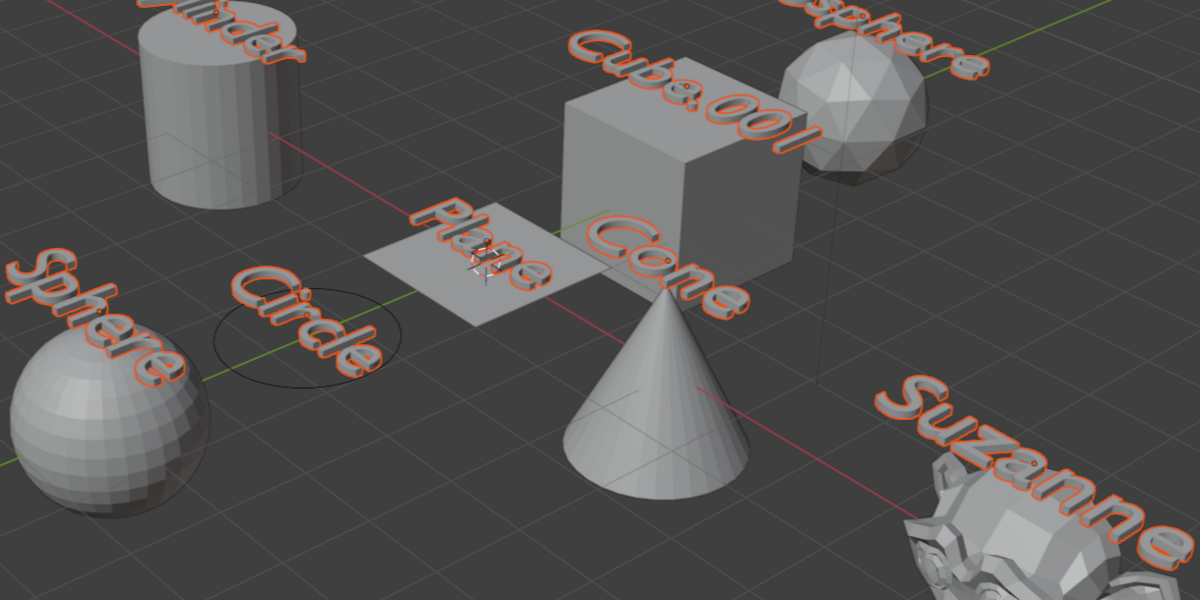
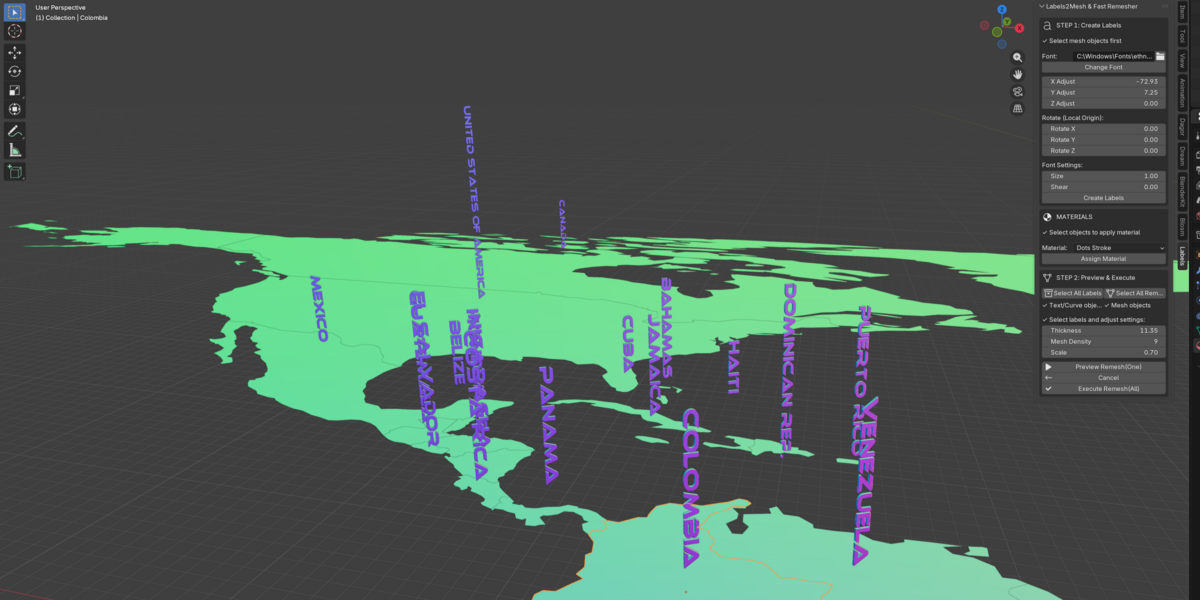
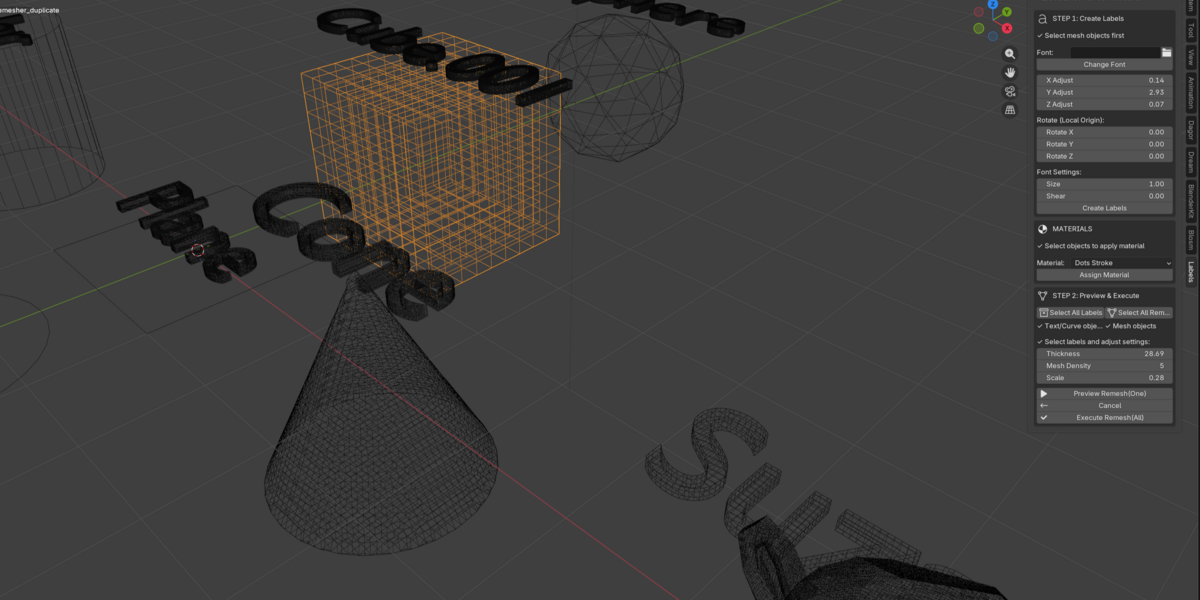
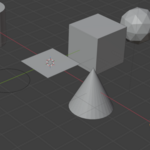
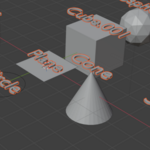
- **Batch Label Creation** — Select multiple objects, click one button, get centered text labels for each
- **Live Positioning** — Move labels with X / Y / Z sliders that show real object coordinates
- **Live Rotation** — Rotate labels around any axis (degrees) directly from the panel
- **Font Size & Shear** — Adjust size and italic angle on the fly
- **Custom Fonts** — Load any .ttf / .otf font and apply it to selected labels
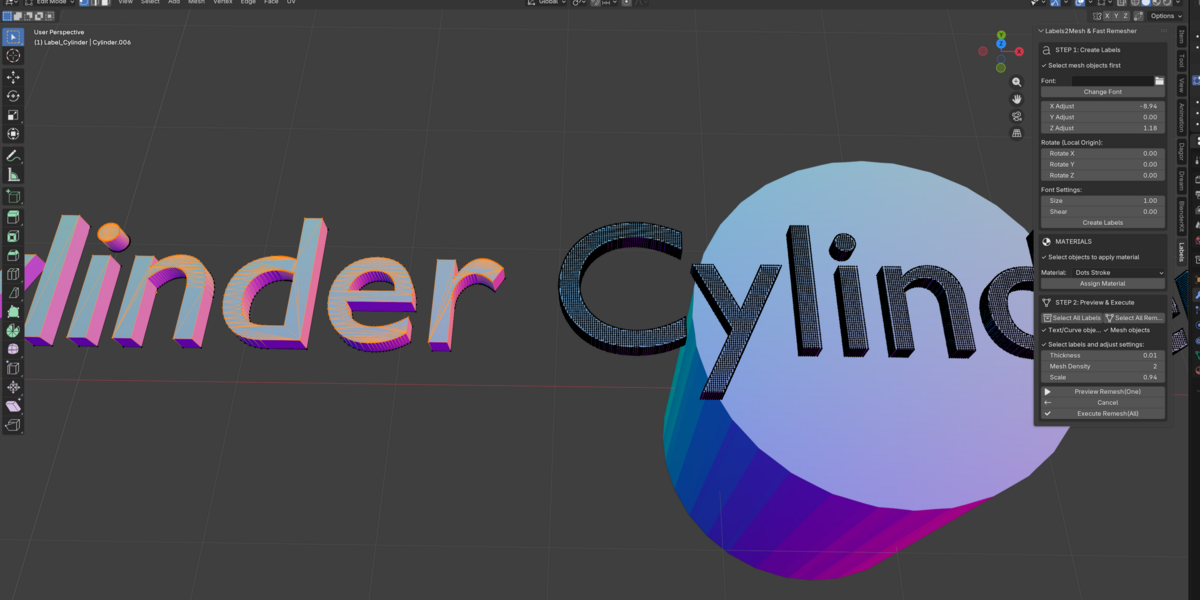
- **One-Click Preview** — See the remeshed result in wireframe before committing
- **Batch Execute** — Apply remesh settings to all selected objects at once
- **Adaptive Mesh Density** — Automatically adjusts octree depth based on object size ratio, so small and large labels get consistent detail
- **Material Assignment** — Quick material picker to assign materials to remeshed objects
- **Works on Any Object** — Not just text — remeshes curves and existing meshes too
---
## Workflow
### Step 1 — Create Labels
1. Select your mesh objects in the viewport
2. (Optional) Pick a font
3. Click **Create Labels**
4. Adjust position, rotation, size, and shear with the live sliders
### Step 2 — Remesh
1. Click **Select All Labels** or select specific labels
2. Set **Thickness**, **Mesh Density**, and **Scale**
3. Click **Preview Remesh (One)** to check the first label
4. Click **Execute Remesh (All)** to batch-process everything
Labels go into a `Labels` collection. Remeshed results go into `Remeshed_Labels`.
---
## Panel Location
**3D Viewport → Sidebar (N) → Labels**
---
## Settings
| Setting | Description | Range |
|---------|-------------|-------|
| Thickness | Extrusion depth for the solidify modifier | 0.01 – 100 |
| Mesh Density | Remesh octree depth (higher = more detail) | 1 – 100 |
| Scale | Remesh scale factor | 0.1 – 10 |
| Size | Font size for text labels | 0.1 – 100 |
| Shear | Font shear / italic angle | -1.0 – 1.0 |
---
## Compatibility
- Blender **3.6**, **4.2**, **5.0** (and newer)
- Works on Windows, macOS, Linux
---
## Installation
1. Download the `.zip` file
2. In Blender: **Edit → Preferences → Add-ons → Install**
3. Select the `.zip` file and enable the addon
4. Find the panel in **3D Viewport → Sidebar → Labels**
---
## Use Cases
- **3D Printing** — Create raised or engraved text labels on models
- **Archviz** — Add building names, room labels, signage
- **Game Dev** — Convert text to optimized mesh for in-game UI elements
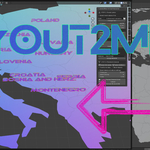
- **Data Visualization** — Label countries, regions, or data points on 3D maps
- **Product Design** — Add branding, serial numbers, or specs to product models
---
## What's Included
- `TextInGeonode/` addon folder (6 Python files)
- Ready to install as a standard Blender addon
---
*Made by Mykola Andriichuk*