 Lazy3D


Documentation (v1.0.0)
Lazy3D Addons Hub is a small Blender add-on that helps you jump between add-ons faster. It’s focused on quick navigation, pinning, and organizing your tools in one place.
Installation
- Download the add-on as a .zip (or a folder containing
__init__.py). - Blender - Edit - Preferences - Add-ons
- Click Install... and pick the zip.
- Enable the add-on checkbox.
Quick Start
After installing the add-on, open Edit > Preferences > Add-ons in Blender.
In the search field, type Lazy3D Add-ons Hub and open its preferences panel.
Lazy3D Add-ons Hub Preferences
Show Lazy Free Recommendations
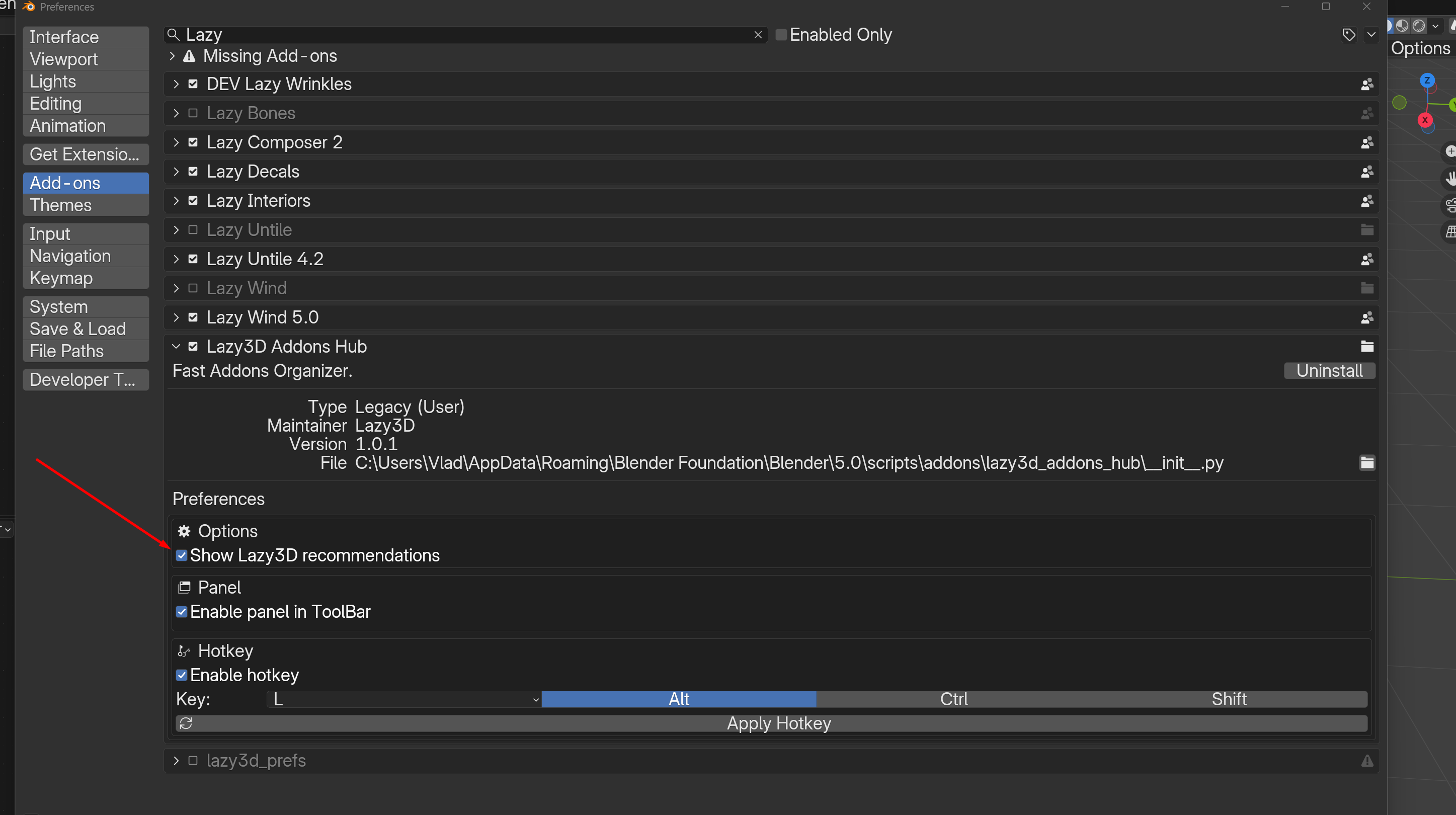
This toggle enables in-app recommendations for other Lazy3D add-ons. These recommendations include announcements about major sales and promotional discounts available in the Lazy3D store.
Lazy3D periodically runs significant sales events, with discounts that may reach up to 80-90%. When this option is enabled, you will receive notifications about these promotions directly inside Blender, ensuring you do not miss limited-time offers.
If disabled, no promotional recommendations will be shown.
Enable Panel in Toolbar
This option defines where the add-on interface is displayed in the 3D Viewport.

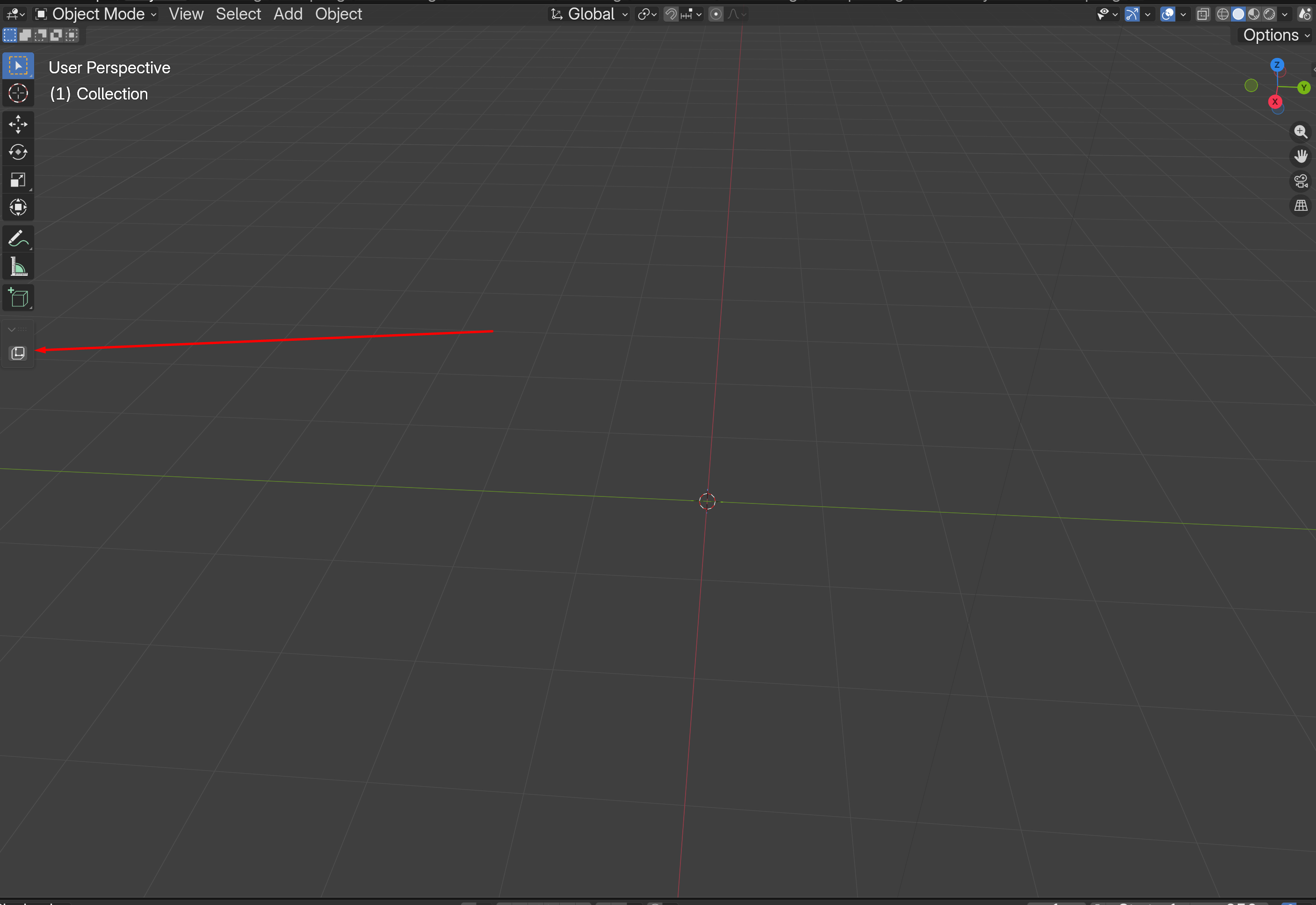
The add-on panel will appear in the Toolbar (left side of the 3D Viewport, opened with T).
The panel will appear in the 3D Viewport header, in the top menu bar, next to the Object menu.
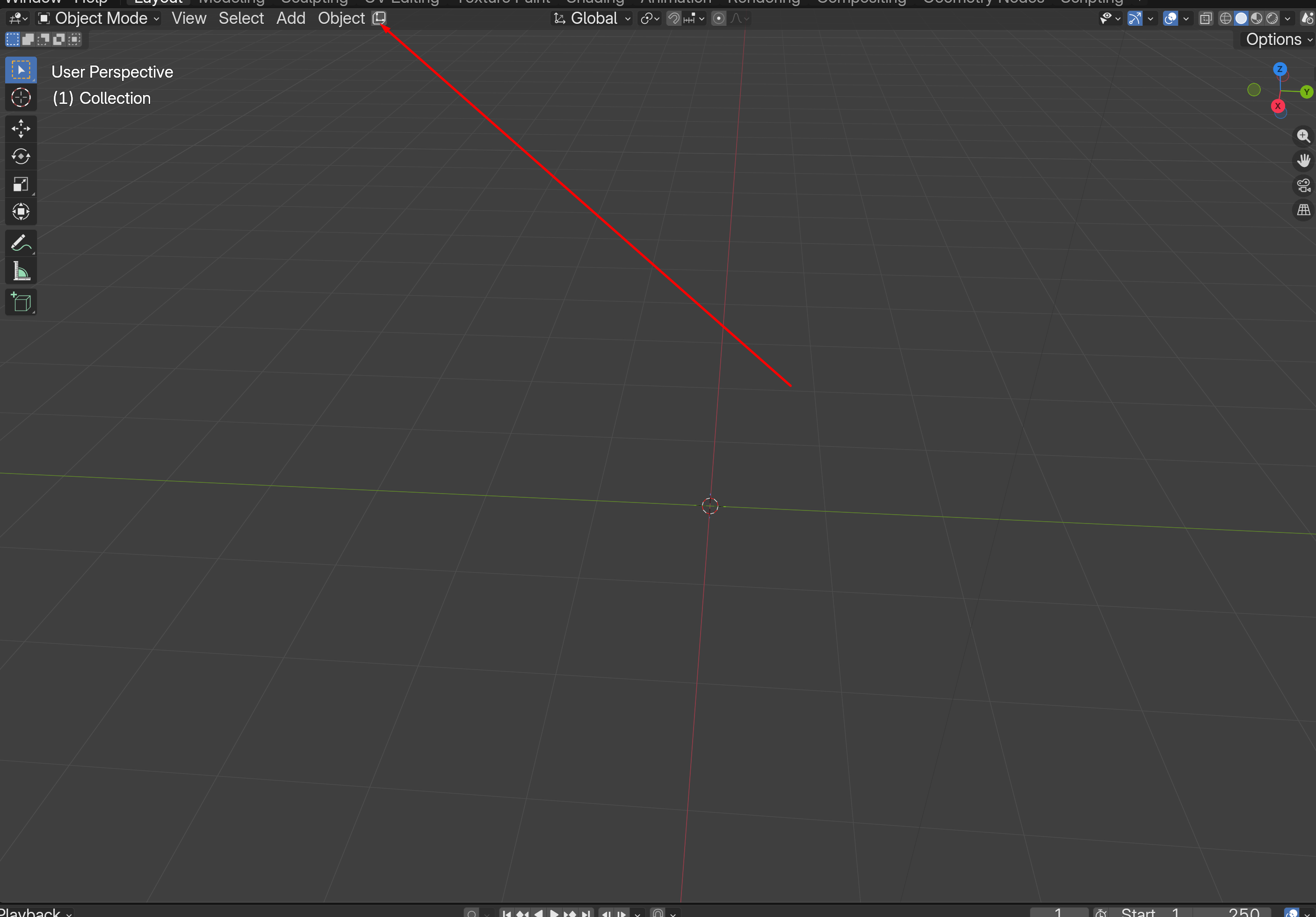
This allows you to choose the layout that best fits your workflow and screen configuration.
It is recommended to enable Enable Panel in Toolbar. When this option is active, you can access and manage your pinned add-ons directly from the 3D Viewport Toolbar without navigating through the top header menus.
Hotkey
You can enable or disable a dedicated hotkey for opening the Lazy3D Add-ons Hub panel.

When enabled, you can assign a custom shortcut to quickly call the add-on organization panel without navigating through menus. This is useful for fast access in production workflows.
Add-on Interface Overview
After configuring the add-on preferences, click the Lazy3D store logo icon to open the main panel.
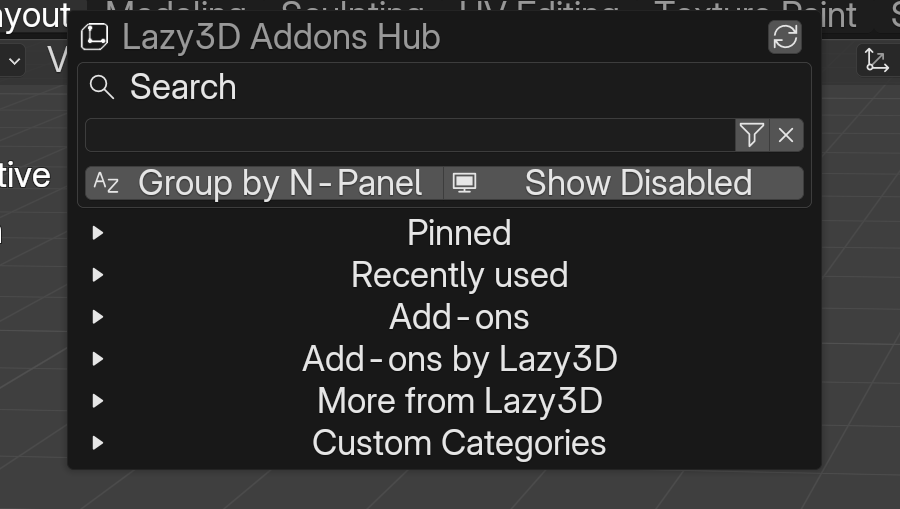
Top Controls
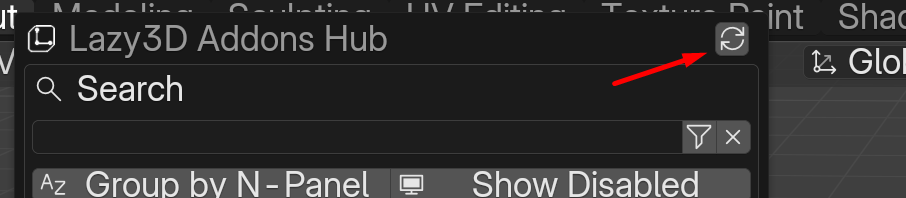
The Refresh List button reloads and updates the list of installed add-ons.
Use the search field to filter add-ons by name. Enter the add-on name (or part of it) and press the filter button - only add-ons matching the entered text will be displayed.
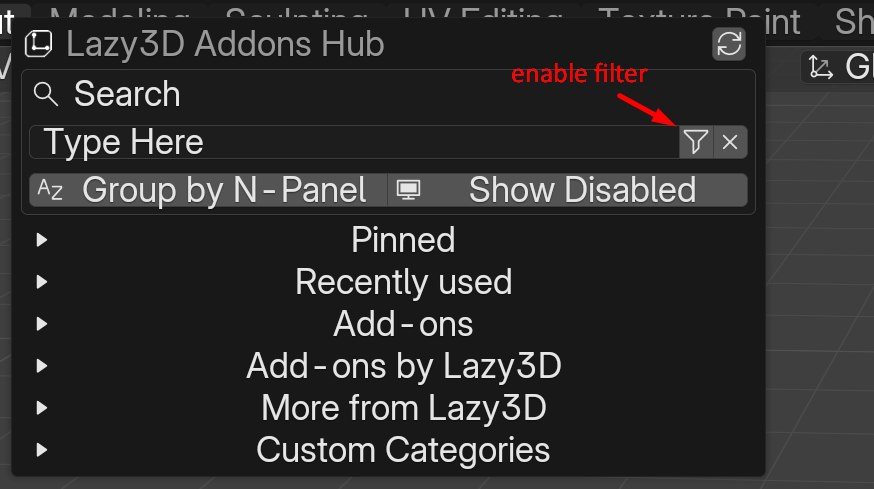
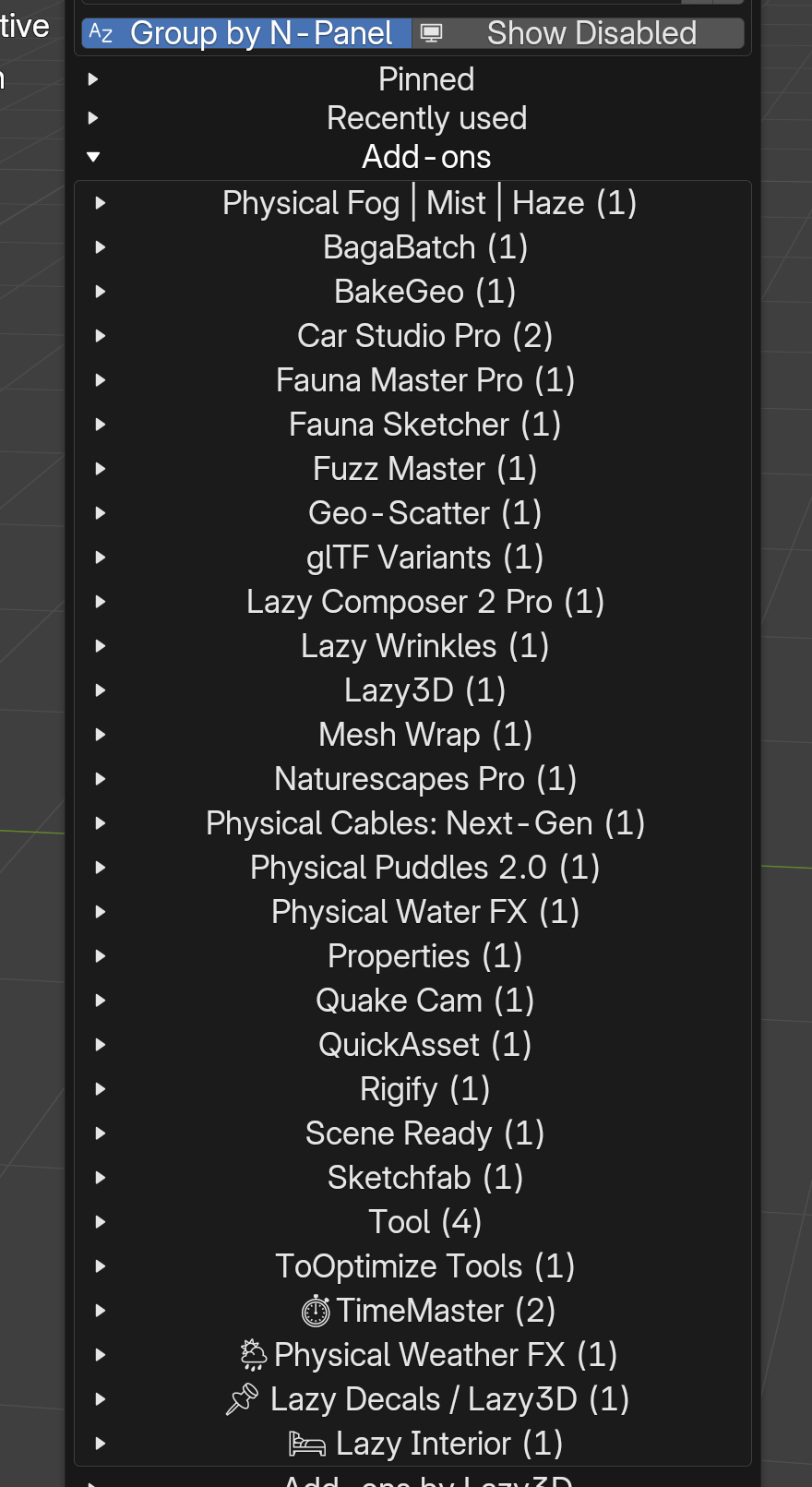
This option groups add-ons based on their N-Panel tab categories in the 3D Viewport Sidebar.
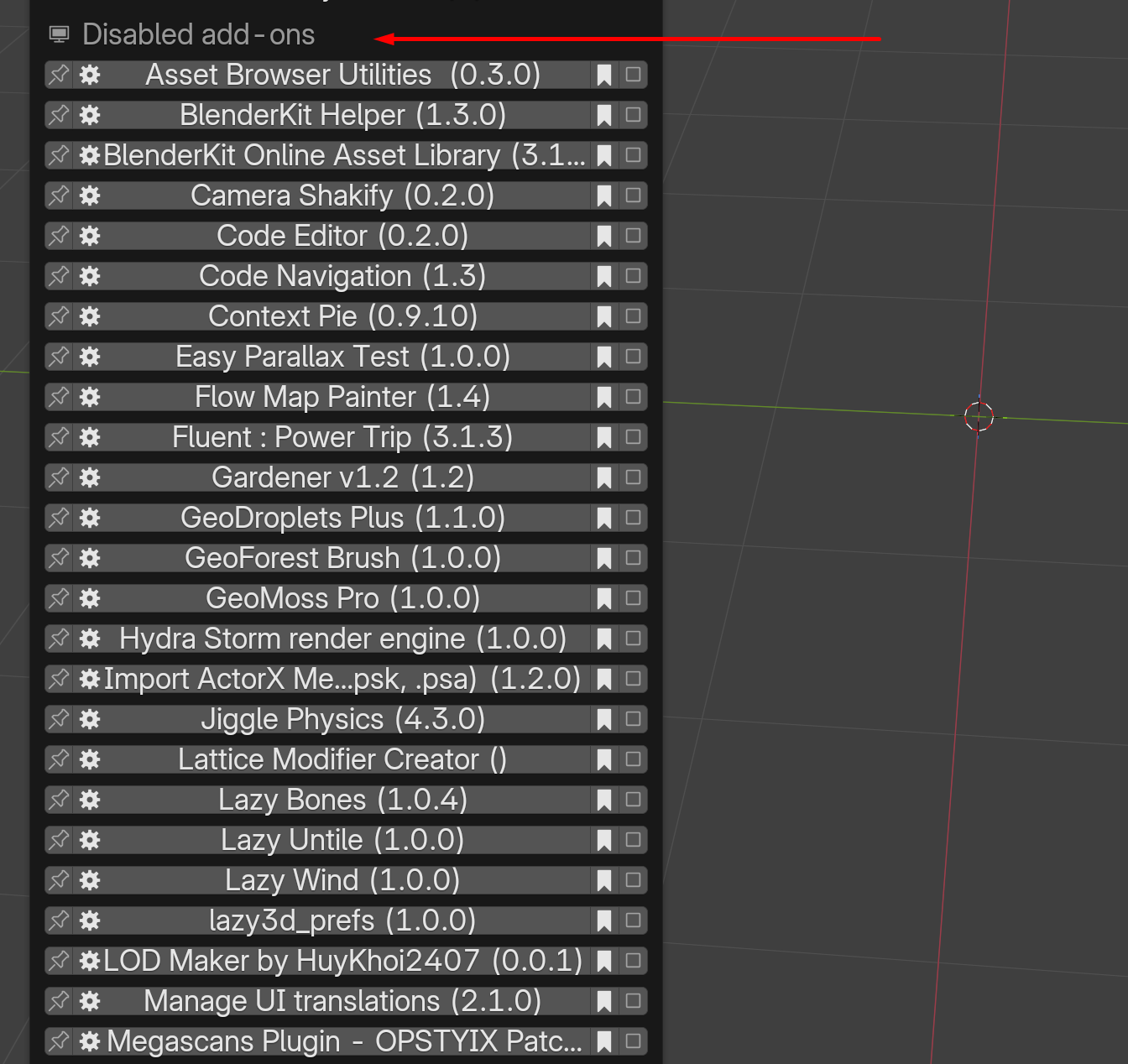
When enabled, disabled add-ons will also be displayed in the list. If you click a disabled add-on, Blender will open its Preferences entry, where you can enable or manage it.
Interface Sections
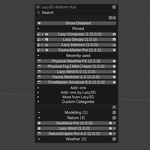
The panel is divided into several sections:
- Pinned
- Recently Used
- Addons
- Addons by Lazy3D
- More from Lazy3D
- Custom Categories
Pinned
The Pinned section contains the add-ons you have manually pinned for quick access.
How to Pin an Add-on
- Open the Addons section (this section lists all installed add-ons).
- Find the desired add-on.
- Click the pin icon next to it.

The add-on will immediately appear in the Pinned section.
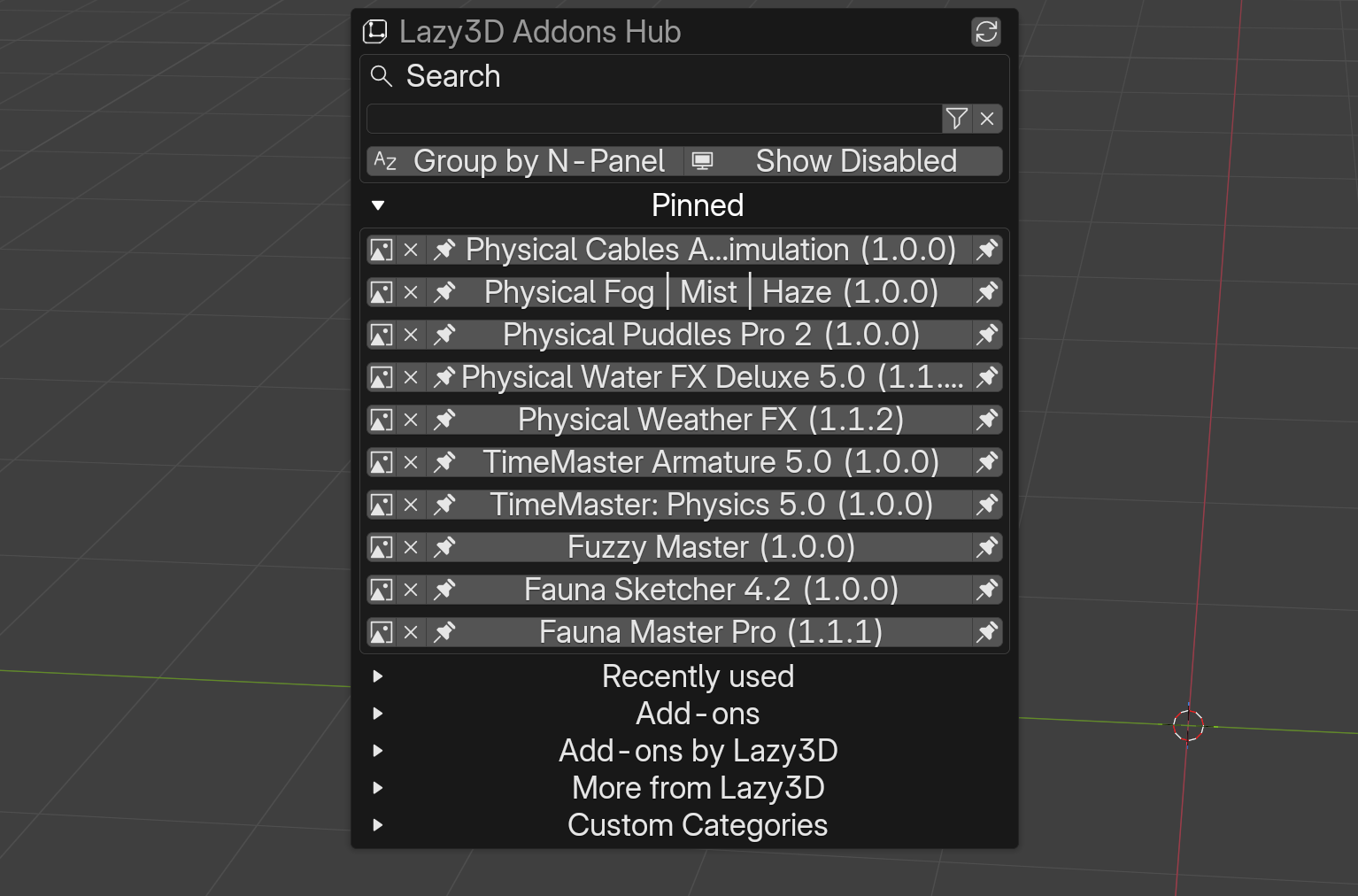
Pinned Add-on Controls
- Pin icon - opens the add-on’s Preferences.

- X icon - removes the add-on from the pinned list.
- Icon image button - assign a custom icon for quick identification in the Toolbar.

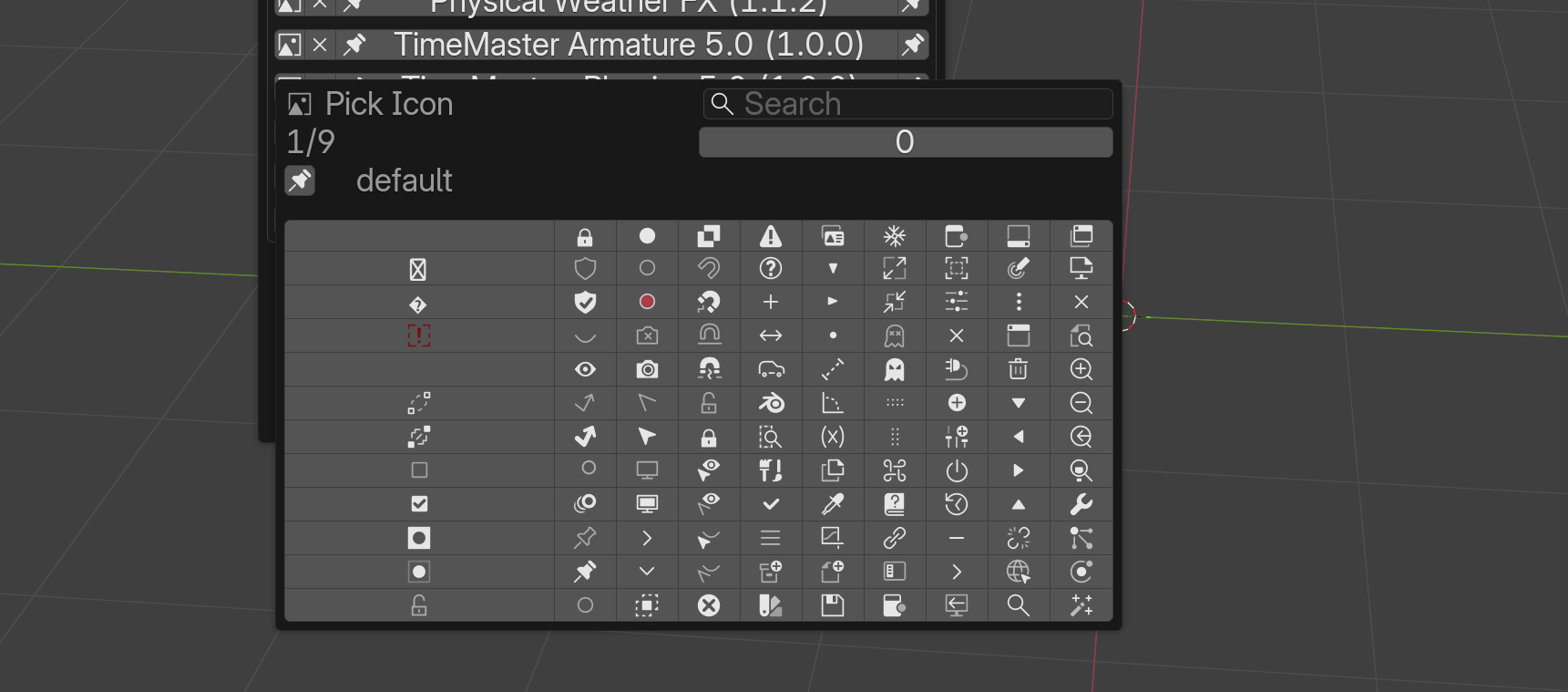
Custom icons are especially useful when the panel is displayed in the Toolbar, as they help you visually identify and access pinned add-ons with a single click.
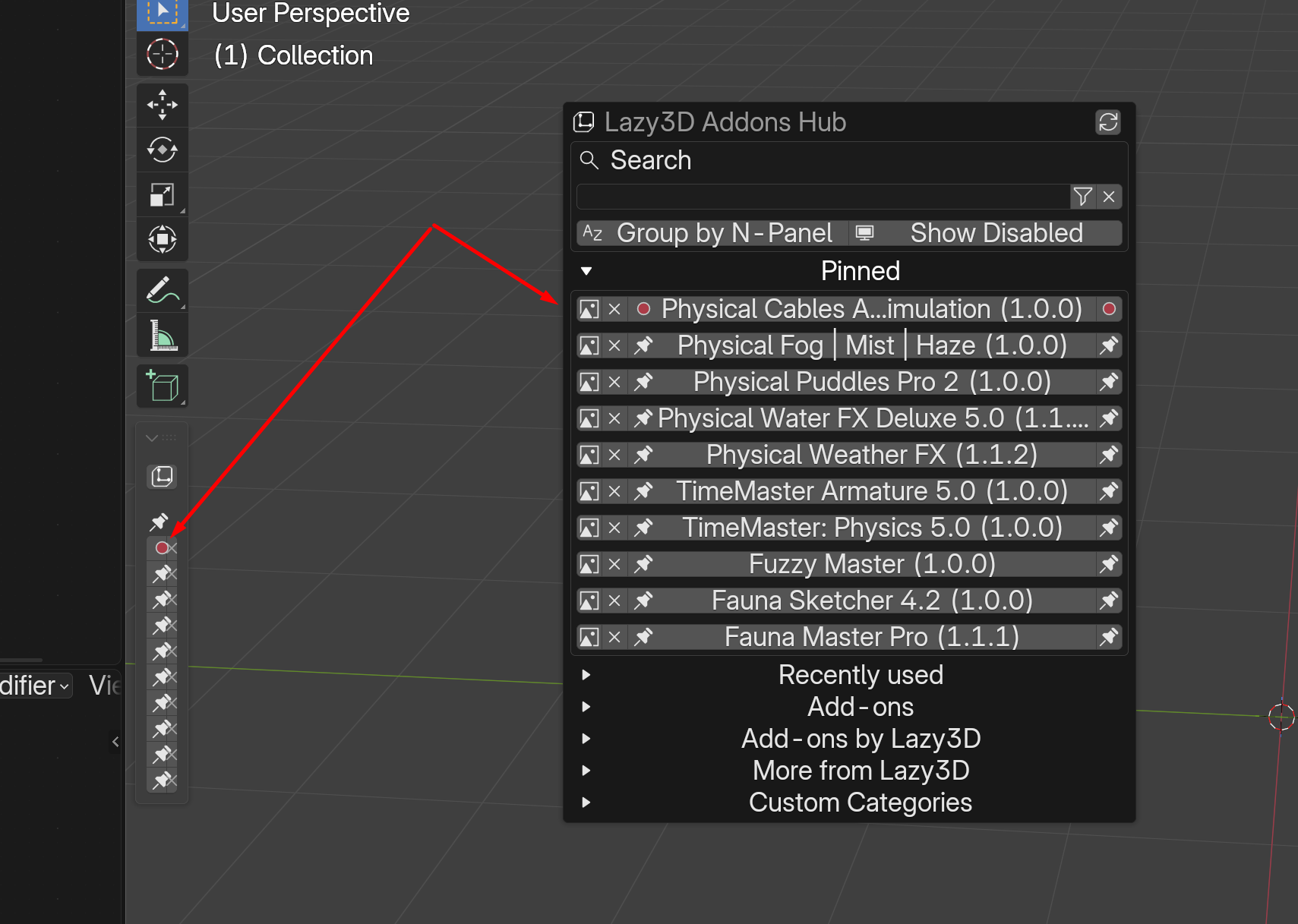
If you pin many add-ons, the Toolbar will automatically create additional pages. You can navigate between them using the page controls.
Recently Used
The Recently Used section displays the add-ons you have accessed most recently. This section updates automatically and provides quick access to frequently used tools.
Addons
The Addons section lists all installed add-ons available in your Blender environment.
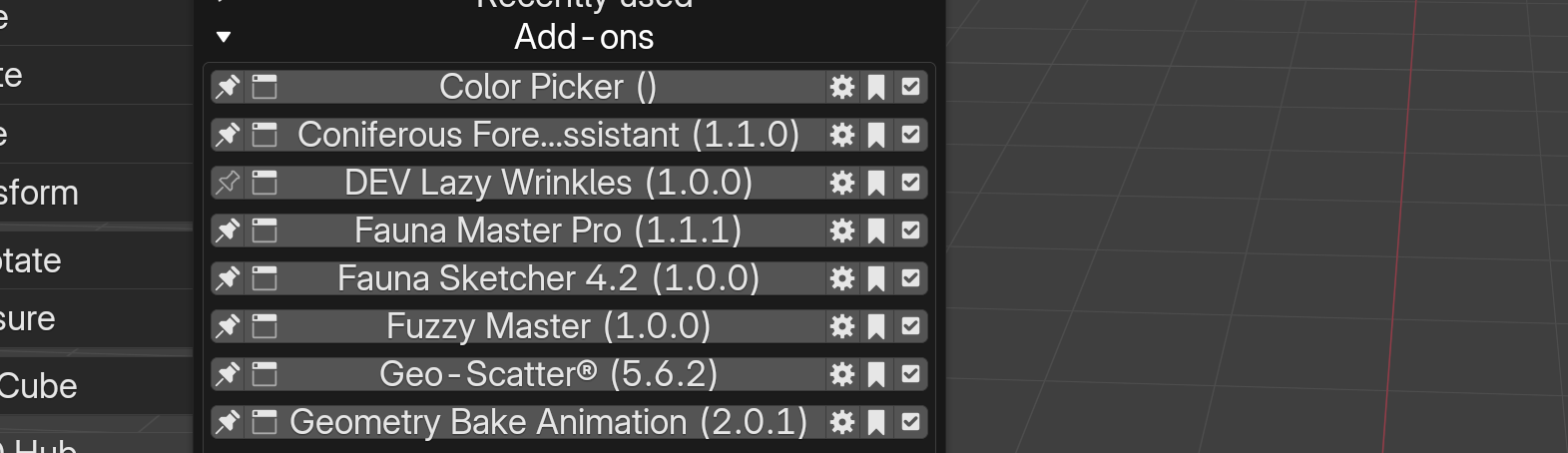
Each add-on entry includes several controls:
- Gear icon - opens the add-on’s Preferences in Blender.

- Checkmark icon - quickly enables or disables the add-on.

- Bookmark icon - assigns the add-on to a Custom Category.

Assigning to a Custom Category
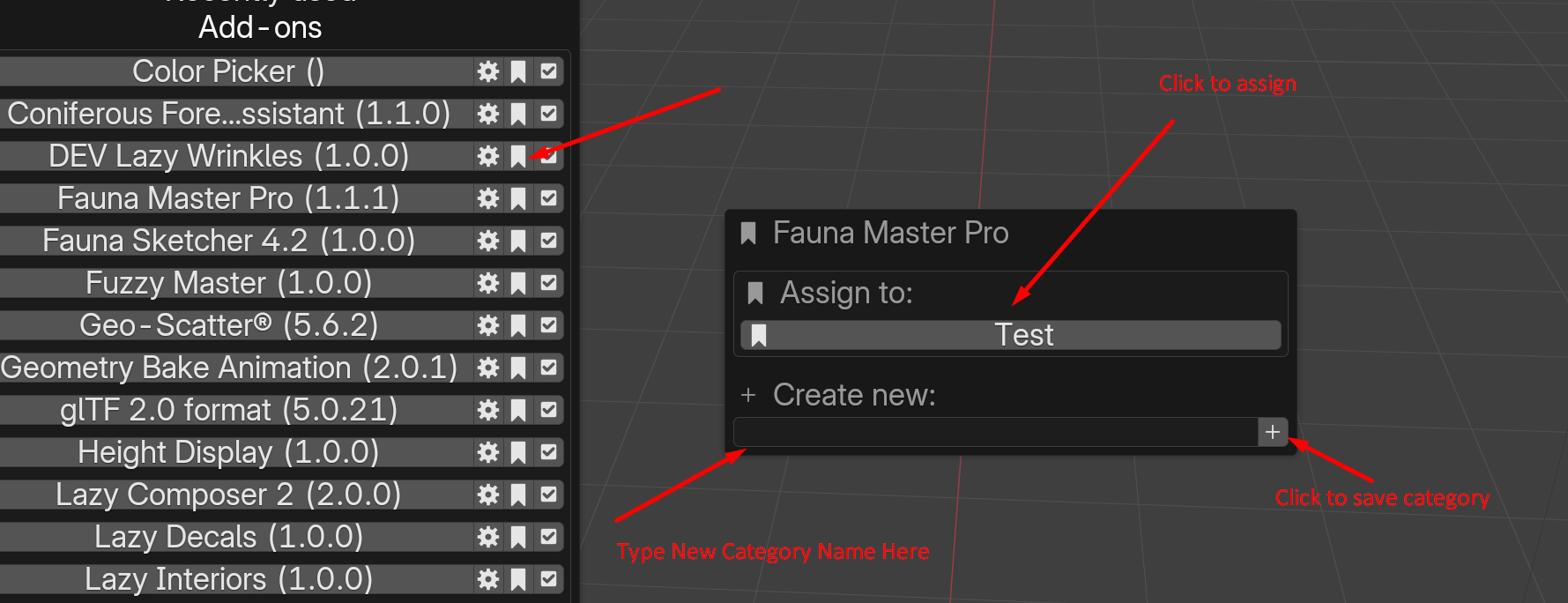
- Click the Bookmark icon to open the context menu.
- If no category exists, enter a new category name and press the Plus (+) icon to create it.
- If categories already exist, you can assign, move, or remove the category assignment.
Addons by Lazy3D
The Addons by Lazy3D section displays all Lazy3D add-ons currently installed in your Blender setup. This provides a centralized overview of your Lazy3D toolset.
More from Lazy3D
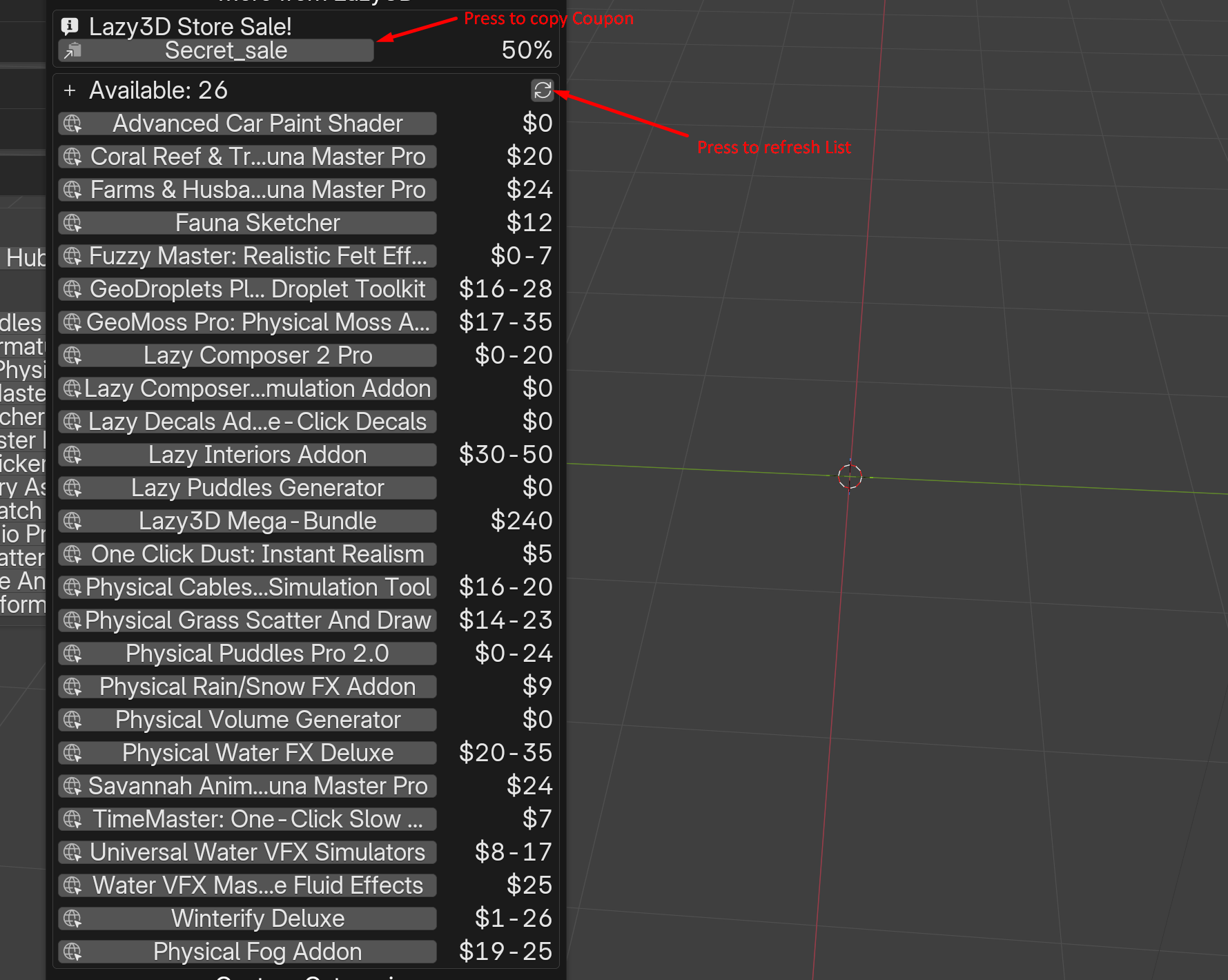
The More from Lazy3D section displays the full Lazy3D product lineup, including both paid and free add-ons. It also highlights active discounts and promotions. This section can be disabled in the add-on Preferences if you prefer not to display store-related content.
Custom Categories
The Custom Categories section contains all categories you have created manually. Each category groups the add-ons you assigned to it via the Bookmark system.
Opening an Add-on Panel
To open an add-on panel, go to Recently Used, Pinned, or any other section where the add-on is listed. Simply click on the central area displaying the add-on name. The system will automatically attempt to activate the corresponding panel in the 3D Viewport.
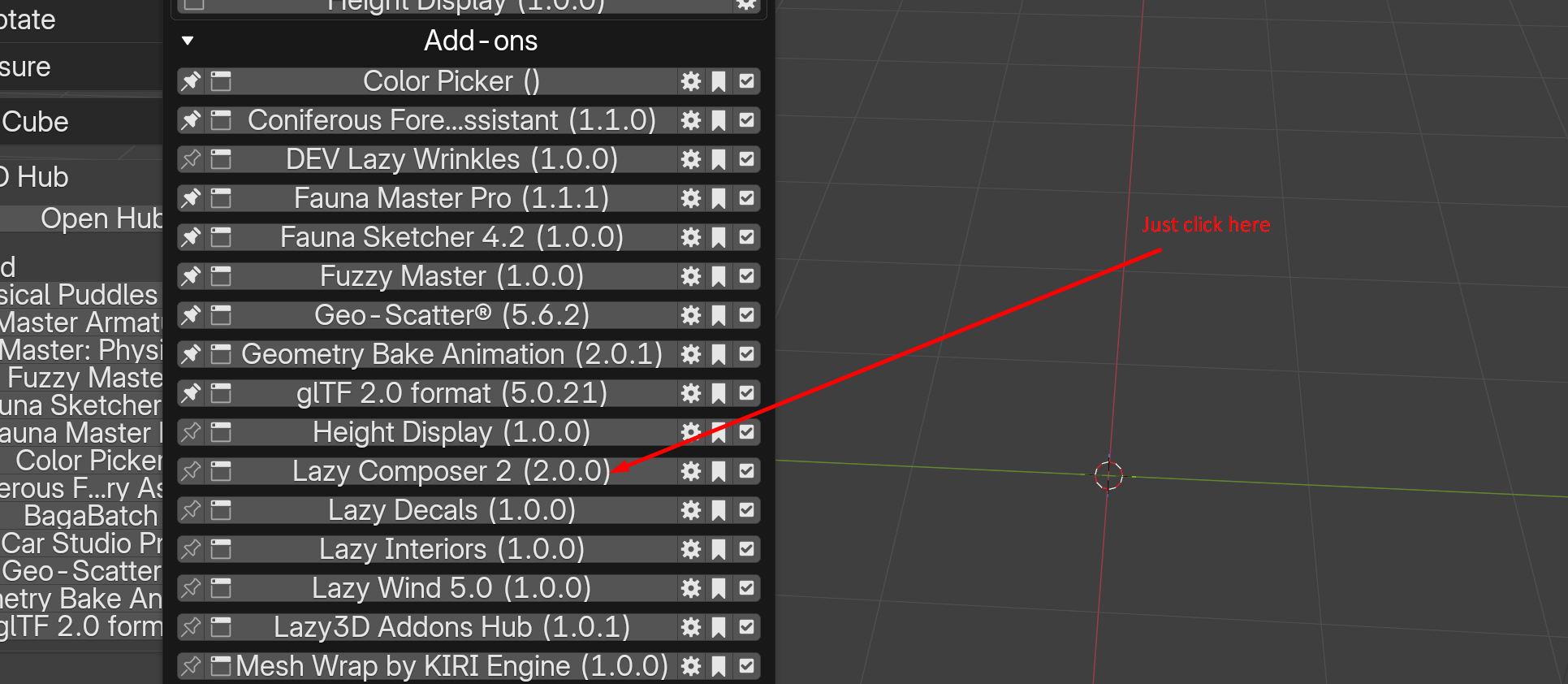
If you see Failed to activate N-Panel tab, there are two common reasons:
- The Sidebar is not open. Press
Nin the 3D Viewport to open the Sidebar, then click the add-on again. - The add-on does not provide an N-Panel interface. Some add-ons do not register a panel in the 3D Viewport Sidebar, so there is no tab to activate.
Internet Access and Transparency Notice
For full transparency, it is important to clarify that this add-on can optionally use an internet connection. Internet access can be disabled in the add-on Preferences at any time.
What is used and why
The add-on uses the More from Lazy3D feature to retrieve external information in a simple, transparent way:
- It reads a single TXT file hosted on Google Drive.
- The file contains plain text data only.
- No scripts, executables, or external code are downloaded or executed.
What data is retrieved
The TXT file contains basic product information:
- Add-on name
- Product link
- Base price
- Sale status (boolean value)
- Discount percentage
- Coupon information (if applicable)
Verification
- Direct link to the TXT file: https://docs.google.com/document/d/1ExhnzcV-BBlN6Bp0GFCVWbxN9DSOmRhrEImNkeq9e-k/edit?usp=sharing
- You can inspect the add-on source code to confirm that it requests only this single file.
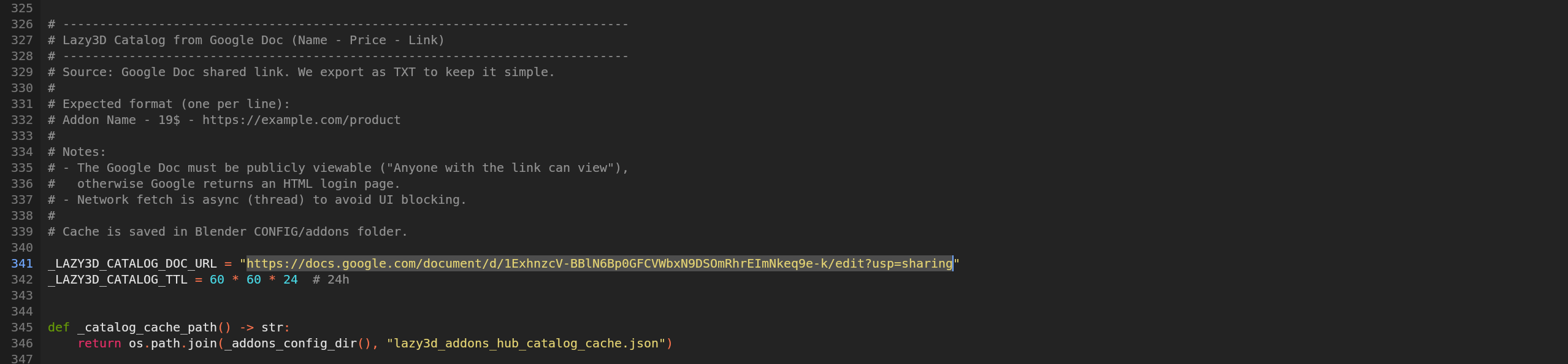
- The file is strictly a plain text document containing structured product data.

No background scripts, tracking mechanisms, or hidden processes are involved.
-
$0
Full product with all features
-
$3
If you find this product useful and would like to thank the creator, you can support its development. Your contribution will help us continue improving our products. Thank you for your support!
Have questions about this product?
Login to message
| Blender Extension Compatible | Yes |
| Sales | 10+ |
| Downloads | 700+ |
| Rating | 6 ratings |
| Dev Fund Contributor | |
| Published | 7 months ago |
| Blender Version | 4.2 - 5.2 |
| Extension Type | Add-on |
| Render Engine Used | Arnold, Blender-Internal, Blender-Game-Engine, Cycles, Eevee, Freestyle, Luxrender, Mental-Ray, Octane, Vray, Yafaray |
| License | GPL |
Discover more products like this
Utility addon blender addon blender tools Addon manager Blender Add-on blender productivity 3D workflow free addon Workflow Pipeline Tools n-panel organization UI management blender-ui