Linker
 Lukasz Hoffmann


Installation
See the Installation guide and follow it precisely.
Guide
See the full Documentation
Quick Guide
1. Core Concepts:
Linked model
A linked model is one or more Blender objects that share a stable model ID and one
FBX or OBJ path. Selecting any member makes the model available in the Linker panel.
Linker persists its ID, raw path, direction, timestamps, format settings, and preset
selections in the .blend file.
Active model and selected models
The active linked object supplies the path preview and model-specific context. Batch
actions derive a separate, deduplicated list of linked models from the entire Blender
selection. Selecting several members of the same model still processes it only once.
Explicit actions and automatic synchronization
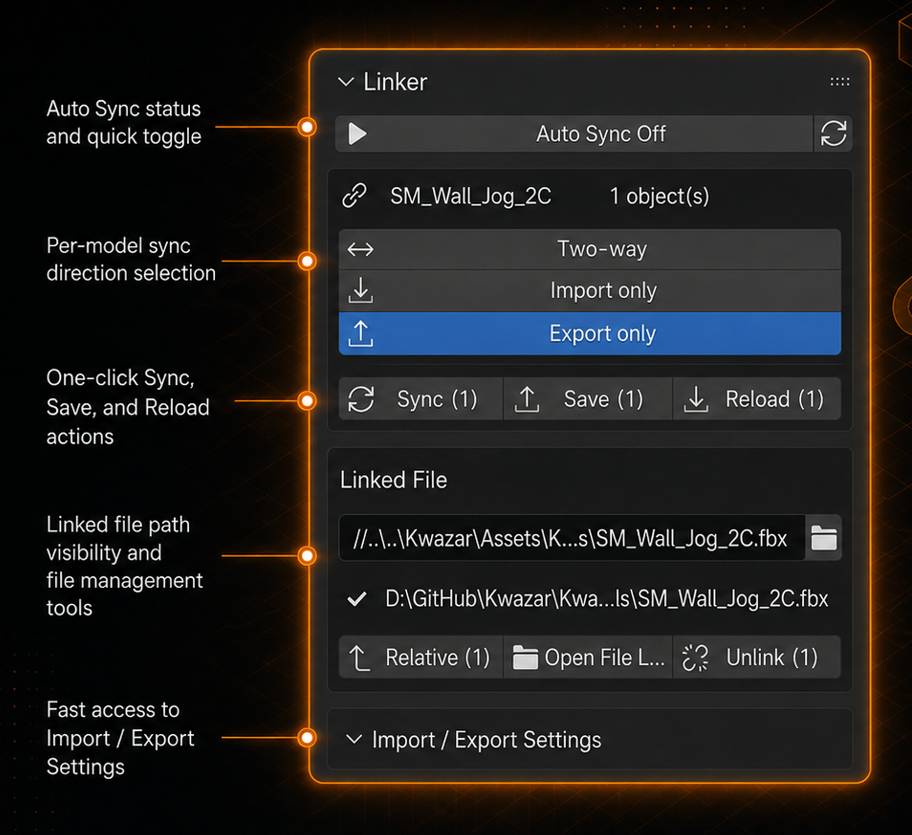
Save and Reload are deliberate overrides. Save always exports and Reload
always imports, regardless of the automatic direction. Sync, Sync All, and
Auto Sync follow the configured direction policy.
2. Panels Overview:
Main Panel:
The main panel shows synchronization controls for the active linked model. The
Import / Export Settings subpanel contains format-specific settings and presets.
The Linked Models subpanel summarizes every linked model in the current scene.
When no linked model is active, the panel offers Sync All, Link Existing, and Export Selection
Review linked models
Expand Linked Models to see the name, direction, and raw path of every linked
model in the current scene. Use it to audit links; editing remains driven by the
active linked object in the main panel.
Unlink models
Select one or more linked models and click Unlink (N). This removes Linker
tracking metadata without deleting Blender objects or external files.
3. Create Link:
Click Link Existing.
Choose an
.fbxor.objfile.Linker imports every object created by that operation as one linked model.
Select any imported member to review its path, direction, and format settings.
3. Export and link a Blender selection:
Select every object that should belong to the model.
Keep the intended primary object active.
Click Export Selection and choose an FBX or OBJ destination.
-
Linker exports the selection and assigns one model ID to all exported objects.
Have questions about this product?
Login to message
| Blender Extension Compatible | Yes |
| Published | about 2 months ago |
| Blender Version | 4.2 - 5.2 |
| Extension Type | Add-on |
| License | GPL |

Discover more products like this
pipeline godot technical-art Blender Export game-art unreal fbx unity Workflow pipeline-tool FBX Export gamedev