Loop FX Materials
 Nodex3D
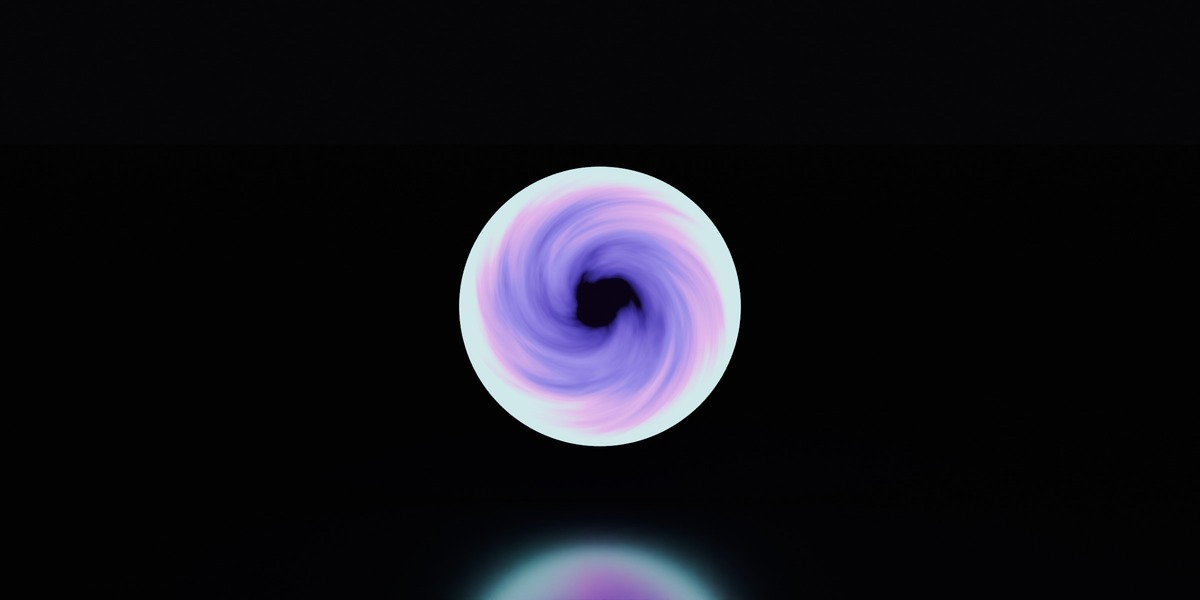
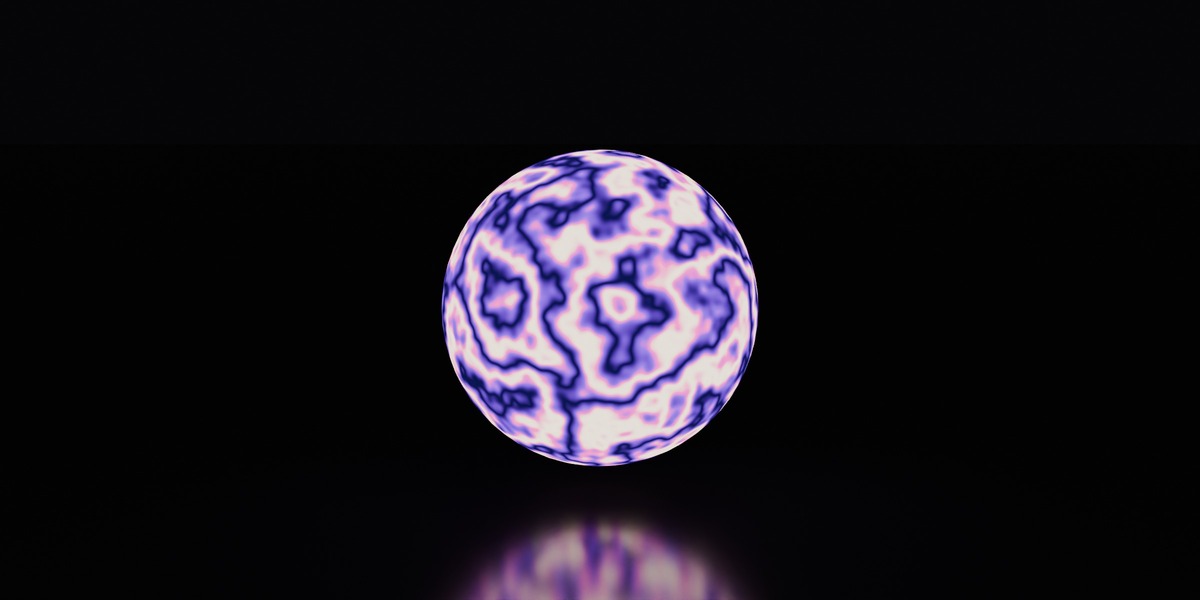
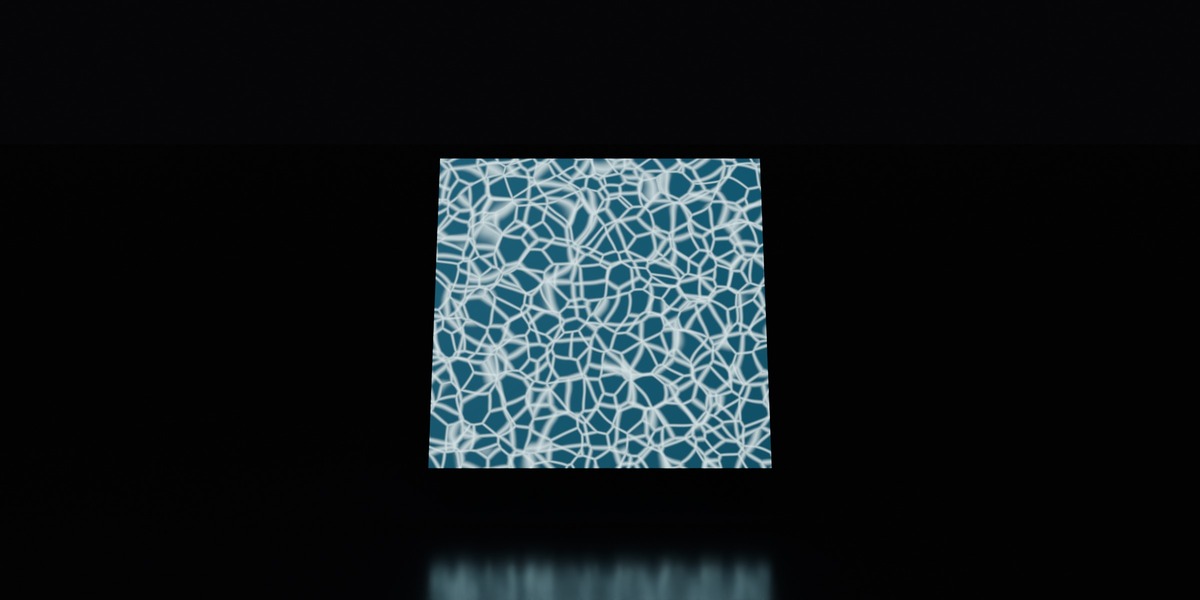
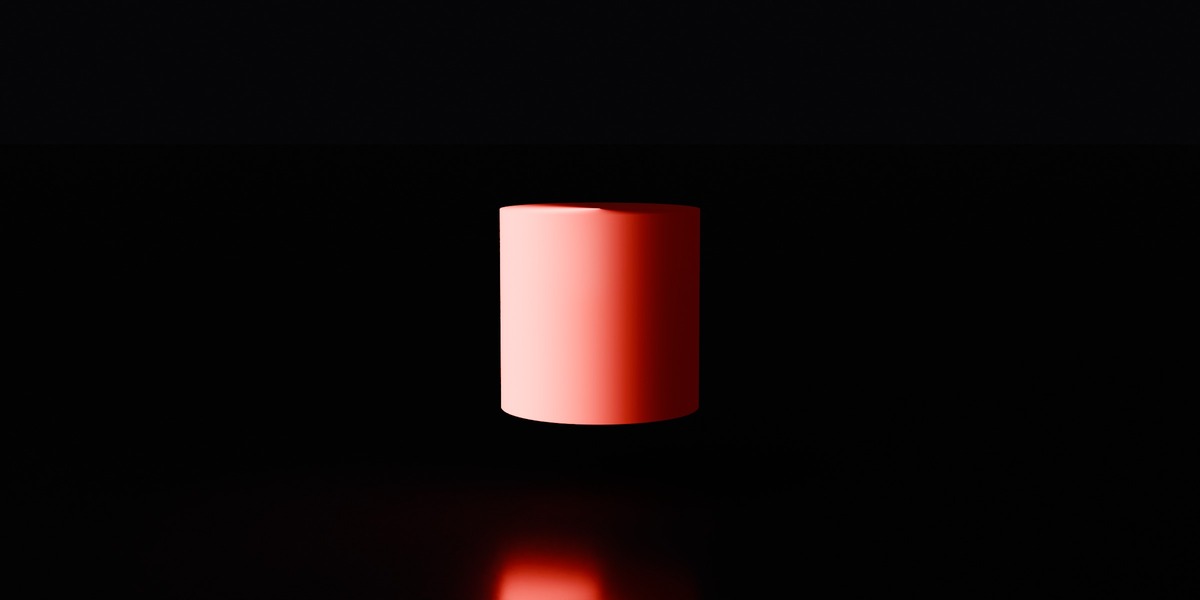
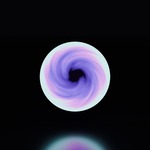
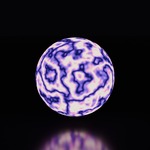
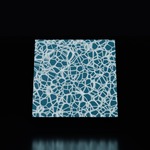
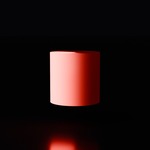
Install
- Unzip Loop_FX_Materials_v1.0.zip somewhere permanent. Keep Loop_FX_Materials.blend and blender_assets.cats.txt in the same folder.
- In Blender: Edit › Preferences › File Paths › Asset Libraries, click + and choose that folder.
- Open an Asset Browser, pick the library, then the LoopFX catalog.
Without the asset library: File › Append › Loop_FX_Materials.blend › Material.
Use
- Drag a material from the Asset Browser onto your object.
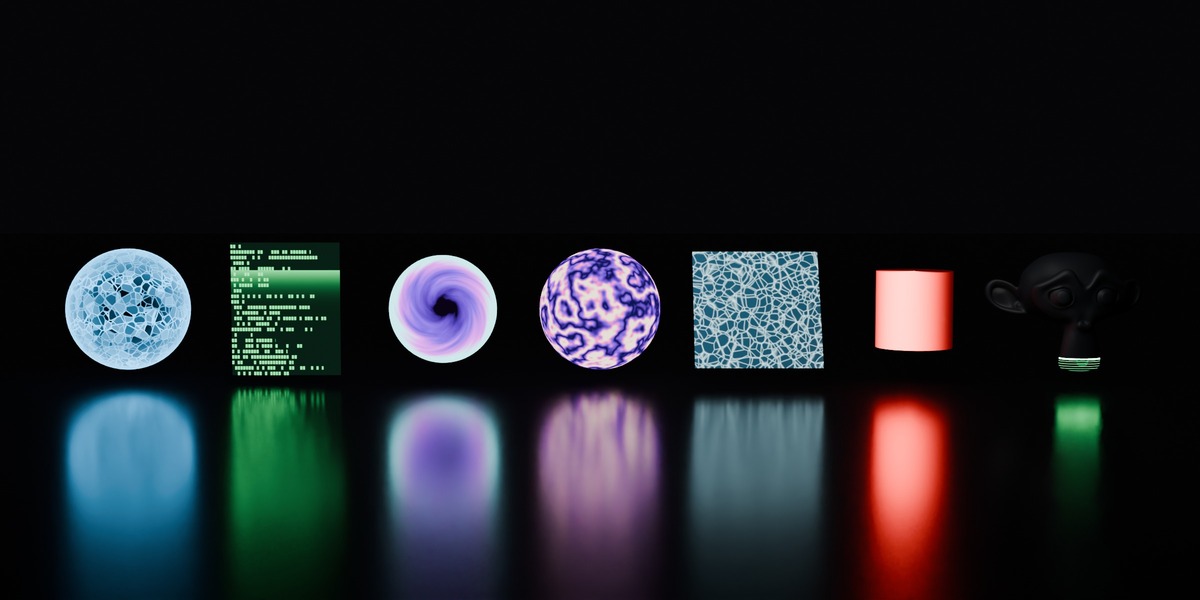
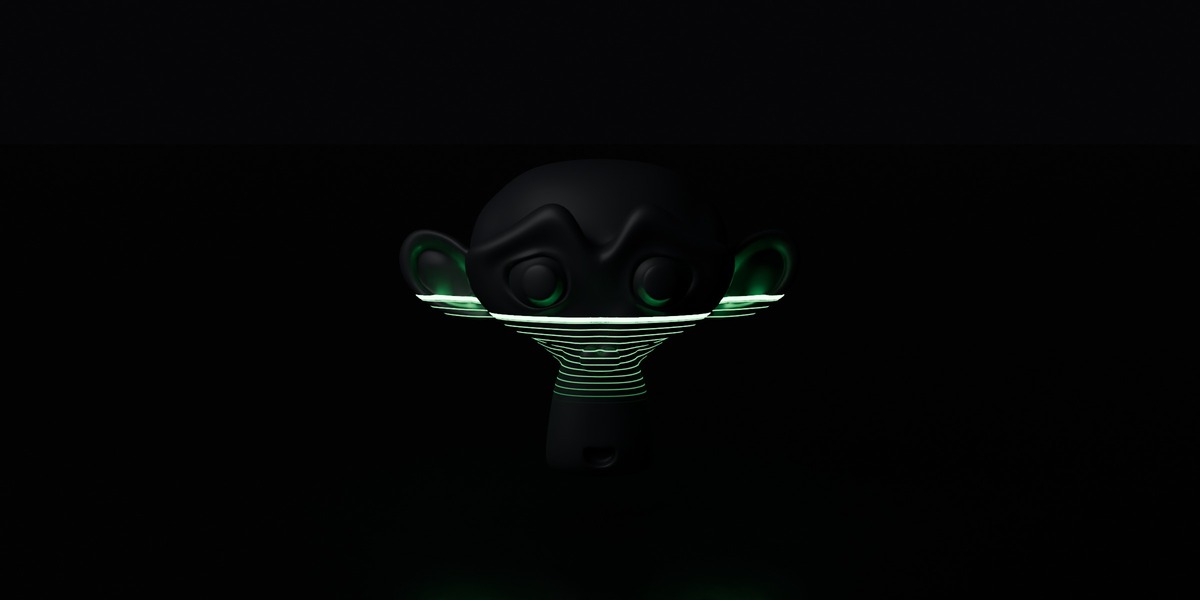
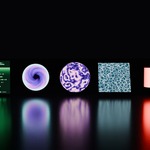
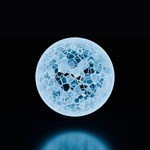
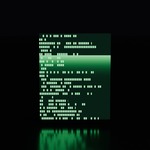
- Set the scene length to the loop length: Frame Start 1, Frame End 120 (Energy Shield, Sci-Fi Screen, Alarm Beacon, Laser Scan) or 240 (Portal, Plasma, Pool Caustics). Any multiple also loops.
- Press play or render. The last frame flows back into the first.
How the time works
Each material reads time from a Value node labeled Temps (time), driven by the frame number (the field is purple). The first Divide node after it sets the loop length.
- Change the loop length: change that Divide value (for example 120 → 240) and set Frame End to the same number.
- Change the speed and keep the loop: only use whole numbers for the multipliers of t (× 2, × 3…) or whole turns (6.2832 = one turn). × 1.5 breaks the loop.
Settings per material
| Material | Loop | Change the color | Change the speed | Keep the loop |
|---|---|---|---|---|
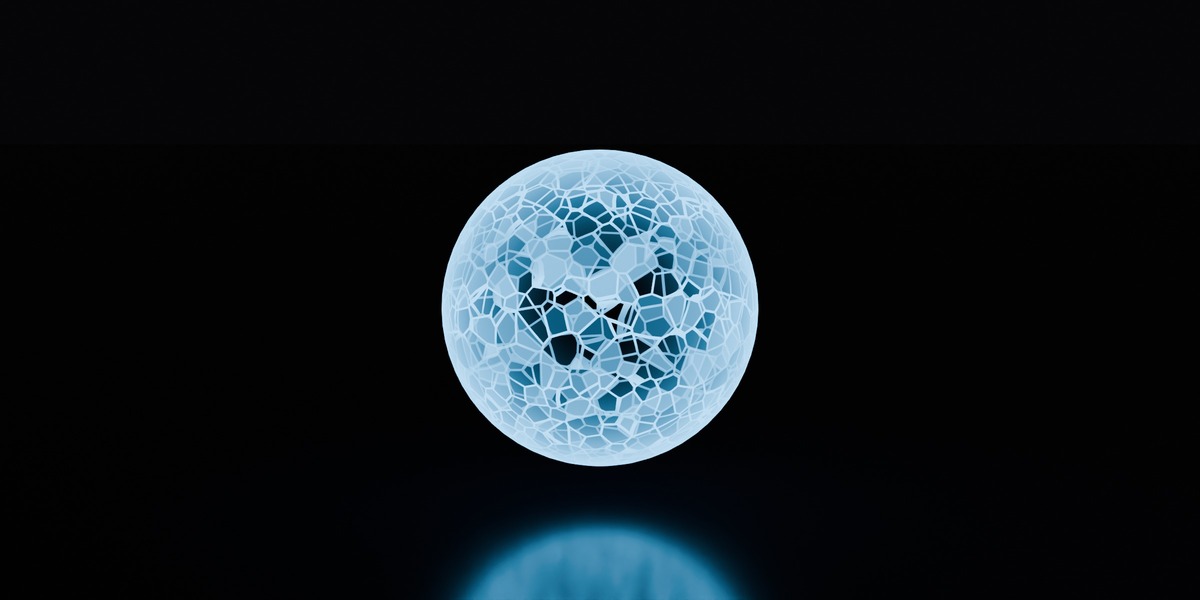
| Energy Shield | 120 | Emission color | Multipliers of t (× 3 cells, × 2 wave) | Whole numbers |
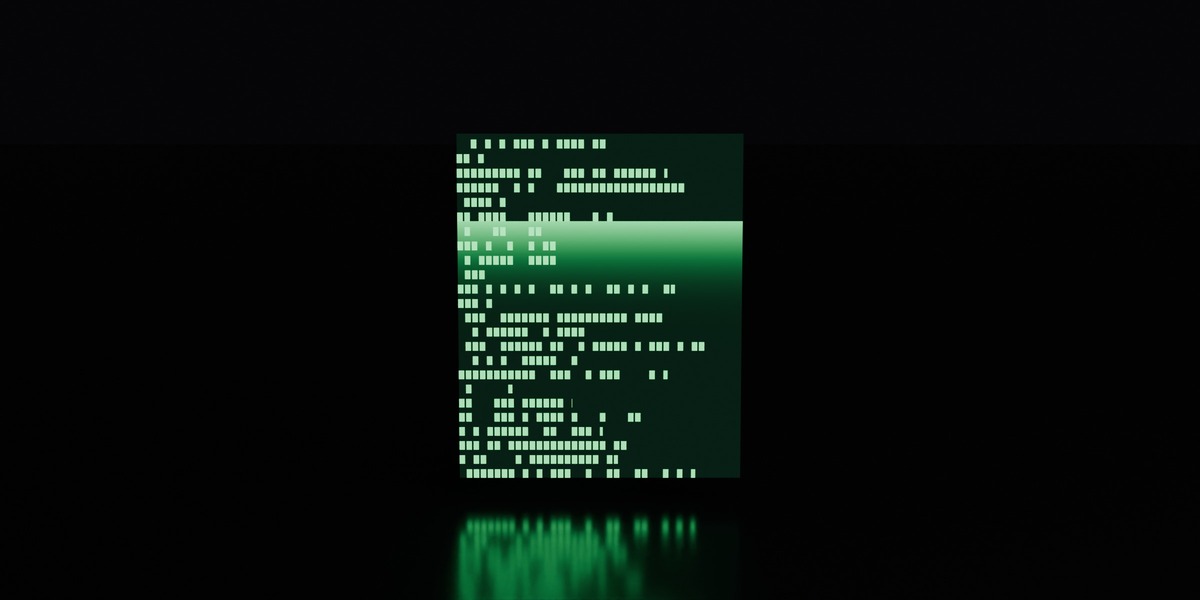
| Sci-Fi Screen | 120 | Color B of the Mix Color | Divide value | Text scroll follows the loop length |
| Portal | 240 | Color Ramp | Multiplier of t (−6.2832 = one turn) | Whole turns |
| Plasma | 240 | Color Ramp | Divide value | Same multiplier on both noises |
| Pool Caustics | 240 | Base Color / Emission Color | Divide value | Keep the circle radius small |
| Alarm Beacon | 120 | Emission color | Multiplier of t (× 2 = two turns) | Whole numbers |
| Laser Scan | 120 | Emission color | Divide value | Widen the start and end heights for big objects |
Using them on your own objects
- Sci-Fi Screen and Portal use UV coordinates: use a plane or any UV-unwrapped mesh.
- The other materials use object coordinates and need no UVs. Scale the object, not the mesh, to keep the look (or apply the scale with Ctrl+A › Scale).
- Alarm Beacon turns around the object's Z axis: put the object's origin at the center of the dome.
- Laser Scan goes from Z −1.3 to Z +1.3 (object space): widen these values for taller objects.
Exporting a seamless loop
- Frame Start 1, Frame End = the loop length (or a multiple).
- Render the animation. For a video: Output › FFmpeg Video, H.264.
- In your editor or on social media, set the clip to repeat: there is no jump between the last and first frame.
Troubleshooting
- Nothing moves: check that the field of the Temps node is purple (a driver). This simple driver does not need "Auto Run Python Scripts".
- Grain in transparent areas (EEVEE): Material › Settings › Render Method › Blended for Energy Shield and Portal.
- The loop jumps: the scene length is not the loop length, or a multiplier of t is not a whole number.
- Stretched Sci-Fi Screen or Portal: the object has no UVs or uneven UVs. Unwrap it (U › Unwrap).
- The file does not open: it needs Blender 5.1 or later.
Support
Superhive inbox or [email protected]. Reply within 72 hours.
 Included
Includes 12 months of
- Support from Nodex3D
- Product updates
Extend this product’s Support Period +12 months: 50% of product price
Have questions before purchasing?
Login to message
| Published | about 2 hours ago |
| Blender Version | 5.1 - 5.2 |
| Render Engine Used | Cycles, Eevee |
| Misc Data | Animated |
| License | Royalty Free |
Discover more products like this
caustics procedural energy shield portal plasma eevee seamless loop sci fi VFX Shader Pack animated materials motion graphics