 ARLN
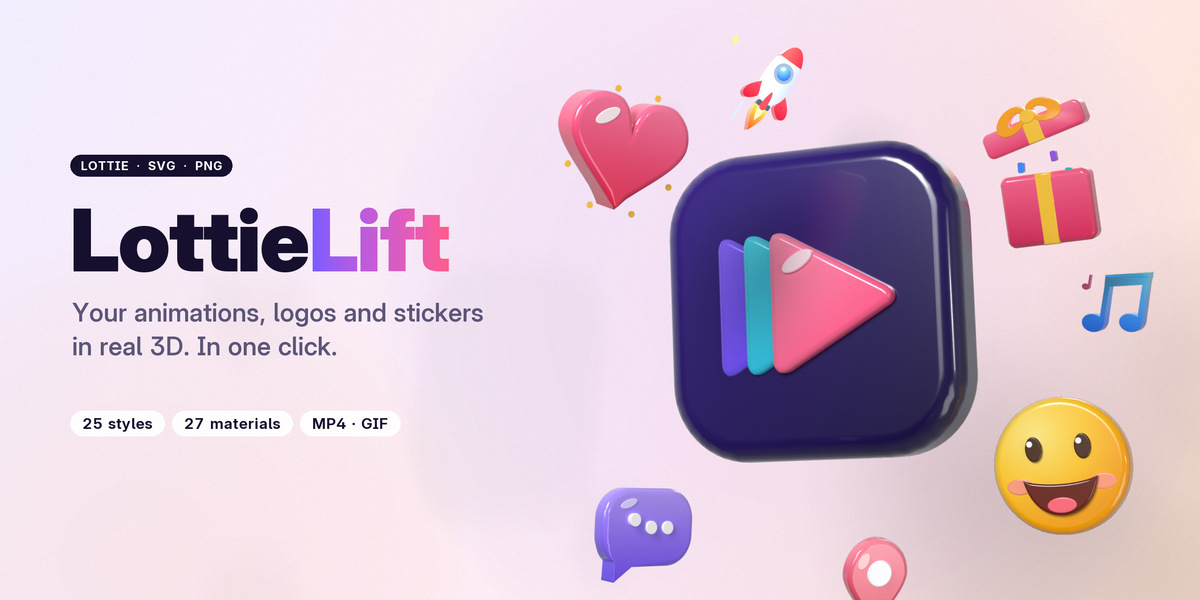
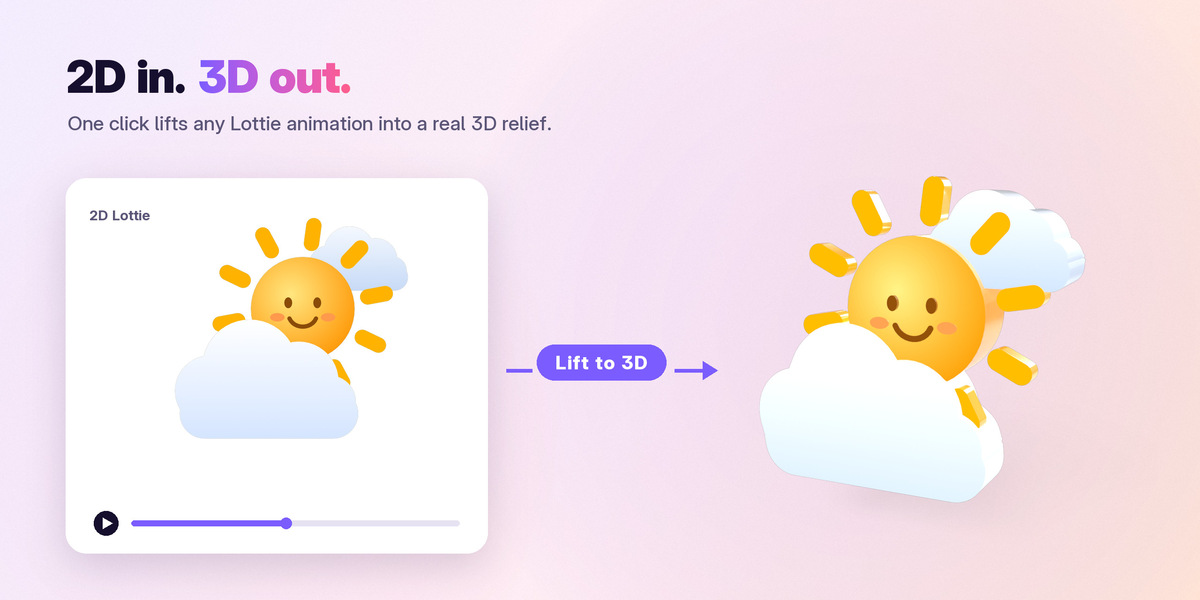
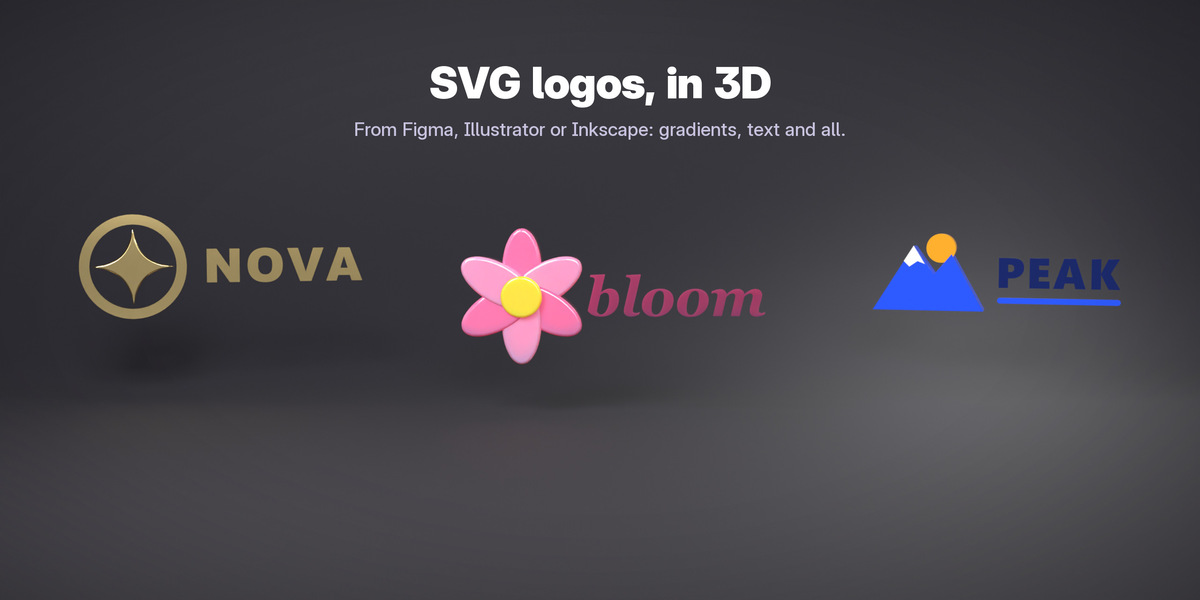
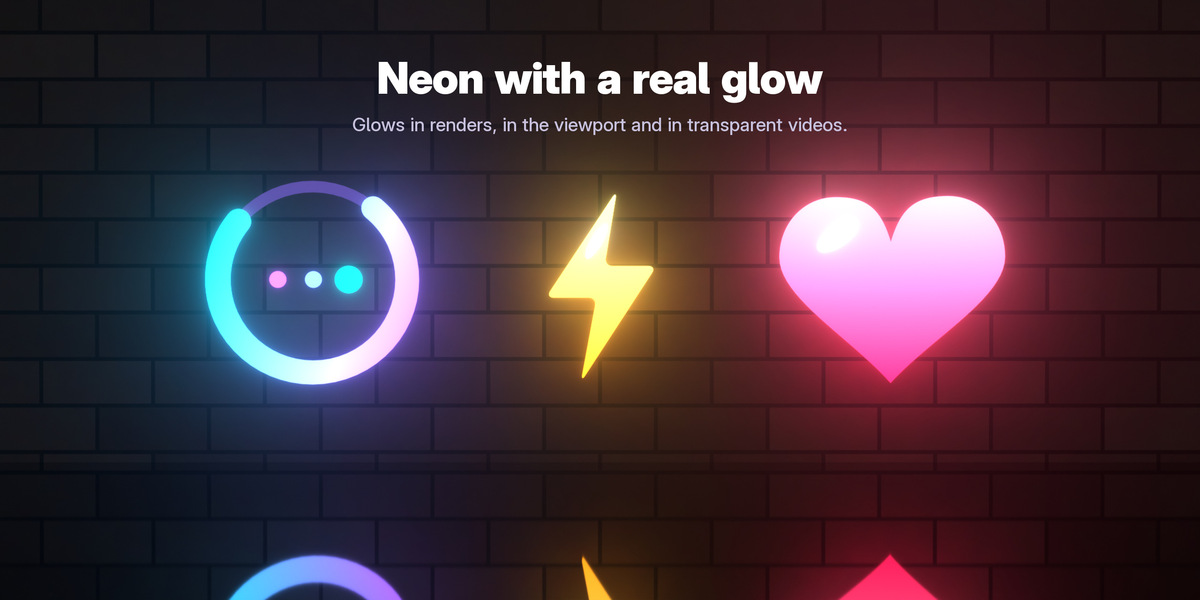
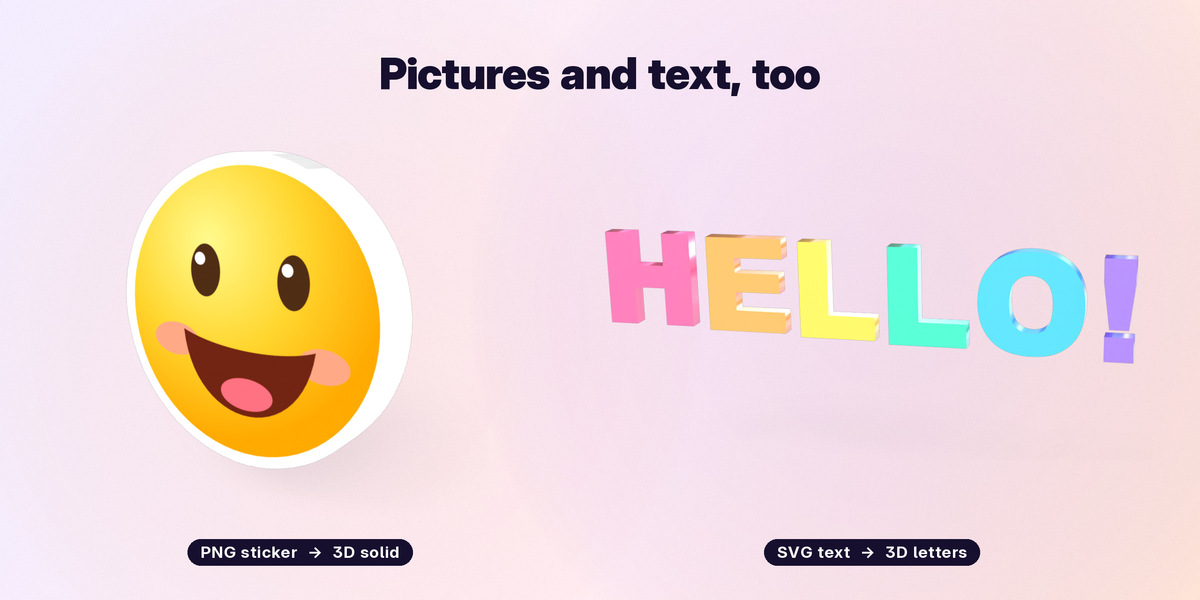
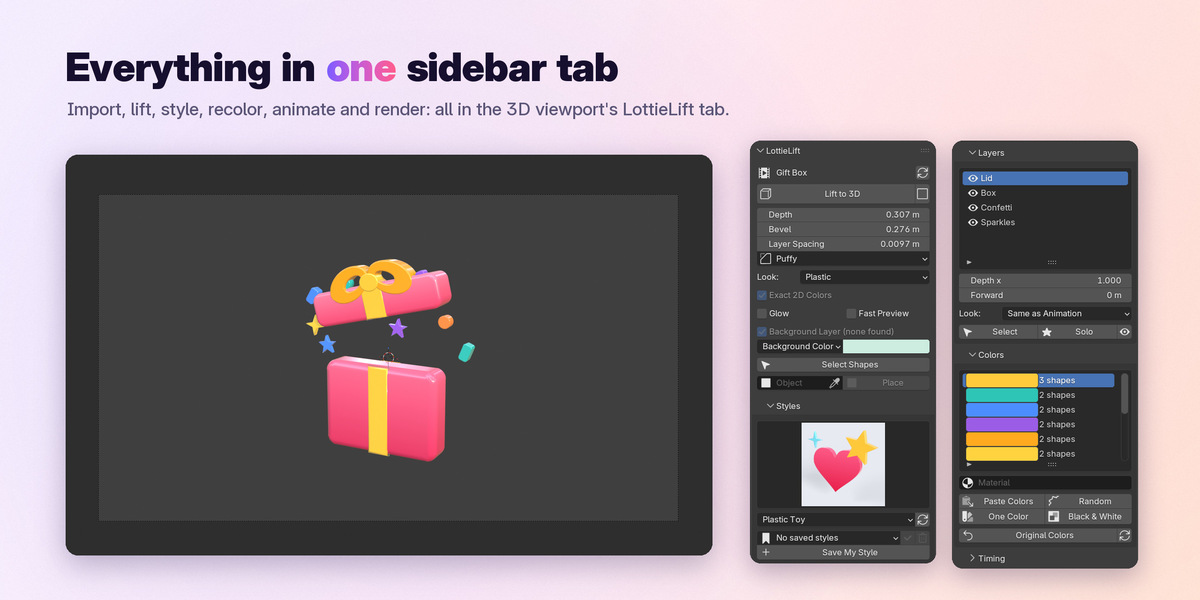
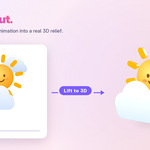
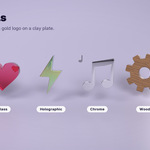
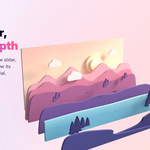
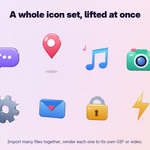
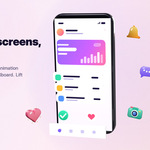

LottieLift imports Lottie animations (.json, .lottie, .tgs), SVG drawings and pictures (PNG, JPEG, WebP) into Blender as editable shapes with their real keyframes, and turns them into 3D with one click. Everything it builds stays procedural (curves with Geometry Nodes, normal keyframes, normal materials), so you can keep editing it with Blender's own tools.
1. Installation
- Download
lottielift-1.0.0.zipfrom your Superhive library. Do not unzip it. - In Blender (5.0 or newer) drag the zip into the Blender window, or open Edit > Preferences > Get Extensions, click the arrow at the top right, choose Install from Disk... and pick the zip.
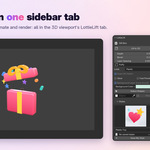
- LottieLift is enabled right away. Its tools are in the LottieLift tab of the 3D viewport's sidebar (press
Nin the viewport to show the sidebar).
To update, install the new zip the same way; to remove it, use the extension's menu in Get Extensions.
2. Quick start
- Open the sidebar (
N) and click the LottieLift tab. - No Lottie file at hand? Click one of the Try a Sample buttons (also in File > Import > LottieLift Samples). The sample opens in a scene of its own, already in 3D with a style, ready to render.
- With your own file: File > Import > Lottie Animation (.json, .lottie, .tgs), or drag the file into the 3D viewport. Press
Spaceto play: the scene's frame rate and frame range follow the animation. - Press Lift to 3D, then pick a style in the Styles panel.
- In Scene & Render pick a Video Size and Render As (MP4, GIF...), then Render > Render Animation (
Ctrl+F12). The file is written to arenderfolder next to your .blend (or to Videos/LottieLift while the file is not saved yet).
The first time a 3D animation is shown in Material Preview or rendered with EEVEE, Blender compiles its shaders: on a slow computer this can take a minute. Later previews are fast.
3. Importing
Lottie animations
File > Import > Lottie Animation, or drag a .json, .lottie or .tgs file into the viewport. Options:
| Option | What it does |
|---|---|
| Orientation | Upright (facing the Front view) or Flat (lying on the ground) |
| Pixels per Unit | Lottie pixels per Blender unit (100 by default: a 512 px animation is 5.12 m) |
| Look | The material the animation starts with (Flat Colors keeps it 2D) |
| Exact 2D Colors | Raw view transform: colors and transparency exactly like a web player |
| Depth / Layer Spacing | Lift it to 3D right away |
| Match Frame Rate / Set Frame Range | The scene follows the animation |
| Start at Current Frame | The animation starts at the current frame |
| Loop | The animation repeats endlessly |
| Add Camera | A camera framing the animation |
| Set Render Size | The render size of the animation |
| All Animations | A .lottie file with several animations brings all of them |
| Side by Side | Several files at once: in a row instead of on top of each other |
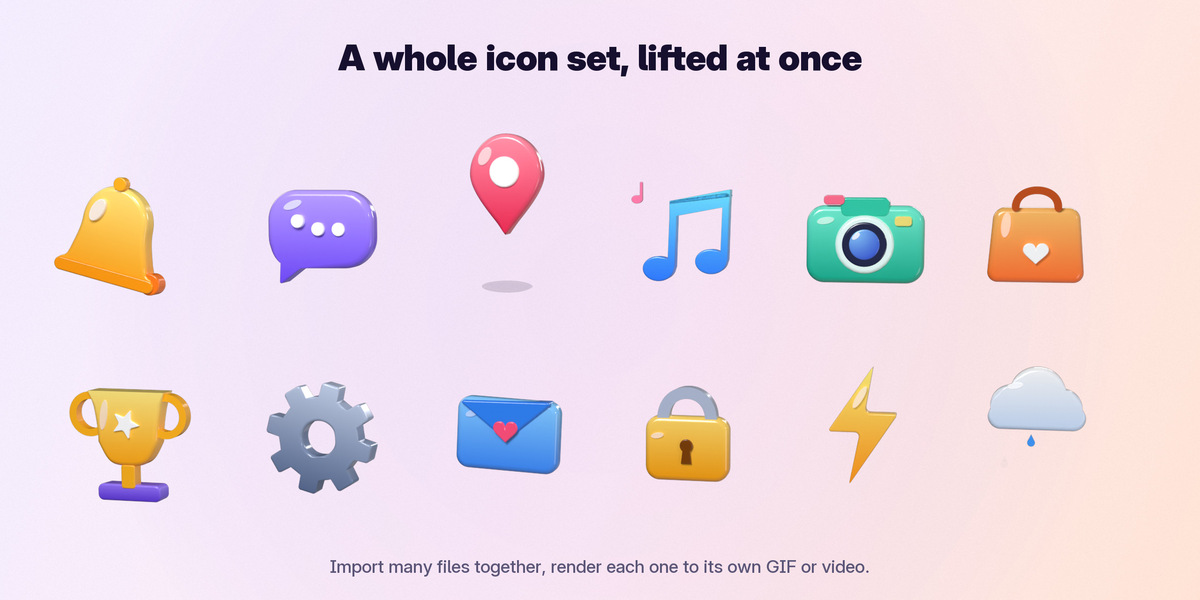
Select several files at once (or drop them together): they come in side by side in a row. Big files show their progress on the mouse cursor.
SVG drawings
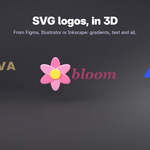
File > Import > SVG for LottieLift, or drag an .svg into the viewport (if Blender asks which importer to use, pick LottieLift). Logos, icons and illustrations come in as shapes and are lifted to 3D right away (turn Lift to 3D off in the import options to keep them flat). Read: paths and basic shapes, groups and transforms, fills and strokes (dashes, caps, joins), linear and radial gradients, CSS styles, use/symbol, markers (arrowheads), clip paths and masks, text (in the first installed font of its list; also mixed styles in a line and text along a path), embedded and linked images and image fills, blurs and drop shadows. Animated SVGs (SMIL and CSS @keyframes that move, turn, scale or fade) come in as keyframes. Filters LottieLift does not read are listed after import.
Pictures
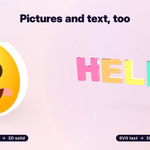
File > Import > Image for LottieLift, or Import Image in the LottieLift tab. A PNG with a see-through background (a logo, a sticker, a character) becomes a 3D solid in the shape of its opaque part with the picture on its front; a photo becomes a slab. Pictures that are mostly see-through (glows, soft shadows) stay flat, so nothing of them is lost.
4. The LottieLift tab
Select any part of an imported animation to see its settings.
Main panel
- Lift to 3D / Back to 2D (the flat button next to it).
- Reload from File (the arrow next to the name): builds the animation again from its file after it changed, keeping everything you set (place, looks, colors, timing, 3D, hidden layers, edited texts).
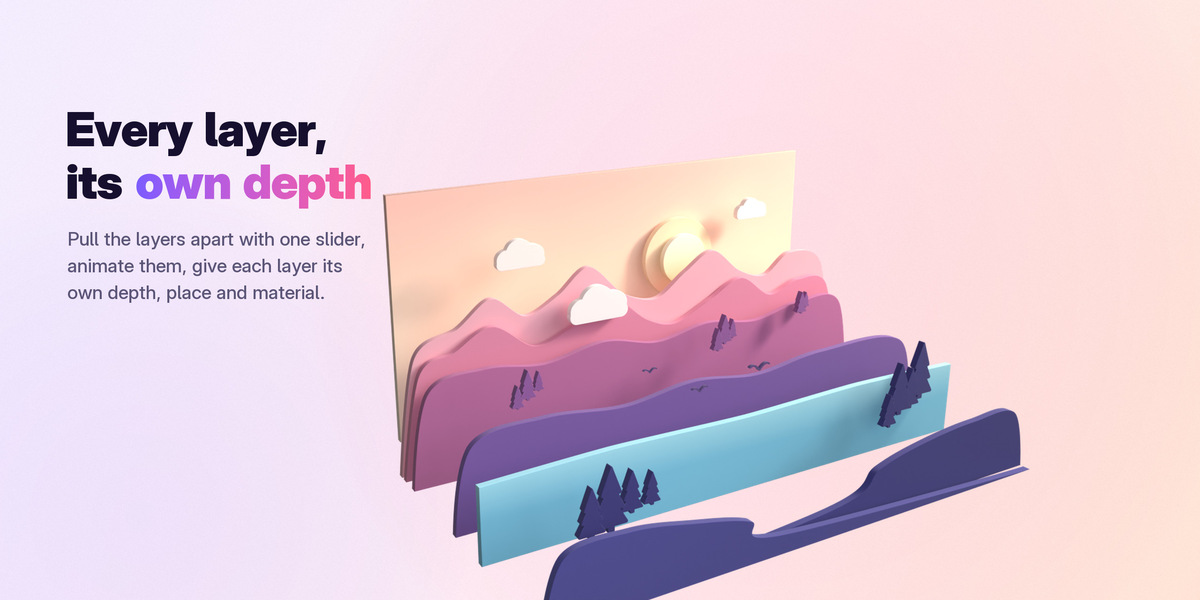
- Depth, Bevel, Layer Spacing: live sliders; right-click > Insert Keyframe to animate them (animate Layer Spacing to explode the layers). Thin lines and small text never get deeper than 1.5 times their width.
- Bevel Style: Round, Chamfer or Puffy (pillow-like, balloon letters).
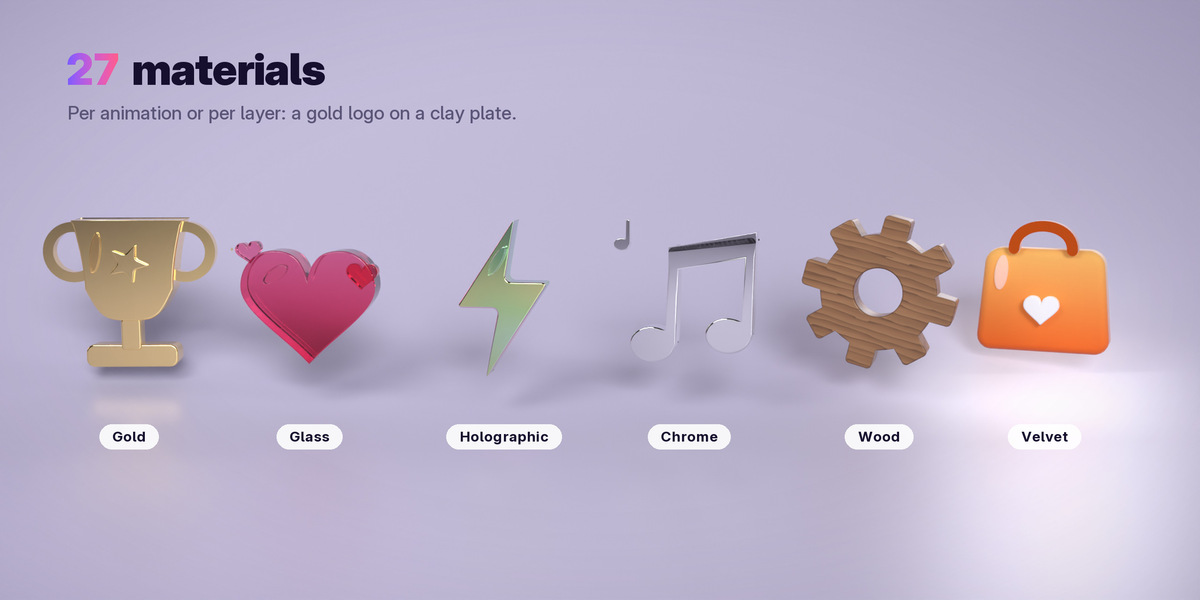
- Look: one of 27 materials (see below).
- Exact 2D Colors (Flat look only), Glow (Neon look), Fast Preview (heavy animations play 2-3x faster in the viewport; renders stay full quality).
- Background Layer: hide the animation's own background (shapes covering the whole picture at the very back).
- Background: Blender's gray, a color (shown exactly, also in 3D), or transparent.
- Select Shapes: selects every part of the animation.
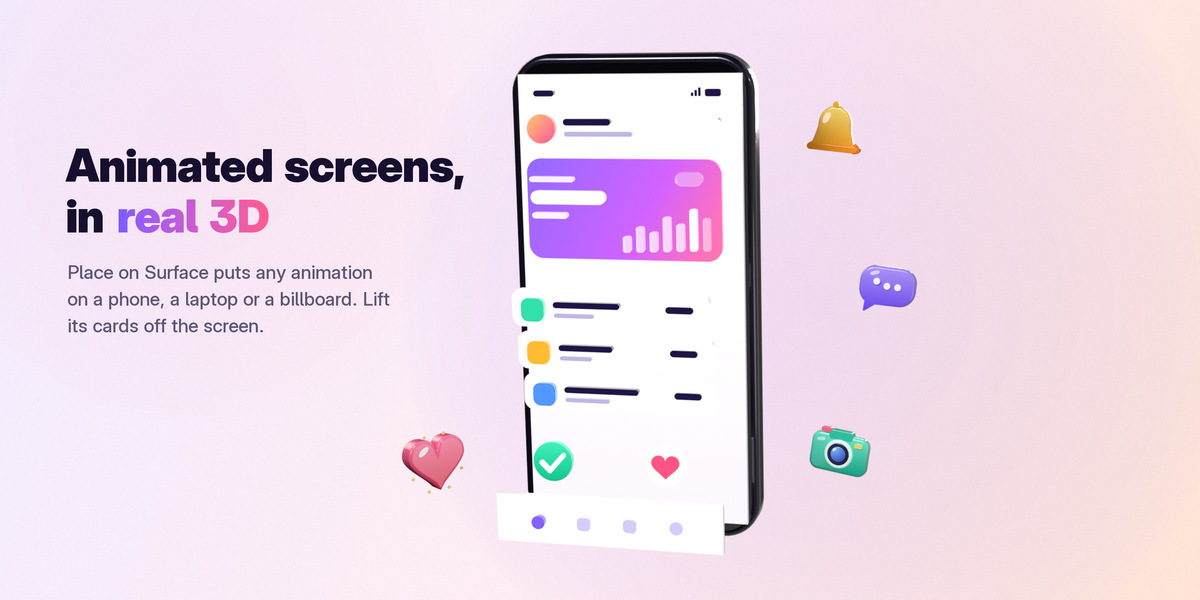
- Place on Surface: pick an object (a phone screen, a billboard, a wall) and click Place. The animation is centered on it, scaled to fit and follows it. Select faces in Edit Mode first to use just those (the screen of a phone model).
- Not imported: a list of Lottie features the file uses that Blender cannot show.
Looks (materials)
- Like the picture: Flat Colors (2D), Shaded and Glossy (the exact colors in front, lit walls and bevels).
- Matte: Clay, Rubber, Paper, Velvet.
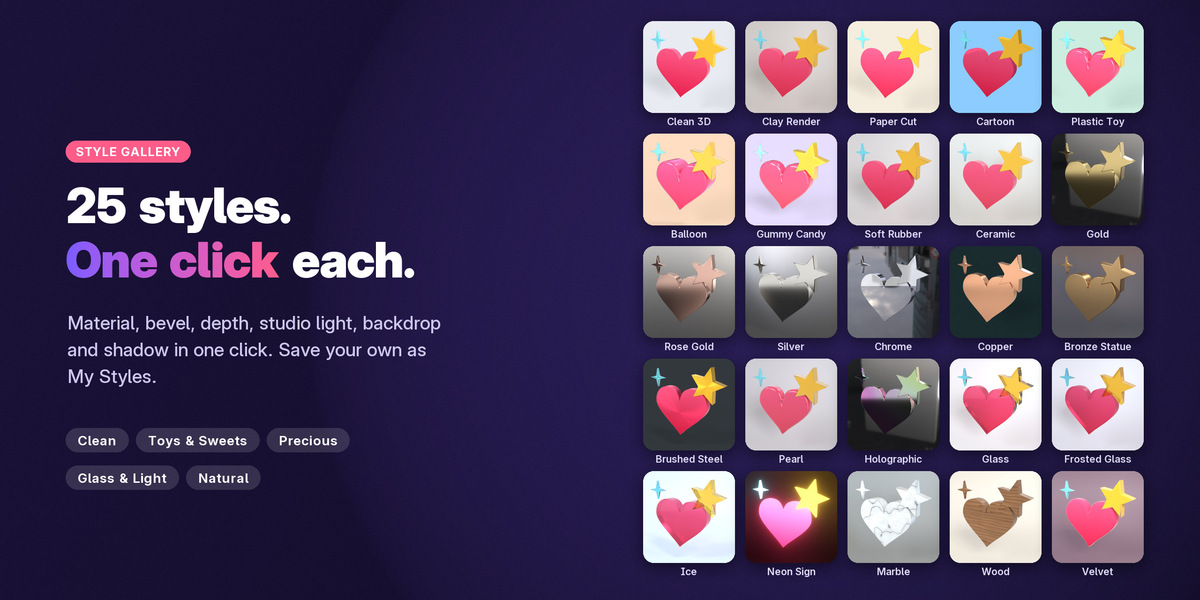
- Shiny: Plastic, Ceramic, Candy, Pearl, Cartoon.
- Metal: Colored Metal, Brushed Metal, Gold, Rose Gold, Silver, Chrome, Copper, Bronze, Holographic.
- Glass & light: Glass, Frosted Glass, Ice (ray traced refraction), Neon (glow).
- Natural: Marble, Wood.
Styles panel
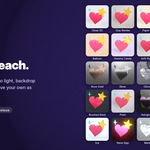
A gallery of 25 styles: one click lifts the animation and sets look, bevel, depth, lighting, backdrop, floor and shadow. My Styles: Save My Style keeps the current settings under a name for every file; pick one and apply it (the check mark), or delete it.
Layers panel
Every layer (precomp layers under their precomp): the eye shows or hides it. For the selected layer: Depth x (2 = twice as deep, its front stays level), Forward (moves it towards the camera), its own Look, Select, Solo and Show All.
Colors panel
The palette of the animation and how many shapes use each color. Change a color: every shape and gradient stop of it follows. Paste Colors takes hex codes (#ff6600, #1d3557), also from the clipboard. Random, One Color and Black & White recolor the whole palette. Own Material gives every shape of a color a Blender material of your own. Original Colors brings everything back.
Timing panel
Speed (100 % = original; easing is kept), Start Offset (frames) and Loop Forever.
Motion panel
Motion on top of the animation's own: Grow In, Pop In, Spin In, Flip, Spin, Sway, Float, Explode and Build Up (layers pop in one after another, back to front). Clear Motion removes it.
Text & Fonts panel
Edit every text of the animation (names, prices, dates; \n starts a new line) and click Apply Text: the animation is rebuilt with the new text. Fonts that are not installed are listed; pick a font file to use instead and click Apply Fonts.
Scene & Render panel
- Environment: six HDRIs that come with LottieLift (Soft Studio, Photo Studio, Warm Studio, Golden Hour, City Day, Warehouse) or Blender's own, with Strength and Turn. The camera sees a plain backdrop; the HDRI lights the shapes and shows in reflections.
- Floor: Shadow Only (also in transparent renders), Studio Backdrop (curved, any color) or Glossy Floor.
- Studio Lights with Power, Reflection Card (makes metal and glass fronts shine).
- Camera Angle: Front, Three-Quarter, Isometric, From Above, Hero (from below), always framing the animation; Depth of Field next to it.
- Camera Motion: Orbit, Swing, Push In (Still removes it).
- Quality: Draft, Good, High (EEVEE) or Photoreal (Cycles); Motion Blur.
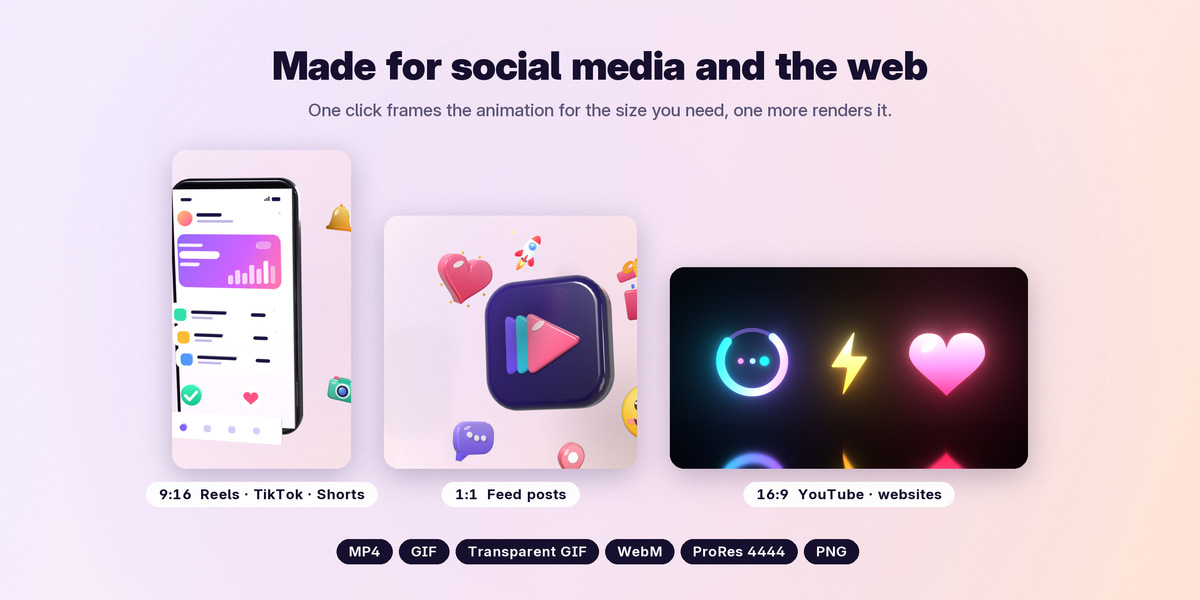
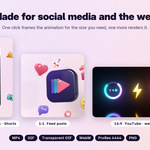
- Video Size: the animation's size, Square 1080, Portrait 4:5, Vertical 9:16, Full HD or 4K; the camera reframes the animation.
- Render As: MP4, GIF (animated), GIF (transparent), PNG sequence, WebM with transparency, ProRes 4444. GIF Size limits the GIF's longer side. Then Render > Render Animation.
- Render Each Animation: with several animations in the scene, renders each through its own camera into its own file (Esc stops).
Bake & Export panel
- Bake 3D records the 3D animation into the file (smooth playback, render farms, files that work without LottieLift); Unbake brings the live setup back.
-
Export 3D Animation: Alembic (
.abc) or USD (.usdc,.usdz). - Export 3D Model (current frame): STL (longest side in millimeters, for 3D printing), OBJ, GLB or FBX with simple colored materials.
5. Tips
- Heavy animation playing slowly? Turn on Fast Preview, or Bake 3D it.
- A logo should shine? Pick a metal style (Gold, Chrome...): they add a reflection card. Or turn the environment (Turn) until the highlights sit where you like.
- Want the layers further apart? Raise Layer Spacing; animate it for an explode effect.
- Want one layer to pop out? Layers panel > Forward or Depth x.
- Brand colors: Colors panel > Paste Colors with your hex codes.
- Sending the .blend to someone without LottieLift: it shows the same 3D (the settings are custom properties of the animation's root). For render farms, Bake 3D first.
6. Troubleshooting
- Nothing shows in the sidebar: select a part of the animation; the tab shows the settings of the animation the active object belongs to.
- A feature is listed under "Not imported": Blender cannot draw it (for example Overlay or Difference blend modes); the rest of the file is imported.
- Missing font: the Text & Fonts panel lists it; install the font or pick a font file for it and click Apply Fonts.
- Dropping an SVG asks which importer to use: pick SVG for LottieLift.
- First preview takes long: Blender compiles the shaders once per session.
7. Support
Questions, bugs or a file that does not look right: message me through Superhive (the "Message" button on this page) and attach the file if you can. I answer within a few days.
8. License
LottieLift is free software under the GNU General Public License v3 or later. The six HDRIs are from Poly Haven (CC0). The sample animations are ours and free to use in your own work, also commercially. Check the license of the Lottie files you import (for example the LottieFiles license for free animations).
Have questions about this product?
Login to message
| Blender Extension Compatible | Yes |
| Published | about 16 hours ago |
| Blender Version | 5.0 - 5.3 |
| Extension Type | Add-on |
| Render Engine Used | Cycles, Eevee |
| License | GPL |
Discover more products like this
gif 3d-icons extrude motion graphics lottie lottiefiles logo animation after effects png to 3d 2d to 3d SVG social-media