 VoidGhost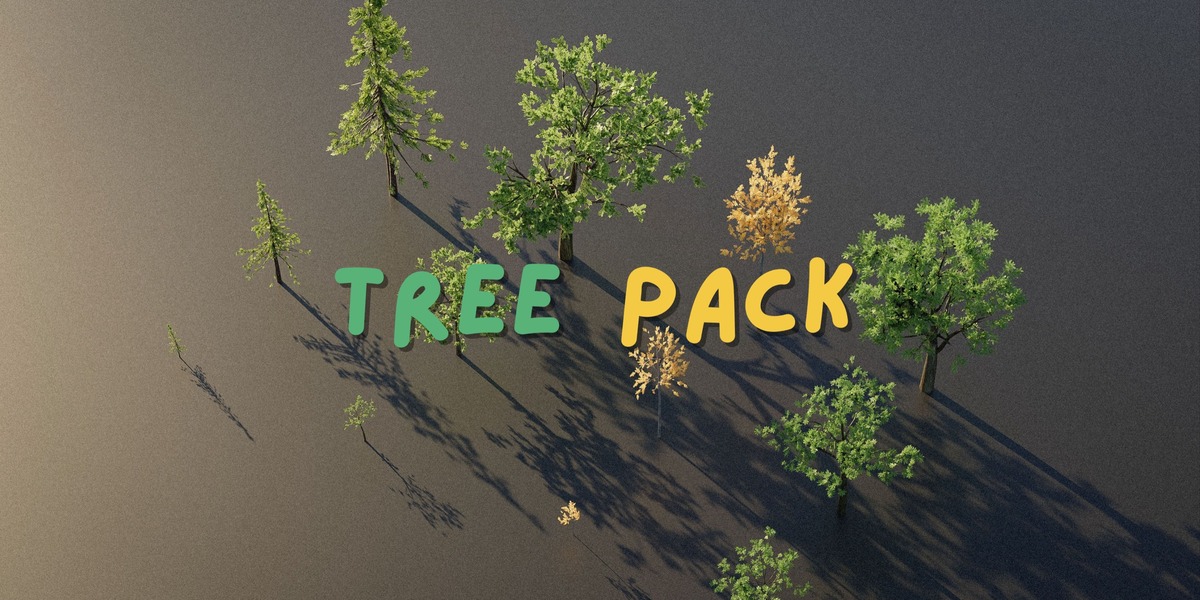




Usage Documentation
This document explains how to use the included files in Blender and popular game engines.
1. Using the Blender Asset Pack File
A Blender Asset Pack Ready File is included to allow easy browsing and dragging of assets using Blender’s Asset Browser.
Step 1 – Add the Asset Library
Open Blender.
Go to Edit → Preferences.
Open the File Paths section.
Under Asset Libraries, click Add.
Select the folder that contains the provided Blender Asset Pack file (.blend).
Give the library any name (for example: Tree Pack).
Step 2 – Access the Assets
Open the Asset Browser inside Blender.
From the Asset Library dropdown, select the library you added.
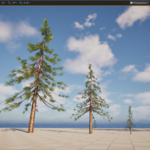
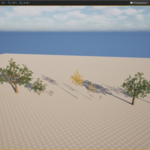
You will now see all the trees in the pack.
Step 3 – Use the Trees in Your Scene
Drag and drop any tree from the Asset Browser directly into your scene.
The asset will automatically import with materials and textures.
You can duplicate, scale, or modify the assets as needed.
This workflow allows you to quickly populate environments with trees without manually importing files.
2. Using FBX Files in Game Engines
The FBX format is widely supported and can be used in most game engines.
General Steps
Open your game engine project.
Locate the Content / Assets / Models folder.
Drag and drop the FBX file into the project.
The engine will automatically import the model.
Assign textures if they are not automatically applied.
Notes
Materials may need to be assigned manually depending on the engine.
Textures are included in the Textures folder.
3. Using GLB Files
The GLB format is a modern 3D format that includes geometry, materials, and textures in a single file.
Steps
Open your game engine or 3D software.
Import the .glb file using the engine’s import option.
The model should appear with materials and textures already applied.
GLB is useful for quick imports and efficient asset transfer between applications.
4. Using USD / USDZ Files
The pack also includes USD / USDZ formats, which are commonly used in advanced pipelines and supported in many modern tools.
Steps
Open your game engine or compatible 3D software.
Use the Import option and select the USD or USDZ file.
The asset will load with its materials and textures.
USD formats are often used for cross-software workflows and large production pipelines.
5. Using the Pack in Game Engines
The included formats allow you to use the trees in most engines such as:
Unreal Engine
Unity
Godot
Other engines supporting FBX, GLB, or USD
Typical Workflow
Import the model files.
Import the textures.
Create a material if the engine does not automatically assign one.
Place the trees inside your scene.
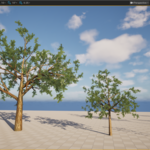
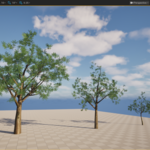
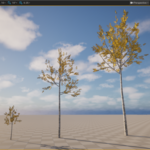
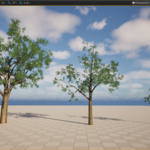
Because the assets are low poly and optimized, they work well for:
Background vegetation
Large forests
Open world environments
Level design and prototyping
6. Performance Tips
To get the best performance:
Use the trees primarily as background vegetation
Use instancing or foliage tools in your engine when placing many trees
Adjust LOD or distance settings if needed
low poly trees, game ready trees, background vegetation, forest assets, environment assets, foliage pack, low poly foliage
-
$14.99
For an Individual creator or a small team
-
$29.99
For studios or other entities
Have questions about this product?
Login to message
| Dev Fund Contributor | |
| Published | 7 months ago |
| Blender Version | 3.0 - 5.0 |
| Render Engine Used | Cycles |
| Misc Data | Textured |
| License | Royalty Free |
Discover more products like this
landscape optimized realtime game assets vegetation lowpoly environment background game ready Trees foliage forest