 Artmesh Studios
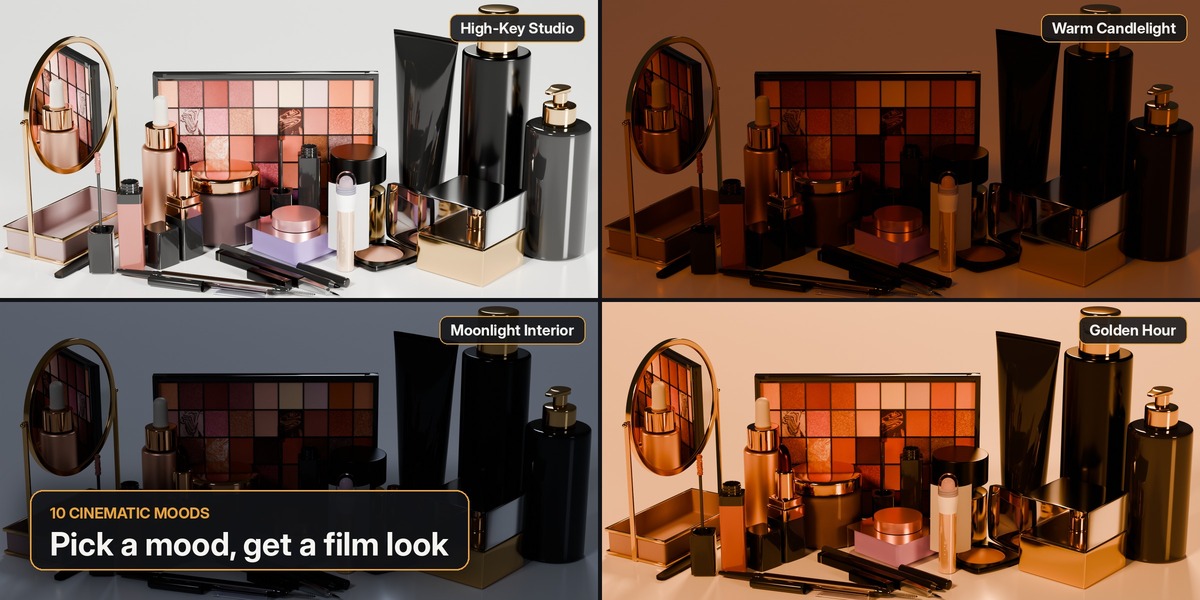
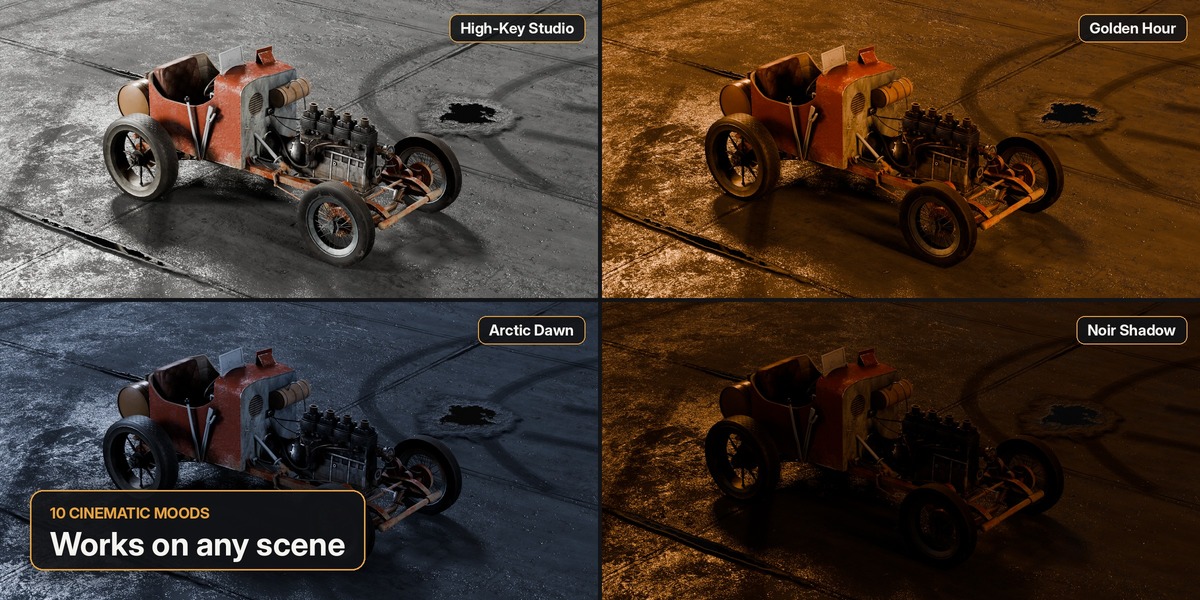
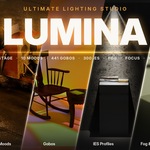

Stop placing lights. Start directing them.
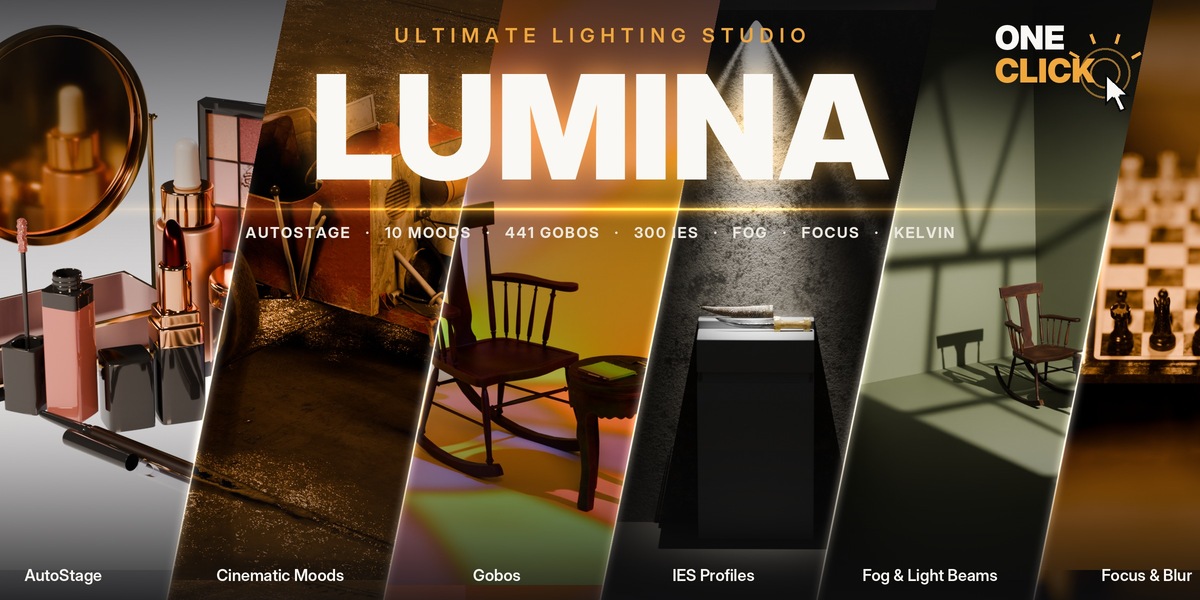
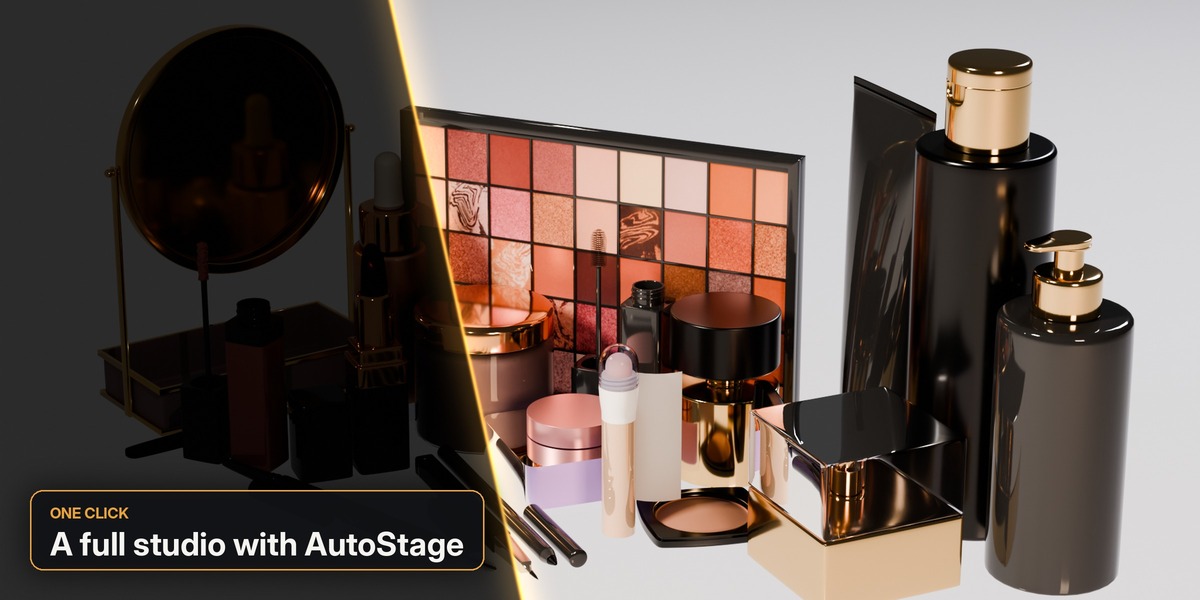
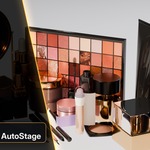
LUMINA turns lighting into a few clicks. Select your object, press AutoStage, and you get a complete studio: Key, Fill and Rim lights, a framed 85 mm camera and a cinematic colour grade, all scaled to your object, whether it's a 10 cm product or a 10 m car.
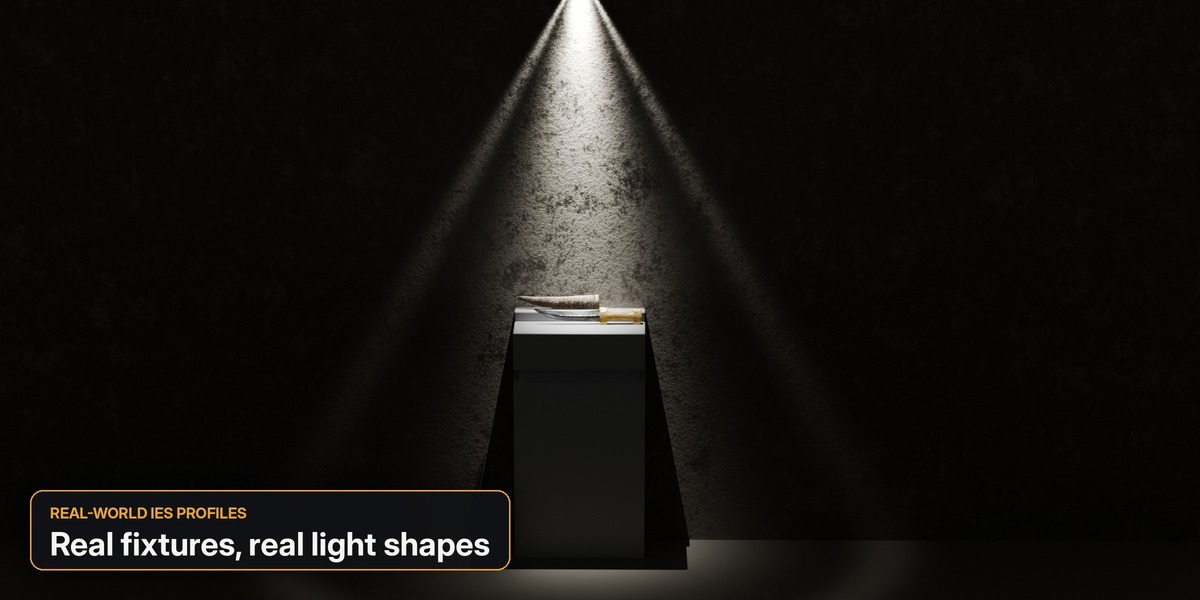
From there, pick one of 10 Cinematic Moods, drop a gobo or a real-world IES profile from the built-in galleries, add a little fog and let Director Mode handle the focus. Everything lives in one tidy N-panel with five tabs: Look, Light, Camera, Library and Output.
Cycles and EEVEE
LUMINA works in both render engines, with one exception you should know before you buy:
- Cycles only: gobos and IES profiles. This covers picture gobos, animated gobos, pattern gobos and IES profiles. EEVEE cannot display light textures, so in EEVEE the light still shines, but without the gobo pattern or the IES beam shape. LUMINA shows a "Use Cycles" button whenever this matters.
- Works in EEVEE too: AutoStage, Cinematic Moods, HDRIs, camera and focus tools (including Director Mode), Kelvin colour, Click to Place, Track Target, the colour grade and the platform sizes.
- Fog: made and tuned for Cycles, and it looks best there. Its Quality option is a Cycles setting.
Features
- LUMINA AutoStage: one-click studio (Key / Fill / Rim, 85 mm camera, cinematic colour grade), sized to your object.
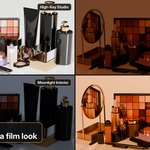
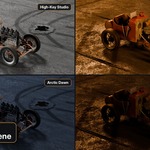
- 10 Cinematic Moods: Cyberpunk Neon, High-Key Studio, Noir Shadow, Moonlight Interior, Horror Forest, Golden Hour, Arctic Dawn, Product Beauty, Warm Candlelight, Overcast Day. One click changes every light.
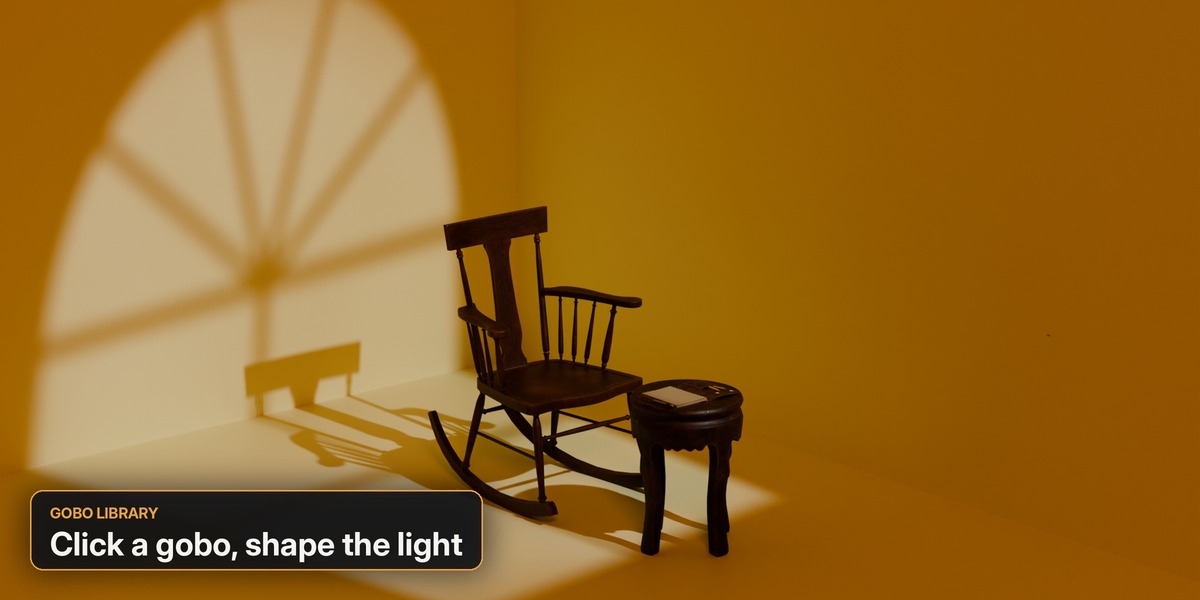
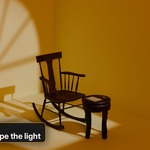
- Gobo Gallery (Cycles only): thumbnails sorted into categories, with a search box. Click a gobo and it lands on the selected light, or on a new spot light aimed at your object.
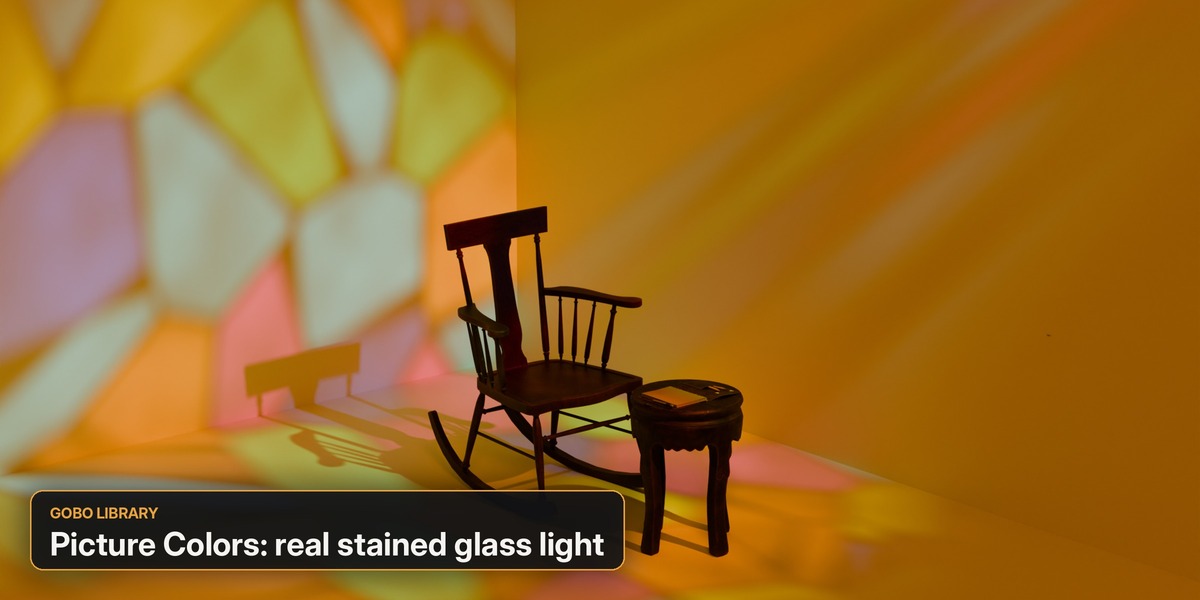
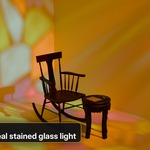
- Picture gobo controls: Size, Rotation, Move X / Y, Softness and Picture Colors (stained glass).
- Animated gobos (Cycles only): leaves, water caustics, clouds and more, as looping videos (Speed, Loop, Start Frame).
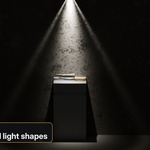
- IES Gallery (Cycles only): real-world light beam shapes with categories, search and IES Rotation. Brightness is normalised, so the light's power slider still sets how bright it is.
- HDRI gallery: one click sets the World, with Strength and Rotation.
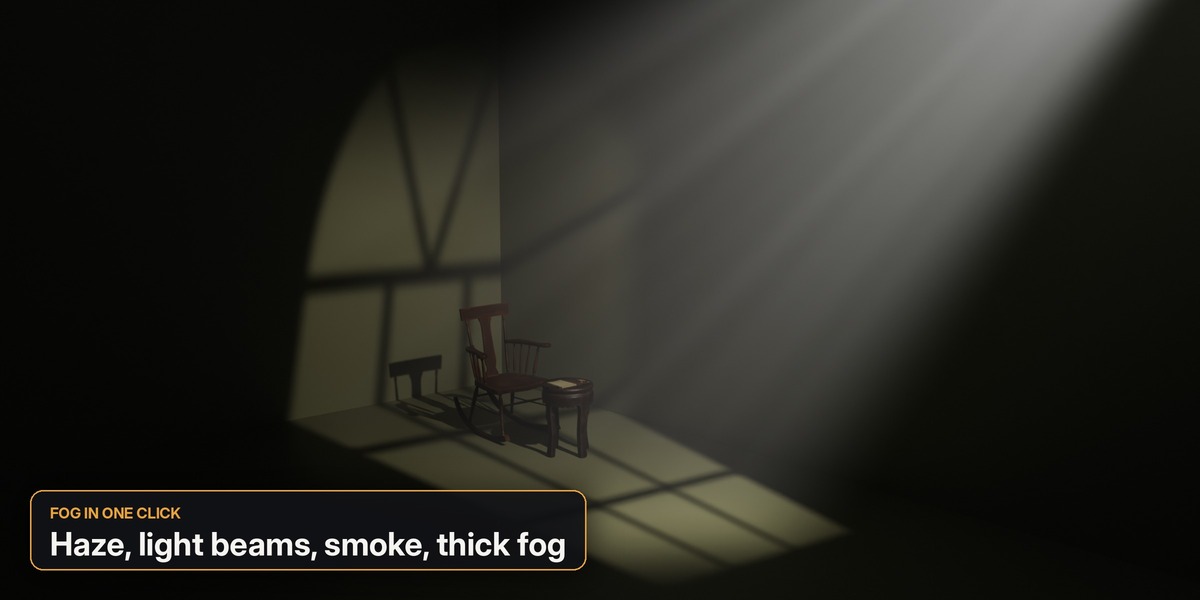
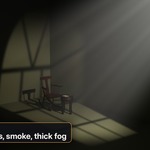
- Fog in one click: Light Haze, Light Beams, Smoky Room, Thick Fog, plus density, colour, beams, glow and dust.
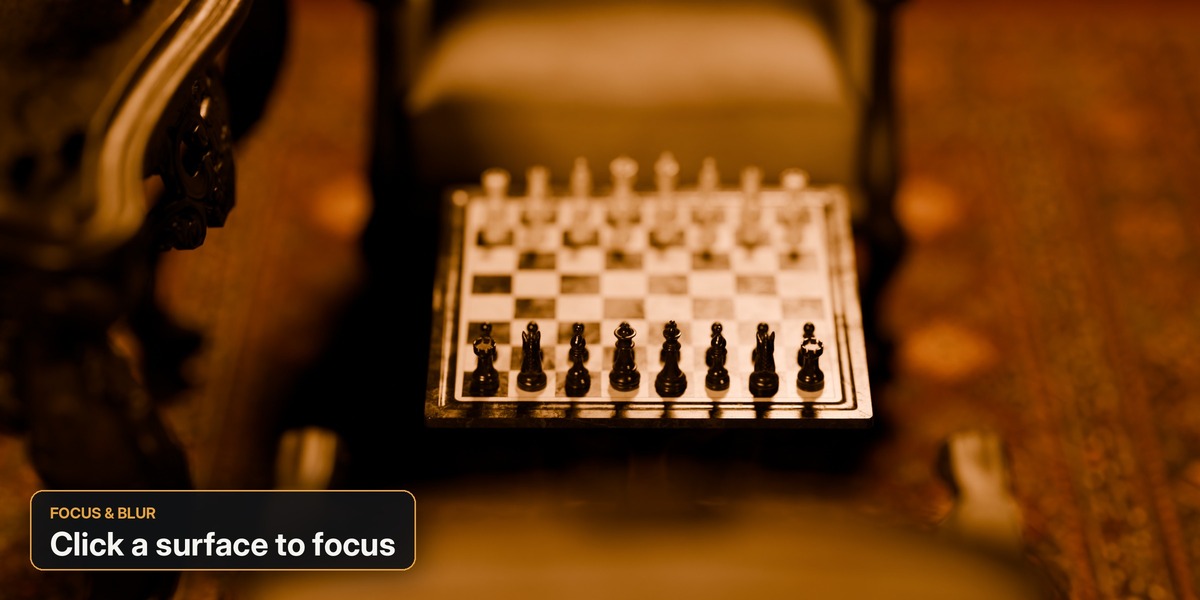
- Camera tools: Focus on Selected, Click Surface focus, a simple Blur slider, 8 lens presets, bokeh shape and an exposure triangle (ISO / Shutter / Aperture).
- Director Mode: live auto-focus with smoothing, Exposure Lock, F-Stop Sync, and Bake Focus to Keyframes for safe final renders.
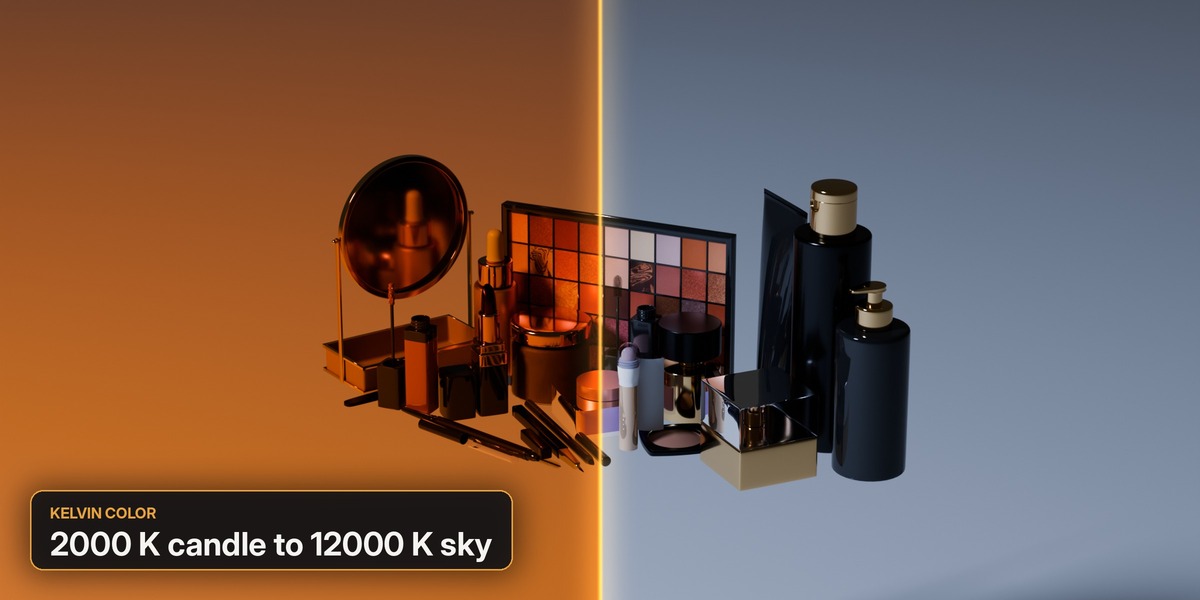
- Light tools: scene light list with Solo, Click to Place, Gobo Light, 3-Light Studio Rig, Kelvin colour, Track Target and one-click Light Linking.
- Output tools: Cinematic Color Grade (AgX), platform sizes (YouTube 16:9, Instagram 4:5 and 1:1, TikTok / Reels 9:16), Fast Viewport, Light Mixer, Preset Timeline, JSON save / load, Scene Overview and Safe Purge.
- Floating HUD (Ctrl + Right-click) and Quick Actions pie menu (Alt + Q).
- Your own asset library: LUMINA keeps gobos, IES profiles and HDRIs in a folder you choose (see below), so they survive add-on updates. Add your own files any time.
What's in each licence
Every licence includes the full add-on and the same 10 studio HDRIs. The gobo and IES library grows with the licence:
- Personal (1 person): 10 gobos (9 picture + 1 animated) and 10 IES profiles.
- Team (2-5 people): 50 gobos (45 picture + 5 animated) and 50 IES profiles.
- Studio (6-20 people): the whole library: 441 gobos (300 picture + 141 animated) and 300 IES profiles.
Install Asset Pack in the Library tab adds each pack zip in one click.
Your asset folder (asked once, on first use)
The first time you open LUMINA, the panel shows only one button: Choose Asset Folder. You have to pick a folder before anything else, and that's on purpose:
- Your gobos, IES profiles and HDRIs live outside the add-on, so updating or uninstalling LUMINA never deletes them.
- The library can get big (animated gobos and HDRIs take a lot of space), so you decide which drive it goes on.
- One folder holds everything (LUMINA_Assets with gobos / ies / hdri inside), and you can add your own files there.
LUMINA asks only once and remembers the folder. You can change it later in the Library tab.
Quick start (5 minutes)
- Choose your asset folder (first use only) and install the included asset packs (the HDRI pack and your gobo / IES pack, one zip at a time): Library tab > Library Setup > Install Asset Pack (.zip).
- Select your object.
- Click LUMINA AutoStage at the top of the panel.
- Look tab > click a Cinematic Mood, for example Golden Hour.
- Look tab > Brightness > adjust Exposure (EV).
- Camera tab > Focus on Selected, then raise Blur.
- Library tab > click Use Cycles if shown > click a gobo in the Gobo Gallery.
- Optional: Look tab > Fog (Atmosphere) > Light Beams.
- Press F12.
Full documentation (Installation, Quick Start, Button Guide, License, Changelog) is included as PDFs in the download.
Good to know
- Gobos and IES profiles show in Cycles only. EEVEE doesn't display light textures. LUMINA shows a "Use Cycles" button whenever it matters.
- Picture gobos project sharply from Spot lights only.
- A light can have a gobo or an IES profile, not both. Clicking the other one makes a new light for it.
- Fog adds render time in Cycles. "Dust" looks richer but renders several times slower.
- Director Mode's live focus is for working in the viewport. Use Bake Focus to Keyframes before final animation renders.
- Animated gobos play on the timeline: press Space or render an animation to see them move.
- No licence keys, no online activation, no internet connection needed.