M42 Open Asset Explorer – Poly Haven, ambientCG & CC0 Assets in Your Asset Browser
 Mission42
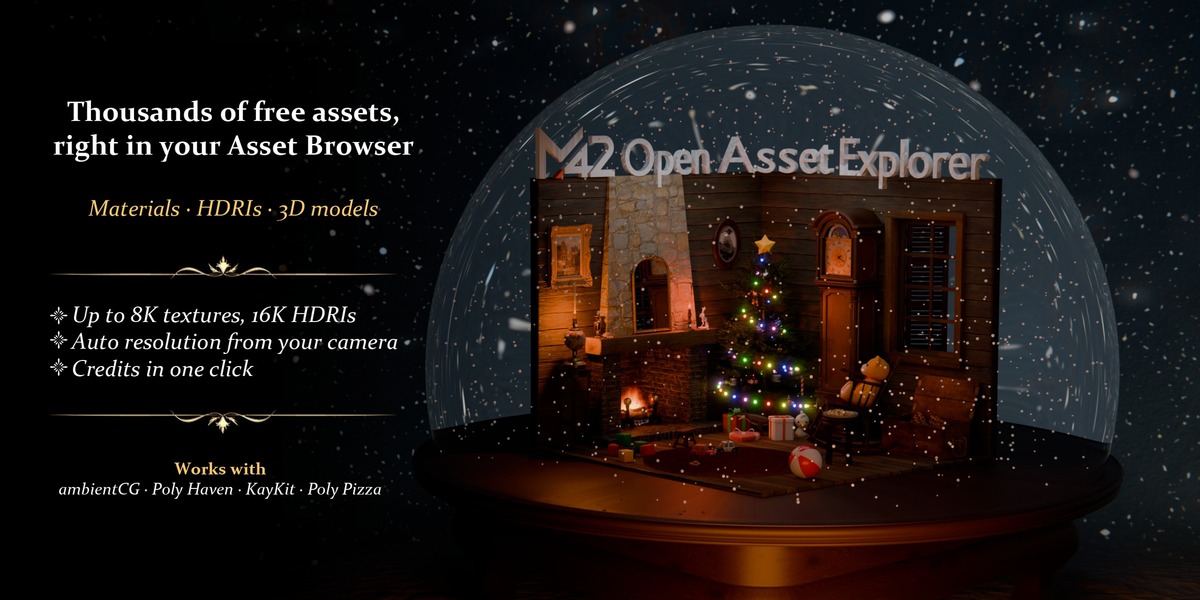
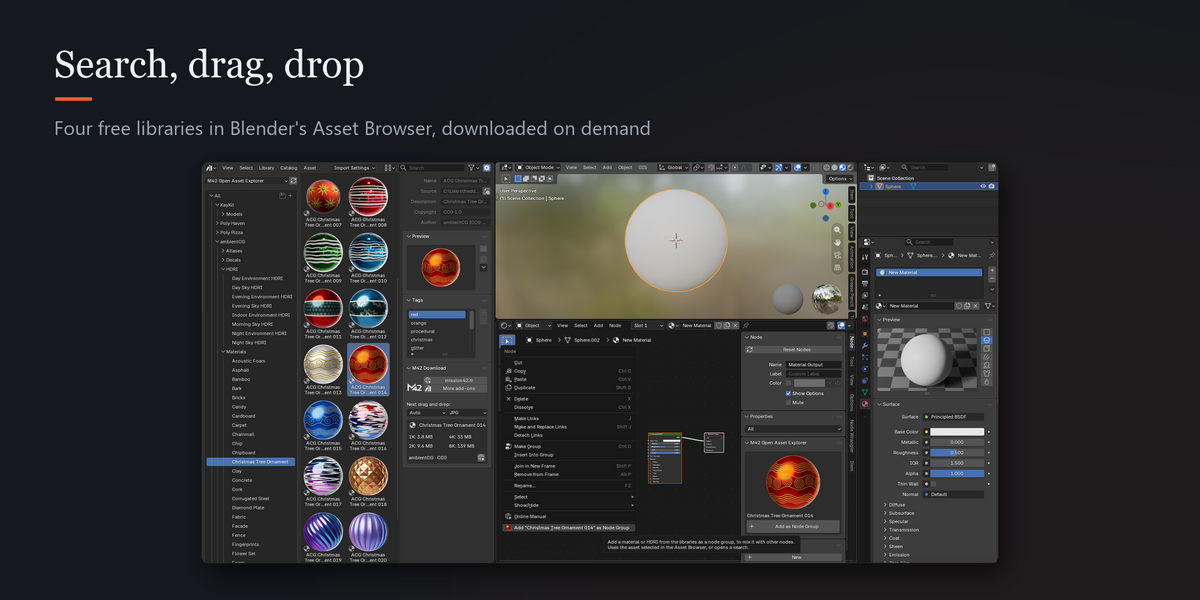
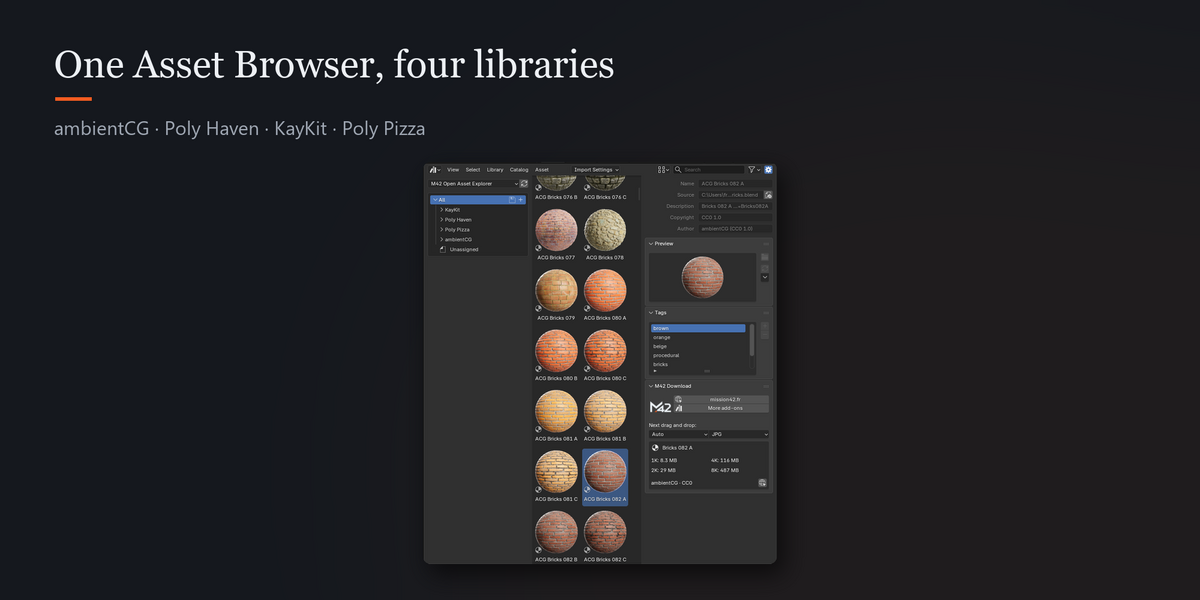
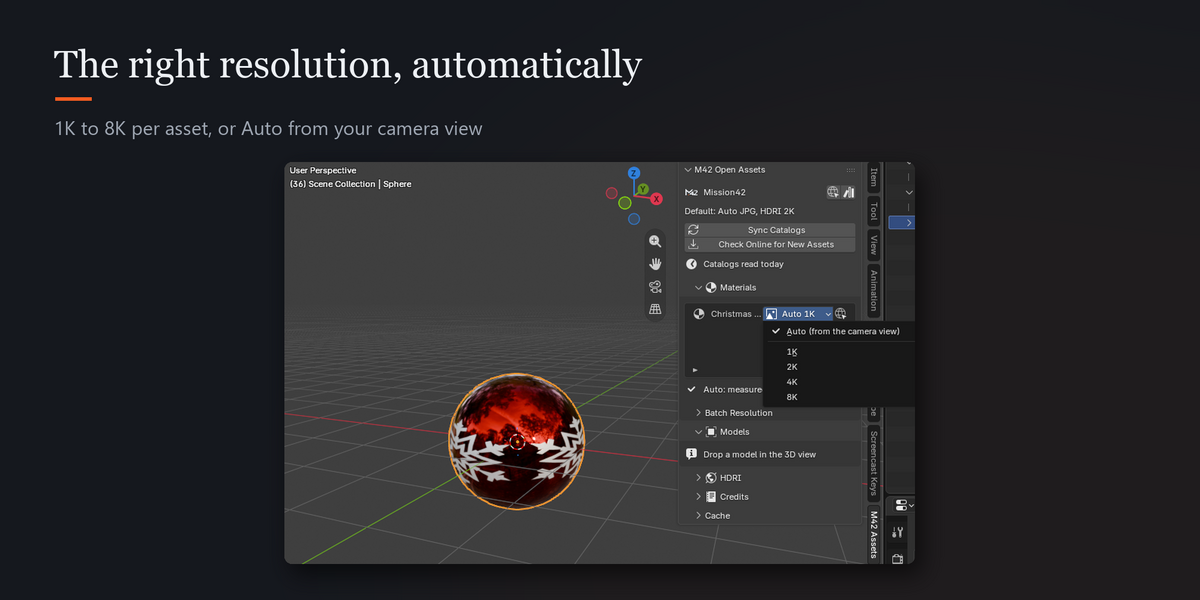
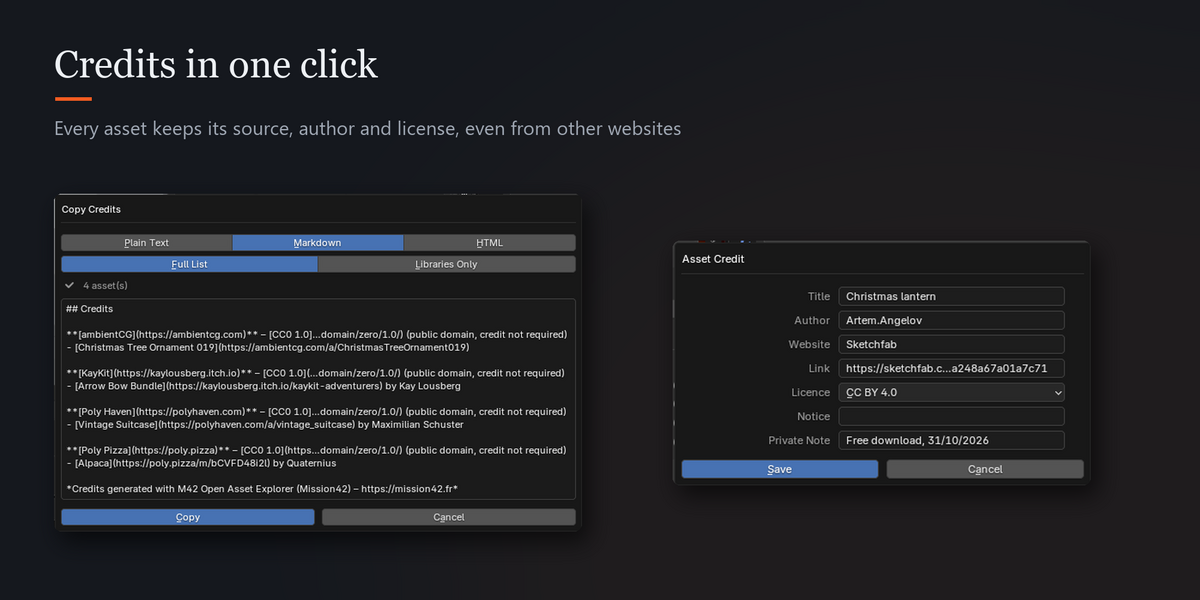
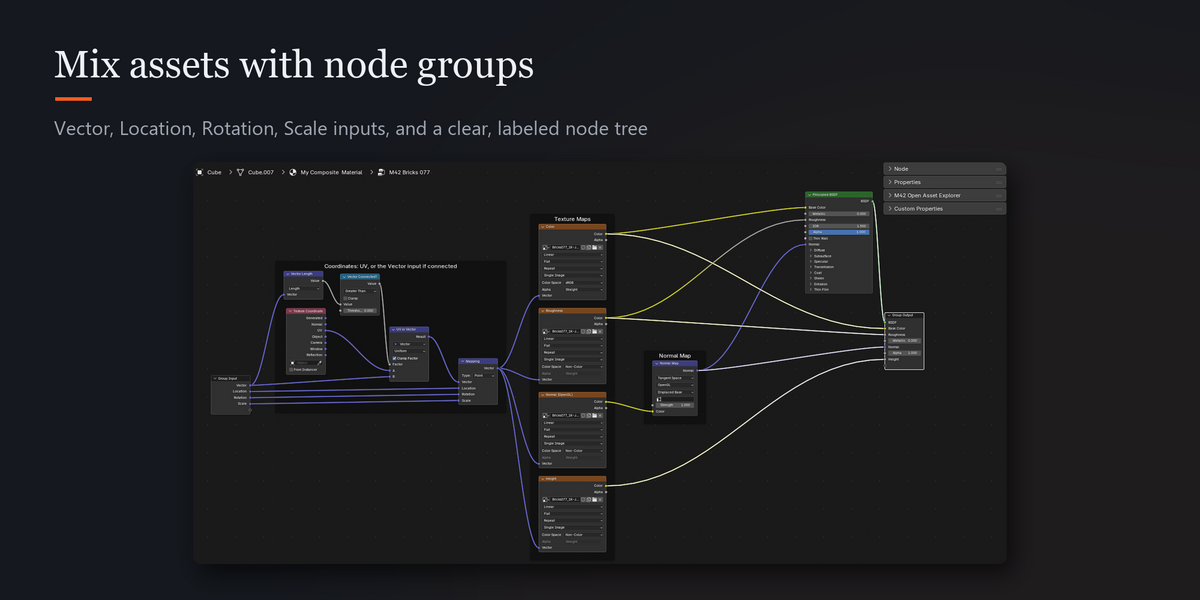
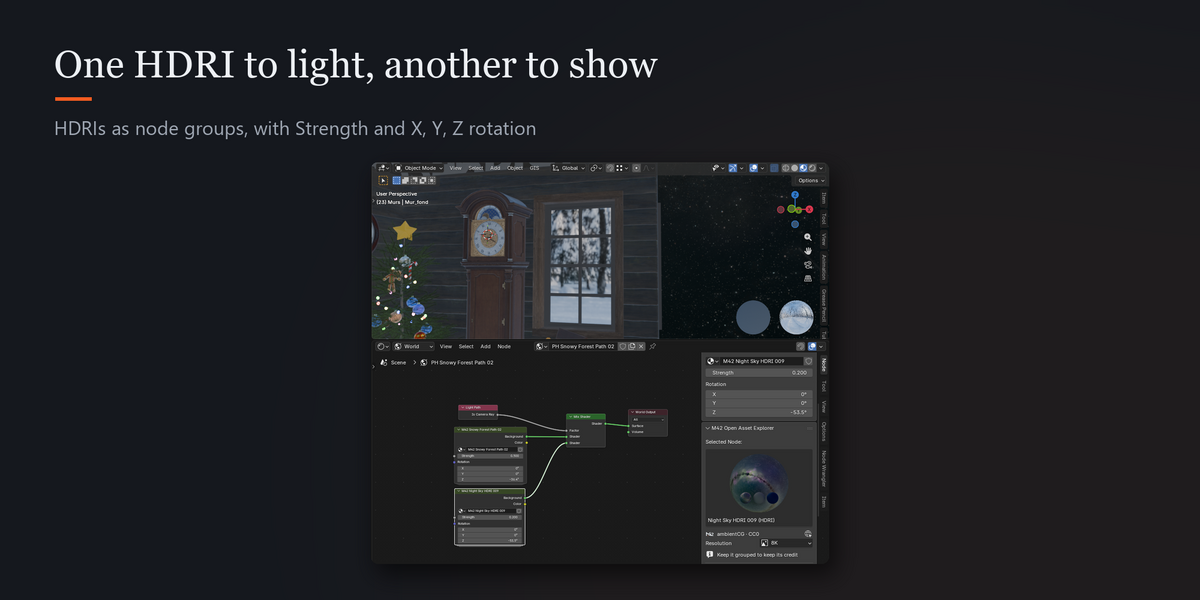

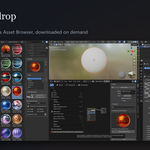
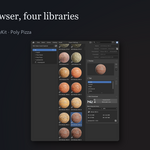
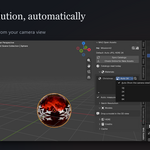
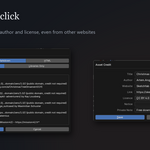
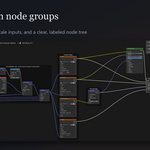
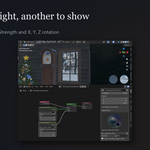
The download includes the extension zip and a 38-page user guide (PDF) covering installation, every panel and setting, the four libraries, Auto resolution, credits, node groups and troubleshooting.
Installation
- Download m42_open_assets-1.2.16.zip. Do not unzip it.
- In Blender 5.0 or newer, open Edit > Preferences > Get Extensions, click the arrow at the top right and choose Install from Disk…, then select the zip.
- Open Preferences > System > Network and tick Allow Online Access: the add-on needs it to read the catalogs and download assets.
- In the 3D View, press N, open the M42 Assets tab and click Sync Catalogs. The first sync takes a few minutes.
- Optional: paste your own free Poly Pizza API key in the add-on preferences to add Poly Pizza models.
Quick start
- Open an Asset Browser and choose the M42 Open Asset Explorer library.
- Search by name, tag or color (for example brick, christmas, red).
- Drag a material onto an object, an HDRI into empty space, or a model into the 3D View.
- Change the resolution in M42 Assets > Materials (1K to 8K, or Auto).
- Copy the credits in M42 Assets > Credits.
To update, install the new zip the same way, or use the Superhive extension repository: your settings, library and cache are kept.
Support: write through your Superhive account or mission42.fr/#contact, with your Blender version, the add-on version and the [m42_open_assets] lines of the system console.
Have questions about this product?
Login to message
| Blender Extension Compatible | Yes |
| Published | about 5 hours ago |
| Blender Version | 5.0 - 5.2 |
| Extension Type | Add-on |
| Render Engine Used | Cycles, Eevee |
| License | GPL |
Discover more products like this
node groups PBR cc0 hdri asset-browser poly pizza credits poly haven textures ambientcg kaykit materials