Magic Menu
 Boriss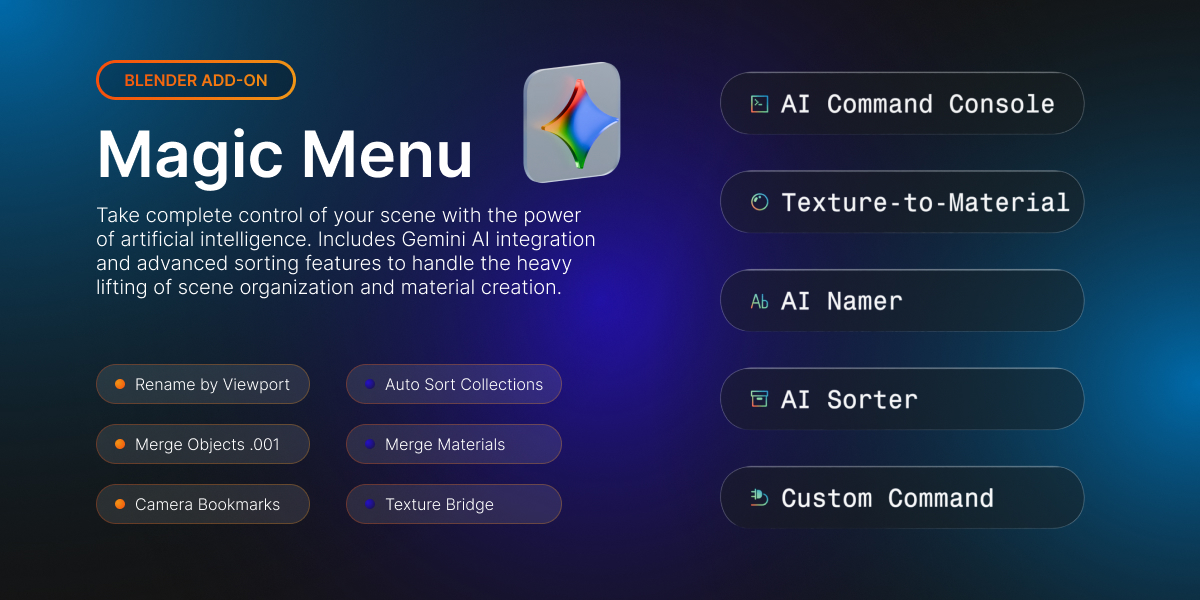


Magic Menu — Full Documentation v1.4.0, Superhive edition
One hotkey. Every power tool. Press ` (accent grave, configurable) in the 3D View and get a Shift+A-style menu with object, material, scene and AI tools. This edition ships fully unlocked — there is no password and nothing to activate. The AI tools only require your own (free) Google Gemini API key.
Compatible with Blender 3.6 LTS through 5.0 on Windows, macOS and Linux.
IMPORTANT DISCLOSURES — read before using the AI tools
- A Google Gemini API key is required for the AI tools (AI Command Console, Texture-to-Material, Smart Namer, Smart Sorter). All other tools work completely offline.
- Your prompts and limited Blender scene information are sent to Google (the Gemini API) when you run an AI tool. This includes the text you type and a short scene summary: object names, types, counts, dimensions, material names and modifier types. Your .blend file, textures, file paths and geometry data are never uploaded.
- API usage may involve separate costs. Google offers a free tier, but depending on the model you select and your usage volume, Google may bill you directly. Check your quota and billing at aistudio.google.com.
- Your API key is stored inside Blender's add-on preferences on your computer (in Blender's user configuration files). It is only ever sent to Google's API endpoint, over HTTPS, when you run an AI tool. Treat the key like a password and don't share your Blender config folder.
- AI-generated results may be incorrect or destructive. The AI writes Python code; even after your review it can behave in unexpected ways. Always save your work before running AI-generated code.
- Some cleanup and data-management tools permanently alter or remove data (Orphan Purger Pro, Auto-Cleanup, Instance Converter, Merge tools). They are undoable within the session (Ctrl+Z), but removed data cannot be recovered after saving and closing the file. Save a copy first.
The AI security model — nothing runs without your approval
This add-on never executes AI-generated code automatically. Every piece of Python that the AI (or you, via Custom Command) provides goes through the same review gate:
-
You see the complete code. It is written to a Text datablock called
MagicMenu_AI_Review(opened in your Text Editor if one is visible) and previewed line-by-line in the review dialog. - You are warned about the risks. The dialog states clearly that the code comes from an external AI service and runs with full Blender/Python access to your scene, files, network and system.
- You must give separate, explicit confirmation. The dialog contains a checkbox — "I have reviewed the code above and want to run it" — that is off by default and never remembered between runs. If you press OK without ticking it, nothing is executed and the operation is cancelled.
-
Everything is logged. Both pending and confirmed-and-executed code is appended to the
MagicMenu_AI_Logtext block, so you can always audit what ran in your file.
Tools that never execute code at all:
- Smart Namer (AI) and Smart Sorter (AI) only parse a plain-text answer from the AI (a list of names / collection paths). No Python from the AI is ever executed by these tools, and both are fully undoable.
If the confirmed code fails halfway, the error is reported, and for Texture-to-Material any partially created material is removed automatically.
Installation
- In Blender open Edit ▸ Preferences ▸ Add-ons ▸ Install…
- Pick the downloaded zip and enable Magic Menu.
- Press ` (the key left of 1) in the 3D View — the Magic Menu opens.
To change the hotkey or add per-tool hotkeys, see Preferences.
Menu overview
Magic Menu (`)├── Objects│ ├── Rename by Viewport│ ├── Auto Sort Collections│ ├── Merge Objects .001│ └── Apply Rot / Scale (Multi-User Fix)├── Materials│ ├── Merge Materials .001│ ├── Isolation Ghosting│ ├── Camera Bookmarks (1–5)│ ├── Texture Bridge│ └── Auto-Cleanup [destructive — confirm dialog]├── Scene Tools│ ├── Orphan Purger Pro [destructive — confirm dialog]│ ├── Instance Converter [replaces data — confirm dialog]│ ├── Physics Settle│ ├── Randomize Transform Plus│ ├── Auto UV (Seams + Smart Project)│ ├── Focus Zoom│ └── Blend Objects ▸ (4 modes)└── AI Tools [need your Gemini API key] ├── AI Command Console [code review + confirm] ├── Texture-to-Material (AI) [code review + confirm] ├── Smart Namer (AI) [no code execution] ├── Smart Sorter (AI) [no code execution] └── Custom Command [code review + confirm]Every tool with parameters shows a live Adjust Last Operation panel in the bottom-left corner of the viewport after running, so you can tweak the result without re-running the tool.
Objects
Rename by Viewport
Renames all objects visible in the viewport with clean, size-aware names: meshes under 2 000 faces become Small_Mesh_1, regular meshes Mesh_1, meshes over 20 000 faces Large_Mesh_1; lights become Light_1, cameras Camera_1, and so on. Linked (library) objects are skipped so external assets are never touched.
Options: small/large face thresholds, rename object data too, selected only.
Auto Sort Collections
Sorts objects into a tidy Sorted collection tree by object type and mesh size (Meshes/Small, Meshes/Large, Lights, Cameras, Curves, …).
Options: sort mode (type / type+size), selected only.
Merge Objects .001
Finds numbered duplicates (plane, plane.001, plane.002, …) and joins each family into a single object with the base name. Object mode only.
Options: apply modifiers before join, selected only.
Apply Rot / Scale (Multi-User Fix)
Applies rotation and scale to the selection like Ctrl+A, but first makes any shared (multi-user) meshes single-user (obj.data.copy()), so you never get the classic "Cannot apply to a multi user" error.
Options: rotation, scale, location toggles.
Materials
Merge Materials .001
Merges numbered duplicate materials (metal.001, metal.002 → metal). Every slot that used a duplicate is remapped to the base material and the duplicates are deleted. Note: this permanently removes the duplicate material data-blocks (undoable in-session).
Options: remove duplicates toggle.
Isolation Ghosting
Smarter Local View: hides nothing. Everything except your selection turns into a non-selectable wireframe "ghost", so you keep spatial context while working. Run again to restore every object's original display settings.
Camera Bookmarks (1–5)
Save up to five viewport angles (position, rotation, zoom) and jump between them instantly — without creating camera objects. Bookmarks are stored in the scene, so they survive saving/reloading.
Texture Bridge
Lists every image used by the active object's active material slot (falls back to other slots if the active one has no images) and lets you open the folder of any image on disk.
Auto-Cleanup — destructive, shows a confirmation dialog
One-click hygiene: merges duplicate .00x materials, removes unused images, light data, curve data and orphan .00x meshes, and finishes with a recursive orphan purge. A confirmation dialog with a clear warning opens first; each category can be toggled off.
Warning: removed data-blocks are recoverable only with Undo during the session. Save your file (or a copy) first.
Scene Tools
Orphan Purger Pro — destructive, shows a confirmation dialog
A deeper clean than Blender's built-in purge: it can also strip the fake-user flag from data-blocks that have no real users (a common source of file bloat), then recursively purges all orphans. The confirmation dialog lists exactly which data categories will be affected (materials, images, meshes, node groups, legacy textures, worlds, actions) — actions and worlds are off by default because unlinked animations/worlds are often kept on purpose.
Warning: purged data-blocks are gone from the file; only Undo can bring them back during the session. Save first.
Instance Converter — replaces object data, shows a confirmation dialog
Finds meshes with identical geometry and links them to one shared data-block (like Alt+D instances) to cut memory and file size. Because editing one instance then edits all of them, a confirmation dialog explains the change before anything happens.
Options: exact vertex-hash matching (safe) vs. count matching (fast), require matching materials, selected only.
Physics Settle
Drops the selected objects naturally onto the active object using a short rigid-body simulation: select movable objects, select the surface last (active), run. Transforms are applied and all temporary rigid bodies are removed afterwards. A raycast mode is available for a fast, straight drop.
Options: simulation frames, raycast/simulation mode.
Randomize Transform Plus
Randomizes location / rotation / scale of the selection with full control in the Adjust Last Operation panel: per-axis rotation limits, min/max scale, uniform scale toggle, location offset and a seed for reproducible results.
Auto UV (Seams + Smart Project)
Marks seams on edges sharper than the angle threshold (default 60°), then runs Smart UV Project with tuned island margins.
Options: seam angle, island margin, apply to selected meshes.
Focus Zoom
Frames the current selection in the 3D View correctly even when triggered from a menu (passes the real window region into view_selected).
Blend Objects (4 modes)
Blends intersecting objects. Pick a mode from the submenu:
All modes check that the objects actually intersect first and cancel safely if they don't. Fillet width, segments, voxel size, smoothing and shading options are all in the redo panel.
AI Tools
All AI tools require your own Google Gemini API key (setup below) and an internet connection. Everything else in the add-on works offline.
What is sent to Google: your typed prompt/description plus a short scene summary (object names, types, counts, dimensions, material names, modifier types). Never sent: your .blend file, geometry, textures, file paths or anything else on disk.
AI Command Console — code review + confirmation required
Type what you want in plain language — "scatter the selected rocks randomly on the ground plane" — and Gemini writes the Blender Python for it. The code is not executed. Instead you get the review dialog: the complete code (also placed in the MagicMenu_AI_Review text block), a security warning, and a confirmation checkbox. Only after you tick the box and press OK does the code run. Everything is logged to MagicMenu_AI_Log.
Texture-to-Material (AI) — code review + confirmation required
Describe a material — "rusty sci-fi metal with scratches and worn edges" — and Gemini writes node-tree code for a fully procedural material (no image files). The same review dialog gates execution. If the confirmed code fails, any half-built material is cleaned up automatically. The prompts include a version-specific Blender API cheat sheet, so the generated node code targets your exact Blender version.
Smart Namer (AI) — no code execution
Sends shape statistics of the selected meshes (vertex/face counts, dimensions, proportions, material names) to Gemini and gets professional asset names back (SM_Industrial_Pipe_01 style). The answer is parsed as plain text — no AI code ever runs. Fully undoable.
Options: prefix convention, rename mesh data too.
Smart Sorter (AI) — no code execution
Gemini analyzes every object (name, type, size, materials) and sorts the scene into a logical collection hierarchy (Props/Furniture, Environment/Rocks, Lighting, …) under a root collection you choose. Objects are only moved between collections — fully undoable.
Options: root collection name, extra instructions ("group by room"), max tree depth, selected only.
Custom Command — code review + confirmation required
Runs a personal Python snippet you saved in the add-on preferences — but like the AI tools, it always shows the snippet in the review dialog with a warning and requires the confirmation checkbox first. Useful for one-click personal macros with a safety net.
Preferences
Edit ▸ Preferences ▸ Add-ons ▸ Magic Menu
- Menu Hotkey — the key (plus Ctrl/Shift/Alt) that opens the menu. Default: ` (accent grave). Changes apply instantly.
- Tool Hotkeys — press + to bind any of the 21 tools to its own shortcut with modifier toggles. Remove with X.
- AI Tools (Google Gemini) — API key field, model dropdown, custom model override, plus the full privacy/safety disclosure text and an acknowledgement checkbox.
- Custom Command — your personal Python snippet for the Custom Command tool (reviewed and confirmed on every run).
Getting a Gemini API key (step by step)
- Go to aistudio.google.com/apikey and sign in with a Google account.
- Click Create API key and copy the generated key (
AIza…). - In Blender, open the add-on preferences and paste it into Gemini API Key. The field is masked like a password.
- Choose a Model:
- Gemini 3.5 Flash — recommended balance of quality/speed/cost.
- Gemini 3.1 Flash-Lite — cheapest for heavy use.
- Gemini 3 Flash (Preview) — free-tier preview.
- Gemini 3.1 Pro (Preview) — best reasoning, paid tier.
- Or type any future model ID into Custom Model ID to override the dropdown.
- Read the disclosure box and tick the acknowledgement checkbox.
Where the key lives: in Blender's add-on preferences, saved with your Blender user configuration on this computer. It is sent only to generativelanguage.googleapis.com over HTTPS when an AI tool runs. The add-on makes no other network connections of its own.
API troubleshooting
Safety summary — what can alter or remove data
Golden rule: save your file (or a copy) before running any cleanup or AI tool. Undo (Ctrl+Z) covers you during the session, but not after you save and close.
Product page disclosure text (for the store listing)
AI features require a Google Gemini API key (free tier available at aistudio.google.com). When you use an AI tool, your prompt and a short summary of your scene (object names, types, counts, sizes, material names) are sent to Google's Gemini API. API usage may involve separate costs billed by Google. The key is stored in Blender's add-on preferences on your computer. AI-generated code is never executed automatically: the complete code is shown to you with a security warning and runs only after you tick an explicit confirmation checkbox. AI results may be incorrect or destructive — save your work first. Some cleanup and data-management tools (Orphan Purger Pro, Auto-Cleanup, Instance Converter) permanently alter or remove data and always ask for confirmation before running.
Technical notes
- Pure Python, standard library only — no external dependencies, nothing to install besides the add-on itself.
- Single network endpoint:
generativelanguage.googleapis.com(Gemini), contacted only when you run an AI tool. No telemetry, no update checks. - Tested headless on Blender 3.6.9, 4.5.1 LTS and 5.0.1 (13-test suite covering registration, the confirmation gate, destructive-tool dialogs and core tool behavior).
- Version-aware code paths for smooth shading (
use_auto_smoothvsshade_smooth_by_angle), Mix nodes (ShaderNodeMixRGBvsShaderNodeMix) and other 3.6 ↔ 5.0 API differences.
 Included
Includes 12 months of
- Support from Boriss
- Product updates
Extend this product’s Support Period +12 months: 100% of product price
Have questions before purchasing?
Login to message
| Published | about 2 months ago |
| Blender Version | 3.6 - 5.2 |
| Extension Type | N/A |
| Render Engine Used | Blender-Internal, Blender-Game-Engine, Cycles, Eevee, Octane, Vray |
| License | GPL |
Discover more products like this
automatic collection sorting tool Randomizer 3D asset renaming 3D AI tool blender Auto Merge Mapping procedural texture generator asset cleanup instance-cleanup